From SimplyBook.me
Marked this version for translation |
No edit summary |
||
| Line 26: | Line 26: | ||
;How to use | ;How to use | ||
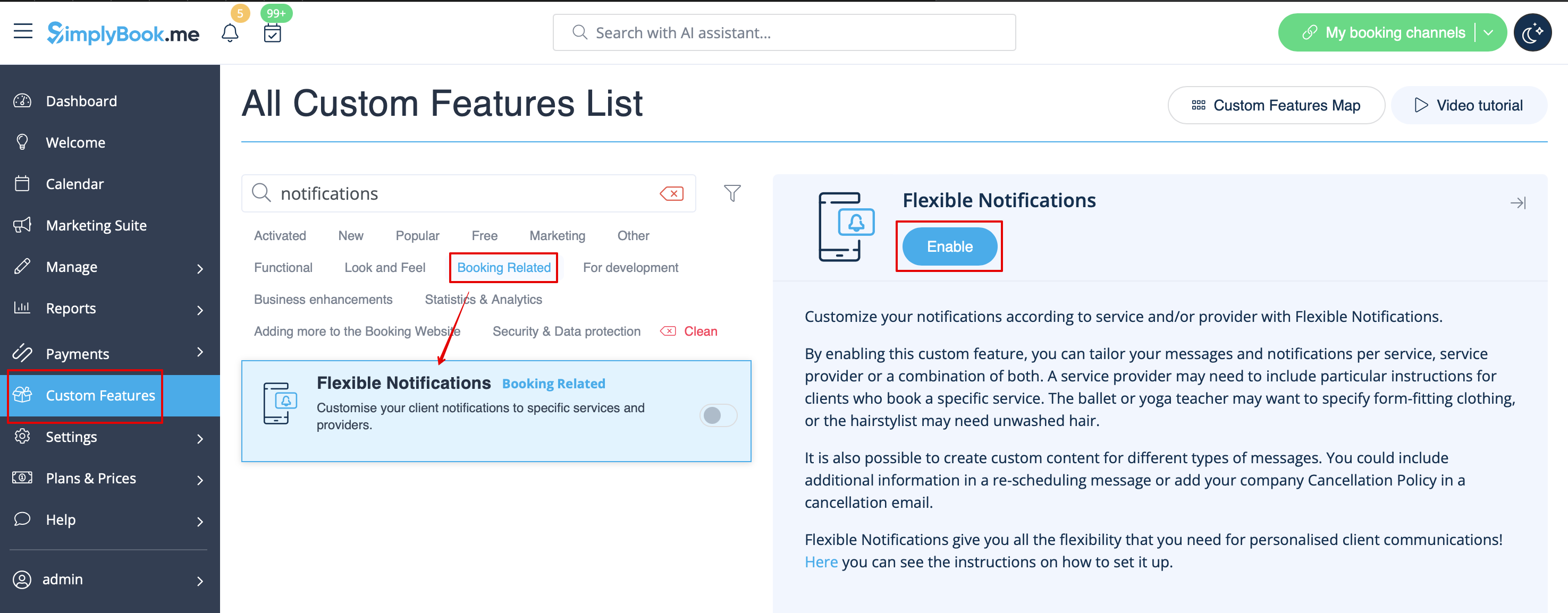
:1. Go to Custom Features//Booking related section, find Flexible Notifications Custom Feature and press "Enable". | :1. Go to Custom Features//Booking related section, find Flexible Notifications Custom Feature and press "Enable". | ||
[[File:Flexible | [[File:Flexible notofocations enable path.png|1200px | center|link=https://help.simplybook.me/images/6/63/Flexible_notofocations_enable_path.png]] | ||
<br><br> | <br><br> | ||
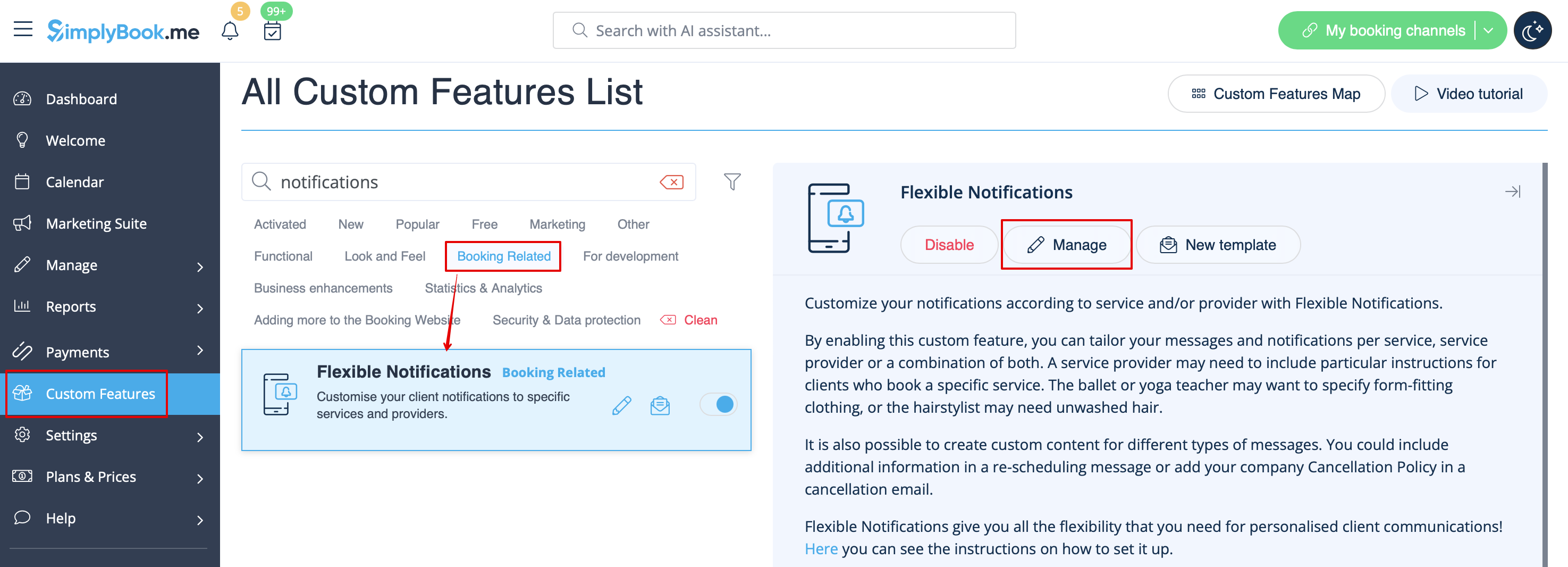
:2. Click on "Manage" near this feature. | :2. Click on "Manage" near this feature. | ||
[[File:Flexible notifications | [[File:Flexible notifications settings path redesigned.png|1200px| center|link=https://help.simplybook.me/images/a/a8/Flexible_notifications_settings_path_redesigned.png]] | ||
<br><br> | <br><br> | ||
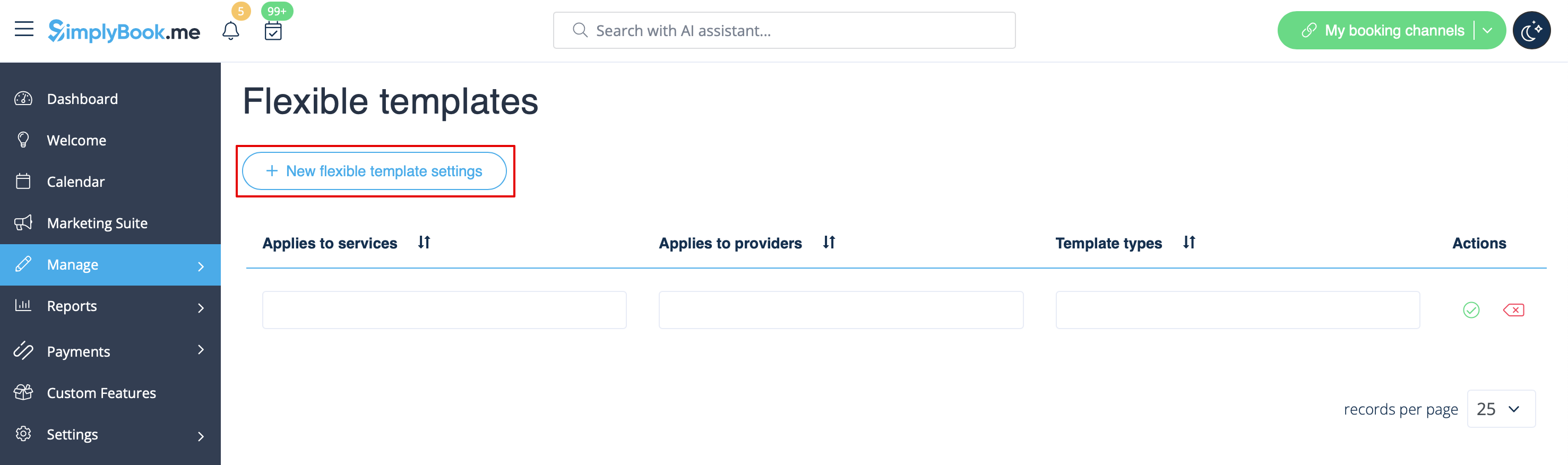
:3. On the page you see press "New flexible template settings". | :3. On the page you see press "New flexible template settings". | ||
[[File: | [[File:New flexible template settings path redesigned.png|1200px| center|link=https://help.simplybook.me/images/8/87/New_flexible_template_settings_path_redesigned.png]] | ||
<br><br> | <br><br> | ||
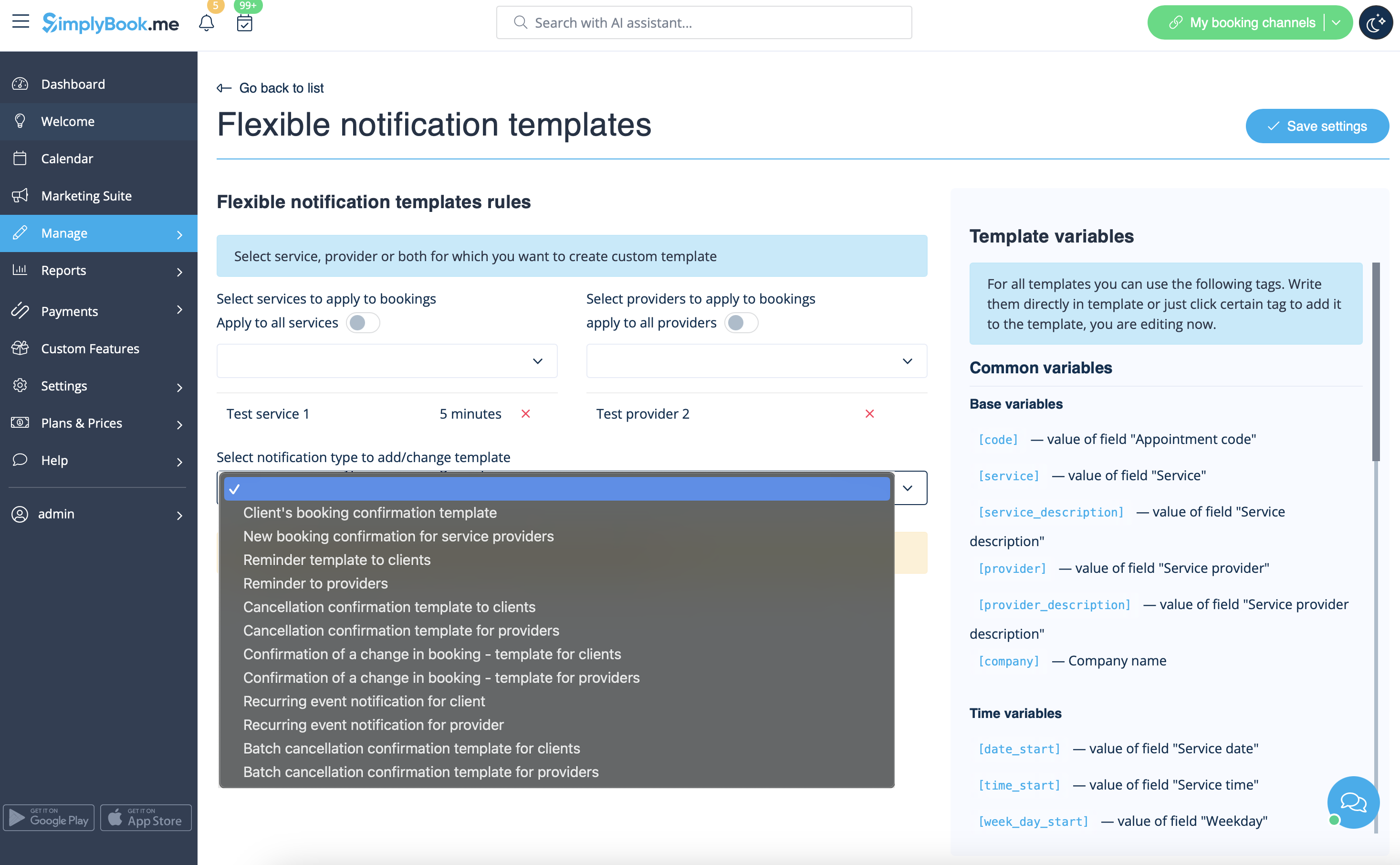
:4. In the new template select services and/or select providers that the customized templates will be applied to. Then select the notification type to add/change template and edit the text. Please use variables on the right to include to your templates if necessary. | :4. In the new template select services and/or select providers that the customized templates will be applied to. Then select the notification type to add/change template and edit the text. Please use variables on the right to include to your templates if necessary. | ||
[[File:Flexible | [[File:Flexible notifications templates list redesigned.png|1200px | center|link=https://help.simplybook.me/images/b/b2/Flexible_notifications_templates_list_redesigned.png]] | ||
<br><br> | <br><br> | ||
</translate> | </translate> | ||
Revision as of 13:27, 5 September 2024

The Flexible Notifications Custom Feature allows you to customize messages per service, per provider or using a combination of services and providers. It means that certain service can have a message different from the general outgoing reminder message for other services. A certain provider may also want to include different instructions for clients who book a certain service. The Flexible Notifications Custom Feature gives you all the flexibility that you may need in such instances!
Please note! This custom feature is available with paid subscriptions only.
- How to use
- 1. Go to Custom Features//Booking related section, find Flexible Notifications Custom Feature and press "Enable".
- 2. Click on "Manage" near this feature.
- 3. On the page you see press "New flexible template settings".
- 4. In the new template select services and/or select providers that the customized templates will be applied to. Then select the notification type to add/change template and edit the text. Please use variables on the right to include to your templates if necessary.