From SimplyBook.me
No edit summary |
No edit summary |
||
| Line 16: | Line 16: | ||
;How to use | ;How to use | ||
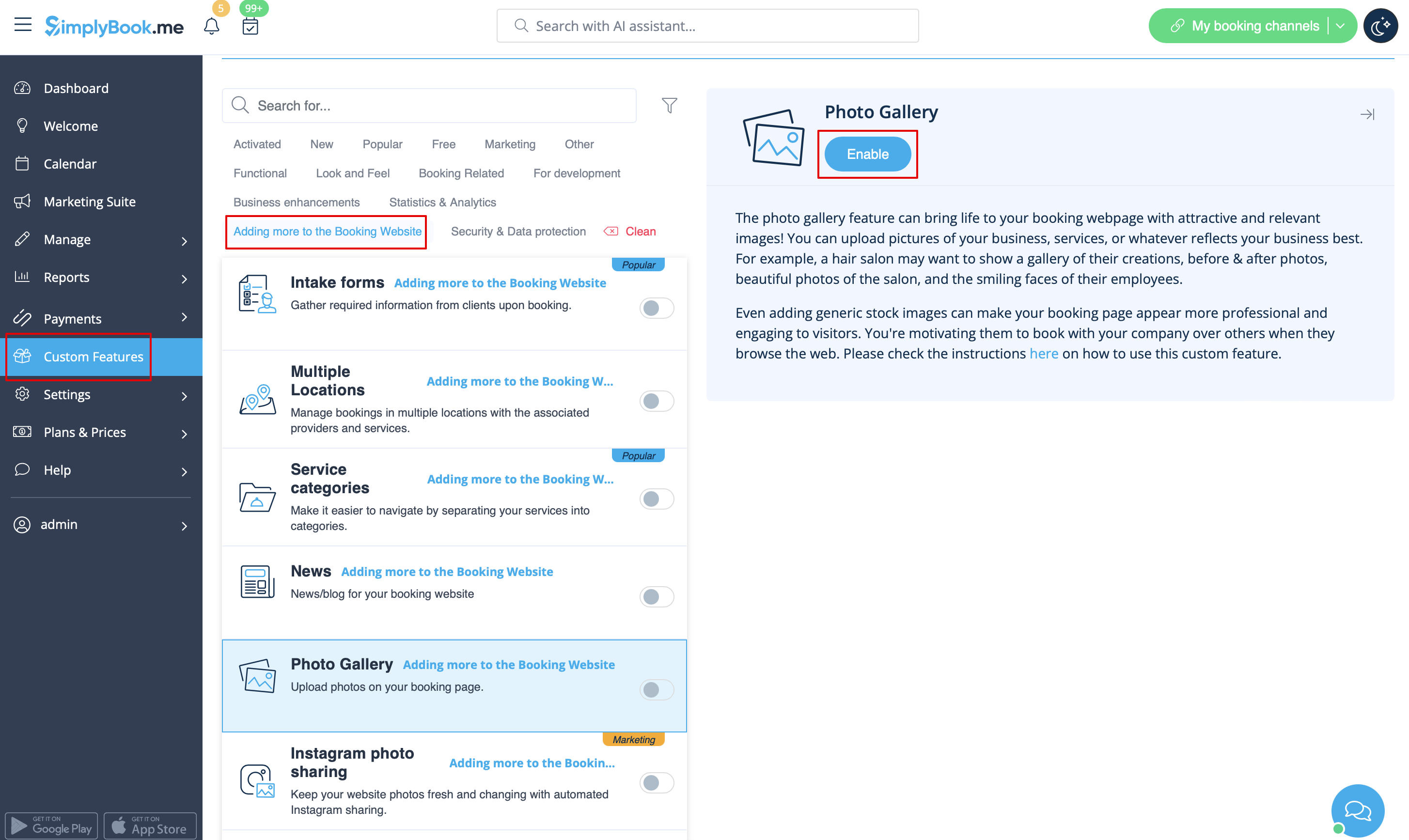
:1. Enable Photo gallery option on your Custom Features page. | :1. Enable Photo gallery option on your Custom Features page. | ||
[[File:Photo gallery enable path | [[File:Photo gallery enable path redesigned.png|1200px| center|link=https://help.simplybook.me/images/7/79/Photo_gallery_enable_path_redesigned.png]] | ||
<br><br> | <br><br> | ||
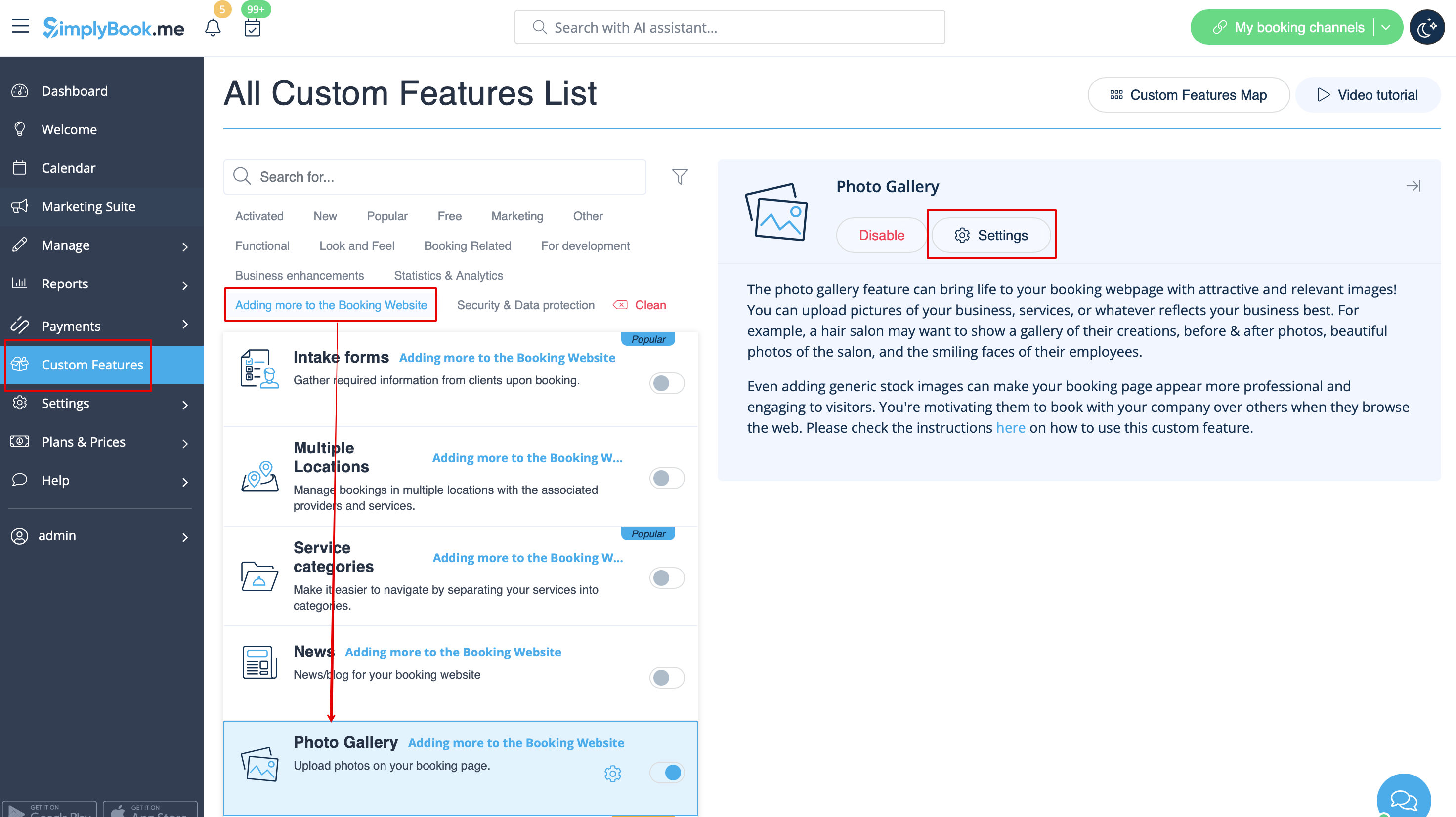
:2. Click on "Settings" near it. | :2. Click on "Settings" near it. | ||
[[File:Photo gallery settings path | [[File:Photo gallery settings path redesigned.png|1200px| center|link=https://help.simplybook.me/images/1/1f/Photo_gallery_settings_path_redesigned.png]] | ||
<br><br> | <br><br> | ||
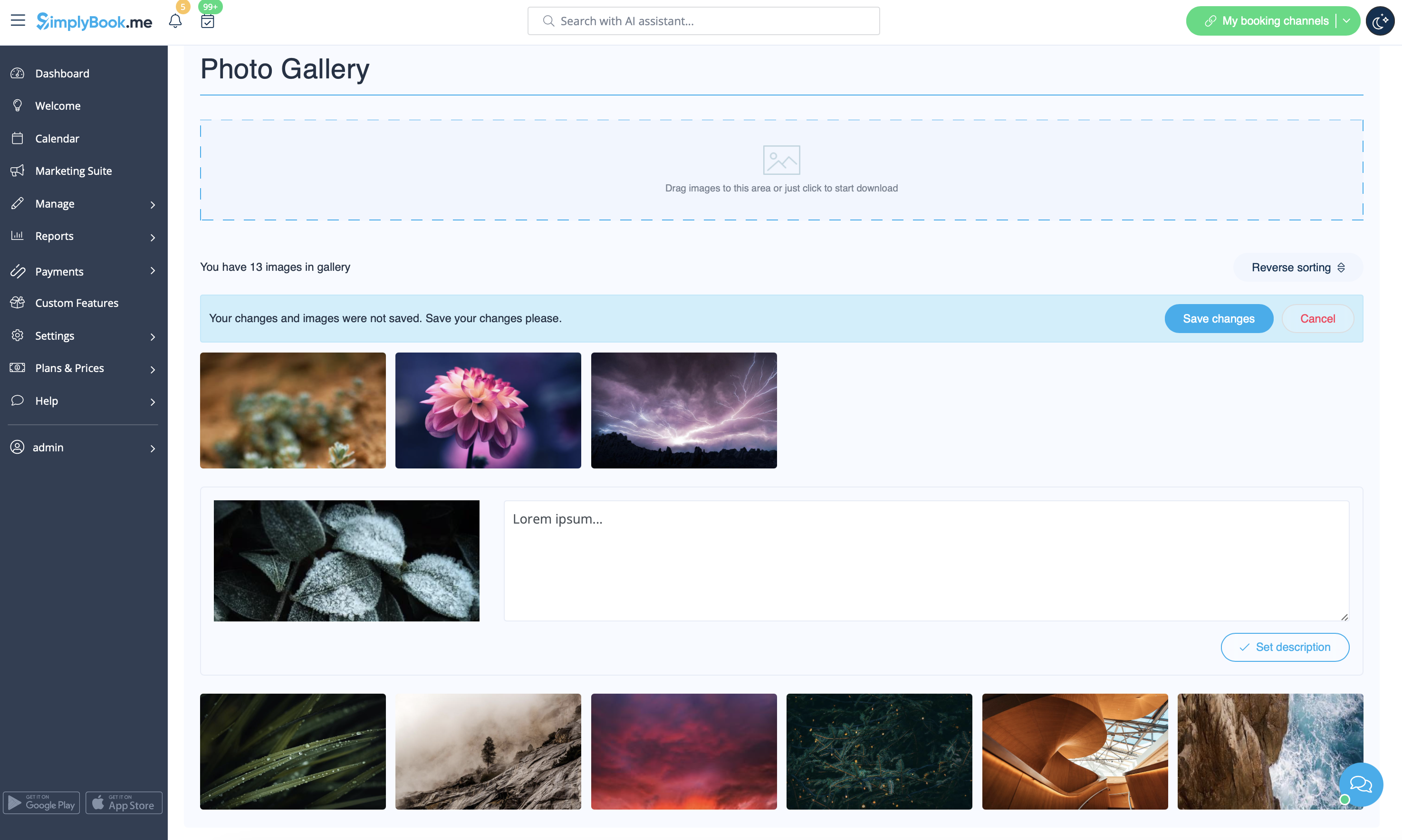
:3. Upload the images on the page you see, add descriptions if necessary and they will appear in the separate tab on the booking site. | :3. Upload the images on the page you see, add descriptions if necessary and they will appear in the separate tab on the booking site. | ||
[[File:Photo gallery | [[File:Photo gallery images overview redesigned.png|1200px| center|link=https://help.simplybook.me/images/e/ee/Photo_gallery_images_overview_redesigned.png]] | ||
<br><br> | <br><br> | ||
Revision as of 13:11, 23 September 2024

With Photo Gallery custom feature you can upload the photos of your services to attract more clients. Simply browse photos and they will appear on your booking page.
- How to use
- 1. Enable Photo gallery option on your Custom Features page.
- 2. Click on "Settings" near it.
- 3. Upload the images on the page you see, add descriptions if necessary and they will appear in the separate tab on the booking site.