From SimplyBook.me
Marked this version for translation |
Marked this version for translation |
||
| (5 intermediate revisions by the same user not shown) | |||
| Line 1: | Line 1: | ||
<languages/> | <languages/> | ||
{{#seo: | |||
|title=Custom Features - SimplyBook.me | |||
<translate> | <translate> | ||
<!--T:3--> | |||
|description=Add deposit options to your bookings. Reduce no-shows and secure commitments. Click here to activate this feature! | |||
</translate> | </translate> | ||
|titlemode=append | |titlemode=append | ||
|keywords=faq, frequently asked questions, booking software, appointment system questions, appointments online, calendar software, booking system, booking calendar, scheduling software, online appointment scheduling, online scheduling, plugins, custom features, additional functionality, deposit, deposits, accept deposits, deposit to book | |keywords=faq, frequently asked questions, booking software, appointment system questions, appointments online, calendar software, booking system, booking calendar, scheduling software, online appointment scheduling, online scheduling, plugins, custom features, additional functionality, deposit, deposits, accept deposits, deposit to book | ||
| Line 23: | Line 25: | ||
<!--T:2--> | <!--T:2--> | ||
:1. To enable this feature please navigate to <span style="background-color:#d4f8e5; padding:5px; border-radius:5px;">Custom Features</span> page, <span style="background-color:#d4f8e5; padding:5px; border-radius:5px;">Business enhancements</span> section, click on <span style="background-color:#d4f8e5; padding:5px; border-radius:5px;">Accept deposits</span> and either move the switcher to the <span style="background-color:#d4f8e5; padding:5px; border-radius:5px;">On</span> position or hit <span style="background-color:#d4f8e5; padding:5px; border-radius:5px;">Enable</span> button on the right side of the page. | :1. To enable this feature please navigate to <span style="background-color:#d4f8e5; padding:5px; border-radius:5px;">Custom Features</span> page, <span style="background-color:#d4f8e5; padding:5px; border-radius:5px;">Business enhancements</span> section, click on <span style="background-color:#d4f8e5; padding:5px; border-radius:5px;">Accept deposits</span> and either move the switcher to the <span style="background-color:#d4f8e5; padding:5px; border-radius:5px;">On</span> position or hit <span style="background-color:#d4f8e5; padding:5px; border-radius:5px;">Enable</span> button on the right side of the page. | ||
[[File:Accept deposits enable path.png |border| center]] | [[File:Accept deposits enable path redesigned.png|1200px |border| center|link=https://help.simplybook.me/images/f/f8/Accept_deposits_enable_path_redesigned.png]] | ||
<br><br> | <br><br> | ||
:2. You can set the system to allow the clients to pay deposits only via booking site by disabling <span style="background-color:#d4f8e5; padding:5px; border-radius:5px;">Allow clients to pay full price</span> option on the right side of the page.<br> | :2. You can set the system to allow the clients to pay deposits only via booking site by disabling <span style="background-color:#d4f8e5; padding:5px; border-radius:5px;">Allow clients to pay full price</span> option on the right side of the page.<br> | ||
:In this case if deposit amount is indicated per service/<span style="background-color:#cdeffc; padding:5px; border-radius:5px;">[[Special:MyLanguage/Classes_custom_feature|class]]</span> the client will pay that amount to confirm their booking.<br> | :In this case if deposit amount is indicated per service/<span style="background-color:#cdeffc; padding:5px; border-radius:5px;">[[Special:MyLanguage/Classes_custom_feature|class]]</span> the client will pay that amount to confirm their booking.<br> | ||
:If only full amount is set per service/class then the clients will pay full price. | :If only full amount is set per service/class then the clients will pay full price. | ||
:In case <span style="background-color:#d4f8e5; padding:5px; border-radius:5px;">Allow clients to pay full price</span> is enabled(default state) and deposit amount is indicated per service/class the clients will have a choice to pay either full price or deposit at checkout. | :In case <span style="background-color:#d4f8e5; padding:5px; border-radius:5px;">Allow clients to pay full price</span> is enabled(default state) and deposit amount is indicated per service/class the clients will have a choice to pay either full price or deposit at checkout.<br> | ||
[[File:Accept | As well you can allow or prohibit selcting "Pay later" option for deposit payments. | ||
[[File:Accept payments settings redesigned.png|1200px|border| center|link=https://help.simplybook.me/images/5/5b/Accept_payments_settings_redesigned.png]] | |||
<br><br> | <br><br> | ||
:3. To set deposit amounts per your services please either go to <span style="background-color:#d4f8e5; padding:5px; border-radius:5px;">Manage</span> -> <span style="background-color:#d4f8e5; padding:5px; border-radius:5px;">Services(Classes)</span> or use <span style="background-color:#d4f8e5; padding:5px; border-radius:5px;">Manage</span> button near this custom feature title. | :3. To set deposit amounts per your services please either go to <span style="background-color:#d4f8e5; padding:5px; border-radius:5px;">Manage</span> -> <span style="background-color:#d4f8e5; padding:5px; border-radius:5px;">Services(Classes)</span> or use <span style="background-color:#d4f8e5; padding:5px; border-radius:5px;">Manage</span> button near this custom feature title. | ||
[[File:Accept deposits | [[File:Accept deposits manage path.png|1200px|border|center|link=https://help.simplybook.me/images/8/80/Accept_deposits_manage_path.png]] | ||
<br><br> | <br><br> | ||
:4. Click on the service/class name for the desired item to open <span style="background-color:#d4f8e5; padding:5px; border-radius:5px;">Service/Class details</span> tab and move <span style="background-color:#d4f8e5; padding:5px; border-radius:5px;">Enable deposit</span> switcher to the active position. | :4. Click on the service/class name for the desired item to open <span style="background-color:#d4f8e5; padding:5px; border-radius:5px;">Service/Class details</span> tab and move <span style="background-color:#d4f8e5; padding:5px; border-radius:5px;">Enable deposit</span> switcher to the active position. | ||
[[File:Enable deposit per service.png |boredr|center]] | [[File:Enable deposit per service path redesigned.png|1200px|boredr|center|link=https://help.simplybook.me/images/3/3d/Enable_deposit_per_service_path_redesigned.png]] | ||
<br><br> | <br><br> | ||
:5. Indicate the amount you would like to receive as a deposit for this item in the corresponding box(it should be less than actual price, but more than 0) and save settings. | :5. Indicate the amount you would like to receive as a deposit for this item in the corresponding box(it should be less than actual price, but more than 0) and save settings. | ||
[[File: | [[File:Deposit amount settings redesigned.png|1200px |border|center|link=https://help.simplybook.me/images/6/69/Deposit_amount_settings_redesigned.png]] | ||
<br><br> | <br><br> | ||
:6. After you save all the settings the services will have two prices displayed on the booking site: full amount and deposit. | :6. After you save all the settings the services will have two prices displayed on the booking site: full amount and deposit. | ||
| Line 46: | Line 49: | ||
:(it will be shown as pending till the client pays at the place of appointment and you manually approve it).<br> | :(it will be shown as pending till the client pays at the place of appointment and you manually approve it).<br> | ||
:You can manage them in <span style="background-color:#d4f8e5; padding:5px; border-radius:5px;">Reports</span> -> <span style="background-color:#d4f8e5; padding:5px; border-radius:5px;">Payment transactions.</span> | :You can manage them in <span style="background-color:#d4f8e5; padding:5px; border-radius:5px;">Reports</span> -> <span style="background-color:#d4f8e5; padding:5px; border-radius:5px;">Payment transactions.</span> | ||
[[File:Deposit | [[File:Deposit &remainder invoices in the report redesigned.png|1200px|border| center|link=https://help.simplybook.me/images/7/7d/Deposit_%26remainder_invoices_in_the_report_redesigned.png]] | ||
<br><br> | <br><br> | ||
:Or via <span style="background-color:#cdeffc; padding:5px; border-radius:5px;">[[Special:MyLanguage/Point_of_Sale_custom_feature|Point of Sale]]</span> interface: | :Or via <span style="background-color:#cdeffc; padding:5px; border-radius:5px;">[[Special:MyLanguage/Point_of_Sale_custom_feature|Point of Sale]]</span> interface: | ||
[[File:Deposit | [[File:Deposit invoices in pos updated.png|1200px|border|center|link=https://help.simplybook.me/images/d/d7/Deposit_invoices_in_pos_updated.png]] | ||
<br><br><br><br> | <br><br><br><br> | ||
</translate> | </translate> | ||
Latest revision as of 15:43, 8 January 2025

Use deposits to increase the likelihood of clients coming for the service and make sure that in case they do not show up that you can keep the deposit. Remark that some clients may contact their bank directly to get refund of deposits in which case there is little that can be done but such cases should be rare.
Please note:
- When you enable Accept deposits feature Accept Payments will be enabled as well.
- Deposit amounts can only be set per services and/or classes.
- This feature is not compatible with Tickets and Ticket's QR Code.
- If the client wants to apply a promocode or a previously purchased package during purchase he/she needs to pay full price only as these items cannot be applied with deposits.
- How to use
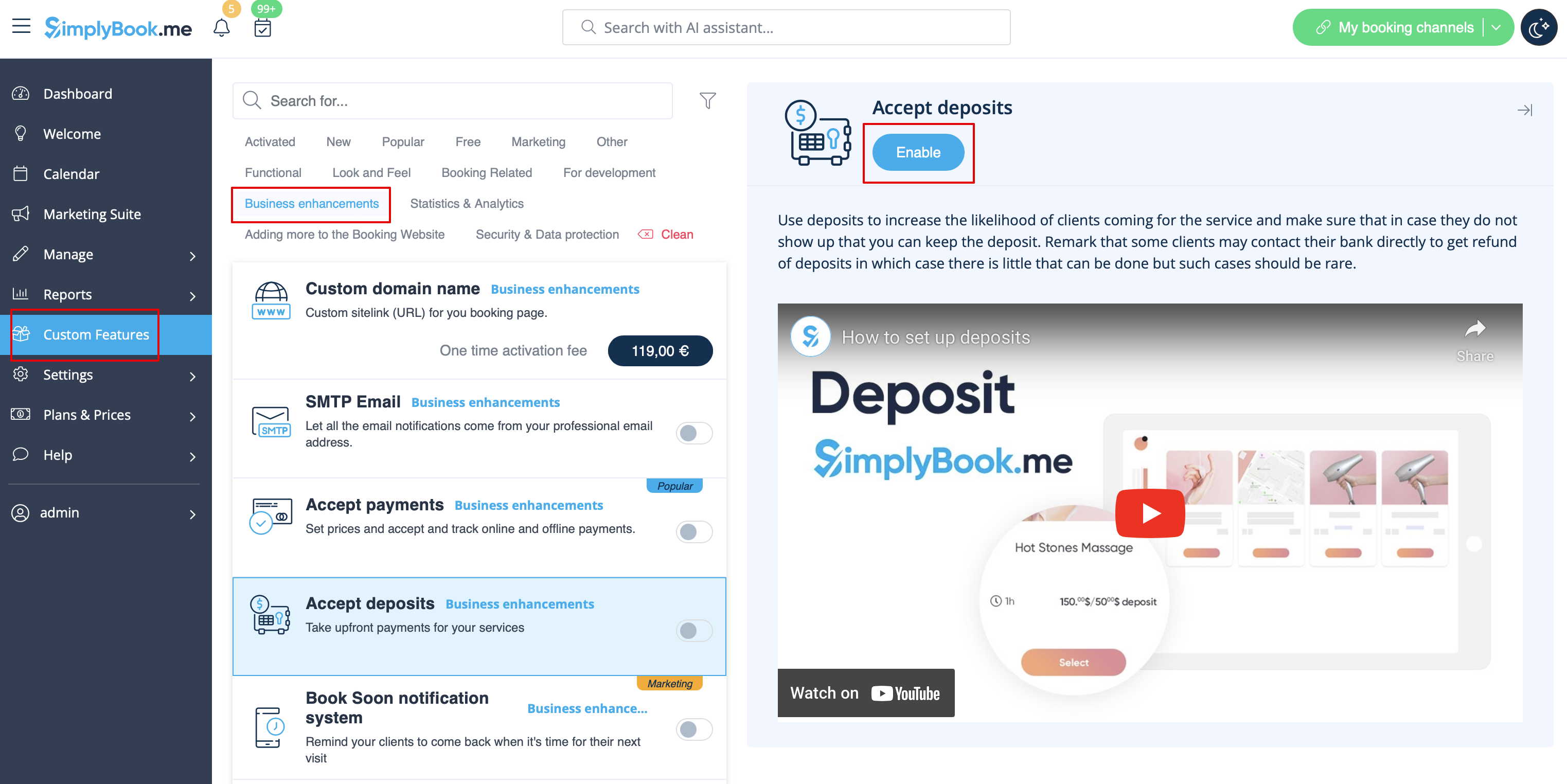
- 1. To enable this feature please navigate to Custom Features page, Business enhancements section, click on Accept deposits and either move the switcher to the On position or hit Enable button on the right side of the page.
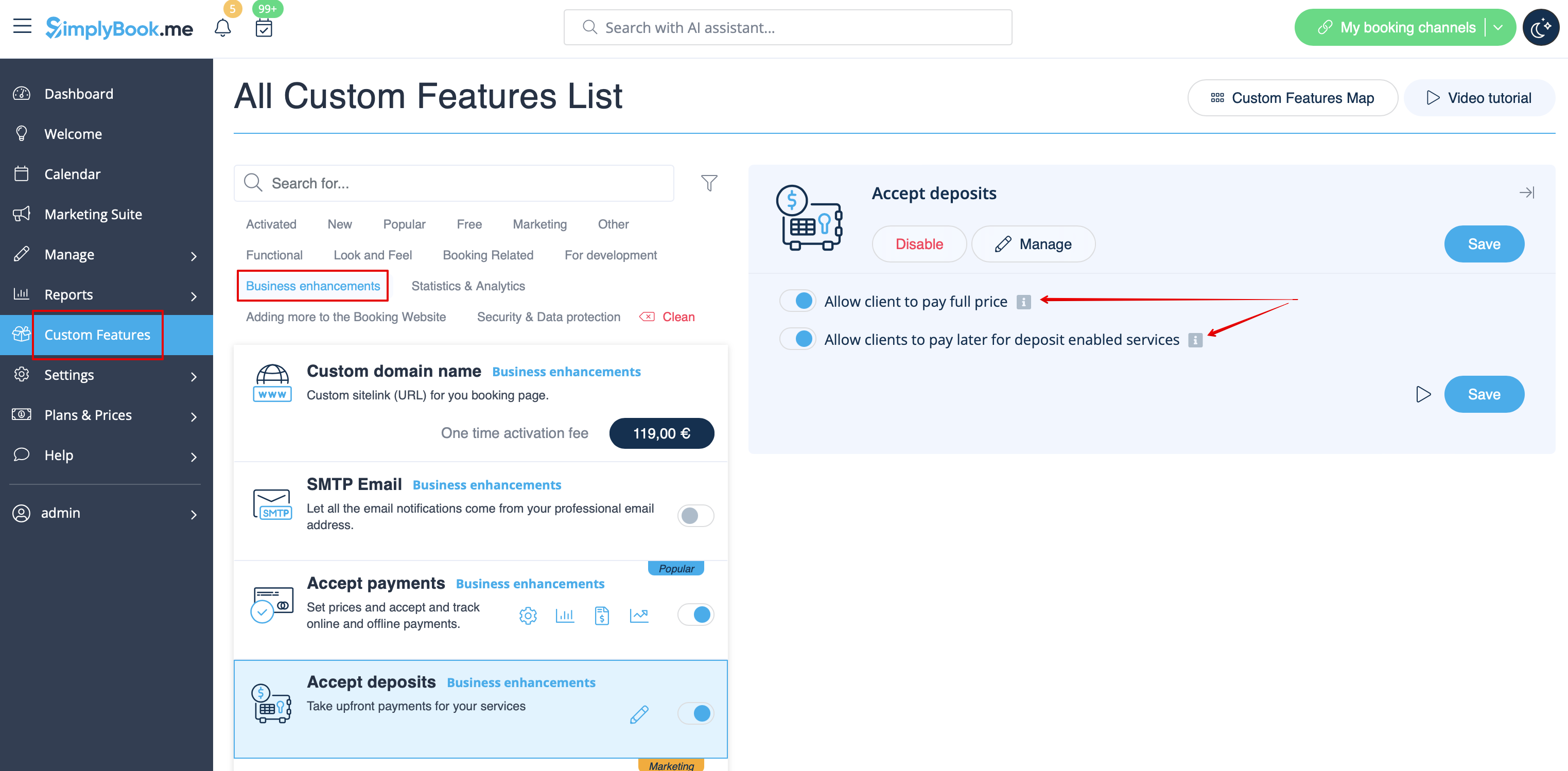
- 2. You can set the system to allow the clients to pay deposits only via booking site by disabling Allow clients to pay full price option on the right side of the page.
- In this case if deposit amount is indicated per service/class the client will pay that amount to confirm their booking.
- If only full amount is set per service/class then the clients will pay full price.
- In case Allow clients to pay full price is enabled(default state) and deposit amount is indicated per service/class the clients will have a choice to pay either full price or deposit at checkout.
As well you can allow or prohibit selcting "Pay later" option for deposit payments.
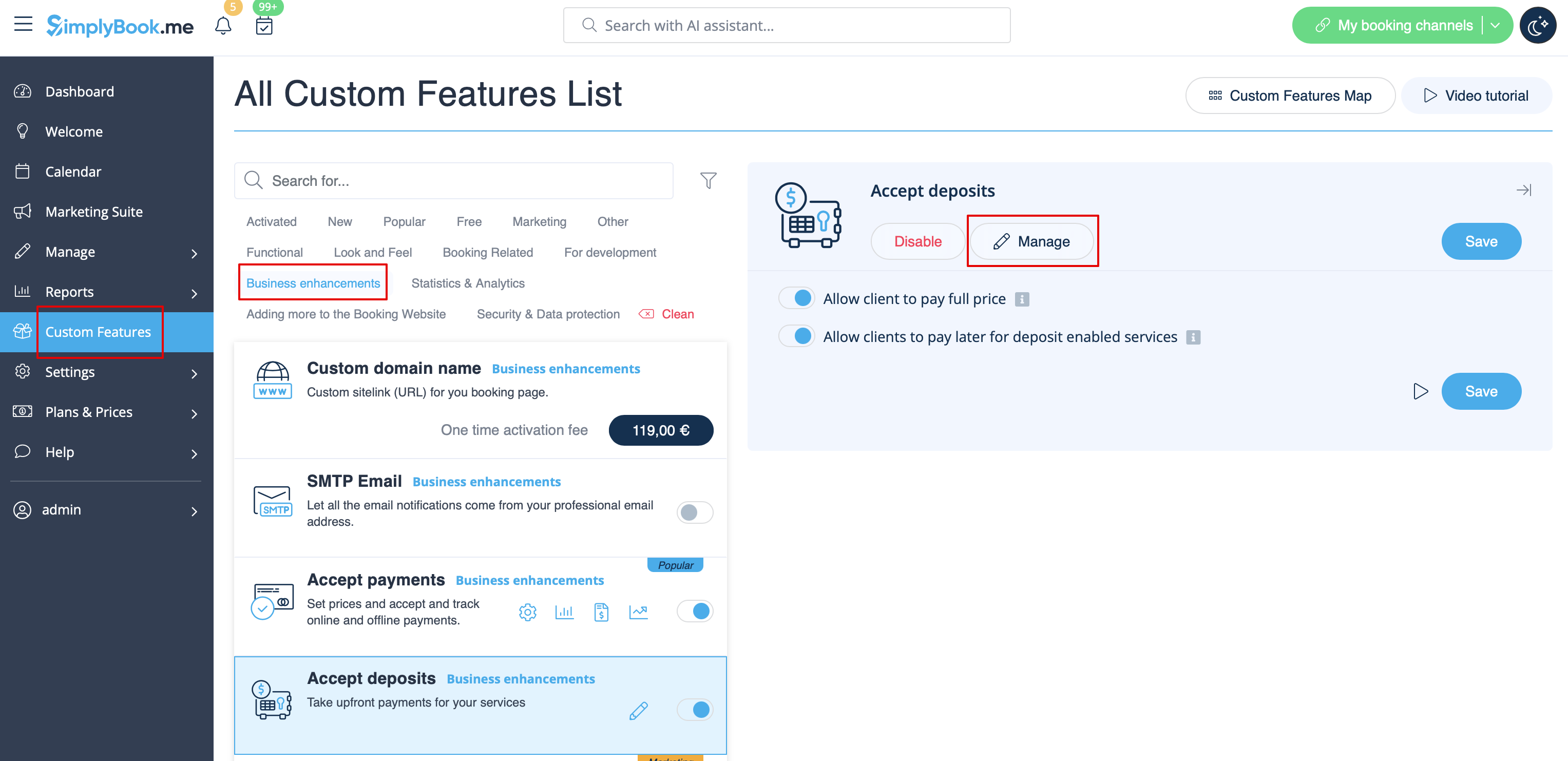
- 3. To set deposit amounts per your services please either go to Manage -> Services(Classes) or use Manage button near this custom feature title.
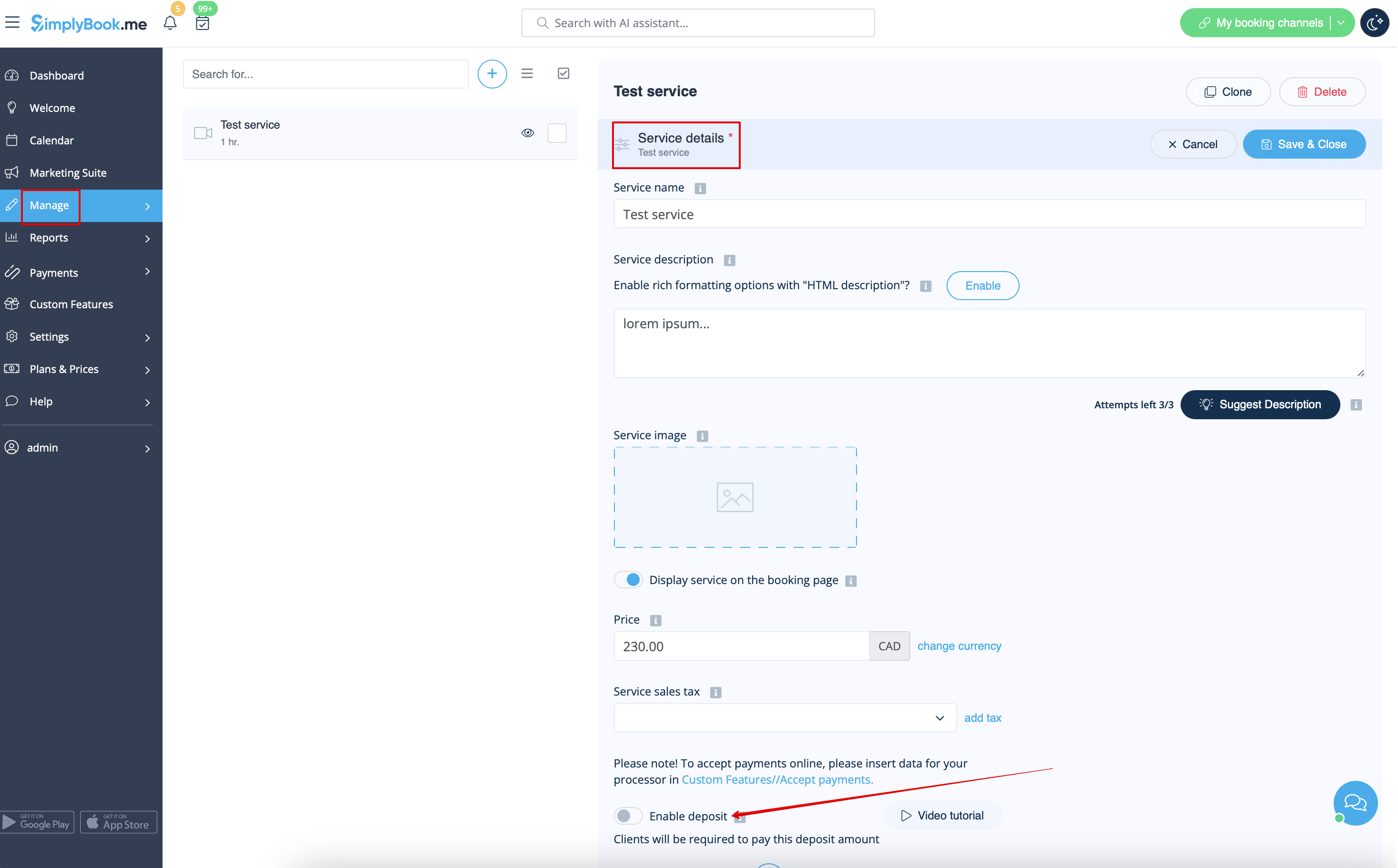
- 4. Click on the service/class name for the desired item to open Service/Class details tab and move Enable deposit switcher to the active position.
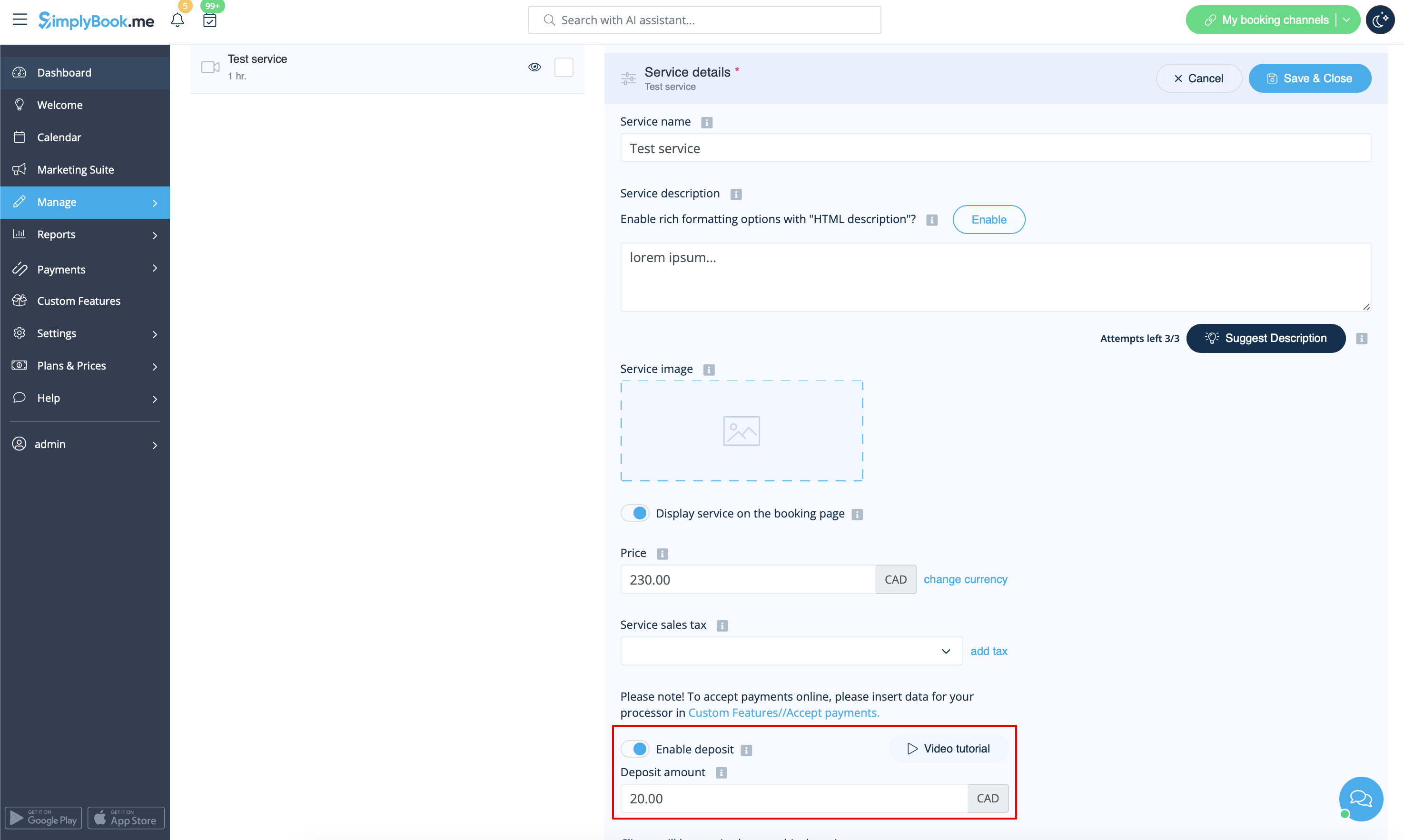
- 5. Indicate the amount you would like to receive as a deposit for this item in the corresponding box(it should be less than actual price, but more than 0) and save settings.
- 6. After you save all the settings the services will have two prices displayed on the booking site: full amount and deposit.

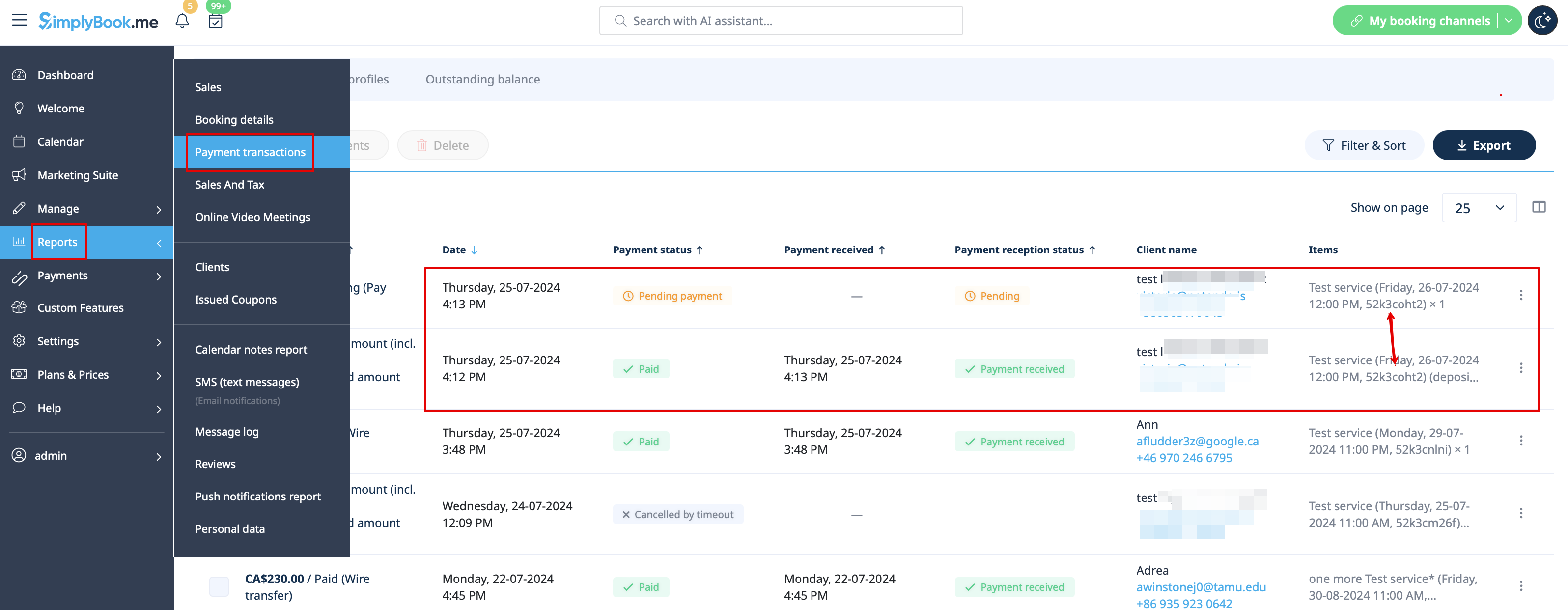
- 7. When the clients pay the deposit amount online to confirm their booking two orders/invoices will be created in the system: one for the deposit and the second for the rest amount
- (it will be shown as pending till the client pays at the place of appointment and you manually approve it).
- You can manage them in Reports -> Payment transactions.
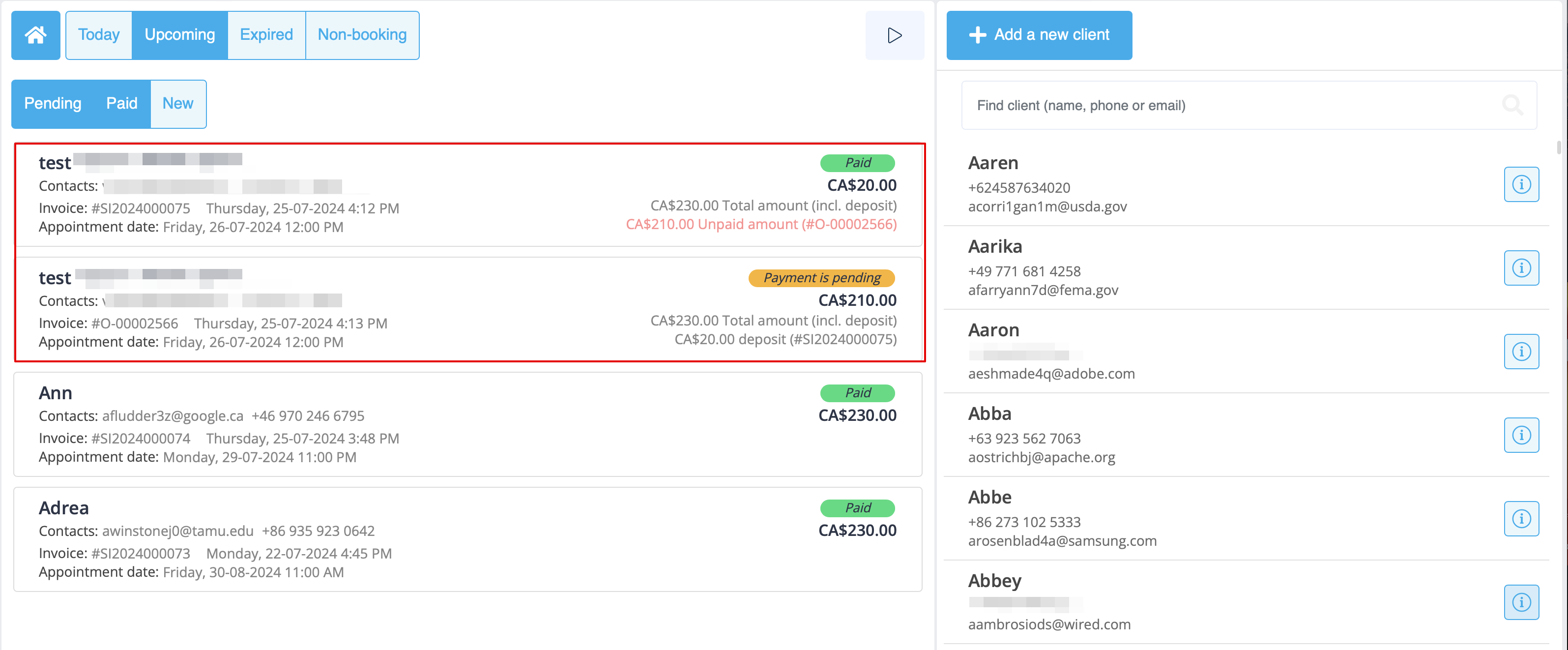
- Or via Point of Sale interface: