From SimplyBook.me
Importing a new version from external source |
Importing a new version from external source |
||
| Line 1: | Line 1: | ||
:1. Enable this custom feature on your <span style="background-color:#d4f8e5; padding:5px; border-radius:5px;">Custom Features</span> page. | :1. Enable this custom feature on your <span style="background-color:#d4f8e5; padding:5px; border-radius:5px;">Custom Features</span> page. | ||
[[File:Google business enable path | [[File:Google business enable path redesigned.png|1200px | border| center|link=https://help.simplybook.me/images/6/66/Google_business_enable_path_redesigned.png]] | ||
<br><br> | <br><br> | ||
:2. Navigate to <span style="background-color:#d4f8e5; padding:5px; border-radius:5px;">Settings</span> to create Google Business account if you do not have one yet, or connect already existing Google Business account. | :2. Navigate to <span style="background-color:#d4f8e5; padding:5px; border-radius:5px;">Settings</span> to create Google Business account if you do not have one yet, or connect already existing Google Business account. | ||
[[File:Google business settings path | [[File:Google business settings path redesigned.png|1200px | border| center|link=https://help.simplybook.me/images/7/79/Google_business_settings_path_redesigned.png]] | ||
<br><br> | <br><br> | ||
[[File:Google business account.png|border| center]] | [[File:Google business account.png|border| center]] | ||
| Line 10: | Line 10: | ||
<br><br> | <br><br> | ||
:4. If you already have some locations in Google Business you will be able to see them on the left side of the page. | :4. If you already have some locations in Google Business you will be able to see them on the left side of the page. | ||
[[File:Google business locations.png | center]] | [[File:Google business existing locations redesigned.png|1200px | center|link=https://help.simplybook.me/images/7/71/Google_business_existing_locations_redesigned.png]] | ||
<br><br> | <br><br> | ||
:5. Just click on one of them if you need to make some edits and enable the option <span style="background-color:#d4f8e5; padding:5px; border-radius:5px;">Update address in the profile</span>, make the necessary changes and re-save the location for the information to be updated on Google side | :5. Just click on one of them if you need to make some edits and enable the option <span style="background-color:#d4f8e5; padding:5px; border-radius:5px;">Update address in the profile</span>, make the necessary changes and re-save the location for the information to be updated on Google side | ||
[[File: | [[File:Existing google business location info redesigned.png|1200px | center|link=https://help.simplybook.me/images/d/d7/Existing_google_business_location_info_redesigned.png]] | ||
<br><br> | <br><br> | ||
:or choose <span style="background-color:#d4f8e5; padding:5px; border-radius:5px;">+</span> option to add a new business address. | :or choose <span style="background-color:#d4f8e5; padding:5px; border-radius:5px;">+</span> option to add a new business address. | ||
[[File: | [[File:Add new google business location redesigned.png|1200px | border| center|link=https://help.simplybook.me/images/0/0d/Add_new_google_business_location_redesigned.png]] | ||
<br><br> | <br><br> | ||
:6. After you have added the address, click on <span style="background-color:#d4f8e5; padding:5px; border-radius:5px;">Save and Close</span> and you will have the possibility to proceed to the business location verification on Google side(it may take some time). <br> | :6. After you have added the address, click on <span style="background-color:#d4f8e5; padding:5px; border-radius:5px;">Save and Close</span> and you will have the possibility to proceed to the business location verification on Google side(it may take some time). <br> | ||
:You can also close the pop-up and get back to the verification step later(there will be <span style="background-color:#d4f8e5; padding:5px; border-radius:5px;">Verify now</span> button for each saved and synced business location). <br> | :You can also close the pop-up and get back to the verification step later(there will be <span style="background-color:#d4f8e5; padding:5px; border-radius:5px;">Verify now</span> button for each saved and synced business location). <br> | ||
:As soon as your location is verified by Google(you will see the verification process steps while following Google instuctions) your business will appear in search and on Google Maps. | :As soon as your location is verified by Google(you will see the verification process steps while following Google instuctions) your business will appear in search and on Google Maps. | ||
[[File: | [[File:Verification link google business redesined.png|1200px| border| center|link=https://help.simplybook.me/images/4/44/Verification_link_google_business_redesined.png]] | ||
<br><br> | <br><br> | ||
:7. When you save the location the following information is passed to Google about your company: | :7. When you save the location the following information is passed to Google about your company: | ||
| Line 34: | Line 34: | ||
<br><br> | <br><br> | ||
:8. You can also edit your business location details on Google side if necessary. Simply click on <span style="background-color:#d4f8e5; padding:5px; border-radius:5px;">Edit on GMB</span> button at the top(appears for saved and synced locations). | :8. You can also edit your business location details on Google side if necessary. Simply click on <span style="background-color:#d4f8e5; padding:5px; border-radius:5px;">Edit on GMB</span> button at the top(appears for saved and synced locations). | ||
[[File:Google business edit on google | [[File:Google business edit on google path redesigned.png|1200px |border| center|link=https://help.simplybook.me/images/8/8a/Google_business_edit_on_google_path_redesigned.png]] | ||
<br><br> | <br><br> | ||
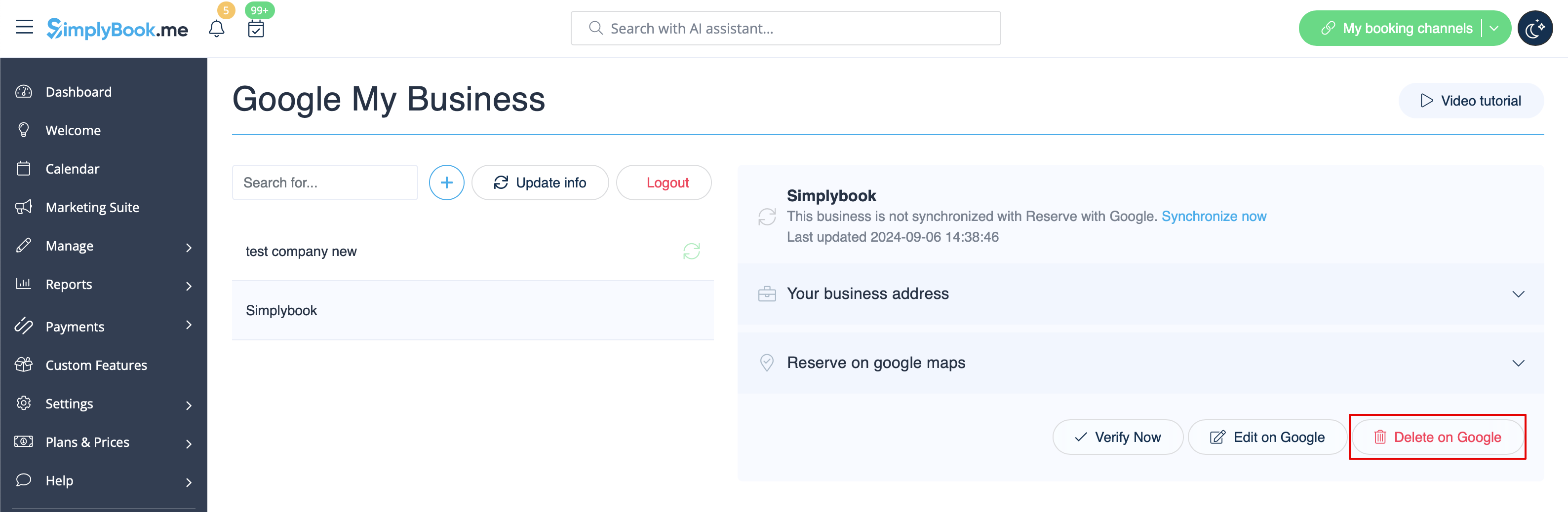
:9. If some location(s) become not relevant for your business anymore you can easily delete them in this feature settings. Just click on <span style="background-color:#d4f8e5; padding:5px; border-radius:5px;">Delete on GMB</span> option. | :9. If some location(s) become not relevant for your business anymore you can easily delete them in this feature settings. Just click on <span style="background-color:#d4f8e5; padding:5px; border-radius:5px;">Delete on GMB</span> option. | ||
[[File:Google business delete on google | [[File:Google business delete on google redesigned.png|1200px |border|center|link=https://help.simplybook.me/images/5/55/Google_business_delete_on_google_redesigned.png]] | ||
<br><br> | <br><br> | ||
=Reserve with Google= | =Reserve with Google= | ||
Latest revision as of 15:25, 15 January 2025
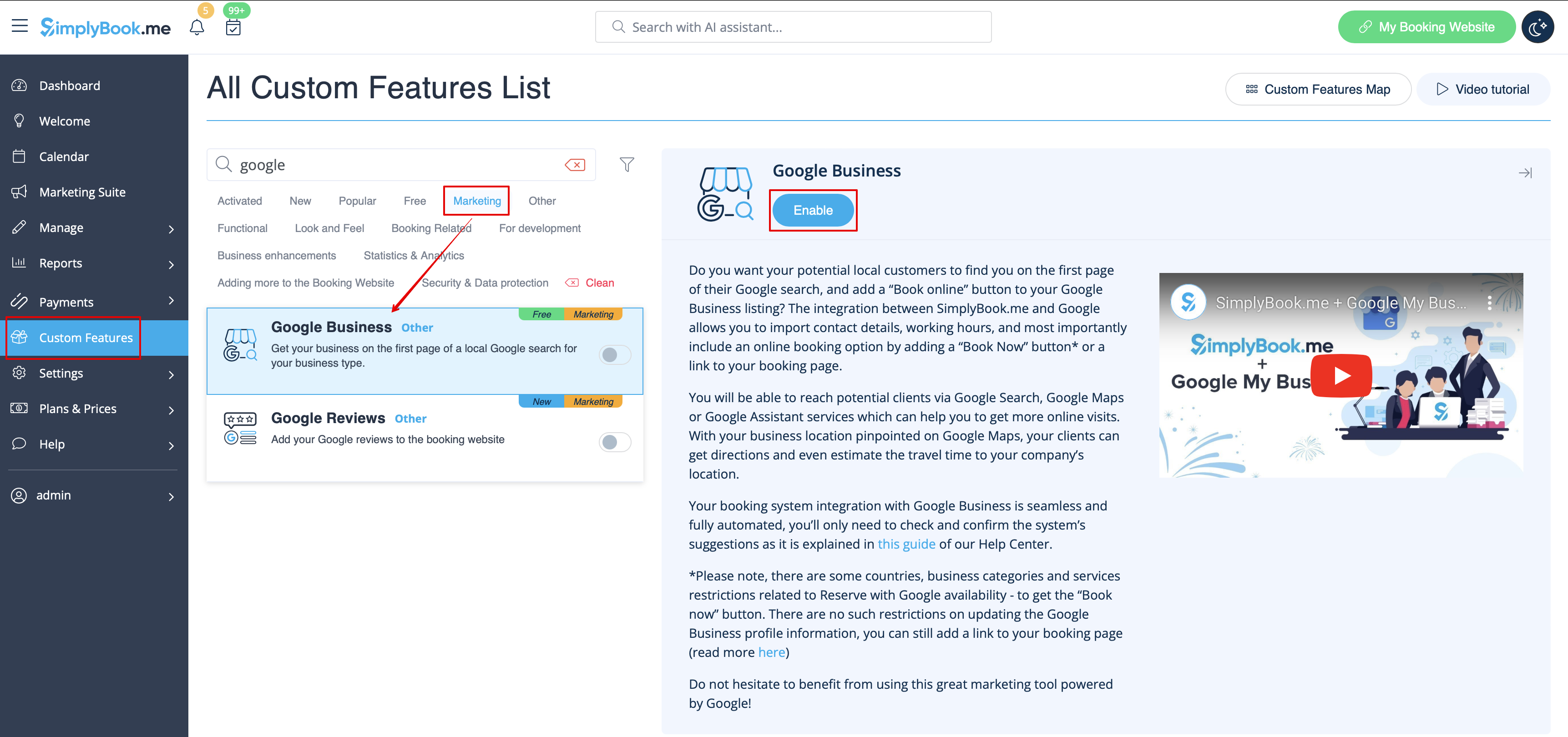
- 1. Enable this custom feature on your Custom Features page.
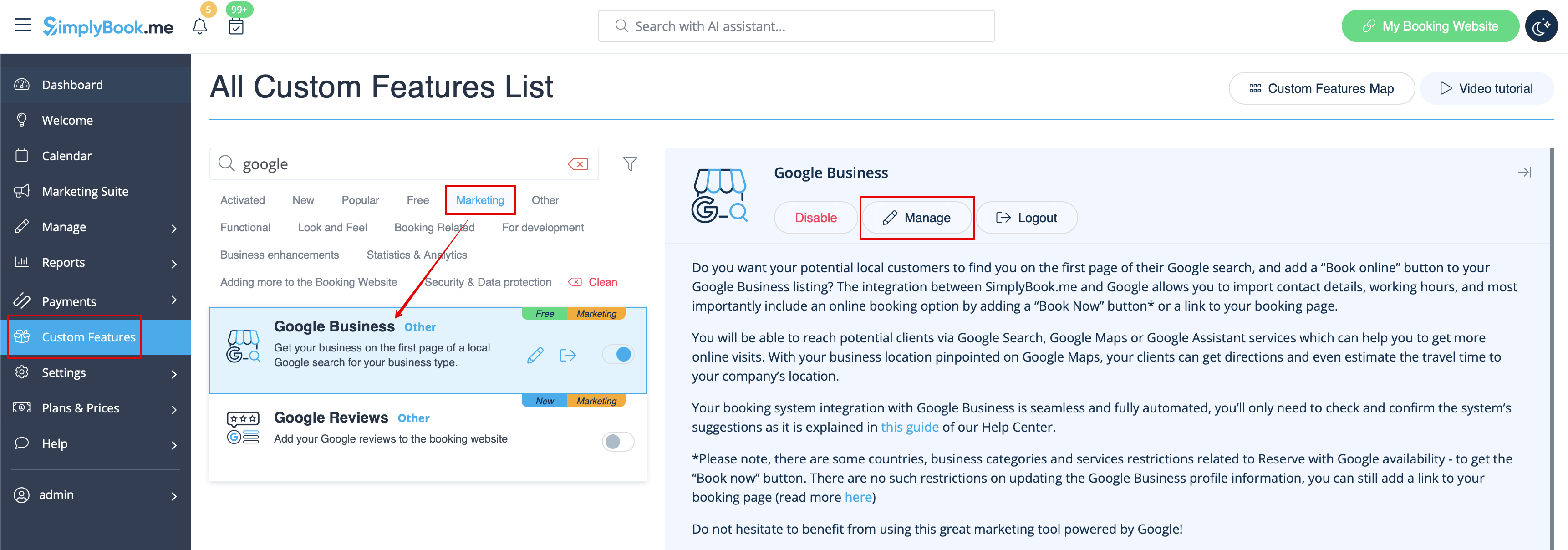
- 2. Navigate to Settings to create Google Business account if you do not have one yet, or connect already existing Google Business account.

- 3. Give the necessary permissions so that it will be possible to see and edit your location(s) in SimplyBook.me.
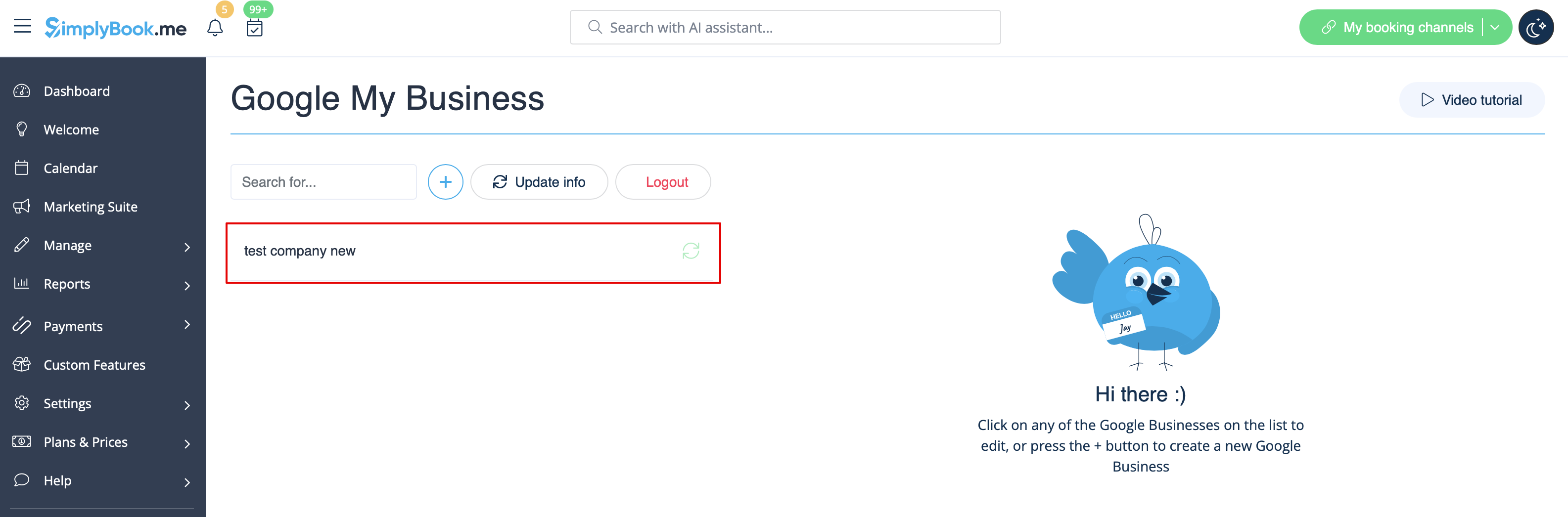
- 4. If you already have some locations in Google Business you will be able to see them on the left side of the page.
- 5. Just click on one of them if you need to make some edits and enable the option Update address in the profile, make the necessary changes and re-save the location for the information to be updated on Google side
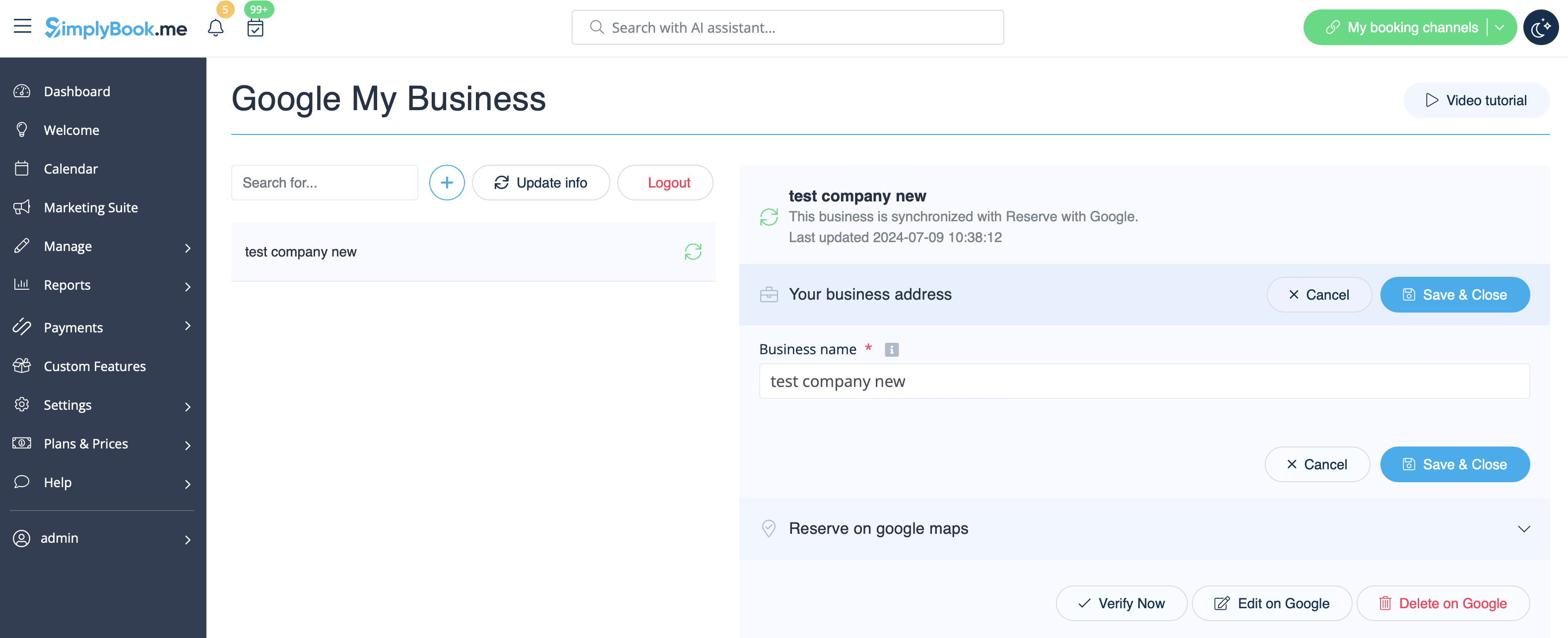
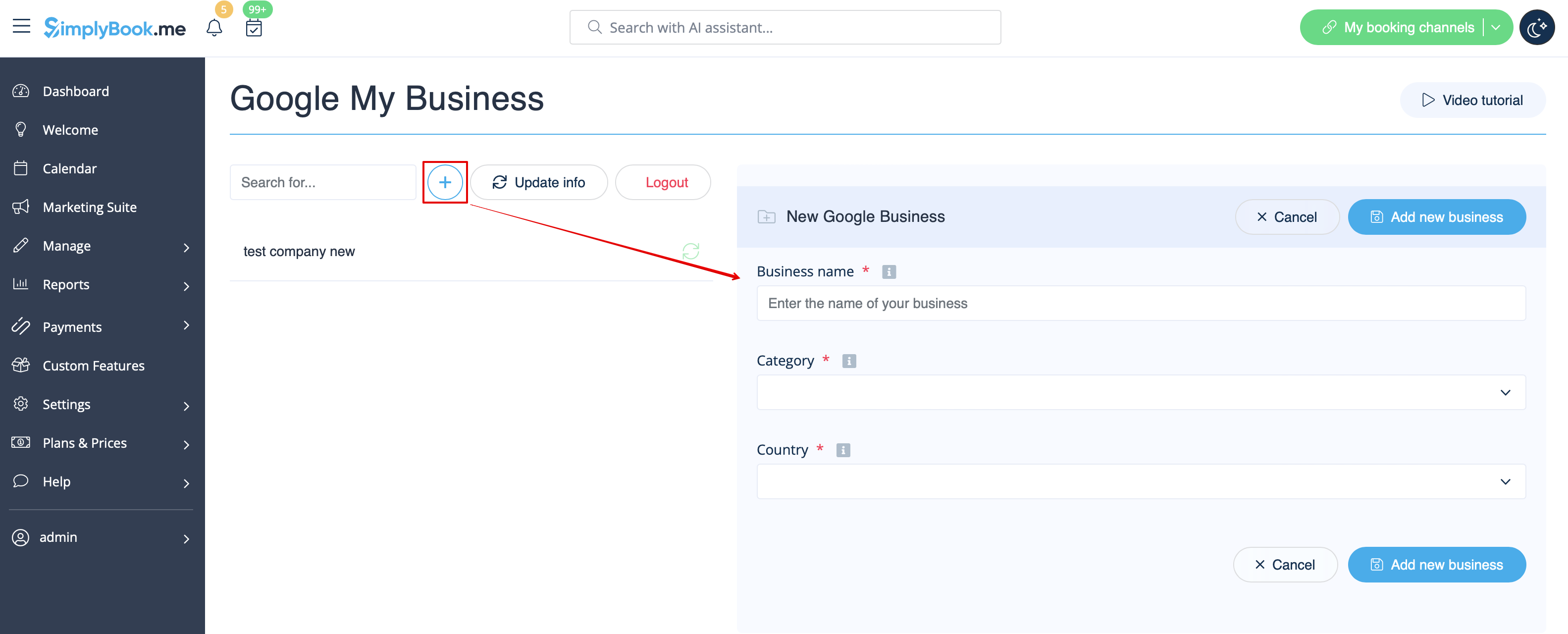
- or choose + option to add a new business address.
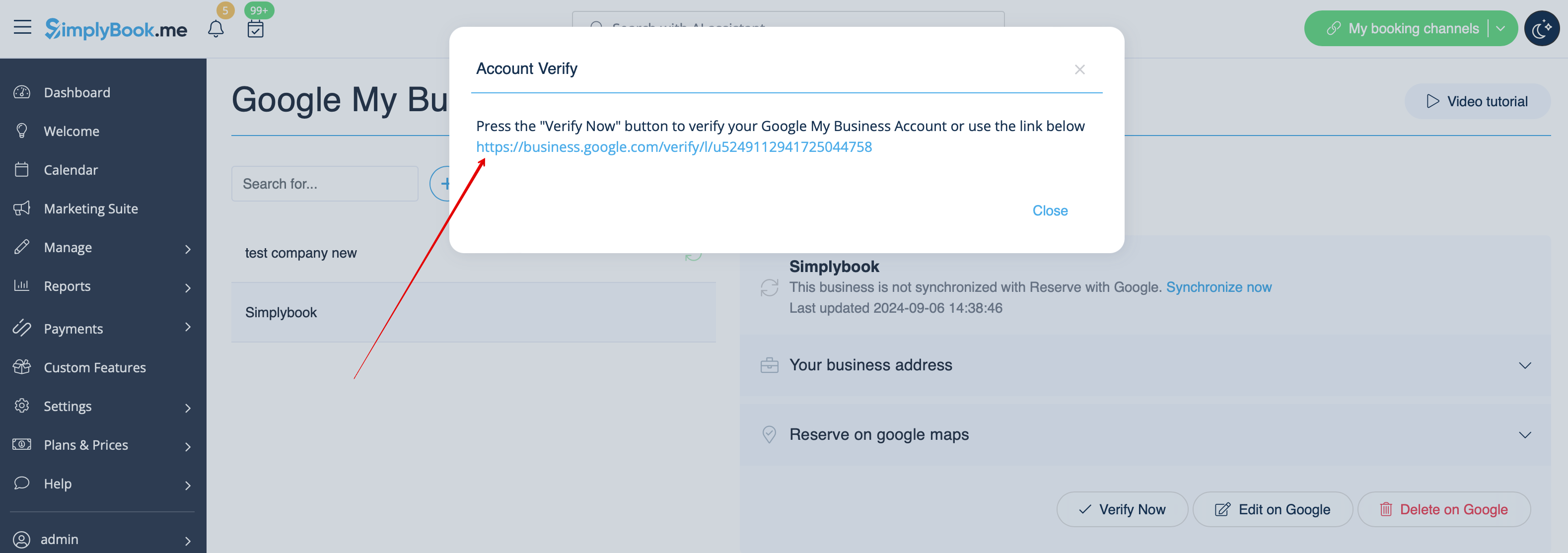
- 6. After you have added the address, click on Save and Close and you will have the possibility to proceed to the business location verification on Google side(it may take some time).
- You can also close the pop-up and get back to the verification step later(there will be Verify now button for each saved and synced business location).
- As soon as your location is verified by Google(you will see the verification process steps while following Google instuctions) your business will appear in search and on Google Maps.
- 7. When you save the location the following information is passed to Google about your company:
- business location title;
- company working hours;
- company phone number;
- booking site link;
- business category(as Google categories differ the best matching one will be found).

- Please note, if you have changed some of these details in your SimplyBook.me account you will need to re-save the business location in Google Business feature settings for the details to be updated on Google side.
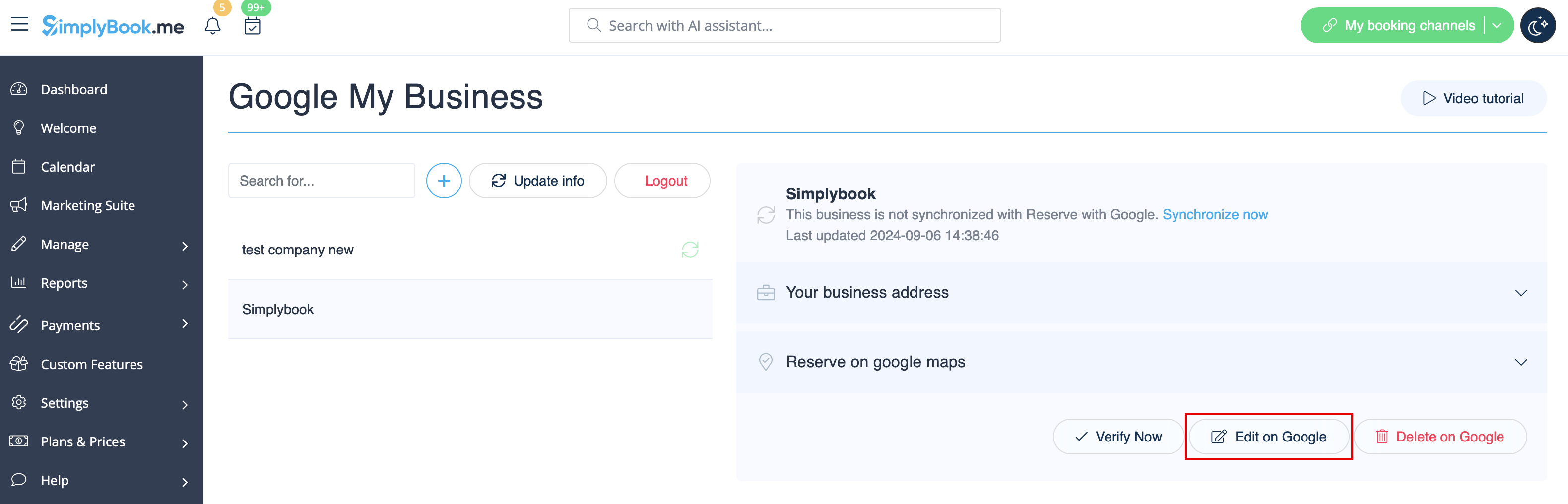
- 8. You can also edit your business location details on Google side if necessary. Simply click on Edit on GMB button at the top(appears for saved and synced locations).
- 9. If some location(s) become not relevant for your business anymore you can easily delete them in this feature settings. Just click on Delete on GMB option.