From SimplyBook.me
Importing a new version from external source |
Importing a new version from external source |
||
| Line 3: | Line 3: | ||
;How to use | ;How to use | ||
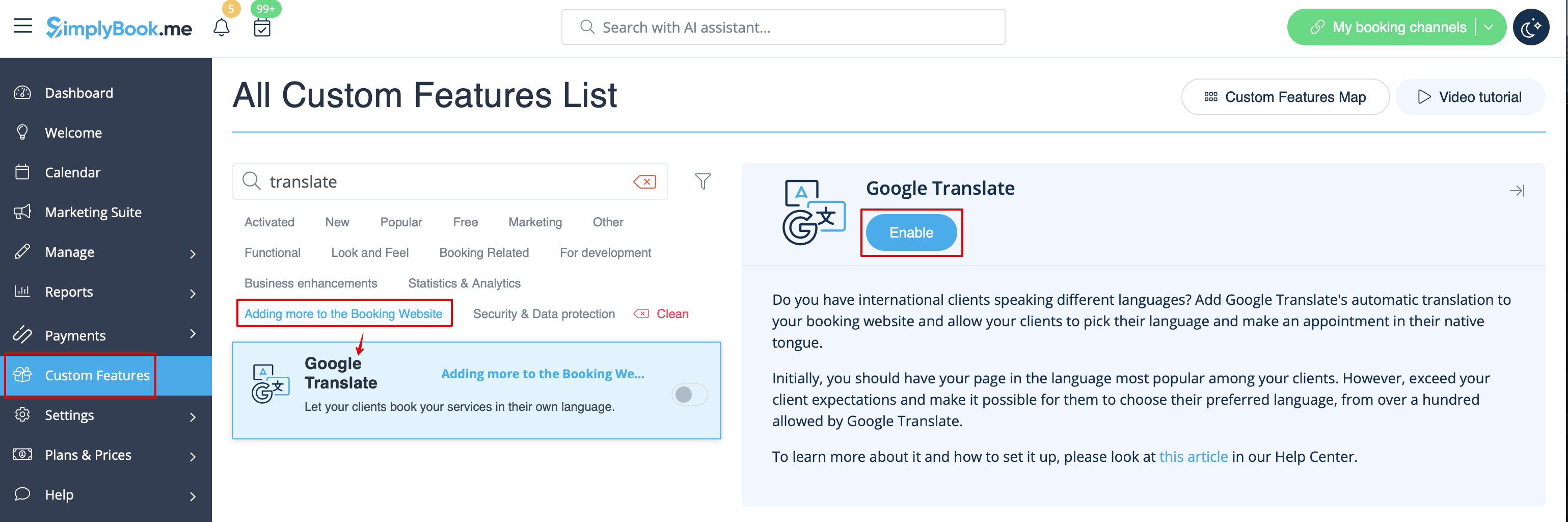
:1. To enable this option navigate to Custom Features//Adding more to the Booking Website. | :1. To enable this option navigate to Custom Features//Adding more to the Booking Website. | ||
[[File:Google translate enable path | [[File:Google translate enable path redesigned.png|1200px|center|link=https://help.simplybook.me/images/c/c3/Google_translate_enable_path_redesigned.png]] | ||
<br><br> | <br><br> | ||
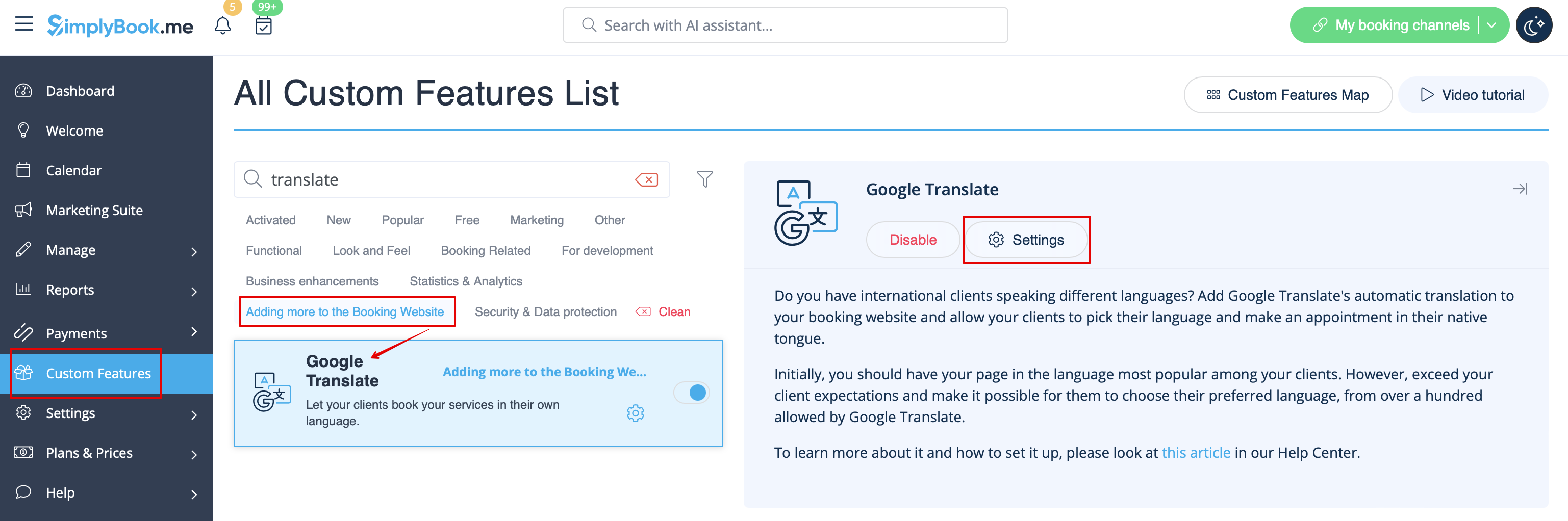
:2. To access available options for this functionality click on "Settings" button. | :2. To access available options for this functionality click on "Settings" button. | ||
[[File:Google translate settings path | [[File:Google translate settings path redesigned.png|1200px| center|link=https://help.simplybook.me/images/2/2c/Google_translate_settings_path_redesigned.png]] | ||
<br><br> | <br><br> | ||
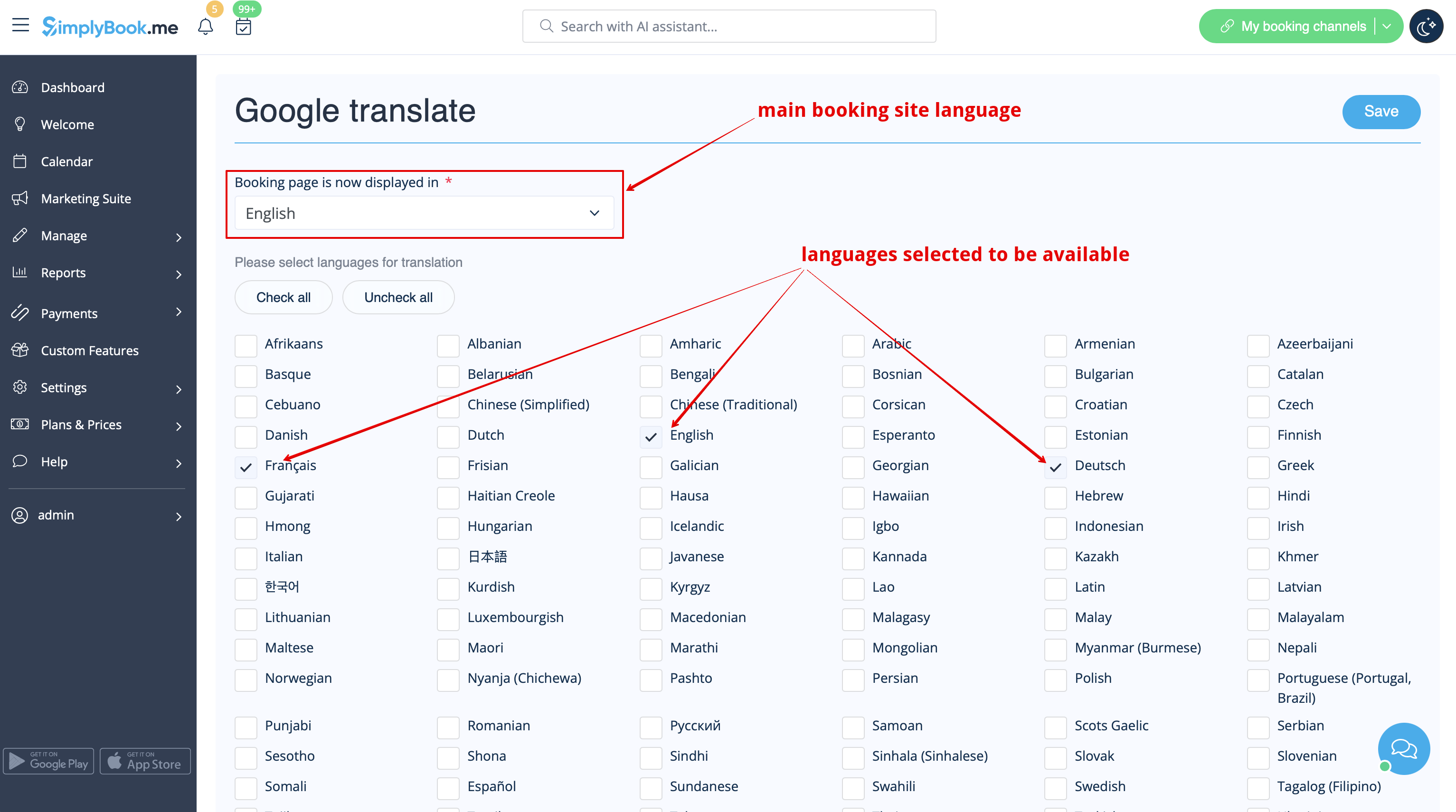
:3. Check the boxes with languages you wish your clients to be able to choose on the booking website. | :3. Check the boxes with languages you wish your clients to be able to choose on the booking website. | ||
[[File:Google translate options | [[File:Google translate langs options redesinged.png|1200px| center|link=https://help.simplybook.me/images/8/80/Google_translate_langs_options_redesinged.png]] | ||
<br><br> | <br><br> | ||
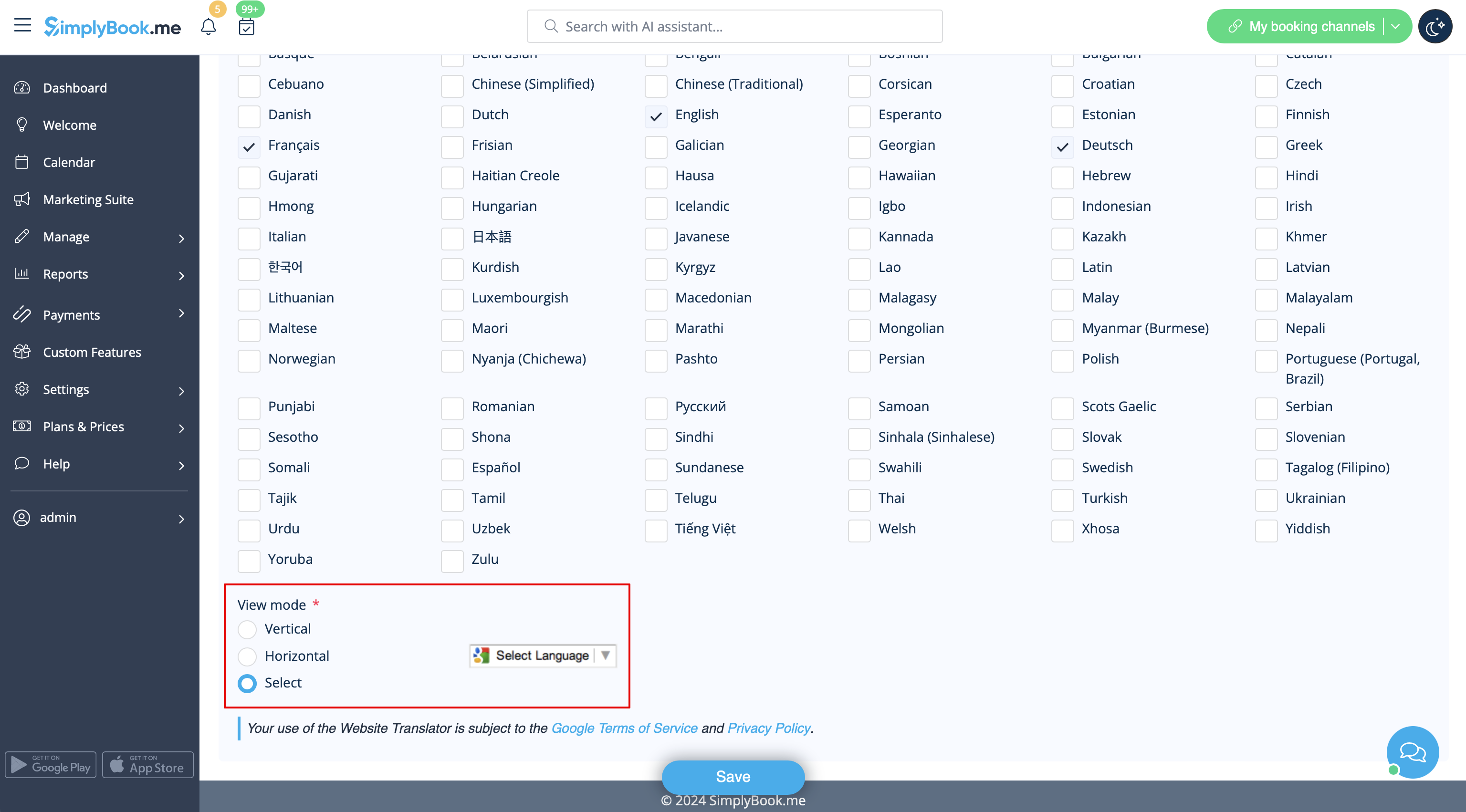
:4. Select the view mode to your taste. | :4. Select the view mode to your taste. | ||
[[File: | [[File:Google translate view mode setting redesigned.png|1200px| center|link=https://help.simplybook.me/images/8/8f/Google_translate_view_mode_setting_redesigned.png]] | ||
<br><br> | <br><br> | ||
:5. Save settings. Everything is ready to use! Here is how it can look like on your booking page using one of the themes. | :5. Save settings. Everything is ready to use! Here is how it can look like on your booking page using one of the themes. | ||
Latest revision as of 15:27, 15 January 2025

Need to show your booking website in several languages for your clients' convenience? Now we have Google Translate custom feature that makes is possible. It allows you to add Google Translate’s automatic translation to your booking website and each client will be able to choose the language convenient for them.
- How to use
- 1. To enable this option navigate to Custom Features//Adding more to the Booking Website.
- 2. To access available options for this functionality click on "Settings" button.
- 3. Check the boxes with languages you wish your clients to be able to choose on the booking website.
- 4. Select the view mode to your taste.
- 5. Save settings. Everything is ready to use! Here is how it can look like on your booking page using one of the themes.

One more translation possibility using third-party service here
