From SimplyBook.me
Importing a new version from external source |
Importing a new version from external source |
||
| Line 1: | Line 1: | ||
;How to use: | ;How to use: | ||
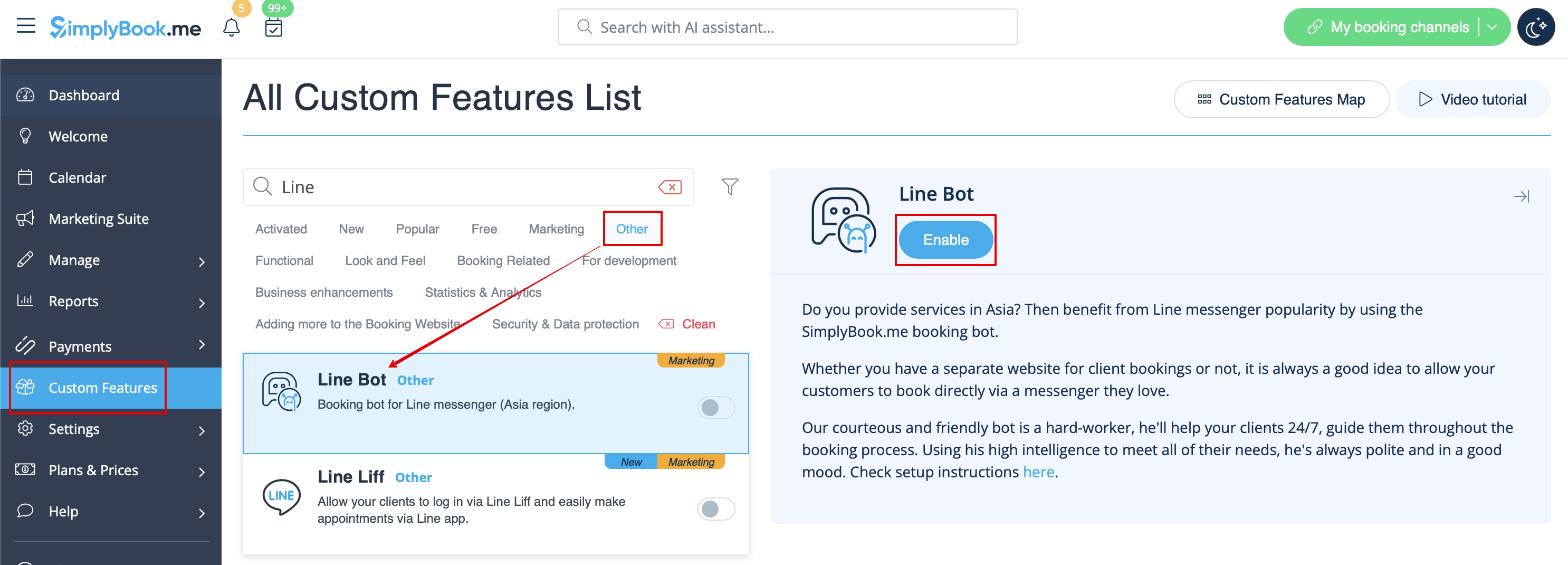
:1. Go to <span style="background-color:#d4f8e5; padding:5px; border-radius:5px;">SimplyBook.me admin side</span>, <span style="background-color:#d4f8e5; padding:5px; border-radius:5px;">custom features</span> page and enable <span style="background-color:#d4f8e5; padding:5px; border-radius:5px;">Line bot</span> custom feature. | :1. Go to <span style="background-color:#d4f8e5; padding:5px; border-radius:5px;">SimplyBook.me admin side</span>, <span style="background-color:#d4f8e5; padding:5px; border-radius:5px;">custom features</span> page and enable <span style="background-color:#d4f8e5; padding:5px; border-radius:5px;">Line bot</span> custom feature. | ||
[[File:Line bot enable path | [[File:Line bot enable path redesigned.png|1200px| border| center|link=https://help.simplybook.me/images/3/3a/Line_bot_enable_path_redesigned.png]] | ||
<br><br> | <br><br> | ||
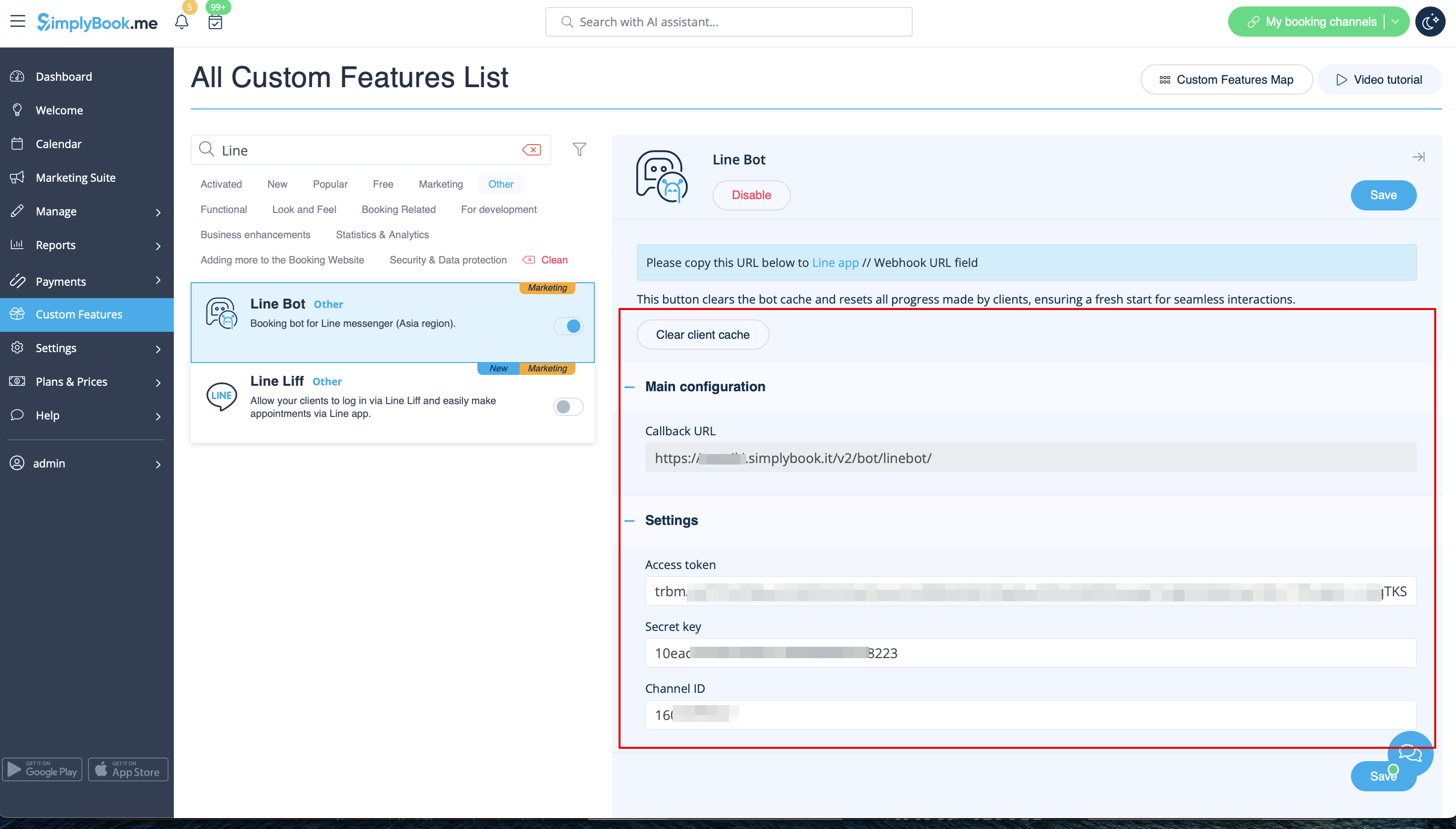
:2. Navigate to its <span style="background-color:#d4f8e5; padding:5px; border-radius:5px;">settings on the right.</span> | :2. Navigate to its <span style="background-color:#d4f8e5; padding:5px; border-radius:5px;">settings on the right.</span> | ||
[[File:Line bot settings | [[File:Line bot settings redesigned.png|1200px | border| center|link=https://help.simplybook.me/images/e/e8/Line_bot_settings_redesigned.png]] | ||
<br><br> | <br><br> | ||
:3. Log in to <span style="background-color:#d4f8e5; padding:5px; border-radius:5px;">[https://developers.line.biz/en/ LINE Developers page]</span> and create <span style="background-color:#d4f8e5; padding:5px; border-radius:5px;">Provider</span> following the instructions listed there. | :3. Log in to <span style="background-color:#d4f8e5; padding:5px; border-radius:5px;">[https://developers.line.biz/en/ LINE Developers page]</span> and create <span style="background-color:#d4f8e5; padding:5px; border-radius:5px;">Provider</span> following the instructions listed there. | ||
| Line 17: | Line 17: | ||
<br><br> | <br><br> | ||
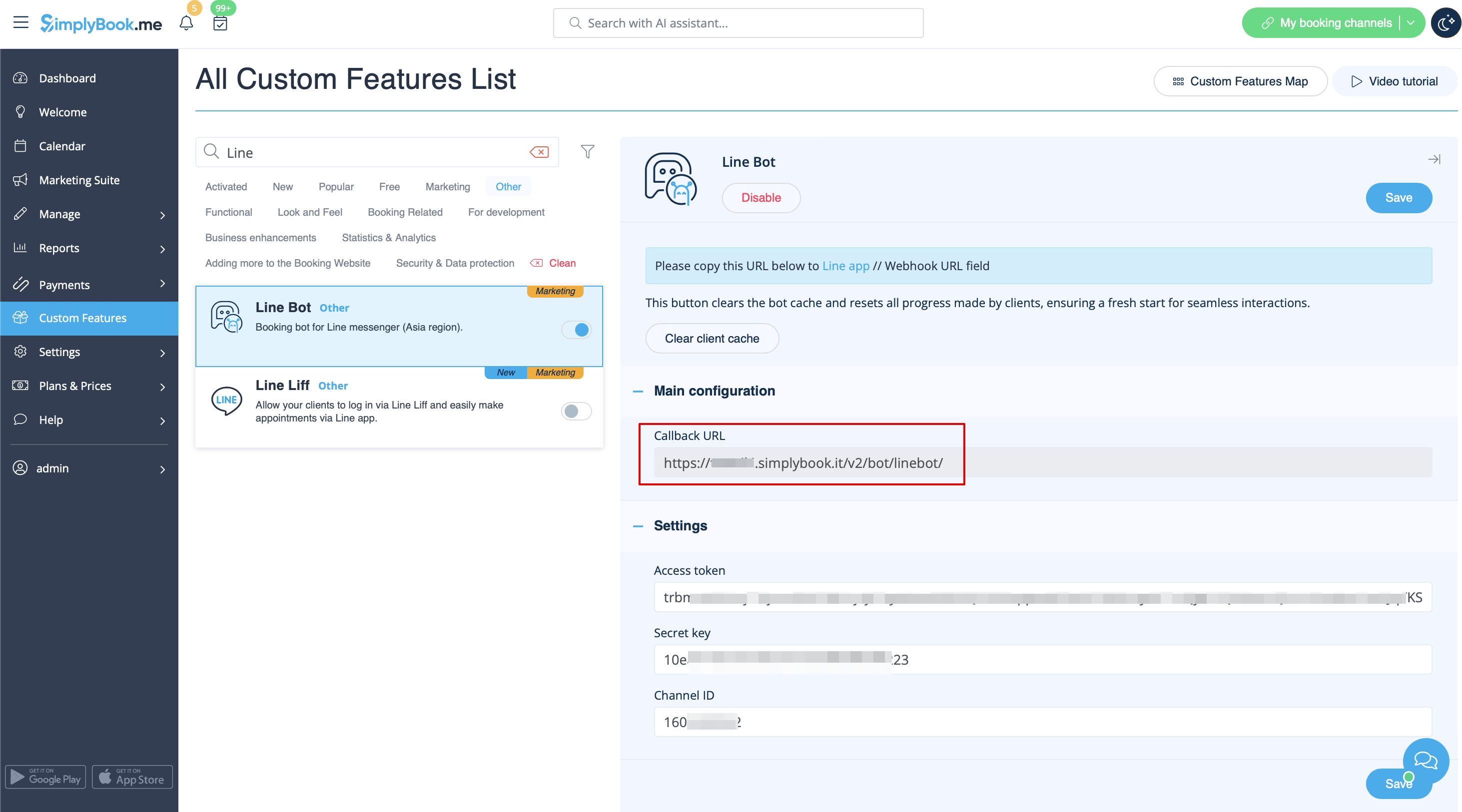
:6. Switch to <span style="background-color:#d4f8e5; padding:5px; border-radius:5px;">SimplyBook.me admin side</span> tab with Line Bot feature settings and copy <span style="background-color:#d4f8e5; padding:5px; border-radius:5px;">Callback URL</span> from there. | :6. Switch to <span style="background-color:#d4f8e5; padding:5px; border-radius:5px;">SimplyBook.me admin side</span> tab with Line Bot feature settings and copy <span style="background-color:#d4f8e5; padding:5px; border-radius:5px;">Callback URL</span> from there. | ||
[[File:Line bot | [[File:Line bot callback url redesigned.png|1200px | border| center|link=https://help.simplybook.me/images/9/91/Line_bot_callback_url_redesigned.png]] | ||
<br><br> | <br><br> | ||
:7. Add this url to the <span style="background-color:#d4f8e5; padding:5px; border-radius:5px;">Webhook URL</span> box in <span style="background-color:#d4f8e5; padding:5px; border-radius:5px;">Messaging settings</span> section of <span style="background-color:#d4f8e5; padding:5px; border-radius:5px;">LINE Developers channel</span> page. | :7. Add this url to the <span style="background-color:#d4f8e5; padding:5px; border-radius:5px;">Webhook URL</span> box in <span style="background-color:#d4f8e5; padding:5px; border-radius:5px;">Messaging settings</span> section of <span style="background-color:#d4f8e5; padding:5px; border-radius:5px;">LINE Developers channel</span> page. | ||
| Line 36: | Line 36: | ||
[[File:Line-channel id and secret.png|border | center]] | [[File:Line-channel id and secret.png|border | center]] | ||
<br><br> | <br><br> | ||
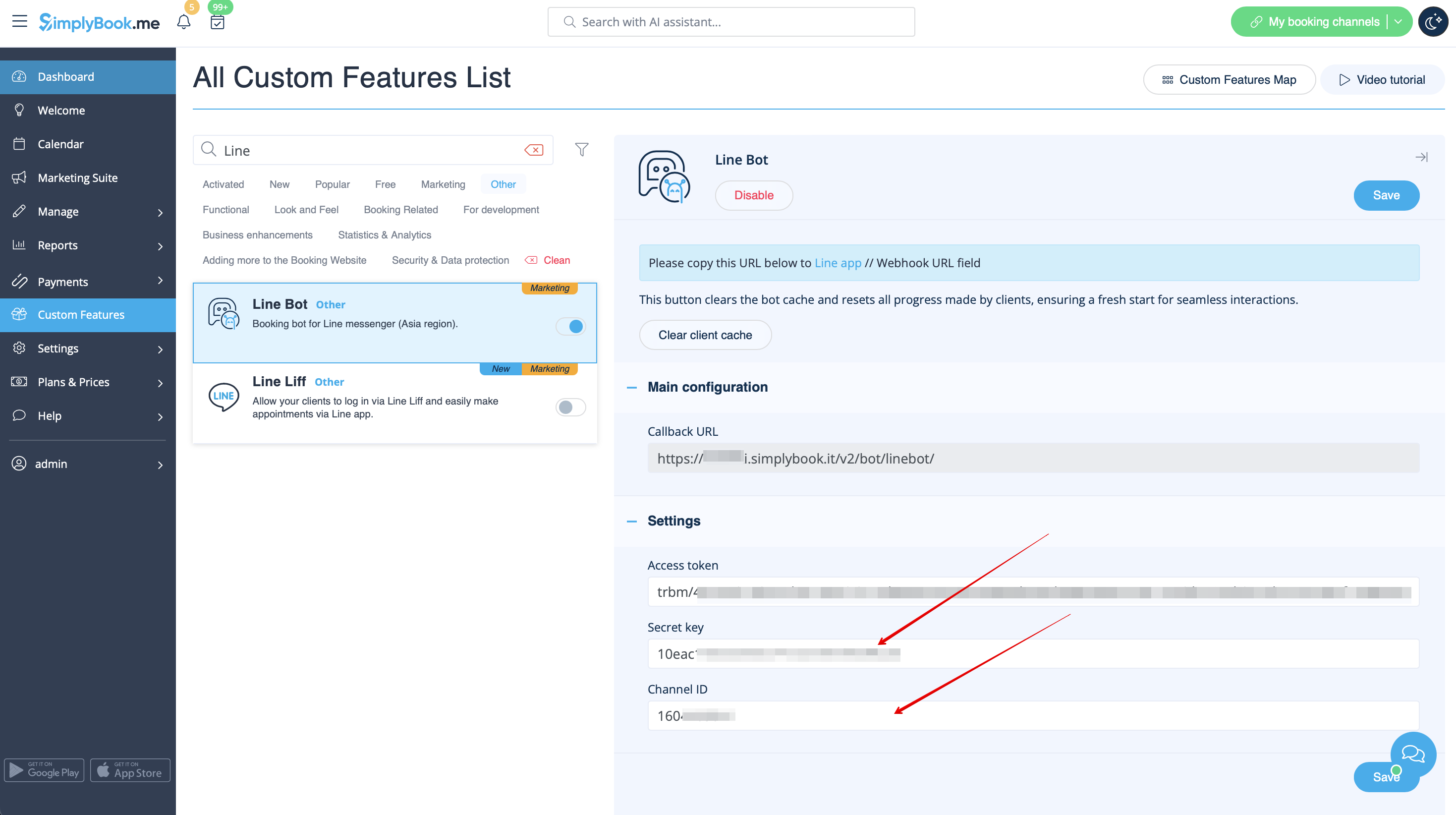
[[File:Line bot | [[File:Line bot secret kay and channel id redesigned.png|1200px |border| center|link=https://help.simplybook.me/images/f/f0/Line_bot_secret_kay_and_channel_id_redesigned.png]] | ||
<br><br> | <br><br> | ||
:12. After bot is approved from the LINE side your clients will be able to book using it. In the meanwhile you can add testers or try your bot using LINE mobile app. | :12. After bot is approved from the LINE side your clients will be able to book using it. In the meanwhile you can add testers or try your bot using LINE mobile app. | ||
<br><br> | <br><br> | ||
<br><br> | <br><br> | ||
Latest revision as of 15:35, 15 January 2025
- How to use
- 1. Go to SimplyBook.me admin side, custom features page and enable Line bot custom feature.
- 2. Navigate to its settings on the right.
- 3. Log in to LINE Developers page and create Provider following the instructions listed there.

- 4. Then create new channel, adding the necessary details, confirming them and agreeing to LINE Terms of Service and other required options.


- 5. An application will be created, please click on it to get to the channel credentials.
- 6. Switch to SimplyBook.me admin side tab with Line Bot feature settings and copy Callback URL from there.
- 7. Add this url to the Webhook URL box in Messaging settings section of LINE Developers channel page.

- 8. Enable Use webhooks.

- 9. Issue Channel access token (long-lived) and insert it to Simplybook.me feature settings to Access token box.

- 10. Proceed to Using LINE@ features section and disable auto-replies according to the following example.


- 11. Copy Channel ID and Channel secret and insert them to the corresponding settings boxes on SimplyBook.me side. Save settings.

- 12. After bot is approved from the LINE side your clients will be able to book using it. In the meanwhile you can add testers or try your bot using LINE mobile app.
