Created page with ";Wie man es benutzt 1. Aktivieren Sie die Funktion "Stornierungsbedingungen" auf Ihrer Seite Individuelle Funktionen. File:Cancellation policy enable path new cf.png | cente..." Tags: Mobile edit Mobile web edit |
Created page with "|description=Legen Sie klare Stornierungsrichtlinien für Ihre Kunden fest. Aktivieren Sie diese Funktion noch heute!" |
||
| (3 intermediate revisions by 2 users not shown) | |||
| Line 1: | Line 1: | ||
<languages/> | <languages/> | ||
{{#seo: | {{#seo: | ||
|title=Cancellation Policy custom feature - SimplyBook.me | |title=Cancellation Policy custom feature - SimplyBook.me | ||
|description=Legen Sie klare Stornierungsrichtlinien für Ihre Kunden fest. Aktivieren Sie diese Funktion noch heute! | |||
|titlemode=append | |titlemode=append | ||
|keywords=faq, frequently asked questions, booking software, appointment system questions, appointments online, calendar software, booking system, booking calendar, scheduling software, online appointment scheduling, online scheduling, plugins, custom features, cancellations, prohibit booking cancellation, prohibit appointment cancellation, do not allow cancellations, set cancellation time, cancel booking, cancel appointment | |keywords=faq, frequently asked questions, booking software, appointment system questions, appointments online, calendar software, booking system, booking calendar, scheduling software, online appointment scheduling, online scheduling, plugins, custom features, cancellations, prohibit booking cancellation, prohibit appointment cancellation, do not allow cancellations, set cancellation time, cancel booking, cancel appointment | ||
| Line 17: | Line 17: | ||
;Wie man es benutzt | ;Wie man es benutzt | ||
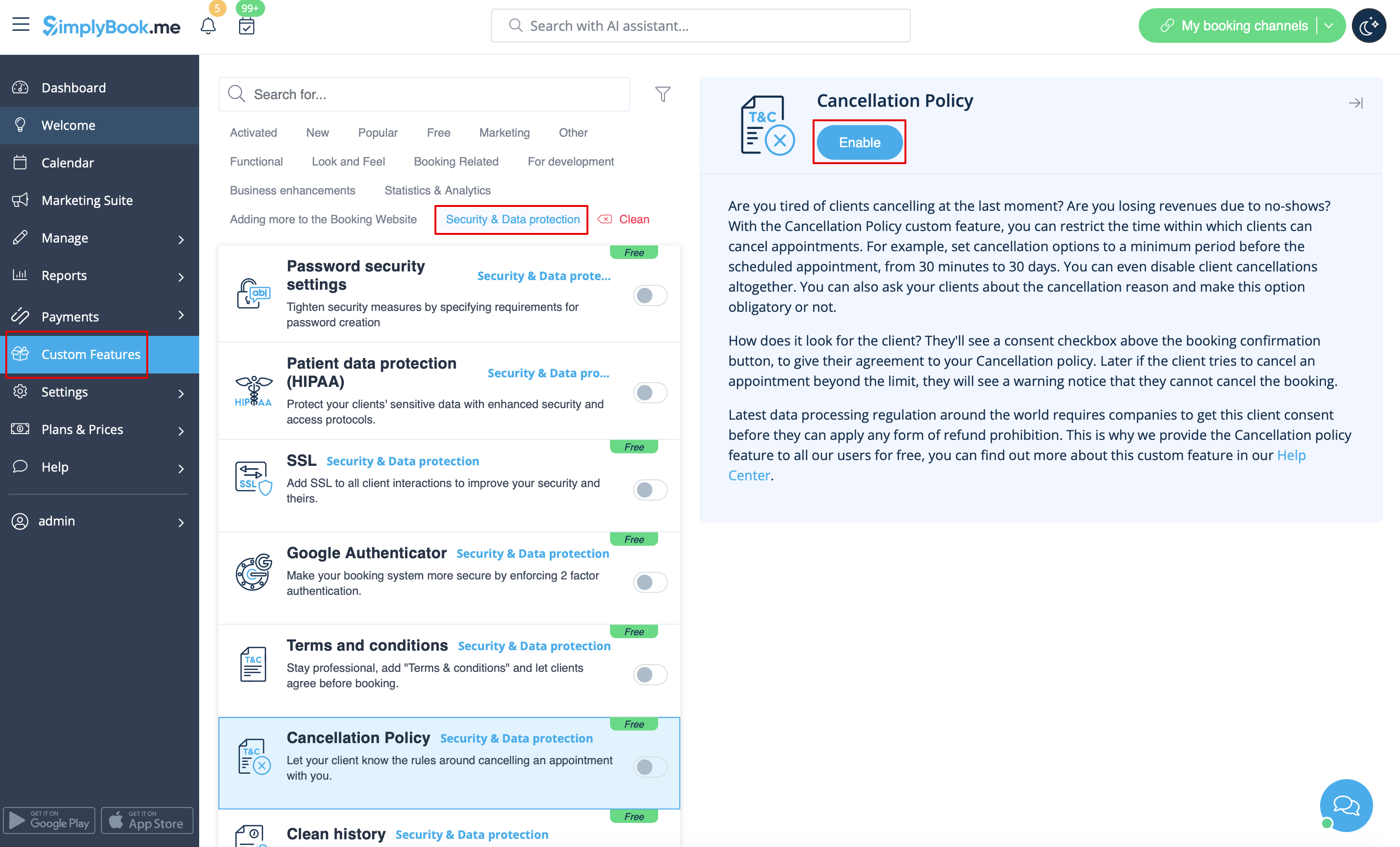
1. Aktivieren Sie die Funktion "Stornierungsbedingungen" auf Ihrer Seite Individuelle Funktionen. | 1. Aktivieren Sie die Funktion "Stornierungsbedingungen" auf Ihrer Seite Individuelle Funktionen. | ||
[[File:Cancellation policy enable path | [[File:Cancellation policy enable path redesigned.png|1200px| center|link=https://help.simplybook.me/images/e/ec/Cancellation_policy_enable_path_redesigned.png]] | ||
<br><br> | <br><br> | ||
2. Gehen Sie zu den Einstellungen auf der rechten Seite. | 2. Gehen Sie zu den Einstellungen auf der rechten Seite. | ||
[[File:Cancellation | [[File:Cancellation poilicy settings path redesigned.png|1200px | center|link=https://help.simplybook.me/images/f/f9/Cancellation_poilicy_settings_path_redesigned.png]] | ||
<br><br> | <br><br> | ||
3. Fügen Sie Ihren Text in das entsprechende Feld ein und wählen Sie den Zeitraum, in dem Buchungen storniert werden können<br> | 3. Fügen Sie Ihren Text in das entsprechende Feld ein und wählen Sie den Zeitraum, in dem Buchungen storniert werden können<br> | ||
Latest revision as of 14:04, 16 January 2025

Mit Hilfe der individuellen Funktion "Stornierungsbedingungen" können Sie die Zeit einschränken, in der Kunden Termine absagen können. Legen Sie einfach die Anzahl der Stunden vor dem Termin fest, in denen eine Stornierung möglich ist, oder verbieten Sie Stornierungen gänzlich. Wenn ein Kunde versucht, einen Termin nach Ablauf dieser Frist zu stornieren, wird er/sie eine Warnung sehen, dass die Buchung nicht storniert werden kann.
Kostenlose individuelle Funktion!
- Wie man es benutzt
1. Aktivieren Sie die Funktion "Stornierungsbedingungen" auf Ihrer Seite Individuelle Funktionen.
2. Gehen Sie zu den Einstellungen auf der rechten Seite.
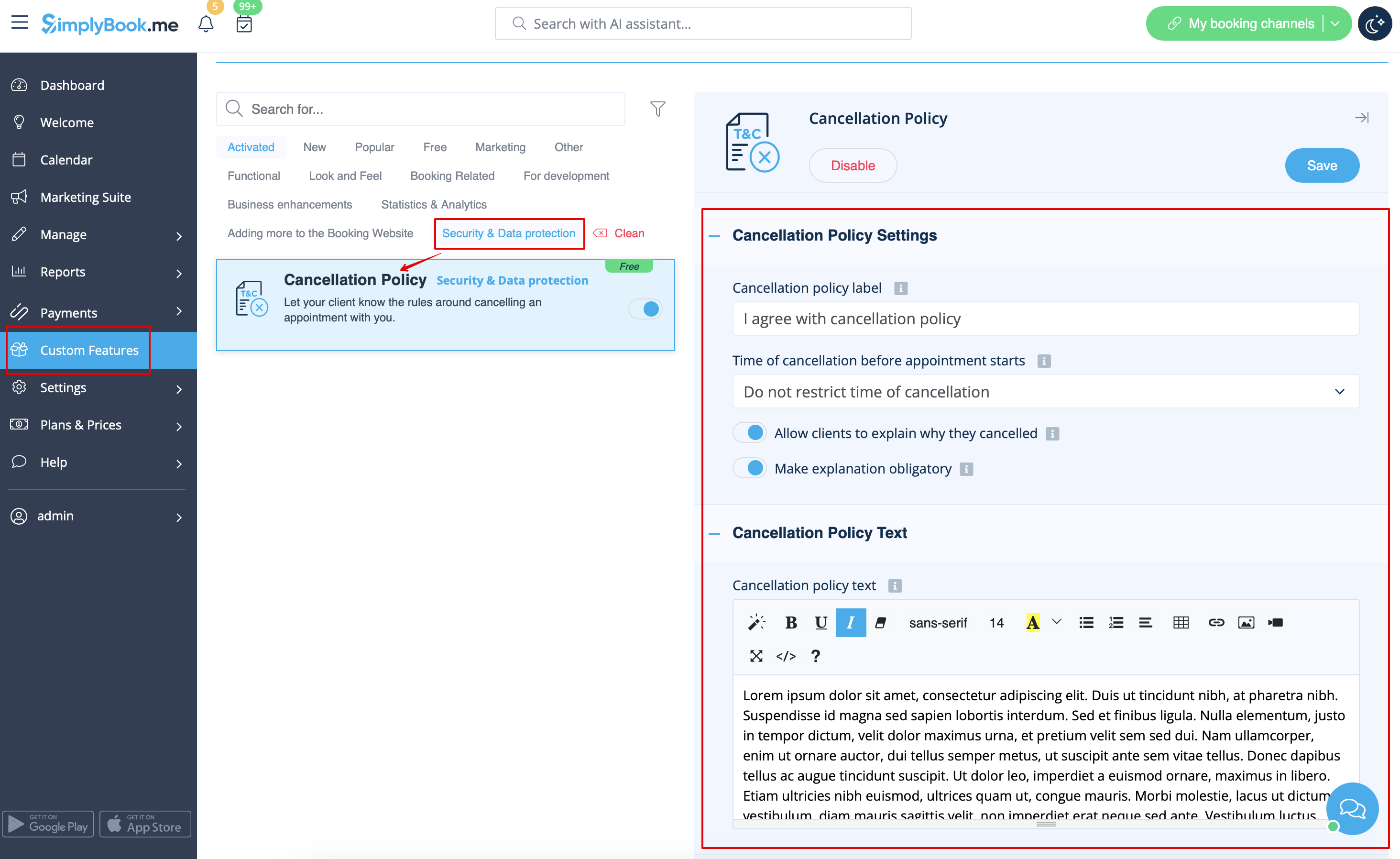
3. Fügen Sie Ihren Text in das entsprechende Feld ein und wählen Sie den Zeitraum, in dem Buchungen storniert werden können
(Sie können dort HTML-Tags verwenden, um den Text nach Ihren Wünschen zu formatieren).
4. Sie können Ihre Kunden auch nach dem Stornierungsgrund fragen und diese Option obligatorisch machen oder nicht.
