Translations:Where to change my info/17/en: Difference between revisions

From SimplyBook.me
FuzzyBot (talk | contribs)
Importing a new version from external source
 
(No difference)

Latest revision as of 16:13, 14 May 2025

Information about message (contribute)
This message has no documentation. If you know where or how this message is used, you can help other translators by adding documentation to this message.
Message definition (Where to change my info)
=Calendar Layout=
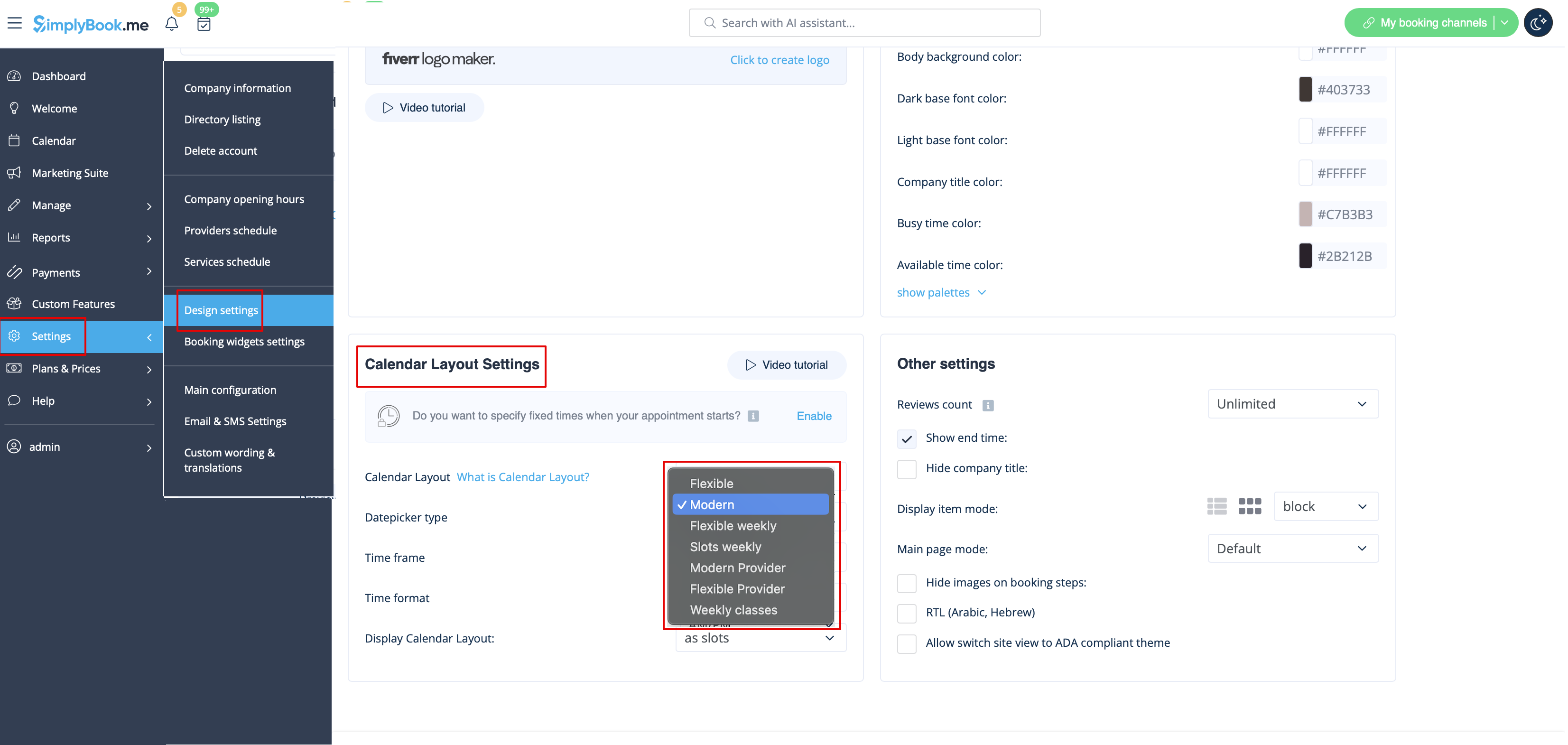
You can change calendar layout in Settings // Design settings // Calendar Layout settings // Calendar Layout drop-down<br/>
[[File:Calendar layout options redesigned2.png|1200px | center|link=https://help.simplybook.me/images/b/bf/Calendar_layout_options_redesigned2.png ]]<br/>
There are 9 types of calendar layout:<br/>
:'''Slots weekly''' - shows available time in the intervals equal to your service duration for a week. Starts counting from the first available time.
:'''Modern''' - shows available time in the intervals equal to your service duration for a day. Starts counting from the first available time.
:'''Flexible weekly''' - shows available time in the intervals equal to your [[Need_to_change_interval_(timeframe)| timeframe]] duration for a week. Starts counting from the first available time.
:'''Flexible''' - shows available time in the intervals equal to your [[Need_to_change_interval_(timeframe)| timeframe]] duration for a day. Starts counting from the first available time.
:'''Modern provider''' -  shows available time for providers for chosen date. Starts counting from the first available time of all providers.
:'''Flexible provider'''- shows available times for providers in the intervals equal to your [[Need_to_change_interval_(timeframe)| timeframe]] duration. Starts counting from the first available time on selected date.
:'''Daily Classes'''- shows available times for classes in the intervals equal to class duration. Starts counting from the first available time.
:::'''''Please note!''''' [[Custom_Features#Multiple_Bookings | Multiple Bookings]] custom feature currently does not work with Classes layout.
:'''Weekly Classes''' shows available times for classes in the intervals equal to class duration with weekly options. Starts counting from the first available time for a date. Only available times are displayed, unavailable slots are hidden.
If you have services that have fixed start times, you can try using [[Custom_Features#Appointment_at_Fixed_Time| Appointment at fixed time]] Custom Feature.
<br/><br/>

Calendar Layout

You can change calendar layout in Settings // Design settings // Calendar Layout settings // Calendar Layout drop-down


There are 9 types of calendar layout:

Slots weekly - shows available time in the intervals equal to your service duration for a week. Starts counting from the first available time.
Modern - shows available time in the intervals equal to your service duration for a day. Starts counting from the first available time.
Flexible weekly - shows available time in the intervals equal to your timeframe duration for a week. Starts counting from the first available time.
Flexible - shows available time in the intervals equal to your timeframe duration for a day. Starts counting from the first available time.
Modern provider - shows available time for providers for chosen date. Starts counting from the first available time of all providers.
Flexible provider- shows available times for providers in the intervals equal to your timeframe duration. Starts counting from the first available time on selected date.
Daily Classes- shows available times for classes in the intervals equal to class duration. Starts counting from the first available time.
Please note! Multiple Bookings custom feature currently does not work with Classes layout.
Weekly Classes shows available times for classes in the intervals equal to class duration with weekly options. Starts counting from the first available time for a date. Only available times are displayed, unavailable slots are hidden.

If you have services that have fixed start times, you can try using Appointment at fixed time Custom Feature.