Created page with "{{#seo: |title=Pas uw terminologie/taal aan - SimplyBook.me |description=Pas terminologie aan zodat deze bij uw merk past. Wijzig de taalinstellingen voor een gebruikerservaring op maat. Leer hier hoe u dit kunt aanpassen! |titlemode=append |keywords=faq, veelgestelde vragen, boekingssoftware, afsprakensysteem vragen, afspraken online, agendasoftware, boekingssysteem, taalinstellingen, taal wijzigen }}" |
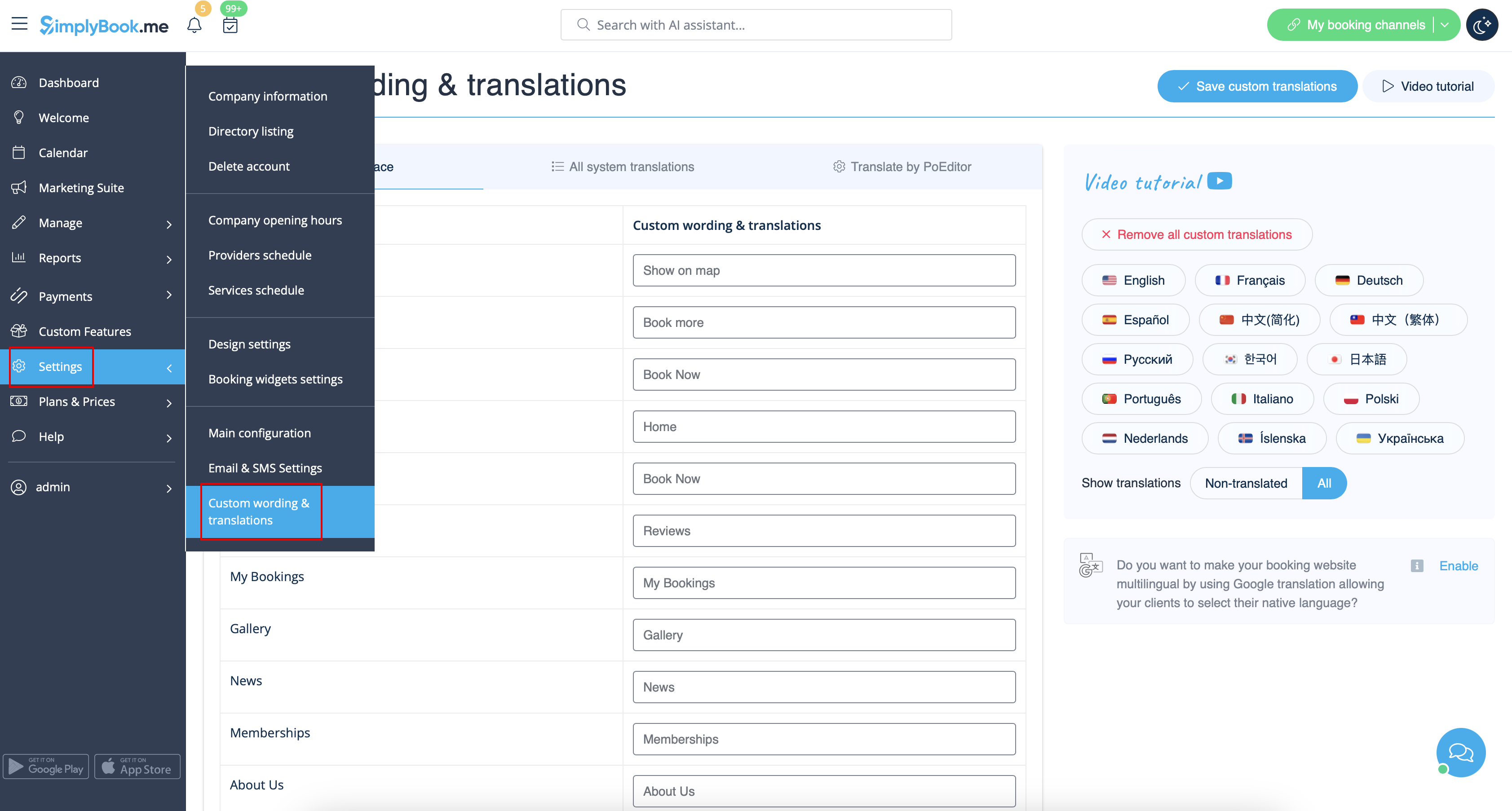
Created page with "__FORCETOC__ == Teksten wijzigen, alleen voor de klant == Als je teksten op je boekingspagina wilt aanpassen (bijvoorbeeld Werknemer wijzigen in Therapeut, Coach of Kamer), kun je dit doen via <span style="background-color:#d4f8e5; padding:5px; border-radius:5px;">Instellingen</span> -> <span style="background-color:#d4f8e5; padding:5px; border-radius:5px;">Aangepaste bewoordingen & vertalingen</span>. File:Custom translations path redesigned.png|1200px| border..." |
||
| Line 8: | Line 8: | ||
__FORCETOC__ | __FORCETOC__ | ||
== | == Teksten wijzigen, alleen voor de klant == | ||
Als je teksten op je boekingspagina wilt aanpassen (bijvoorbeeld Werknemer wijzigen in Therapeut, Coach of Kamer), kun je dit doen via <span style="background-color:#d4f8e5; padding:5px; border-radius:5px;">Instellingen</span> -> <span style="background-color:#d4f8e5; padding:5px; border-radius:5px;">Aangepaste bewoordingen & vertalingen</span>. | |||
[[File:Custom translations path redesigned.png|1200px| border|center|link=https://help.simplybook.me/images/9/91/Custom_translations_path_redesigned.png]] | [[File:Custom translations path redesigned.png|1200px| border|center|link=https://help.simplybook.me/images/9/91/Custom_translations_path_redesigned.png]] | ||
<br><br> | <br><br> | ||
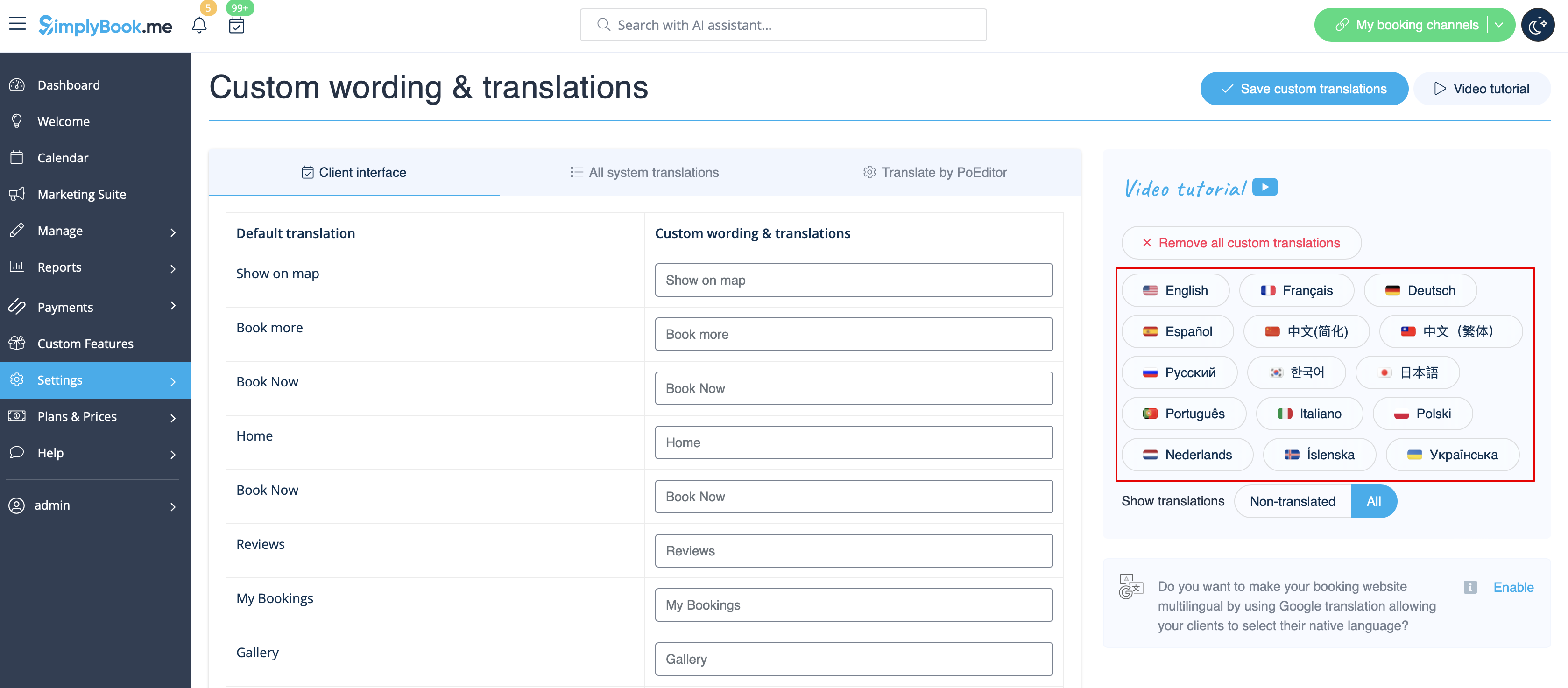
Daar kun je ook de taal van je boekingspagina wijzigen door op de betreffende knop aan de rechterkant te klikken en op <span style="background-color:#d4f8e5; padding:5px; border-radius:5px;">Save custom translations te drukken.</span> Als je taal niet in de lijst voorkomt, kun je het systeem zelf vertalen. | |||
[[File:Custom transaltions languages redesigned.png|1200px | border| center|link=https://help.simplybook.me/images/4/49/Custom_transaltions_languages_redesigned.png]] | [[File:Custom transaltions languages redesigned.png|1200px | border| center|link=https://help.simplybook.me/images/4/49/Custom_transaltions_languages_redesigned.png]] | ||
<br><br> | <br><br> | ||
Als je de boekingssite in meerdere talen wilt weergeven, kun je de aangepaste functie <span style="background-color:#cdeffc; padding:5px; border-radius:5px;">[[Custom_Features#Google_Translate | Google Translate]]</span> gebruiken. | |||
<br><br> | <br><br> | ||
Revision as of 08:56, 15 May 2025
Teksten wijzigen, alleen voor de klant
Als je teksten op je boekingspagina wilt aanpassen (bijvoorbeeld Werknemer wijzigen in Therapeut, Coach of Kamer), kun je dit doen via Instellingen -> Aangepaste bewoordingen & vertalingen.
Daar kun je ook de taal van je boekingspagina wijzigen door op de betreffende knop aan de rechterkant te klikken en op Save custom translations te drukken. Als je taal niet in de lijst voorkomt, kun je het systeem zelf vertalen.
Als je de boekingssite in meerdere talen wilt weergeven, kun je de aangepaste functie Google Translate gebruiken.
Changing language/wording for the whole system (without notifications templates)
Settings -> Custom wording & translations also allows you to adjust the language of the whole system. Please select All system translations tab to change all system wording.
Please note! It is not possible to have fully separate languages for admin and client sides as some of the texts are used for both sides. So you may have client side fully translated to one language and have admin side in a different one, but with some words form the client side language.
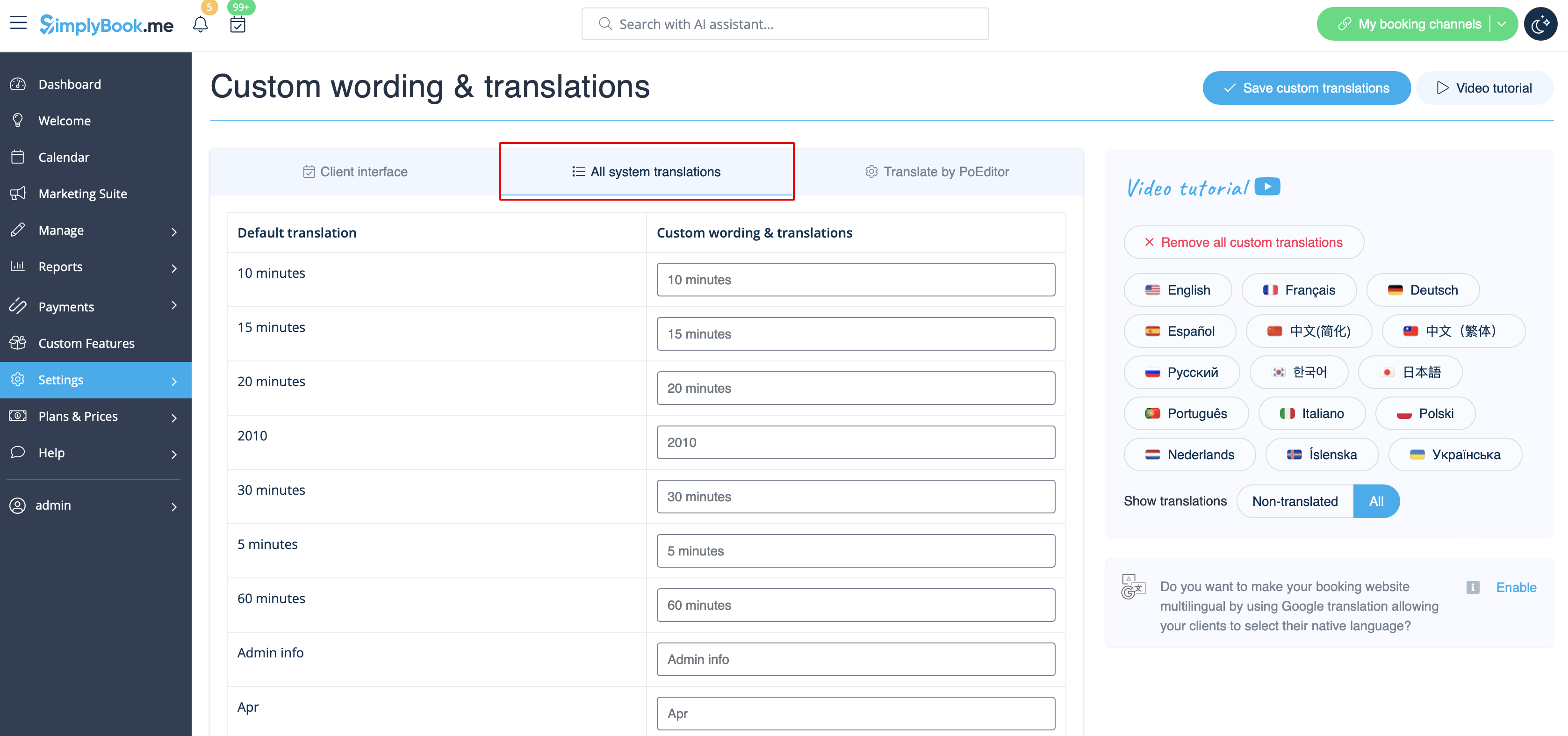
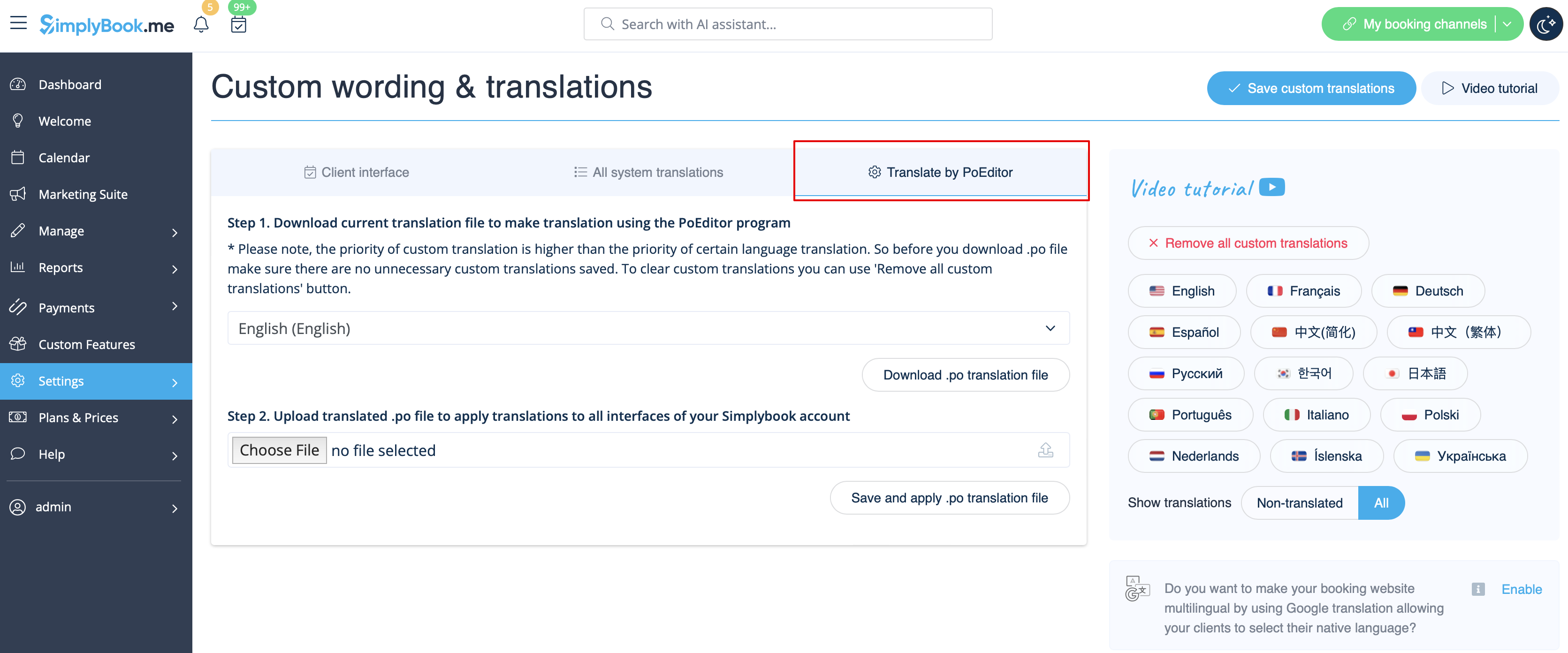
The system as well allows to download .po file, translate it with PoEditor software, upload the texts and apply to your system.
Changing language/wording for the whole system (with notifications templates)
If you need to change the language for all the interfaces, including the notifications templates:
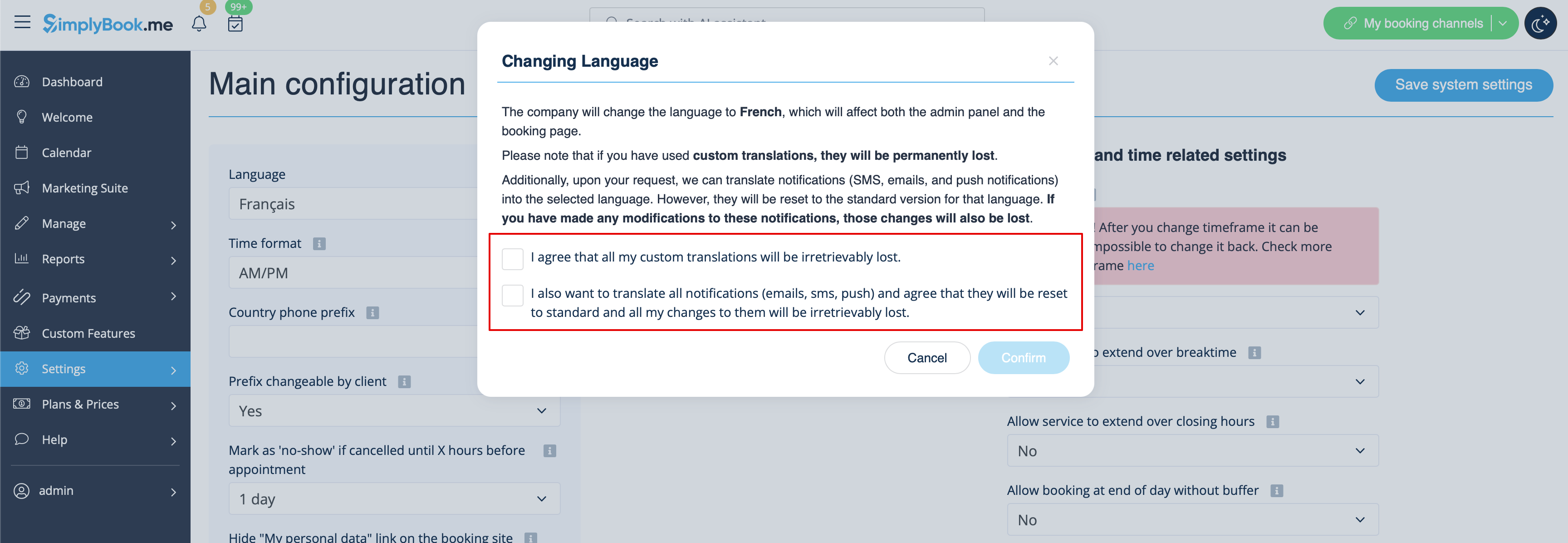
- Please navigate to Settings -> Main Configuration -> Language.
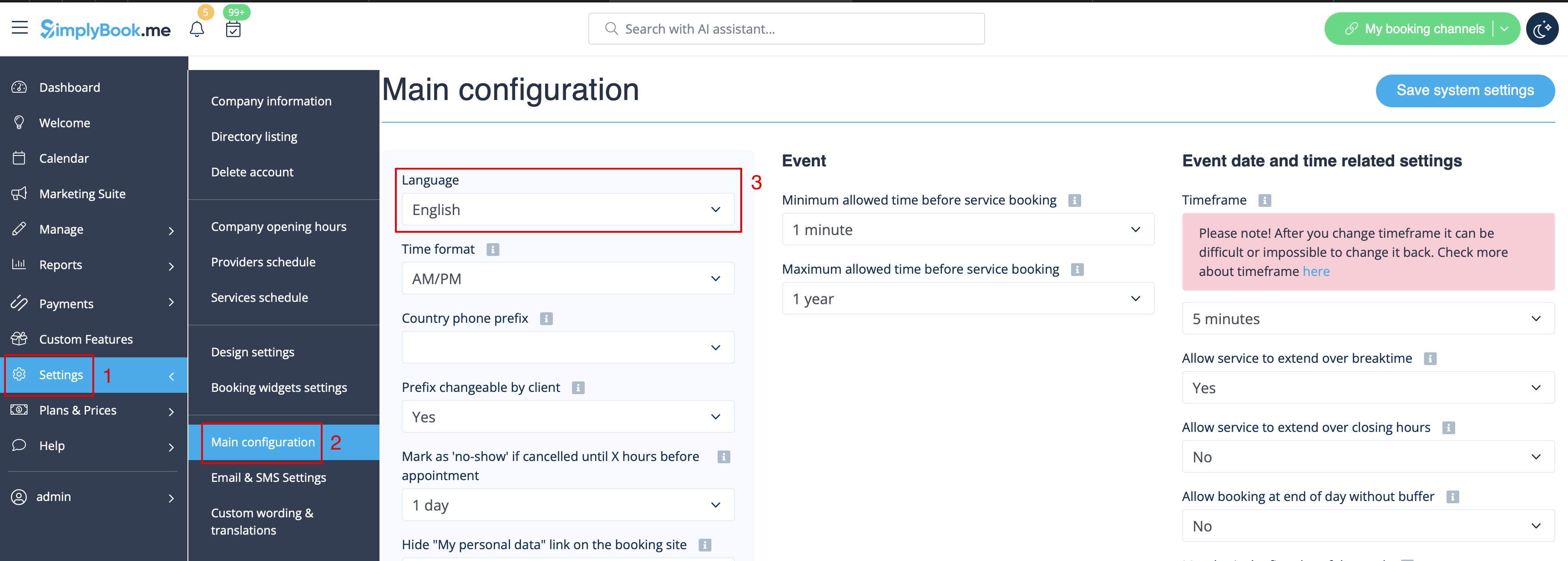
- Select the desired language from the drop-down menu.
- Confirm the selections (and whether you also need to change the language for the notifications templates)
Please note! If you have used custom translations/custom emails/sms templates texts, they will be permanently lost. You will need to add custom wording in Settings -> Custom translations after the new language has been applied.