No edit summary |
Marked this version for translation |
||
| (One intermediate revision by the same user not shown) | |||
| Line 1: | Line 1: | ||
<languages/> | |||
<translate> | |||
<!--T:1--> | |||
{{#seo: | {{#seo: | ||
|title=Add elements to booking page - SimplyBook.me | |title=Add elements to booking page - SimplyBook.me | ||
| Line 6: | Line 9: | ||
}} | }} | ||
</translate> | |||
<translate> | |||
<!--T:2--> | |||
<br> | <br> | ||
=Logo and background= | =Logo and background= | ||
| Line 29: | Line 34: | ||
<br><br> | <br><br> | ||
</translate> | |||
<translate> | |||
<!--T:3--> | |||
=Pictures= | =Pictures= | ||
<br><br> | <br><br> | ||
| Line 35: | Line 44: | ||
<br><br> | <br><br> | ||
</translate> | |||
<translate> | |||
<!--T:4--> | |||
=Descriptions= | =Descriptions= | ||
<br><br> | <br><br> | ||
| Line 42: | Line 55: | ||
<br><br> | <br><br> | ||
</translate> | |||
<translate> | |||
<!--T:5--> | |||
=About section= | =About section= | ||
<br><br> | <br><br> | ||
| Line 48: | Line 65: | ||
<br><br> | <br><br> | ||
</translate> | |||
<translate> | |||
<!--T:6--> | |||
=Contacts= | =Contacts= | ||
<br><br> | <br><br> | ||
| Line 69: | Line 90: | ||
<br><br><br><br> | <br><br><br><br> | ||
</translate> | |||
<translate> | |||
<!--T:7--> | |||
=Gallery= | =Gallery= | ||
<br><br> | <br><br> | ||
| Line 76: | Line 101: | ||
<br><br> | <br><br> | ||
</translate> | |||
<translate> | |||
<!--T:8--> | |||
=News= | =News= | ||
<br><br> | <br><br> | ||
| Line 86: | Line 115: | ||
<br><br> | <br><br> | ||
</translate> | |||
<translate> | |||
<!--T:9--> | |||
=Terms and Conditions= | =Terms and Conditions= | ||
<br><br> | <br><br> | ||
| Line 92: | Line 125: | ||
<br><br> | <br><br> | ||
</translate> | |||
<translate> | |||
<!--T:10--> | |||
=Cancellation Policy= | =Cancellation Policy= | ||
<br><br> | <br><br> | ||
| Line 98: | Line 135: | ||
<br><br> | <br><br> | ||
</translate> | |||
<translate> | |||
<!--T:11--> | |||
=Html formatting for description fields= | =Html formatting for description fields= | ||
<br><br> | <br><br> | ||
| Line 104: | Line 145: | ||
[[File:Html description enable path redesigned.png|1200px| border|center|link=https://help.simplybook.me/images/1/1f/Html_description_enable_path_redesigned.png]] | [[File:Html description enable path redesigned.png|1200px| border|center|link=https://help.simplybook.me/images/1/1f/Html_description_enable_path_redesigned.png]] | ||
<!--T:12--> | |||
<br><br> | <br><br> | ||
</translate> | |||
Latest revision as of 10:15, 15 May 2025
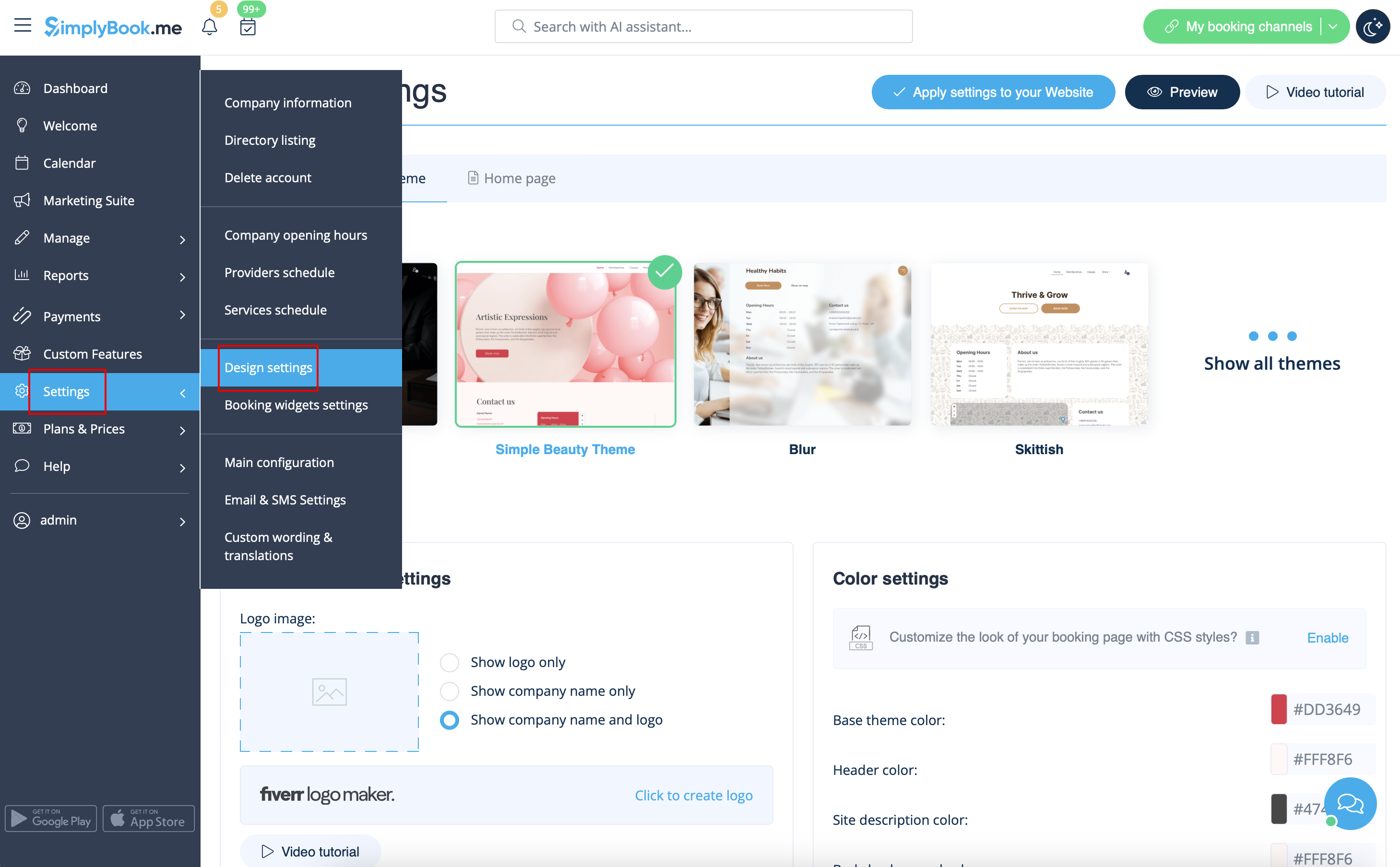
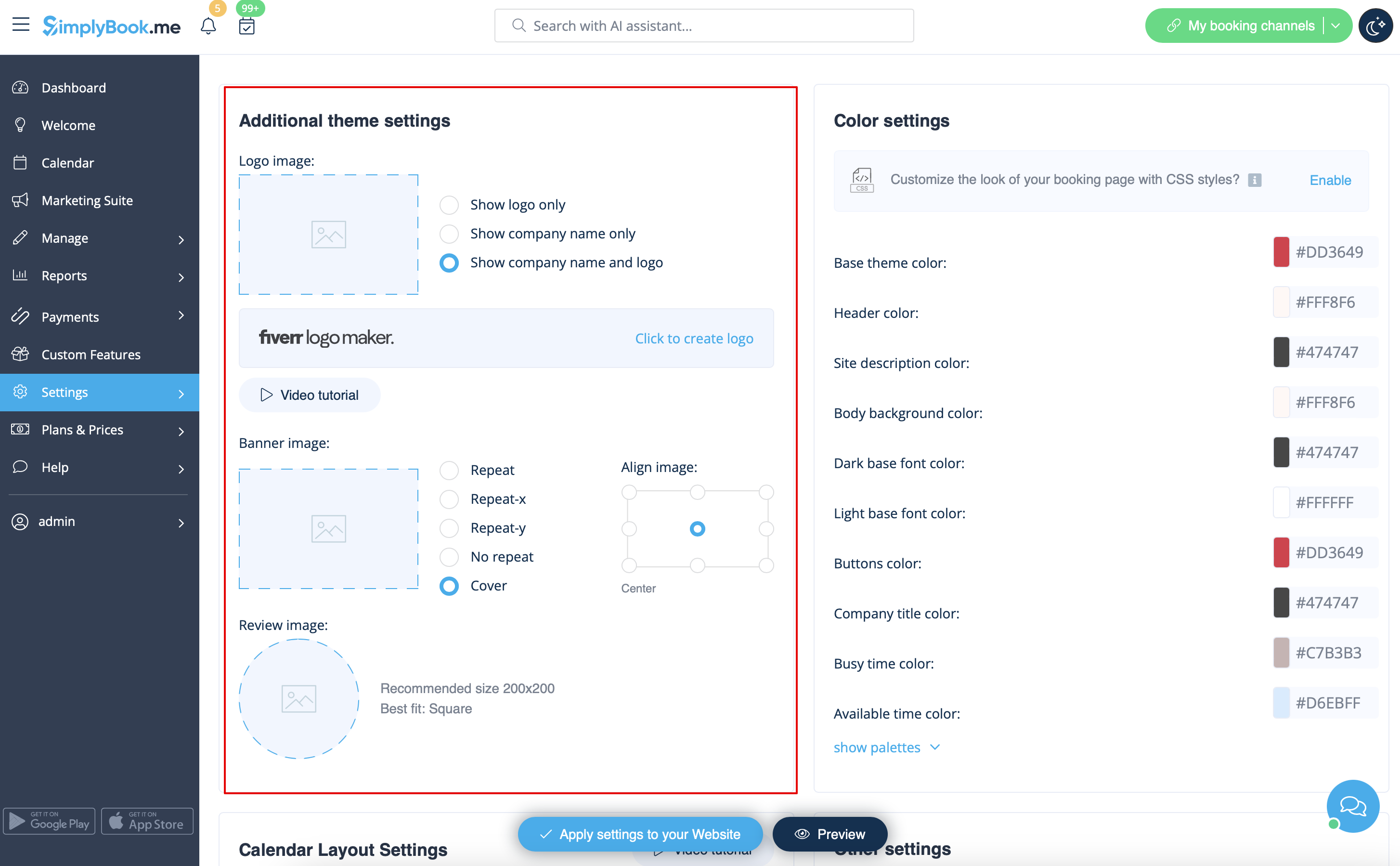
Logo and background
You can add your company logo and nice banner, as well as a separate logo for the "Reviews" page in
Settings
->
Design settings
->
Additional theme settings
Pictures
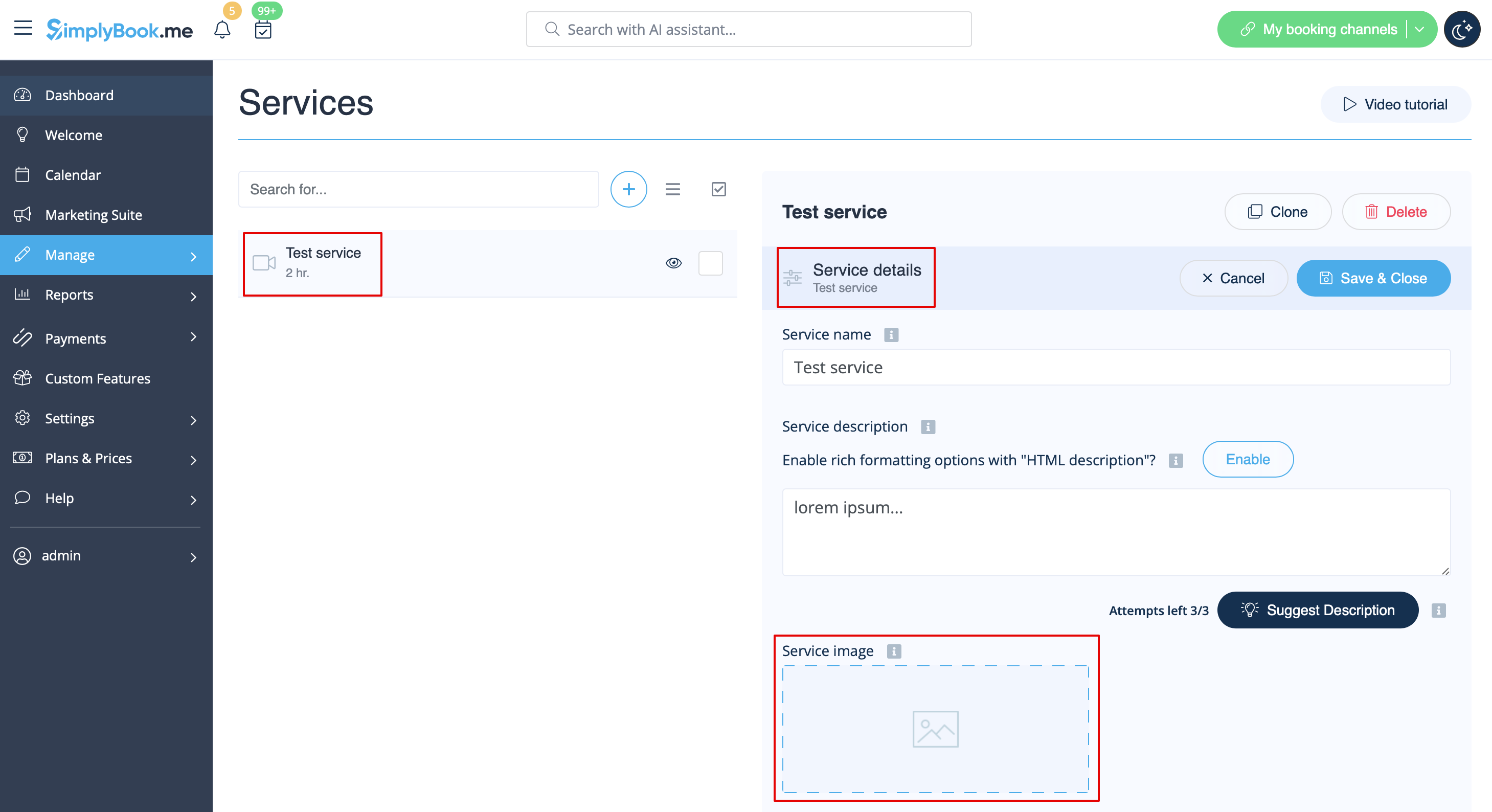
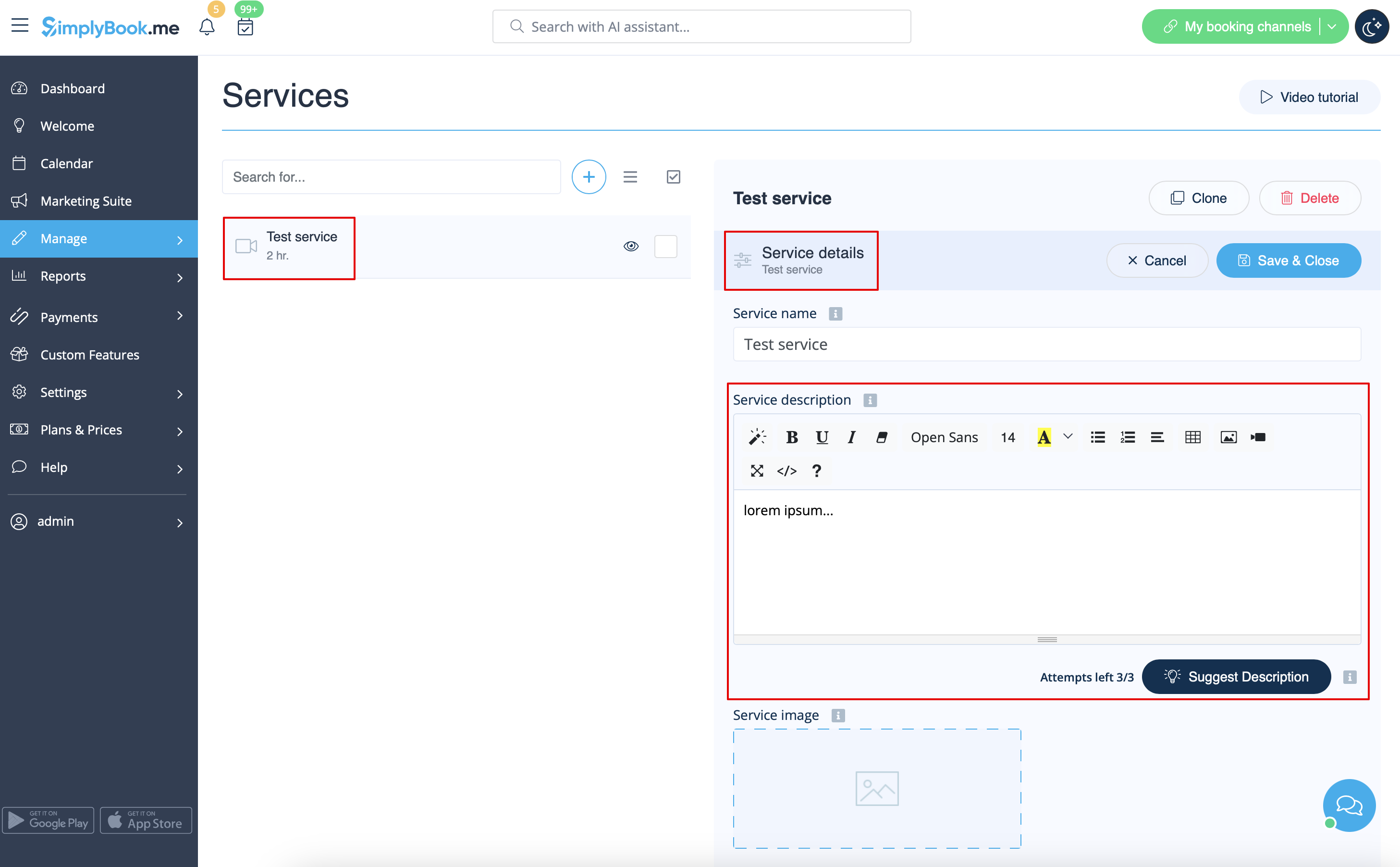
You can add pictures to your services, providers, categories and locations, etc. in Manage -> Services/Service Providers -> Service details or Service provider details tab -> click on the photo icon in Service image or Service provider image box and browse the photo.
Descriptions
Need to provide more information regarding your services and/or employees?
You can set this in Manage -> Services/Service Providers -> Service details or Service provider details tab -> Service description or Service provider description
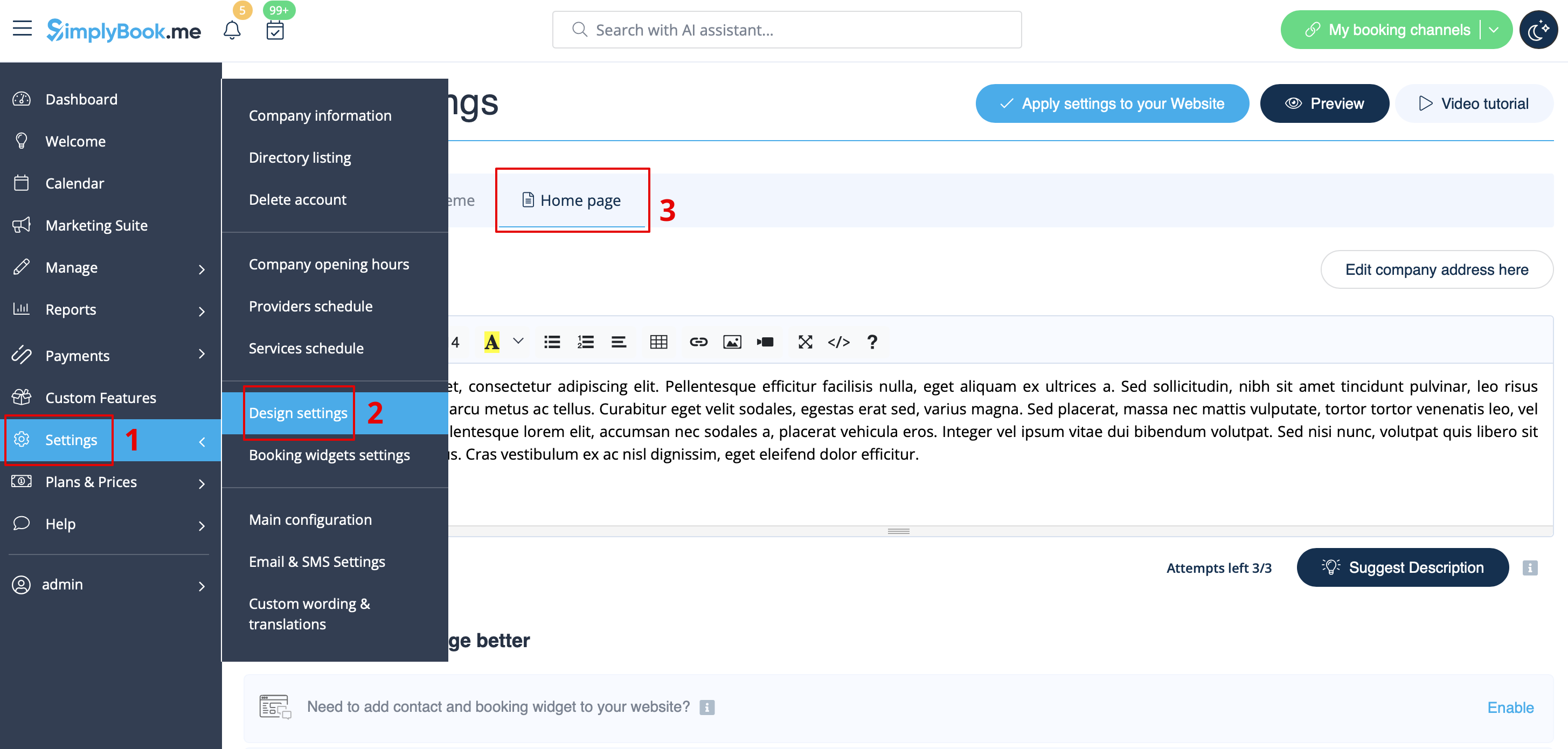
About section
In Settings -> Design settings -> Home page you can add some company description and other important information that you wish to be displayed on your home page.
Contacts
Need to show your clients some contact details? Please add them in Settings -> Company information
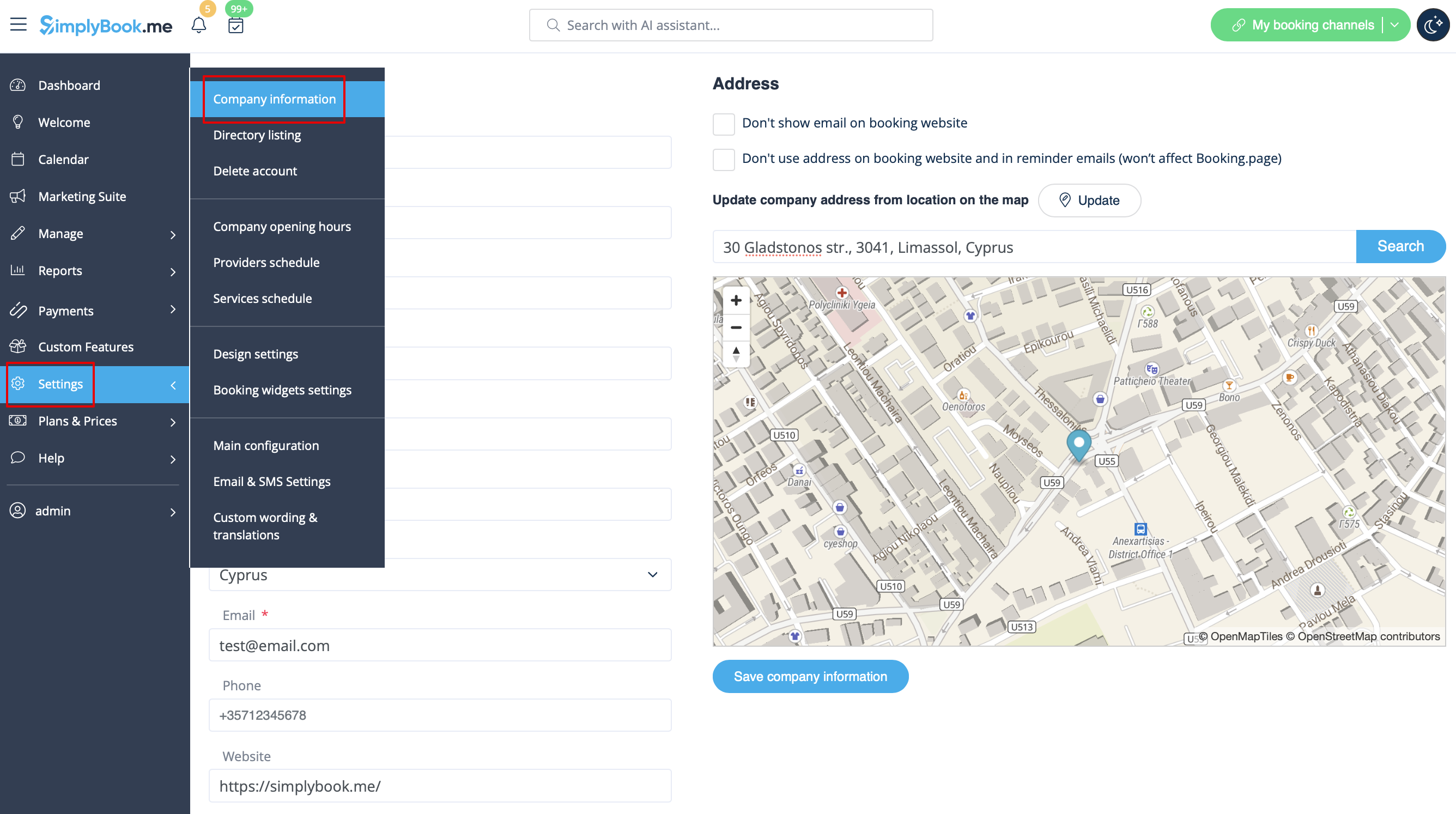
You can add the following details there:
- Email address
- Phone number
- Website address
- WhatsApp phone
- Facebook profile url
- X.com (Twitter) page link
- Instagram page url
- LinkedIn page
An example of the client side look.
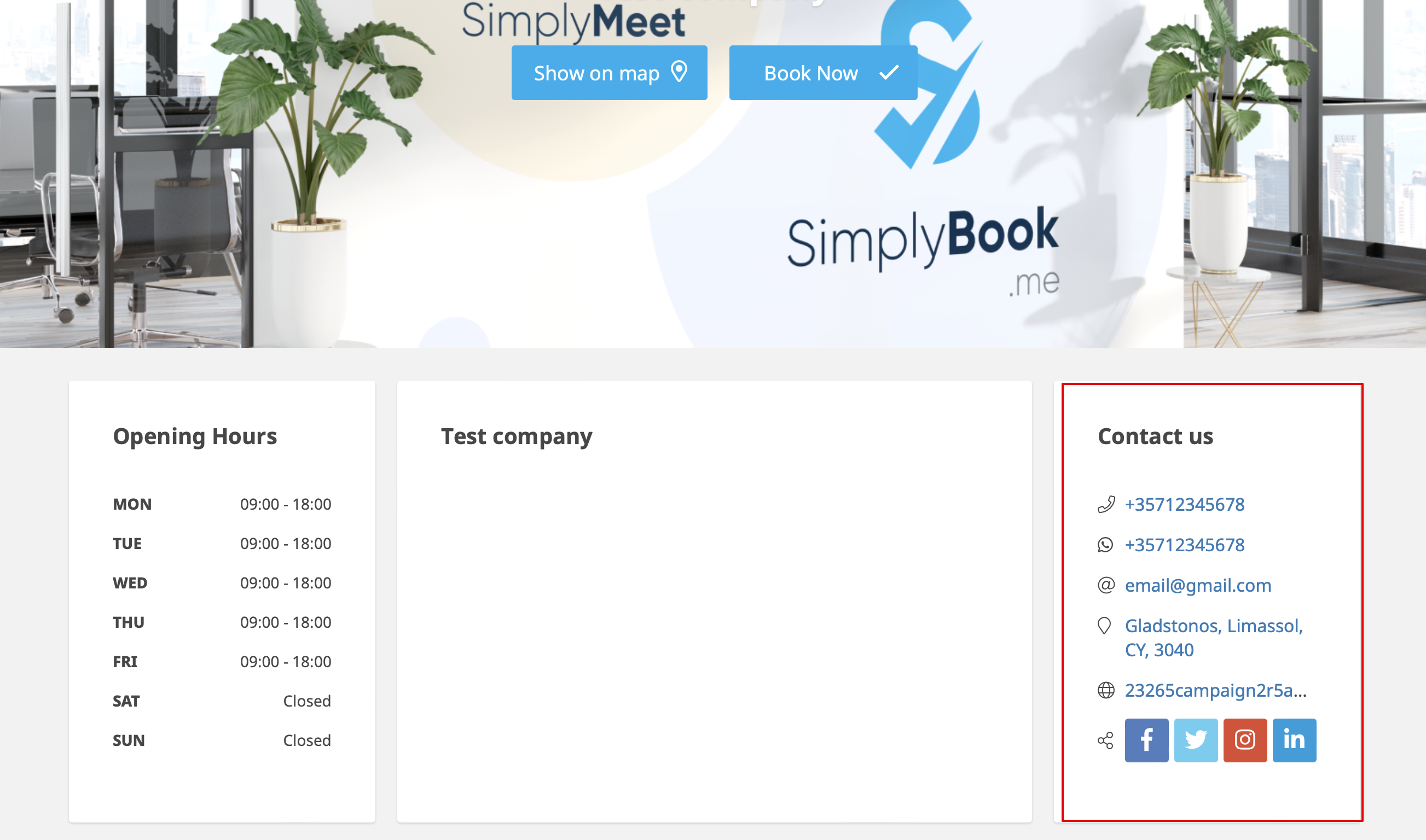
The clients will be able to, for example, click on WhatsApp number and be redirected to the WhatsApp messenger to easily contact you there.
Gallery
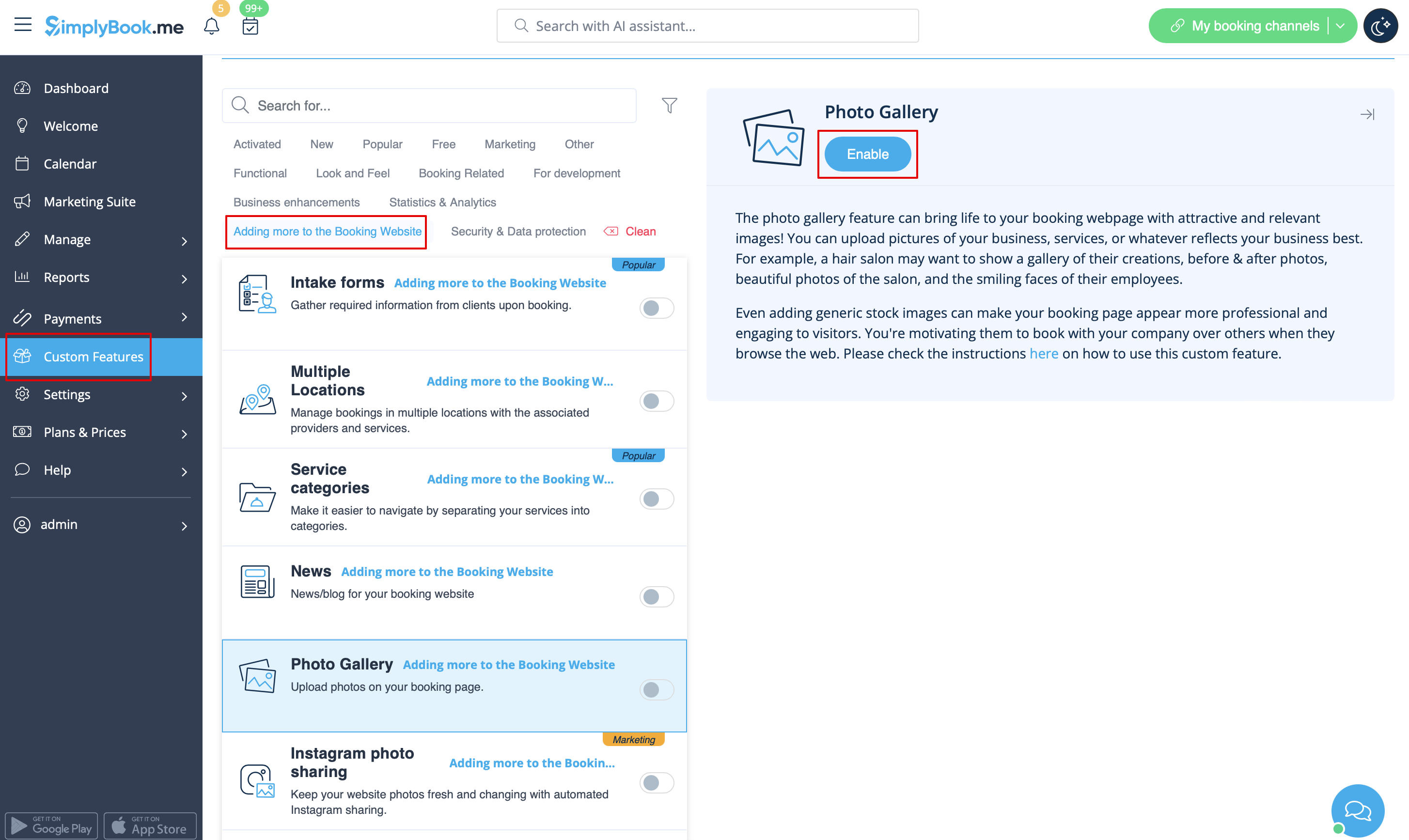
Make your booking page more attractive showing the photos of your services with Photo Gallery custom feature.
To enable it please go to Custom Features -> Adding more to the booking website -> Photo Gallery -> Enable
News
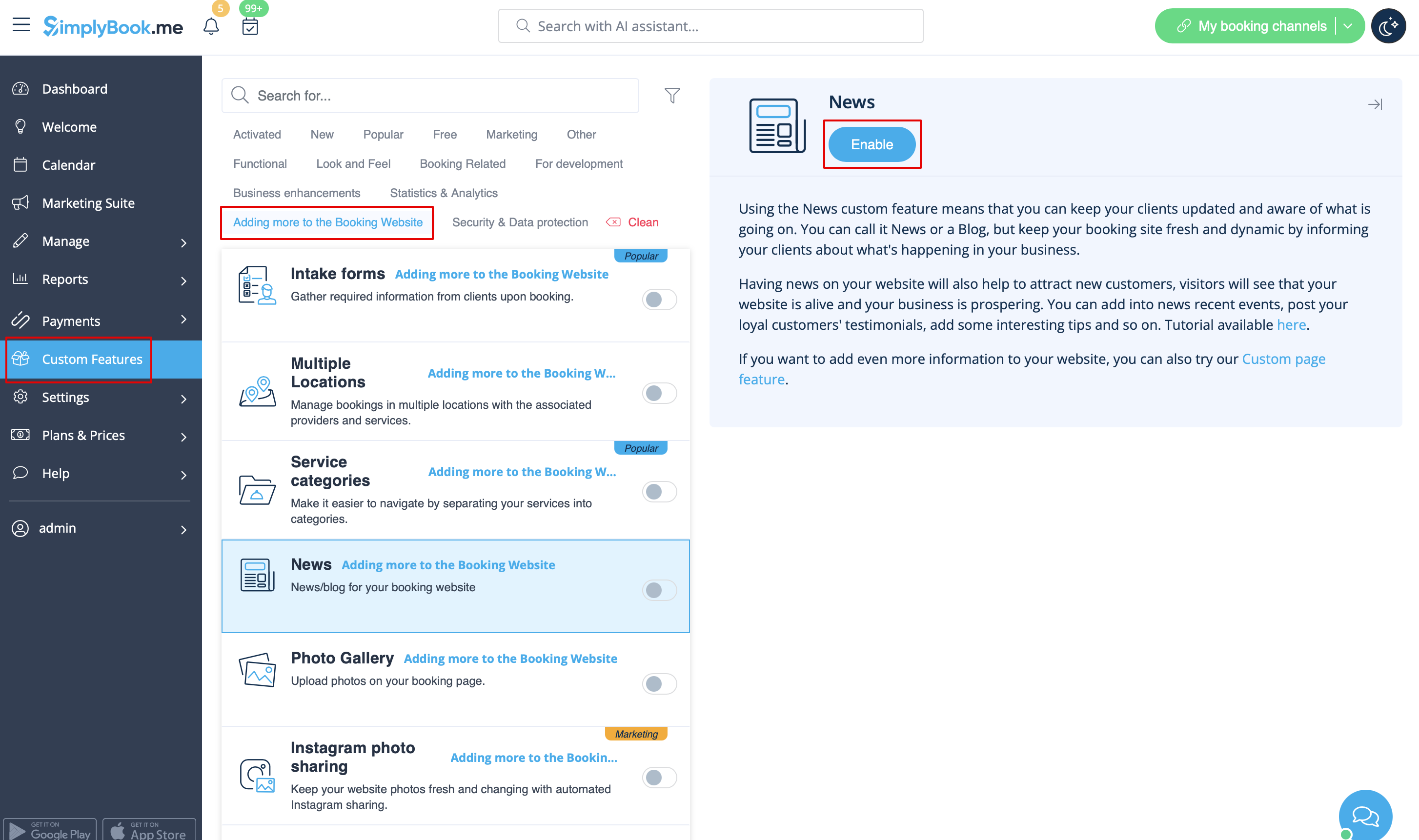
This option allows to add fresh news to your booking website.
To activate it please go to Custom Features -> Adding more to the booking website -> News -> Enable
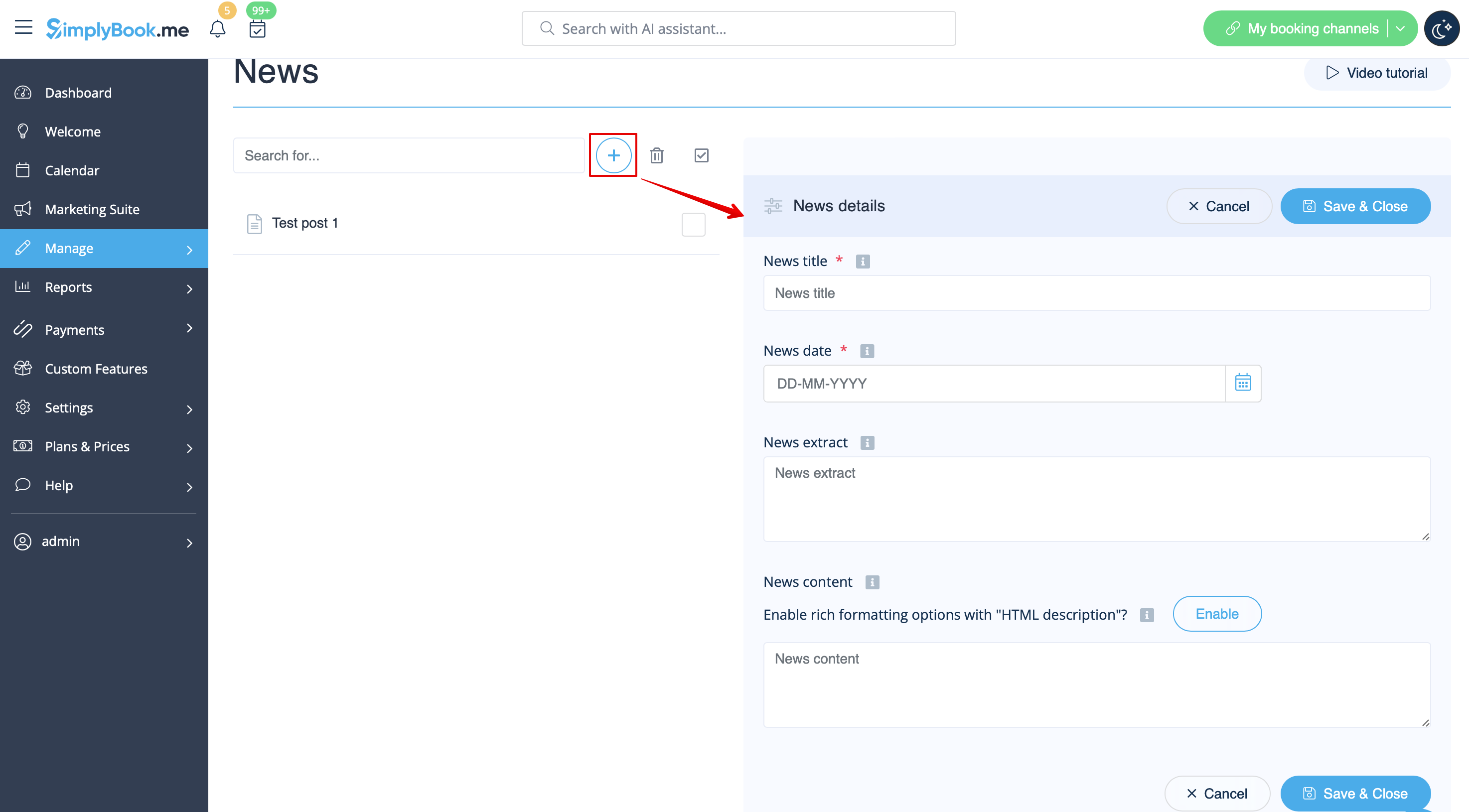
After it is enabled in Custom Features -> News -> Settings you can create news posts and they will be shown in the separate tab on your booking site.
Terms and Conditions
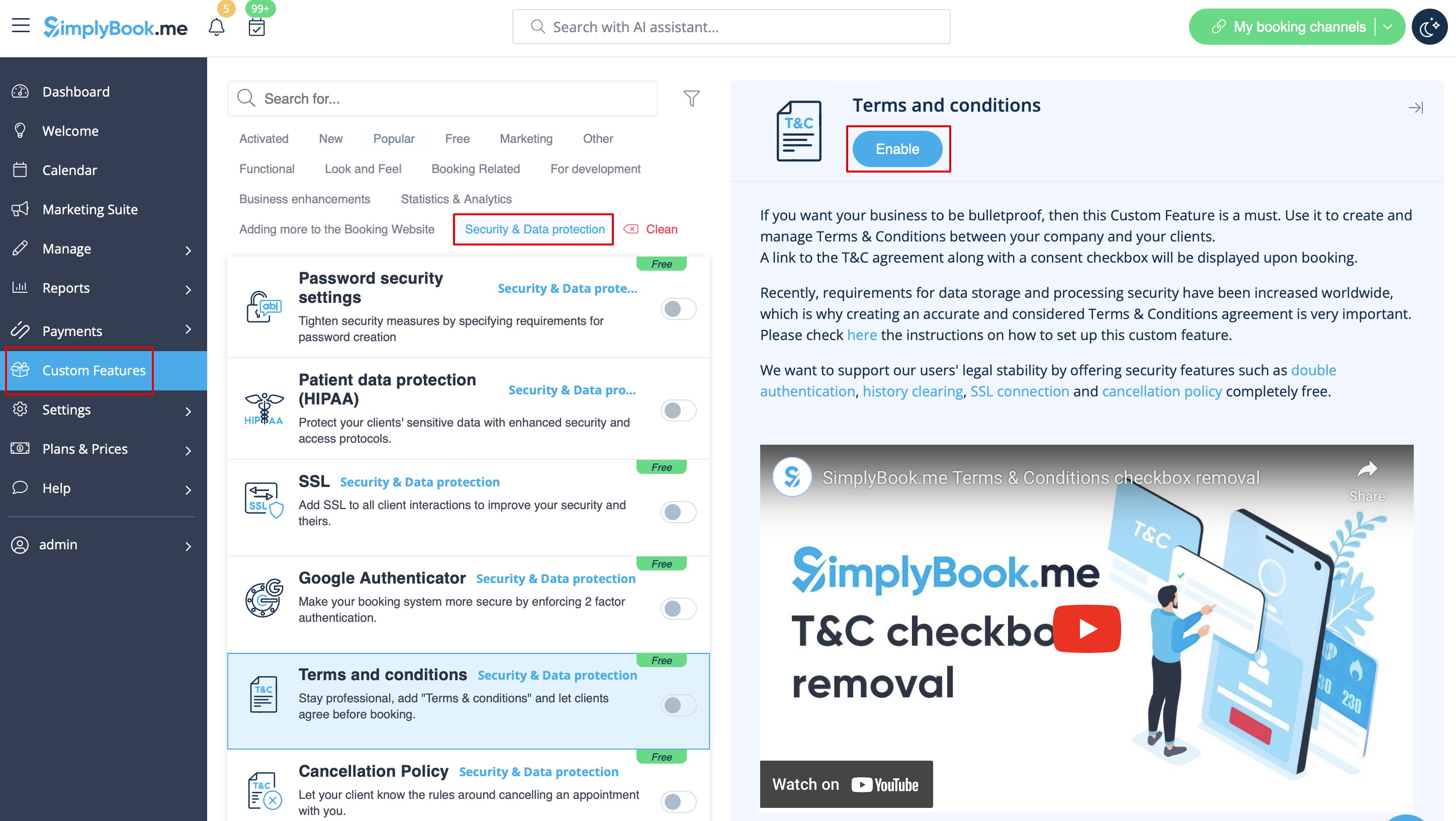
Need your business to be bulletproof? You can add your own Terms and Conditions by enabling the corresponding custom feature in Custom Features -> Security & Data protection and adding the text of your T&C in its settings.
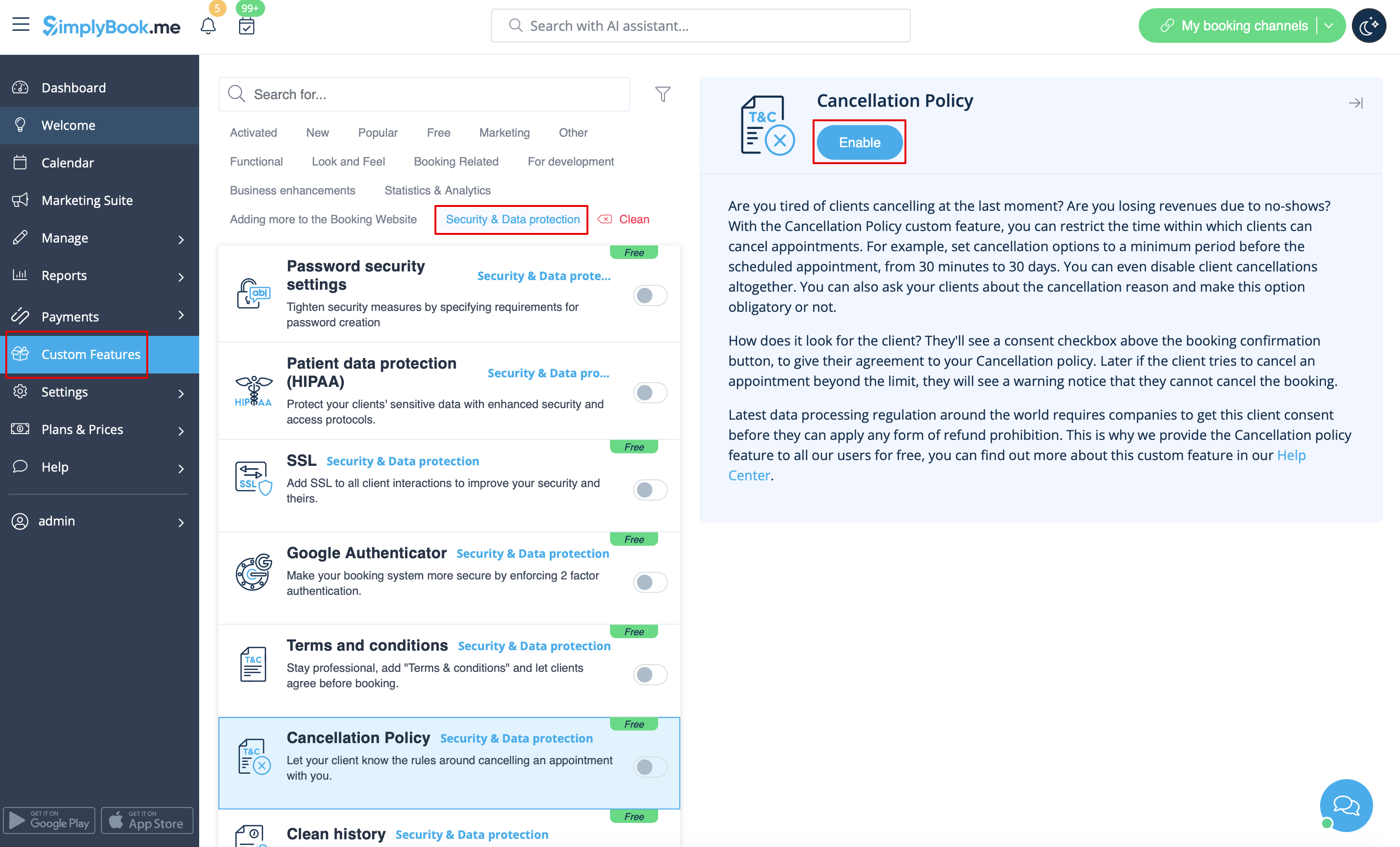
Cancellation Policy
Need to restrict the period when bookings can be canceled by clients? Please go to Custom Features -> Data protection -> Cancellation Policy -> Enable and set it to your needs.
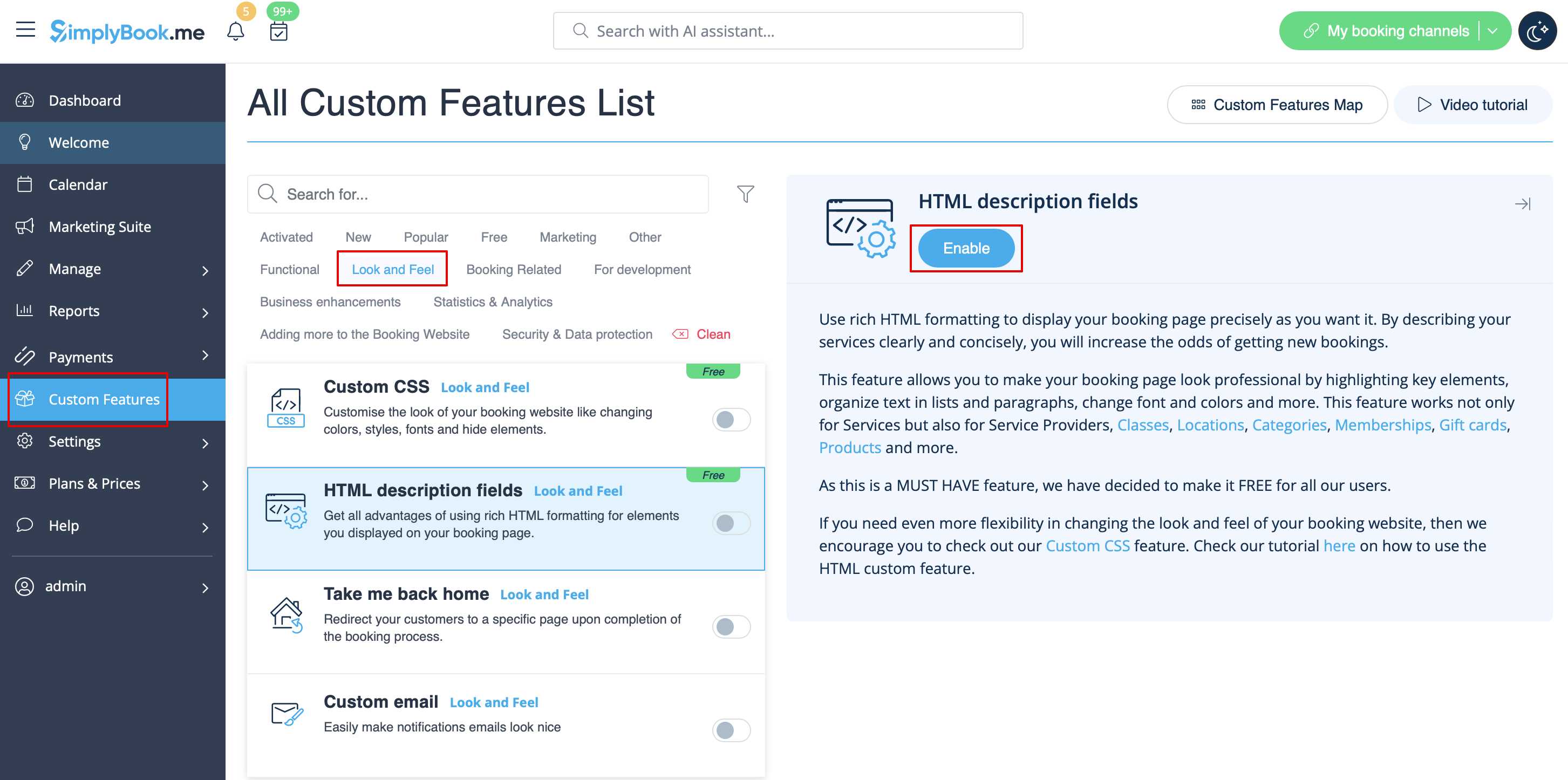
Html formatting for description fields
This feature allows making descriptions more eye-catching with the use of HTML formatting.
Please go to Custom Features -> Look and Feel -> HTML description fields -> Enable and edit descriptions for services, providers, locations and categories in the corresponding Manage section.