Latest revision as of 11:53, 15 May 2025
Information about message (contribute ) This message has no documentation.
If you know where or how this message is used, you can help other translators by adding documentation to this message.
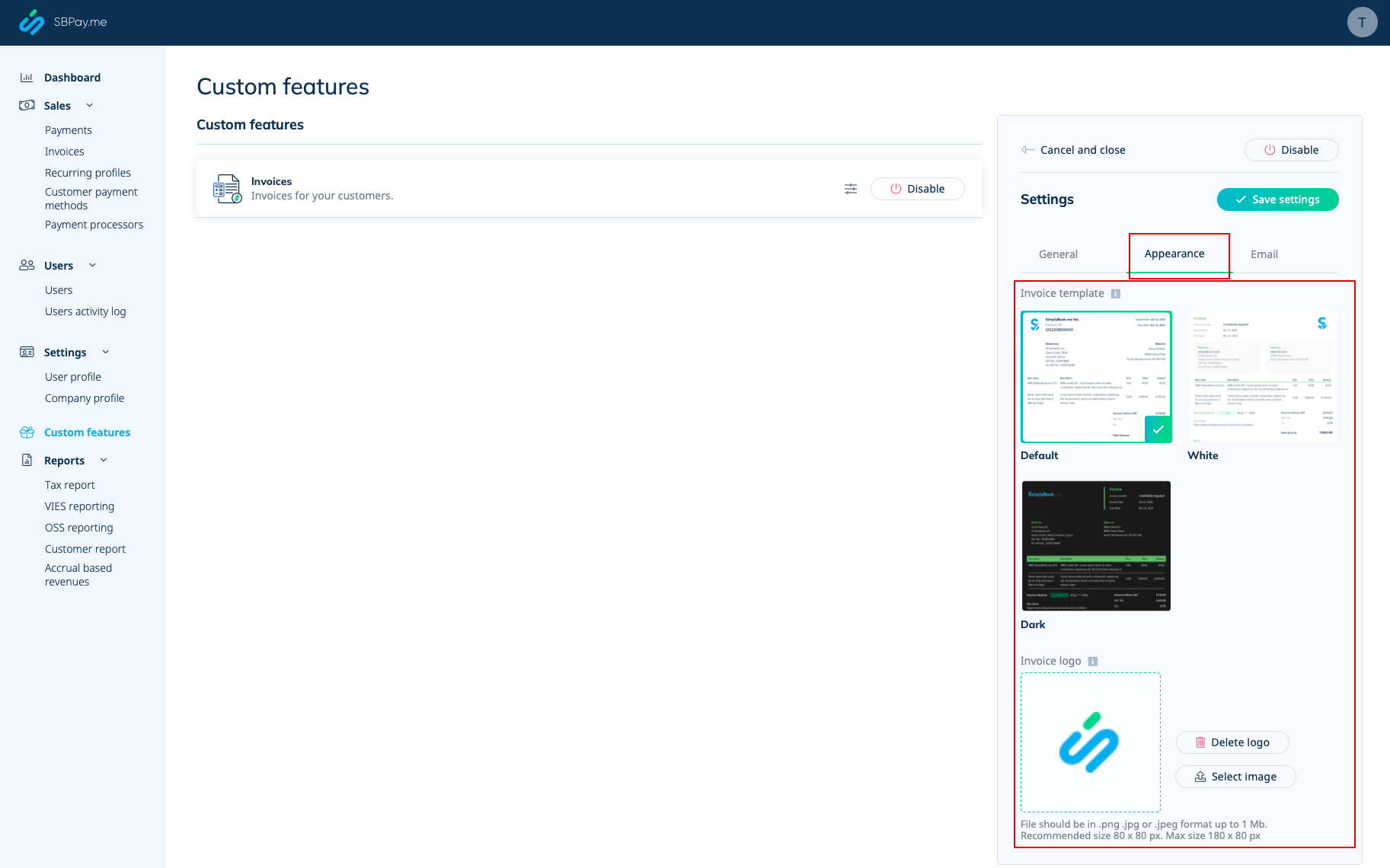
Message definition (Adjusting client invoices ) 5. '''Invoice design.'''<br> There are three templates to choose from in <span style="background-color:#d4f8e5; padding:5px; border-radius:5px;">Payments(SBPay.me)</span> -> <span style="background-color:#d4f8e5; padding:5px; border-radius:5px;">Payment systems </span> -> <span style="background-color:#d4f8e5; padding:5px; border-radius:5px;">Custom features</span> -> <span style="background-color:#d4f8e5; padding:5px; border-radius:5px;">Invoices</span> -> <span style="background-color:#d4f8e5; padding:5px; border-radius:5px;">Settings</span> -> <span style="background-color:#d4f8e5; padding:5px; border-radius:5px;">Appearance.</span> Please cheese the one you like the most, add your comopany logo and save settings. [[File:Sbpay invoice appearance settings.png|1200px|border|center|link=https://help.simplybook.me/images/f/f3/Sbpay_invoice_appearance_settings.png]] <br><br>
5. Invoice design.
There are three templates to choose from in Payments(SBPay.me) -> Payment systems -> Custom features -> Invoices -> Settings -> Appearance.
Please cheese the one you like the most, add your comopany logo and save settings.