From SimplyBook.me
Created page with "Налаштування часу та дати" Tags: Mobile edit Mobile web edit |
Created page with "= Змінити формат дати = :Щоб встановити бажаний формат, перейдіть до Налаштування // Основні налаштування // Формат дати.<br/><br/> 1200px| center|link=https://help.simplybook.me/images/d/d2/Date_format_settings_redesigned.png <br/><br/>" Tags: Mobile edit Mobile web edit |
||
| Line 1: | Line 1: | ||
<languages/> | <languages/> | ||
{{#seo: |title=Налаштування часу та дати - SimplyBook.me |description=Налаштуйте час і дату відповідно до робочого графіка вашої компанії. Забезпечте точне планування. Дізнайтеся, як це зробити, тут! |titlemode=додати |keywords=fAQ, часто задавані питання, програмне забезпечення для бронювання, питання про систему бронювання, онлайн-бронювання, програмне забезпечення для календаря, система бронювання, календар бронювання, програмне забезпечення для планування, онлайн-планування зустрічей, онлайн-планування, плагіни, настроювані функції, посилання на настроювану сторінку бронювання, доменне ім'я, настроюване доменне ім'я, настроювана URL-адреса }} | |||
{{#seo: | |||
|title= | |||
|description= | |||
|titlemode= | |||
|keywords= | |||
}} | |||
<br/><br/> | <br/><br/> | ||
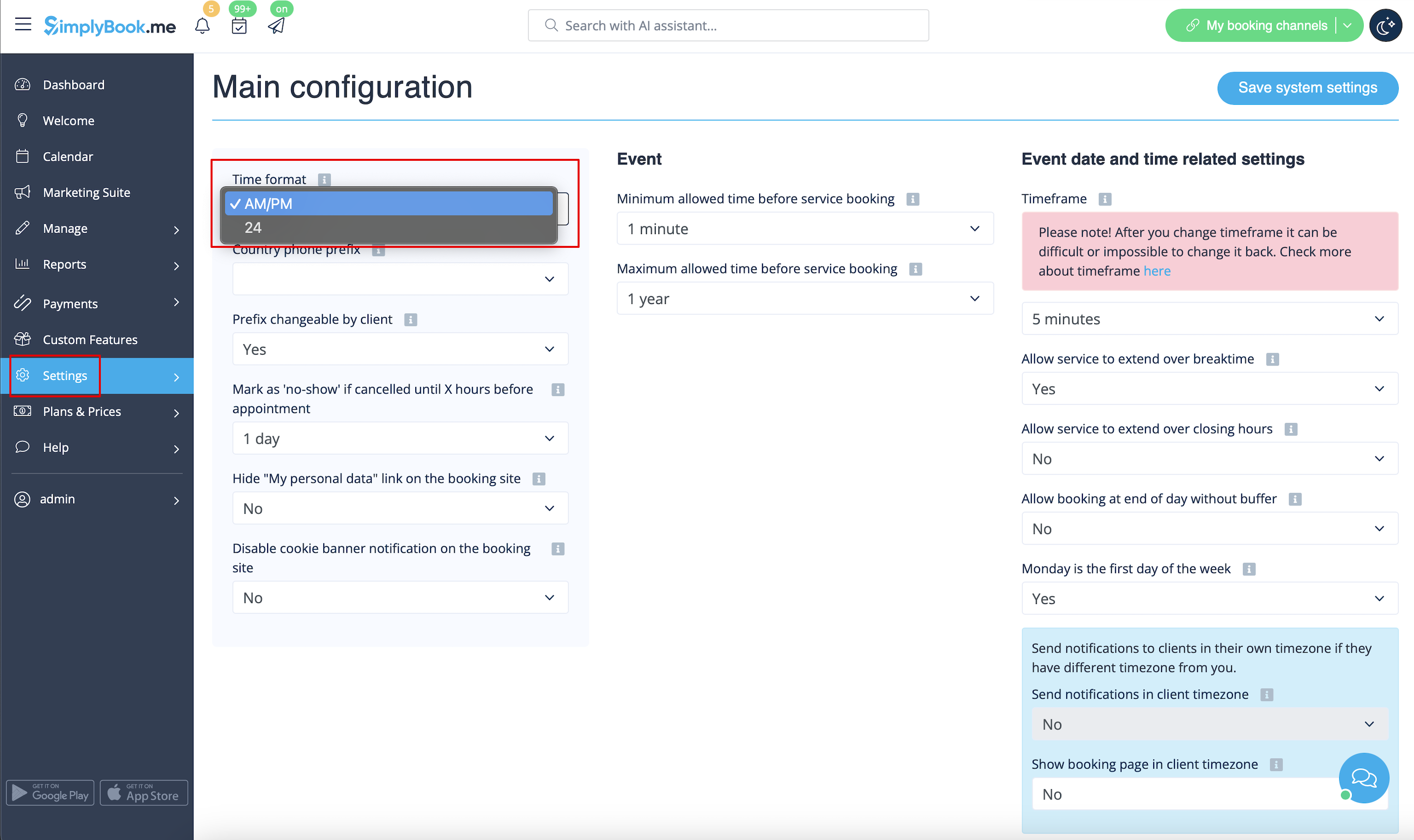
= | = Змінити формат часу AM/PM - 24 = | ||
: | :Щоб налаштувати його, перейдіть до Налаштування // Основні налаштування // Формат часу<br/> | ||
[[File:Time format setting redesigned.png|1200px| center|link=https://help.simplybook.me/images/2/20/Time_format_setting_redesigned.png]]<br/><br/> | [[File:Time format setting redesigned.png|1200px| center|link=https://help.simplybook.me/images/2/20/Time_format_setting_redesigned.png]]<br/><br/> | ||
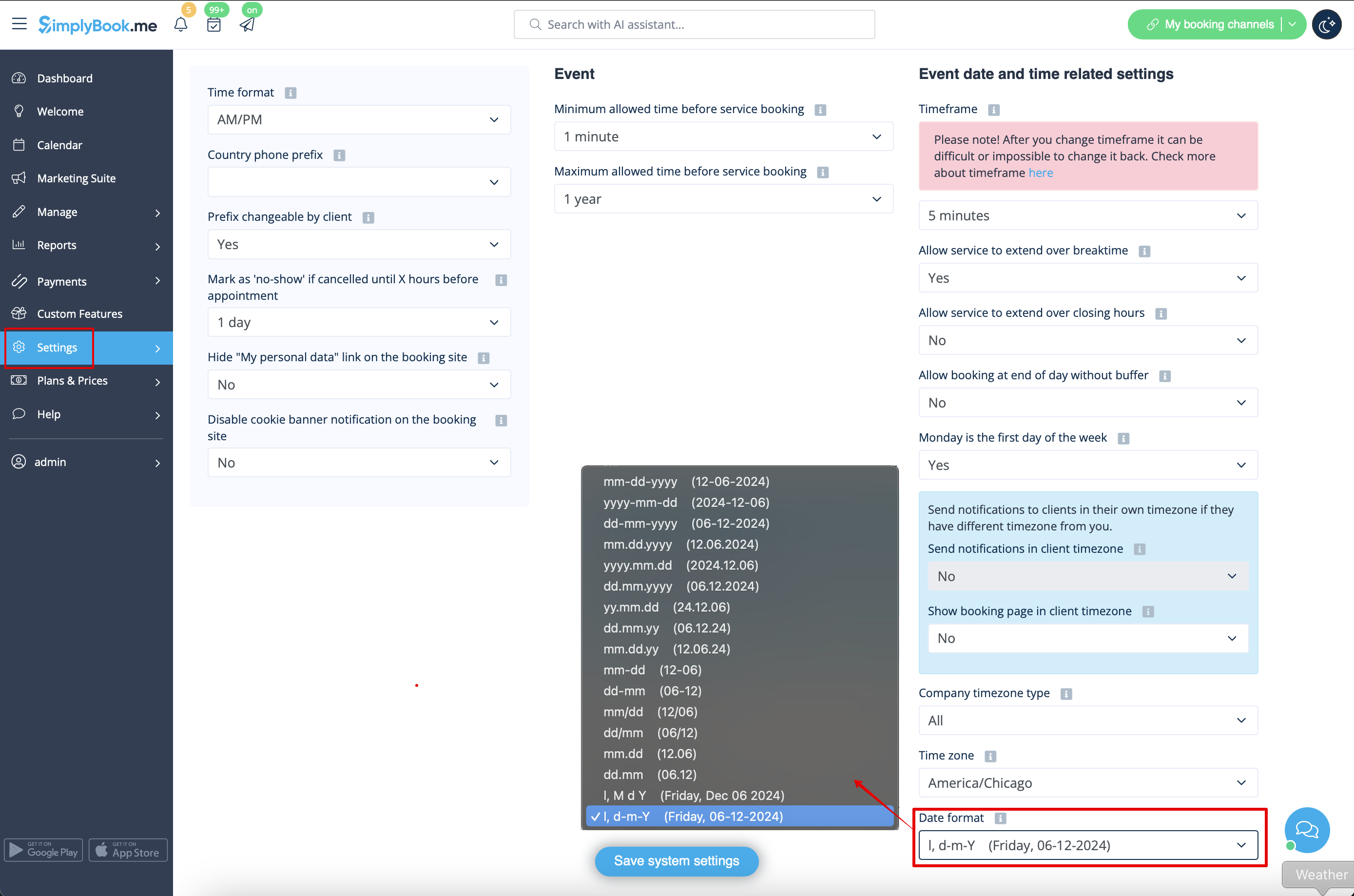
= Змінити формат дати = | |||
:Щоб встановити бажаний формат, перейдіть до Налаштування // Основні налаштування // Формат дати.<br/><br/> | |||
: | |||
[[File:Date format settings redesigned.png|1200px| center|link=https://help.simplybook.me/images/d/d2/Date_format_settings_redesigned.png]] | [[File:Date format settings redesigned.png|1200px| center|link=https://help.simplybook.me/images/d/d2/Date_format_settings_redesigned.png]] | ||
<br/><br/> | <br/><br/> | ||
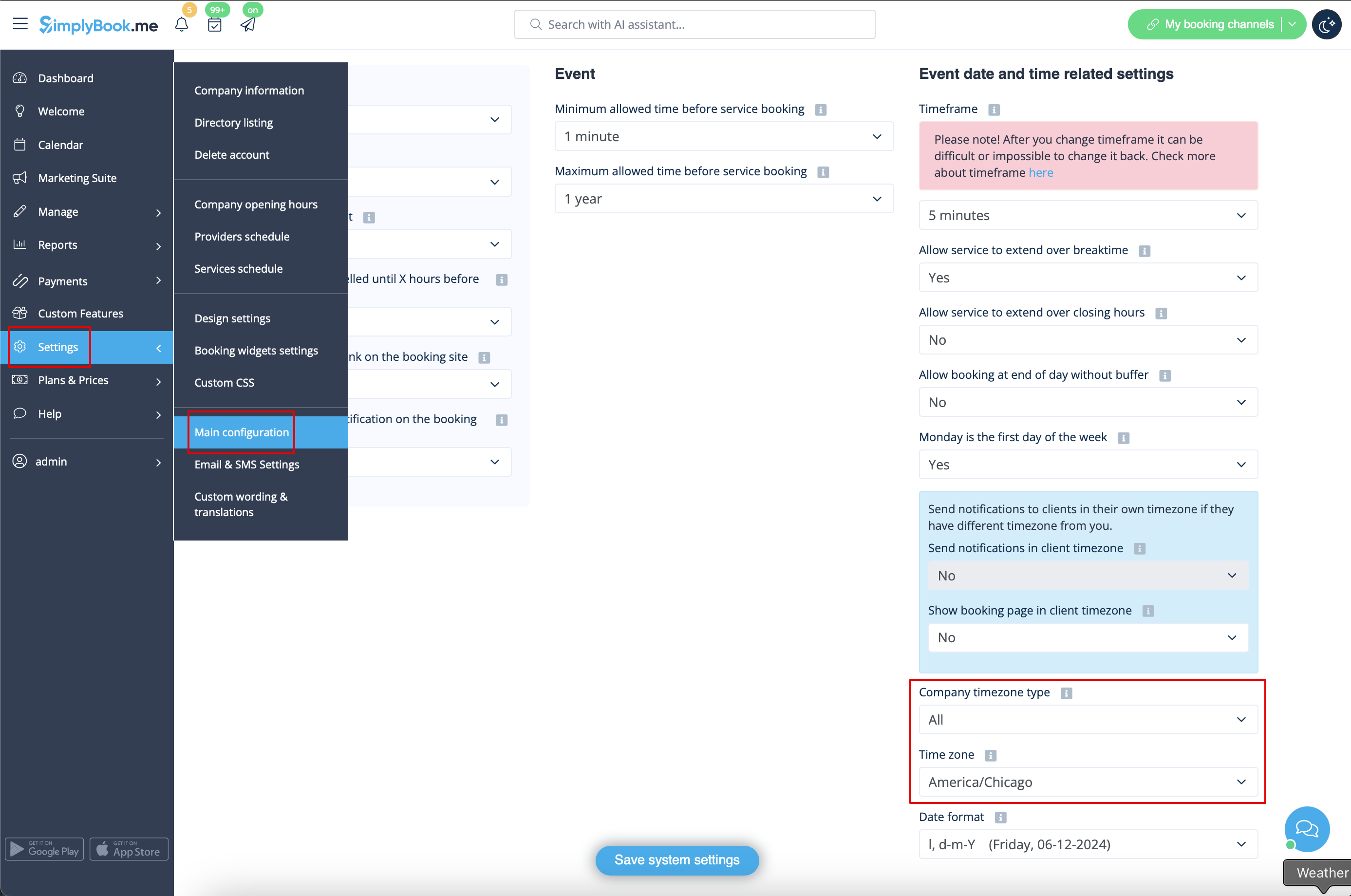
= Змінити часовий пояс = | |||
:Час на сторінці бронювання відповідає часовому поясу компанії. Ви можете змінити часовий пояс у налаштуваннях // Основні налаштування // Часовий пояс. | |||
: | :'''Зверніть увагу!''' Часовий пояс компанії визначає часовий пояс усіх постачальників, створених в обліковому записі. Неможливо встановити окремий часовий пояс для кожного постачальника. | ||
:''' | |||
[[File:Timezone settings path redesigned.png|1200px| center|link=https://help.simplybook.me/images/3/3a/Timezone_settings_path_redesigned.png]] | [[File:Timezone settings path redesigned.png|1200px| center|link=https://help.simplybook.me/images/3/3a/Timezone_settings_path_redesigned.png]] | ||
<br/><br/> | <br/><br/> | ||
<div lang="en" dir="ltr" class="mw-content-ltr"> | <div lang="en" dir="ltr" class="mw-content-ltr"> | ||
Revision as of 15:07, 15 May 2025
Змінити формат часу AM/PM - 24
- Щоб налаштувати його, перейдіть до Налаштування // Основні налаштування // Формат часу
Змінити формат дати
- Щоб встановити бажаний формат, перейдіть до Налаштування // Основні налаштування // Формат дати.
Змінити часовий пояс
- Час на сторінці бронювання відповідає часовому поясу компанії. Ви можете змінити часовий пояс у налаштуваннях // Основні налаштування // Часовий пояс.
- Зверніть увагу! Часовий пояс компанії визначає часовий пояс усіх постачальників, створених в обліковому записі. Неможливо встановити окремий часовий пояс для кожного постачальника.
Start calendar from Sunday
- To set it go to Settings // Main configuration // Monday is first day of the week // No.

Minimum allowed time before service reservation
- If you need to restrict how far in advance your clients can book, you can set Minimum allowed time before service reservation in Settings // Main configuration. For example, if now is 2pm and you have minimum time before reservation set to 3 hours, the first available time for clients will be only after 5pm. This setting can help you to better prepare for your service and avoid clients booking at the last minute before the service.

Maximum allowed time before service reservation
- If you need to restrict how far ahead your clients can book, you can set Maximum allowed time before service reservation in Settings // Main configuration. For example, if now is Monday 2pm and you have maximum time before reservation set to 3 days, the last available time for clients will be only from Thursday after 2pm.
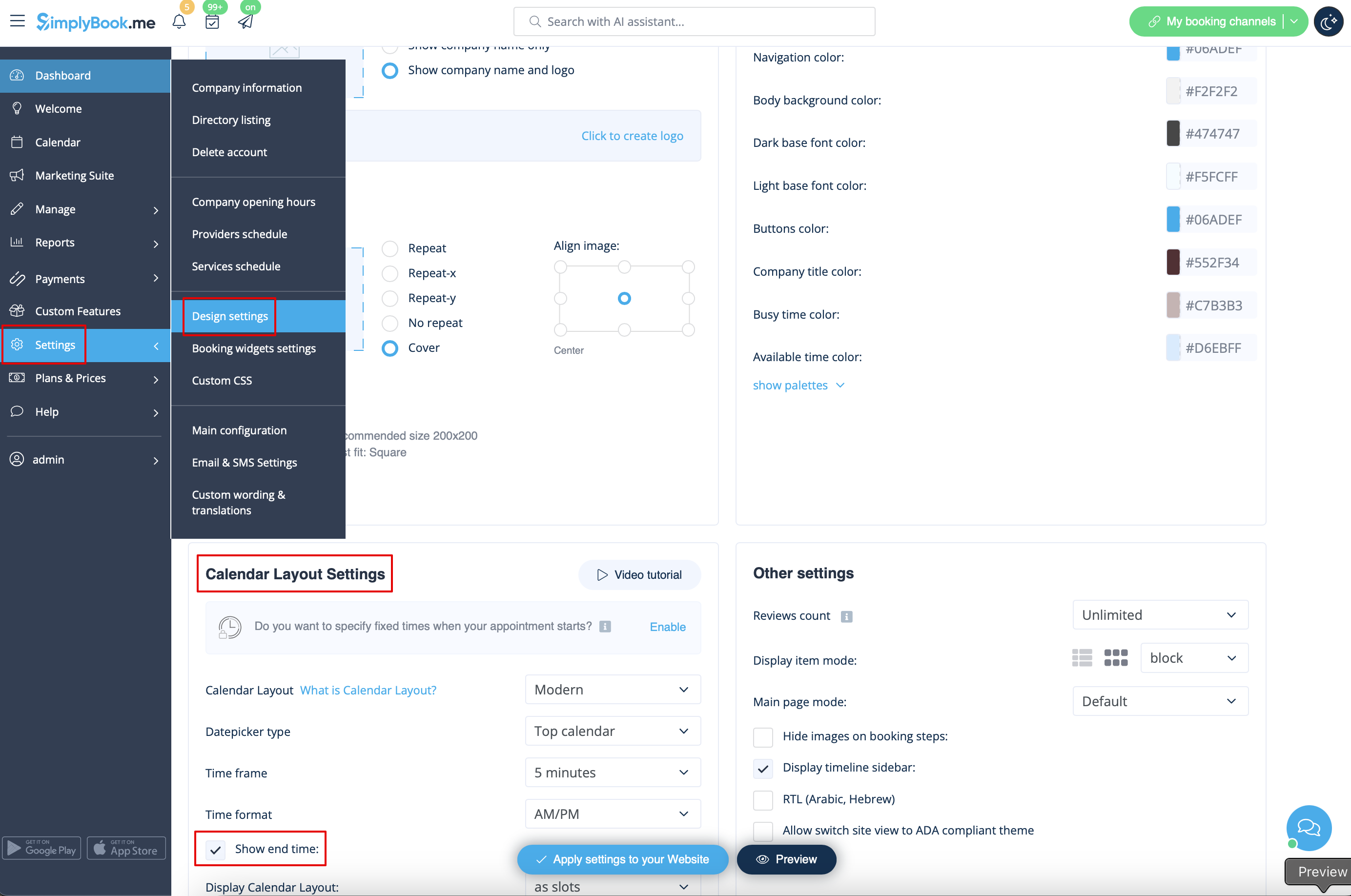
Show end time
- You can decide to show or hide the timeslot end time on the booking website. It is available for the following calendar layouts:
- modern
- slots weekly
- modern provider
- weekly classes
- To enable the end time display please navigate to Settings -> Design settings -> Calendar layout settings -> Show end time. Save settings.
- Daily classes calendar layout shows end time on the each timeslot by default and is defined by the status of "Hide duration on the booking page" setting in Manage -> Services/Classes -> select the service/class -> Time details.

