From SimplyBook.me
Created page with "= Показати час закінчення = :Ви можете вирішити, чи показувати час закінчення часового слоту на веб-сайті бронювання. Ця функція доступна для таких макетів календаря: *modern *slots weekly *modern provider *weekly classes :Щоб увімкнути відображення часу закінчення, перейдіть до Налаш..." |
(No difference)
|
Latest revision as of 15:07, 15 May 2025
Показати час закінчення
- Ви можете вирішити, чи показувати час закінчення часового слоту на веб-сайті бронювання. Ця функція доступна для таких макетів календаря:
- modern
- slots weekly
- modern provider
- weekly classes
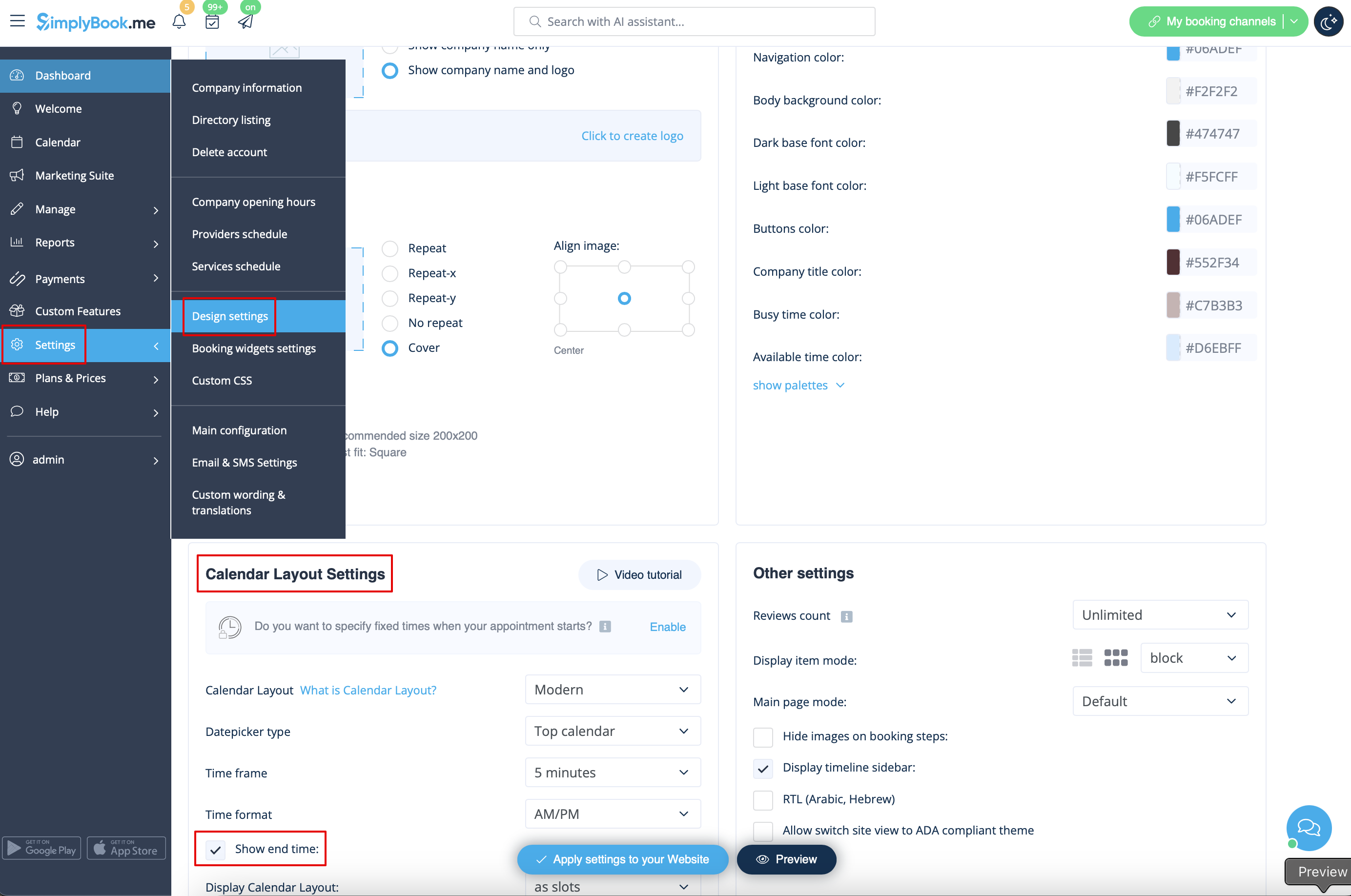
- Щоб увімкнути відображення часу закінчення, перейдіть до Налаштування -> Налаштування дизайну -> Налаштування макета календаря -> Показати час закінчення. Збережіть налаштування.
- Календар щоденних занять за замовчуванням показує час закінчення кожного часового слоту, який визначається налаштуванням «Приховати тривалість на сторінці бронювання» в розділі «Управління» -> «Послуги/Заняття» -> виберіть послугу/заняття -> «Деталі часу».
