From SimplyBook.me
Created page with "<br/><br/> = Skift tidsformat AM/PM - 24 = :For at justere det skal du gå til Indstillinger // Hovedkonfiguration // Tidsformat<br/> 1200px| center|link=https://help.simplybook.me/images/2/20/Time_format_setting_redesigned.png<br/><br/>" Tags: Mobile edit Mobile web edit |
Created page with "= Skift datoformat = :For at indstille det ønskede format skal du gå til Indstillinger // Hovedkonfiguration // Datoformat.<br/><br/> 1200px| center|link=https://help.simplybook.me/images/d/d2/Date_format_settings_redesigned.png <br/><br/>" Tags: Mobile edit Mobile web edit |
||
| Line 6: | Line 6: | ||
[[File:Time format setting redesigned.png|1200px| center|link=https://help.simplybook.me/images/2/20/Time_format_setting_redesigned.png]]<br/><br/> | [[File:Time format setting redesigned.png|1200px| center|link=https://help.simplybook.me/images/2/20/Time_format_setting_redesigned.png]]<br/><br/> | ||
= Skift datoformat = | |||
:For at indstille det ønskede format skal du gå til Indstillinger // Hovedkonfiguration // Datoformat.<br/><br/> | |||
: | |||
[[File:Date format settings redesigned.png|1200px| center|link=https://help.simplybook.me/images/d/d2/Date_format_settings_redesigned.png]] | [[File:Date format settings redesigned.png|1200px| center|link=https://help.simplybook.me/images/d/d2/Date_format_settings_redesigned.png]] | ||
<br/><br/> | <br/><br/> | ||
<div lang="en" dir="ltr" class="mw-content-ltr"> | <div lang="en" dir="ltr" class="mw-content-ltr"> | ||
Revision as of 15:07, 15 May 2025
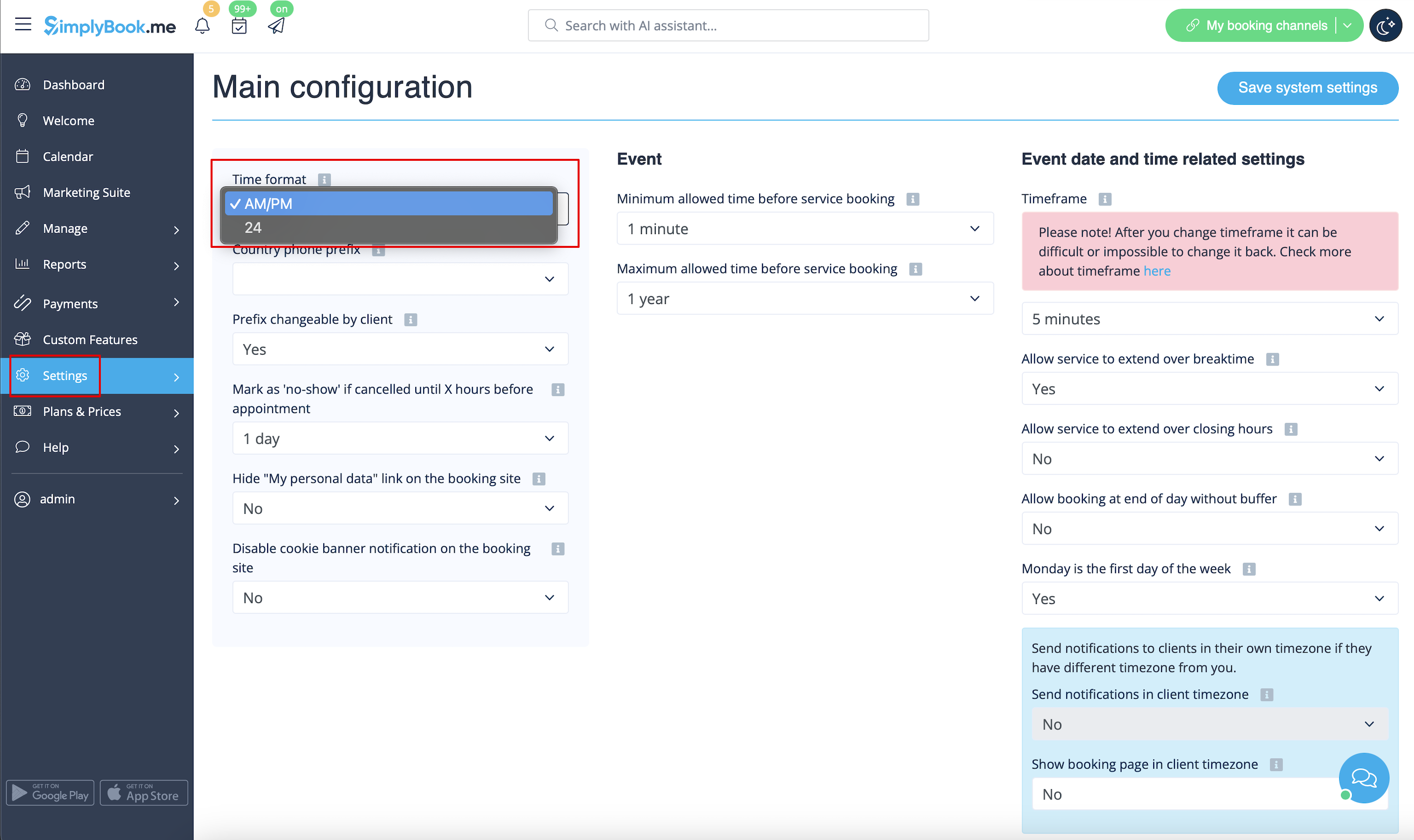
Skift tidsformat AM/PM - 24
- For at justere det skal du gå til Indstillinger // Hovedkonfiguration // Tidsformat
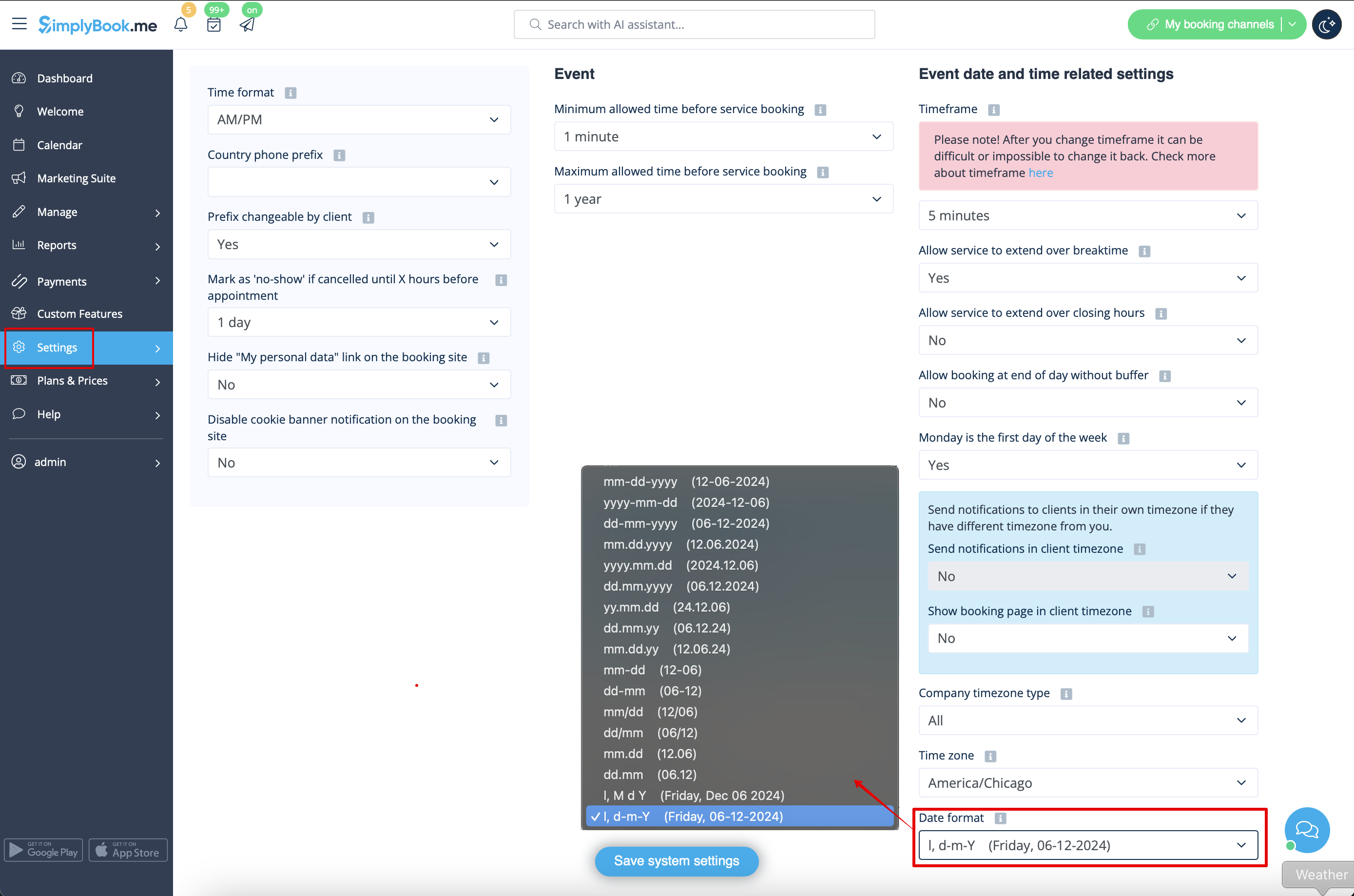
Skift datoformat
- For at indstille det ønskede format skal du gå til Indstillinger // Hovedkonfiguration // Datoformat.
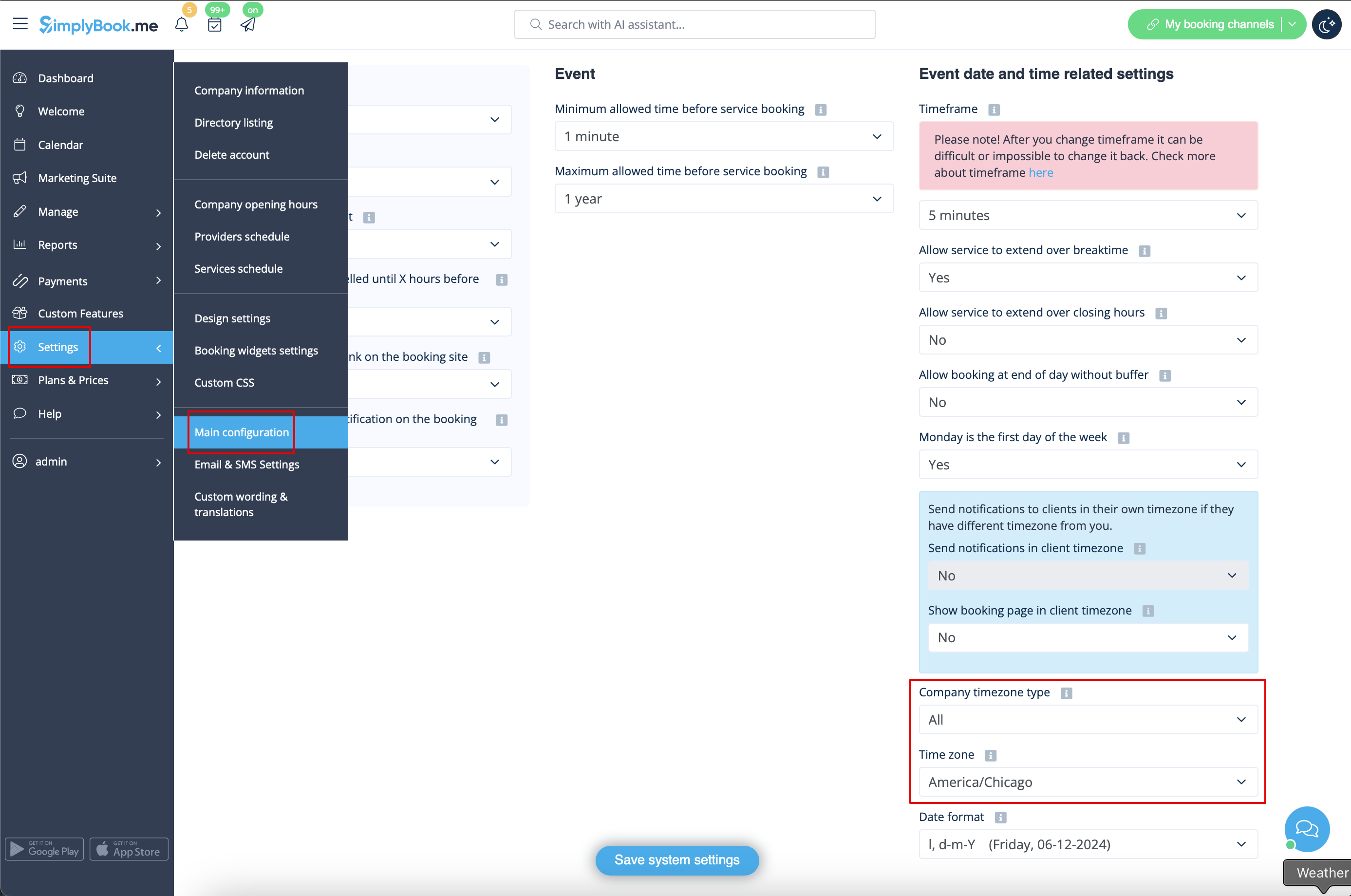
Change time zone
- Your time on the booking page is the time of the company's time zone. You can change your time zone in Settings // Main configuration // Time zone.
- Please note! Company timezone defines the timezone of all providers created within the account. It is not possible to set separate timezone per each provider.
Start calendar from Sunday
- To set it go to Settings // Main configuration // Monday is first day of the week // No.

Minimum allowed time before service reservation
- If you need to restrict how far in advance your clients can book, you can set Minimum allowed time before service reservation in Settings // Main configuration. For example, if now is 2pm and you have minimum time before reservation set to 3 hours, the first available time for clients will be only after 5pm. This setting can help you to better prepare for your service and avoid clients booking at the last minute before the service.

Maximum allowed time before service reservation
- If you need to restrict how far ahead your clients can book, you can set Maximum allowed time before service reservation in Settings // Main configuration. For example, if now is Monday 2pm and you have maximum time before reservation set to 3 days, the last available time for clients will be only from Thursday after 2pm.
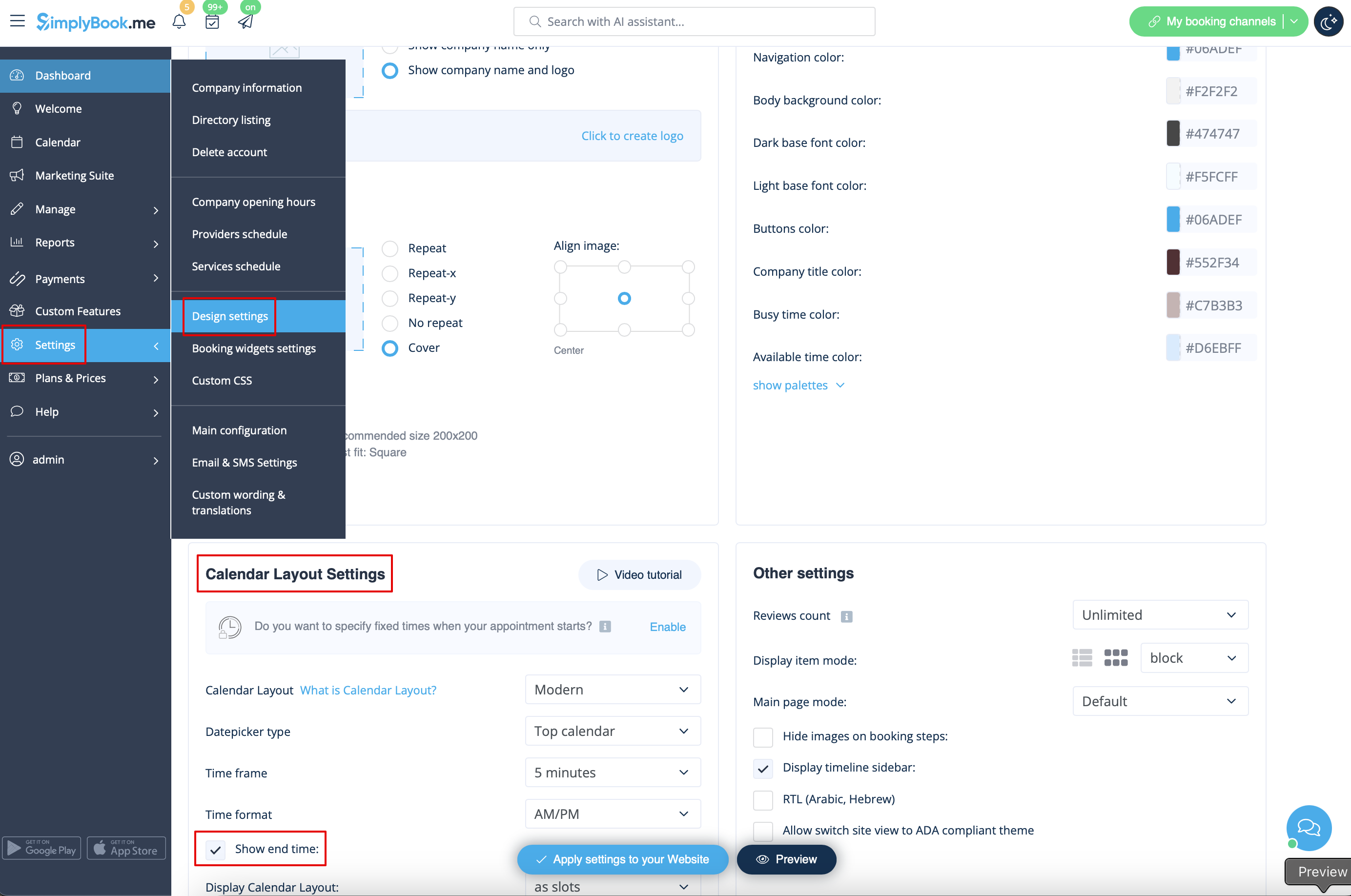
Show end time
- You can decide to show or hide the timeslot end time on the booking website. It is available for the following calendar layouts:
- modern
- slots weekly
- modern provider
- weekly classes
- To enable the end time display please navigate to Settings -> Design settings -> Calendar layout settings -> Show end time. Save settings.
- Daily classes calendar layout shows end time on the each timeslot by default and is defined by the status of "Hide duration on the booking page" setting in Manage -> Services/Classes -> select the service/class -> Time details.


