Translations:Adding services, providers and availability(new interface)/21/da: Difference between revisions

From SimplyBook.me
Created page with "Hvis du har brug for at fjerne særlige dagindstillinger for en dato, skal du klikke på datoen og trykke på knappen <span style="background-color:#d4f8e5; padding:5px; border-radius:5px;">"Ryd særlige dage</span> ". <br><br> 800px | center|link=https://help.simplybook.me/images/c/c7/Clear_special_day_redesigned.png <br><br> <div style= "padding: 40px 30px; border-radius:20px; width: fit-content; width:-moz-max-content; backgro..."
 
(No difference)

Latest revision as of 09:37, 16 May 2025

Information about message (contribute)
This message has no documentation. If you know where or how this message is used, you can help other translators by adding documentation to this message.
Message definition (Adding services, providers and availability(new interface))
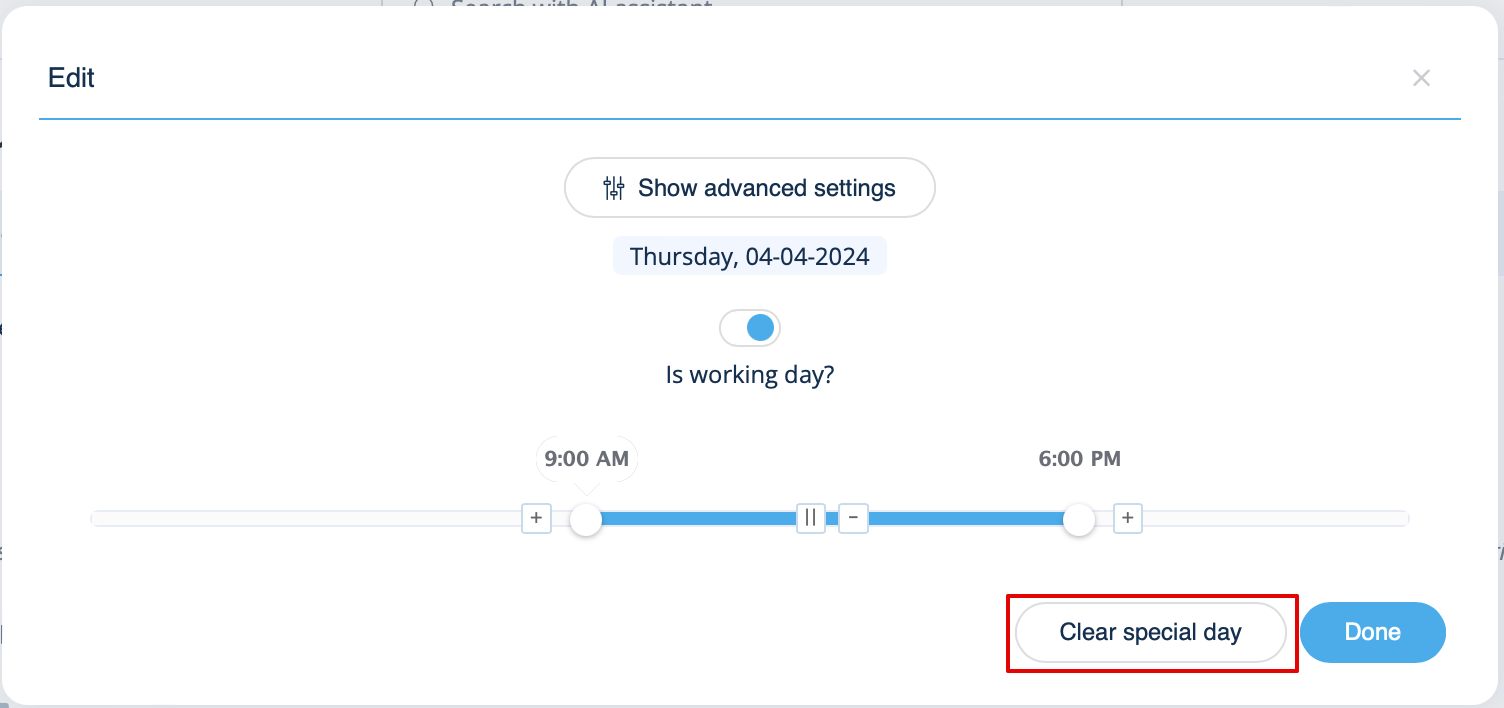
If you need to remove special day settings for some date, click on the date and press the <span style="background-color:#d4f8e5; padding:5px; border-radius:5px;">clear special day</span> button.
<br><br>
[[File:Clear special day redesigned.png|800px | center|link=https://help.simplybook.me/images/c/c7/Clear_special_day_redesigned.png]]
<br><br>
<div style= "padding: 40px 30px; border-radius:20px; width: fit-content; width:-moz-max-content; background: #f1f6ff">'''''You may also need:'''''
*[[How_to_set_my_availability#I_have_both_schedules_for_services_and_for_providers|Schedules relations]]
*[[Calendar_Sync_custom_feature|How to sync provider’s bookings with Google or Outlook calendar]]
*[[Multiple_Locations_custom_feature|How to add different working locations]]
*[[Provider_Color_Coding_custom_feature|How to color code the provider appointments]]
*[[Flexible_Notifications_custom_feature|How to set specific notifications per provider]]
*[[Book_Soon_Notification_System_custom_feature|Add reminders to book again]]</div>
<br><br>

Hvis du har brug for at fjerne særlige dagindstillinger for en dato, skal du klikke på datoen og trykke på knappen "Ryd særlige dage ".