Translations:Adding services, providers and availability(new interface)/9/fr: Difference between revisions

From SimplyBook.me
Created page with "=== Comment définir un horaire spécifique pour un service === <br><br> Dans <span style="background-color:#d4f8e5; padding:5px; border-radius:5px;">Gérer</span> -> <span style="background-color:#d4f8e5; padding:5px; border-radius:5px;">Services</span> -> sélectionnez le service -> onglet <span style="background-color:#d4f8e5; padding:5px; border-radius:5px;">Calendrier du service</span>, déplacez les curseurs pour définir les heures d'ouverture de l' pour..."
 
(No difference)

Latest revision as of 09:38, 16 May 2025

Information about message (contribute)
This message has no documentation. If you know where or how this message is used, you can help other translators by adding documentation to this message.
Message definition (Adding services, providers and availability(new interface))
===How to set specific schedule for service===
<br><br>
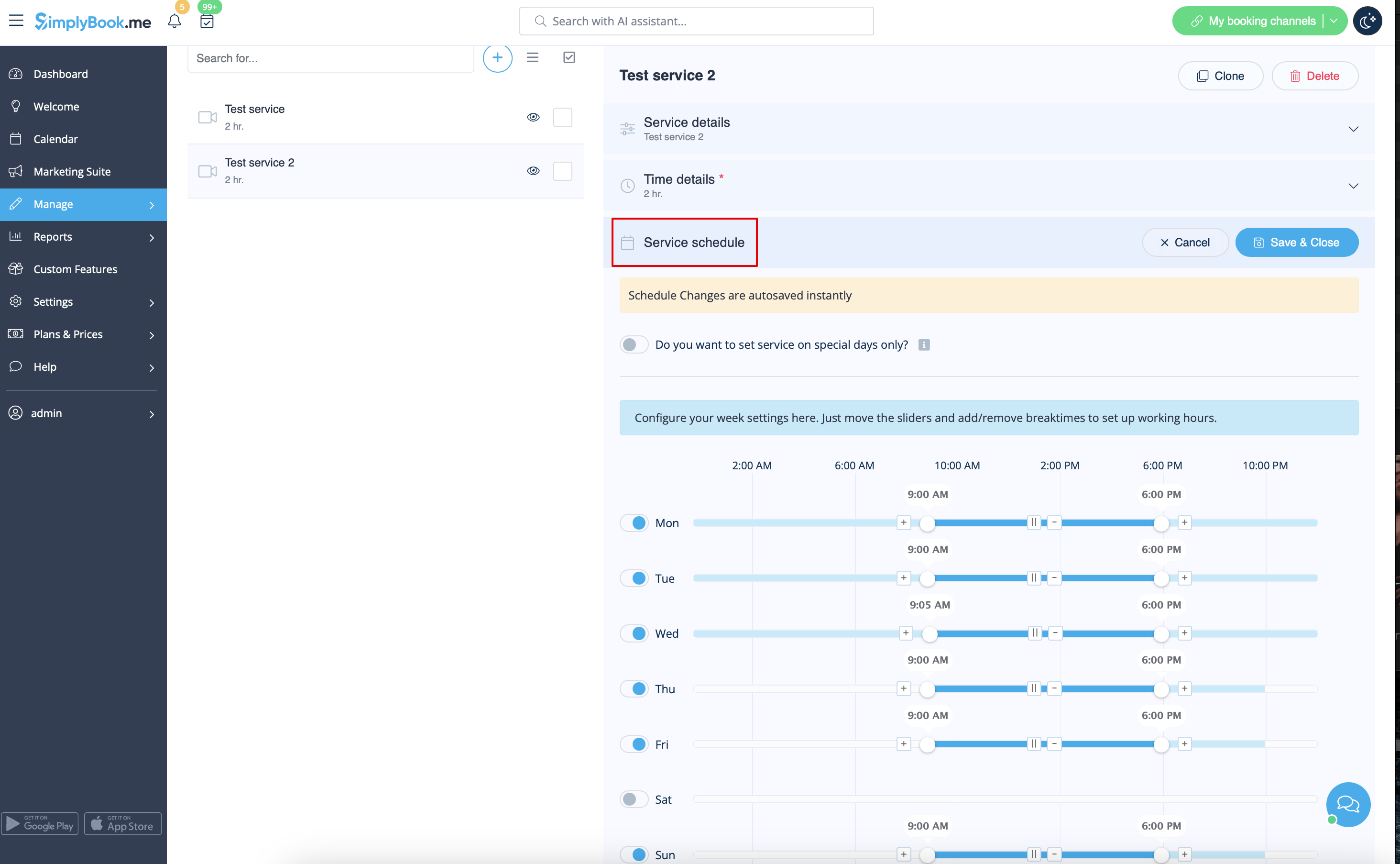
In <span style="background-color:#d4f8e5; padding:5px; border-radius:5px;">Manage</span> -> <span style="background-color:#d4f8e5; padding:5px; border-radius:5px;">Services</span> -> select the service -> <span style="background-color:#d4f8e5; padding:5px; border-radius:5px;">Service schedule</span> tab move the sliders to set
open times for this service if it differs from usual company schedule.<br>
Or click on <span style="background-color:#d4f8e5; padding:5px; border-radius:5px;">Show advanced settings</span> if using the slots view is more convenient for you.
<br><br>
[[File:Service schedule path redesigned.png|1200px | center|link=https://help.simplybook.me/images/e/ec/Service_schedule_path_redesigned.png]]
<br><br>
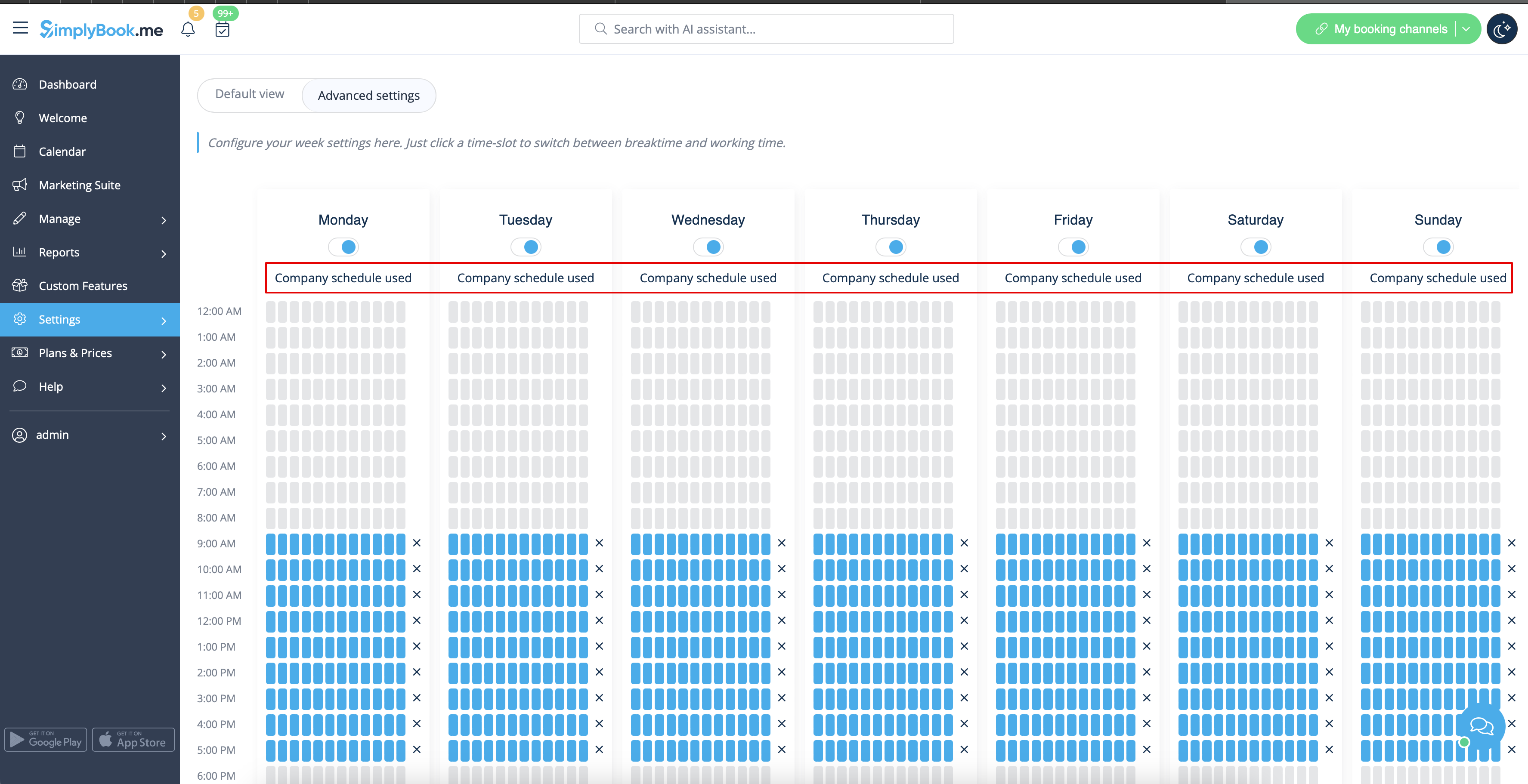
If the service has the same schedule as company you do not need to change anything there, it will be applied automatically.<br>
You will be able to check it on <span style="background-color:#d4f8e5; padding:5px; border-radius:5px;">Advanced schedule</span> page.
<br><br>
[[File:Company schedule used redesigned.png|1200px | center|link=https://help.simplybook.me/images/5/5d/Company_schedule_used_redesigned.png]]
<br><br>

Comment définir un horaire spécifique pour un service


Dans Gérer -> Services -> sélectionnez le service -> onglet Calendrier du service, déplacez les curseurs pour définir les heures d'ouverture de l' pour ce service si elles diffèrent de l'horaire habituel de l'entreprise.
Ou cliquez sur Afficher les paramètres avancés si vous préférez utiliser la vue par créneaux.


Si le service a le même horaire que l'entreprise, vous n'avez rien à modifier ici, il sera appliqué automatiquement.
Vous pourrez le vérifier sur la page « Horaires avancés ».