Latest revision as of 09:47, 16 May 2025
Information about message (contribute ) This message has no documentation.
If you know where or how this message is used, you can help other translators by adding documentation to this message.
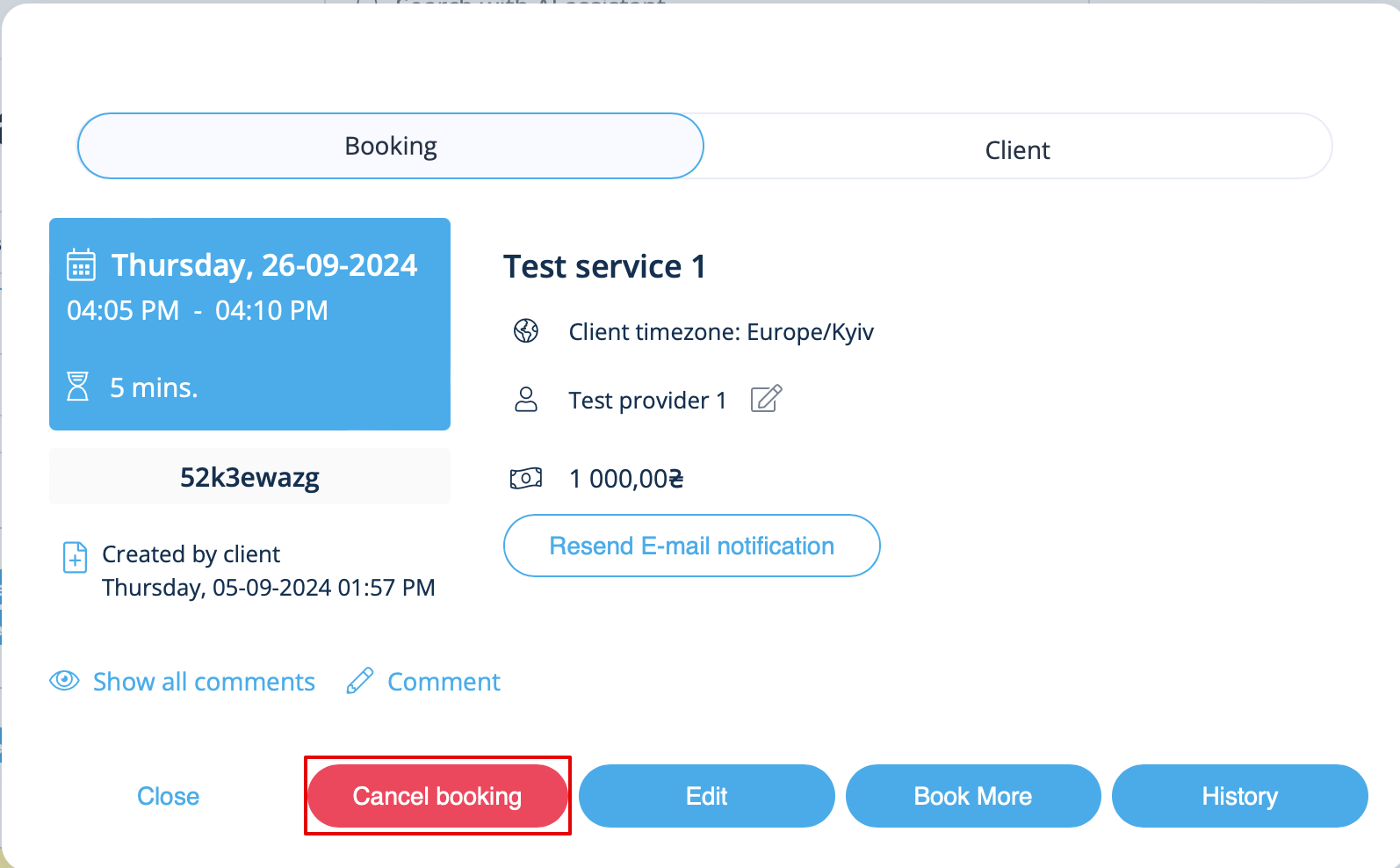
Message definition (How to manage bookings ) 1. For admin or user In <span style="background-color:#d4f8e5; padding:5px; border-radius:5px;">Calendar</span> (left-side menu) or in in <span style="background-color:#d4f8e5; padding:5px; border-radius:5px;">Reports</span> -> <span style="background-color:#d4f8e5; padding:5px; border-radius:5px;">Booking details.</span> Click on the booking to open the details or use <span style="background-color:#d4f8e5; padding:5px; border-radius:5px;">View</span> option if in <span style="background-color:#d4f8e5; padding:5px; border-radius:5px;">Reports</span> and then press <span style="background-color:#d4f8e5; padding:5px; border-radius:5px;">Cancel booking</span> button. <br/> [[File:Cancel booking in the booking info form.png|800px| center|link=https://help.simplybook.me/images/9/95/Cancel_booking_in_the_booking_info_form.png ]] <br/><br/>
1. For admin or user
In Calendar (left-side menu) or in in Reports -> Booking details. Click on the booking to open the details or use View option if in Reports and then press Cancel booking button.