Translations:How to manage bookings/7/uk: Difference between revisions

From SimplyBook.me
Created page with "1. У <span style="background-color:#d4f8e5; padding:5px; border-radius:5px;">Календарі</span> (пункт у меню зліва) натисніть на бронювання, щоб відкрити деталі, а потім натисніть <span style="background-color:#d4f8e5; padding:5px; border-radius:5px;">«Редагувати»</span>, щоб змінити будь-яку інформацію про бронювання. Щоб змінити ч..."
 
(No difference)

Latest revision as of 09:48, 16 May 2025

Information about message (contribute)
This message has no documentation. If you know where or how this message is used, you can help other translators by adding documentation to this message.
Message definition (How to manage bookings)
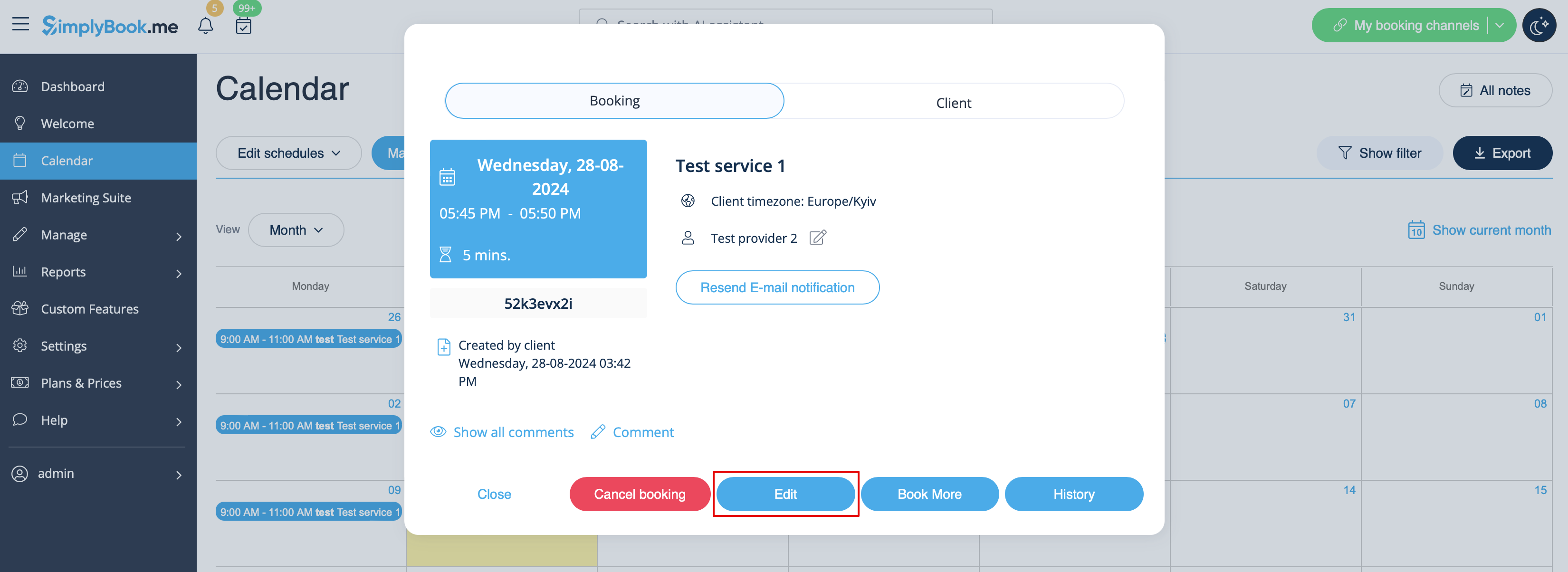
1. In <span style="background-color:#d4f8e5; padding:5px; border-radius:5px;">Calendar</span> (item in the left-side menu) click on the booking to open details and then press <span style="background-color:#d4f8e5; padding:5px; border-radius:5px;">Edit</span> to change any information about the booking. To change the time of the appointment, simply drag and drop booking to the available time you need. You can easily add <span style="background-color:#d4f8e5; padding:5px; border-radius:5px;">Comment</span> to the appointment or view other bookings of this client by pressing <span style="background-color:#d4f8e5; padding:5px; border-radius:5px;">Clients</span> button<br/>
[[File:Edit booking path redesigned.png|1200px | center|link=https://help.simplybook.me/images/7/7b/Edit_booking_path_redesigned.png ]]
<br/><br/>

1. У Календарі (пункт у меню зліва) натисніть на бронювання, щоб відкрити деталі, а потім натисніть «Редагувати», щоб змінити будь-яку інформацію про бронювання. Щоб змінити час зустрічі, просто перетягніть бронювання на доступний час, який вам потрібен. Ви можете легко додати коментар до зустрічі або переглянути інші бронювання цього клієнта, натиснувши кнопку