Translations:Adding other users to the system/3/uk: Difference between revisions

From SimplyBook.me
Created page with "Ви можете створити окремого користувача для особи, яка потребує доступу до вашої адміністративної сторінки, на сторінці <span style="background-color:#d4f8e5; padding:5px; border-radius:5px;">«Управління»</span> -> <span style="background-color:#d4f8e5; padding:5px; border-radius:5px;">«Користувачі»</span> та призначити цьому..."
 
(No difference)

Latest revision as of 11:10, 16 May 2025

Information about message (contribute)
This message has no documentation. If you know where or how this message is used, you can help other translators by adding documentation to this message.
Message definition (Adding other users to the system)
You can create a separate user for the person who needs to access your admin page in <span style="background-color:#d4f8e5; padding:5px; border-radius:5px;">Manage</span> -> <span style="background-color:#d4f8e5; padding:5px; border-radius:5px;">Users</span> page and assign the corresponding rights to that user. <br>
See the list of available user roles below.
<br><br>
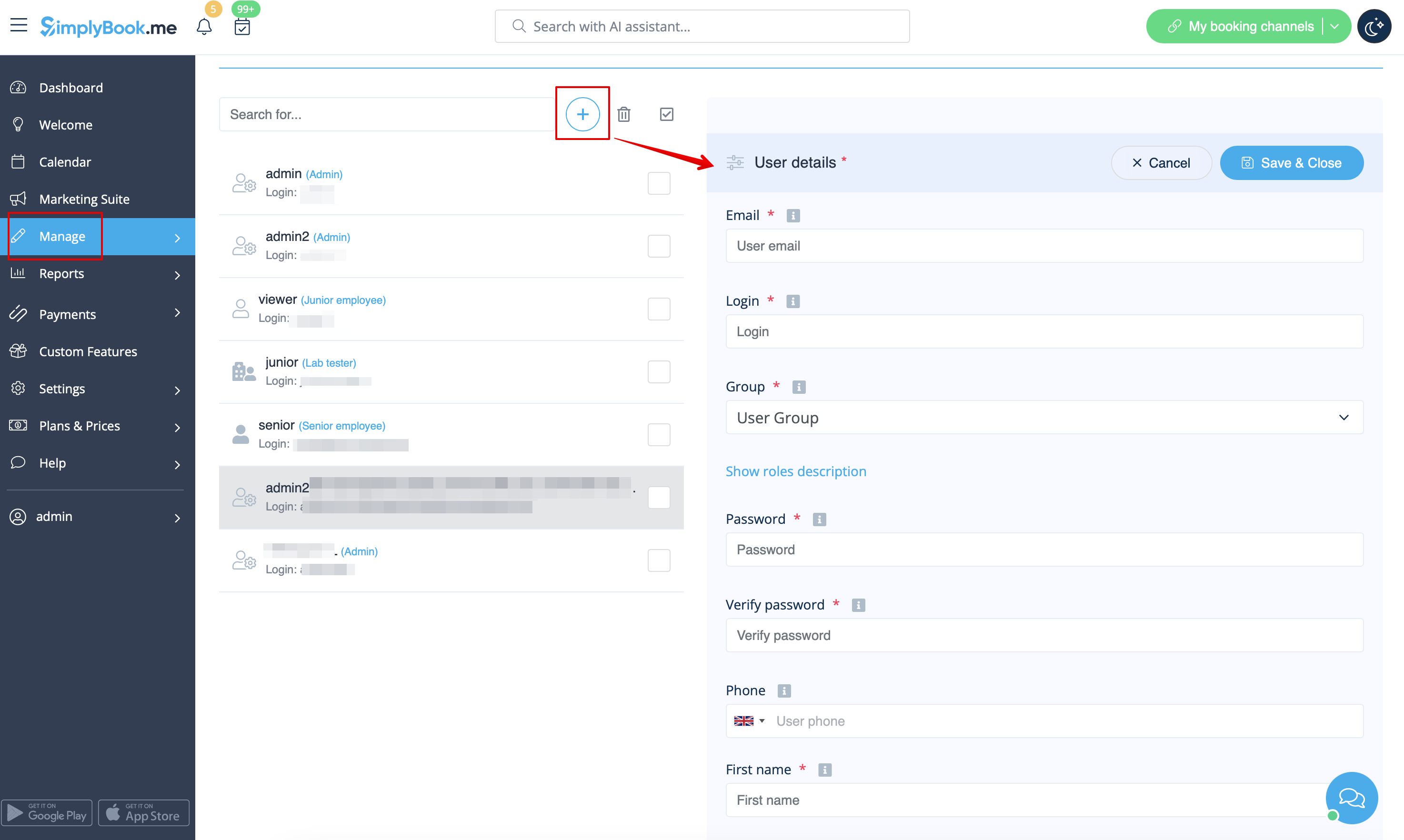
:To create new user please click on <span style="background-color:#d4f8e5; padding:5px; border-radius:5px;">+</span> button at the top:
[[File:Add new user path redesigned.png|1200px|border | center|link=https://help.simplybook.me/images/3/39/Add_new_user_path_redesigned.png]]
<br><br>
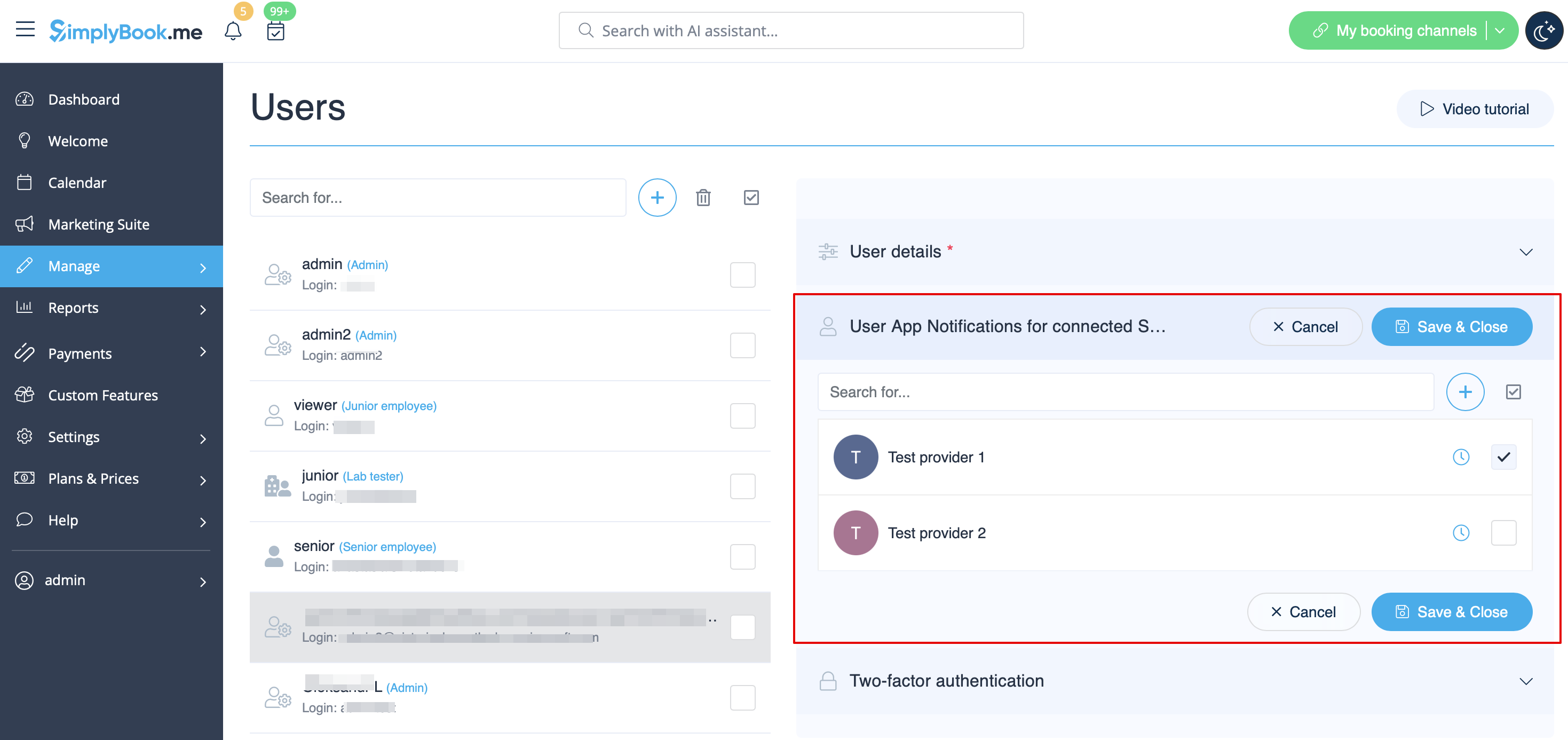
:Fill in <span style="background-color:#d4f8e5; padding:5px; border-radius:5px;">login,</span> <span style="background-color:#d4f8e5; padding:5px; border-radius:5px;">email address,</span> select <span style="background-color:#d4f8e5; padding:5px; border-radius:5px;">user level group,</span> set <span style="background-color:#d4f8e5; padding:5px; border-radius:5px;">first password,</span> <span style="background-color:#d4f8e5; padding:5px; border-radius:5px;">relate with a provider</span> if necessary, add <span style="background-color:#d4f8e5; padding:5px; border-radius:5px;">first and last names,</span> <span style="background-color:#d4f8e5; padding:5px; border-radius:5px;">phone number.</span>
::<span style="background-color:#ffe9e9; padding:5px; border-radius:5px;">'''Please note!''' Login is unique for every user. If you delete some user it will not be possible to reuse the same login for another user.</span>
[[File:Relate user to providers path.png|1200px|border | center|link=https://help.simplybook.me/images/8/8c/Relate_user_to_providers_path.png]]
<br><br>
After this, just enable the switch <span style="background-color:#d4f8e5; padding:5px; border-radius:5px;">Send login information to user</span> and save the user record.<br>
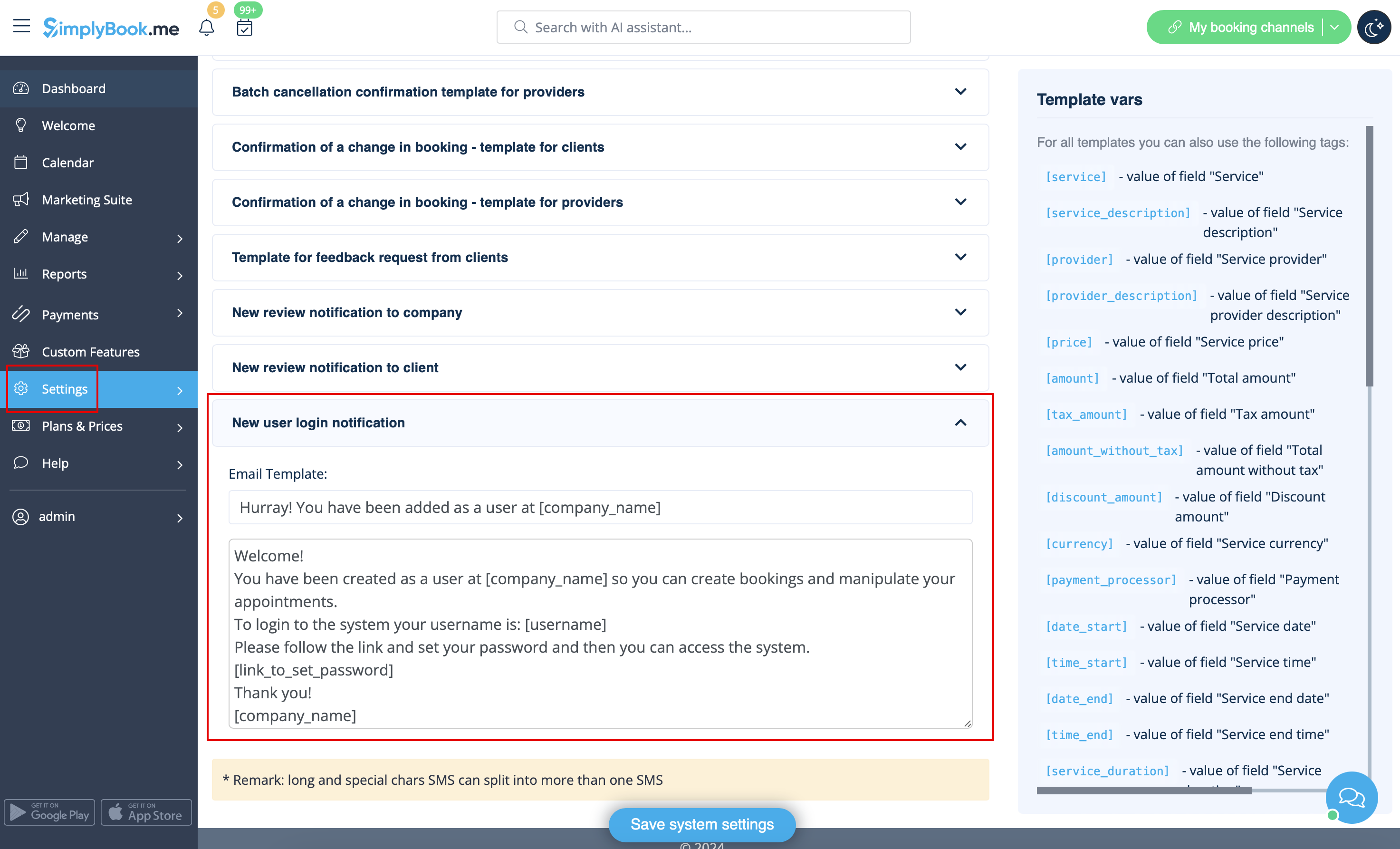
The system will automatically send the email with the login credentials according to the template you have set in <span style="background-color:#d4f8e5; padding:5px; border-radius:5px;">Settings</span> -> <span style="background-color:#d4f8e5; padding:5px; border-radius:5px;">Email and SMS Settings</span> -> <span style="background-color:#d4f8e5; padding:5px; border-radius:5px;">New user login notification.</span>
[[File:New user email template redesigned.png|1200px|border|center|link=https://help.simplybook.me/images/b/b4/New_user_email_template_redesigned.png]]
<br><br>
Or you can manually send login and password to your users along with the link to your admin page after saving the user.

Ви можете створити окремого користувача для особи, яка потребує доступу до вашої адміністративної сторінки, на сторінці «Управління» -> «Користувачі» та призначити цьому користувачеві відповідні права.
Перегляньте список доступних ролей користувачів нижче.

Щоб створити нового користувача, натисніть кнопку + у верхній частині:


Введіть логін, адресу електронної пошти, виберіть групу рівня користувача, встановіть перший пароль, при необхідності пов'яжіть з постачальником, додайте ім'я та прізвище, номер телефону.
Зверніть увагу! Логін є унікальним для кожного користувача. Якщо ви видалите якогось користувача, неможливо буде повторно використати той самий логін для іншого користувача.


Після цього просто увімкніть перемикач Надіслати інформацію для входу користувачеві та збережіть запис користувача.
Система автоматично надішле електронний лист з даними для входу відповідно до шаблону, який ви встановили в Налаштування -> Налаштування електронної пошти та SMS -> Повідомлення про вхід нового користувача.


Або ви можете вручну надіслати логін та пароль своїм користувачам разом із посиланням на вашу адміністративну сторінку після збереження користувача.