Translations:Adding other users to the system/3/nl: Difference between revisions

From SimplyBook.me
Created page with "U kunt een aparte gebruiker aanmaken voor de persoon die toegang moet hebben tot uw beheerpagina in <span style="background-color:#d4f8e5; padding:5px; border-radius:5px;">Beheer</span> -> <span style="background-color:#d4f8e5; padding:5px; border-radius:5px;">Gebruikers</span> en die gebruiker de juiste rechten toewijzen. <br> Zie hieronder de lijst met beschikbare gebruikersrollen. <br><br> :Om een nieuwe gebruiker aan te maken, klikt u op de knop <span style="backg..."
 
(No difference)

Latest revision as of 11:11, 16 May 2025

Information about message (contribute)
This message has no documentation. If you know where or how this message is used, you can help other translators by adding documentation to this message.
Message definition (Adding other users to the system)
You can create a separate user for the person who needs to access your admin page in <span style="background-color:#d4f8e5; padding:5px; border-radius:5px;">Manage</span> -> <span style="background-color:#d4f8e5; padding:5px; border-radius:5px;">Users</span> page and assign the corresponding rights to that user. <br>
See the list of available user roles below.
<br><br>
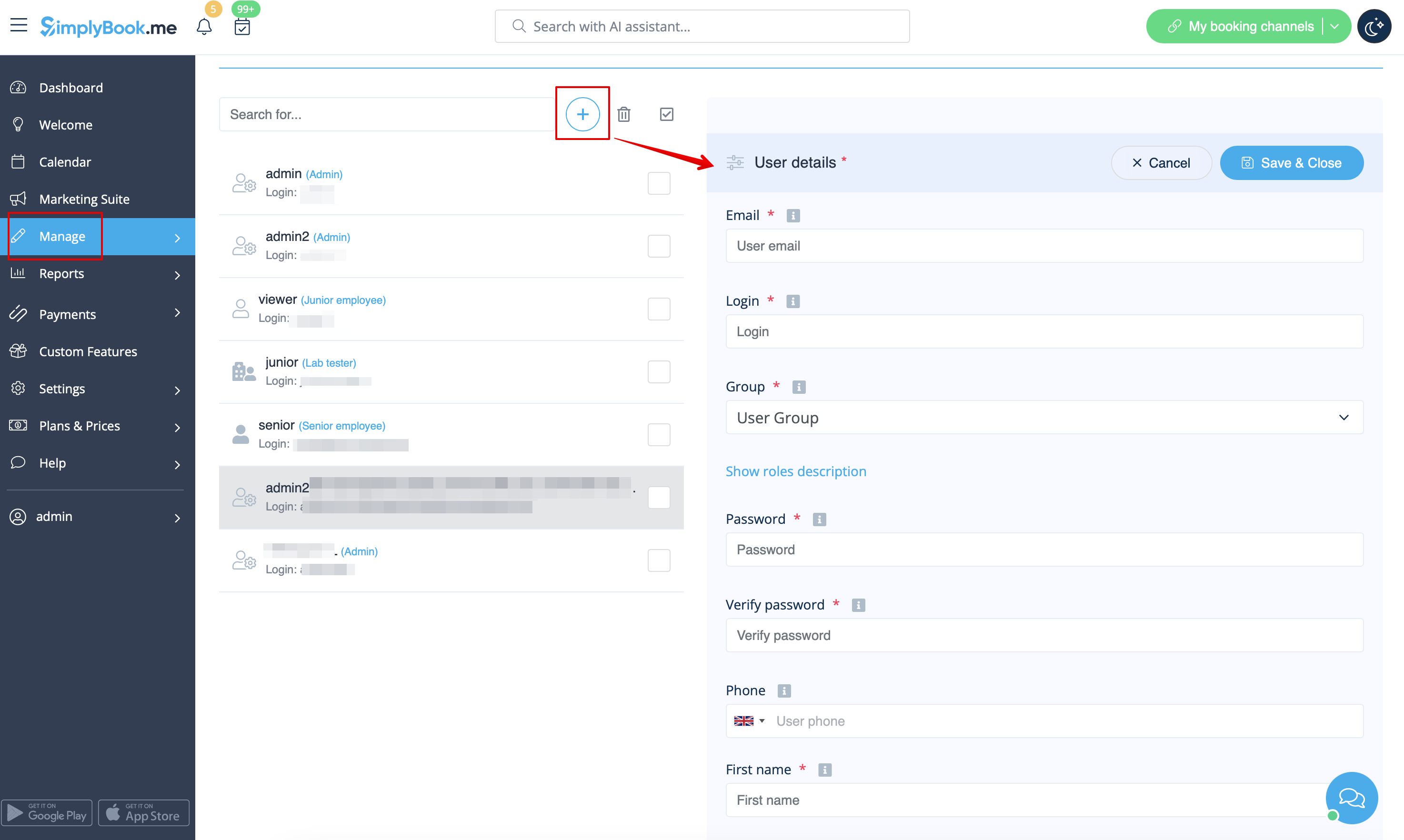
:To create new user please click on <span style="background-color:#d4f8e5; padding:5px; border-radius:5px;">+</span> button at the top:
[[File:Add new user path redesigned.png|1200px|border | center|link=https://help.simplybook.me/images/3/39/Add_new_user_path_redesigned.png]]
<br><br>
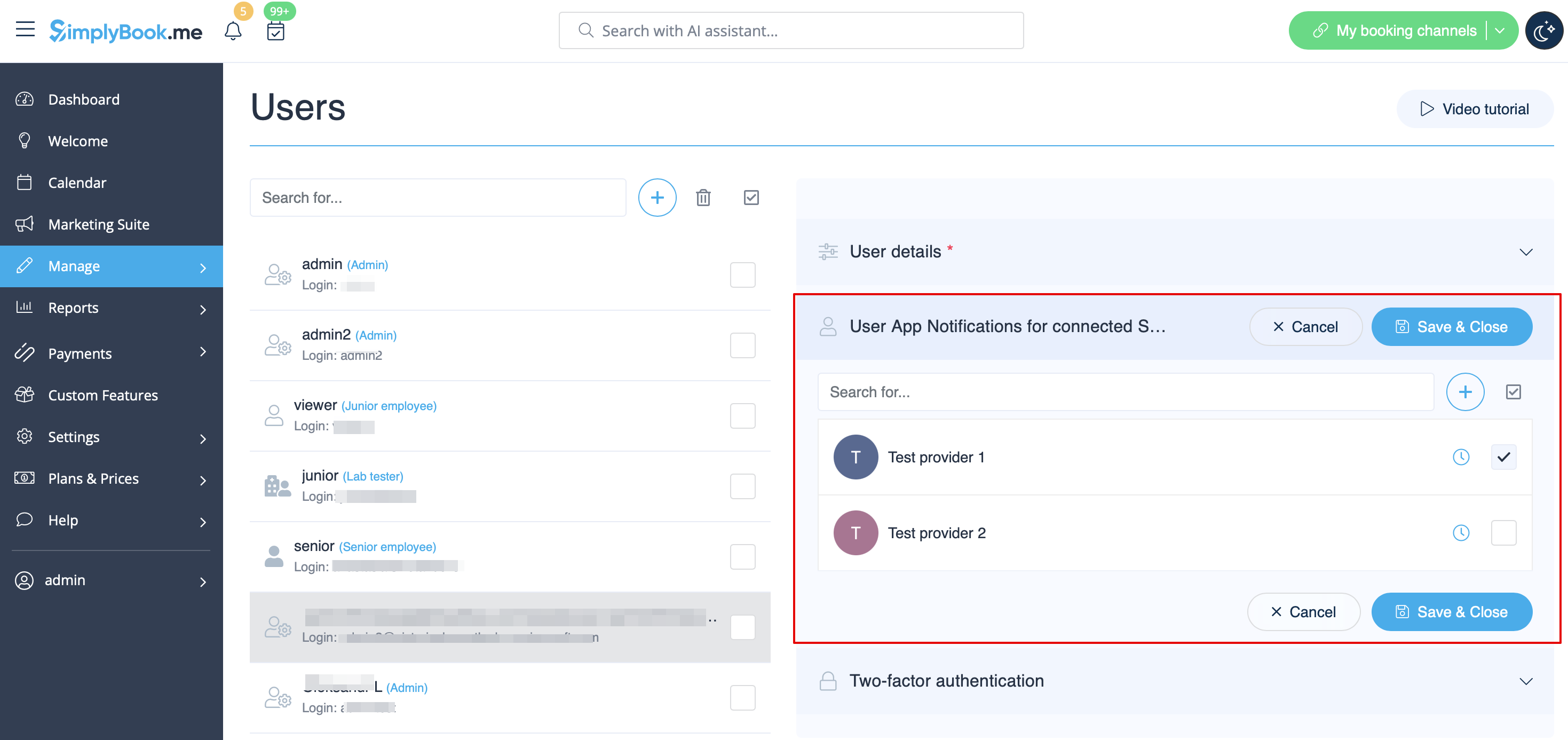
:Fill in <span style="background-color:#d4f8e5; padding:5px; border-radius:5px;">login,</span> <span style="background-color:#d4f8e5; padding:5px; border-radius:5px;">email address,</span> select <span style="background-color:#d4f8e5; padding:5px; border-radius:5px;">user level group,</span> set <span style="background-color:#d4f8e5; padding:5px; border-radius:5px;">first password,</span> <span style="background-color:#d4f8e5; padding:5px; border-radius:5px;">relate with a provider</span> if necessary, add <span style="background-color:#d4f8e5; padding:5px; border-radius:5px;">first and last names,</span> <span style="background-color:#d4f8e5; padding:5px; border-radius:5px;">phone number.</span>
::<span style="background-color:#ffe9e9; padding:5px; border-radius:5px;">'''Please note!''' Login is unique for every user. If you delete some user it will not be possible to reuse the same login for another user.</span>
[[File:Relate user to providers path.png|1200px|border | center|link=https://help.simplybook.me/images/8/8c/Relate_user_to_providers_path.png]]
<br><br>
After this, just enable the switch <span style="background-color:#d4f8e5; padding:5px; border-radius:5px;">Send login information to user</span> and save the user record.<br>
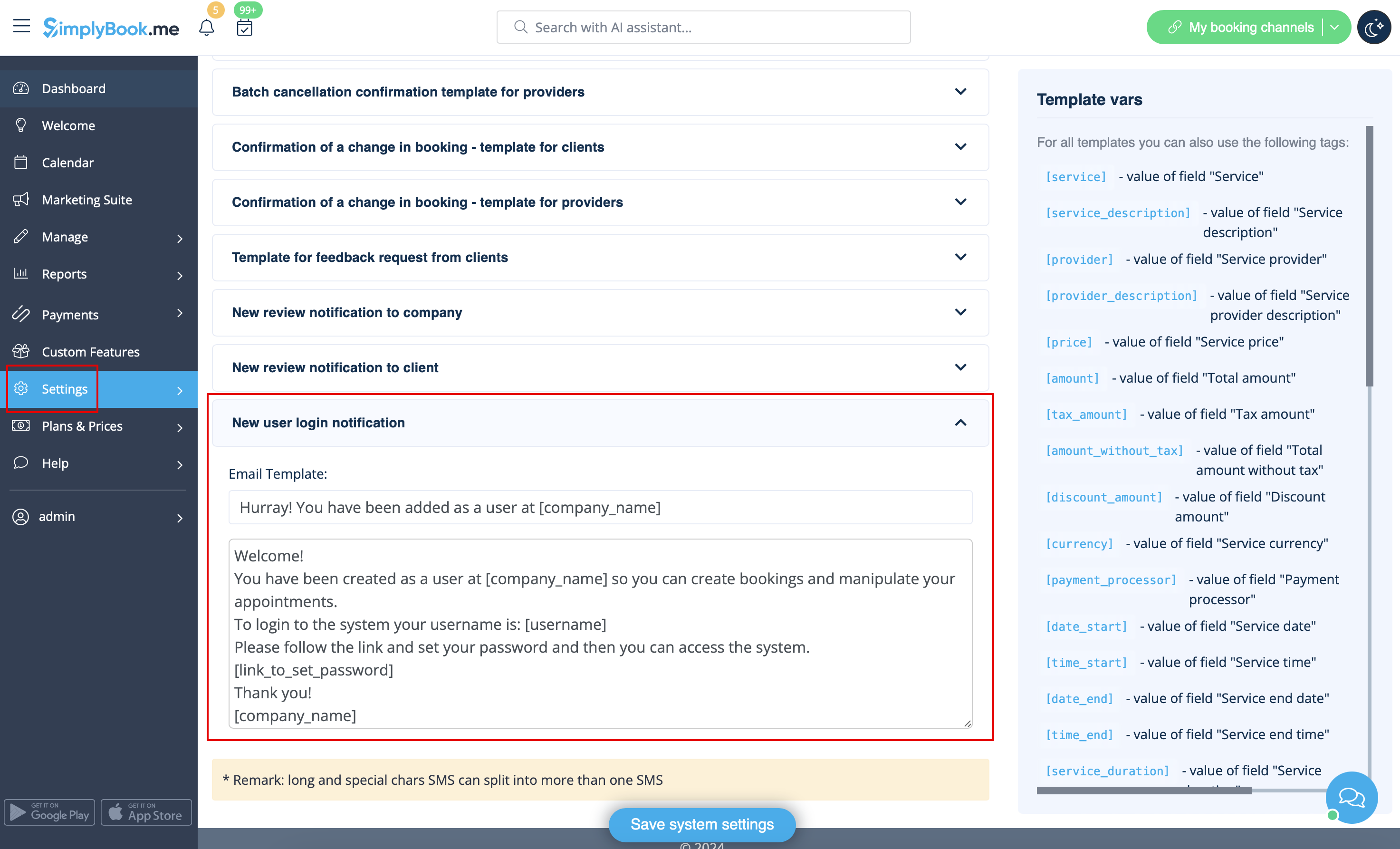
The system will automatically send the email with the login credentials according to the template you have set in <span style="background-color:#d4f8e5; padding:5px; border-radius:5px;">Settings</span> -> <span style="background-color:#d4f8e5; padding:5px; border-radius:5px;">Email and SMS Settings</span> -> <span style="background-color:#d4f8e5; padding:5px; border-radius:5px;">New user login notification.</span>
[[File:New user email template redesigned.png|1200px|border|center|link=https://help.simplybook.me/images/b/b4/New_user_email_template_redesigned.png]]
<br><br>
Or you can manually send login and password to your users along with the link to your admin page after saving the user.

U kunt een aparte gebruiker aanmaken voor de persoon die toegang moet hebben tot uw beheerpagina in Beheer -> Gebruikers en die gebruiker de juiste rechten toewijzen.
Zie hieronder de lijst met beschikbare gebruikersrollen.

Om een nieuwe gebruiker aan te maken, klikt u op de knop + bovenaan:


Vul de login, het e-mailadres in , selecteer de gebruikersgroep, stel het eerste wachtwoord in , koppel indien nodig een aanbieder, voeg de voor- en achternaam en het telefoonnummer toe .
Let op! De login is uniek voor elke gebruiker. Als u een gebruiker verwijdert, kan dezelfde login niet opnieuw worden gebruikt voor een andere gebruiker.


Schakel daarna de schakelaar Login-gegevens naar gebruiker verzenden in en sla het gebruikersrecord op.
Het systeem verstuurt automatisch een e-mail met de inloggegevens volgens het sjabloon dat u hebt ingesteld in Instellingen -> E-mail- en sms-instellingen -> Meldingen voor nieuwe gebruikers.


U kunt ook handmatig de inloggegevens en het wachtwoord naar uw gebruikers sturen, samen met de link naar uw beheerderspagina, nadat u de gebruiker hebt opgeslagen.