Translations:How to Cancel SimplyBook.me subscription/13/da: Difference between revisions

From SimplyBook.me
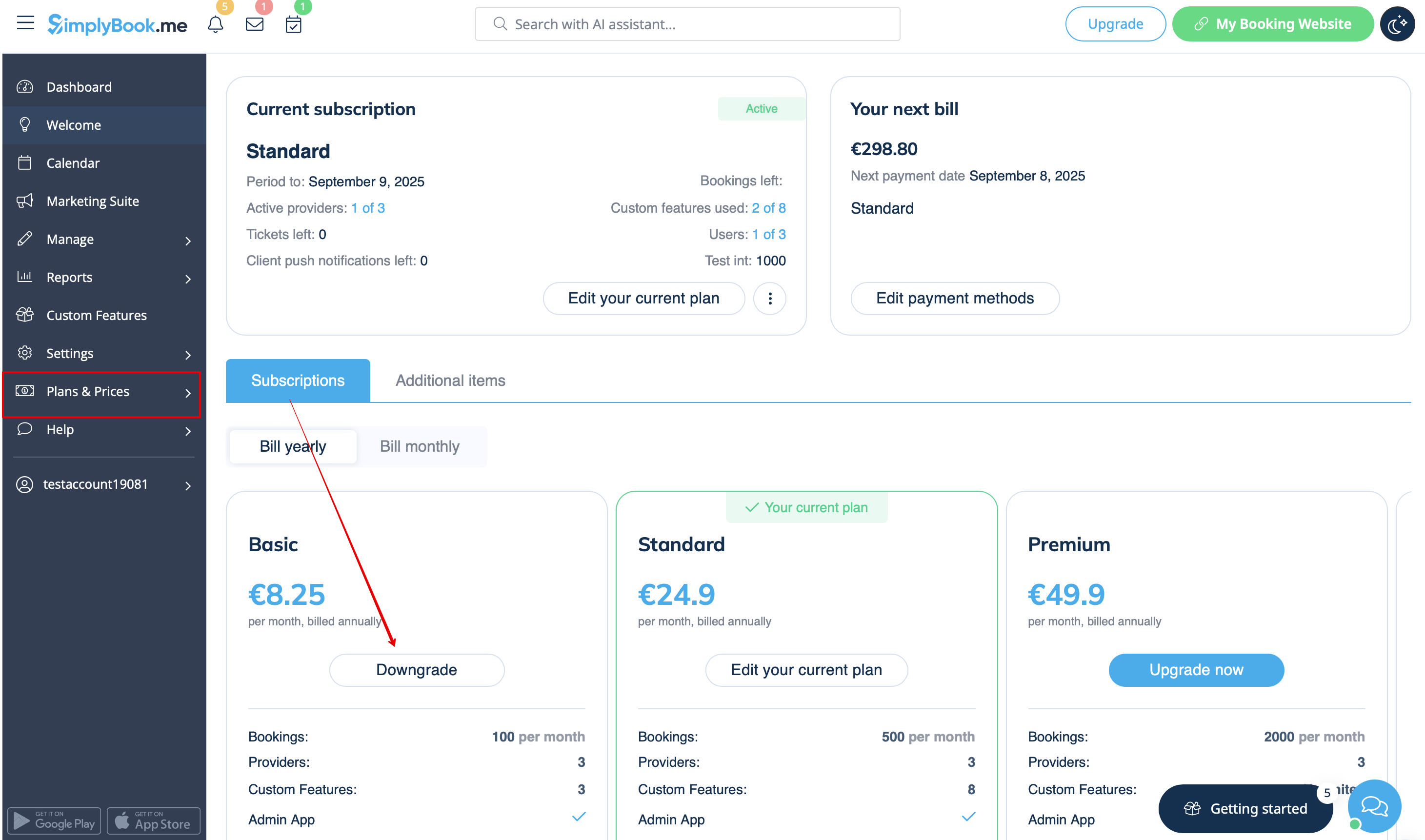
Created page with ":2. I <span style="background-color:#d4f8e5; padding:5px; border-radius:5px;">blokken med planmuligheder</span> skal du klikke på <span style="background-color:#d4f8e5; padding:5px; border-radius:5px;">Nedgrader</span> under den ønskede plan. (Bemærk! Det er muligt at nedgradere, hvis den lavere plan kan rumme alle de elementer, der er aktiveret på din konto) File:Downgrade plan path redesigned.png|1200px|center|link=https://help.simplybook.me/images/f/f4/Downgrade..."
 
(No difference)

Latest revision as of 12:21, 16 May 2025

Information about message (contribute)
This message has no documentation. If you know where or how this message is used, you can help other translators by adding documentation to this message.
Message definition (How to Cancel SimplyBook.me subscription)
:2. In the <span style="background-color:#d4f8e5; padding:5px; border-radius:5px;">plans options block</span> please click on the <span style="background-color:#d4f8e5; padding:5px; border-radius:5px;">Downgrade</span> under the desired plan.
(Please note! It is possible to downgrade if the lower plan can fit all the items activated in your account)
[[File:Downgrade plan path redesigned.png|1200px|center|link=https://help.simplybook.me/images/f/f4/Downgrade_plan_path_redesigned.png]]
<br><br>
:3. Check the company details on the left side of the page (they will be used for the invoice) and choose the payment method.
[[File:Confirm subscription update redesigned.png|1200px|center|link=https://help.simplybook.me/images/e/e3/Confirm_subscription_update_redesigned.png]]
<br><br>
:4. After you make the payment and it is successfully received by the system, the the new plan will come into action.
<br><br>
2. I blokken med planmuligheder skal du klikke på Nedgrader under den ønskede plan.

(Bemærk! Det er muligt at nedgradere, hvis den lavere plan kan rumme alle de elementer, der er aktiveret på din konto)


3. Kontroller virksomhedsoplysningerne i venstre side af siden (de vil blive brugt til fakturaen) og vælg betalingsmetode.
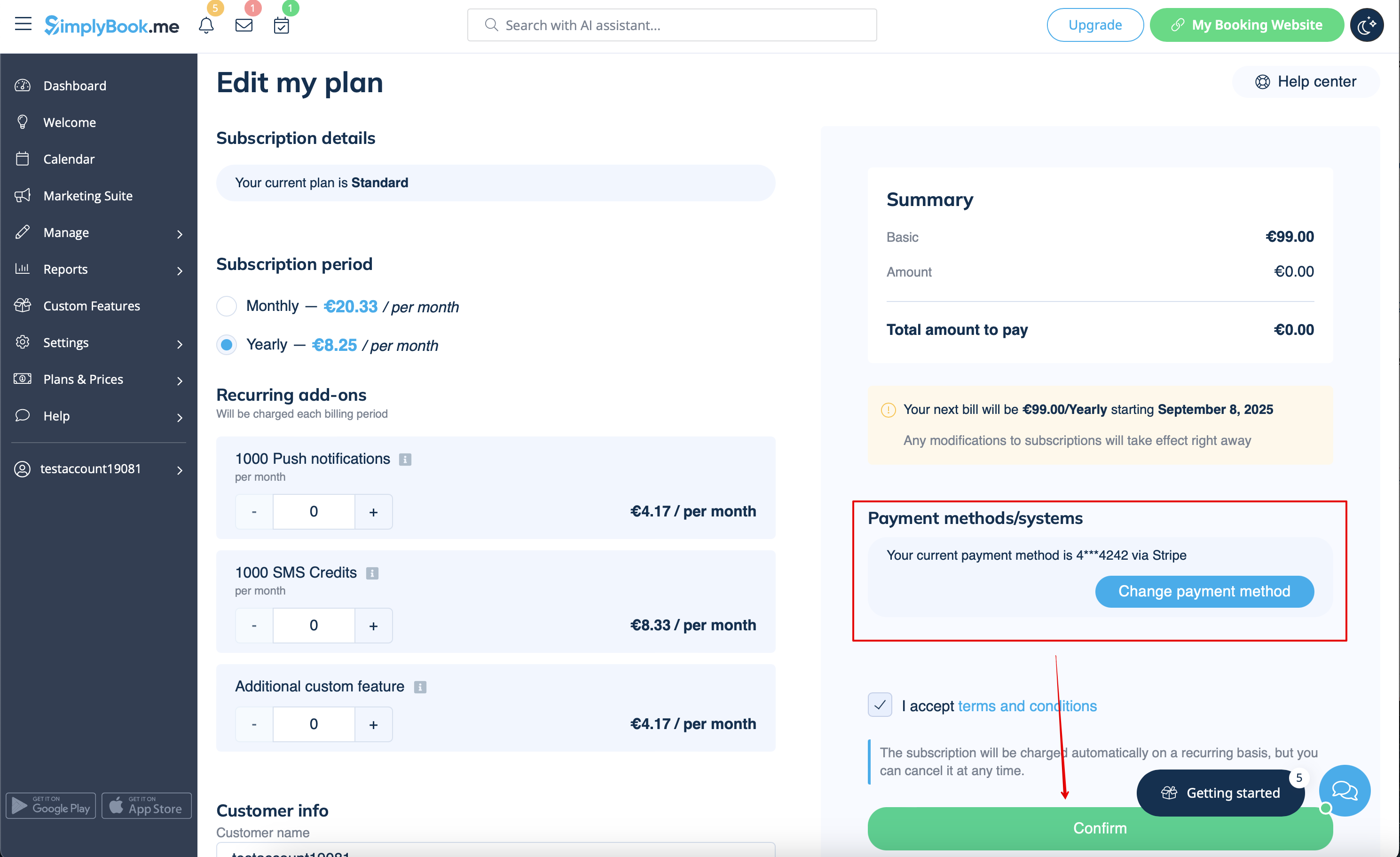


4. Når du har foretaget betalingen, og den er modtaget af systemet, træder den nye plan i kraft.