Translations:How to Cancel SimplyBook.me subscription/13/fr: Difference between revisions

From SimplyBook.me
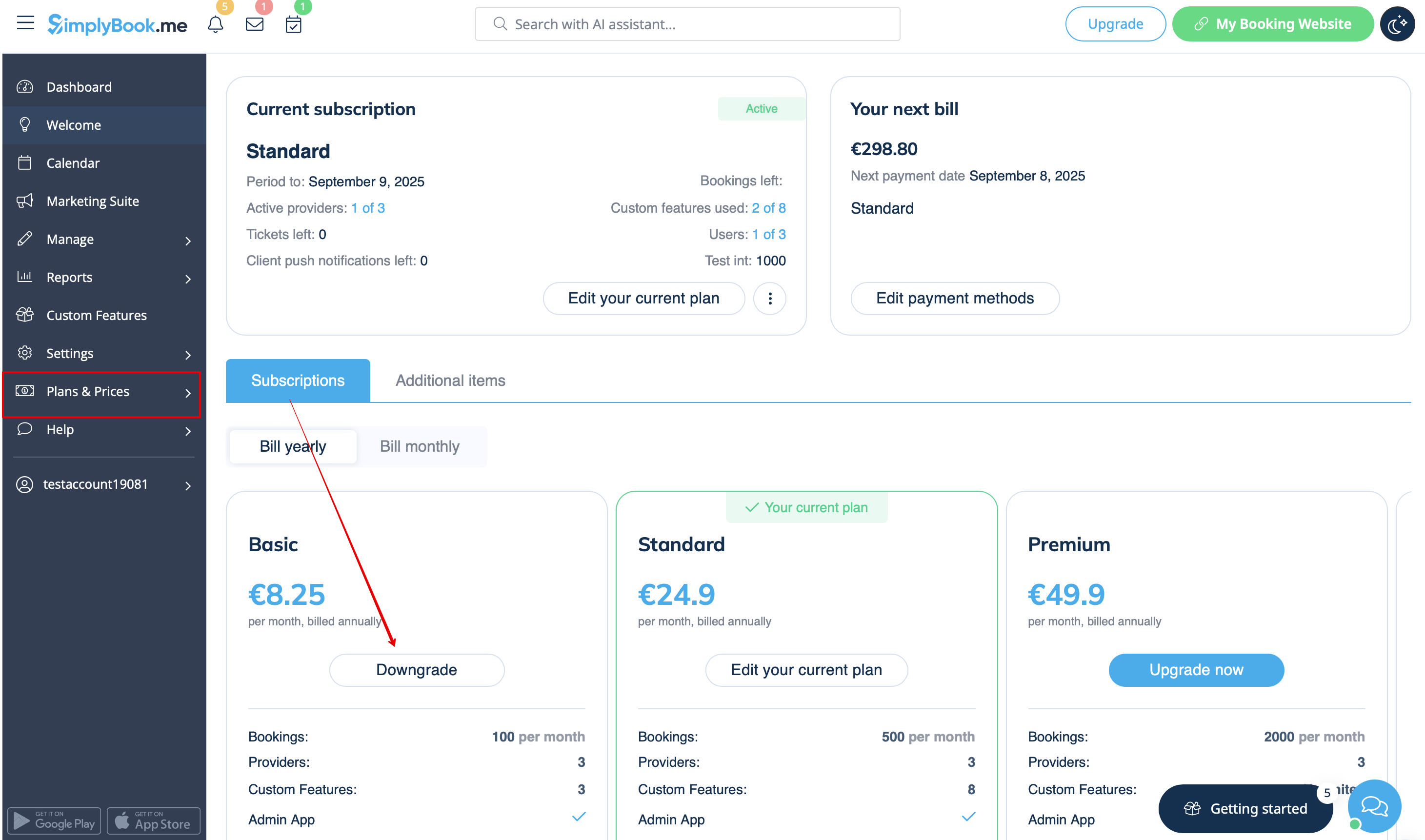
Created page with ":2. Dans le <span style="background-color:#d4f8e5; padding:5px; border-radius:5px;">bloc des options de forfait</span>, veuillez cliquer sur « <span style="background-color:#d4f8e5; padding:5px; border-radius:5px;">Downgrade</span> » sous le forfait souhaité. (Remarque Il est possible de passer à un forfait inférieur si celui-ci couvre tous les éléments activés dans votre compte) File:Downgrade plan path redesigned.png|1200px|center|link=https://help.simplyboo..."
 
(No difference)

Latest revision as of 12:22, 16 May 2025

Information about message (contribute)
This message has no documentation. If you know where or how this message is used, you can help other translators by adding documentation to this message.
Message definition (How to Cancel SimplyBook.me subscription)
:2. In the <span style="background-color:#d4f8e5; padding:5px; border-radius:5px;">plans options block</span> please click on the <span style="background-color:#d4f8e5; padding:5px; border-radius:5px;">Downgrade</span> under the desired plan.
(Please note! It is possible to downgrade if the lower plan can fit all the items activated in your account)
[[File:Downgrade plan path redesigned.png|1200px|center|link=https://help.simplybook.me/images/f/f4/Downgrade_plan_path_redesigned.png]]
<br><br>
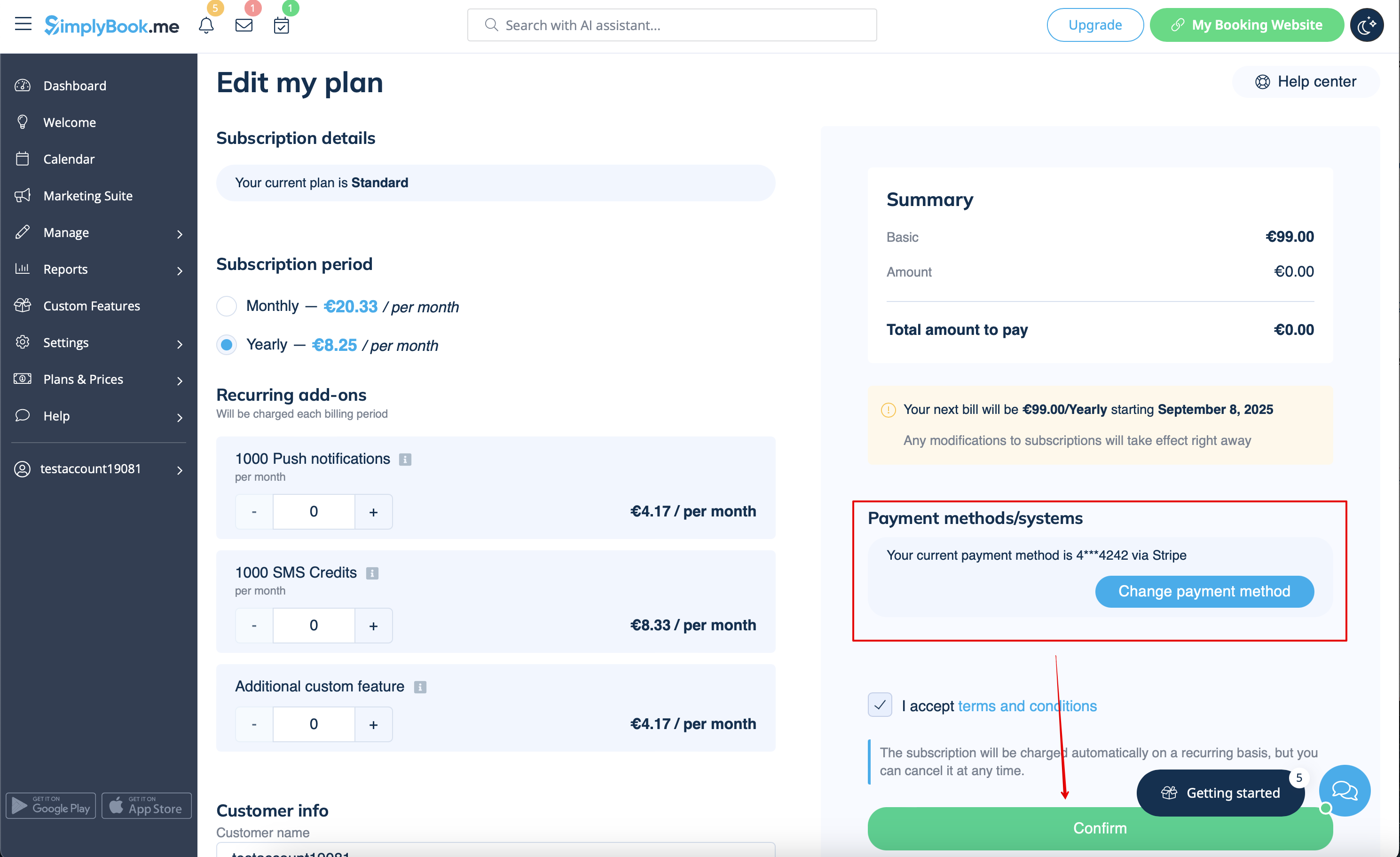
:3. Check the company details on the left side of the page (they will be used for the invoice) and choose the payment method.
[[File:Confirm subscription update redesigned.png|1200px|center|link=https://help.simplybook.me/images/e/e3/Confirm_subscription_update_redesigned.png]]
<br><br>
:4. After you make the payment and it is successfully received by the system, the the new plan will come into action.
<br><br>
2. Dans le bloc des options de forfait, veuillez cliquer sur « Downgrade » sous le forfait souhaité.

(Remarque Il est possible de passer à un forfait inférieur si celui-ci couvre tous les éléments activés dans votre compte)


3. Vérifiez les informations relatives à l'entreprise sur le côté gauche de la page (elles seront utilisées pour la facture) et choisissez le mode de paiement.


4. Une fois le paiement effectué et reçu par le système, le nouveau forfait entrera en vigueur.