No edit summary |
No edit summary |
||
| Line 8: | Line 8: | ||
}} | }} | ||
</translate> | </translate> | ||
<translate> | |||
<br><br> | <br><br> | ||
Your Simplybook.me account may be blocked due to non-renewal of the free plan or manual account deletion from the <span style="background-color:#d4f8e5; padding:5px; border-radius:5px;">Settings</span> -> <span style="background-color:#d4f8e5; padding:5px; border-radius:5px;">Delete account</span> section. It is still possible to reactivate the blocked account before it gets deleted completely. | Your Simplybook.me account may be blocked due to non-renewal of the free plan or manual account deletion from the <span style="background-color:#d4f8e5; padding:5px; border-radius:5px;">Settings</span> -> <span style="background-color:#d4f8e5; padding:5px; border-radius:5px;">Delete account</span> section. It is still possible to reactivate the blocked account before it gets deleted completely. | ||
</translate> | |||
<translate> | |||
| Line 17: | Line 20: | ||
;Steps to unblock the account | ;Steps to unblock the account | ||
1. If you recall your company login, open the link in your browser in the following format: https://yourcompanylogin.secure.simplybook.me/ (replace "yourcompanylogin" with your actual company login). If you don't remember your company login, find it [https://secure.simplybook.me/login/remind-company/ here:] using your company email address.<br> | 1. If you recall your company login, open the link in your browser in the following format: https://yourcompanylogin.secure.simplybook.me/ (replace "yourcompanylogin" with your actual company login). If you don't remember your company login, find it [https://secure.simplybook.me/login/remind-company/ here:] using your company email address.<br> | ||
</translate> | |||
<translate> | |||
If the company can be reactivated, you'll see a page suggesting sending an unblock email to the default admin user email address shown in the partially hidden format. | If the company can be reactivated, you'll see a page suggesting sending an unblock email to the default admin user email address shown in the partially hidden format. | ||
| Line 24: | Line 29: | ||
[[File:Unblock link is sent.png|1200px|center|link=https://help.simplybook.me/images/9/9d/Unblock_link_is_sent.png]] | [[File:Unblock link is sent.png|1200px|center|link=https://help.simplybook.me/images/9/9d/Unblock_link_is_sent.png]] | ||
<br><br> | <br><br> | ||
</translate> | |||
<translate> | |||
3. In the email, find an <span style="background-color:#d4f8e5; padding:5px; border-radius:5px;">unblocking button</span> or <span style="background-color:#d4f8e5; padding:5px; border-radius:5px;">link</span>. Click on either of them to reactivate the account. | 3. In the email, find an <span style="background-color:#d4f8e5; padding:5px; border-radius:5px;">unblocking button</span> or <span style="background-color:#d4f8e5; padding:5px; border-radius:5px;">link</span>. Click on either of them to reactivate the account. | ||
[[File:Unblock account email.png|1200px|center|link=https://help.simplybook.me/images/2/25/Unblock_account_email.png]] | [[File:Unblock account email.png|1200px|center|link=https://help.simplybook.me/images/2/25/Unblock_account_email.png]] | ||
<br><br> | <br><br> | ||
</translate> | |||
<translate> | |||
4. You'll see a successful reactivation page as a result. | 4. You'll see a successful reactivation page as a result. | ||
[[File:Unblock success.png|1200px|center|link=https://help.simplybook.me/images/c/ca/Unblock_success.png]] | [[File:Unblock success.png|1200px|center|link=https://help.simplybook.me/images/c/ca/Unblock_success.png]] | ||
| Line 32: | Line 41: | ||
If the <span style="background-color:#d4f8e5; padding:5px; border-radius:5px;">Resend link</span> button is not available, click on <span style="background-color:#d4f8e5; padding:5px; border-radius:5px;">Live Chat</span> button, and our support team will assist you in unblocking the account. | If the <span style="background-color:#d4f8e5; padding:5px; border-radius:5px;">Resend link</span> button is not available, click on <span style="background-color:#d4f8e5; padding:5px; border-radius:5px;">Live Chat</span> button, and our support team will assist you in unblocking the account. | ||
<br><br> | <br><br> | ||
</translate> | |||
Revision as of 12:39, 16 May 2025
Your Simplybook.me account may be blocked due to non-renewal of the free plan or manual account deletion from the Settings -> Delete account section. It is still possible to reactivate the blocked account before it gets deleted completely.
Please note! If you encounter a 404 error, it indicates that the free account expired more than 3 months ago and was automatically deleted by the system, or the account you deleted manually was deleted completely after being in the blocked status. In such cases, it's not possible to regain access to the account or create a new account with the same company login. You'll need to sign up for a new account using a different company login.
- Steps to unblock the account
1. If you recall your company login, open the link in your browser in the following format: https://yourcompanylogin.secure.simplybook.me/ (replace "yourcompanylogin" with your actual company login). If you don't remember your company login, find it here: using your company email address.
If the company can be reactivated, you'll see a page suggesting sending an unblock email to the default admin user email address shown in the partially hidden format.
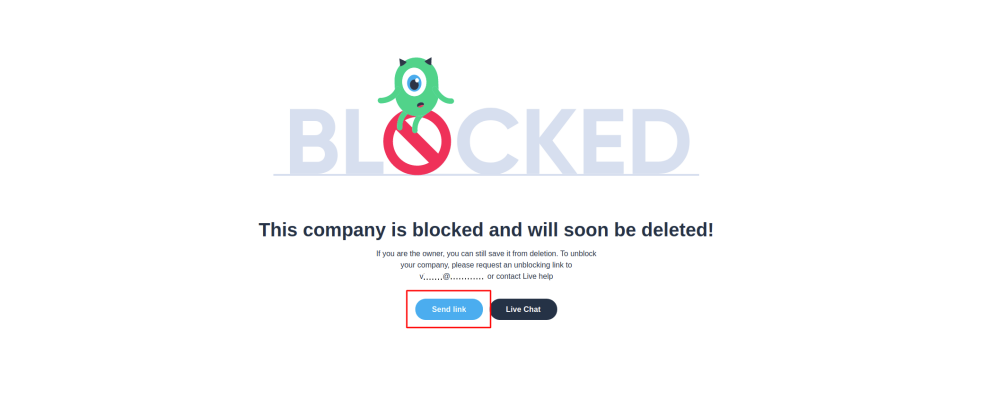
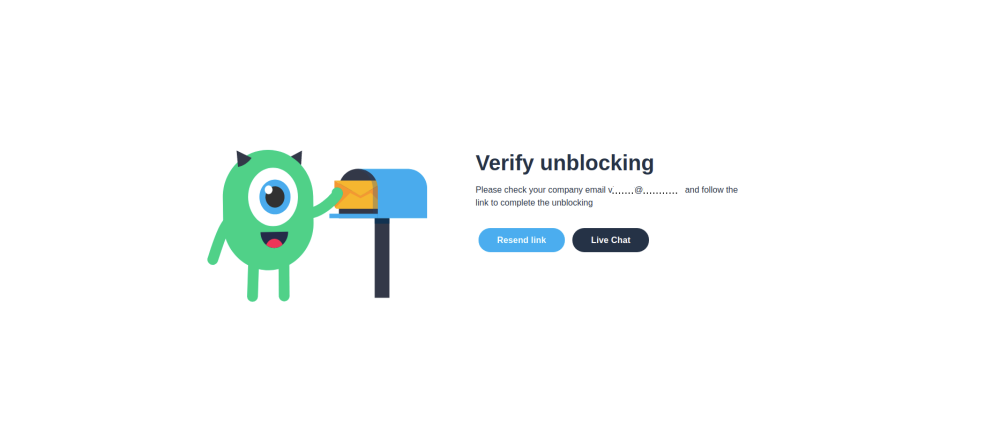
2. Click on the Send link button and go to the corresponding email box.
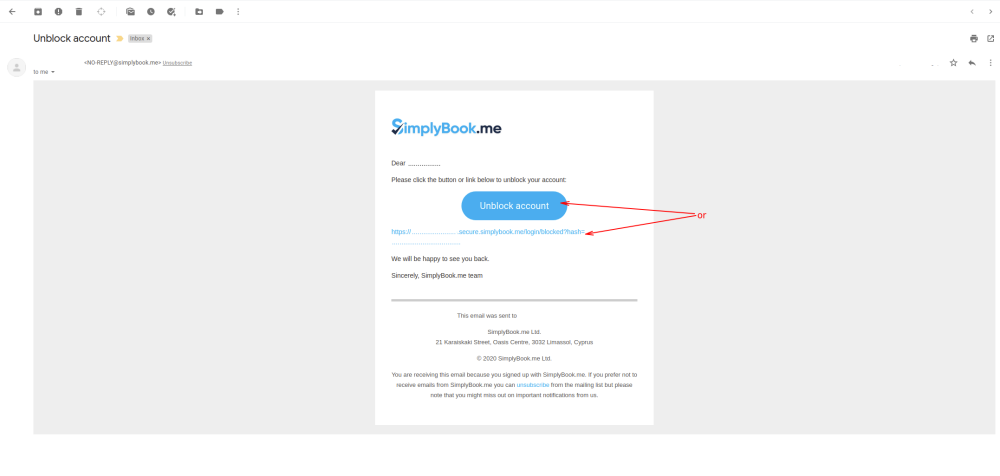
3. In the email, find an unblocking button or link. Click on either of them to reactivate the account.
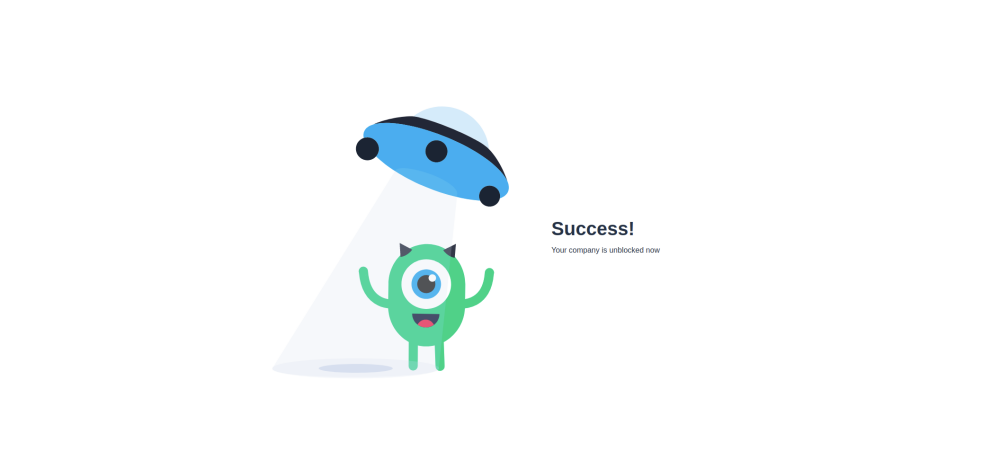
4. You'll see a successful reactivation page as a result.
If the Resend link button is not available, click on Live Chat button, and our support team will assist you in unblocking the account.
