From SimplyBook.me
No edit summary |
Marked this version for translation |
||
| Line 1: | Line 1: | ||
<languages/> | <languages/> | ||
<translate> | <translate> | ||
<!--T:1--> | |||
{{#seo: | {{#seo: | ||
|title=Calendar Notes- SimplyBook.me | |title=Calendar Notes- SimplyBook.me | ||
| Line 10: | Line 11: | ||
<translate> | <translate> | ||
<!--T:2--> | |||
<br><br><br><br> | <br><br><br><br> | ||
It may be necessary to add some important information to the <span style="background-color:#d4f8e5; padding:5px; border-radius:5px;">Calendar</span> page that will be shown along with bookings or you need to quickly block some period of time and indicate the reason.<br> | It may be necessary to add some important information to the <span style="background-color:#d4f8e5; padding:5px; border-radius:5px;">Calendar</span> page that will be shown along with bookings or you need to quickly block some period of time and indicate the reason.<br> | ||
| Line 16: | Line 18: | ||
</translate> | </translate> | ||
<translate> | <translate> | ||
<!--T:3--> | |||
;How to use: | ;How to use: | ||
:1. By default there is one note type added for you in the system, but you can go to <span style="background-color:#d4f8e5; padding:5px; border-radius:5px;">Manage</span> -> <span style="background-color:#d4f8e5; padding:5px; border-radius:5px;">Calendar Notes Types</span> to add new note types and set the desirable colors for them. | :1. By default there is one note type added for you in the system, but you can go to <span style="background-color:#d4f8e5; padding:5px; border-radius:5px;">Manage</span> -> <span style="background-color:#d4f8e5; padding:5px; border-radius:5px;">Calendar Notes Types</span> to add new note types and set the desirable colors for them. | ||
| Line 22: | Line 25: | ||
</translate> | </translate> | ||
<translate> | <translate> | ||
<!--T:4--> | |||
:2. When all types are ready for use navigate to <span style="background-color:#d4f8e5; padding:5px; border-radius:5px;">Calendar</span> page using the <span style="background-color:#d4f8e5; padding:5px; border-radius:5px;">left-side menu.</span> | :2. When all types are ready for use navigate to <span style="background-color:#d4f8e5; padding:5px; border-radius:5px;">Calendar</span> page using the <span style="background-color:#d4f8e5; padding:5px; border-radius:5px;">left-side menu.</span> | ||
<br><br> | <br><br> | ||
| Line 29: | Line 33: | ||
</translate> | </translate> | ||
<translate> | <translate> | ||
<!--T:5--> | |||
:4. Click on the <span style="background-color:#d4f8e5; padding:5px; border-radius:5px;">free space</span> in the <span style="background-color:#d4f8e5; padding:5px; border-radius:5px;">Calendar table</span> where you would like to insert the information or block time to get <span style="background-color:#d4f8e5; padding:5px; border-radius:5px;">note popup form.</span> | :4. Click on the <span style="background-color:#d4f8e5; padding:5px; border-radius:5px;">free space</span> in the <span style="background-color:#d4f8e5; padding:5px; border-radius:5px;">Calendar table</span> where you would like to insert the information or block time to get <span style="background-color:#d4f8e5; padding:5px; border-radius:5px;">note popup form.</span> | ||
<br><br> | <br><br> | ||
| Line 36: | Line 41: | ||
</translate> | </translate> | ||
<translate> | <translate> | ||
<!--T:6--> | |||
:6. To edit or delete the previously added note <span style="background-color:#d4f8e5; padding:5px; border-radius:5px;">click on it</span> to get the popup and use the needed function there. | :6. To edit or delete the previously added note <span style="background-color:#d4f8e5; padding:5px; border-radius:5px;">click on it</span> to get the popup and use the needed function there. | ||
[[File:Click on note to update redesigned.png|1200px|border|center|link=https://help.simplybook.me/images/e/e0/Click_on_note_to_update_redesigned.png]] | [[File:Click on note to update redesigned.png|1200px|border|center|link=https://help.simplybook.me/images/e/e0/Click_on_note_to_update_redesigned.png]] | ||
| Line 49: | Line 55: | ||
</translate> | </translate> | ||
<translate> | <translate> | ||
<!--T:7--> | |||
:If you have added a note <span style="background-color:#d4f8e5; padding:5px; border-radius:5px;">per service</span> you will be able to see it in <span style="background-color:#d4f8e5; padding:5px; border-radius:5px;">Service,</span> <span style="background-color:#d4f8e5; padding:5px; border-radius:5px;">Day,</span> <span style="background-color:#d4f8e5; padding:5px; border-radius:5px;">Week</span> and <span style="background-color:#d4f8e5; padding:5px; border-radius:5px;">Month</span> views. | :If you have added a note <span style="background-color:#d4f8e5; padding:5px; border-radius:5px;">per service</span> you will be able to see it in <span style="background-color:#d4f8e5; padding:5px; border-radius:5px;">Service,</span> <span style="background-color:#d4f8e5; padding:5px; border-radius:5px;">Day,</span> <span style="background-color:#d4f8e5; padding:5px; border-radius:5px;">Week</span> and <span style="background-color:#d4f8e5; padding:5px; border-radius:5px;">Month</span> views. | ||
[[File:Services notes view redesigned.png|1200px|border|center|link=https://help.simplybook.me/images/0/0b/Services_notes_view_redesigned.png]] | [[File:Services notes view redesigned.png|1200px|border|center|link=https://help.simplybook.me/images/0/0b/Services_notes_view_redesigned.png]] | ||
| Line 60: | Line 67: | ||
</translate> | </translate> | ||
<translate> | <translate> | ||
<!--T:8--> | |||
[[File:Notes report with filter redesigned.png|1200px|border|center|link=https://help.simplybook.me/images/d/d8/Notes_report_with_filter_redesigned.png]] | [[File:Notes report with filter redesigned.png|1200px|border|center|link=https://help.simplybook.me/images/d/d8/Notes_report_with_filter_redesigned.png]] | ||
<br><br><br><br> | <br><br><br><br> | ||
</translate> | </translate> | ||
Revision as of 09:15, 19 May 2025
It may be necessary to add some important information to the Calendar page that will be shown along with bookings or you need to quickly block some period of time and indicate the reason.
That is why we have launched a new option Calendar Notes with time blocking functionality that makes it possible and now you can keep all the necessary things at hand.
- How to use
- 1. By default there is one note type added for you in the system, but you can go to Manage -> Calendar Notes Types to add new note types and set the desirable colors for them.
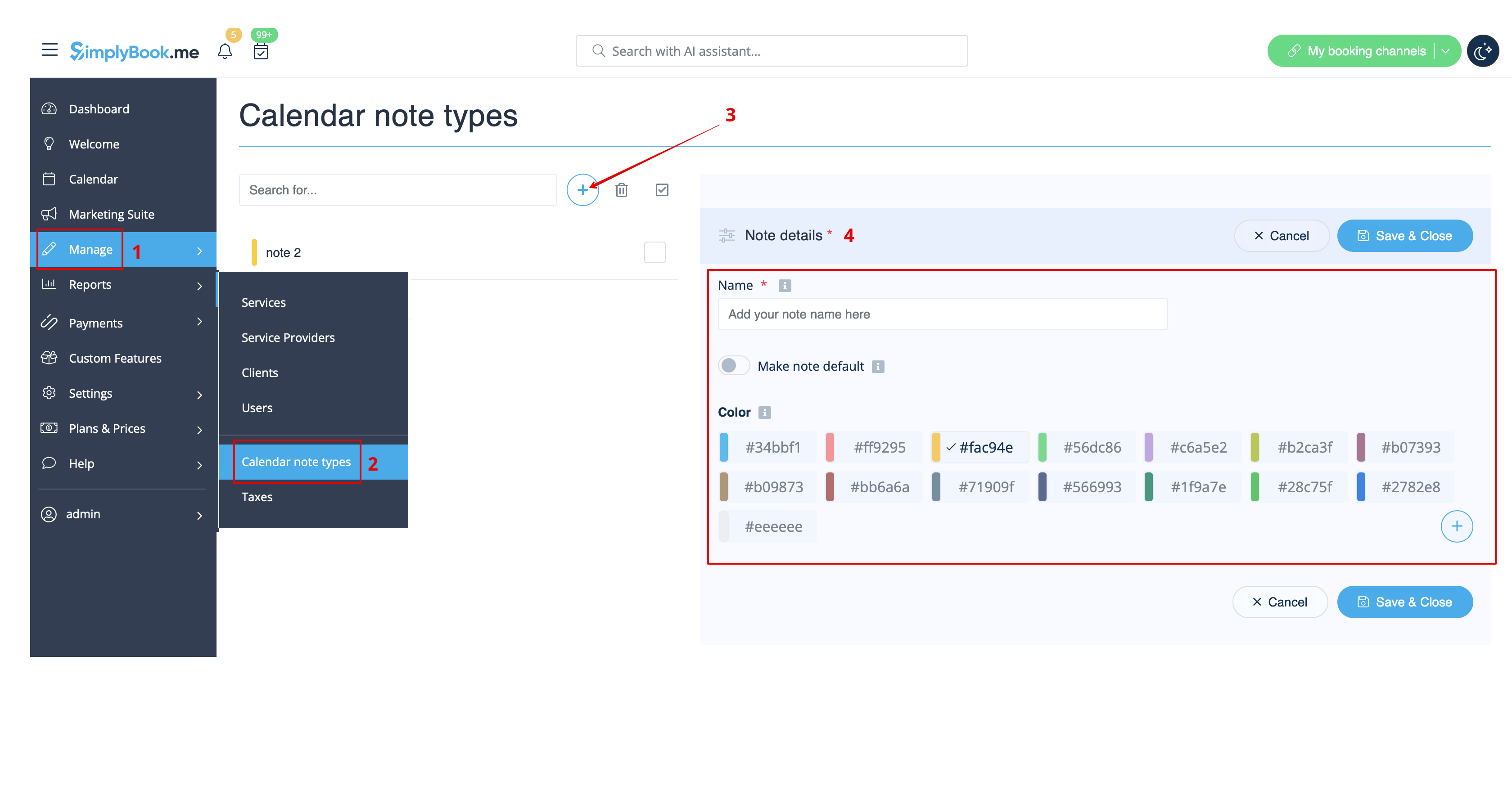
- 2. When all types are ready for use navigate to Calendar page using the left-side menu.
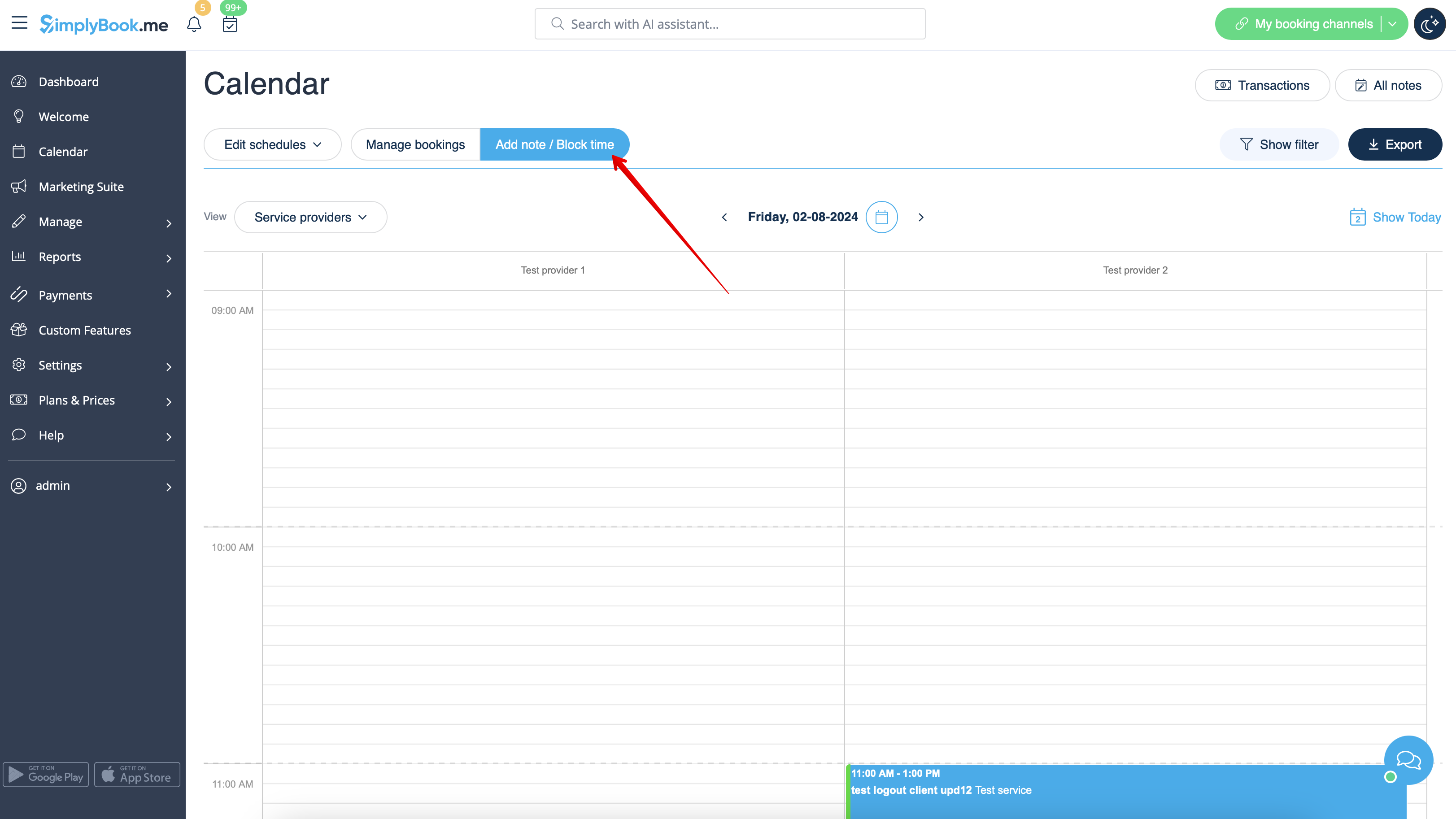
- 3. Switch to Add note/Block time mode above the calendar.
- 4. Click on the free space in the Calendar table where you would like to insert the information or block time to get note popup form.
- 5. Check Time is blocked option to close the availability if needed, add the details to the textbox and select the assignee: you can add a note or close time per specific provider, service or everyone.
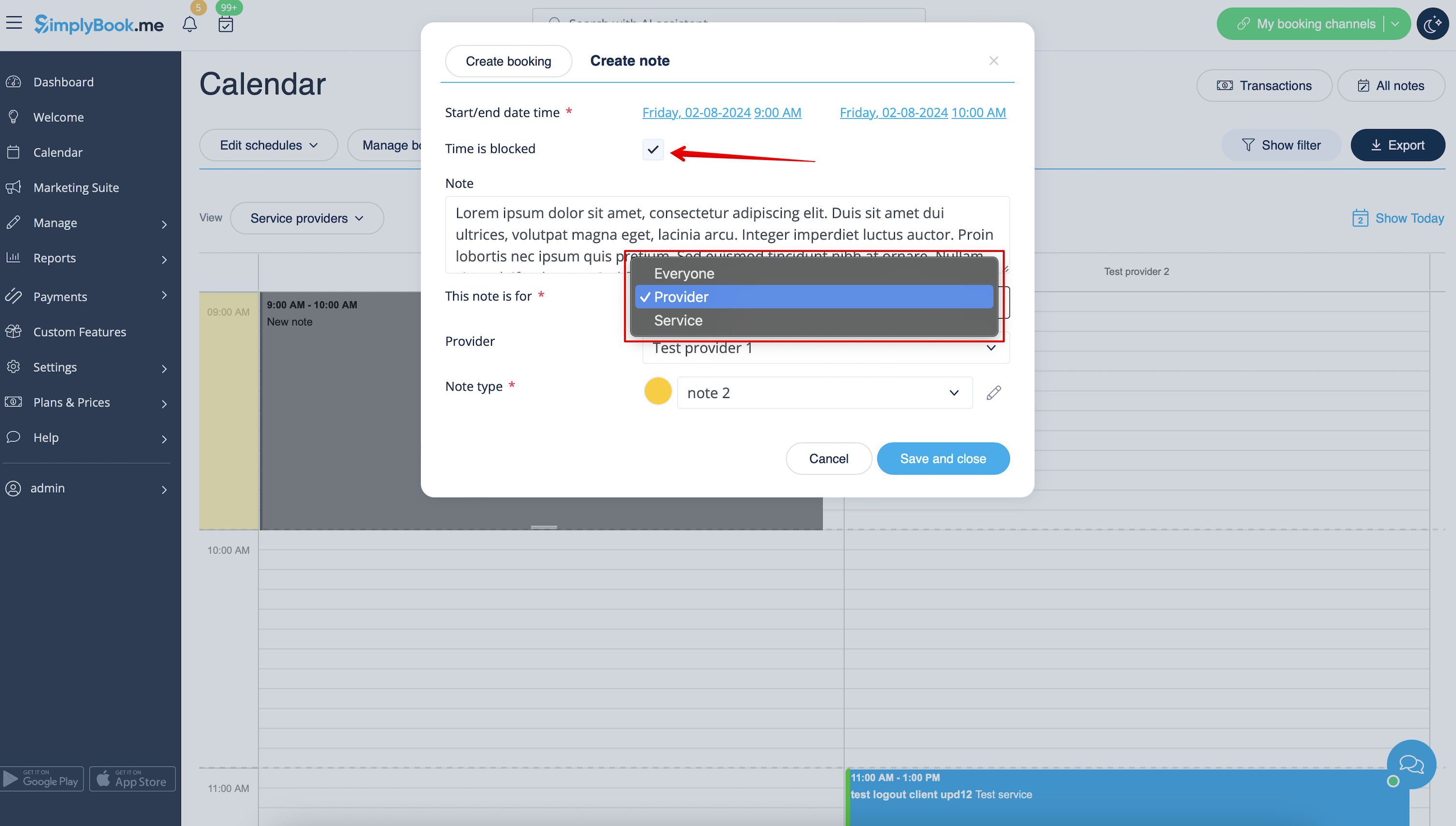
- 6. To edit or delete the previously added note click on it to get the popup and use the needed function there.
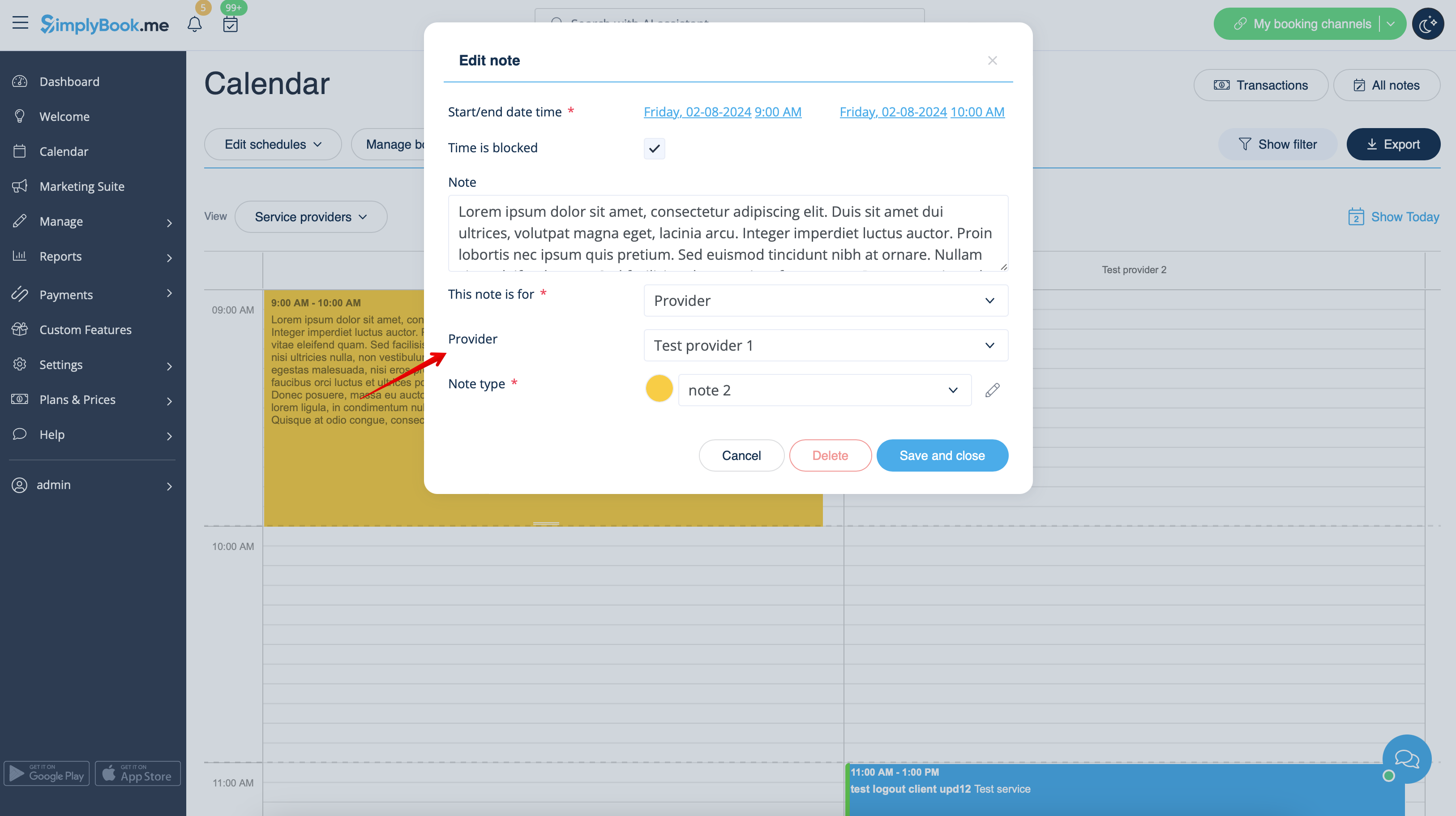
- Notes overview options
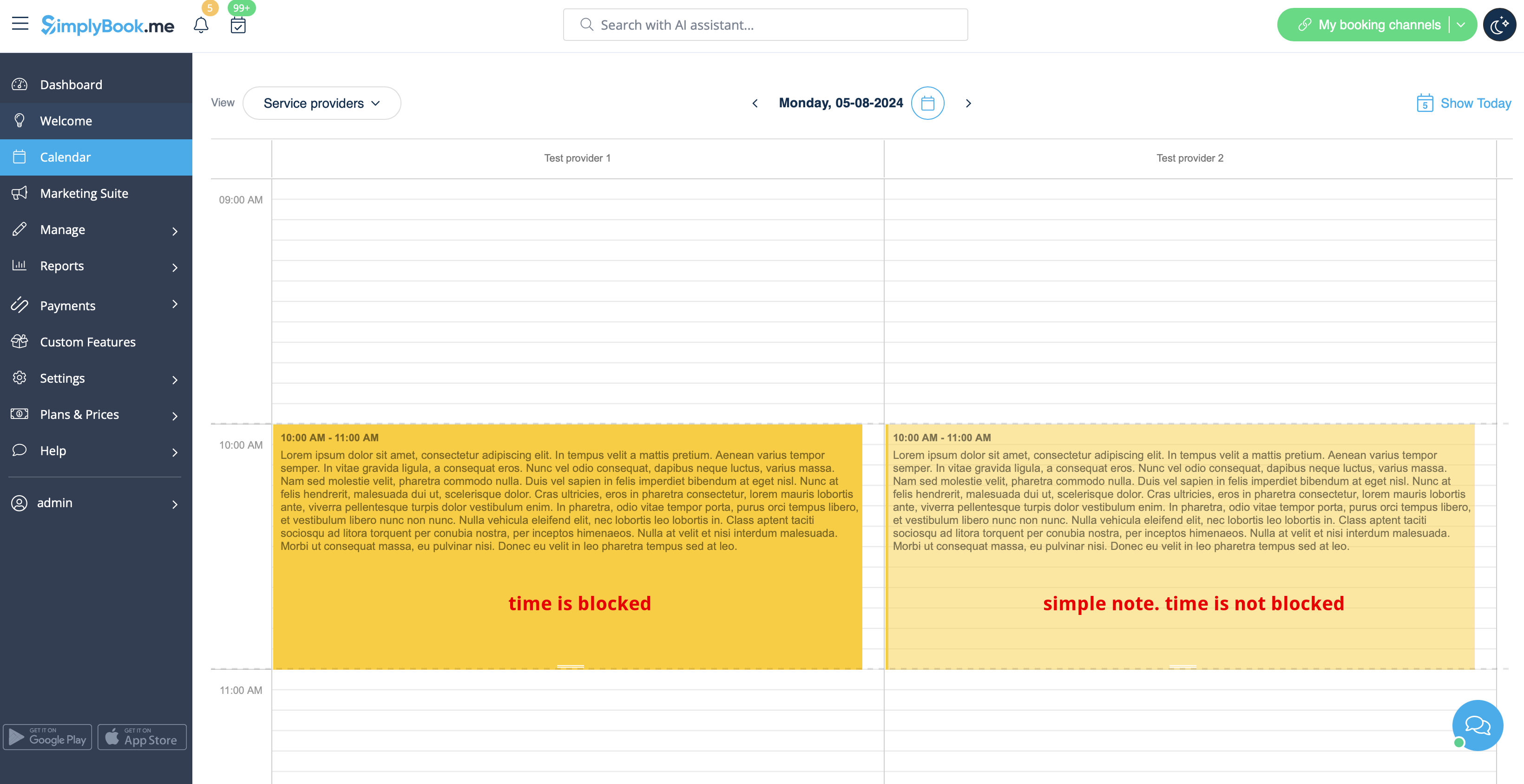
- If you have checked Time is blocked such notes will have a bit brighter color compared to simple text notes.
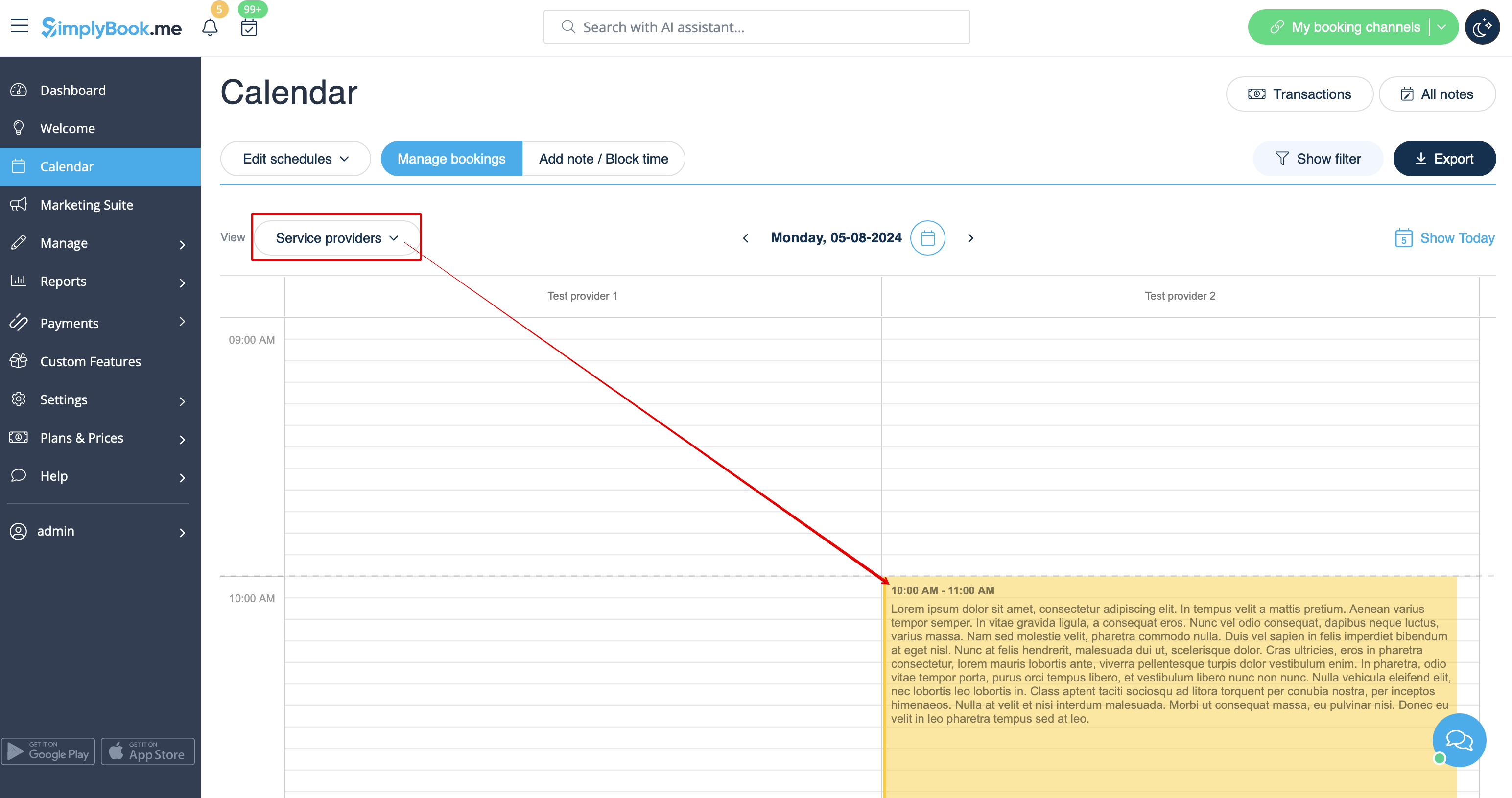
- If you have added a note per provider it will be shown in Service Provider, Timeline, Day, Week and Month views.
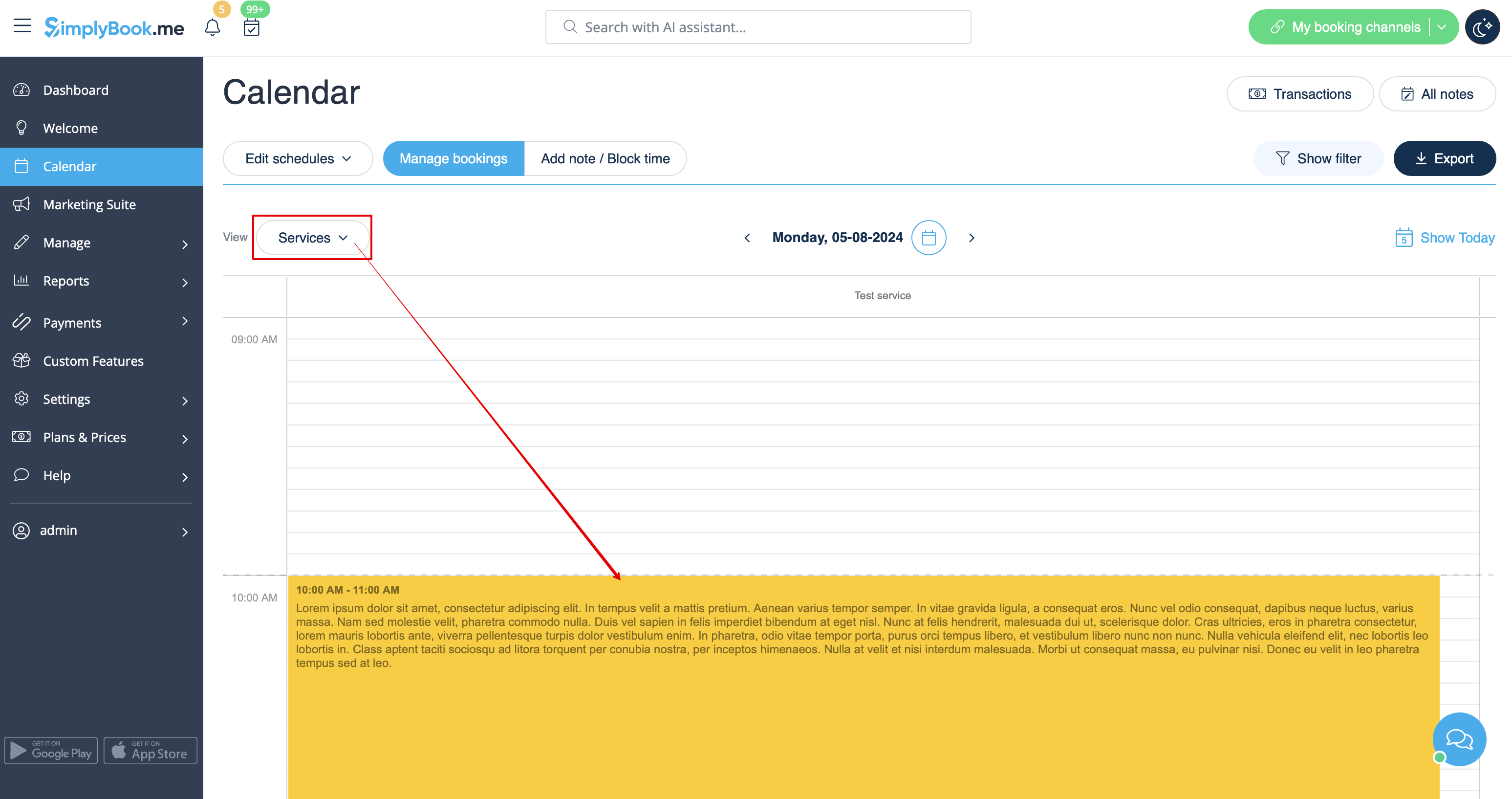
- If you have added a note per service you will be able to see it in Service, Day, Week and Month views.
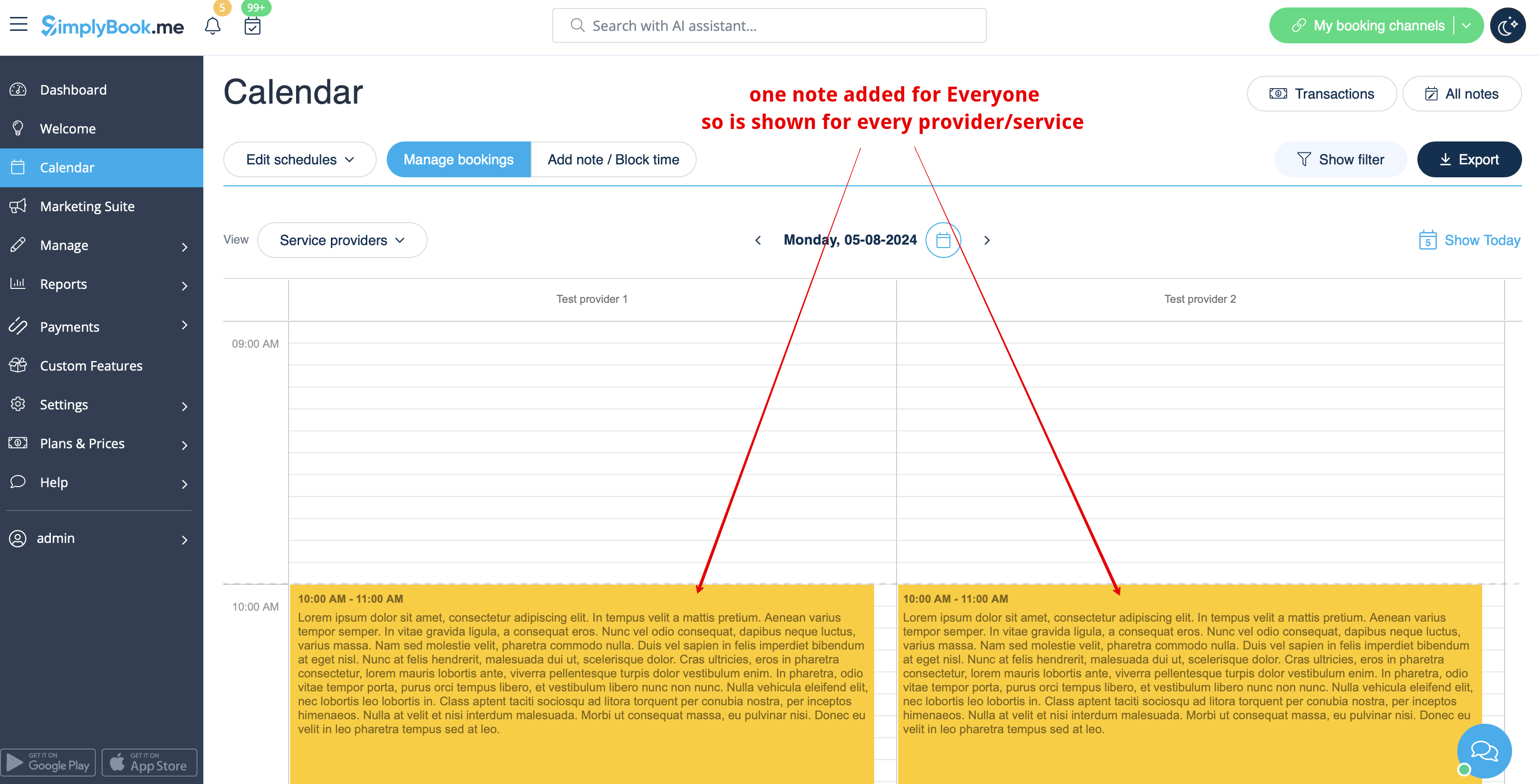
- The notes for Everyone are displayed in all calendar views.
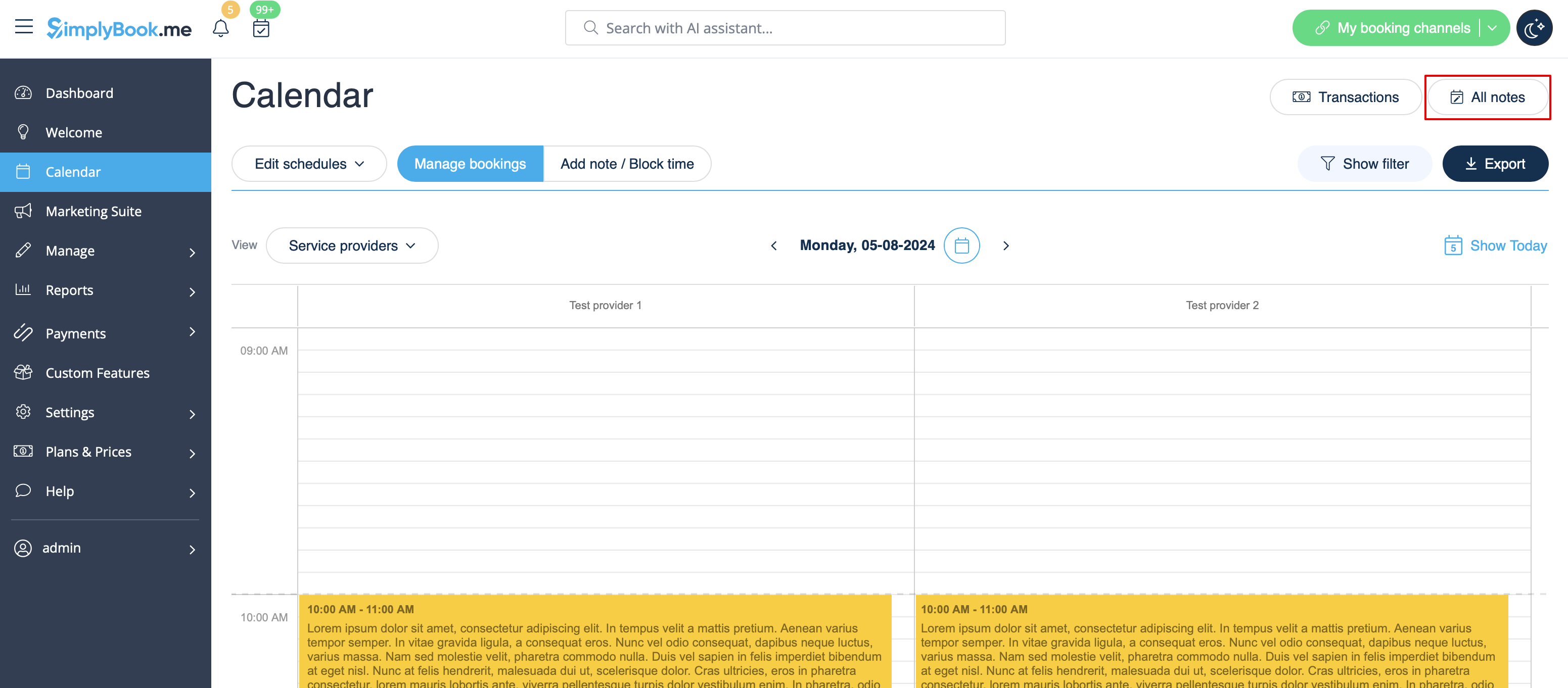
- As well you can access the list of all the notes added, use filters and export notes to excel in Calendar notes report by navigating either directly from Calendar page or from Reports section in left-side menu.