Translations:Calendar Notes/5/da: Difference between revisions

From SimplyBook.me
Created page with ":4. Klik på det <span style="background-color:#d4f8e5; padding:5px; border-radius:5px;">frie felt</span> i <span style="background-color:#d4f8e5; padding:5px; border-radius:5px;">kalendertabellen</span>, hvor du vil indsætte oplysningerne eller blokere tiden, for at få vist <span style="background-color:#d4f8e5; padding:5px; border-radius:5px;">pop op-vinduet med noter.</span> <br><br> :5. Marker afkrydsningsfeltet " <span style="background-color:#d4f8e5; padding:5px;..."
 
(No difference)

Latest revision as of 09:16, 19 May 2025

Information about message (contribute)
This message has no documentation. If you know where or how this message is used, you can help other translators by adding documentation to this message.
Message definition (Calendar Notes)
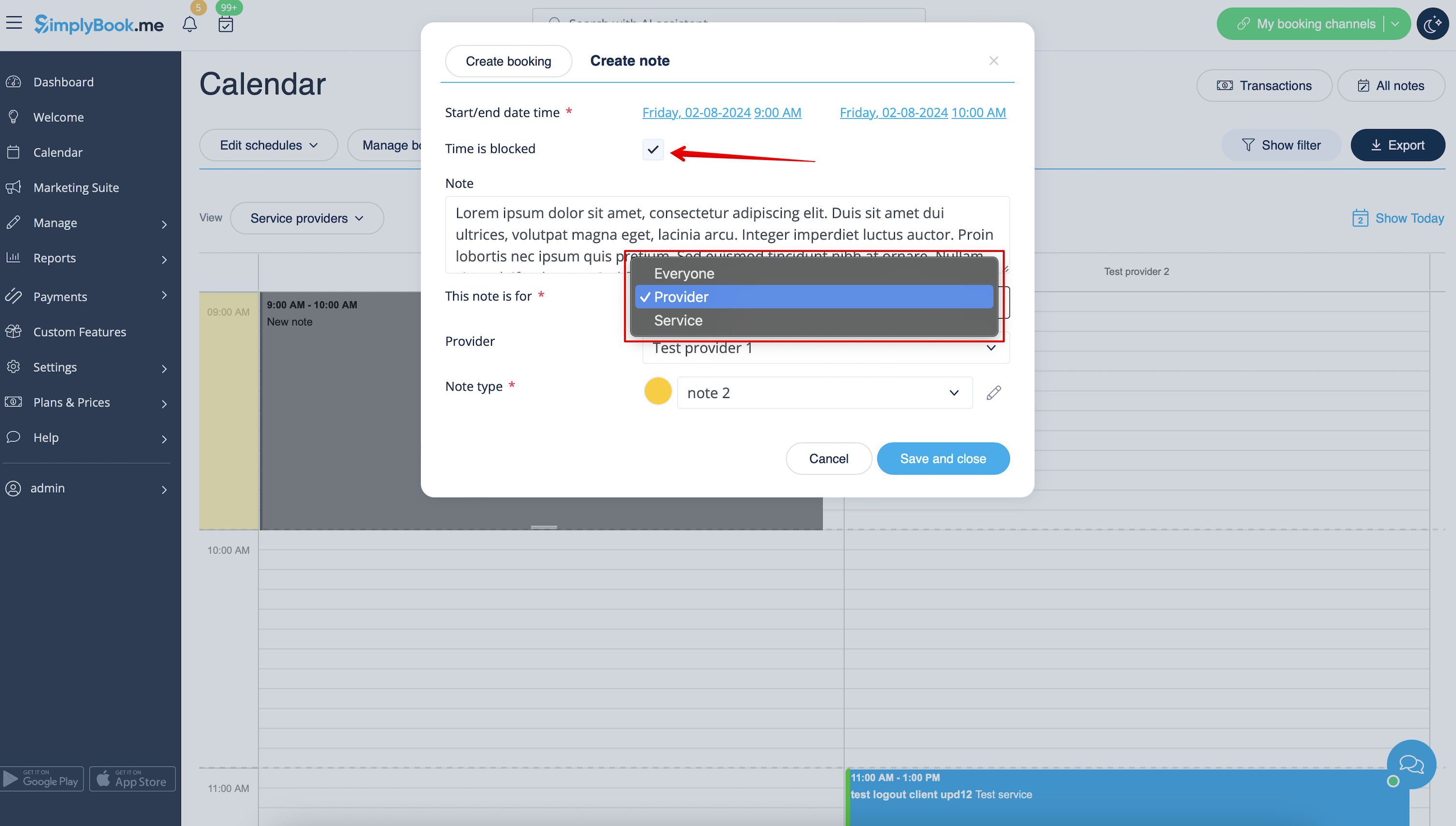
:4. Click on the <span style="background-color:#d4f8e5; padding:5px; border-radius:5px;">free space</span> in the <span style="background-color:#d4f8e5; padding:5px; border-radius:5px;">Calendar table</span> where you would like to insert the information or block time to get <span style="background-color:#d4f8e5; padding:5px; border-radius:5px;">note popup form.</span>
<br><br>
:5. Check <span style="background-color:#d4f8e5; padding:5px; border-radius:5px;">Time is blocked</span> option to close the availability if needed, add the details to the <span style="background-color:#d4f8e5; padding:5px; border-radius:5px;">textbox</span> and select the assignee: you can add a note or close time per <span style="background-color:#d4f8e5; padding:5px; border-radius:5px;">specific provider,</span> <span style="background-color:#d4f8e5; padding:5px; border-radius:5px;">service</span> or <span style="background-color:#d4f8e5; padding:5px; border-radius:5px;">everyone.</span>
[[File:Adding note to block time redesigned.png|1200px|border|center|link=https://help.simplybook.me/images/4/43/Adding_note_to_block_time_redesigned.png]]
<br><br>
4. Klik på det frie felt i kalendertabellen, hvor du vil indsætte oplysningerne eller blokere tiden, for at få vist pop op-vinduet med noter.


5. Marker afkrydsningsfeltet " Tid er blokeret " for at lukke tilgængeligheden, hvis det er nødvendigt, tilføj detaljerne i tekstfeltet, og vælg den ansvarlige: du kan tilføje en note eller lukke tiden for en bestemt udbyder, service eller alle.