From SimplyBook.me
Created page with "Kalendernoter" |
Created page with "1200px|border|center|link=https://help.simplybook.me/images/d/d8/Notes_report_with_filter_redesigned.png <br><br><br><br>" |
||
| (4 intermediate revisions by the same user not shown) | |||
| Line 2: | Line 2: | ||
{{#seo: |title=Kalendernoter – SimplyBook.me |description=Tilføj private noter til din kalender for bedre organisering. Hold nemt styr på vigtige detaljer. Lær, hvordan du bruger denne funktion! |titlemode=tilføj |keywords=faq, ofte stillede spørgsmål, reservationssoftware, spørgsmål om aftalesystem, onlineaftaler, kalendersoftware, reservationssystem, reservationskalender, planlægningssoftware, onlineaftaleplanlægning, onlineplanlægning, opsætning, hjælp til opsætning, support, hjælpeindhold, noter, tilføjelse af noter til kalenderen, noter til pauser }} | {{#seo: |title=Kalendernoter – SimplyBook.me |description=Tilføj private noter til din kalender for bedre organisering. Hold nemt styr på vigtige detaljer. Lær, hvordan du bruger denne funktion! |titlemode=tilføj |keywords=faq, ofte stillede spørgsmål, reservationssoftware, spørgsmål om aftalesystem, onlineaftaler, kalendersoftware, reservationssystem, reservationskalender, planlægningssoftware, onlineaftaleplanlægning, onlineplanlægning, opsætning, hjælp til opsætning, support, hjælpeindhold, noter, tilføjelse af noter til kalenderen, noter til pauser }} | ||
<br><br><br><br> | <br><br><br><br> | ||
Det kan være nødvendigt at tilføje vigtige oplysninger til <span style="background-color:#d4f8e5; padding:5px; border-radius:5px;">kalendersiden</span>, som vises sammen med bookinger, eller du skal hurtigt blokere et tidsrum og angive årsagen.<br> | |||
Derfor har vi lanceret en ny mulighed, Kalender-noter, med tidsblokeringsfunktion, der gør det muligt, og nu kan du have alle de nødvendige ting ved hånden. | |||
<br><br><br><br> | <br><br><br><br> | ||
;Sådan bruges det: | |||
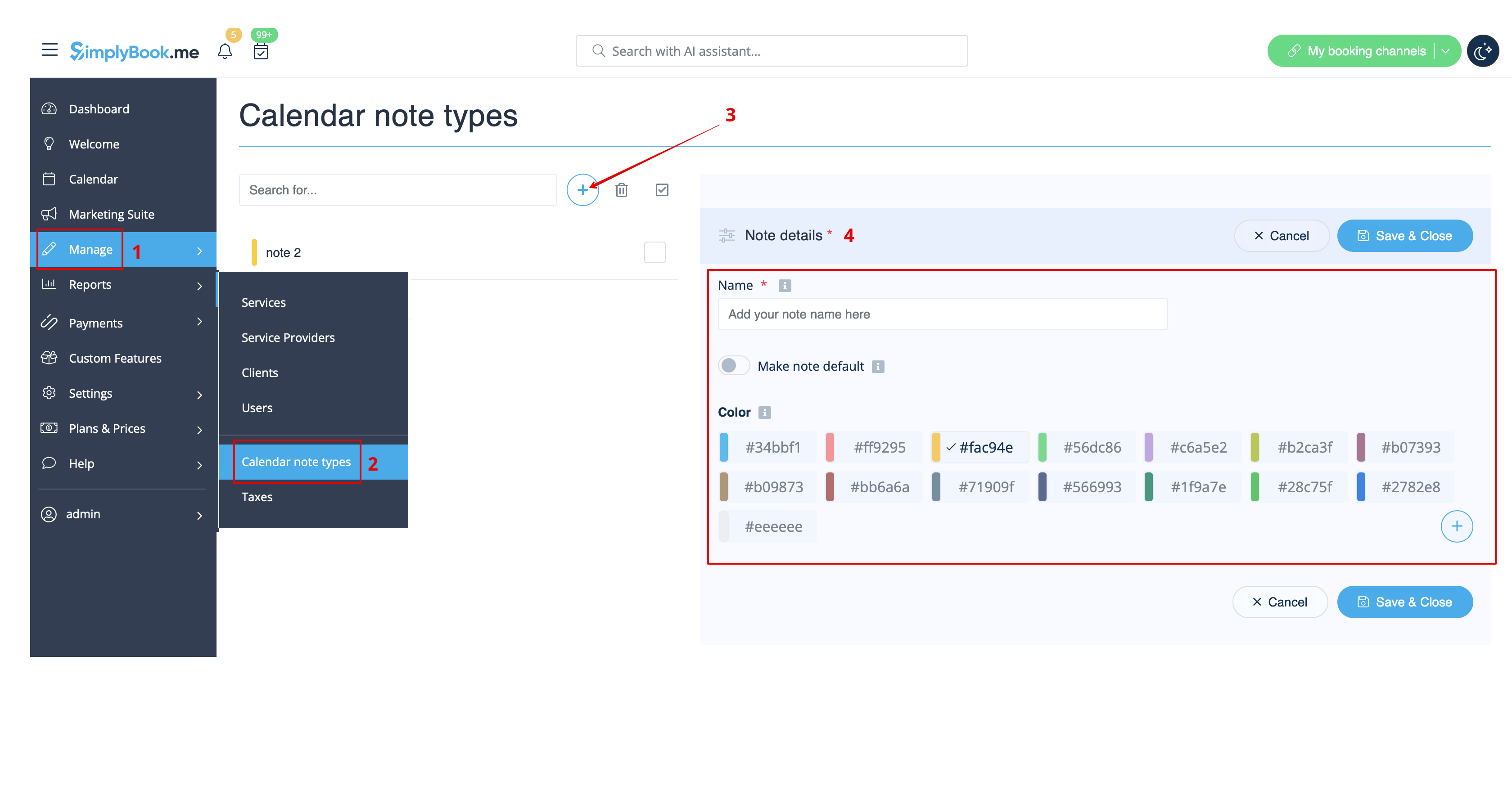
:1. Som standard er der tilføjet én notetype til dig i systemet, men du kan gå til <span style="background-color:#d4f8e5; padding:5px; border-radius:5px;">Administrer</span> -> <span style="background-color:#d4f8e5; padding:5px; border-radius:5px;">Kalendernotetyper</span> for at tilføje nye notetyper og indstille de ønskede farver for dem. | |||
; | |||
:1. | |||
[[File:Create note type flow redesigned.png|1200px|border|center|link=https://help.simplybook.me/images/a/a1/Create_note_type_flow_redesigned.png]] | [[File:Create note type flow redesigned.png|1200px|border|center|link=https://help.simplybook.me/images/a/a1/Create_note_type_flow_redesigned.png]] | ||
<br><br> | <br><br> | ||
:2. Når alle typer er klar til brug, skal du navigere til siden <span style="background-color:#d4f8e5; padding:5px; border-radius:5px;">Kalender</span> ved hjælp af <span style="background-color:#d4f8e5; padding:5px; border-radius:5px;">menuen til venstre.</span> | |||
:2. | |||
<br><br> | <br><br> | ||
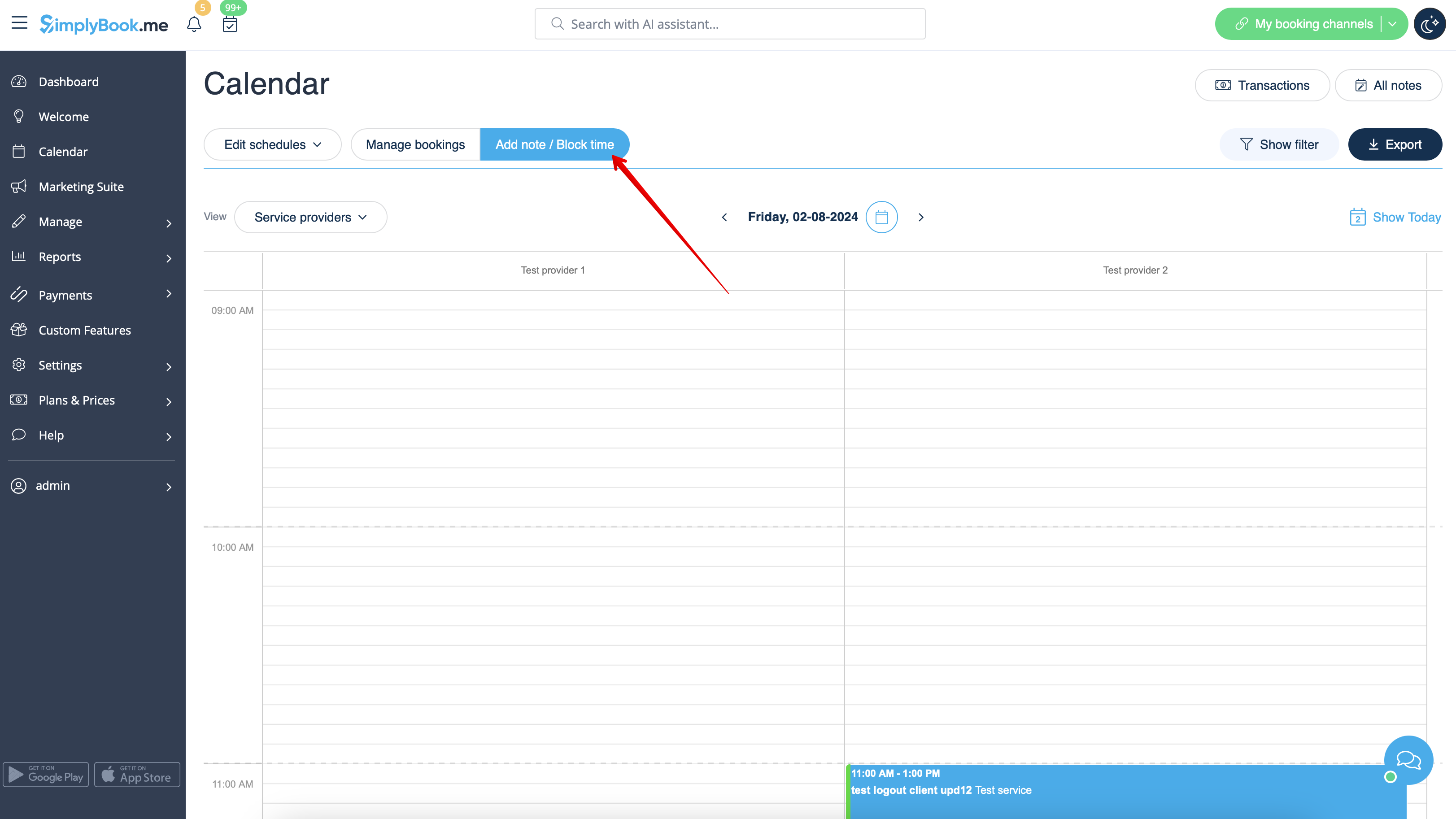
:3. | :3. Skift til tilstanden <span style="background-color:#d4f8e5; padding:5px; border-radius:5px;">Tilføj note/Bloker tid</span> <span style="background-color:#d4f8e5; padding:5px; border-radius:5px;">over kalenderen.</span> | ||
[[File:Note mode calendar redesigned.png|1200px|border|center|link=https://help.simplybook.me/images/b/b7/Note_mode_calendar_redesigned.png]] | [[File:Note mode calendar redesigned.png|1200px|border|center|link=https://help.simplybook.me/images/b/b7/Note_mode_calendar_redesigned.png]] | ||
<br><br> | <br><br> | ||
:4. Klik på det <span style="background-color:#d4f8e5; padding:5px; border-radius:5px;">frie felt</span> i <span style="background-color:#d4f8e5; padding:5px; border-radius:5px;">kalendertabellen</span>, hvor du vil indsætte oplysningerne eller blokere tiden, for at få vist <span style="background-color:#d4f8e5; padding:5px; border-radius:5px;">pop op-vinduet med noter.</span> | |||
:4. | |||
<br><br> | <br><br> | ||
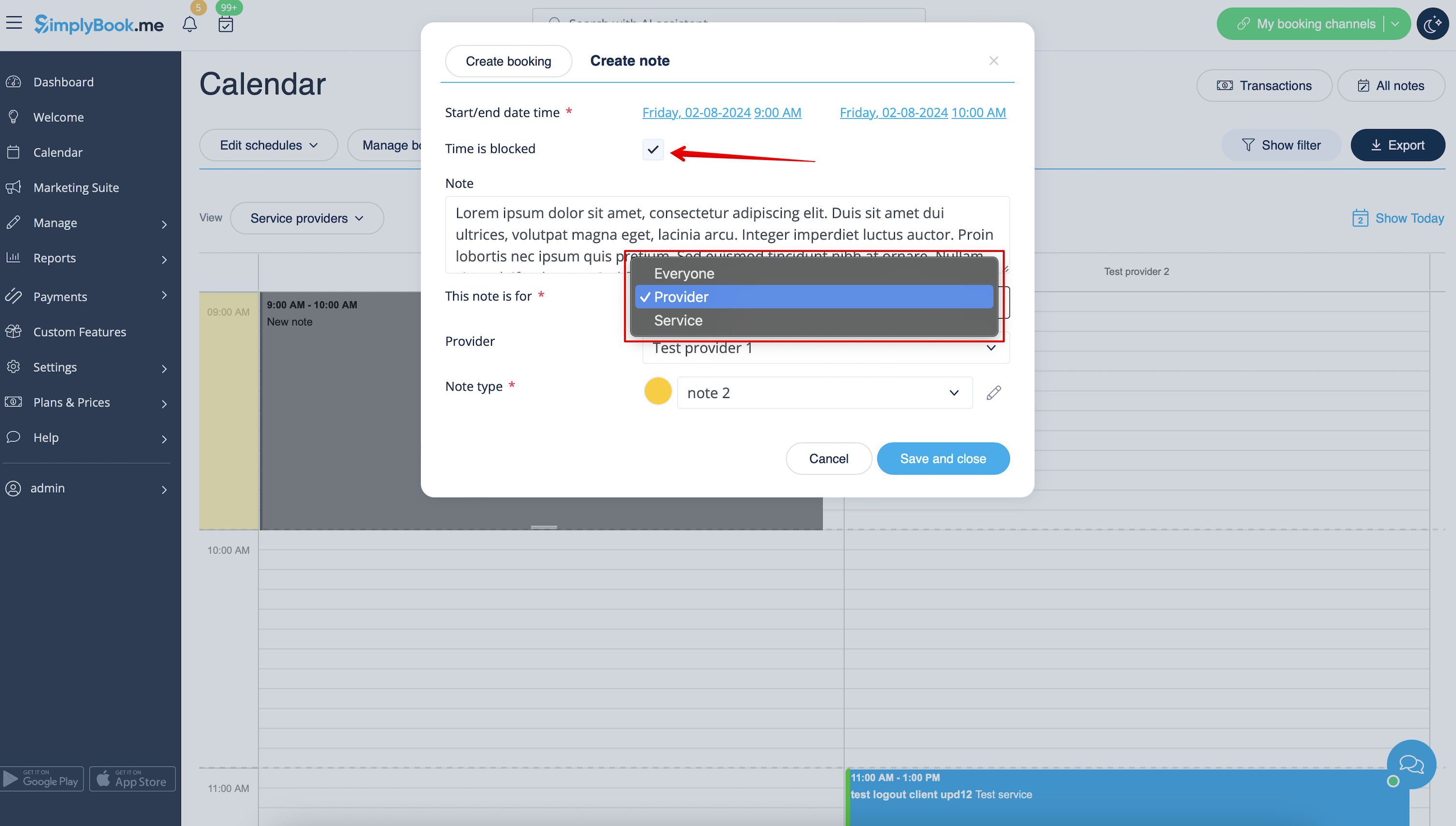
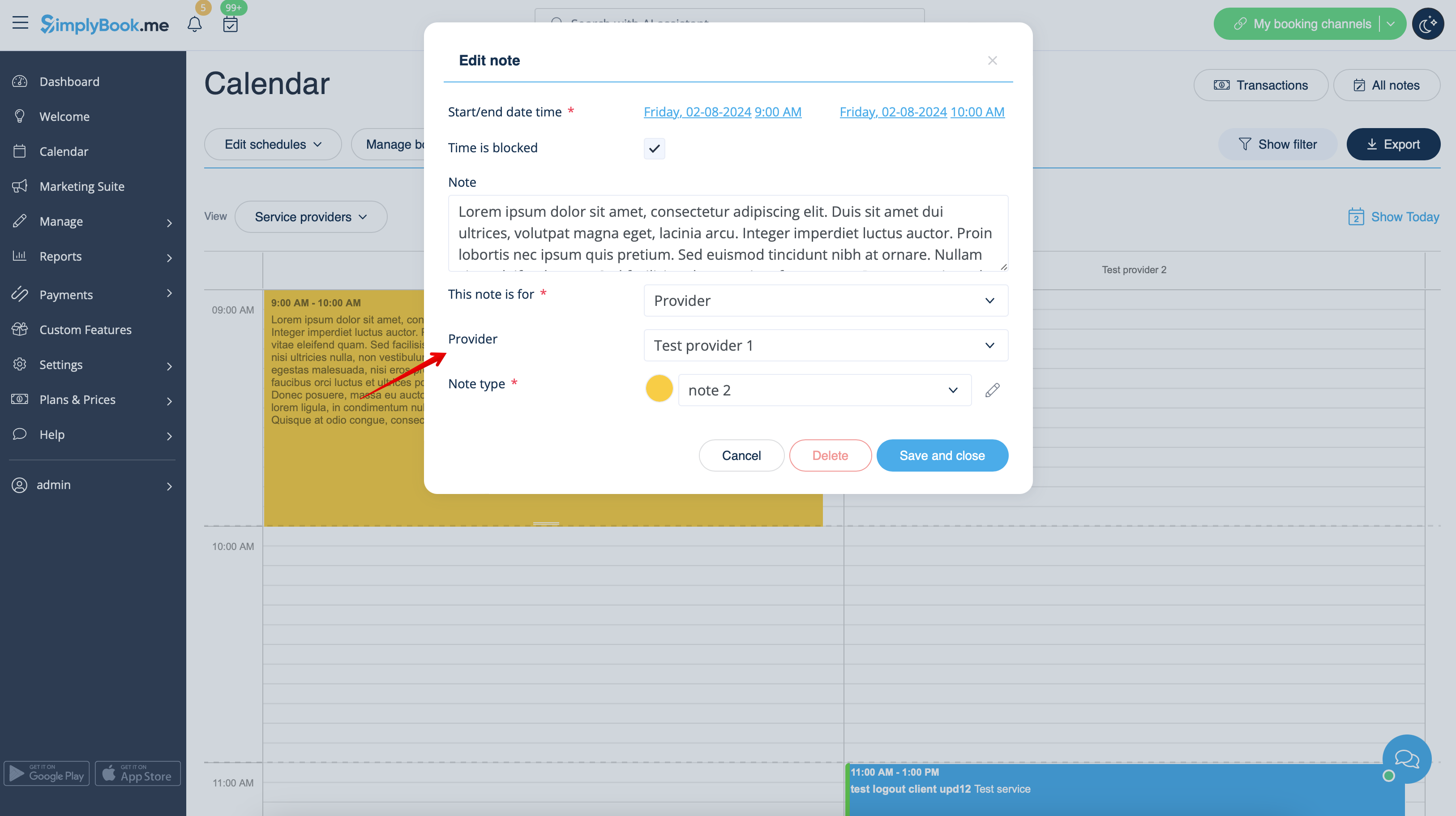
:5. | :5. Marker afkrydsningsfeltet " <span style="background-color:#d4f8e5; padding:5px; border-radius:5px;">Tid er blokeret</span> " for at lukke tilgængeligheden, hvis det er nødvendigt, tilføj detaljerne i <span style="background-color:#d4f8e5; padding:5px; border-radius:5px;">tekstfeltet</span>, og vælg den ansvarlige: du kan tilføje en note eller lukke tiden for <span style="background-color:#d4f8e5; padding:5px; border-radius:5px;">en bestemt udbyder,</span> <span style="background-color:#d4f8e5; padding:5px; border-radius:5px;">service</span> eller <span style="background-color:#d4f8e5; padding:5px; border-radius:5px;">alle.</span> | ||
[[File:Adding note to block time redesigned.png|1200px|border|center|link=https://help.simplybook.me/images/4/43/Adding_note_to_block_time_redesigned.png]] | [[File:Adding note to block time redesigned.png|1200px|border|center|link=https://help.simplybook.me/images/4/43/Adding_note_to_block_time_redesigned.png]] | ||
<br><br> | <br><br> | ||
:6. For at redigere eller slette den tidligere tilføjede note <span style="background-color:#d4f8e5; padding:5px; border-radius:5px;">skal du klikke på den</span> for at få pop op-vinduet frem og bruge den ønskede funktion der. | |||
:6. | |||
[[File:Click on note to update redesigned.png|1200px|border|center|link=https://help.simplybook.me/images/e/e0/Click_on_note_to_update_redesigned.png]] | [[File:Click on note to update redesigned.png|1200px|border|center|link=https://help.simplybook.me/images/e/e0/Click_on_note_to_update_redesigned.png]] | ||
<br><br> | <br><br> | ||
<br><br> | <br><br> | ||
; | ;Noter oversigtsindstillinger: | ||
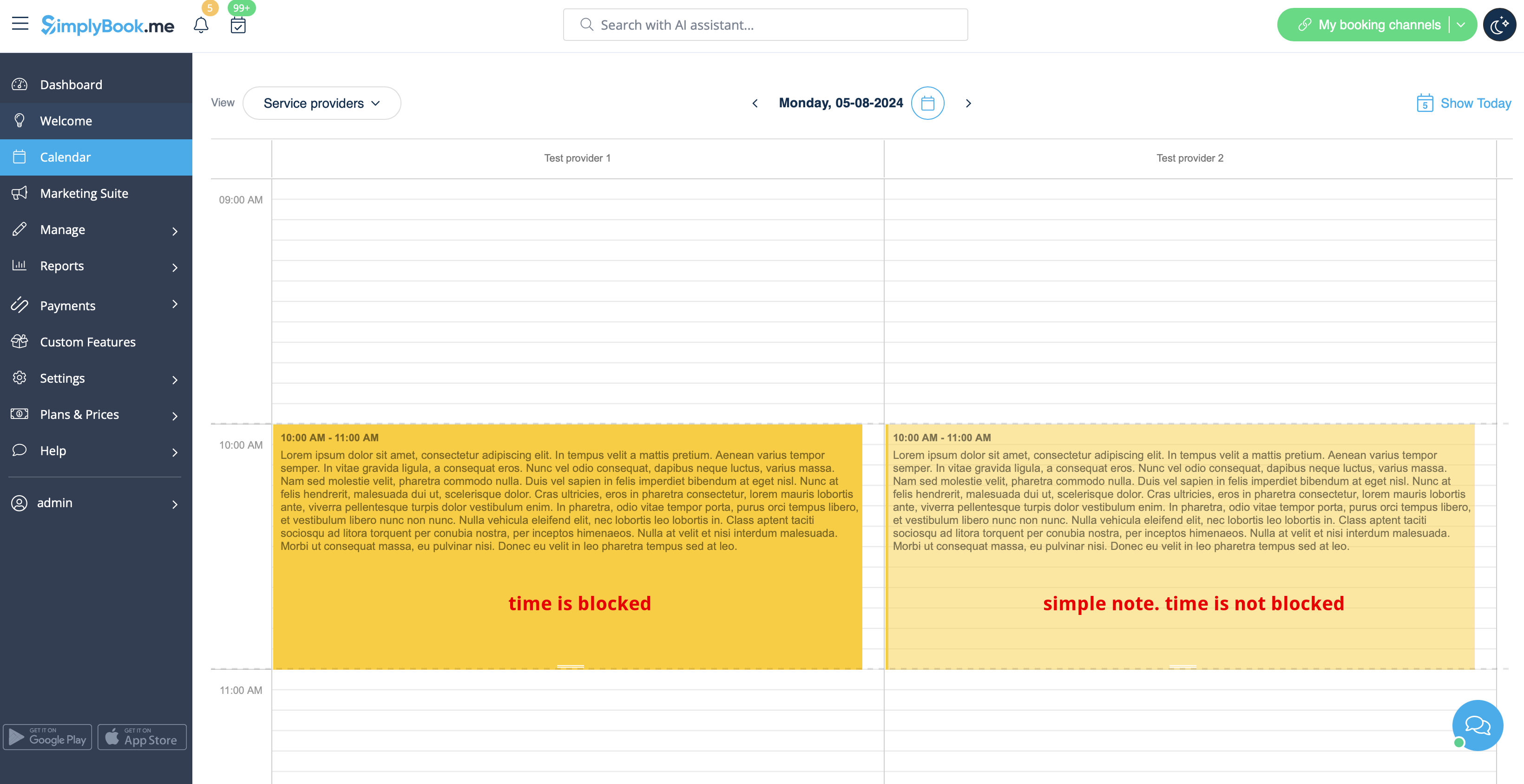
: | :Hvis du har markeret <span style="background-color:#d4f8e5; padding:5px; border-radius:5px;">Tiden er blokeret</span>, vil sådanne noter have en lidt lysere farve i forhold til simple tekstnoter. | ||
[[File:Blocked vs not blocked note redesigned.png|1200px|border|center|link=https://help.simplybook.me/images/d/d5/Blocked_vs_not_blocked_note_redesigned.png]] | [[File:Blocked vs not blocked note redesigned.png|1200px|border|center|link=https://help.simplybook.me/images/d/d5/Blocked_vs_not_blocked_note_redesigned.png]] | ||
<br><br> | <br><br> | ||
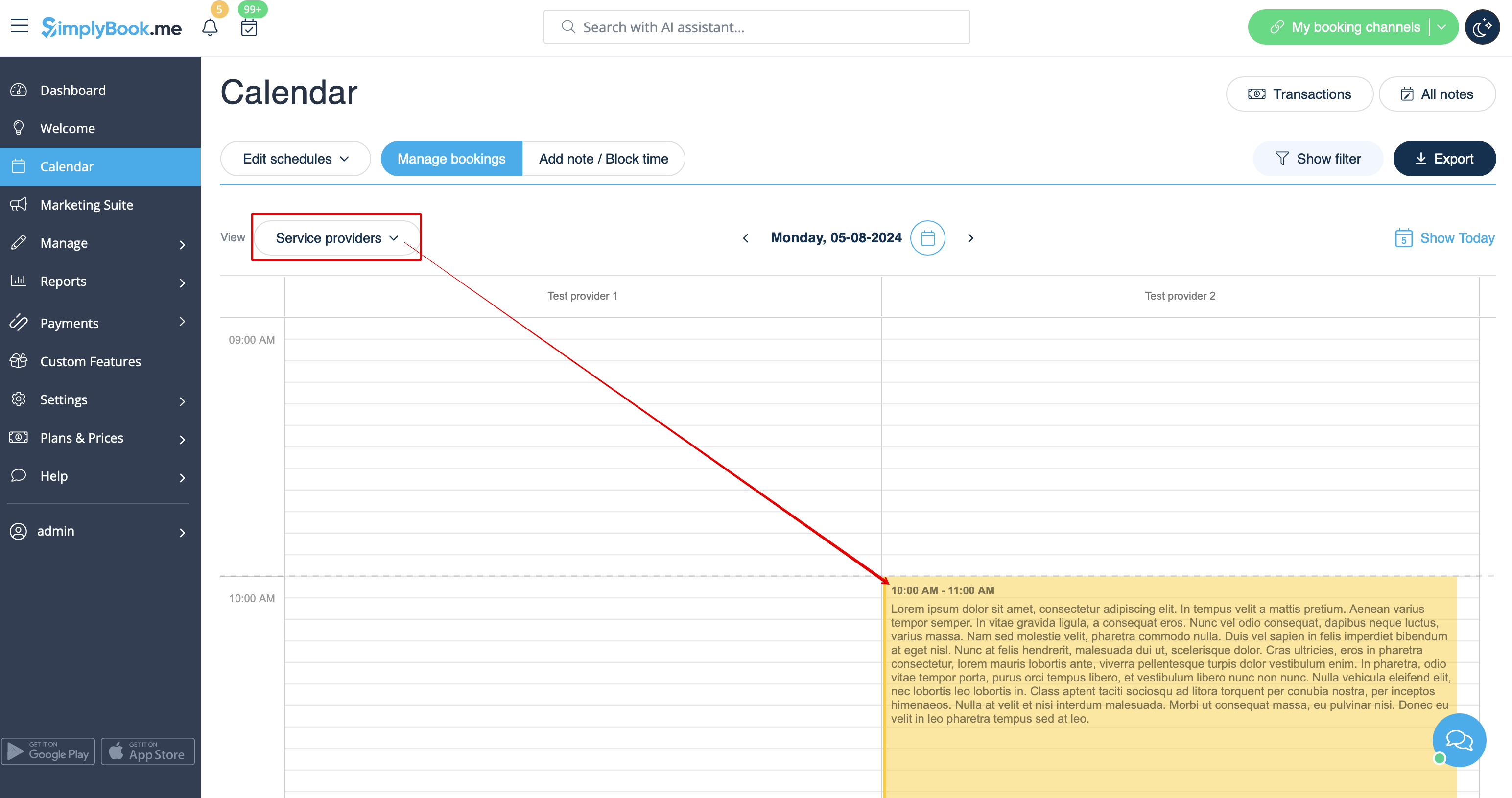
: | :Hvis du har tilføjet en note <span style="background-color:#d4f8e5; padding:5px; border-radius:5px;">pr. leverandør</span>, vises den i visningerne <span style="background-color:#d4f8e5; padding:5px; border-radius:5px;">Serviceleverandør,</span> <span style="background-color:#d4f8e5; padding:5px; border-radius:5px;">Tidslinje,</span> <span style="background-color:#d4f8e5; padding:5px; border-radius:5px;">Dag,</span> <span style="background-color:#d4f8e5; padding:5px; border-radius:5px;">Uge</span> og <span style="background-color:#d4f8e5; padding:5px; border-radius:5px;">Måned</span>. | ||
[[File:Providers notes view redesigned.png|1200px|border|center|link=https://help.simplybook.me/images/9/95/Providers_notes_view_redesigned.png]] | [[File:Providers notes view redesigned.png|1200px|border|center|link=https://help.simplybook.me/images/9/95/Providers_notes_view_redesigned.png]] | ||
<br><br> | <br><br> | ||
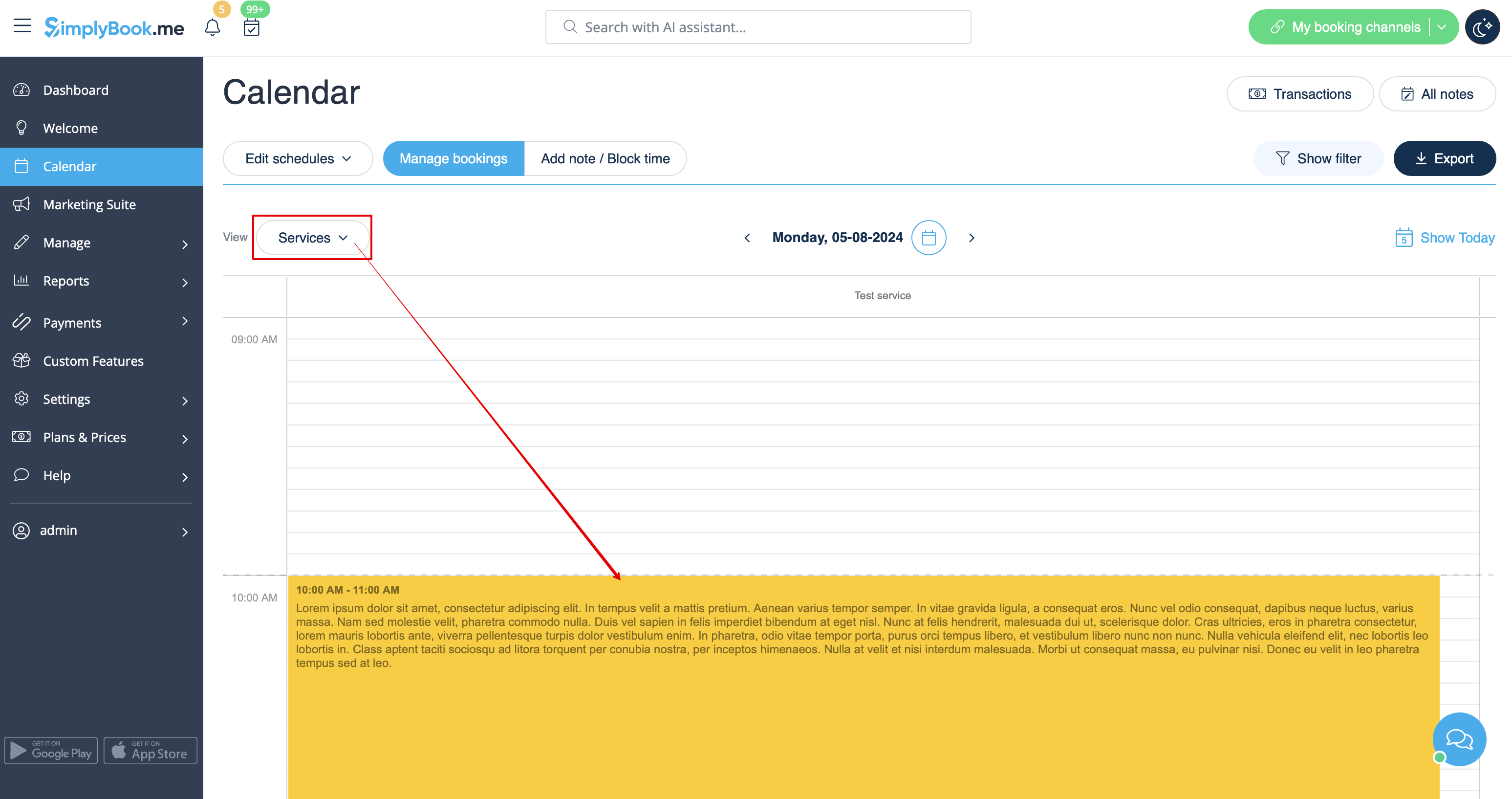
:Hvis du har tilføjet en note <span style="background-color:#d4f8e5; padding:5px; border-radius:5px;">pr. service</span>, kan du se den i visningerne <span style="background-color:#d4f8e5; padding:5px; border-radius:5px;">Service,</span> <span style="background-color:#d4f8e5; padding:5px; border-radius:5px;">Dag,</span> <span style="background-color:#d4f8e5; padding:5px; border-radius:5px;">Uge</span> og <span style="background-color:#d4f8e5; padding:5px; border-radius:5px;">Måned</span>. | |||
[[File:Services notes view redesigned.png|1200px|border|center|link=https://help.simplybook.me/images/0/0b/Services_notes_view_redesigned.png]] | [[File:Services notes view redesigned.png|1200px|border|center|link=https://help.simplybook.me/images/0/0b/Services_notes_view_redesigned.png]] | ||
<br><br> | <br><br> | ||
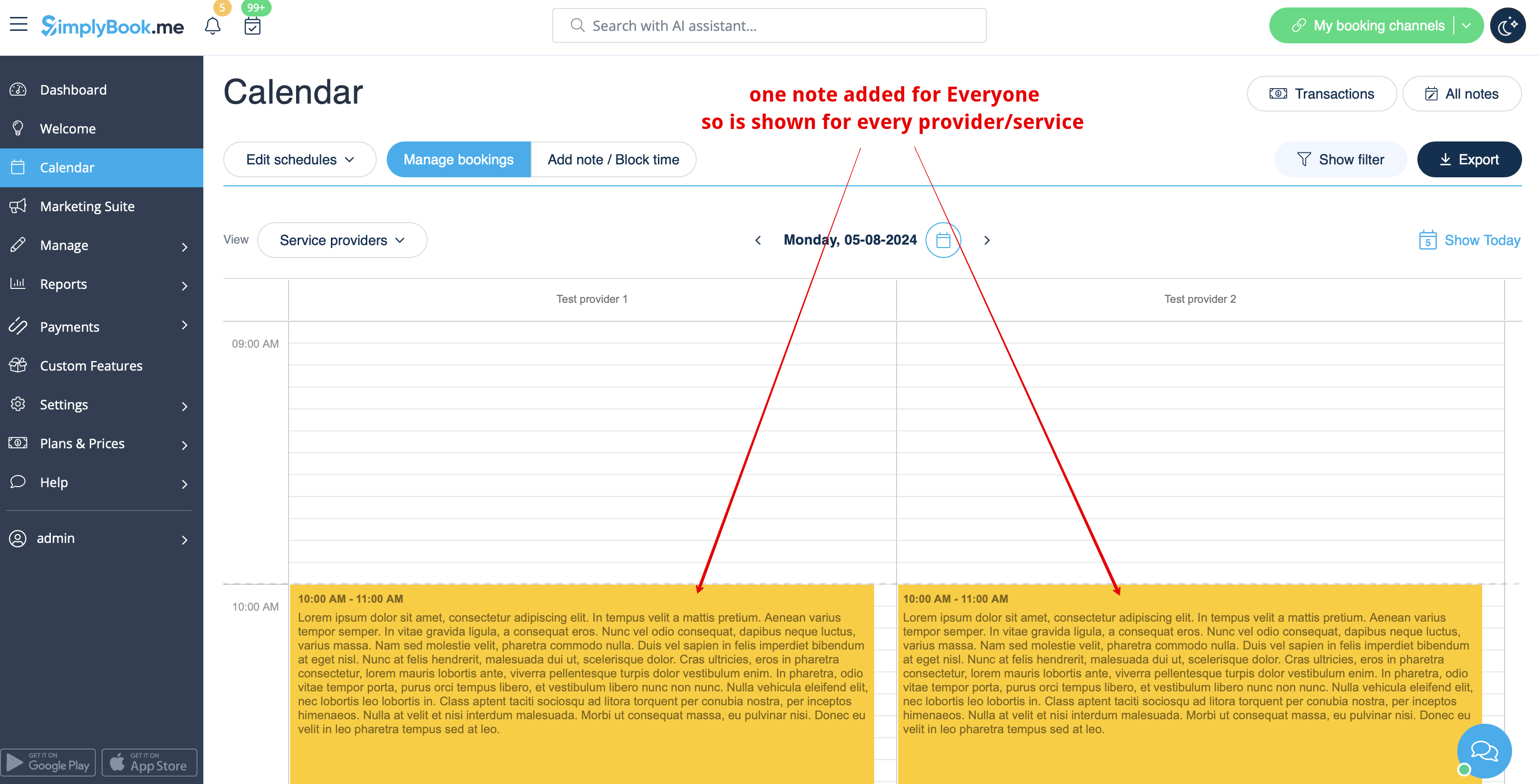
: | :Noterne for <span style="background-color:#d4f8e5; padding:5px; border-radius:5px;">Alle</span> vises i <span style="background-color:#d4f8e5; padding:5px; border-radius:5px;">alle kalendervisninger.</span> | ||
[[File:Note for everyone view redesigned.png|1200px|border|center|link=https://help.simplybook.me/images/a/ad/Note_for_everyone_view_redesigned.png]] | [[File:Note for everyone view redesigned.png|1200px|border|center|link=https://help.simplybook.me/images/a/ad/Note_for_everyone_view_redesigned.png]] | ||
<br><br> | <br><br> | ||
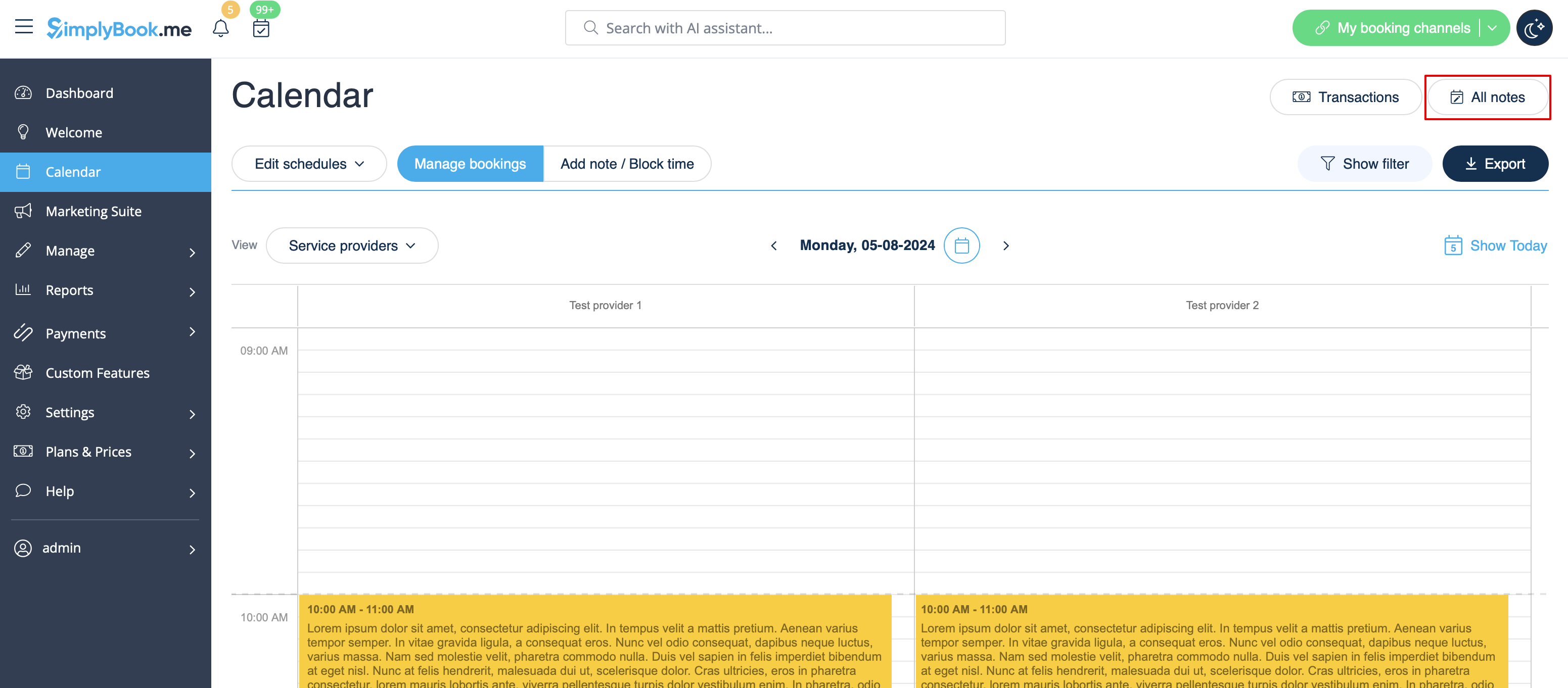
: | :Du kan også få adgang <span style="background-color:#d4f8e5; padding:5px; border-radius:5px;">til listen over alle</span> tilføjede <span style="background-color:#d4f8e5; padding:5px; border-radius:5px;">noter</span>, bruge filtre og eksportere noter til Excel i Kalender-noter-rapporten ved at navigere enten direkte fra <span style="background-color:#d4f8e5; padding:5px; border-radius:5px;">Kalender-siden</span> eller fra <span style="background-color:#d4f8e5; padding:5px; border-radius:5px;">Rapporter</span> -sektionen i <span style="background-color:#d4f8e5; padding:5px; border-radius:5px;">menuen til venstre.</span> | ||
[[File:All notes list path redesigned.png|1200px |border|center|link=https://help.simplybook.me/images/d/d9/All_notes_list_path_redesigned.png]] | [[File:All notes list path redesigned.png|1200px |border|center|link=https://help.simplybook.me/images/d/d9/All_notes_list_path_redesigned.png]] | ||
<br><br> | <br><br> | ||
[[File:Notes report with filter redesigned.png|1200px|border|center|link=https://help.simplybook.me/images/d/d8/Notes_report_with_filter_redesigned.png]] | [[File:Notes report with filter redesigned.png|1200px|border|center|link=https://help.simplybook.me/images/d/d8/Notes_report_with_filter_redesigned.png]] | ||
<br><br><br><br> | <br><br><br><br> | ||
Revision as of 09:16, 19 May 2025
Det kan være nødvendigt at tilføje vigtige oplysninger til kalendersiden, som vises sammen med bookinger, eller du skal hurtigt blokere et tidsrum og angive årsagen.
Derfor har vi lanceret en ny mulighed, Kalender-noter, med tidsblokeringsfunktion, der gør det muligt, og nu kan du have alle de nødvendige ting ved hånden.
- Sådan bruges det
- 1. Som standard er der tilføjet én notetype til dig i systemet, men du kan gå til Administrer -> Kalendernotetyper for at tilføje nye notetyper og indstille de ønskede farver for dem.
- 2. Når alle typer er klar til brug, skal du navigere til siden Kalender ved hjælp af menuen til venstre.
- 3. Skift til tilstanden Tilføj note/Bloker tid over kalenderen.
- 4. Klik på det frie felt i kalendertabellen, hvor du vil indsætte oplysningerne eller blokere tiden, for at få vist pop op-vinduet med noter.
- 5. Marker afkrydsningsfeltet " Tid er blokeret " for at lukke tilgængeligheden, hvis det er nødvendigt, tilføj detaljerne i tekstfeltet, og vælg den ansvarlige: du kan tilføje en note eller lukke tiden for en bestemt udbyder, service eller alle.
- 6. For at redigere eller slette den tidligere tilføjede note skal du klikke på den for at få pop op-vinduet frem og bruge den ønskede funktion der.
- Noter oversigtsindstillinger
- Hvis du har markeret Tiden er blokeret, vil sådanne noter have en lidt lysere farve i forhold til simple tekstnoter.
- Hvis du har tilføjet en note pr. leverandør, vises den i visningerne Serviceleverandør, Tidslinje, Dag, Uge og Måned.
- Hvis du har tilføjet en note pr. service, kan du se den i visningerne Service, Dag, Uge og Måned.
- Noterne for Alle vises i alle kalendervisninger.
- Du kan også få adgang til listen over alle tilføjede noter, bruge filtre og eksportere noter til Excel i Kalender-noter-rapporten ved at navigere enten direkte fra Kalender-siden eller fra Rapporter -sektionen i menuen til venstre.