Translations:Calendar Notes/5/nl: Difference between revisions

From SimplyBook.me
Created page with ":4. Klik op de <span style="background-color:#d4f8e5; padding:5px; border-radius:5px;">vrije ruimte</span> in de <span style="background-color:#d4f8e5; padding:5px; border-radius:5px;">kalendertabel</span> waar u de informatie wilt invoegen of tijd wilt blokkeren om <span style="background-color:#d4f8e5; padding:5px; border-radius:5px;">het pop-upvenster voor notities</span> te openen <span style="background-color:#d4f8e5; padding:5px; border-radius:5px;">.</span> <br><b..."
 
(No difference)

Latest revision as of 09:16, 19 May 2025

Information about message (contribute)
This message has no documentation. If you know where or how this message is used, you can help other translators by adding documentation to this message.
Message definition (Calendar Notes)
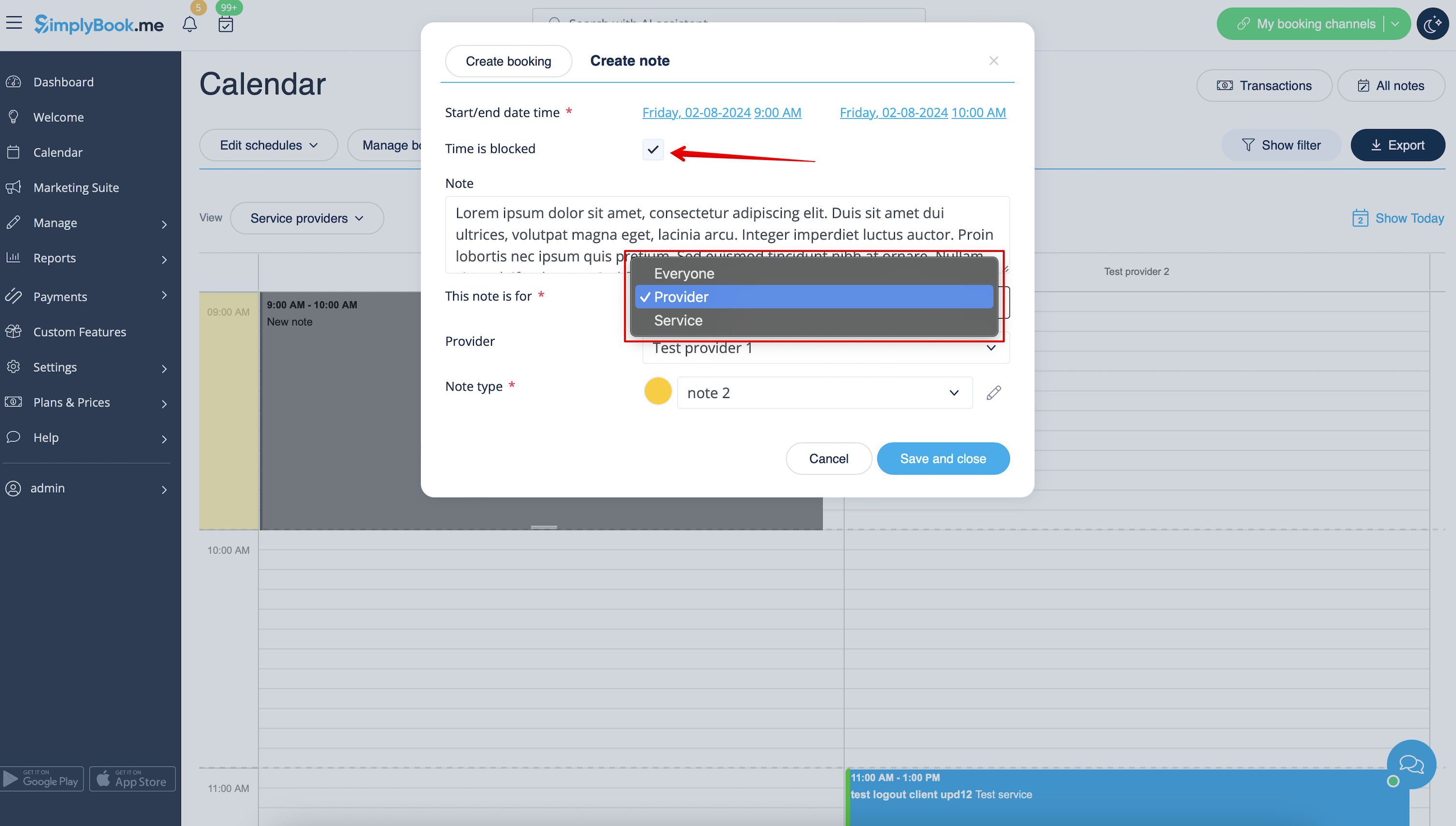
:4. Click on the <span style="background-color:#d4f8e5; padding:5px; border-radius:5px;">free space</span> in the <span style="background-color:#d4f8e5; padding:5px; border-radius:5px;">Calendar table</span> where you would like to insert the information or block time to get <span style="background-color:#d4f8e5; padding:5px; border-radius:5px;">note popup form.</span>
<br><br>
:5. Check <span style="background-color:#d4f8e5; padding:5px; border-radius:5px;">Time is blocked</span> option to close the availability if needed, add the details to the <span style="background-color:#d4f8e5; padding:5px; border-radius:5px;">textbox</span> and select the assignee: you can add a note or close time per <span style="background-color:#d4f8e5; padding:5px; border-radius:5px;">specific provider,</span> <span style="background-color:#d4f8e5; padding:5px; border-radius:5px;">service</span> or <span style="background-color:#d4f8e5; padding:5px; border-radius:5px;">everyone.</span>
[[File:Adding note to block time redesigned.png|1200px|border|center|link=https://help.simplybook.me/images/4/43/Adding_note_to_block_time_redesigned.png]]
<br><br>
4. Klik op de vrije ruimte in de kalendertabel waar u de informatie wilt invoegen of tijd wilt blokkeren om het pop-upvenster voor notities te openen .


5. Vink de optie 'Tijd is geblokkeerd' aan om de beschikbaarheid indien nodig te sluiten, voeg de details toe aan het tekstvak en selecteer de verantwoordelijke: u kunt een notitie toevoegen of de tijd sluiten voor een specifieke leverancier, dienst of iedereen.