Translations:Calendar Notes/7/fr: Difference between revisions

From SimplyBook.me
Created page with ":Si vous avez ajouté une note <span style="background-color:#d4f8e5; padding:5px; border-radius:5px;">par service</span>, vous pourrez la voir dans les vues <span style="background-color:#d4f8e5; padding:5px; border-radius:5px;">Service,</span> <span style="background-color:#d4f8e5; padding:5px; border-radius:5px;">Jour,</span> <span style="background-color:#d4f8e5; padding:5px; border-radius:5px;">Semaine</span> et <span style="background-color:#d4f8e5; padding:5px; bo..."
 
(No difference)

Latest revision as of 09:17, 19 May 2025

Information about message (contribute)
This message has no documentation. If you know where or how this message is used, you can help other translators by adding documentation to this message.
Message definition (Calendar Notes)
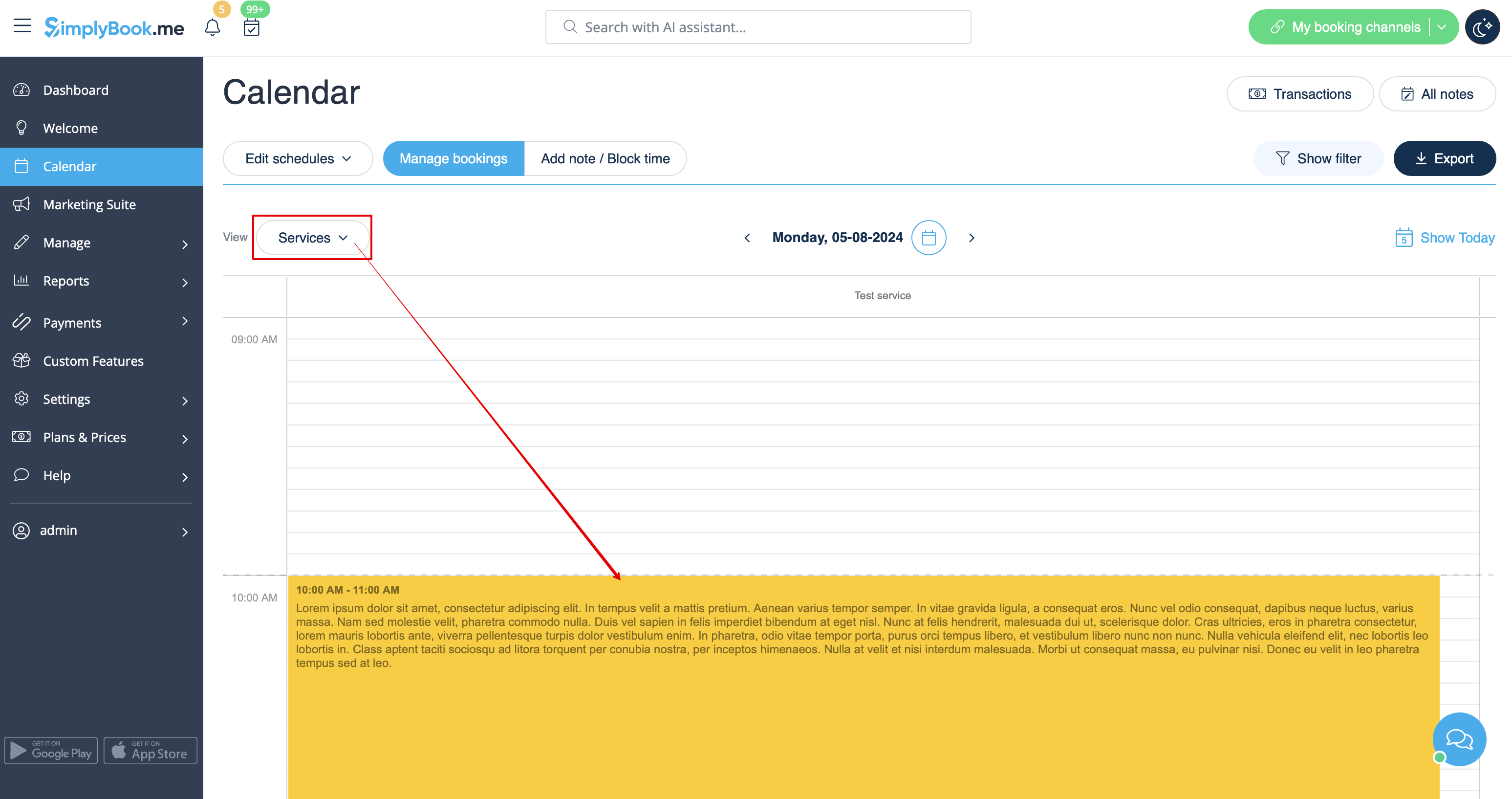
:If you have added a note <span style="background-color:#d4f8e5; padding:5px; border-radius:5px;">per service</span> you will be able to see it in <span style="background-color:#d4f8e5; padding:5px; border-radius:5px;">Service,</span> <span style="background-color:#d4f8e5; padding:5px; border-radius:5px;">Day,</span> <span style="background-color:#d4f8e5; padding:5px; border-radius:5px;">Week</span> and <span style="background-color:#d4f8e5; padding:5px; border-radius:5px;">Month</span> views.
[[File:Services notes view redesigned.png|1200px|border|center|link=https://help.simplybook.me/images/0/0b/Services_notes_view_redesigned.png]]
<br><br>
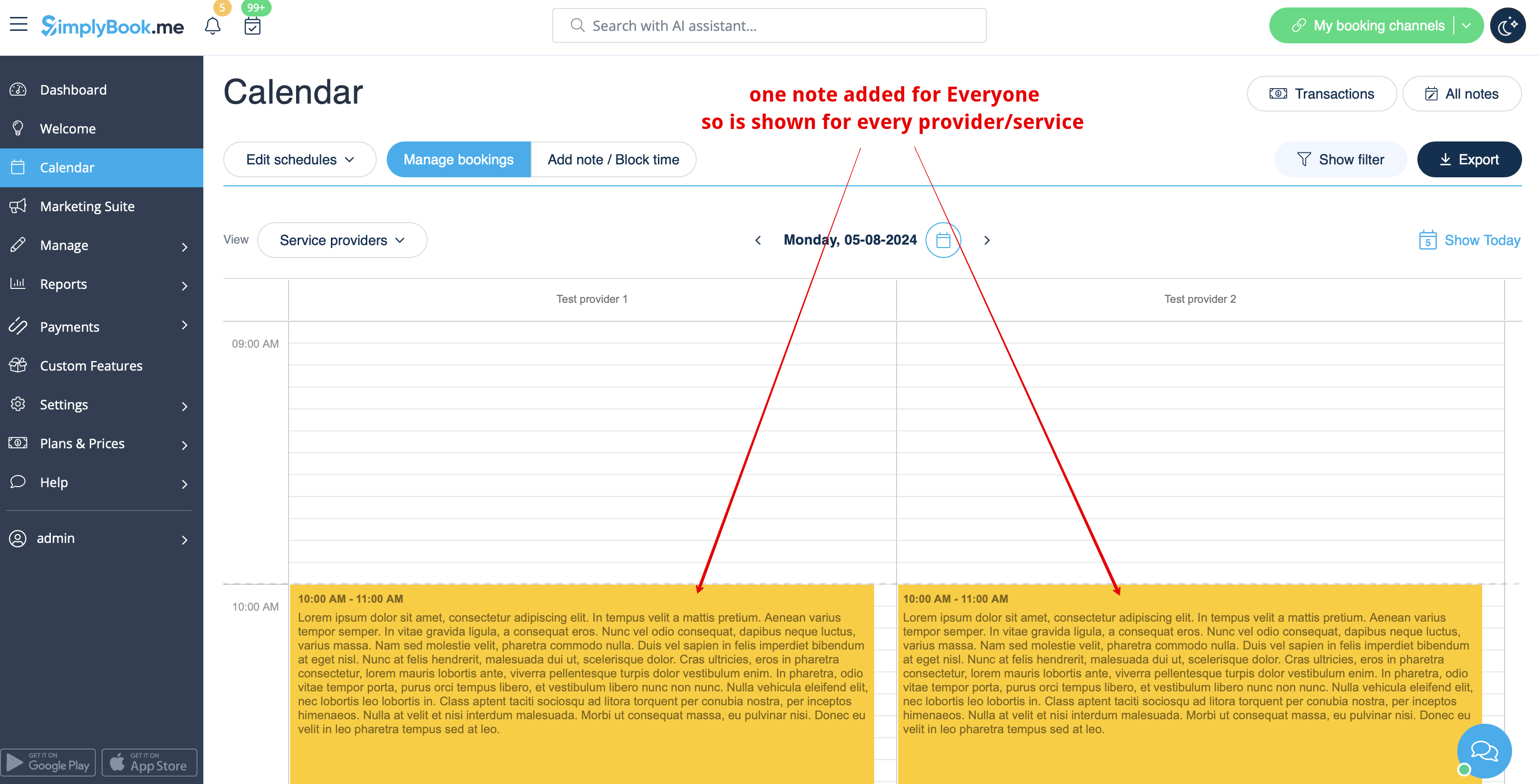
:The notes for <span style="background-color:#d4f8e5; padding:5px; border-radius:5px;">Everyone</span> are displayed in <span style="background-color:#d4f8e5; padding:5px; border-radius:5px;">all calendar views.</span>
[[File:Note for everyone view redesigned.png|1200px|border|center|link=https://help.simplybook.me/images/a/ad/Note_for_everyone_view_redesigned.png]]
<br><br>
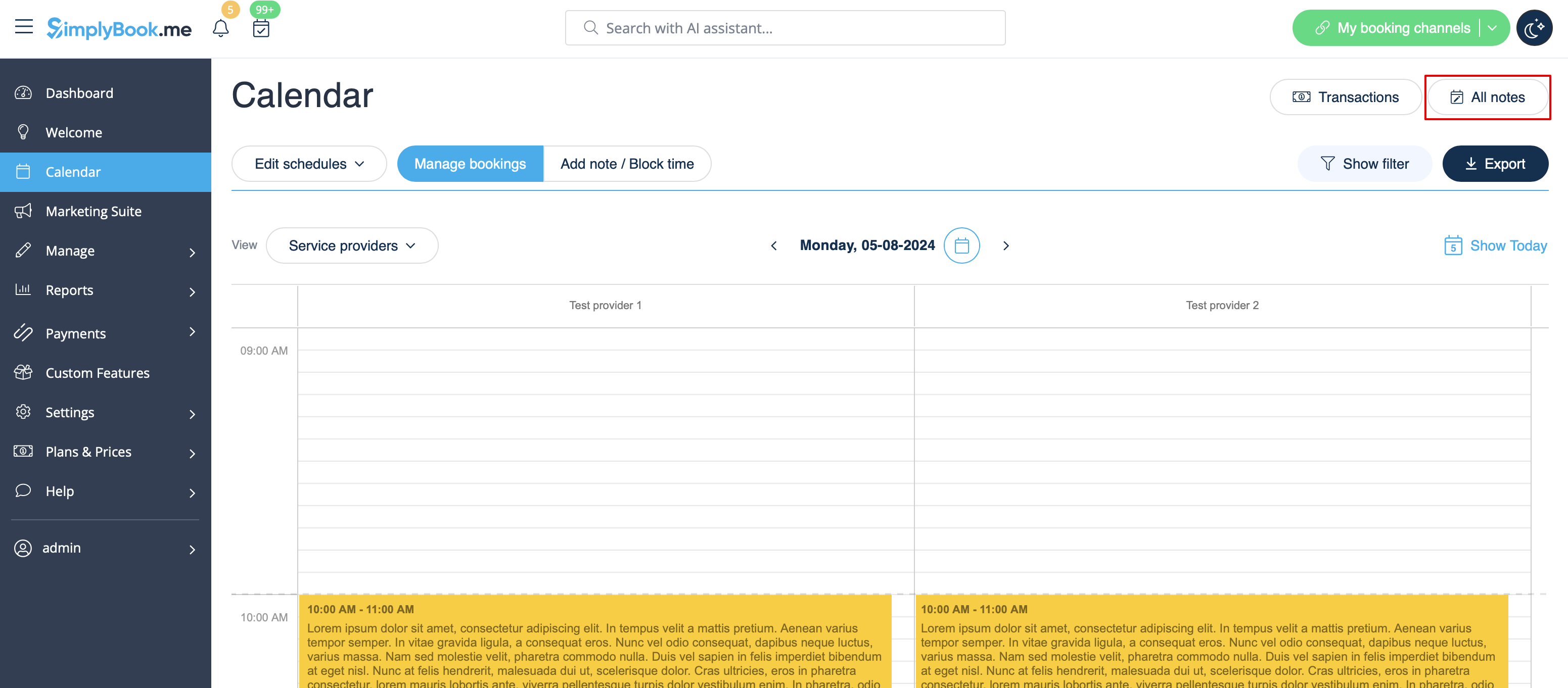
:As well you can access <span style="background-color:#d4f8e5; padding:5px; border-radius:5px;">the list of all the notes</span> added, use filters and export notes to excel in Calendar notes report by navigating either directly from <span style="background-color:#d4f8e5; padding:5px; border-radius:5px;">Calendar page</span> or from <span style="background-color:#d4f8e5; padding:5px; border-radius:5px;">Reports</span> section in <span style="background-color:#d4f8e5; padding:5px; border-radius:5px;">left-side menu.</span>
[[File:All notes list path redesigned.png|1200px |border|center|link=https://help.simplybook.me/images/d/d9/All_notes_list_path_redesigned.png]]
<br><br>
Si vous avez ajouté une note par service, vous pourrez la voir dans les vues Service, Jour, Semaine et Mois.


Les notes pour tout le monde sont affichées dans toutes les vues du calendrier.


Vous pouvez également accéder à la liste de toutes les notes ajoutées, utiliser des filtres et exporter les notes vers Excel dans le rapport Notes du calendrier en naviguant directement depuis la page Calendrier ou depuis la section Rapports dans le menu de gauche.