Translations:Widgets for your own website/19/da: Difference between revisions

From SimplyBook.me
Created page with "= Widget til booking og kontakt = <br><br> :1. Aktivér <span style="background-color:#cdeffc; padding:5px; border-radius:5px;">kontaktwidget</span> i <span style="background-color:#d4f8e5; padding:5px; border-radius:5px;">Tilpassede funktioner</span> -> <span style="background-color:#d4f8e5; padding:5px; border-radius:5px;">Til udvikling</span>. File:Contact widget enable path redesigned.png|1200px| center|link=https://help.simpl..."
(No difference)

Revision as of 12:24, 19 May 2025

Information about message (contribute)
This message has no documentation. If you know where or how this message is used, you can help other translators by adding documentation to this message.
Message definition (Widgets for your own website)
=Booking and Contact Button Widget=
<br><br>
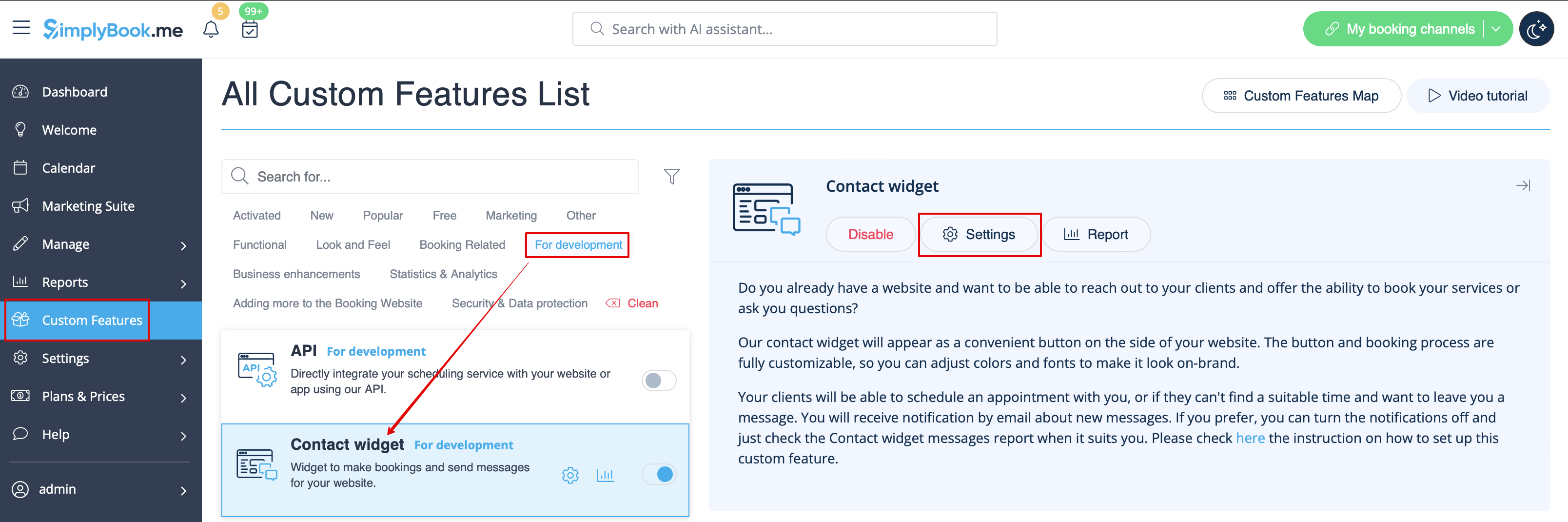
:1. Enable <span style="background-color:#cdeffc; padding:5px; border-radius:5px;">[[Special:MyLanguage/Contact_Widget_custom_feature |Contact Widget]]</span> in <span style="background-color:#d4f8e5; padding:5px; border-radius:5px;">Custom Features</span> -> <span style="background-color:#d4f8e5; padding:5px; border-radius:5px;">For Development</span>.
[[File:Contact widget enable path redesigned.png|1200px| center|link=https://help.simplybook.me/images/8/8c/Contact_widget_enable_path_redesigned.png]]
<br><br>
:2. Take the booking button code of your booking page by navigating to <span style="background-color:#d4f8e5; padding:5px; border-radius:5px;">Settings</span> near this custom feature or in <span style="background-color:#d4f8e5; padding:5px; border-radius:5px;">Settings</span> in the left-side menu -> <span style="background-color:#d4f8e5; padding:5px; border-radius:5px;">Booking widgets settings</span> -> <span style="background-color:#d4f8e5; padding:5px; border-radius:5px;">Contact widget</span> -> <span style="background-color:#d4f8e5; padding:5px; border-radius:5px;">Get widget code.</span>
[[File:Contact widget settings path redesigned.png|1200px|border| center|link=https://help.simplybook.me/images/0/09/Contact_widget_settings_path_redesigned.png]]
<br><br>

Widget til booking og kontakt


1. Aktivér kontaktwidget i Tilpassede funktioner -> Til udvikling.
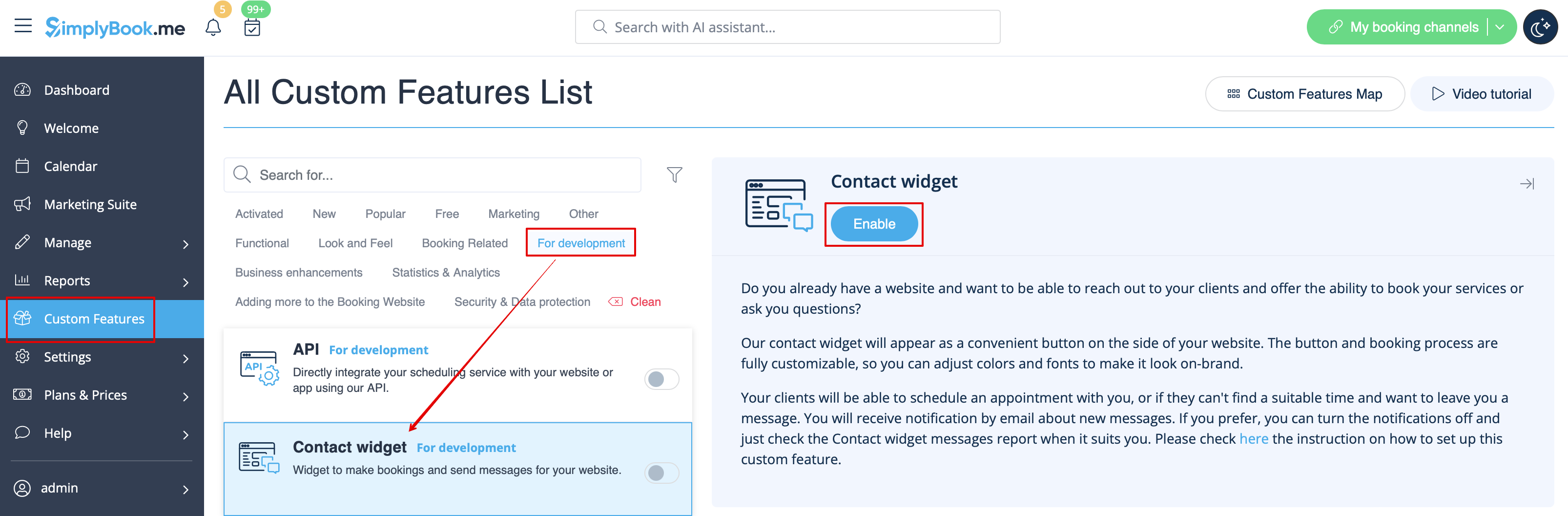


2. Hent bookingknap-koden fra din booking-side ved at navigere til Indstillinger nær denne tilpassede funktion eller i Indstillinger i menuen til venstre -> Bookingwidget-indstillinger -> Kontaktwidget -> Hent widgetkode.