SimplyBook.me
Not logged in
English
Log in
Search
Navigation
Help Center
Getting started
Booking website
Time settings
Prices and purchases
Custom Features
Calendar and bookings
Tips for specific businesses
Integration
For developers
Video tutorials
Tools
What links here
Related changes
Special pages
Printable version
Permanent link
Page information
In other languages
Page history
Refresh page
Translations:WordPress integration/8/en: Difference between revisions
Help
Namespaces
Translation unit
Discussion
Views
Read
View source
From SimplyBook.me
Visual
Wikitext
Latest revision as of 12:29, 19 May 2025
view source
FuzzyBot
(
talk
|
contribs
)
5,030
edits
Importing a new version from external source
(No difference)
Latest revision as of 12:29, 19 May 2025
Information about message (
contribute
)
This message has no documentation. If you know where or how this message is used, you can help other translators by adding documentation to this message.
Message definition (
WordPress integration
)
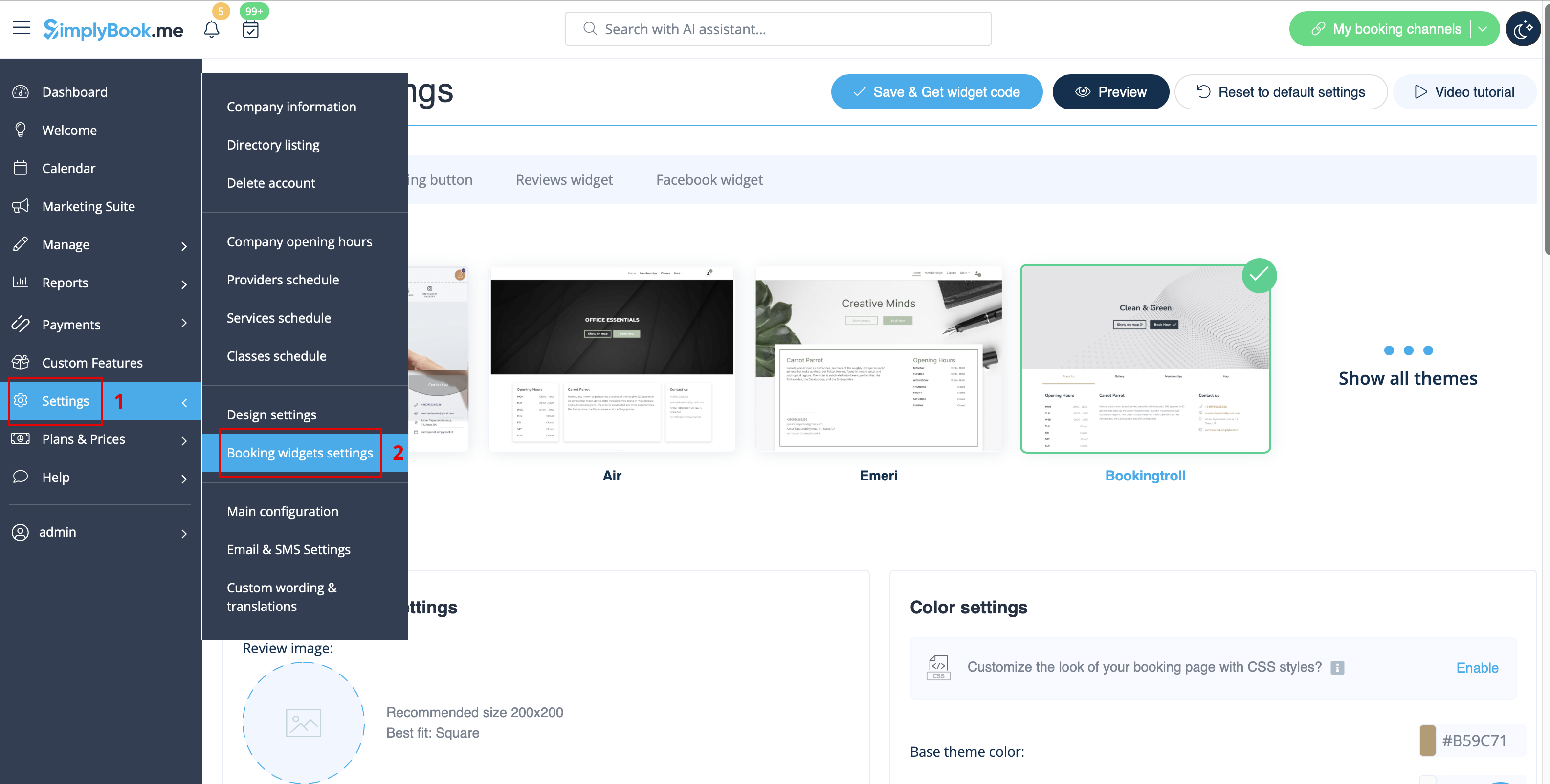
[[File:Booking widget path redesigned.png|1200px | center|link=https://help.simplybook.me/images/6/68/Booking_widget_path_redesigned.png]]
<br><br>
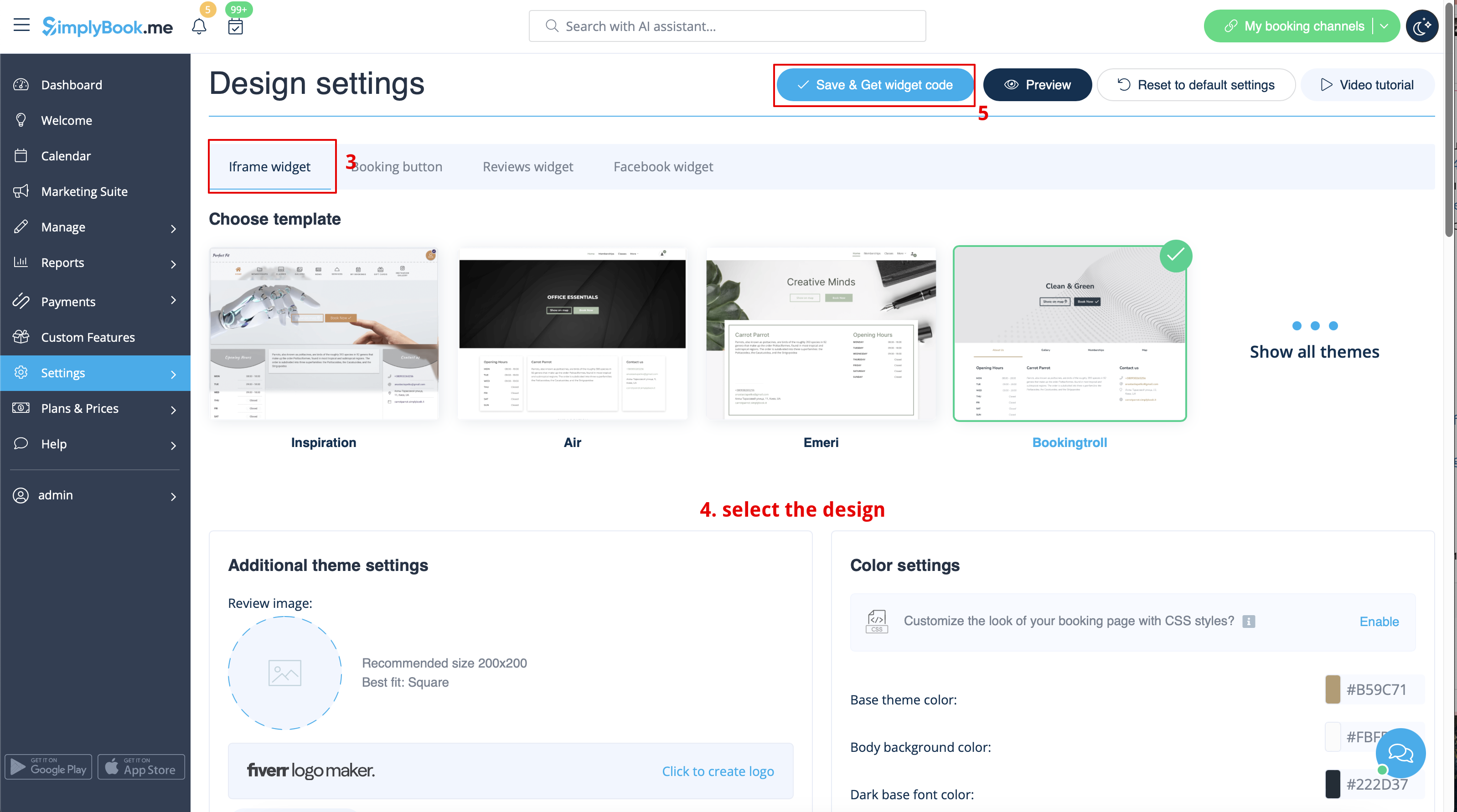
[[File:Booking widget design path redesigned.png|1200px | center|link=https://help.simplybook.me/images/3/37/Booking_widget_design_path_redesigned.png]]
<br><br>
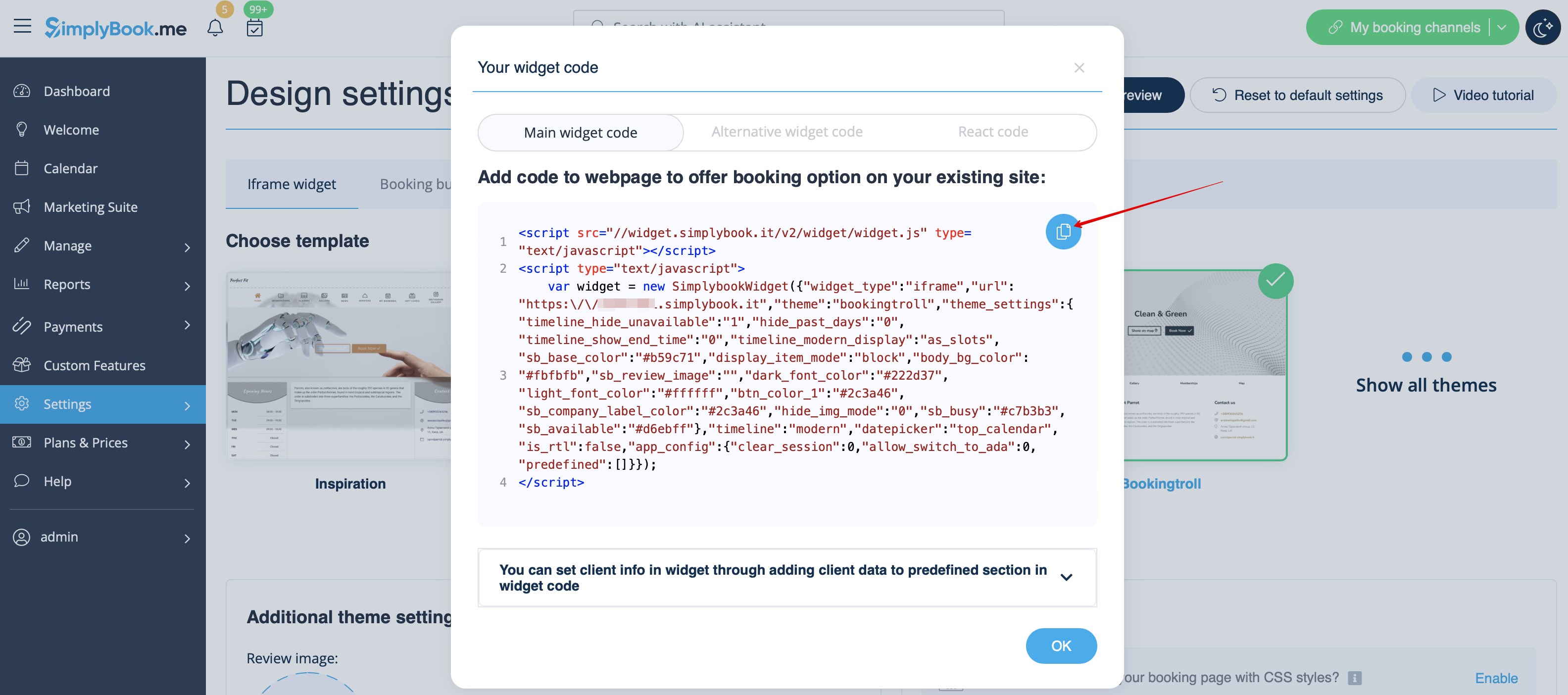
[[File:Copy widget code redesigned.png|1200px | center|link=https://help.simplybook.me/images/b/b4/Copy_widget_code_redesigned.png ]]
<br><br>
:2. Go to your WordPress admn side and create a new page or navigate to already created one, where you plan to add the widget. Click on <span style="background-color:#d4f8e5; padding:5px; border-radius:5px;">+</span> icon.
[[File:Creating new page wp.png | center]]
<br><br>
:3. Search for <span style="background-color:#d4f8e5; padding:5px; border-radius:5px;">HTML</span> option.
[[File:Add html editor.png | center]]
<br><br>
:4. Paste the previously copied code.
[[File:Paste the code.png | center]]
<br><br>
:5. Publish your changes.
<br><br>
2. Go to your WordPress admn side and create a new page or navigate to already created one, where you plan to add the widget. Click on
+
icon.
3. Search for
HTML
option.
4. Paste the previously copied code.
5. Publish your changes.