Translations:WordPress integration/4/uk: Difference between revisions

From SimplyBook.me
Created page with ":3. Якщо ви вже маєте обліковий запис на SimplyBook.me, виберіть там опцію <span style="background-color:#d4f8e5; padding:5px; border-radius:5px;">«Увійти тут</span> ».<br> :Якщо ви ще не створили обліковий запис, просто натисніть опцію <span style="background-color:#d4f8e5; padding:5px; border-radius:5px;">«Створити безкоштовний обліко..."
(No difference)

Revision as of 12:29, 19 May 2025

Information about message (contribute)
This message has no documentation. If you know where or how this message is used, you can help other translators by adding documentation to this message.
Message definition (WordPress integration)
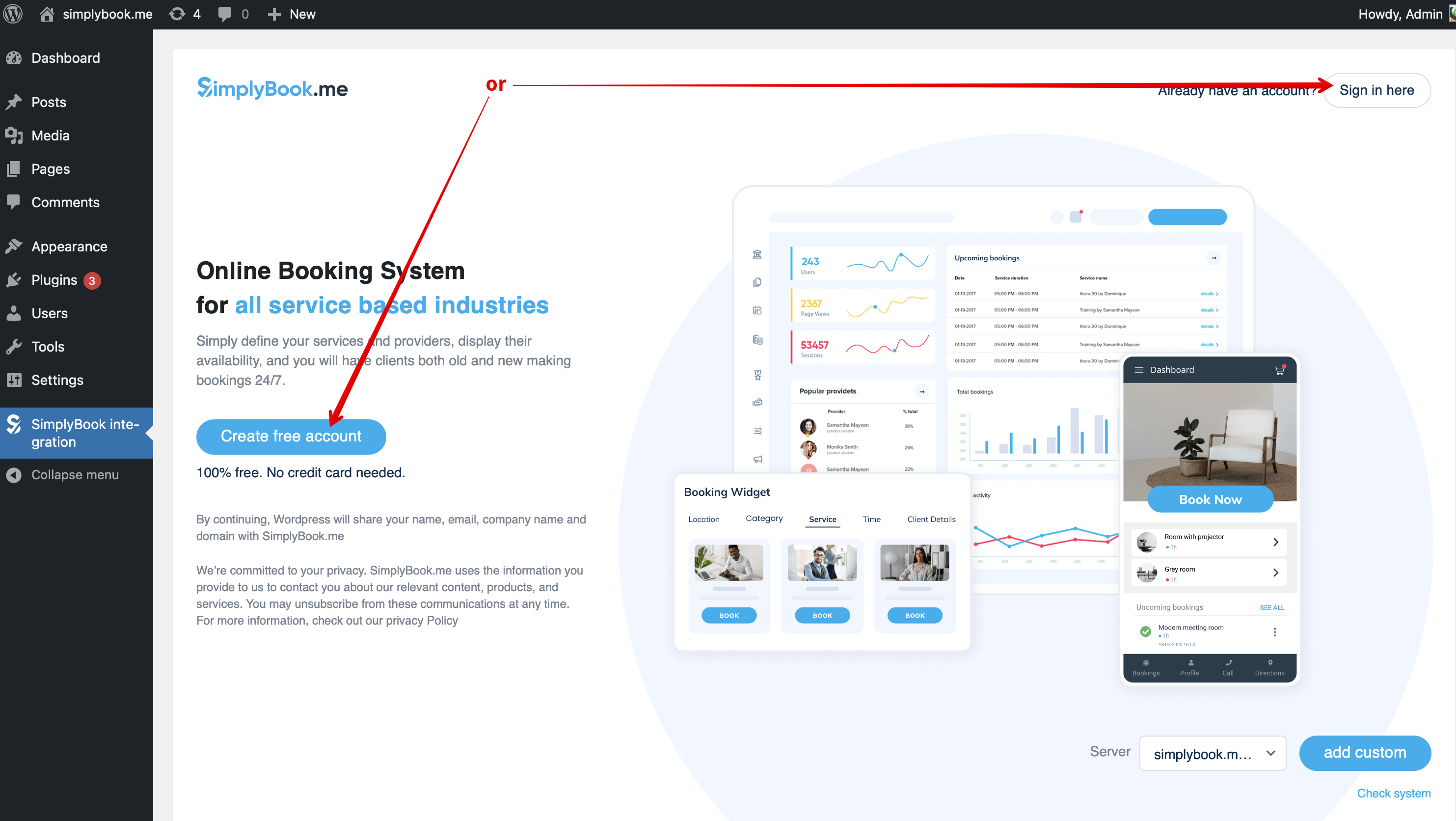
:3. If you already have an account with SimplyBook.me please choose the <span style="background-color:#d4f8e5; padding:5px; border-radius:5px;">Sign in here</span> option there.<br>
:If you have not created it yet, simply follow the <span style="background-color:#d4f8e5; padding:5px; border-radius:5px;">Create free account</span> steps.
[[File:Create account or sign up in wp.png|1200px|center|link=https://help.simplybook.me/images/2/2f/Create_account_or_sign_up_in_wp.png]]
<br><br>
:4. After short registration/login process you will get to your <span style="background-color:#d4f8e5; padding:5px; border-radius:5px;">Dashboard</span> overview.
[[File:Wp new dashboard overview.png|1200px|center|link=https://help.simplybook.me/images/a/ab/Wp_new_dashboard_overview.png]]
<br><br>
:5. Navigate to <span style="background-color:#d4f8e5; padding:5px; border-radius:5px;">Settings</span> tab and choose "Services" or "Providers" tab to see the list of existing ones in your account and easily navigate to manage them or add more.
[[File:Wp new see the list of services and providers.png|1200px|center|link=https://help.simplybook.me/images/9/97/Wp_new_see_the_list_of_services_and_providers.png]]
3. Якщо ви вже маєте обліковий запис на SimplyBook.me, виберіть там опцію «Увійти тут ».
Якщо ви ще не створили обліковий запис, просто натисніть опцію «Створити безкоштовний обліковий запис» і зареєструйтеся, дотримуючись запропонованих кроків.


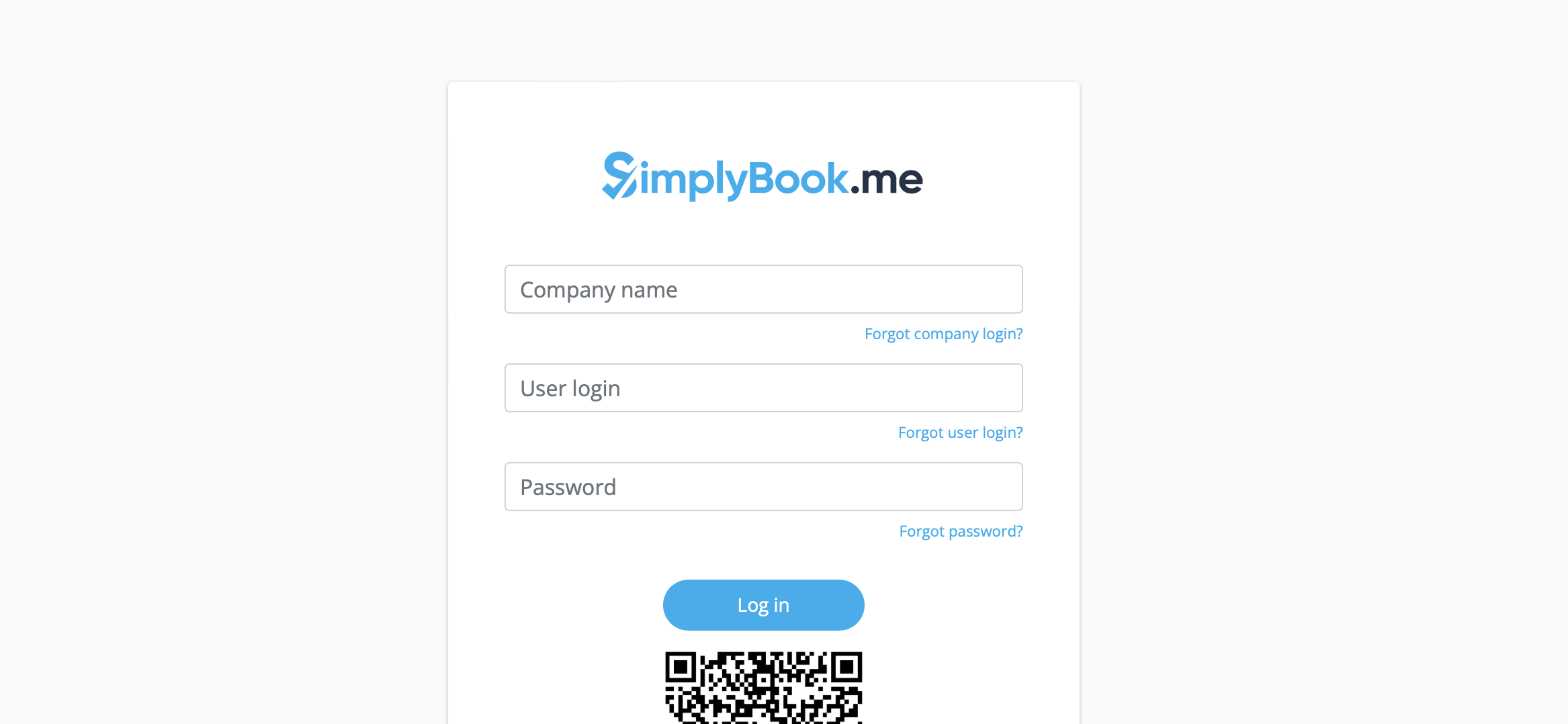
4. Увійдіть, вказавши логін компанії, логін користувача та пароль.


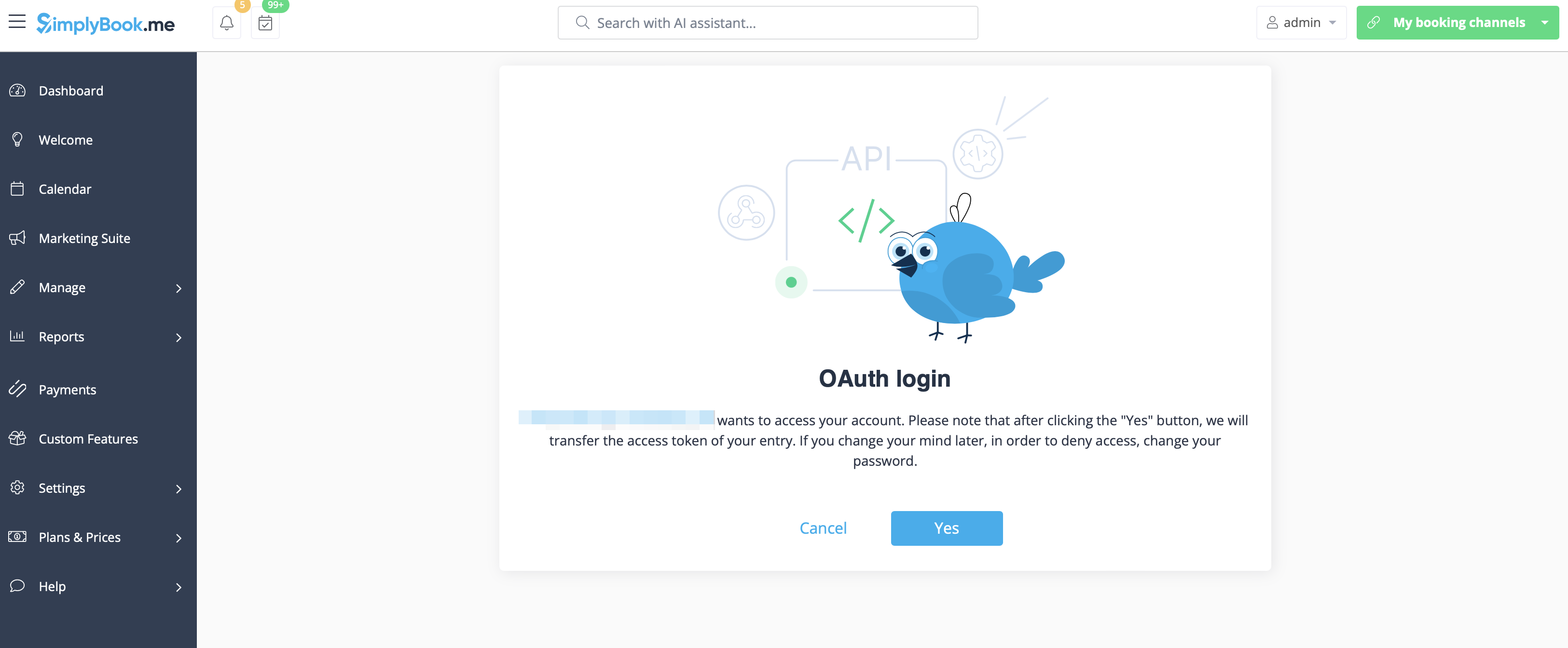
5. Підтвердьте зв'язок між обліковим записом SimplyBook.me та вашою системою WordPress.
Ви отримаєте одноразовий код для завершення підключення.