Translations:Accept payments custom feature/18/da: Difference between revisions

From SimplyBook.me
Created page with ":1. Tilføj de nødvendige skatteindstillinger i <span style="background-color:#d4f8e5; padding:5px; border-radius:5px;">Administrer</span> -> <span style="background-color:#d4f8e5; padding:5px; border-radius:5px;">Skatter</span> -> <span style="background-color:#d4f8e5; padding:5px; border-radius:5px;">+</span> :Vælg standardindstillingen, hvis det er nødvendigt – den vil automatisk blive indstillet for hver ny salgsvare, du opretter i systemet. File:Add new..."
 
(No difference)

Latest revision as of 12:37, 19 May 2025

Information about message (contribute)
This message has no documentation. If you know where or how this message is used, you can help other translators by adding documentation to this message.
Message definition (Accept payments custom feature)
:1. Add the necessary taxes options in <span style="background-color:#d4f8e5; padding:5px; border-radius:5px;">Manage</span> -> <span style="background-color:#d4f8e5; padding:5px; border-radius:5px;">Taxes</span> -> <span style="background-color:#d4f8e5; padding:5px; border-radius:5px;">+</span>
:Choose the default one if necessary - it will be automatically set for each new sale item that you will create in the system.
[[File:Add new tax path redesigned.png|1200px| border| center|link=https://help.simplybook.me/images/8/84/Add_new_tax_path_redesigned.png]]
<br><br>
:2. Navigate to <span style="background-color:#d4f8e5; padding:5px; border-radius:5px;">Manage</span> -> <span style="background-color:#d4f8e5; padding:5px; border-radius:5px;">Services</span> and select the tax option per each service.
:If you have other items like <span style="background-color:#cdeffc; padding:5px; border-radius:5px;">[[Special:MyLanguage/Classes_custom_feature|Classes]],</span> <span style="background-color:#cdeffc; padding:5px; border-radius:5px;">[[Special:MyLanguage/Packages_custom_feature|Packages]],</span> <span style="background-color:#cdeffc; padding:5px; border-radius:5px;">[[Special:MyLanguage/Membership_custom_feature|Memberships]],</span> <span style="background-color:#cdeffc; padding:5px; border-radius:5px;">[[Special:MyLanguage/Products_for_Sale_custom_feature|Products for sale]],</span> <span style="background-color:#cdeffc; padding:5px; border-radius:5px;">[[Special:MyLanguage/Service_Add-Ons_custom_feature|Service add-ons]],</span> <span style="background-color:#cdeffc; padding:5px; border-radius:5px;">[[Special:MyLanguage/Coupons_and_Gift_Cards_custom_feature|Gift cards]]</span> and need taxes to be applied there as well please go to the corresponding management page and select from the pre-created taxes for each item.
[[File:Assign tax to service path redesigned.png |1200px| border| center|link=https://help.simplybook.me/images/e/eb/Assign_tax_to_service_path_redesigned.png]]
<br><br>
:3. In <span style="background-color:#d4f8e5; padding:5px; border-radius:5px;">Custom features</span> -> <span style="background-color:#d4f8e5; padding:5px; border-radius:5px;">Accept payments</span> -> <span style="background-color:#d4f8e5; padding:5px; border-radius:5px;">Settings</span> choose whether the tax amount should be added to the price that you have set per service(or other item) or it is already included by using the switcher <span style="background-color:#d4f8e5; padding:5px; border-radius:5px;">Prices include tax.</span><br>
:If you enable the switcher it will mean that the amount that you have set per service is already with taxes.<br>
:In case you disable the switcher the system will automatically add the selected tax percentage to the items prices<br>
[[File:Prices include tax redesigned.png|1200px|border|center|link=https://help.simplybook.me/images/d/dd/Prices_include_tax_redesigned.png]]
<br><br>
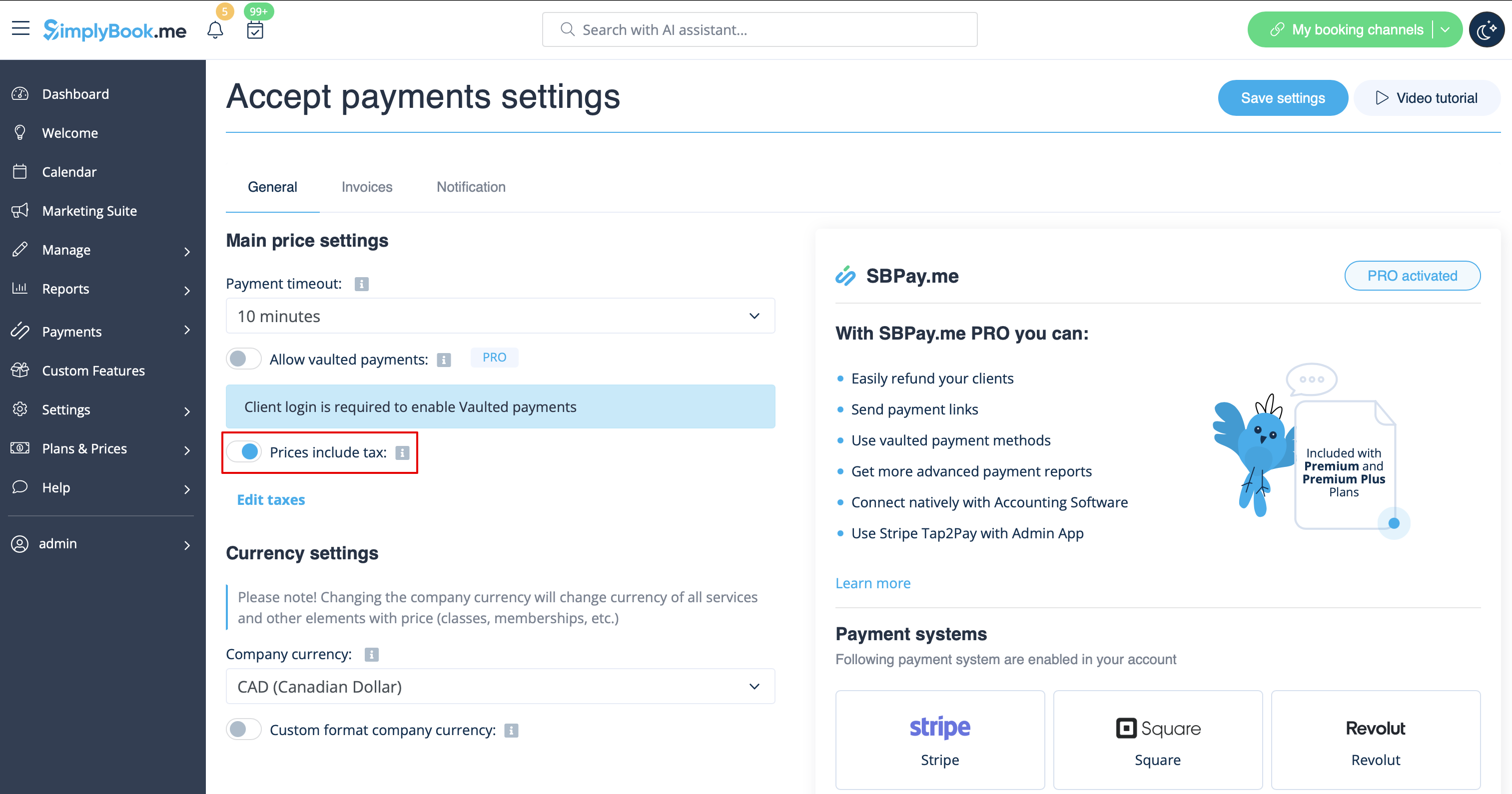
1. Tilføj de nødvendige skatteindstillinger i Administrer -> Skatter -> +
Vælg standardindstillingen, hvis det er nødvendigt – den vil automatisk blive indstillet for hver ny salgsvare, du opretter i systemet.
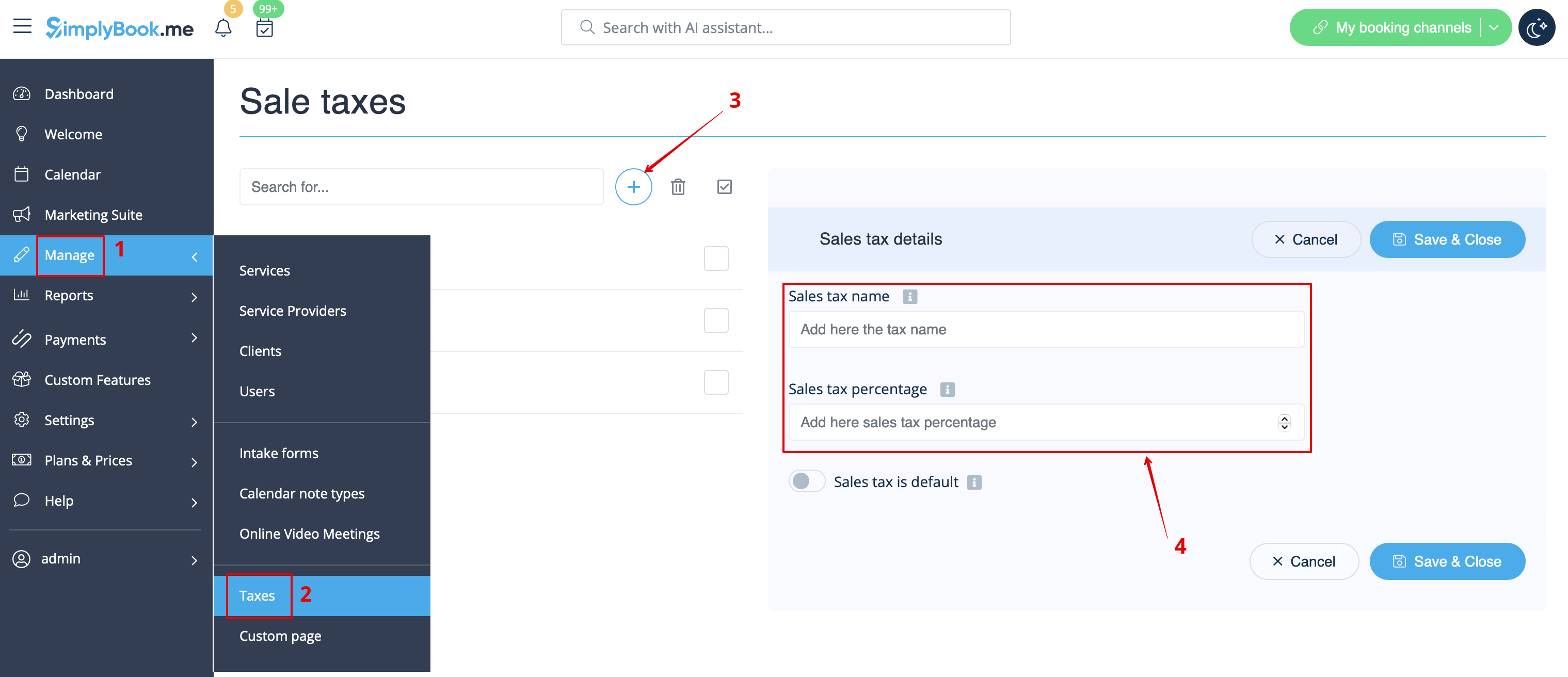


2. Gå til Administrer -> Tjenester og vælg skatteindstillingen for hver tjeneste.
Hvis du har andre varer som klasser, pakker, medlemskaber, produkter til salg, service-tilføjelser, gavekort og har brug for, at der også skal pålægges skat her, skal du gå til den relevante administrationsside og vælge blandt de foruddefinerede skatter for hver vare.
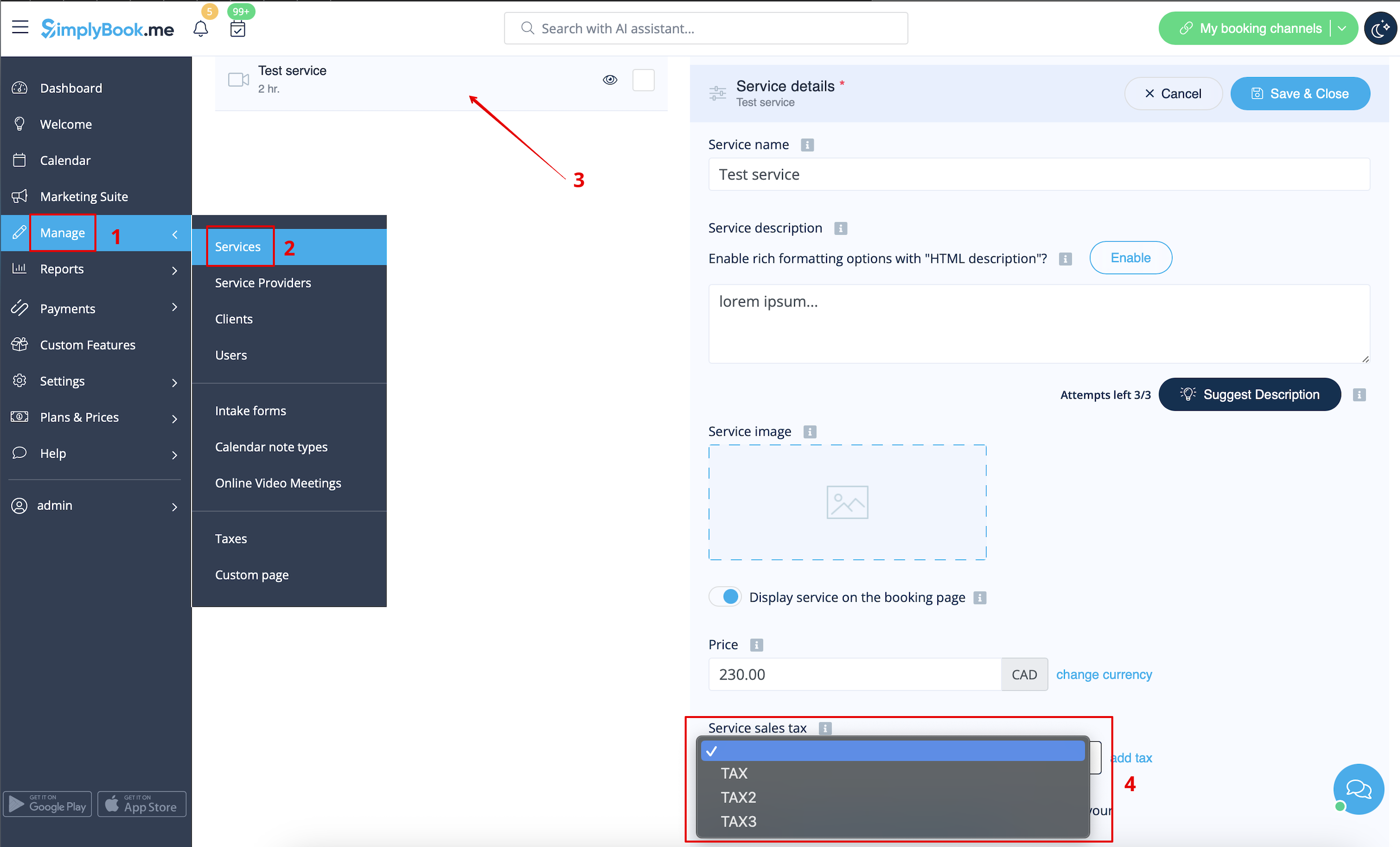


3. I Tilpassede funktioner -> Accepter betalinger -> Indstillinger skal du vælge, om skattebeløbet skal lægges til den pris, du har angivet pr. service (eller anden vare), eller om det allerede er inkluderet ved hjælp af kontakten Priser inkluderer moms.
Hvis du aktiverer kontakten, betyder det, at det beløb, du har angivet pr. service, allerede er inklusive moms.
Hvis du deaktiverer kontakten, tilføjer systemet automatisk den valgte skatteprocent til varepriserne