Translations:Accept payments custom feature/4/fr: Difference between revisions

From SimplyBook.me
Created page with ":1. Activez la fonctionnalité personnalisée <span style="background-color:#d4f8e5; padding:5px; border-radius:5px;">« Accepter les paiements</span> » dans la section « <span style="background-color:#d4f8e5; padding:5px; border-radius:5px;">Fonctionnalités personnalisées</span> ». 1200px| border | center|link=https://help.simplybook.me/images/9/9e/Accept_payments_enable_path_redesigned.png <br><br> :2. Une fois c..."
 
(No difference)

Latest revision as of 12:39, 19 May 2025

Information about message (contribute)
This message has no documentation. If you know where or how this message is used, you can help other translators by adding documentation to this message.
Message definition (Accept payments custom feature)
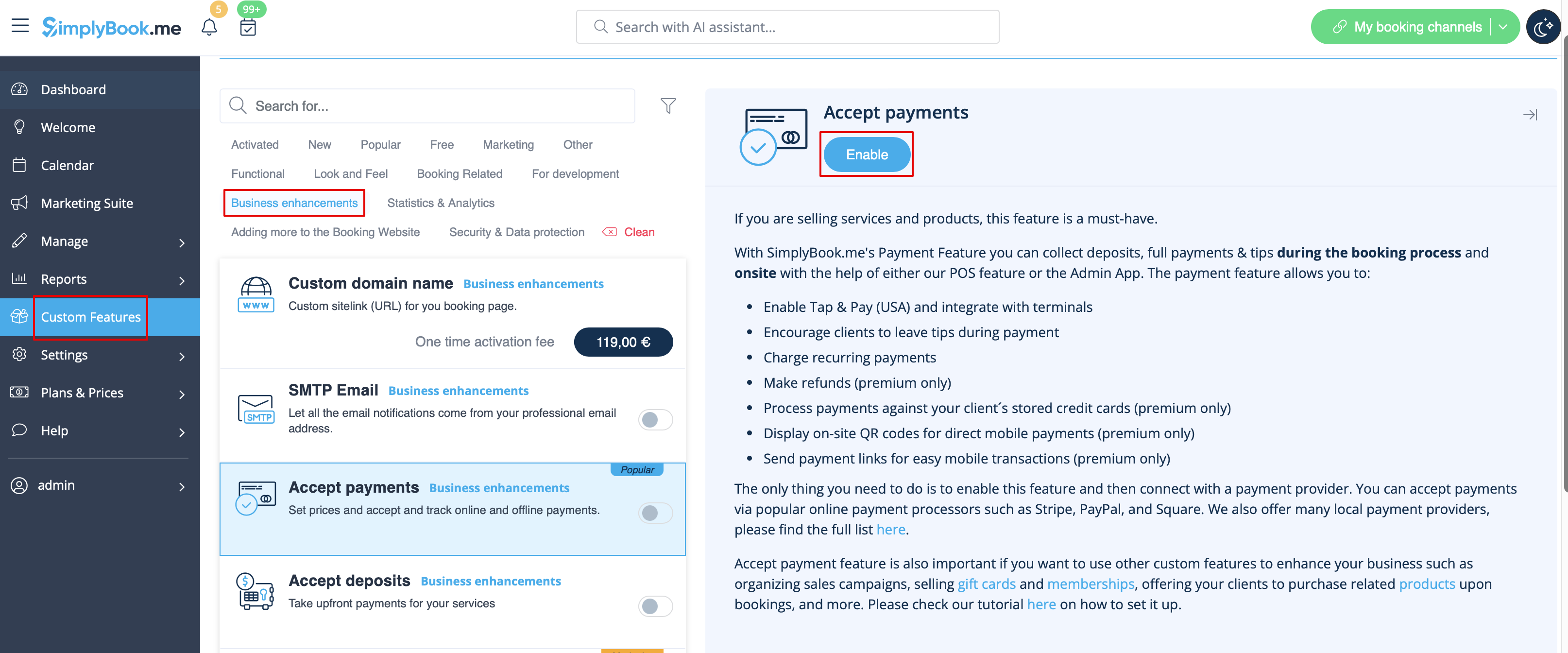
:1. Enable <span style="background-color:#d4f8e5; padding:5px; border-radius:5px;">Accept Payments</span> custom feature in <span style="background-color:#d4f8e5; padding:5px; border-radius:5px;">Custom Features</span> section.
[[File:Accept payments enable path redesigned.png|1200px| border | center|link=https://help.simplybook.me/images/9/9e/Accept_payments_enable_path_redesigned.png]]
<br><br>
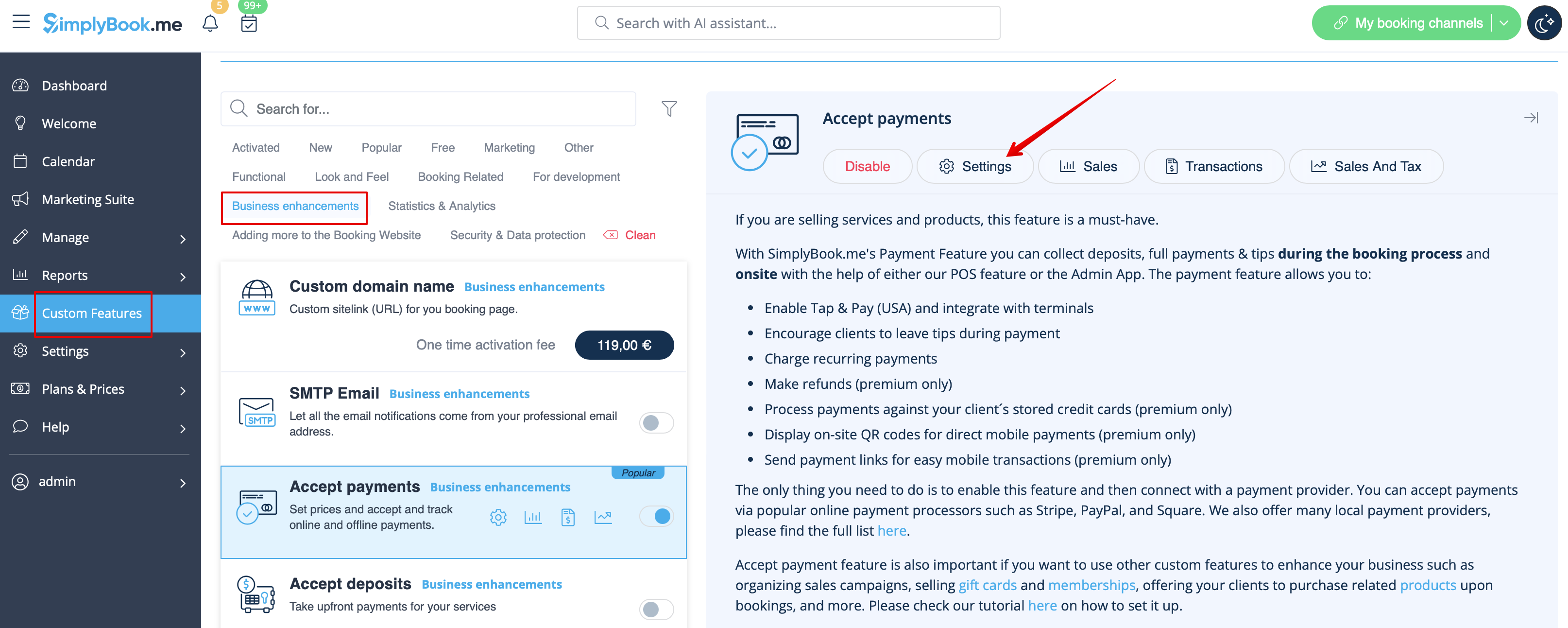
:2. Once enabled, click on the <span style="background-color:#d4f8e5; padding:5px; border-radius:5px;">Settings</span> button.
[[File:Accept payments settings path redesigned.png|1200px|border | center|link=https://help.simplybook.me/images/3/37/Accept_payments_settings_path_redesigned.png]]
<br><br>
:3. Adjust your company information in the following form if necessary.
:(It will be autocompleted with the company details that you already have in your system).
[[File:Sbpay registration form redesigned.png|1200px|center|link=https://help.simplybook.me/images/d/dd/Sbpay_registration_form_redesigned.png]]
<br><br>
:4. Click on the <span style="background-color:#d4f8e5; padding:5px; border-radius:5px;">Activate SBPay.me</span> button.
<br><br>
:<span style="background-color:#ffe9e9; padding:5px; border-radius:5px;">'''Please note!''' The majority of your payment-related settings and configurations will be managed through SBPay.me, which becomes accessible upon enabling the Accept Payments feature through '''Payments''' item in the navigation menu. Please check more information [[Special:MyLanguage/SBPay.me integration|here]].</span>
<br><br>
1. Activez la fonctionnalité personnalisée « Accepter les paiements » dans la section « Fonctionnalités personnalisées ».


2. Une fois cette fonctionnalité activée, cliquez sur le bouton « Paramètres ».


3. Si nécessaire, modifiez les informations relatives à votre entreprise dans le formulaire suivant.
(Les informations relatives à votre entreprise déjà enregistrées dans votre système seront automatiquement renseignées).
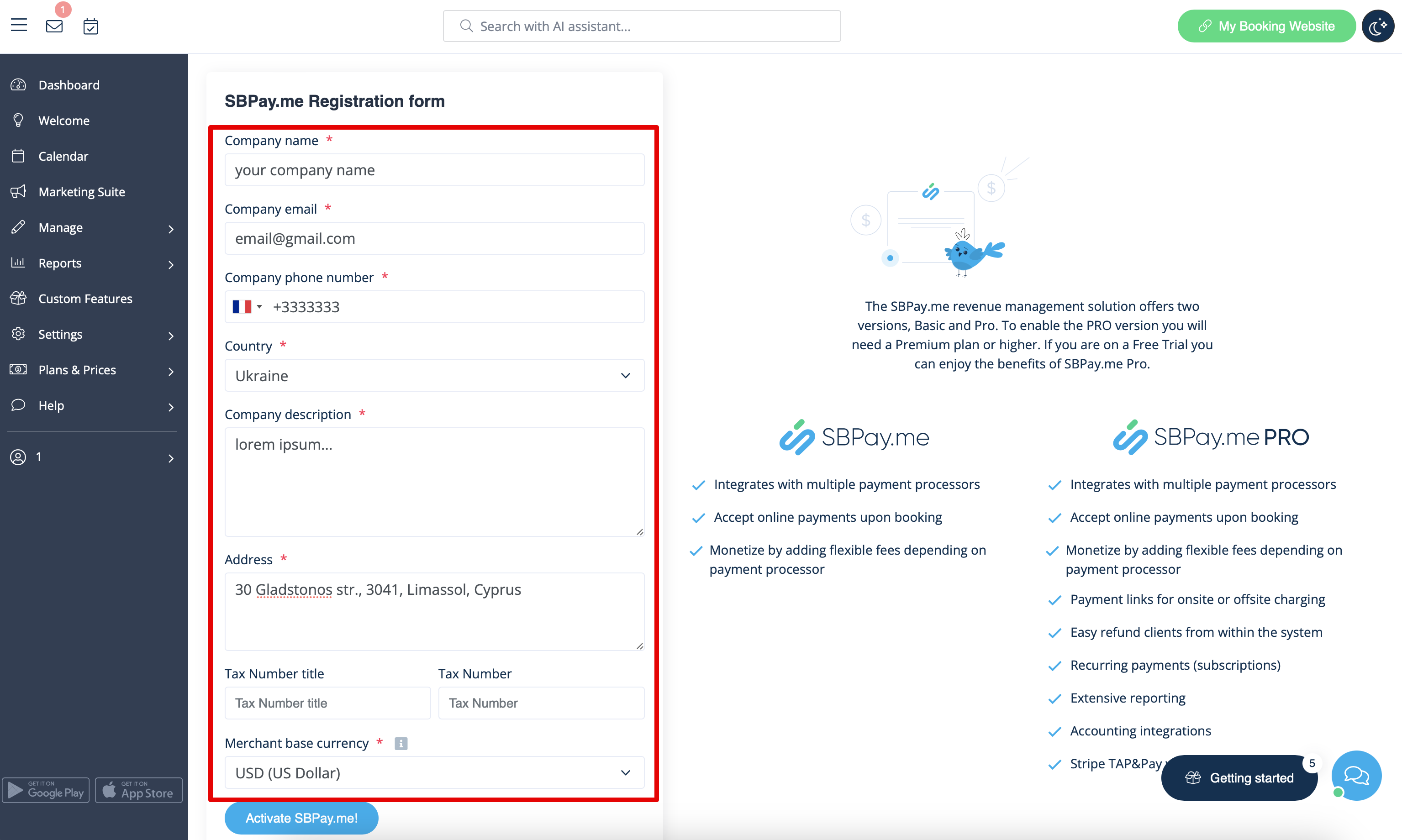


4. Cliquez sur le bouton Activer SBPay.me.


Remarque importante ! La plupart des paramètres et configurations liés aux paiements seront gérés via SBPay.me, accessible après avoir activé la fonctionnalité Accepter les paiements dans le menu de navigation. Pour plus d'informations, cliquez ici.