Translations:Appointment at Fixed Time custom feature/3/uk: Difference between revisions

From SimplyBook.me
Created page with ":'''Зверніть увагу!''' Ця функція працює з часовими шкалами «слотів»: тижневими або сучасними; і не працює з будь-яким гнучким типом часової шкали. <br><br> ;Як користуватися :1. Відкрийте сторін..."
 
(No difference)

Latest revision as of 12:40, 19 May 2025

Information about message (contribute)
This message has no documentation. If you know where or how this message is used, you can help other translators by adding documentation to this message.
Message definition (Appointment at Fixed Time custom feature)
:'''Please note!''' This feature works with "slots" [[Special:MyLanguage/How_to_change_the_way_time_slots_are_shown |timelines]]: slots weekly or modern; and does not work with any flexible [[Special:MyLanguage/How_to_change_the_way_time_slots_are_shown |timeline]] type.
<br><br>
;How to use
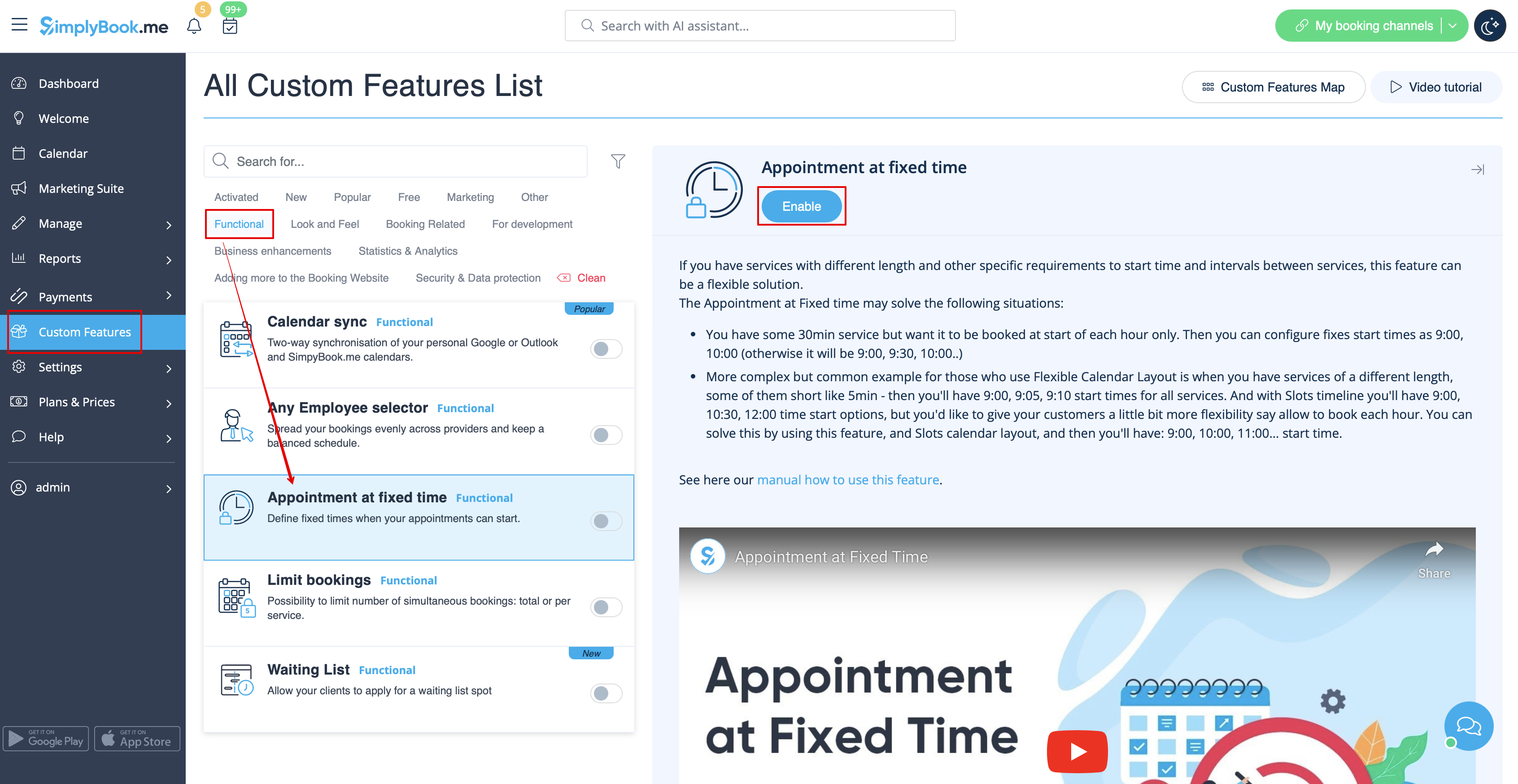
:1. Open Custom features page in your account and click on "Enable" near Appointment at fixed time option.
[[File:Appointment at fixed time enable path redesigned.png|1200px | center|link=https://help.simplybook.me/images/3/3e/Appointment_at_fixed_time_enable_path_redesigned.png]]
<br><br>
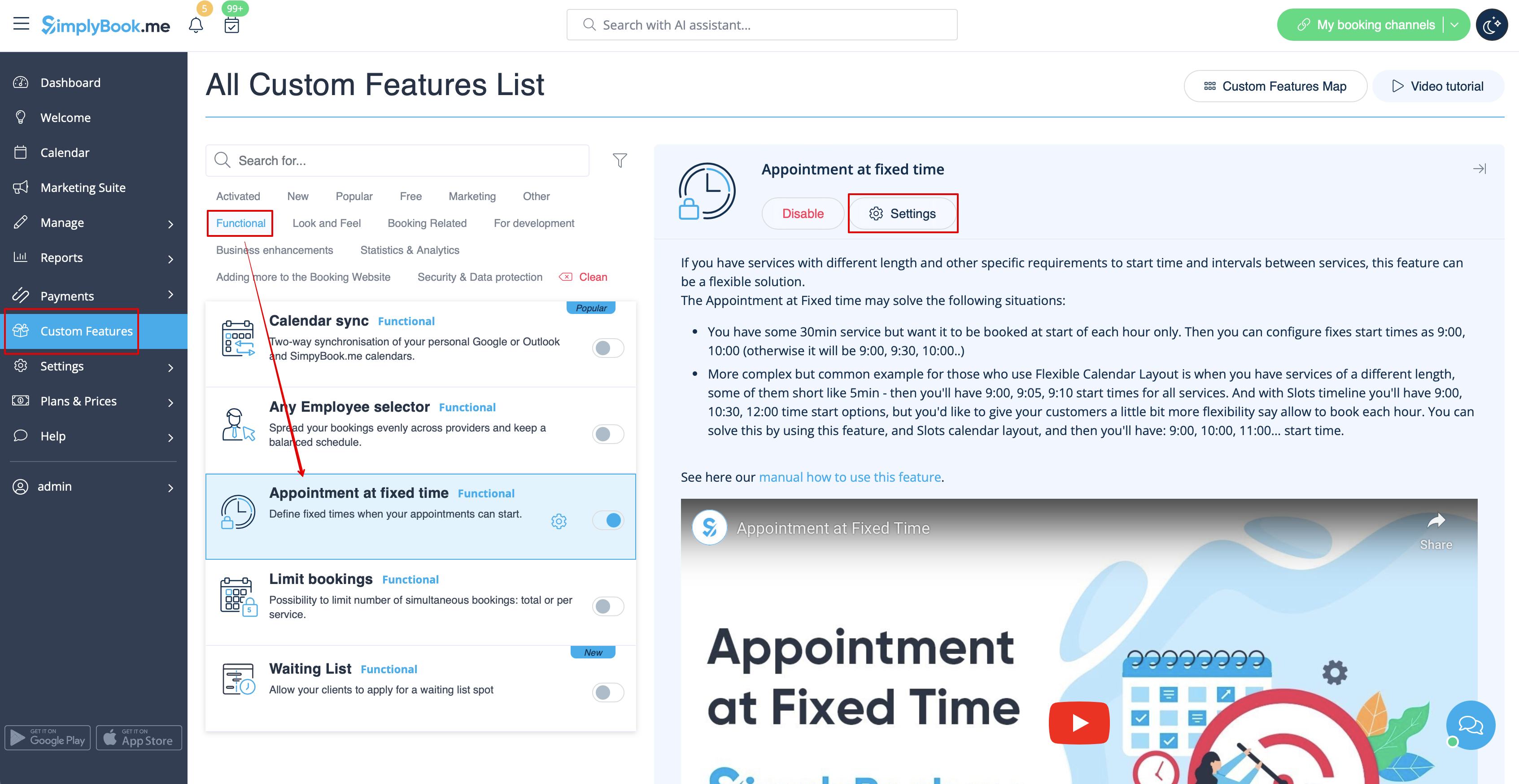
:2. To set times go to "Settings" next to it.
[[File:Appointment at fixed time settings path redesigned.png|1200px | center|link=https://help.simplybook.me/images/9/92/Appointment_at_fixed_time_settings_path_redesigned.png]]
<br><br>
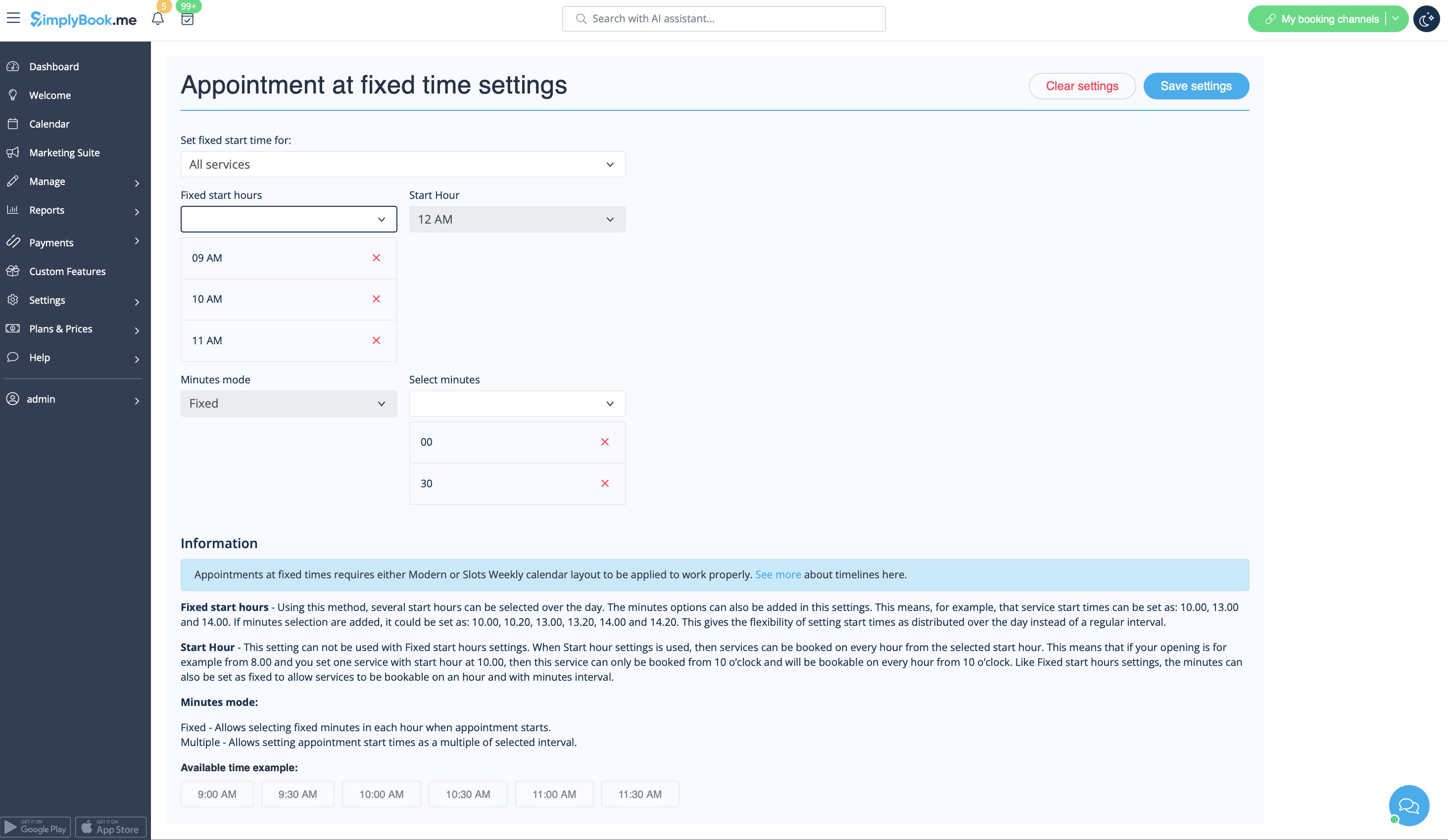
:3. On the page you see please select the service you wish to edit start times for or select "All services" if all times will be the same.
:And choose the desired times using the corresponding boxes.
[[File:Appointment at fixed time options redesigned.png|1200px | center|link=https://help.simplybook.me/images/7/71/Appointment_at_fixed_time_options_redesigned.png]]
<br><br>
Зверніть увагу! Ця функція працює з часовими шкалами «слотів»: тижневими або сучасними; і не працює з будь-яким гнучким типом часової шкали.


Як користуватися
1. Відкрийте сторінку «Налаштування» у своєму обліковому записі та натисніть «Увімкнути» біля опції «Призначення на фіксований час».


2. Щоб встановити час, перейдіть до «Налаштування» поруч із ним.


3. На сторінці, що з'явиться, виберіть послугу, для якої ви хочете редагувати час початку, або виберіть «Усі послуги», якщо час буде однаковим для всіх.
І виберіть бажаний час, використовуючи відповідні поля.