Translations:SBPay.me integration/13/da: Difference between revisions

From SimplyBook.me
Created page with "=== Arkiverede betalinger === <span style="background-color:#ffe9e9; padding:5px; border-radius:5px;">'''Bemærk!'''</span> *<span style="background-color:#ffe9e9; padding:5px; border-radius:5px;">Denne funktion kræver, at den tilpassede funktion <span style="background-color:#cdeffc; padding:5px; border-radius:5px;">"Klientlogin"</span> er aktiveret.</span> *<span style="background-color:#ffe9e9; padding:5px; border-radius:5px;">Ikke all..."
(No difference)

Revision as of 12:43, 19 May 2025

Information about message (contribute)
This message has no documentation. If you know where or how this message is used, you can help other translators by adding documentation to this message.
Message definition (SBPay.me integration)
===Vaulted payments===
<span style="background-color:#ffe9e9; padding:5px; border-radius:5px;">'''Please note!'''</span>
*<span style="background-color:#ffe9e9; padding:5px; border-radius:5px;">It requires <span style="background-color:#cdeffc; padding:5px; border-radius:5px;">[[Special:MyLanguage/Client Login custom feature|Client login]]</span> custom feature to be enabled to use this functionality.</span>
*<span style="background-color:#ffe9e9; padding:5px; border-radius:5px;">Not all the payment gateways support this feature. Please check the availability of such an option in the [[Special:MyLanguage/SBPay.me_integration#The_list_of_currently_supported_payment_processors:|table]] and/or by contacting your payment gateway support as it may require some adjustments on their side.</span>
<br>
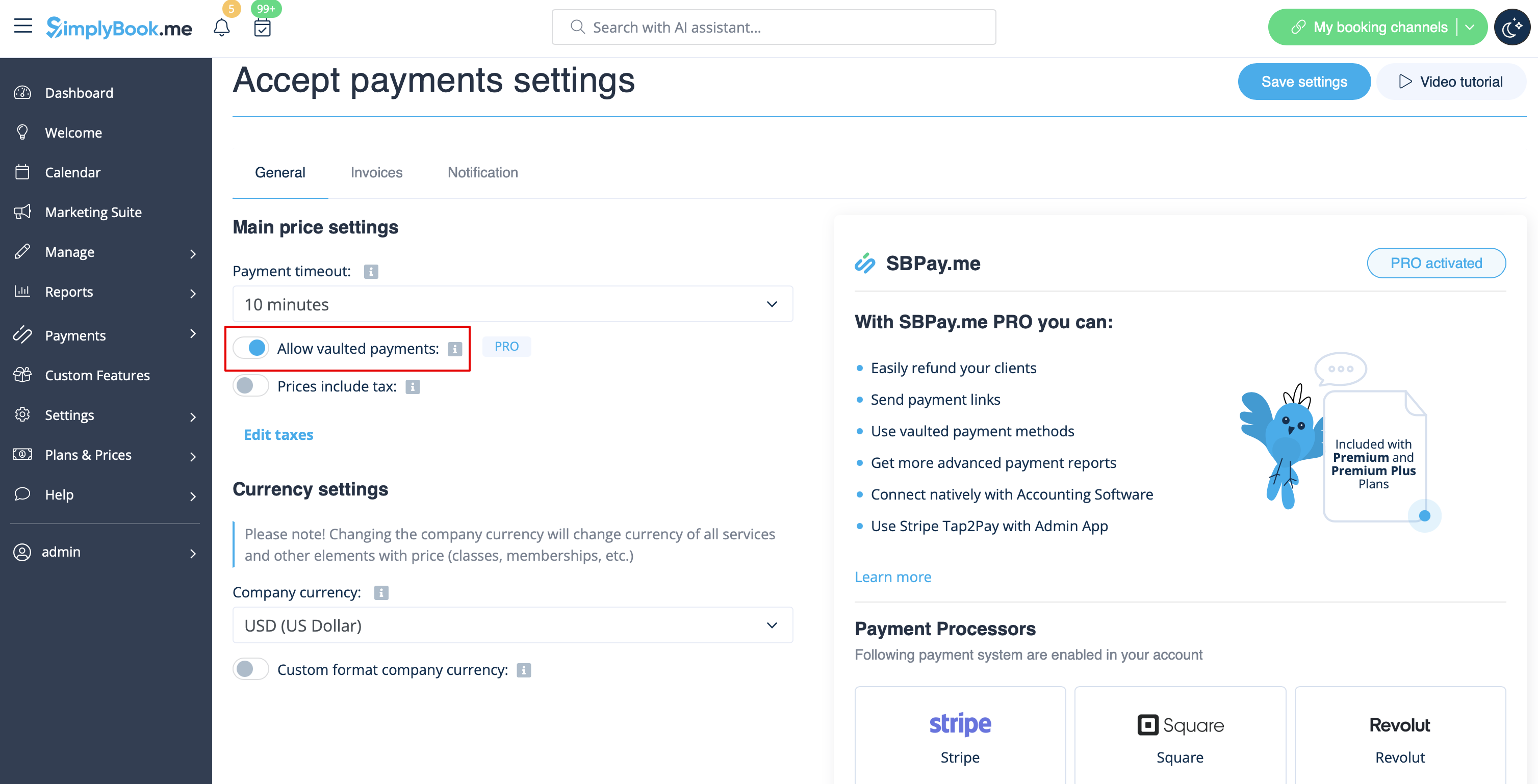
:1. Enable the option <span style="background-color:#d4f8e5; padding:5px; border-radius:5px;">Allow vaulted payments</span> on your <span style="background-color:#cdeffc; padding:5px; border-radius:5px;">Accept payments</span> settings page.
[[File:Alloe vaulted payments on redesigned.png|1200px|center|link=https://help.simplybook.me/images/4/4f/Alloe_vaulted_payments_on_redesigned.png]]
<br><br>
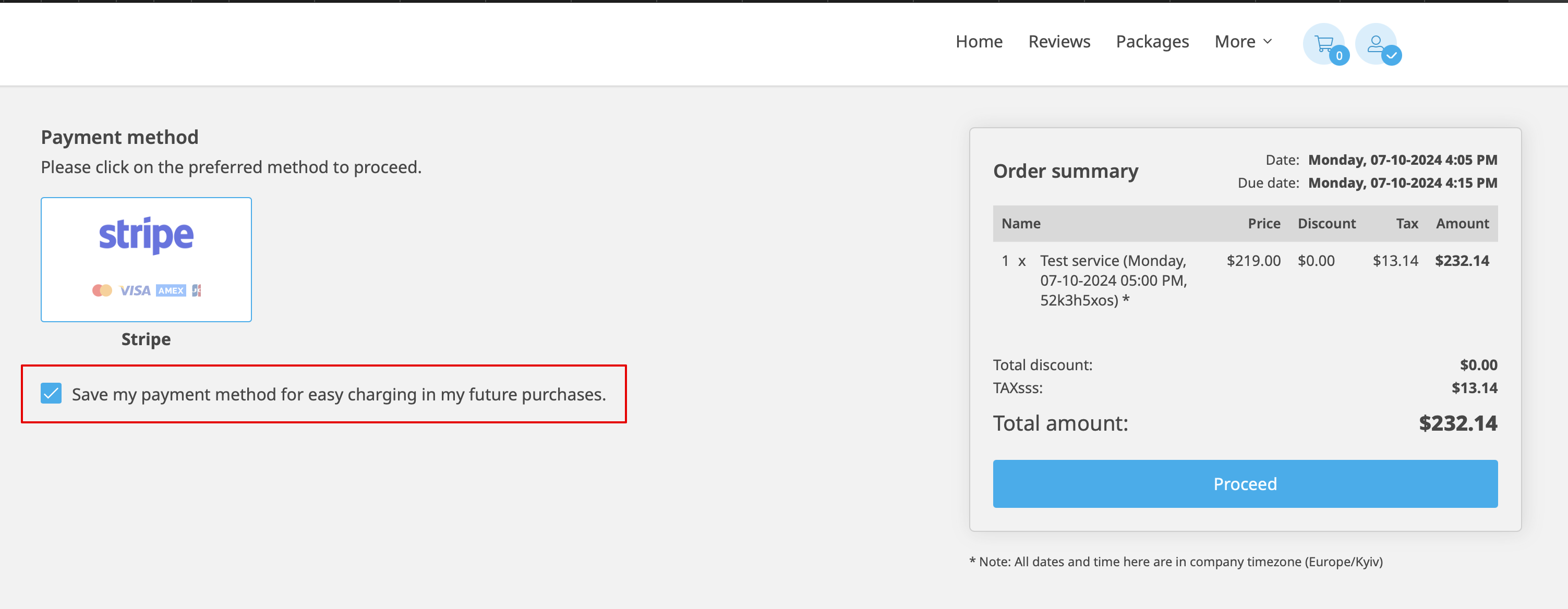
:2. As the result the client will be able to tick the checkbox <span style="background-color:#d4f8e5; padding:5px; border-radius:5px;">Save my payment method for easy charging in my future purchases</span> at checkout on the booking website and his/her payment details will be attached to the client profile.
[[File:Save payment method client side new.png|1200px|center|link=https://help.simplybook.me/images/5/5b/Save_payment_method_client_side_new.png]]
<br><br>
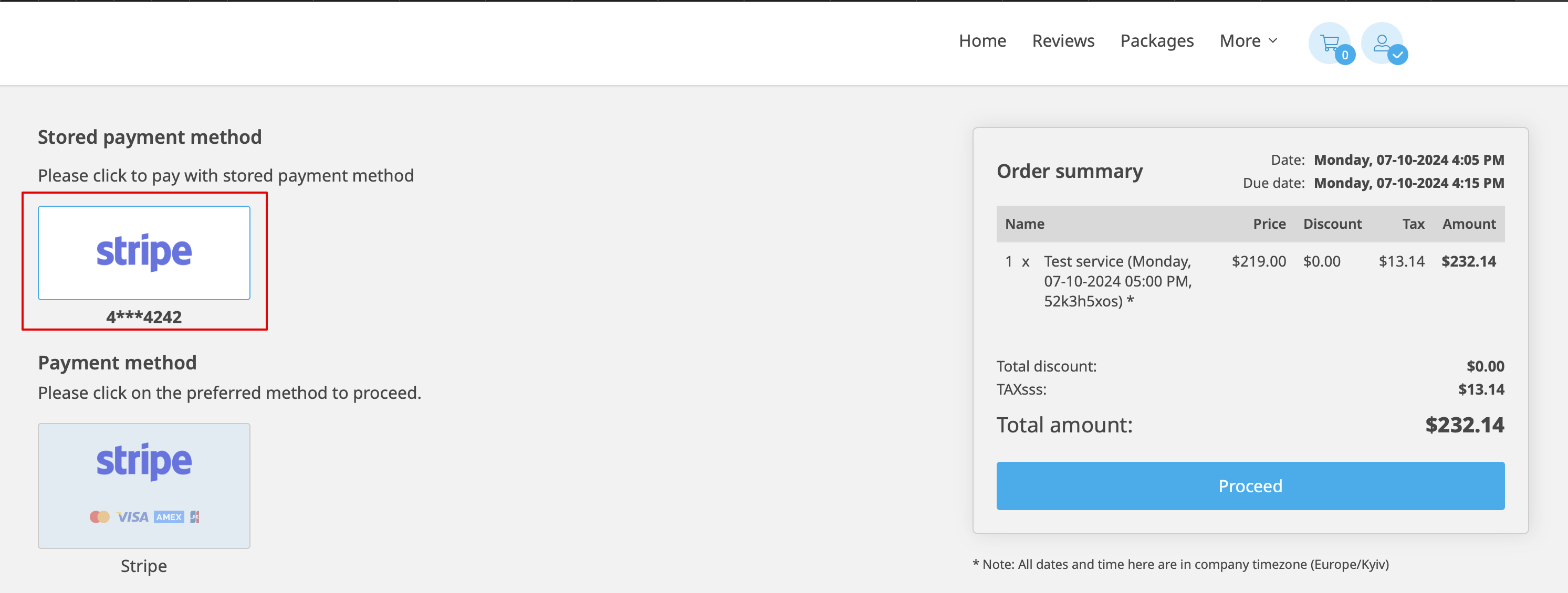
:3. During the next purchase or booking on the client side he/she can decide whether to confirm the order with the already saved payment method or to choose the new option.
[[File:Pay with saved card new client side.png|1200px|center|link=https://help.simplybook.me/images/c/cf/Pay_with_saved_card_new_client_side.png]]
<br><br>
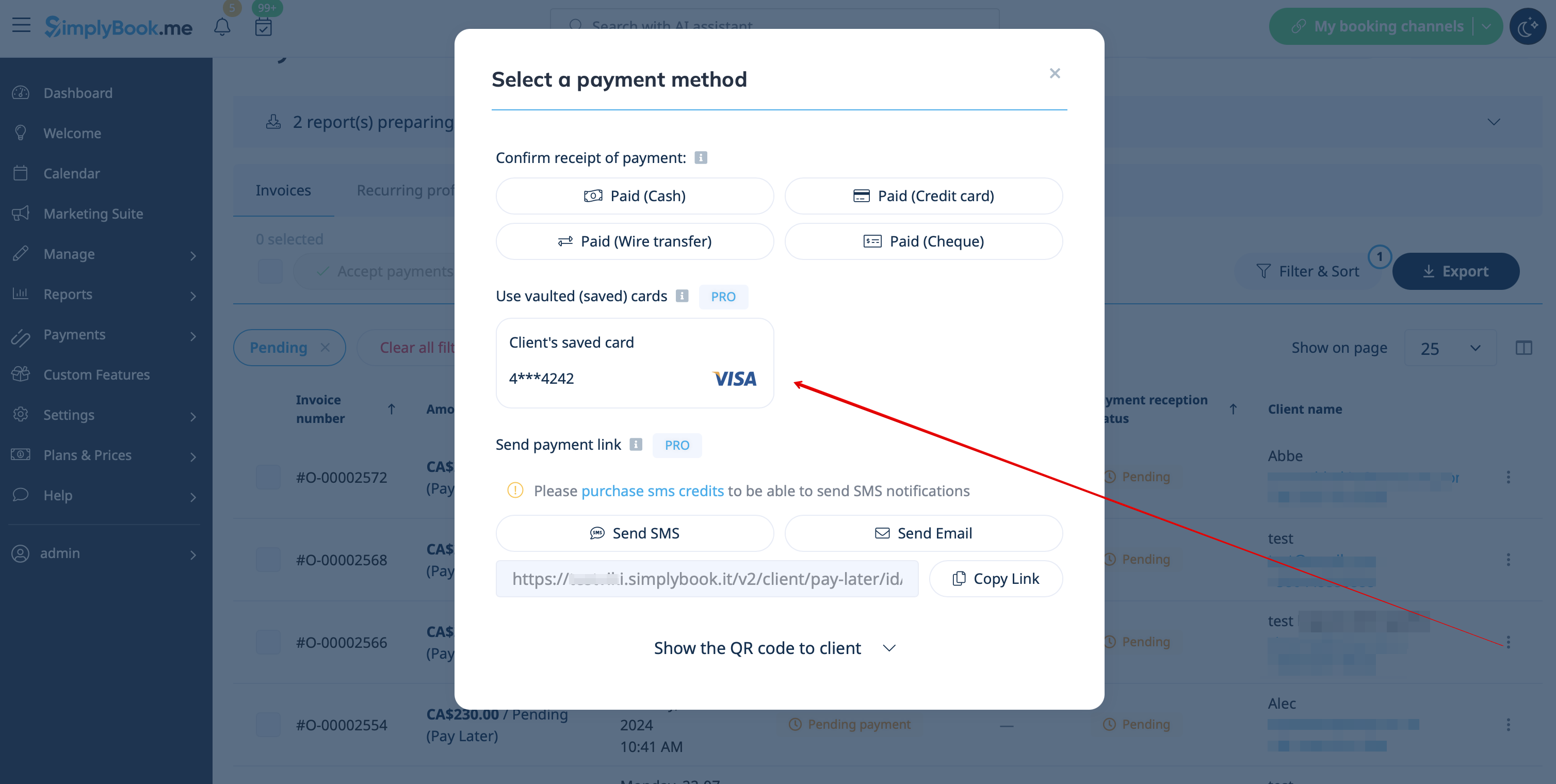
:4. During the payment approval on the admin side <span style="background-color:#d4f8e5; padding:5px; border-radius:5px;">Payment transactions</span> report or sale management inside the <span style="background-color:#d4f8e5; padding:5px; border-radius:5px;">POS interface</span> you will also be able to use the client's saved payment method.
[[File:Approve payment with saved card redesigned.png|1200px|center|link=https://help.simplybook.me/images/7/7b/Approve_payment_with_saved_card_redesigned.png]]
<br><br>
[[File:Use saved payment method pos.png|1200px|center|link=https://help.simplybook.me/images/e/e8/Use_saved_payment_method_pos.png]]
<br><br>

Arkiverede betalinger

Bemærk!

  • Denne funktion kræver, at den tilpassede funktion "Klientlogin" er aktiveret.
  • Ikke alle betalingsgateways understøtter denne funktion. Kontroller tilgængeligheden af denne mulighed i tabellen og/eller ved at kontakte din betalingsgateways support, da det kan kræve nogle justeringer fra deres side.


1. Aktivér indstillingen Tillad gemte betalinger på siden Indstillinger for betalingsaccept.


2. Som resultat vil kunden kunne markere afkrydsningsfeltet Gem min betalingsmetode for nem betaling ved fremtidige køb ved kassen på bookingwebstedet, og hans/hendes betalingsoplysninger vil blive vedhæftet kundeprofilen.


3. Ved næste køb eller booking på kundesiden kan han/hun vælge, om ordren skal bekræftes med den allerede gemte betalingsmetode eller med den nye mulighed.


4. Under godkendelsen af betalingen på administratorsiden, i rapporten over betalingstransaktioner eller i salgsadministrationen i POS-grænsefladen, vil du også kunne bruge kundens gemte betalingsmetode.