Translations:SBPay.me integration/10/sv: Difference between revisions

From SimplyBook.me
Created page with ":1. Först och främst, eftersom du planerar att arbeta med onlinebetalningar, måste du ha den anpassade funktionen <span style="background-color:#cdeffc; padding:5px; border-radius:5px;">Acceptera betalningar</span> aktiverad i ditt [https://simplybook.me/ SimplyBook.me-konto]. 1200px|center|link=https://help.simplybook.me/images/9/9e/Accept_payments_enable_path_redesigned.png <br><b..."
(No difference)

Revision as of 12:44, 19 May 2025

Information about message (contribute)
This message has no documentation. If you know where or how this message is used, you can help other translators by adding documentation to this message.
Message definition (SBPay.me integration)
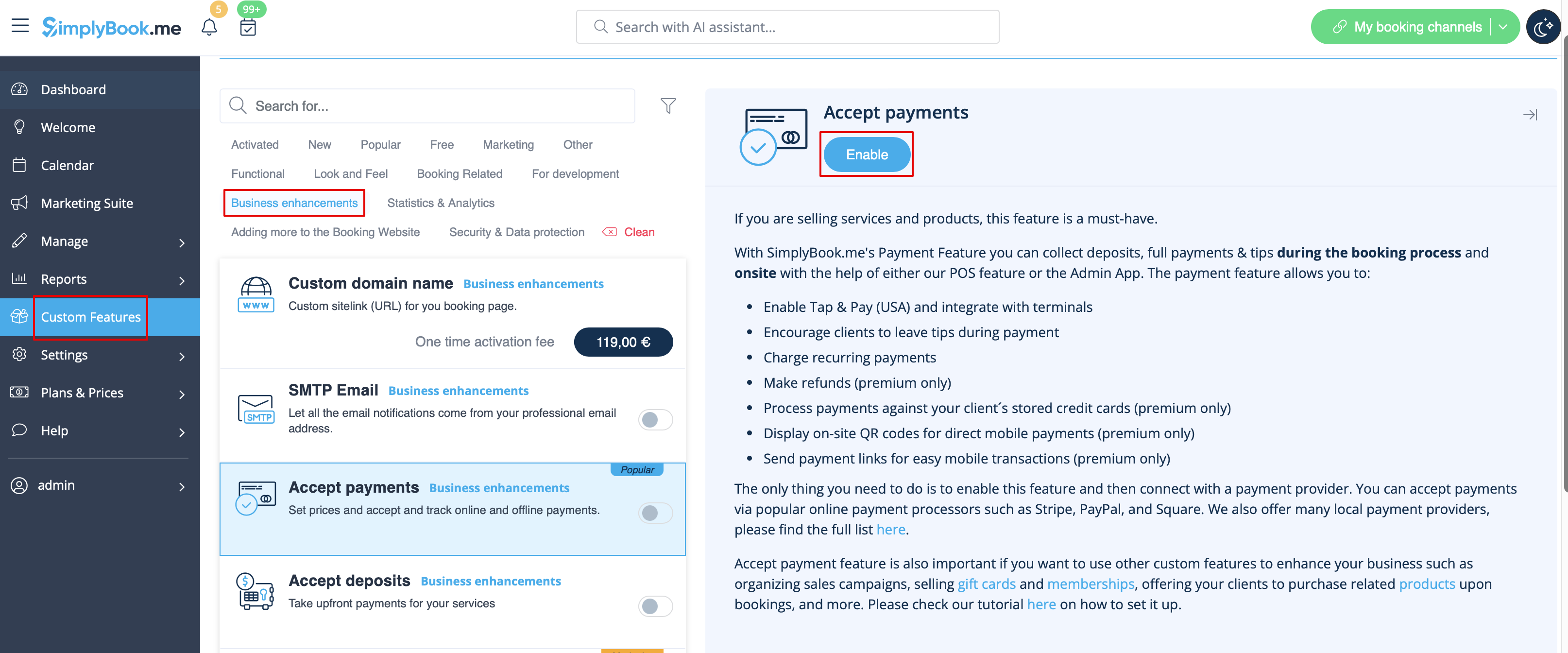
:1. First of all, as you plan to work with online payment, you need to have <span style="background-color:#cdeffc; padding:5px; border-radius:5px;">[[Special:MyLanguage/Accept payments custom feature|Accept Payments]]</span> custom feature enabled in your [https://simplybook.me/ SimplyBook.me] account.
[[File:Accept payments enable path redesigned.png|1200px|center|link=https://help.simplybook.me/images/9/9e/Accept_payments_enable_path_redesigned.png]]
<br><br>
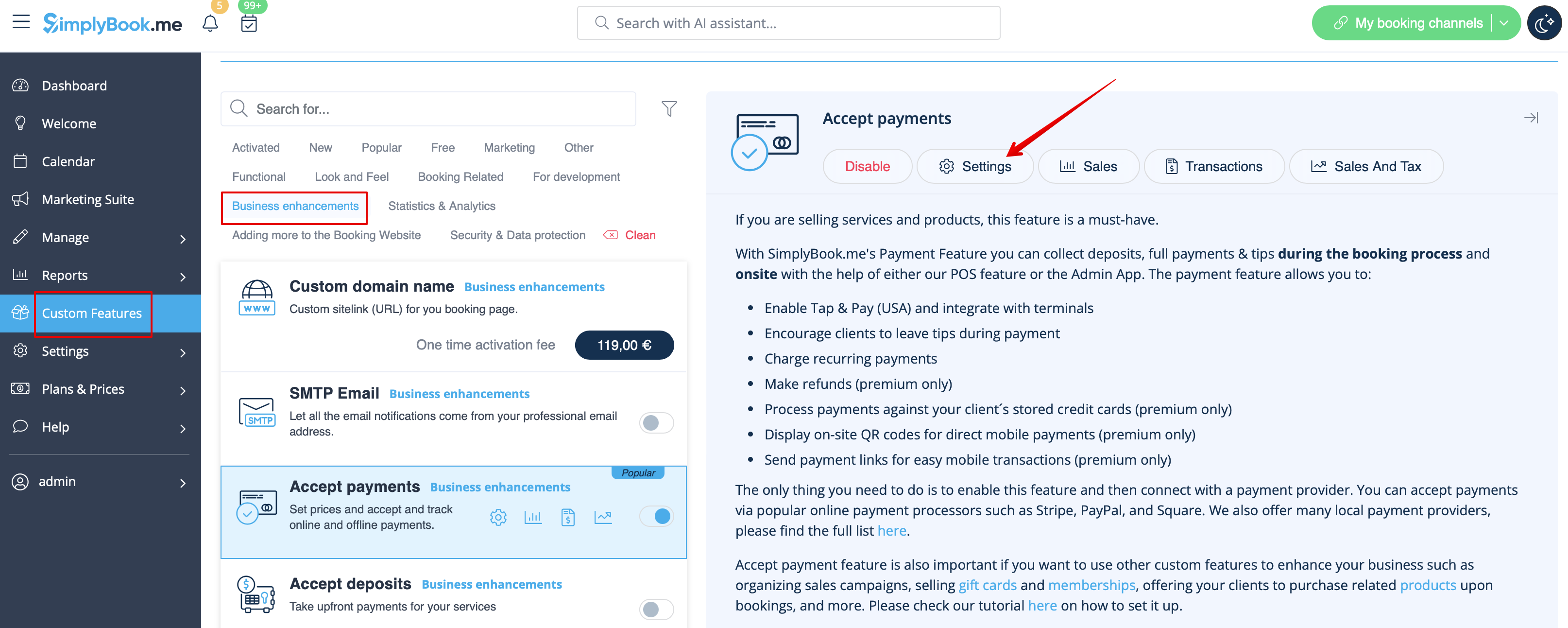
:2. Click on <span style="background-color:#d4f8e5; padding:5px; border-radius:5px;">Settings</span> button on the <span style="background-color:#d4f8e5; padding:5px; border-radius:5px;">custom features page</span> next to the <span style="background-color:#cdeffc; padding:5px; border-radius:5px;">[[Special:MyLanguage/Accept payments custom feature|Accept Payments]]</span> feature.
[[File:Accept payments settings path redesigned.png|1200px|border | center|link=https://help.simplybook.me/images/3/37/Accept_payments_settings_path_redesigned.png]]
<br><br>
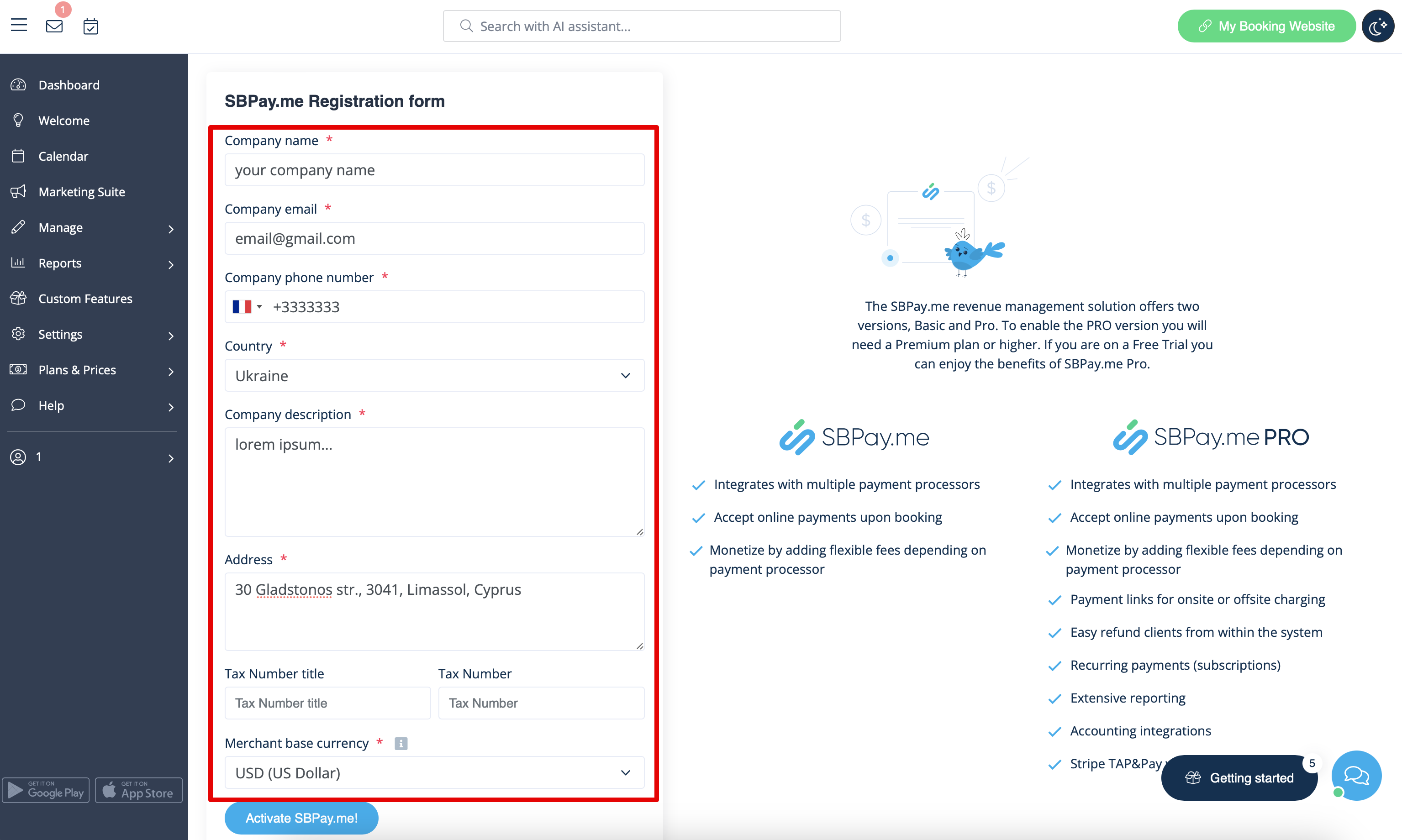
:3. Adjust your <span style="background-color:#d4f8e5; padding:5px; border-radius:5px;">company information</span> in the registration form if necessary.
:(It will be autocompleted with the company details that you already have in your system).<br>
:Click on <span style="background-color:#d4f8e5; padding:5px; border-radius:5px;">Activate SBPay.me</span> button below.<br>
:Congratulations! Your SBPay.me account is created!
[[File:Sbpay registration form redesigned.png|1200px|center|link=https://help.simplybook.me/images/d/dd/Sbpay_registration_form_redesigned.png]]
<br><br>
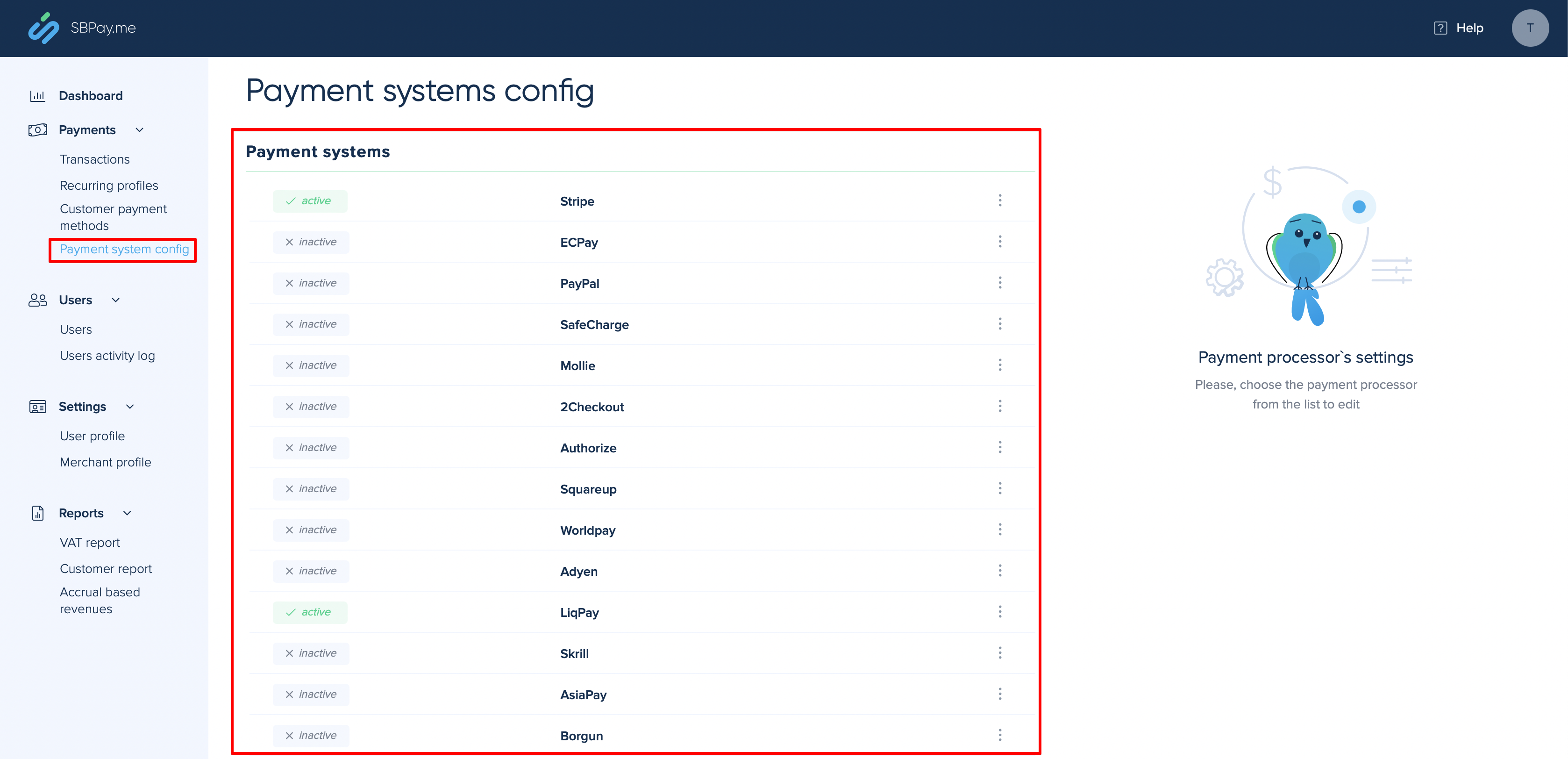
:4. Navigate to the <span style="background-color:#d4f8e5; padding:5px; border-radius:5px;">Payment system settings</span> and <span style="background-color:#d4f8e5; padding:5px; border-radius:5px;">add the credentials</span> of the payment gateway that you plan to use for online payments.<br>
:If you had some payment system details before enabling SBPay.me integration it may have been copied to SBPay.me side, but there may be some changes in the payment flow so you will need to <span style="background-color:#d4f8e5; padding:5px; border-radius:5px;">check if all the settings are added</span> there for the smooth online payments operation.
[[File:Sbpayme payment systems page.png|1200px|center|link=https://help.simplybook.me/images/0/07/Sbpayme_payment_systems_page.png]]
<br><br>
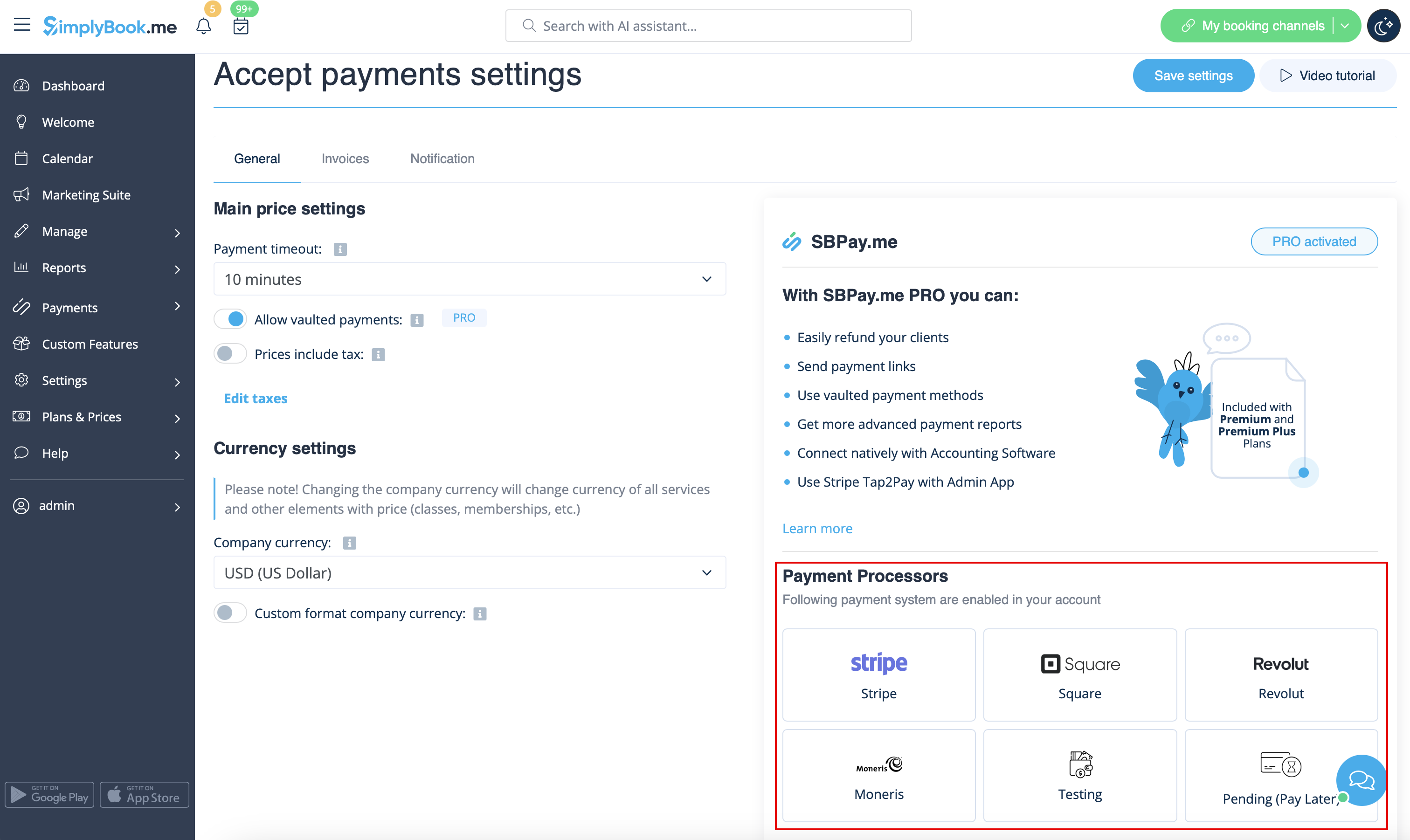
:5. Once you have set the payment processors up you will be able to see the active ones on the SimplyBook.me side as well.
[[File:Active payment processors redesigned.png|1200px|center|link=https://help.simplybook.me/images/0/03/Active_payment_processors_redesigned.png]]
<br><br>
:6. Set the prices for your services, <span style="background-color:#cdeffc; padding:5px; border-radius:5px;">[[Special:MyLanguage/Classes custom feature|classes]]</span>, <span style="background-color:#cdeffc; padding:5px; border-radius:5px;">[[Special:MyLanguage/Packages custom feature|packages]]</span>, <span style="background-color:#cdeffc; padding:5px; border-radius:5px;">[[Special:MyLanguage/Membership custom feature|memberships]]</span>, <span style="background-color:#cdeffc; padding:5px; border-radius:5px;">[[Special:MyLanguage/Coupons and Gift Cards custom feature|gift cards]]</span>, <span style="background-color:#cdeffc; padding:5px; border-radius:5px;">[[Special:MyLanguage/Products for Sale custom feature|products]]</span> or <span style="background-color:#cdeffc; padding:5px; border-radius:5px;">[[Special:MyLanguage/Service Add-Ons custom feature|service add-ons]]</span> in your [https://simplybook.me/ SimplyBook.me] account and you are ready to get payments online.
<br><br>
1. Först och främst, eftersom du planerar att arbeta med onlinebetalningar, måste du ha den anpassade funktionen Acceptera betalningar aktiverad i ditt SimplyBook.me-konto.


2. Klicka på knappen Inställningarsidan för anpassade funktioner bredvid funktionen Acceptera betalningar.


3. Justera dina företagsuppgifter i registreringsformuläret om det behövs.
(De kommer att fyllas i automatiskt med de företagsuppgifter som du redan har i ditt system).
Klicka på knappen Aktivera SBPay.me nedan.
Grattis! Ditt SBPay.me-konto är nu skapat!


4. Navigera till inställningarna för betalningssystemet och lägg till inloggningsuppgifterna för den betalningsgateway som du planerar att använda för onlinebetalningar.
Om du hade några betalningssystemuppgifter innan du aktiverade SBPay.me-integrationen kan de ha kopierats till SBPay.me, men det kan ha skett några ändringar i betalningsflödet, så du måste kontrollera att alla inställningar har lagts till där för att onlinebetalningarna ska fungera smidigt.


5. När du har ställt in betalningsprocessorerna kommer du att kunna se de aktiva på SimplyBook.me-sidan också.
6. Ställ in priserna för dina tjänster, klasser, paket, medlemskap, presentkort, produkter eller tilläggstjänster i ditt SimplyBook.me-konto, så är du redo att ta emot betalningar online.