Translations:SBPay.me integration/17/sv: Difference between revisions

From SimplyBook.me
Created page with "== SBPay.me-fakturor == Du kan nu enkelt anpassa fakturainställningarna efter dina behov och skicka dem till dina kunder efter varje köp. ;Hur man använder :1. Aktivera motsvarande alternativ på sidan "Anpassade funktioner". 1200px|border|center|link=https://help.simplybook.me/images/3/3c/Sbpay_invoices_enable_path.png <br><br> :2. Anpassa de allmänna inställningarna efter dina behov: numreringsformat för fakturor och kredit..."
(No difference)

Revision as of 12:44, 19 May 2025

Information about message (contribute)
This message has no documentation. If you know where or how this message is used, you can help other translators by adding documentation to this message.
Message definition (SBPay.me integration)
You can now easily adjust the invoices settings to your needs and send them to your customers after any purchase.
;How to use
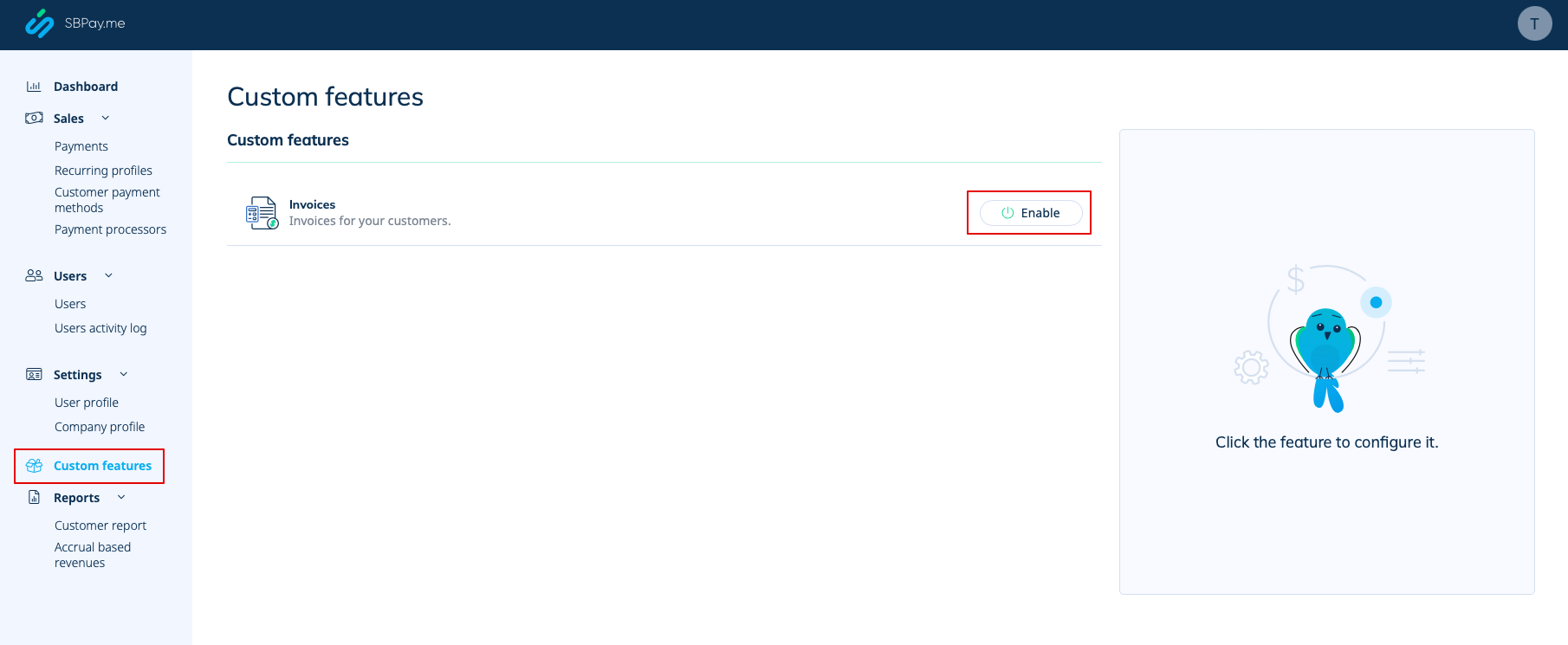
:1. Enable the corresponding option on your "Custom features" page.
[[File:Sbpay invoices enable path.png|1200px|border|center|link=https://help.simplybook.me/images/3/3c/Sbpay_invoices_enable_path.png]]
<br><br>
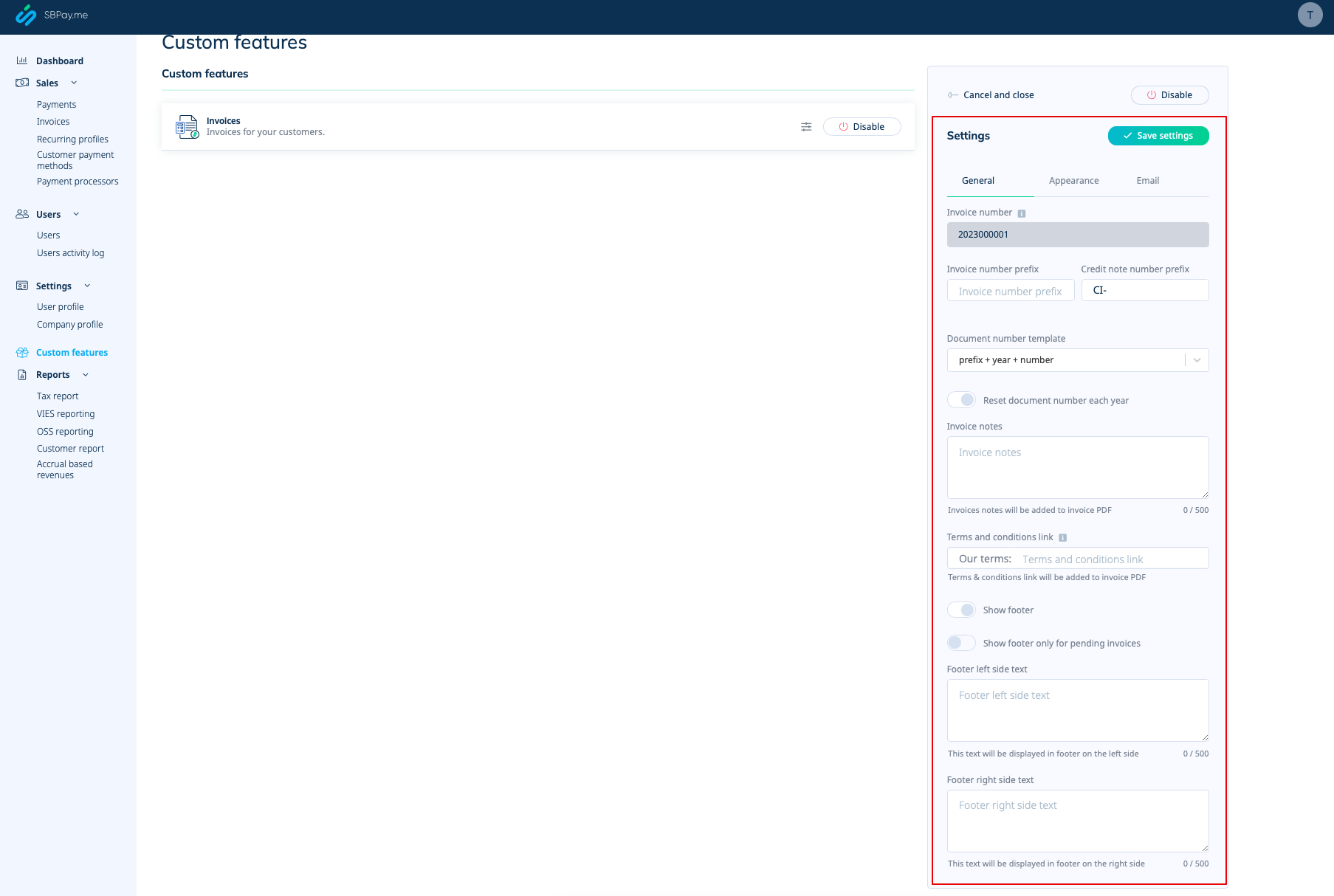
:2. Adjust the general settings to your needs: the invoice and credit note numbering format, add notes, link to your Terms and Conditions and footer information if necessary.
[[File:Sbpay invoices settings.png|1200px|border|center|link=https://help.simplybook.me/images/5/54/Sbpay_invoices_settings.png]]
<br><br>
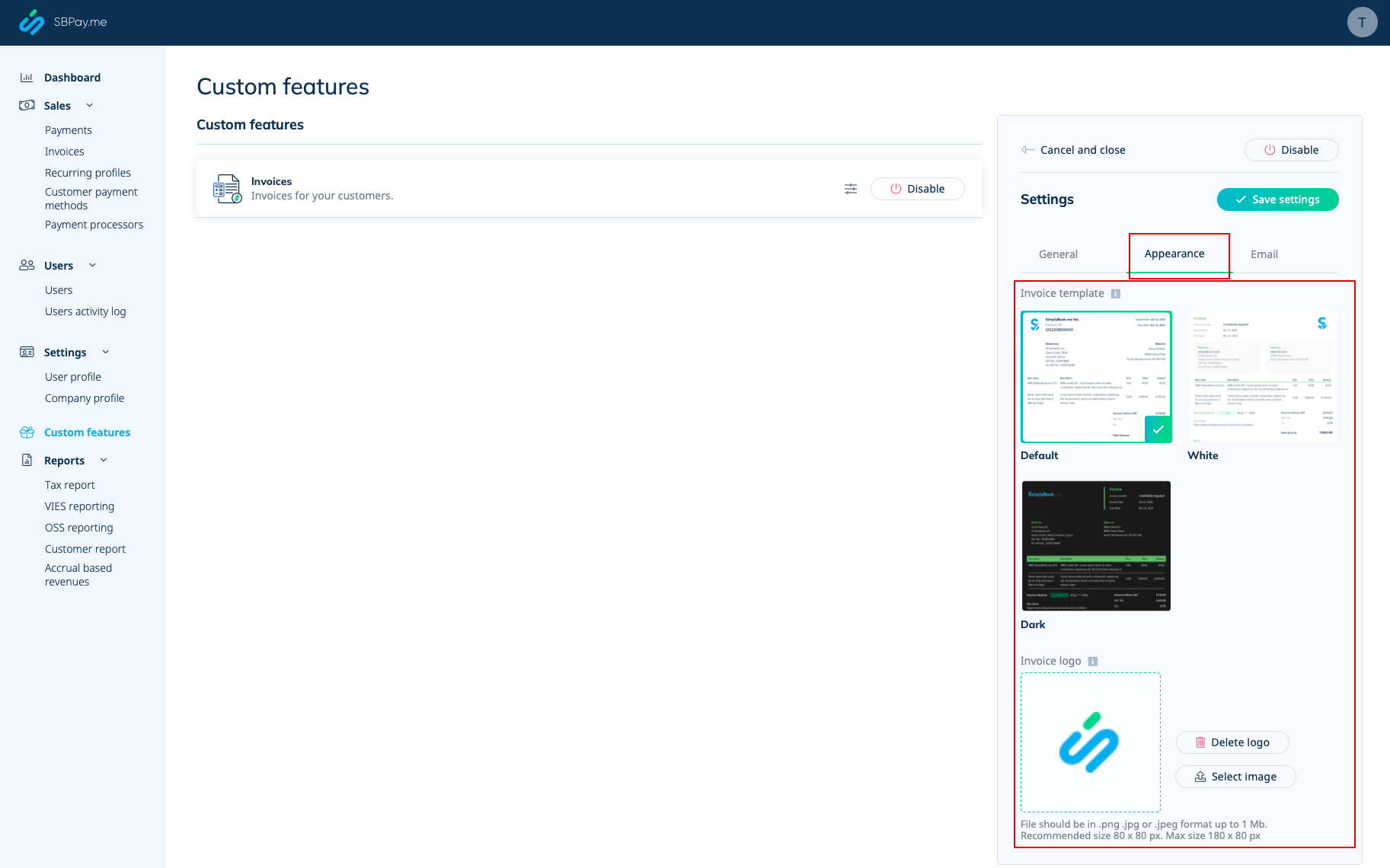
:3. Set the desired look in "Appearance" tab, upload your company logo.
[[File:Sbpay invoice appearance settings.png|1200px|border|center|link=https://help.simplybook.me/images/f/f3/Sbpay_invoice_appearance_settings.png]]
<br><br>
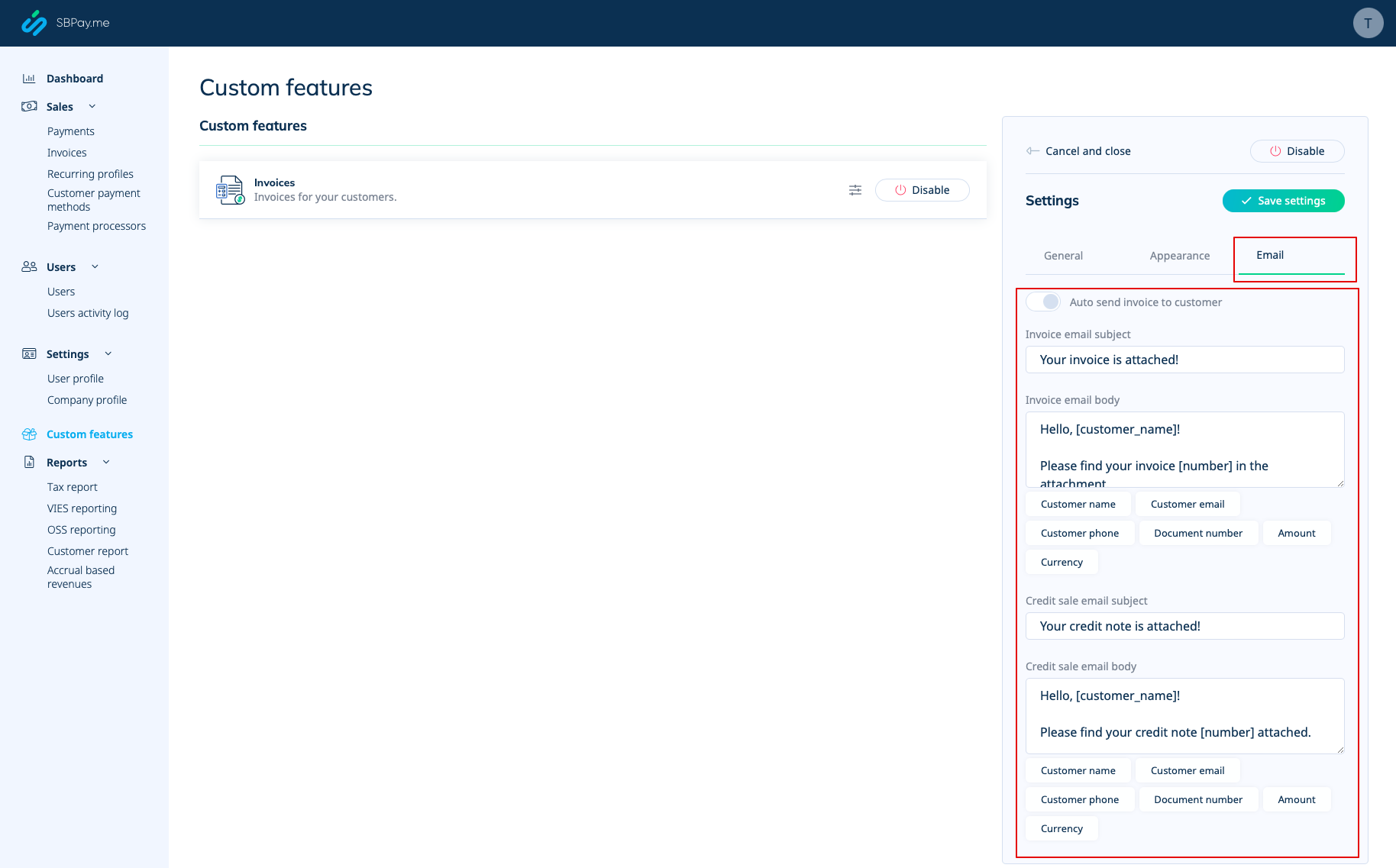
:4. Switch to the third, "Email", tab and set the notifications templates. You can use several variables mentioned below the form. save your settings.
[[File:Sbpay invooices emails settings.png|1200px|border|center|link=https://help.simplybook.me/images/9/91/Sbpay_invooices_emails_settings.png]]
<br><br>
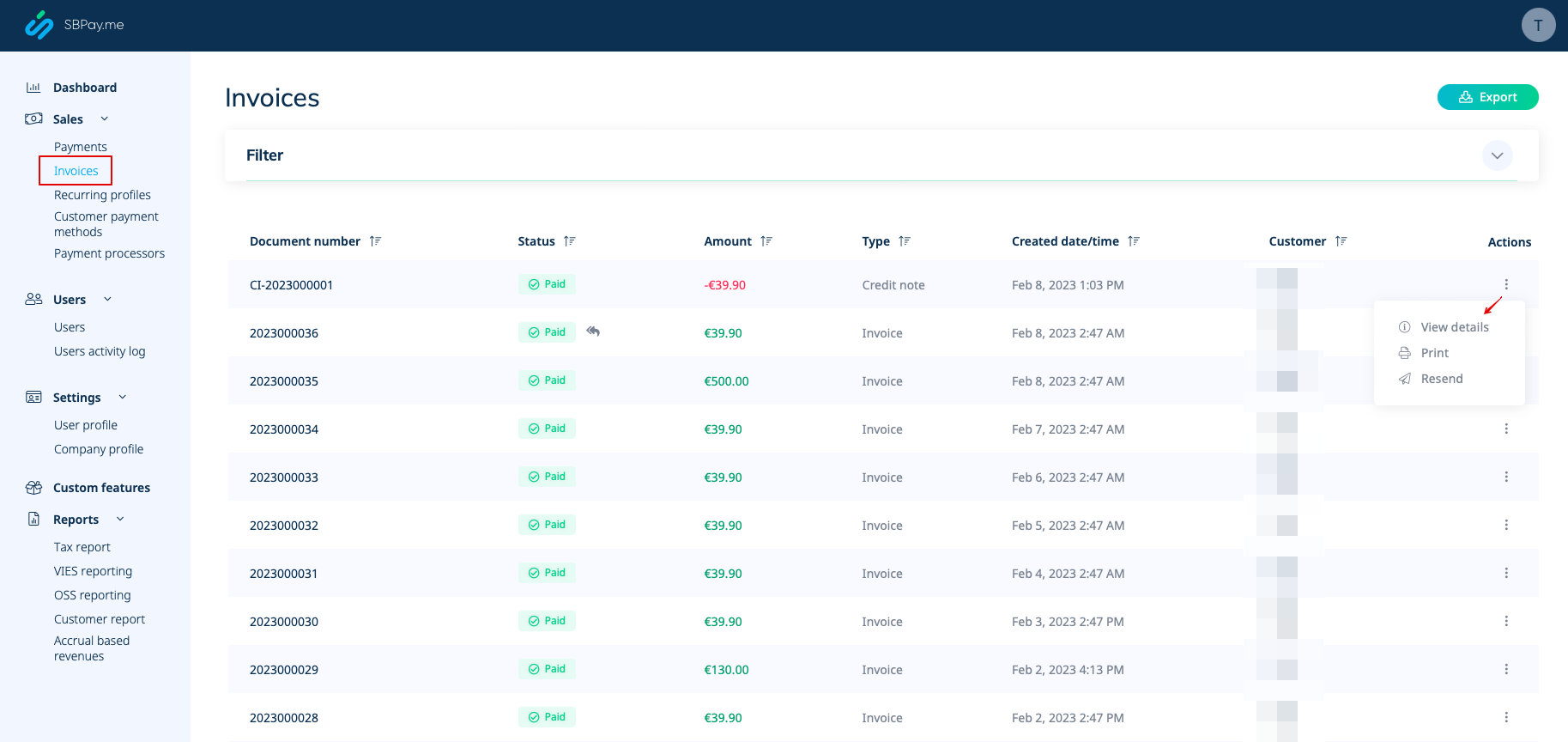
:5. In the Sales -> Invoices you can see the list of created invoices and credits notes. You can resend them to the clients when needed, issue credit notes, print or simply view the details.
[[File:Sbpay invoices report overview.png|1200px|border|center|link=https://help.simplybook.me/images/d/d6/Sbpay_invoices_report_overview.png]]
<br><br>
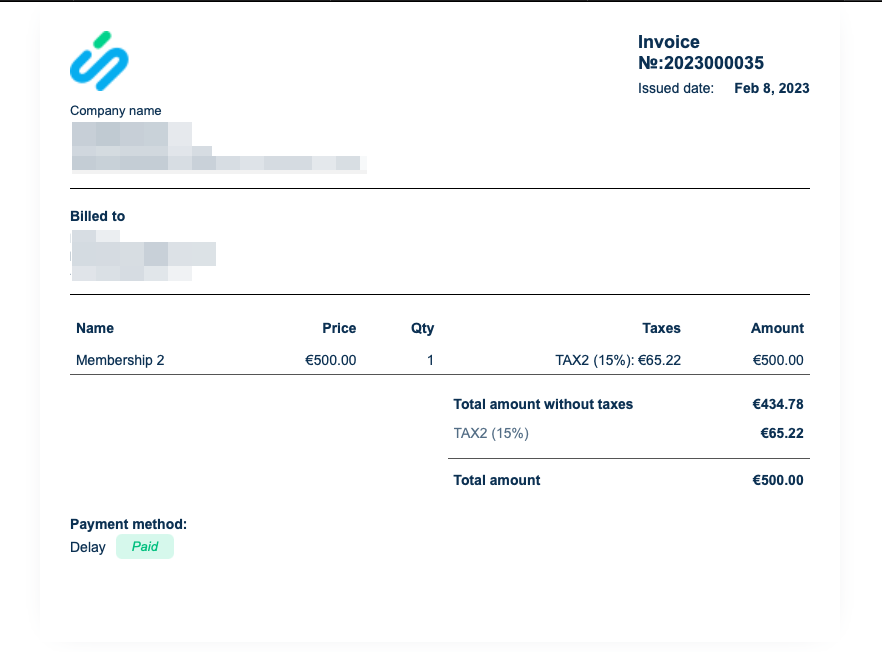
:6. Here is the example of how print invoice version can look like.
[[File:Sbpay invoice example.png|800px|border|center|link=https://help.simplybook.me/images/7/77/Sbpay_invoice_example.png]]
<br><br>
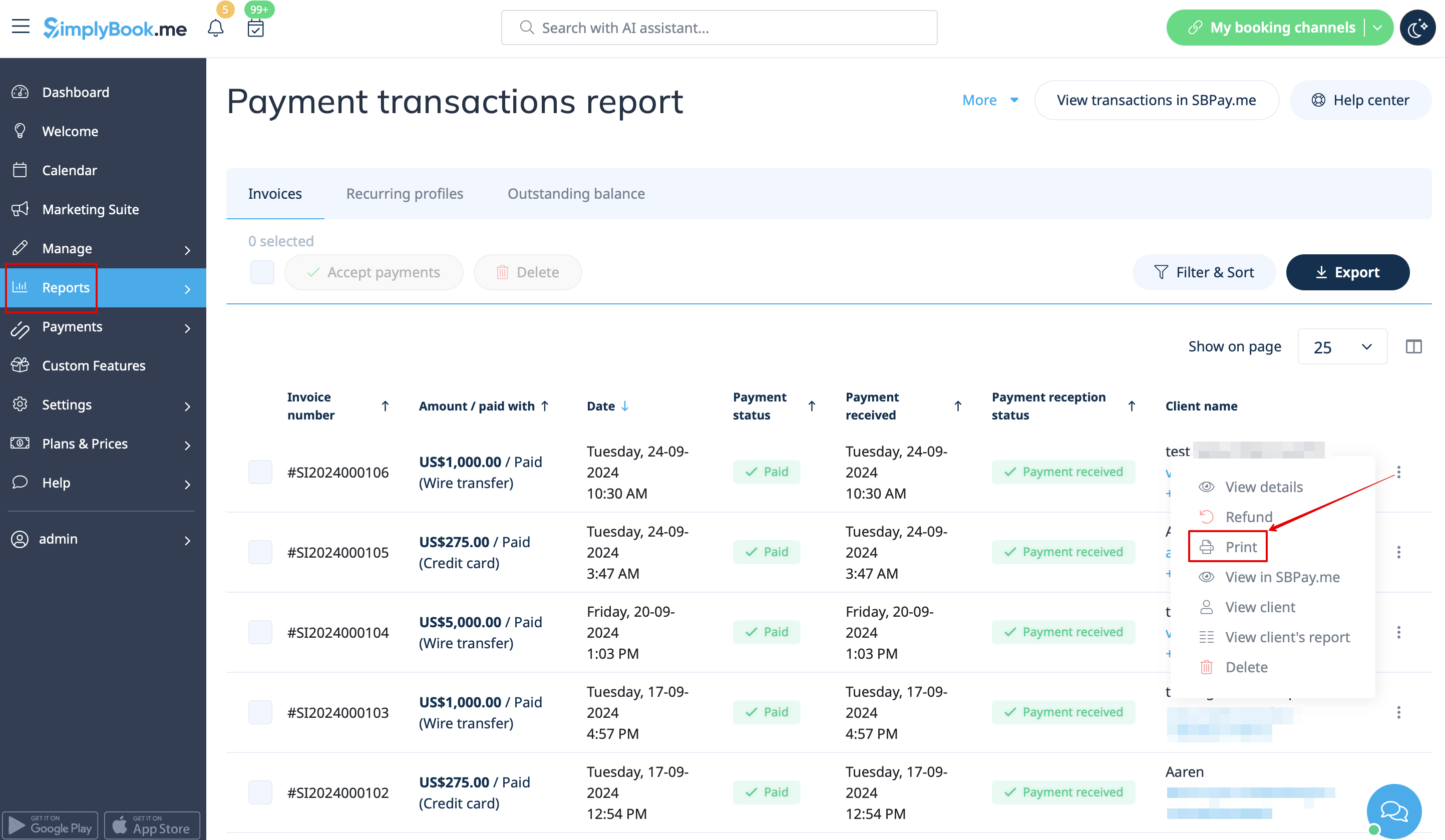
:7. You can also print the invoices directly from the SimplyBook.me system, Reports -> Payment transactions, by selecting the corresponding action per record.
[[File:Print invoice path redesigned.png|1200px|border|center|link=https://help.simplybook.me/images/5/5a/Print_invoice_path_redesigned.png]]
<br><br>
<span style="background-color:#ffe9e9; padding:5px; border-radius:5px;">'''Please note!''' Importing invoices from external platforms directly into the system is not supported. However, SimplyBook.me offers integration options with various accounting software, including [[Special:MyLanguage/Xero_integration| Xero]], [[Special:MyLanguage/QuickBooks_integration| QuickBooks]], and [[Special:MyLanguage/FreshBooks_integration| FreshBooks]]. You can efficiently manage your invoices within your preferred accounting system.</span>
<br><br>

SBPay.me-fakturor

Du kan nu enkelt anpassa fakturainställningarna efter dina behov och skicka dem till dina kunder efter varje köp.

Hur man använder
1. Aktivera motsvarande alternativ på sidan "Anpassade funktioner".


2. Anpassa de allmänna inställningarna efter dina behov: numreringsformat för fakturor och kreditnotor, lägg till anteckningar, länka till dina villkor och fotinformation om det behövs.


3. Ställ in önskat utseende under fliken "Utseende" och ladda upp ditt företagslogotyp.


4. Växla till den tredje fliken, "E-post", och ställ in mallarna för aviseringar. Du kan använda flera variabler som anges under formuläret. Spara dina inställningar.


5. Under Försäljning -> Fakturor kan du se en lista över skapade fakturor och kreditnotor. Du kan skicka dem igen till kunderna vid behov, utfärda kreditnotor, skriva ut eller helt enkelt visa detaljerna.


6. Här är ett exempel på hur en utskriven faktura kan se ut.


7. Du kan också skriva ut fakturorna direkt från SimplyBook.me-systemet, Rapporter -> Betalningstransaktioner, genom att välja motsvarande åtgärd per post.


Observera! Det går inte att importera fakturor från externa plattformar direkt till systemet. SimplyBook.me erbjuder dock integrationsalternativ med olika bokföringsprogram, inklusive Xero, QuickBooks och FreshBooks. Du kan hantera dina fakturor effektivt i ditt bokföringssystem.