Translations:Accept deposits custom feature/2/uk: Difference between revisions

From SimplyBook.me
Created page with ":1. Щоб увімкнути цю функцію, перейдіть на <span style="background-color:#d4f8e5; padding:5px; border-radius:5px;">сторінку «Налаштування»</span>, розділ <span style="background-color:#d4f8e5; padding:5px; border-radius:5px;">«Розширення бізнесу»</span>, натисніть <span style="background-color:#d4f8e5; padding:5px; border-radius:5px;">«Приймати депозити»</span> і п..."
 
(No difference)

Latest revision as of 12:50, 19 May 2025

Information about message (contribute)
This message has no documentation. If you know where or how this message is used, you can help other translators by adding documentation to this message.
Message definition (Accept deposits custom feature)
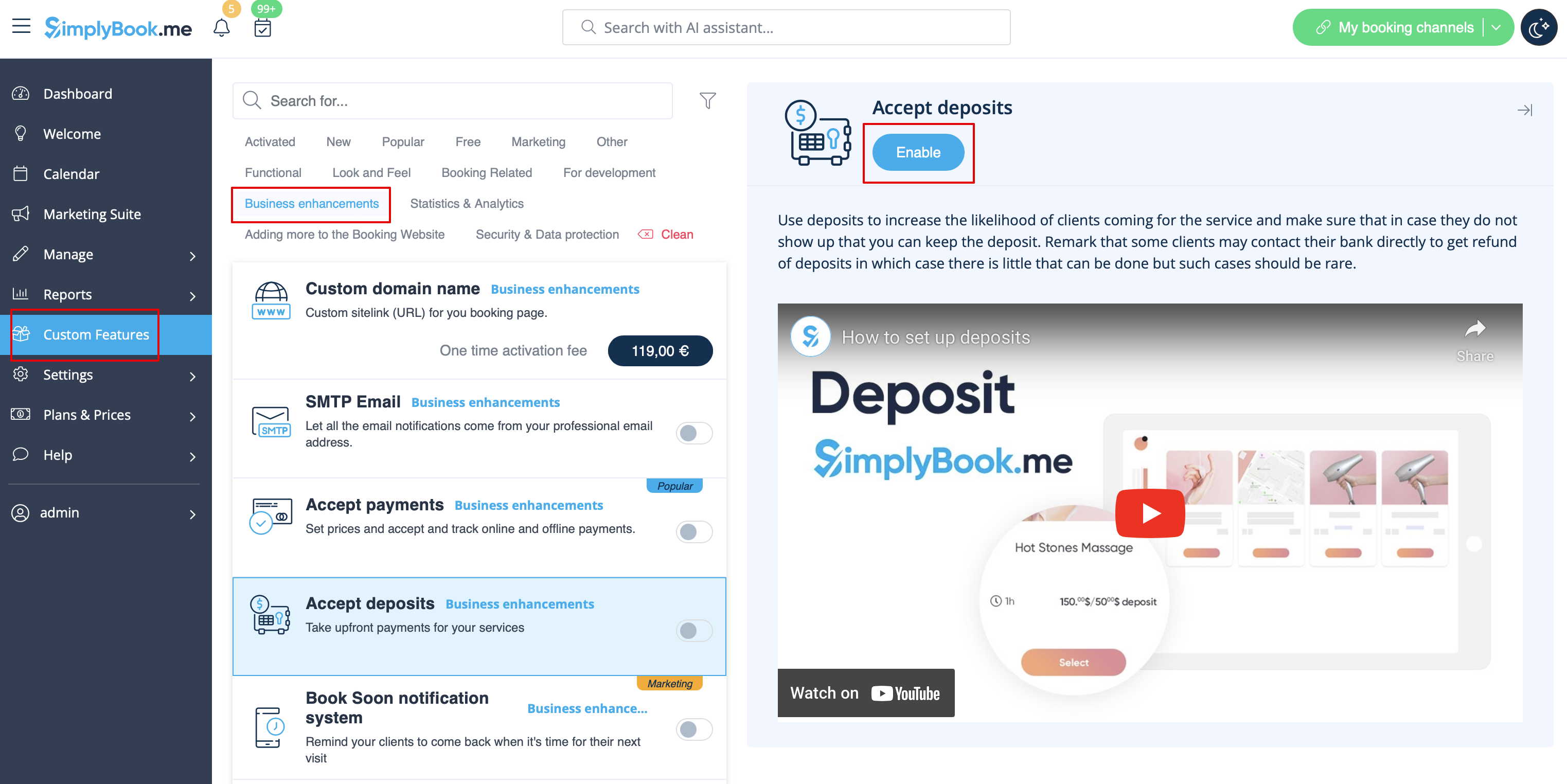
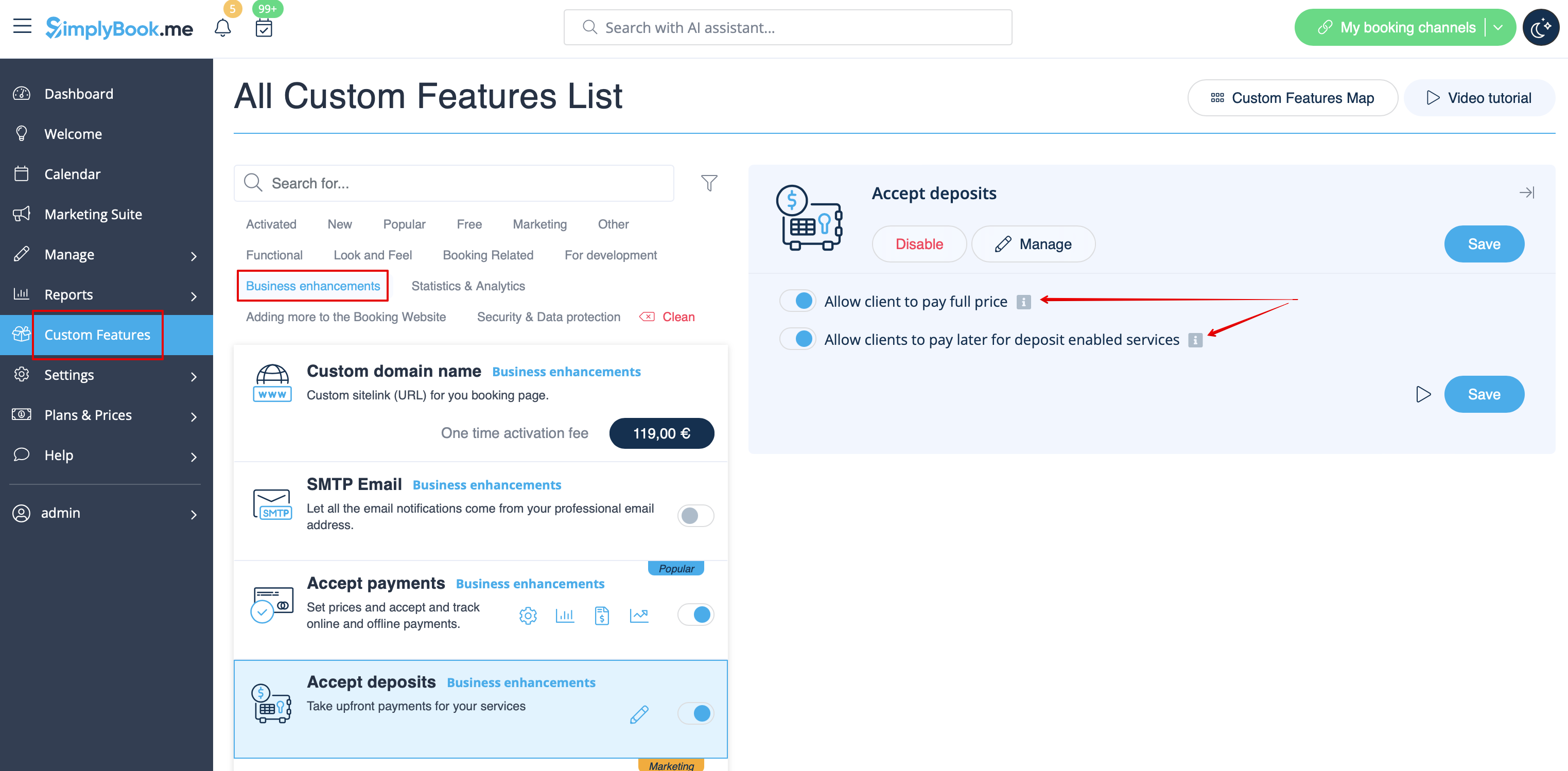
:1. To enable this feature please navigate to <span style="background-color:#d4f8e5; padding:5px; border-radius:5px;">Custom Features</span> page, <span style="background-color:#d4f8e5; padding:5px; border-radius:5px;">Business enhancements</span> section, click on <span style="background-color:#d4f8e5; padding:5px; border-radius:5px;">Accept deposits</span> and either move the switcher to the <span style="background-color:#d4f8e5; padding:5px; border-radius:5px;">On</span> position or hit <span style="background-color:#d4f8e5; padding:5px; border-radius:5px;">Enable</span> button on the right side of the page.
[[File:Accept deposits enable path redesigned.png|1200px |border| center|link=https://help.simplybook.me/images/f/f8/Accept_deposits_enable_path_redesigned.png]]
<br><br>
:2. You can set the system to allow the clients to pay deposits only via booking site by disabling <span style="background-color:#d4f8e5; padding:5px; border-radius:5px;">Allow clients to pay full price</span> option on the right side of the page.<br>
:In this case if deposit amount is indicated per service/<span style="background-color:#cdeffc; padding:5px; border-radius:5px;">[[Special:MyLanguage/Classes_custom_feature|class]]</span> the client will pay that amount to confirm their booking.<br> 
:If only full amount is set per service/class then the clients will pay full price.
:In case <span style="background-color:#d4f8e5; padding:5px; border-radius:5px;">Allow clients to pay full price</span> is enabled(default state) and deposit amount is indicated per service/class the clients will have a choice to pay either full price or deposit at checkout.<br>
As well you can allow or prohibit selcting "Pay later" option for deposit payments.
[[File:Accept payments settings redesigned.png|1200px|border| center|link=https://help.simplybook.me/images/5/5b/Accept_payments_settings_redesigned.png]]
<br><br>
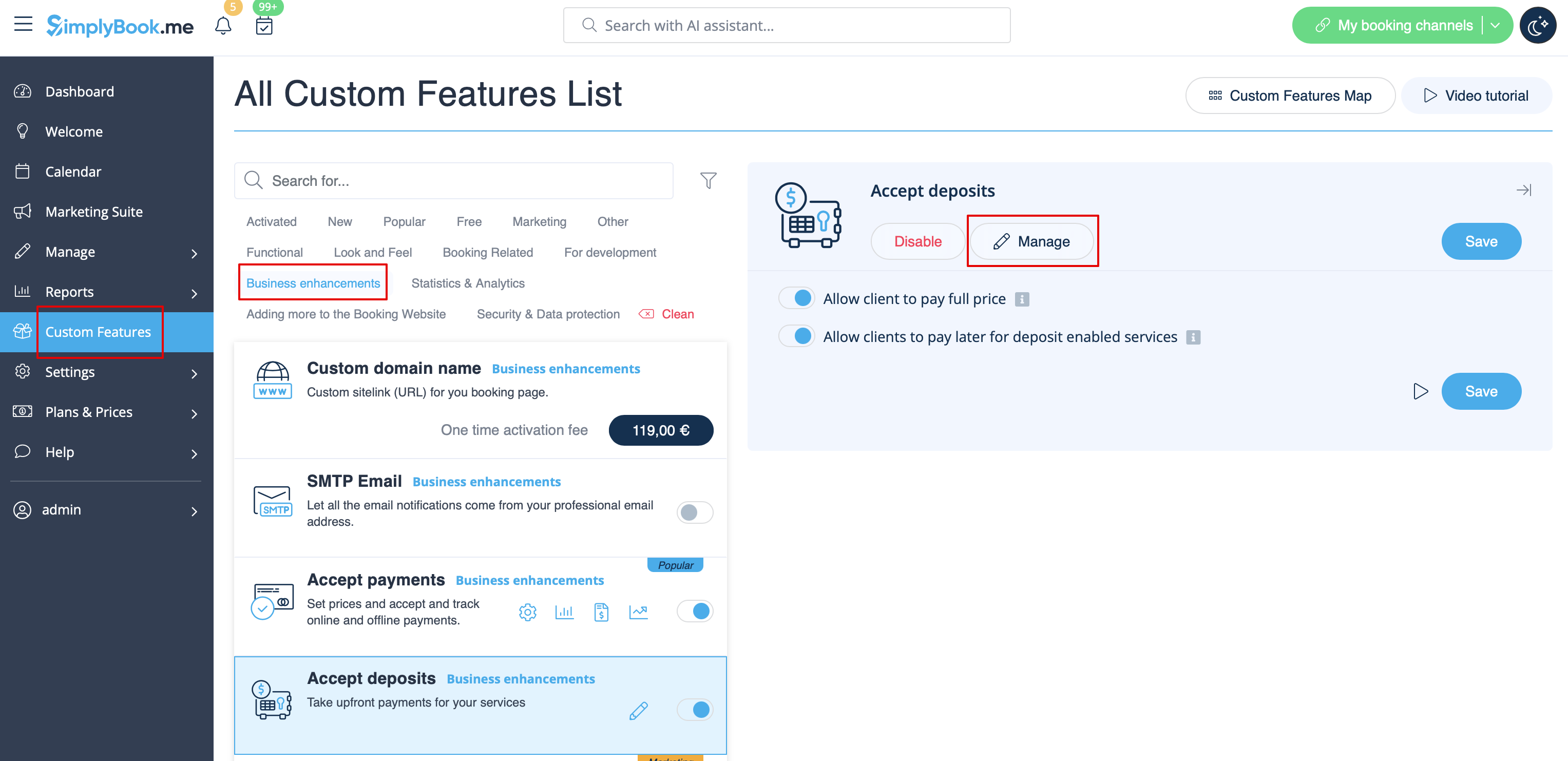
:3. To set deposit amounts per your services please either go to <span style="background-color:#d4f8e5; padding:5px; border-radius:5px;">Manage</span> -> <span style="background-color:#d4f8e5; padding:5px; border-radius:5px;">Services(Classes)</span> or use <span style="background-color:#d4f8e5; padding:5px; border-radius:5px;">Manage</span> button near this custom feature title.
[[File:Accept deposits manage path.png|1200px|border|center|link=https://help.simplybook.me/images/8/80/Accept_deposits_manage_path.png]]
<br><br>
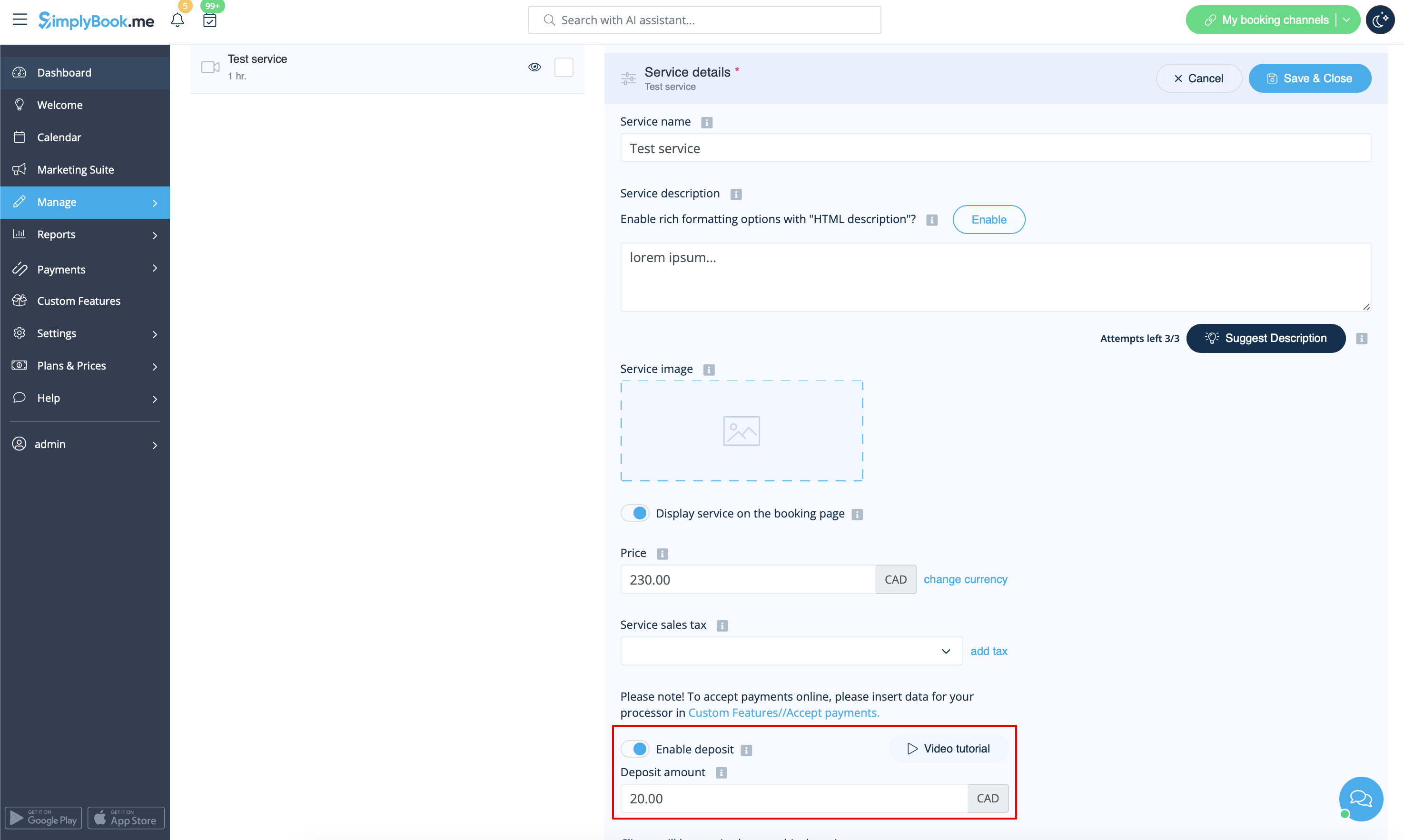
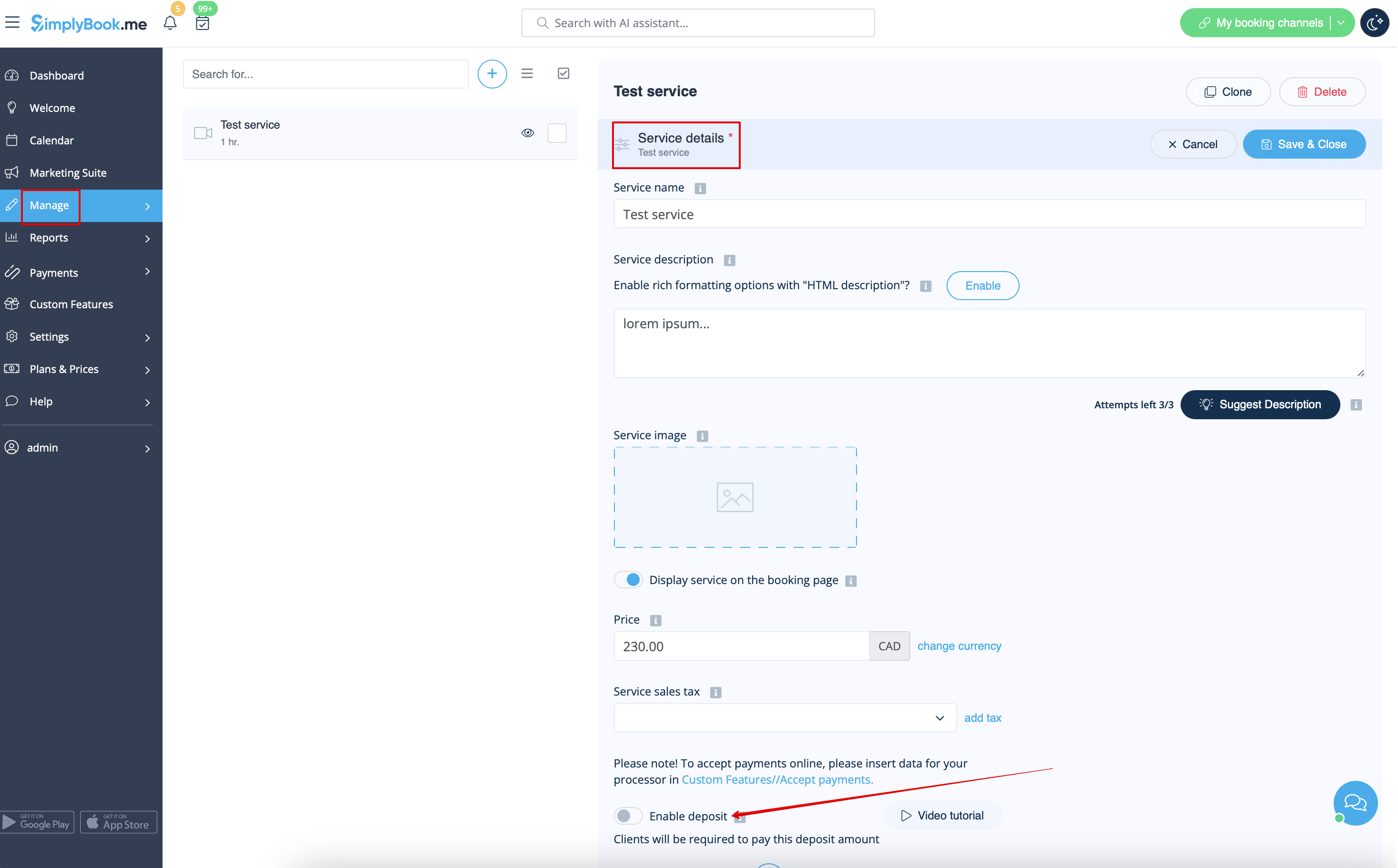
:4. Click on the service/class name for the desired item to open <span style="background-color:#d4f8e5; padding:5px; border-radius:5px;">Service/Class details</span> tab and move <span style="background-color:#d4f8e5; padding:5px; border-radius:5px;">Enable deposit</span> switcher to the active position.
[[File:Enable deposit per service path redesigned.png|1200px|boredr|center|link=https://help.simplybook.me/images/3/3d/Enable_deposit_per_service_path_redesigned.png]]
<br><br>
:5. Indicate the amount you would like to receive as a deposit for this item in the corresponding box(it should be less than actual price, but more than 0) and save settings.
[[File:Deposit amount settings redesigned.png|1200px |border|center|link=https://help.simplybook.me/images/6/69/Deposit_amount_settings_redesigned.png]]
<br><br>
:6. After you save all the settings the services will have two prices displayed on the booking site: full amount and deposit.
[[File:Deposits booking site vew upd.png|1200px |border|center]]
<br><br>
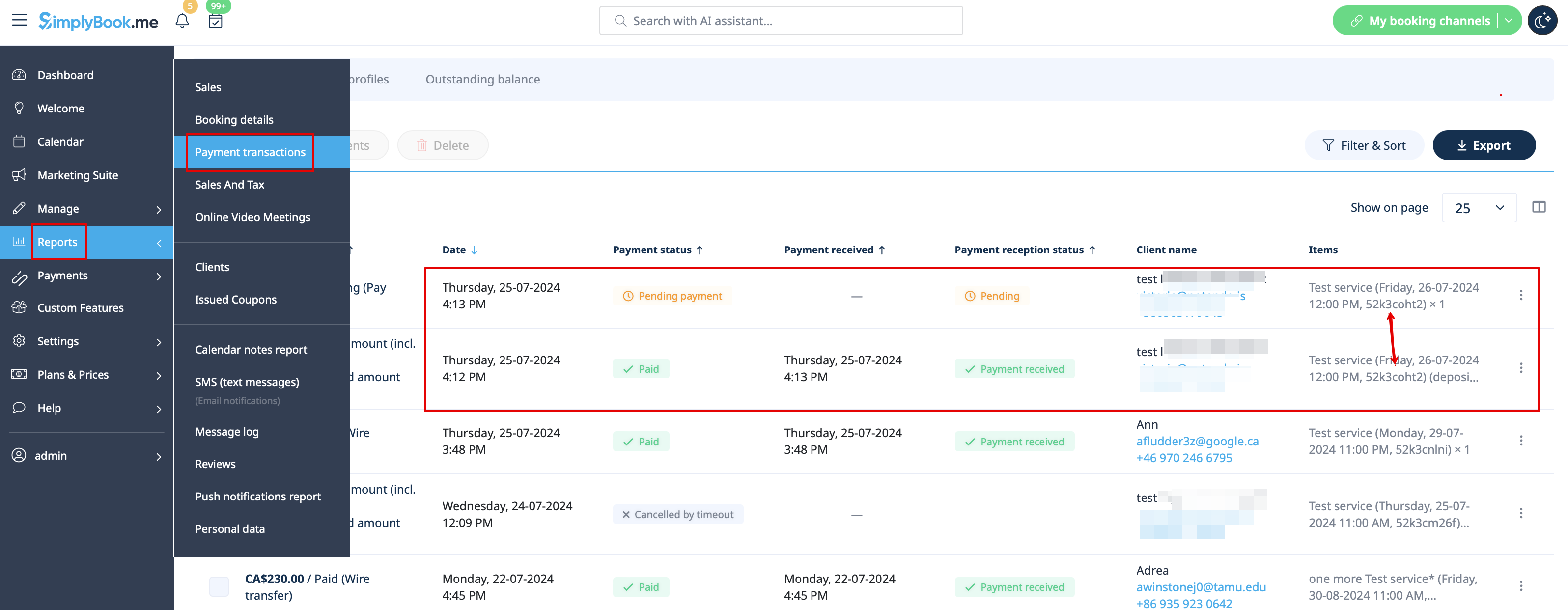
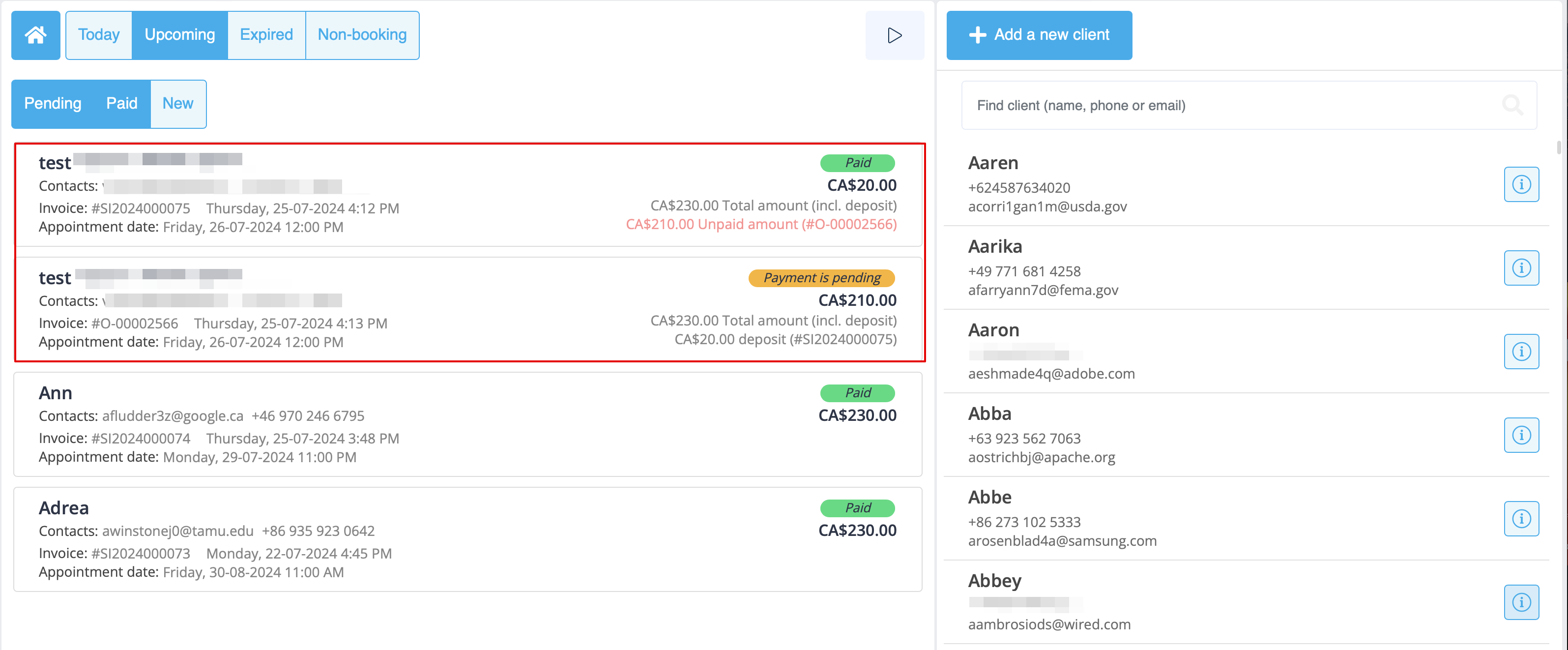
:7. When the clients pay the deposit amount online to confirm their booking two orders/invoices will be created in the system: one for the deposit and the second for the rest amount<br>
:(it will be shown as pending till the client pays at the place of appointment and you manually approve it).<br>
:You can manage them in <span style="background-color:#d4f8e5; padding:5px; border-radius:5px;">Reports</span> -> <span style="background-color:#d4f8e5; padding:5px; border-radius:5px;">Payment transactions.</span>
[[File:Deposit &remainder invoices in the report redesigned.png|1200px|border| center|link=https://help.simplybook.me/images/7/7d/Deposit_%26remainder_invoices_in_the_report_redesigned.png]]
<br><br>
:Or via <span style="background-color:#cdeffc; padding:5px; border-radius:5px;">[[Special:MyLanguage/Point_of_Sale_custom_feature|Point of Sale]]</span> interface:
[[File:Deposit invoices in pos updated.png|1200px|border|center|link=https://help.simplybook.me/images/d/d7/Deposit_invoices_in_pos_updated.png]]
<br><br><br><br>
1. Щоб увімкнути цю функцію, перейдіть на сторінку «Налаштування», розділ «Розширення бізнесу», натисніть «Приймати депозити» і переведіть перемикач у положення «Увімкнути» або натисніть кнопку «Увімкнути» у правій частині сторінки.


2. Ви можете налаштувати систему так, щоб клієнти могли сплачувати депозити тільки через сайт бронювання, вимкнувши опцію «Дозволити клієнтам сплачувати повну вартість» у правій частині сторінки.
У цьому випадку, якщо сума депозиту вказана запослугу/клас, клієнт сплатить цю суму для підтвердження бронювання.
Якщо для послуги/класу встановлено тільки повну суму, клієнти сплачуватимуть повну вартість.
Якщо опція «Дозволити клієнтам сплачувати повну вартість» увімкнена (стан за замовчуванням) і сума депозиту вказана для кожної послуги/класу, клієнти матимуть можливість сплатити повну вартість або депозит під час оформлення замовлення.

Ви також можете дозволити або заборонити вибір опції «Сплатити пізніше» для оплати застави.


3. Щоб встановити суми застави за ваші послуги, перейдіть до «Управління» -> «Послуги (класи) » або скористайтеся кнопкою «Управління» поруч із назвою цієї налаштованої функції.


4. Натисніть на назву послуги/класу для потрібного елемента, щоб відкрити вкладку «Деталі послуги/класу», і переведіть перемикач «Увімкнути депозит» в активне положення.
boredr
boredr


5. Вкажіть суму, яку ви хочете отримати як депозит за цей елемент, у відповідному полі (вона повинна бути меншою за фактичну ціну, але більшою за 0) і збережіть налаштування.


6. Після збереження всіх налаштувань на сайті бронювання для послуг буде відображатися дві ціни: повна вартість та застава.


7. Коли клієнти сплачують заставу онлайн для підтвердження бронювання, в системі створюється два замовлення/рахунки: одне для застави, а друге для решти суми
(воно буде відображатися як очікує оплати, доки клієнт не сплатить на місці зустрічі і ви не затвердите його вручну).
Ви можете керувати ними в розділі «Звіти» -> «Платіжні операції».
Або через інтерфейс точки продажу: