Translations:Coupons and Gift Cards custom feature/2/uk: Difference between revisions

From SimplyBook.me
Created page with ";Як користуватися :1. Увімкніть цю спеціальну функцію в розділі «Розширення бізнесу» на сторінці «Спеціальні функції». 1200px| center|link=https://help.simplybook.me/images/6/65/Coupons_and_gift_cards_enable_path_redesigned.png <br><br> :2. Перейдіть до «Керувати» праворуч або пер..."
 
(No difference)

Latest revision as of 14:40, 19 May 2025

Information about message (contribute)
This message has no documentation. If you know where or how this message is used, you can help other translators by adding documentation to this message.
Message definition (Coupons and Gift Cards custom feature)
;How to use
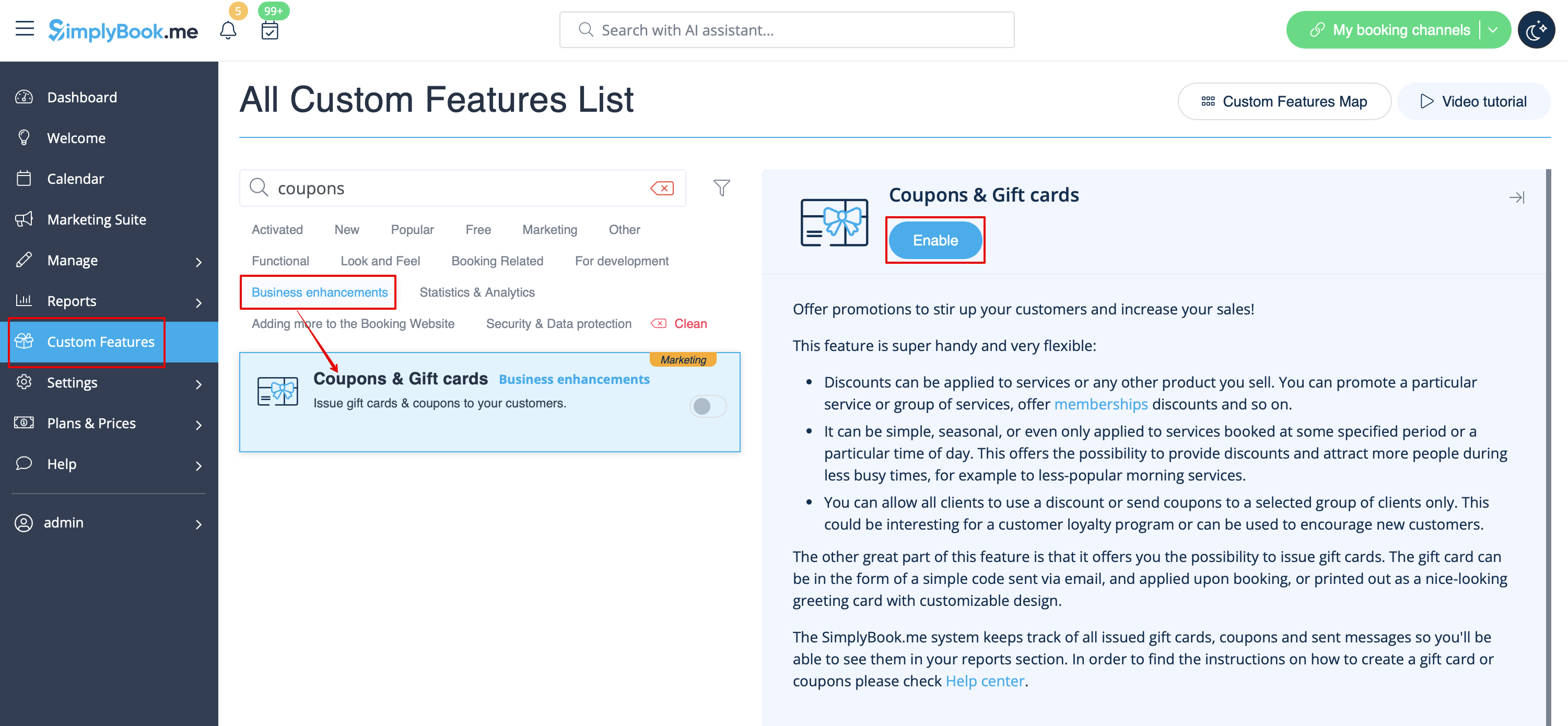
:1. Enable this custom feature in Business Enhancements section of your Custom Features page.
[[File:Coupons and gift cards enable path redesigned.png|1200px| center|link=https://help.simplybook.me/images/6/65/Coupons_and_gift_cards_enable_path_redesigned.png]]
<br><br>
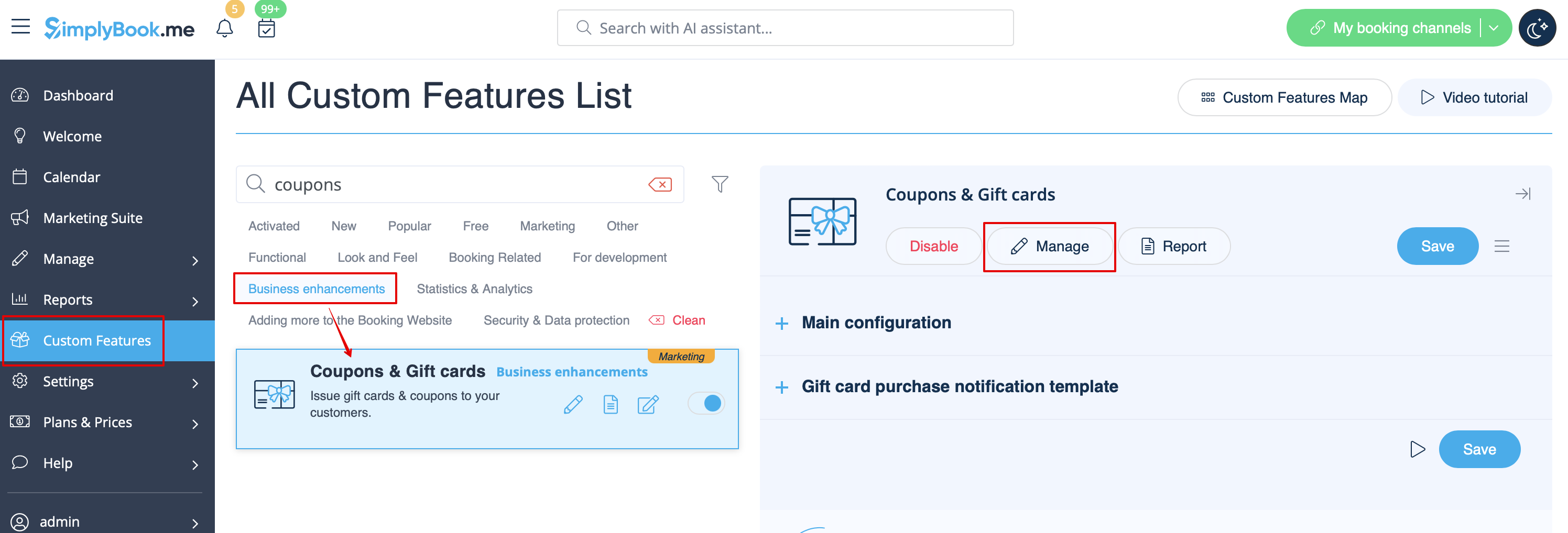
:2. Navigate to "Manage" on the right or go to Manage//Coupons and Gift Cards.
[[File:Coupons and gift cards settings path redesigned.png|1200px | center|link=https://help.simplybook.me/images/9/90/Coupons_and_gift_cards_settings_path_redesigned.png]]
<br><br>
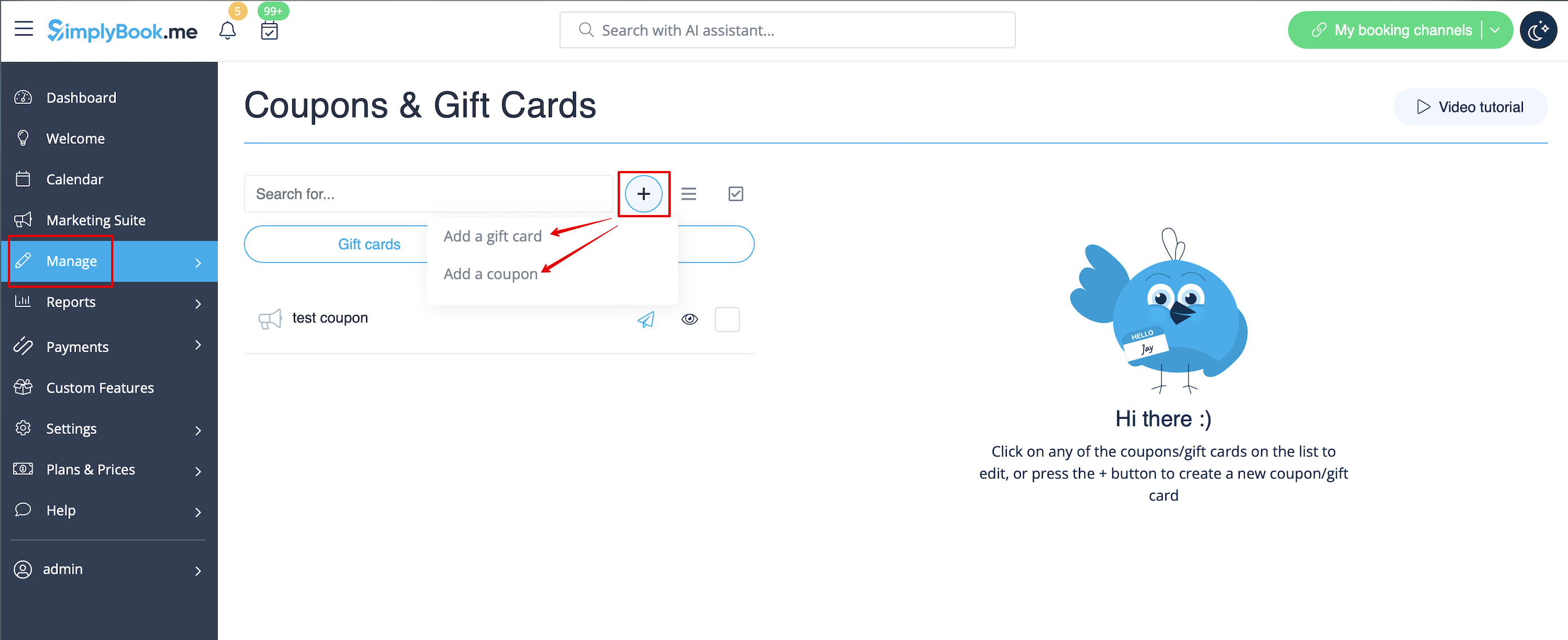
:3. Click on "+" icon to create a promotion or a gift card.
[[File:Create promotion path redesigned.png|1200px | center|link=https://help.simplybook.me/images/8/84/Create_promotion_path_redesigned.png]]
<br><br>
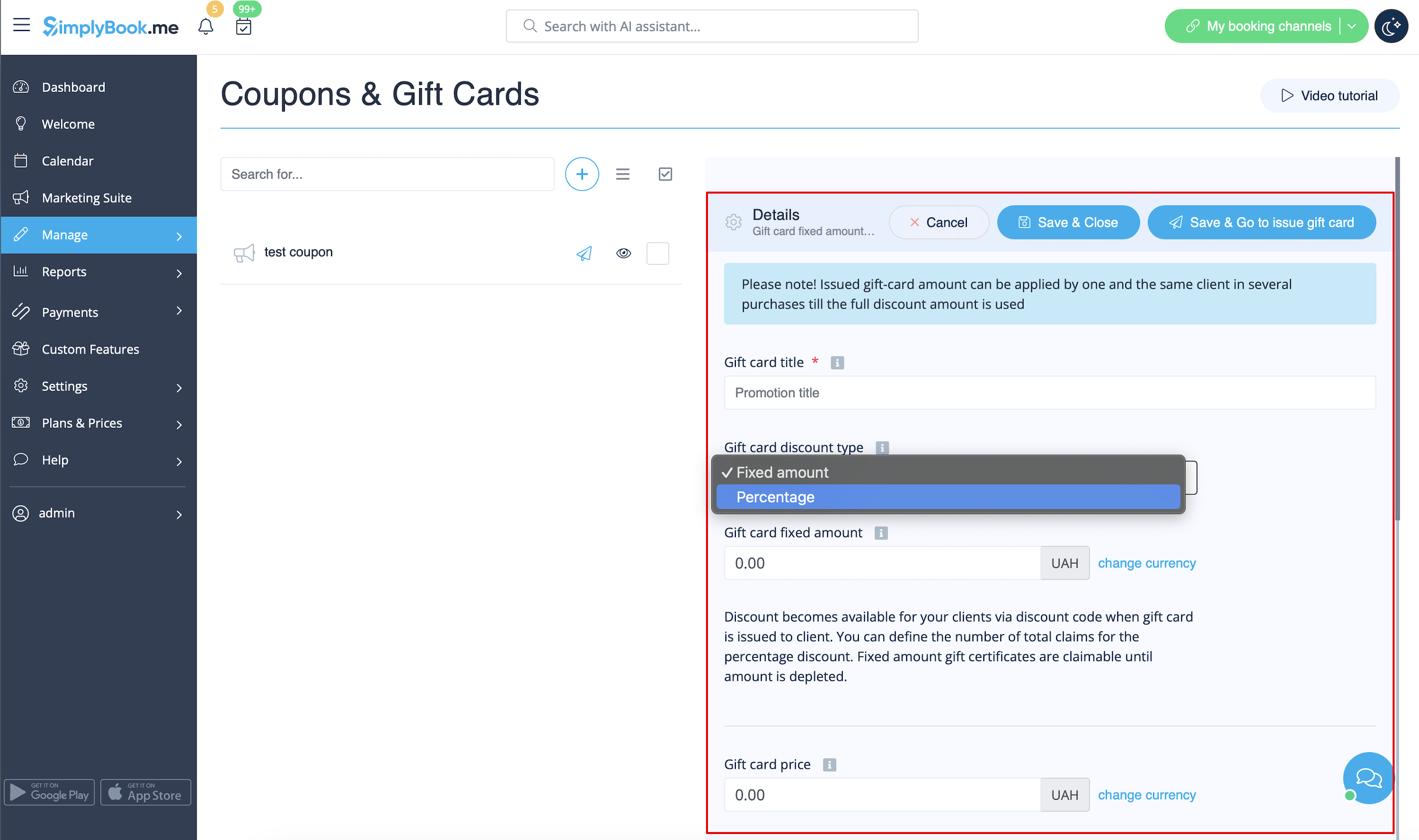
:4. Fill in main details in the menu that appears on the right side.
[[File:Gift card main details redesigned.png|1200px| center|link=https://help.simplybook.me/images/c/c4/Gift_card_main_details_redesigned.png]]
<br><br>
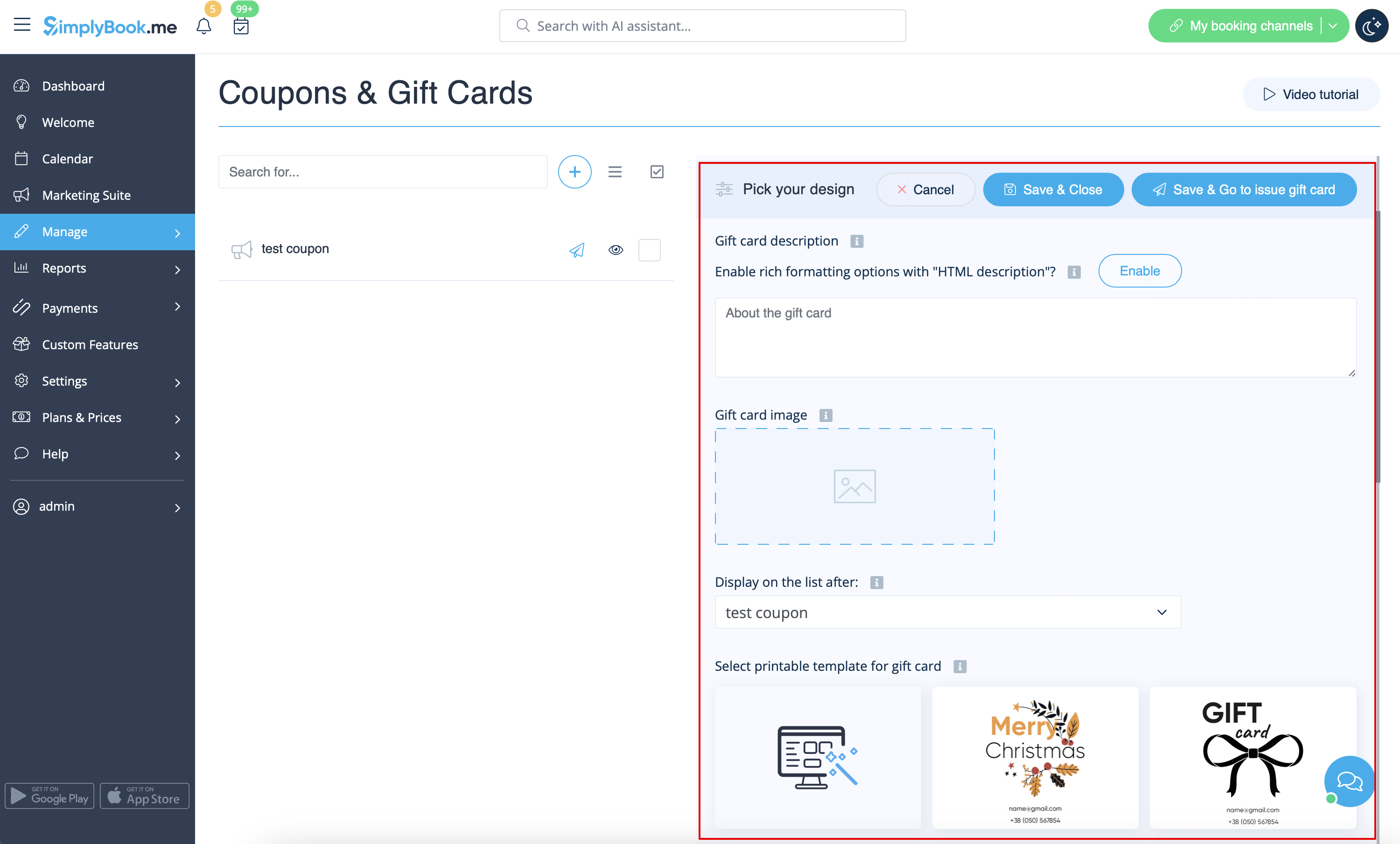
:5. Add details that your clients will see.
[[File:Promotion settings for client side redesigned.png|1200px| center|link=https://help.simplybook.me/images/7/70/Promotion_settings_for_client_side_redesigned.png]]
<br><br>
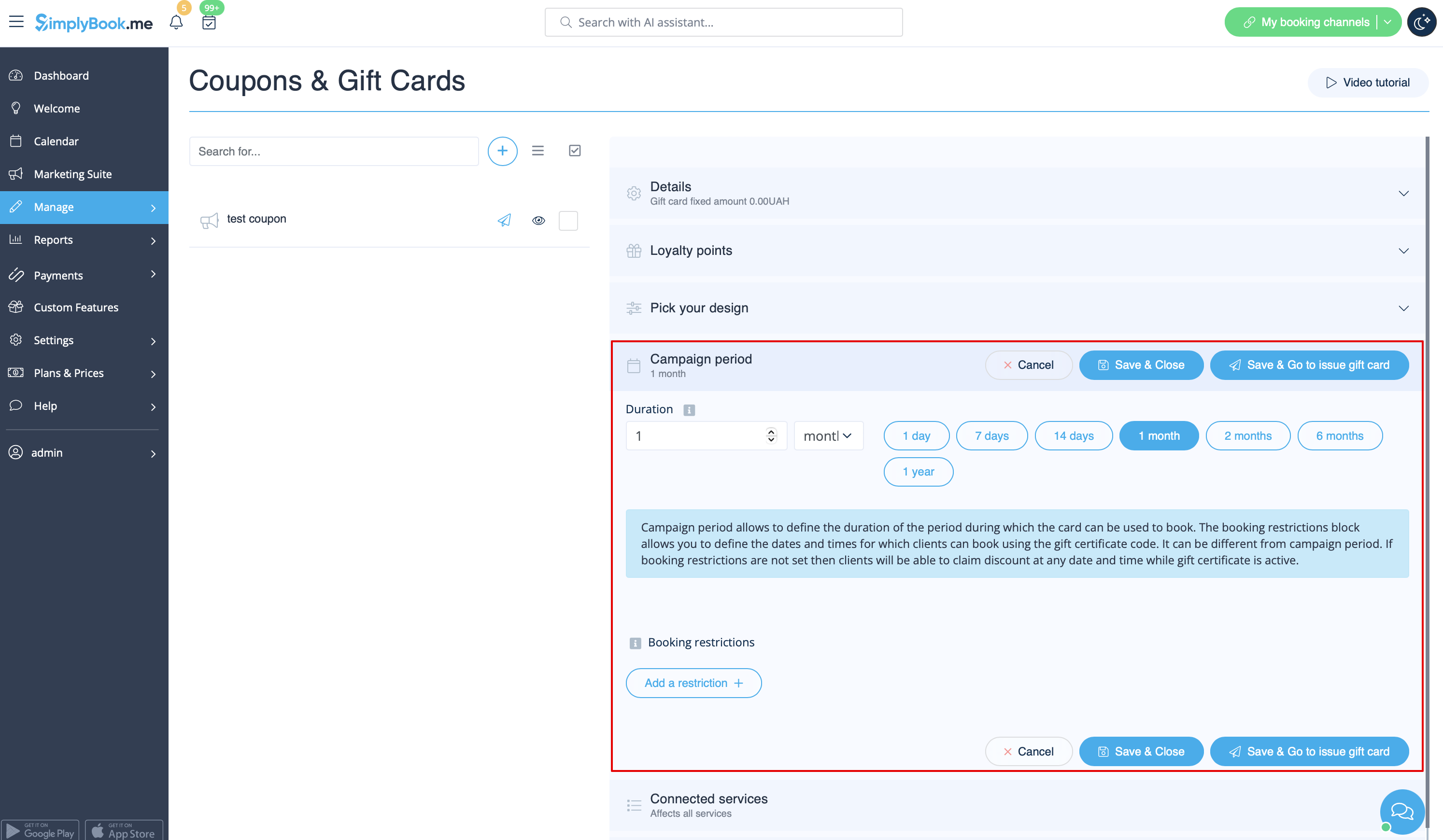
:6. (optional) Set the period when promotion or gift card will be valid.
[[File:Campaign period settings redesigned.png|1200px | center|link=https://help.simplybook.me/images/f/f6/Campaign_period_settings_redesigned.png]]
<br><br>
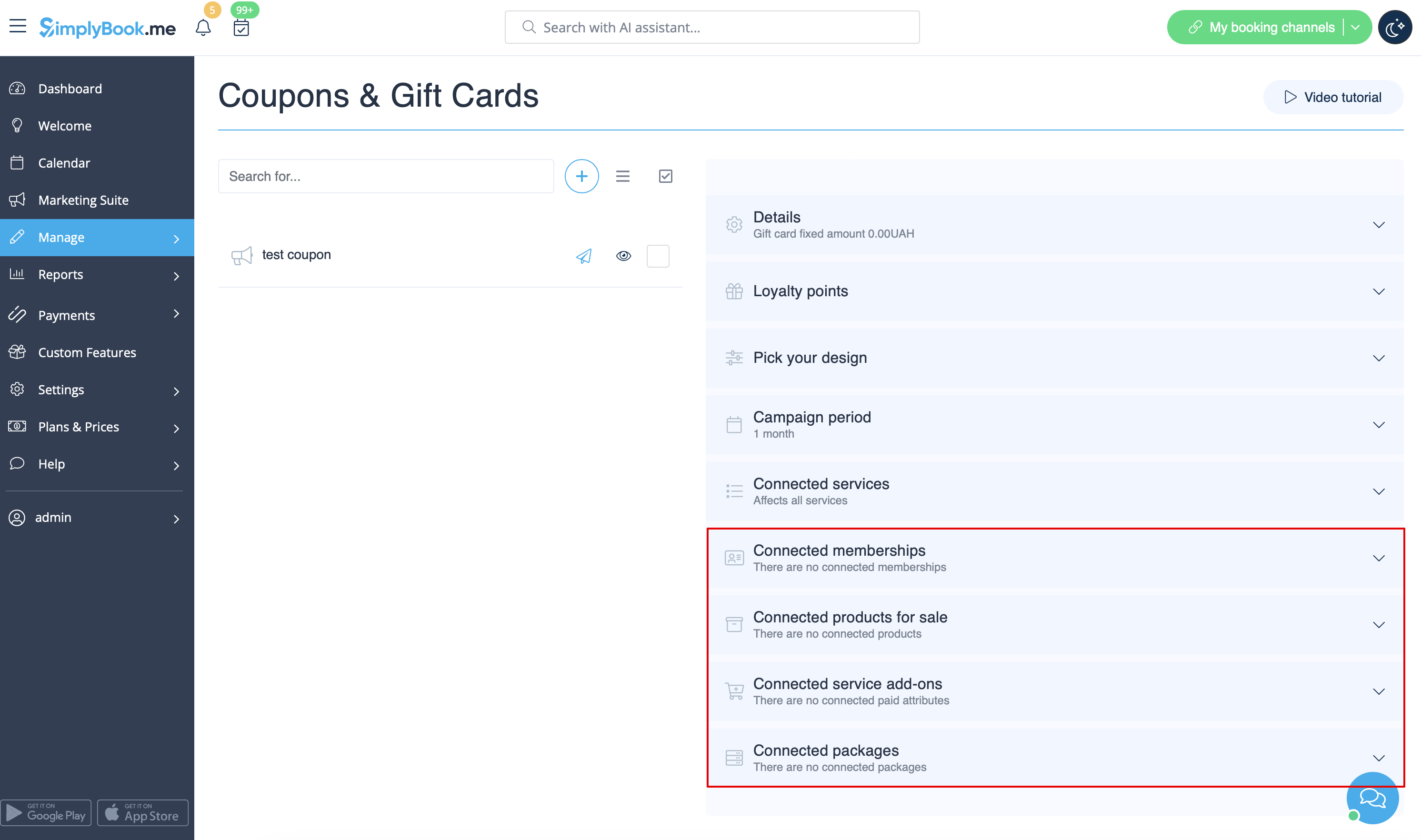
:7. As well you can connect your promotion/gift card to specific service(s), membership(s), product(s) for sale and/or service add-on(s).<br>
:(By default, it will be connected to all services/classes you have)
[[File:Connect promotion to items redesigned.png|1200px| center|link=https://help.simplybook.me/images/1/16/Connect_promotion_to_items_redesigned.png]]
<br><br>
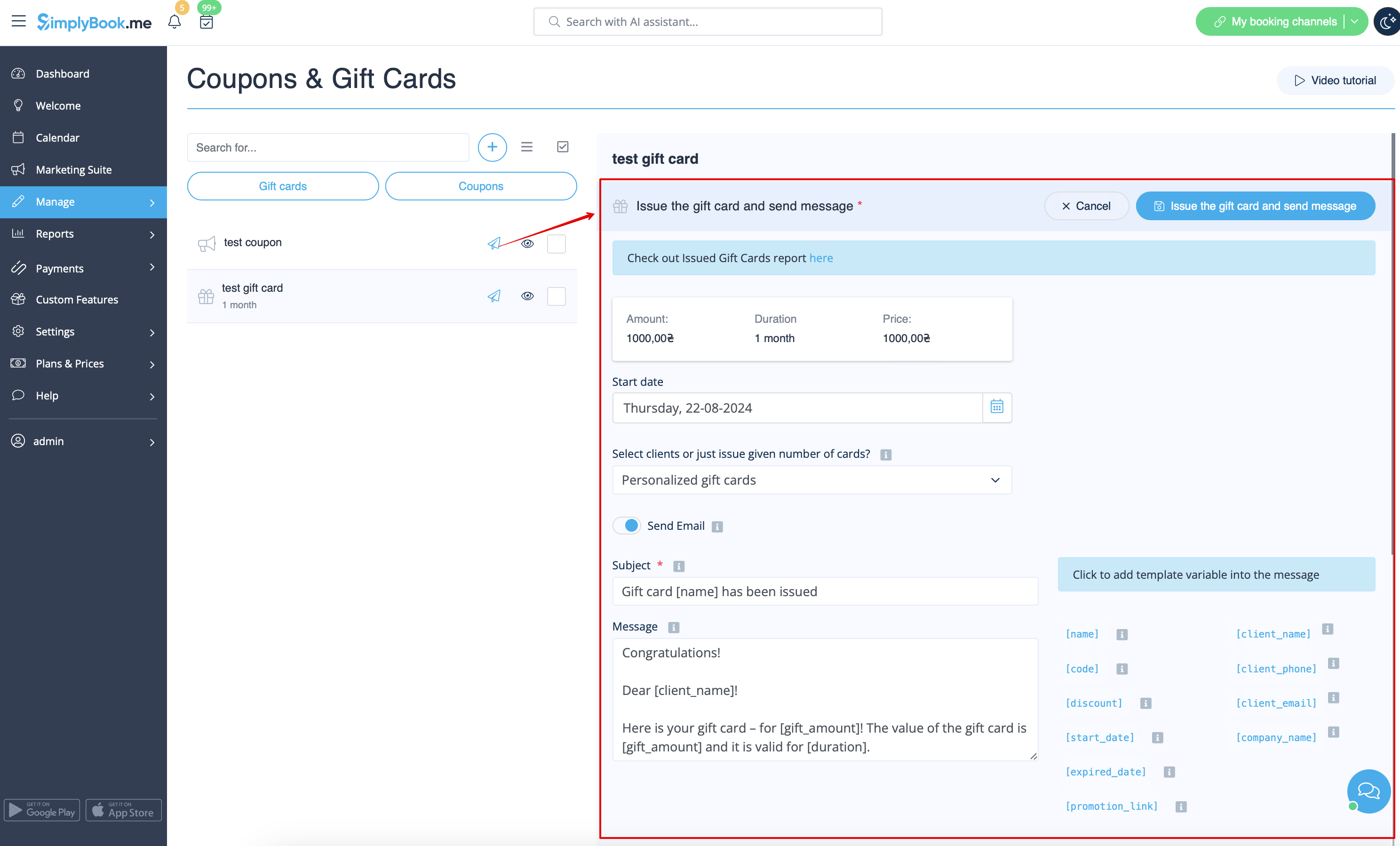
:8. Save your settings. If necessary you can now issue the gift cards and/or send promotion messages to your existing customers by clicking on the "Issue gift card"/"Send coupon message" button near the desired item.<br>
:Or create a batch of non-personalized gift cards there.<br>
[[File:Send promotion to customers redesigned.png|1200px | center|link=https://help.simplybook.me/images/f/f1/Send_promotion_to_customers_redesigned.png]]
<br><br>
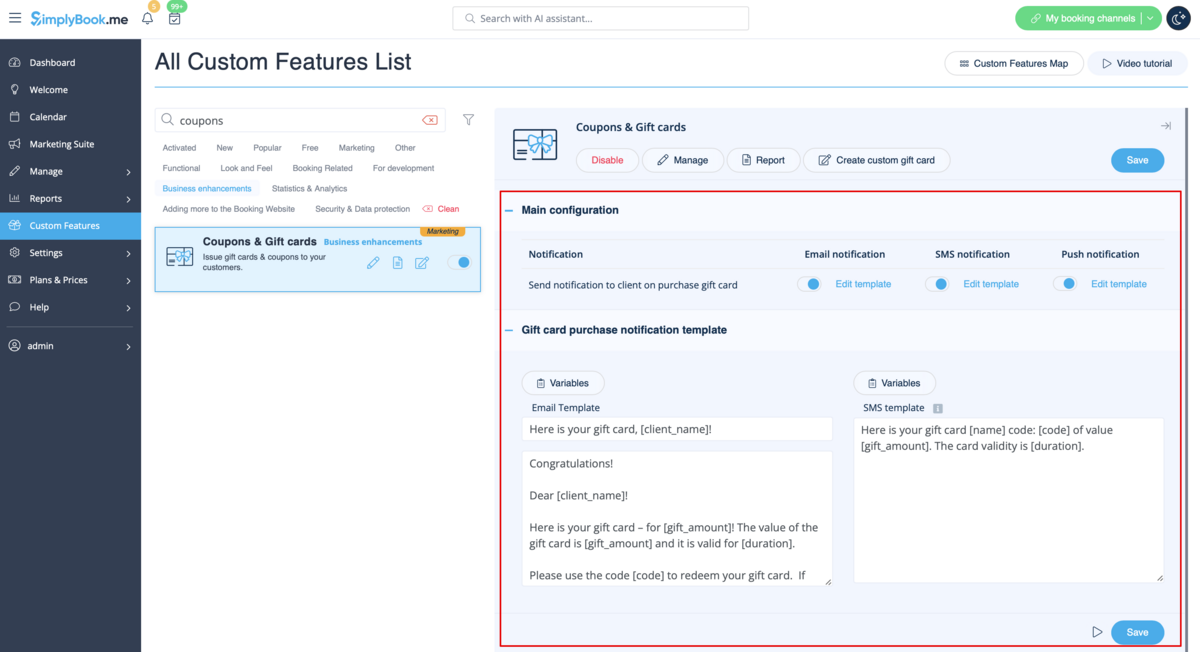
:9. You can also set templates for clients to receive email and/or SMS notifications when they purchase a gift-card themselves on the booking site.
:To do that please navigate to Custom features//Coupons and Gift Cards, right side of the page.
[[File:Gift cards notifications settings redesigned.png|1200px | center|link=https://help.simplybook.me/images/8/86/Gift_cards_notifications_settings_redesigned.png]]
<br><br>
Як користуватися
1. Увімкніть цю спеціальну функцію в розділі «Розширення бізнесу» на сторінці «Спеціальні функції».


2. Перейдіть до «Керувати» праворуч або перейдіть до «Керувати//Купони та подарункові картки».


3. Натисніть на значок «+», щоб створити акцію або подарункову картку.


4. Заповніть основні дані в меню, що з'явиться праворуч.


5. Додайте деталі, які бачитимуть ваші клієнти.


6. (опціонально) Встановіть період дії акції або подарункової картки.


7. Ви також можете пов'язати свою акцію/подарункову картку з конкретними послугами, членством, продуктами для продажу та/або додатковими послугами.
(За замовчуванням вони будуть пов'язані з усіма вашими послугами/класами)


8. Збережіть налаштування. За необхідності ви можете видати подарункові картки та/або надіслати повідомлення про акцію своїм існуючим клієнтам, натиснувши кнопку «Видати подарункову картку»/«Надіслати повідомлення про купон» біля потрібного товару.
Або створіть там партію неперсоналізованих подарункових карток.


9. Ви також можете встановити шаблони для клієнтів, щоб вони отримували повідомлення електронною поштою та/або SMS, коли вони самостійно купують подарункову картку на сайті бронювання.
Для цього перейдіть до
«Налаштування»//«Купони та подарункові картки» у правій частині сторінки.