Translations:Custom Page custom feature/3/sv: Difference between revisions

From SimplyBook.me
Created page with ":1. Aktivera funktionen "Anpassad sida" på ''sidan Anpassade funktioner -> Lägga till mer i avsnittet Bokningssida''. 1200px| center|link=https://help.simplybook.me/images/5/54/Custom_page_enable_path_redesigned.png <br><br> :2. Gå till "Hantera" för att ställa in önskade sidor. File:Custom page settings path redesigned.png|1200px | center|link=https://help.simplybook.me/images/e/ee/Custom_page_settings_path_red..."
 
(No difference)

Latest revision as of 14:46, 19 May 2025

Information about message (contribute)
This message has no documentation. If you know where or how this message is used, you can help other translators by adding documentation to this message.
Message definition (Custom Page custom feature)
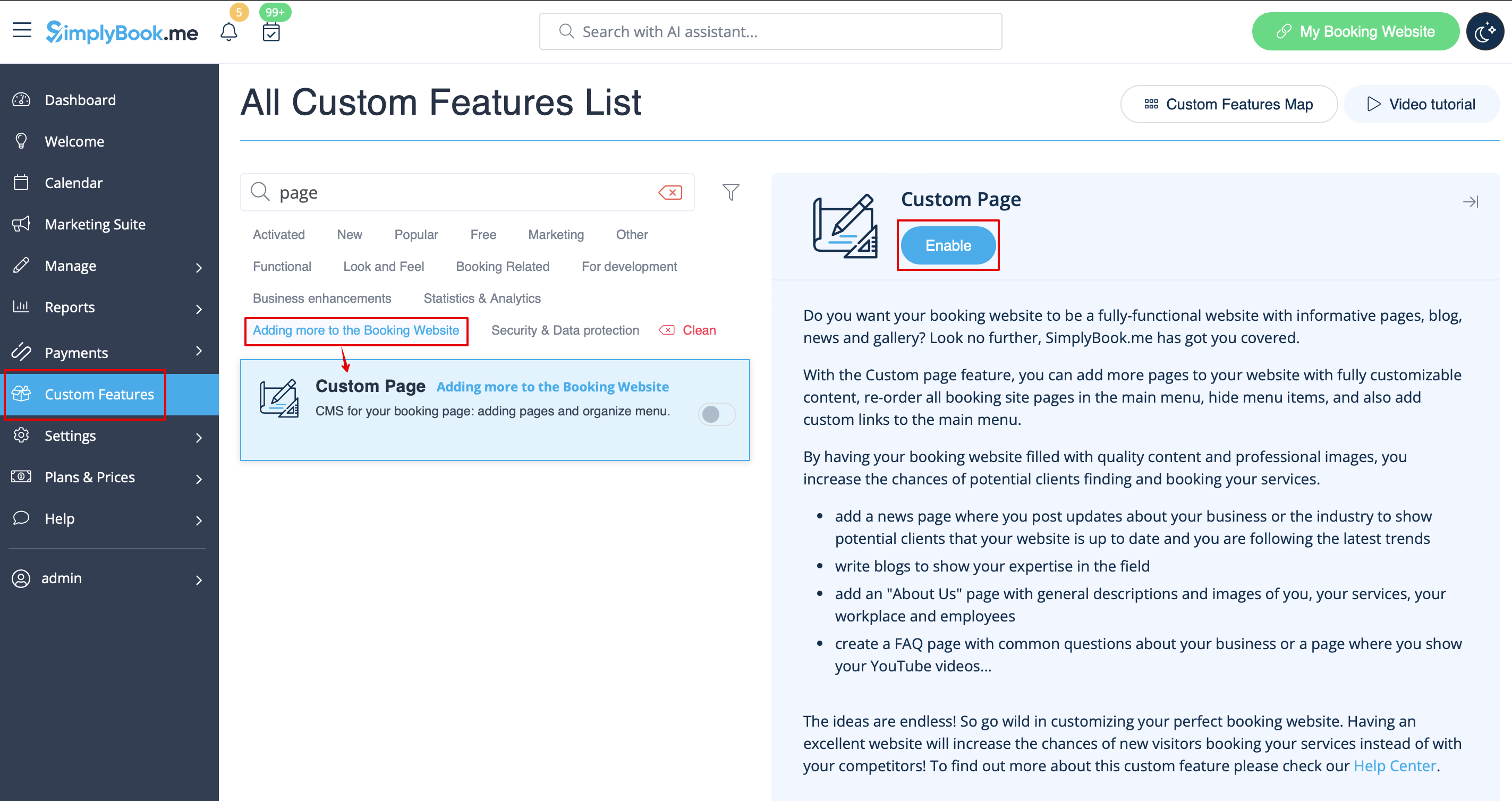
:1. Enable “Custom page” feature on your ''Custom features page -> Adding more to the Booking site'' section.
[[File:Custom page enable path redesigned.png|1200px| center|link=https://help.simplybook.me/images/5/54/Custom_page_enable_path_redesigned.png]]
<br><br>
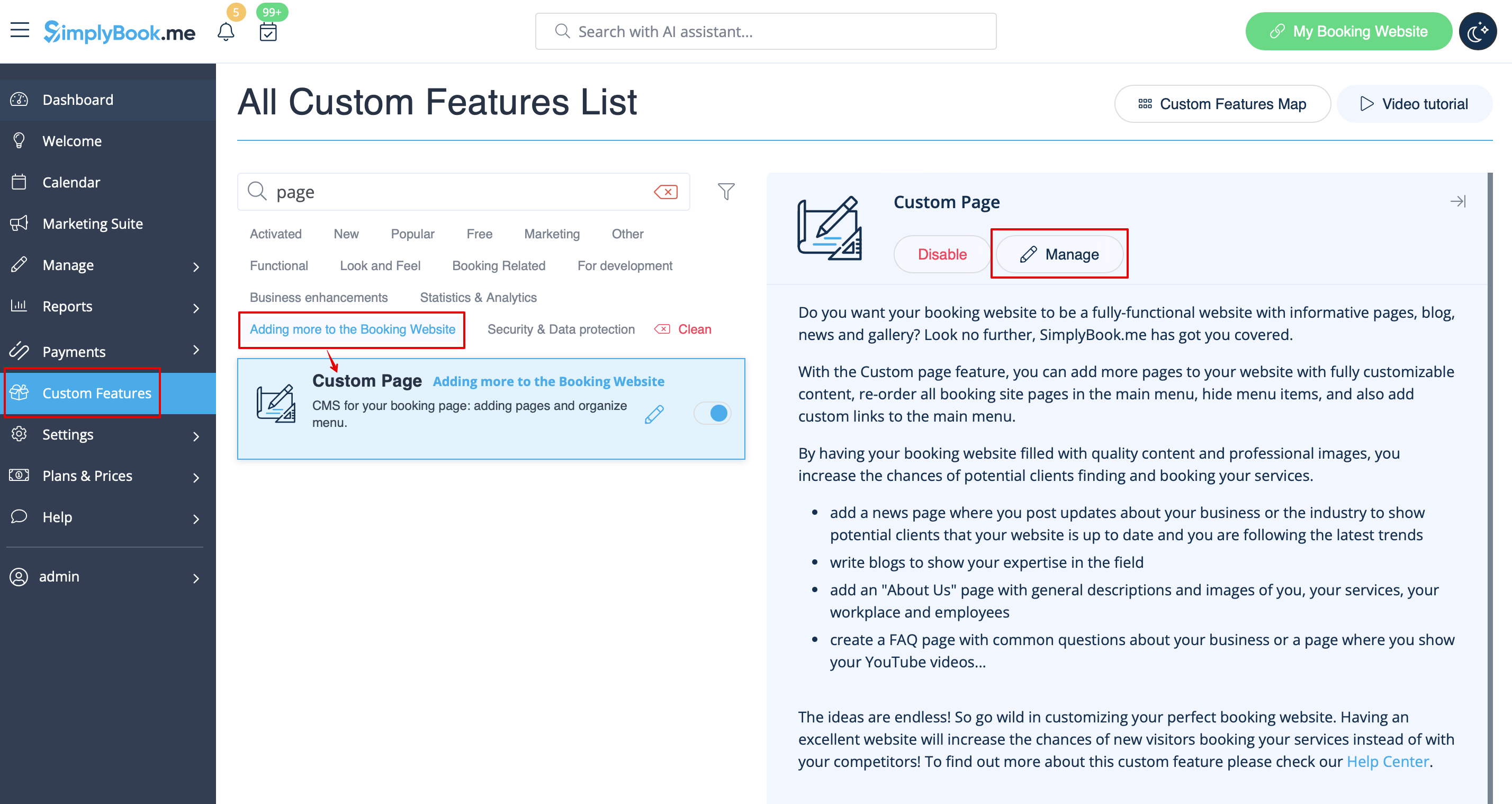
:2. Go to "Manage" to setup the desired pages. 
[[File:Custom page settings path redesigned.png|1200px | center|link=https://help.simplybook.me/images/e/ee/Custom_page_settings_path_redesigned.png]]
<br><br>
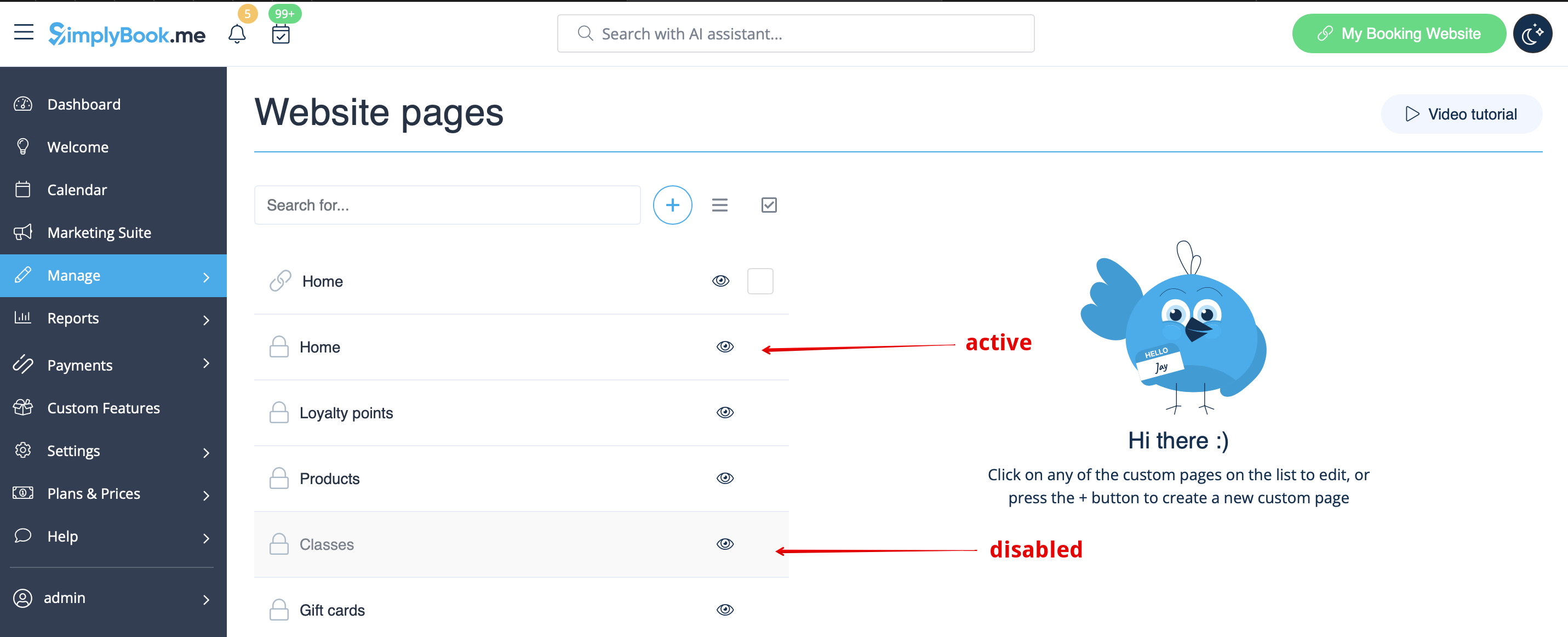
:3. On the next page you will be able to see system booking page tabs.
:(The ones that are disabled currently are grayed out.)
:System pages cannot be edited in this interface. You will need to navigate to the corresponding section using the links provided. 
[[File:Custom page active and disabled pages redesigned.png|1200px | center|link=https://help.simplybook.me/images/1/14/Custom_page_active_and_disabled_pages_redesigned.png]]
<br><br>
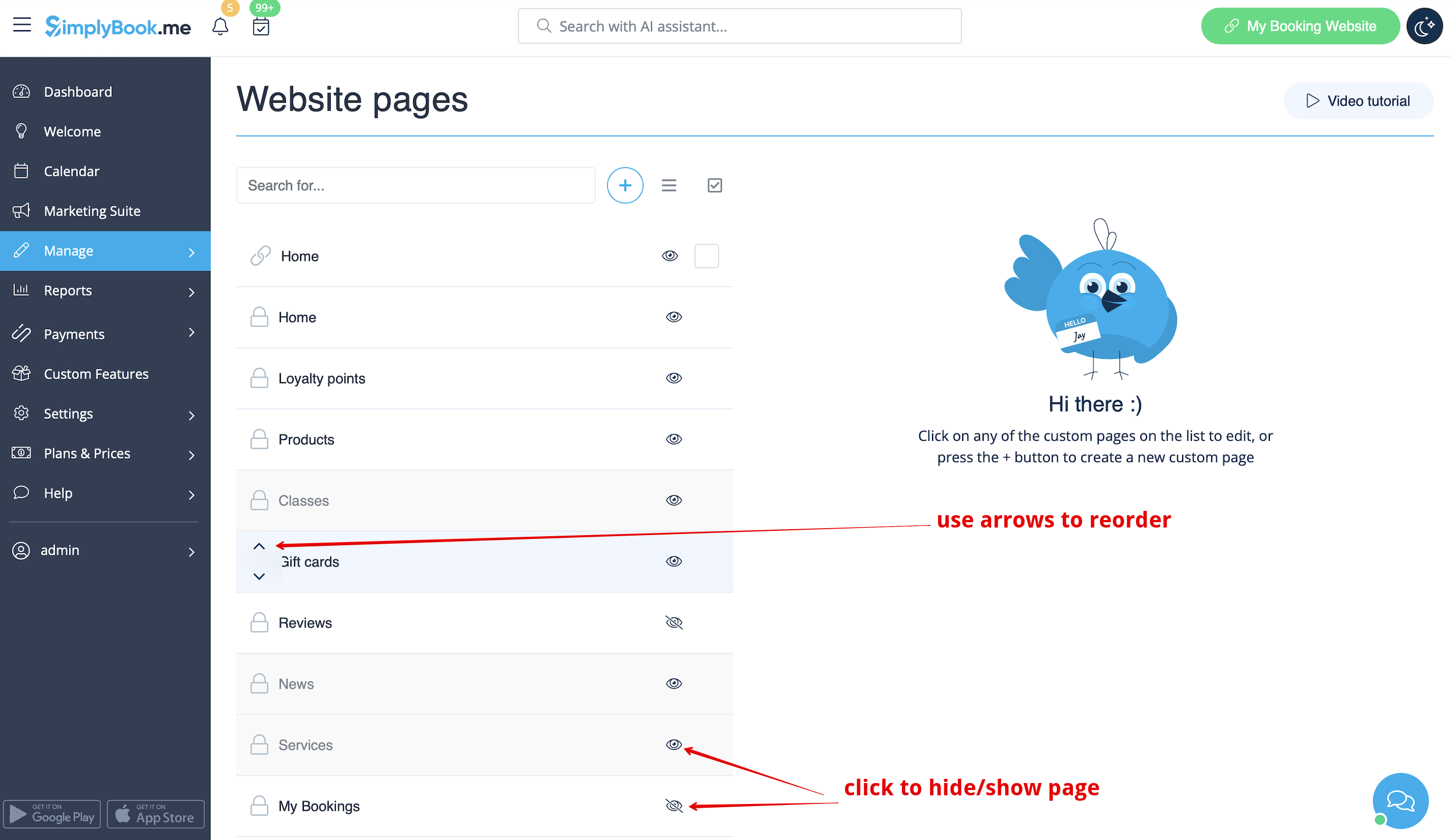
:4. You can use arrows to re-order the tabs and “Eye” icons to hide and show pages.
:'''Please note''', that if you hide the page it still will be possible to access it using direct link. 
[[File:Custom page hide show reorder redesigned.png|1200px | center|link=https://help.simplybook.me/images/8/87/Custom_page_hide_show_reorder_redesigned.png]]
<br><br>
:5. If you wish to add new custom page, please click on “+” icon at the top and choose “Add custom page” option. 
[[File:Add custom page path redesigned.png|1200px | center|link=https://help.simplybook.me/images/d/d3/Add_custom_page_path_redesigned.png]]
<br><br>
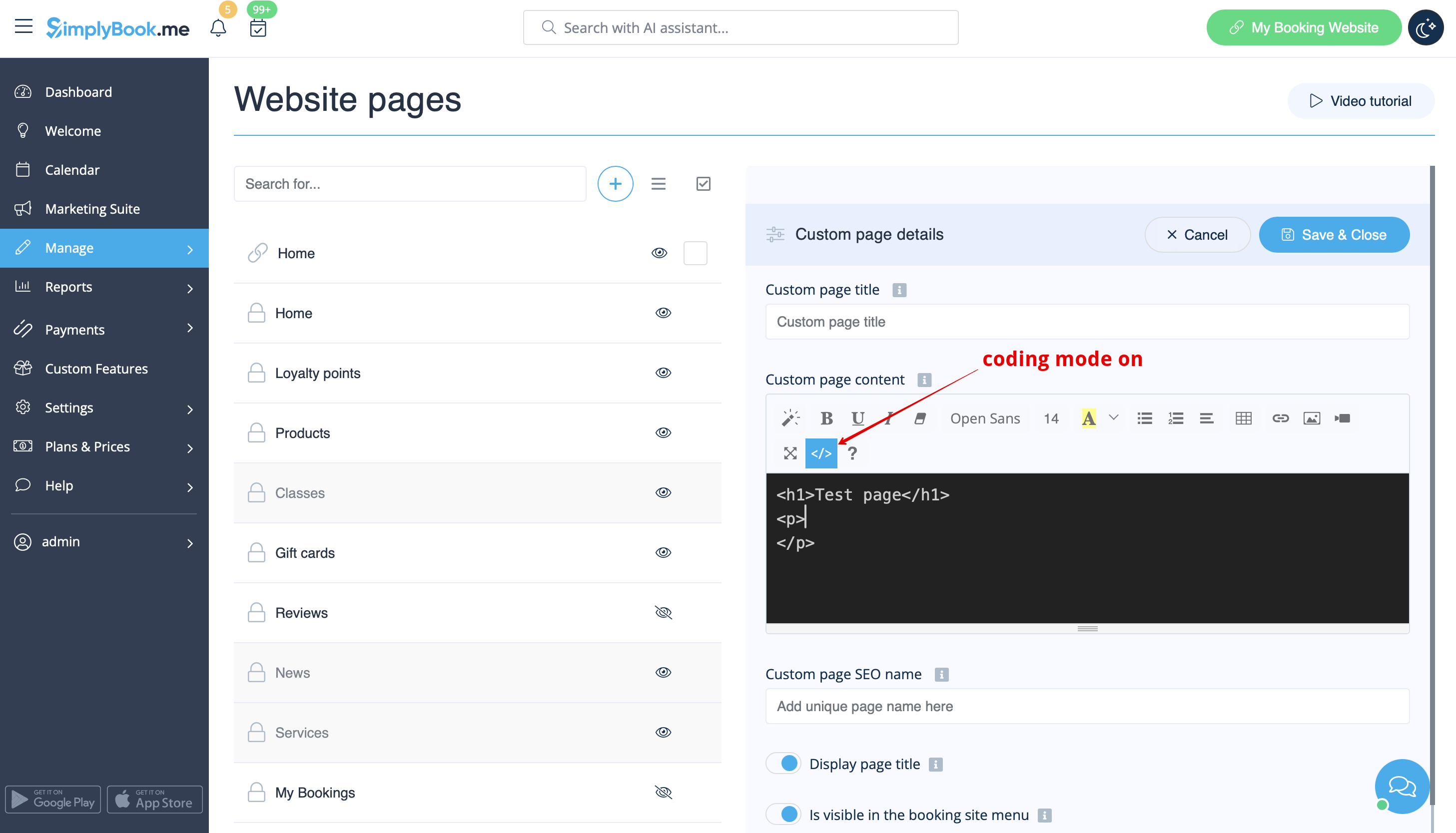
:6. On the right side the page-building menu will appear. Please add title and desired page content.
:You may use built-in HTML editor to add elements or if you have HTML coding knowledge you can switch to code mode using “</>” icon.
:'''Please note''', it is necessary to switch coding mode off before saving the page for the code to be saved correctly. 
[[File:Custom page coding mode on redesigned.png|1200px | center|link=https://help.simplybook.me/images/9/93/Custom_page_coding_mode_on_redesigned.png]]
<br><br>
1. Aktivera funktionen "Anpassad sida" på sidan Anpassade funktioner -> Lägga till mer i avsnittet Bokningssida.


2. Gå till "Hantera" för att ställa in önskade sidor.


3. På nästa sida kan du se flikarna för systemets bokningssidor.
(De som är inaktiverade för närvarande är gråmarkerade.)
Systemsidor kan inte redigeras i det här gränssnittet. Du måste navigera till motsvarande avsnitt med hjälp av de länkar som tillhandahålls.


4. Du kan använda pilarna för att ändra ordningen på flikarna och ögonikonen för att dölja och visa sidor.
Observera att om du döljer en sida går det fortfarande att komma åt den via en direktlänk.


5. Om du vill lägga till en ny anpassad sida klickar du på ikonen + längst upp och väljer alternativet Lägg till anpassad sida.
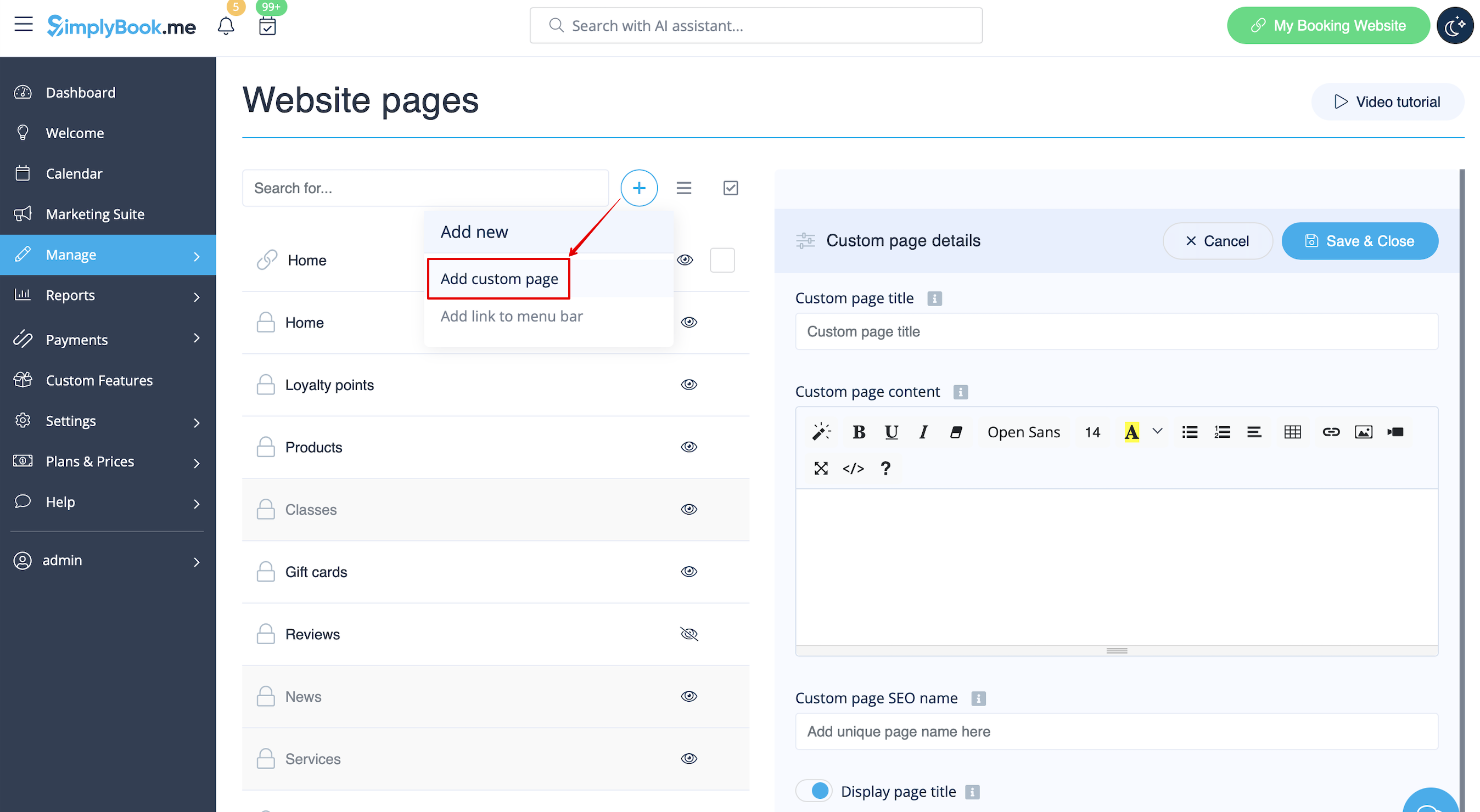


6. På höger sida visas menyn för att skapa sidor. Lägg till titel och önskat sidinnehåll.
Du kan använda den inbyggda HTML-redigeraren för att lägga till element eller, om du har kunskaper i HTML-kodning, växla till kodläge med ikonen "</>".
Observera att du måste stänga av kodläget innan du sparar sidan för att koden ska sparas korrekt.