Translations:Custom Page custom feature/3/nl: Difference between revisions

From SimplyBook.me
Created page with ":1. Schakel de functie "Aangepaste pagina" in op uw ''pagina Aangepaste functies -> Meer toevoegen aan de'' sectie ''Boekingssite''. 1200px| center|link=https://help.simplybook.me/images/5/54/Custom_page_enable_path_redesigned.png <br><br> :2. Ga naar "Beheren" om de gewenste pagina's in te stellen. File:Custom page settings path redesigned.png|1200px | center|link=https://help.simplybook.me/images/e/ee/Custom_page_se..."
 
(No difference)

Latest revision as of 14:46, 19 May 2025

Information about message (contribute)
This message has no documentation. If you know where or how this message is used, you can help other translators by adding documentation to this message.
Message definition (Custom Page custom feature)
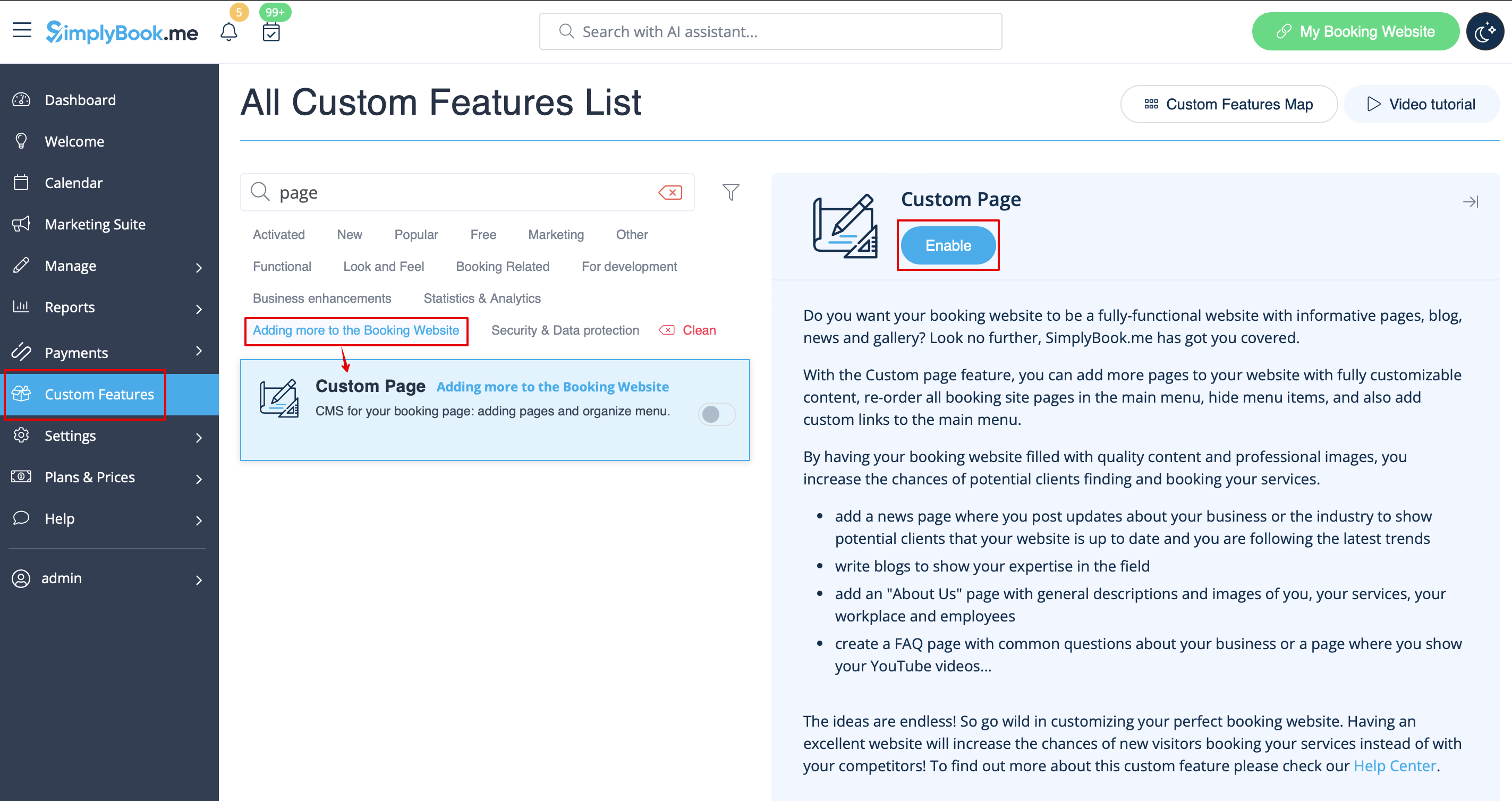
:1. Enable “Custom page” feature on your ''Custom features page -> Adding more to the Booking site'' section.
[[File:Custom page enable path redesigned.png|1200px| center|link=https://help.simplybook.me/images/5/54/Custom_page_enable_path_redesigned.png]]
<br><br>
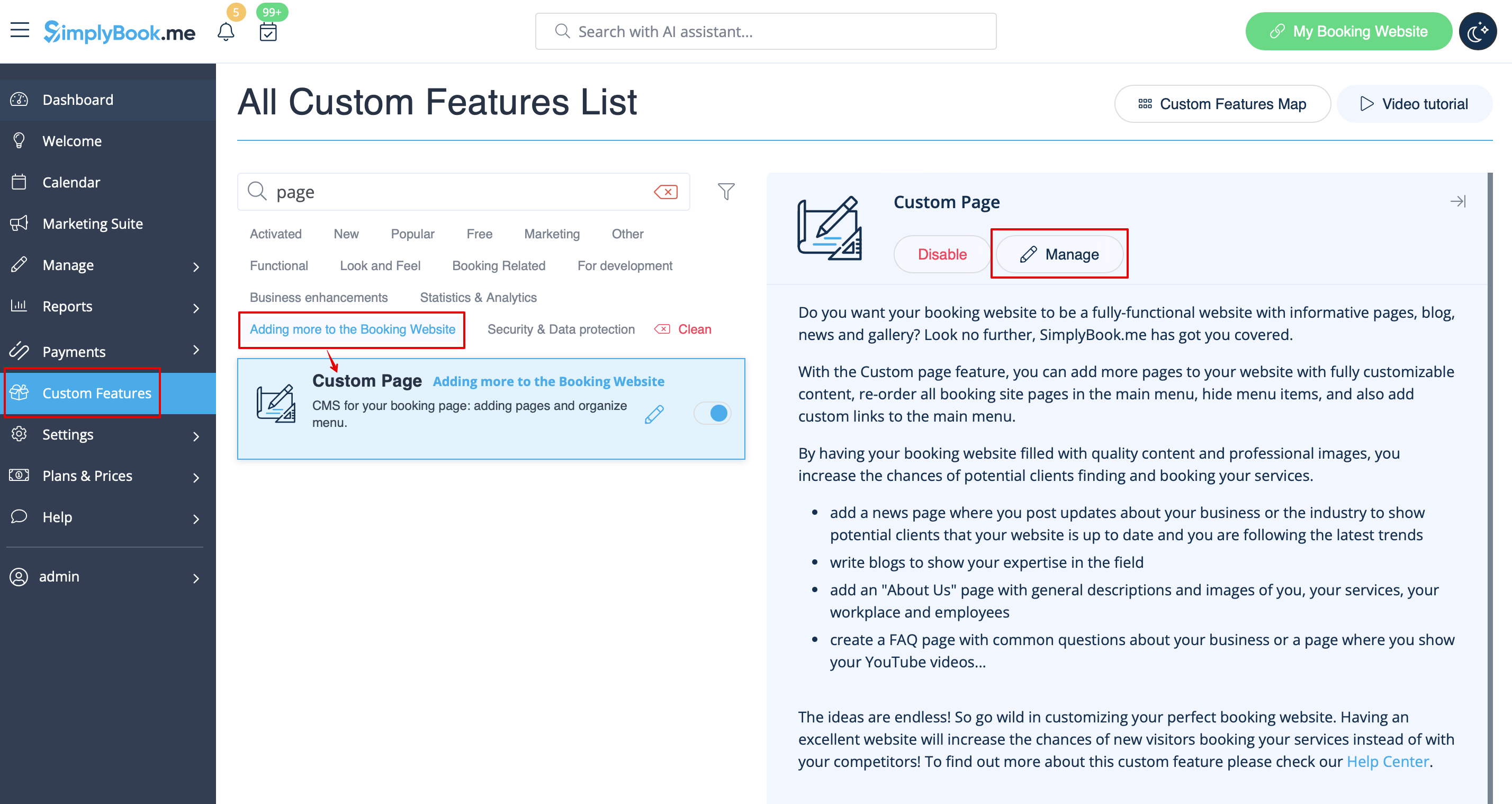
:2. Go to "Manage" to setup the desired pages. 
[[File:Custom page settings path redesigned.png|1200px | center|link=https://help.simplybook.me/images/e/ee/Custom_page_settings_path_redesigned.png]]
<br><br>
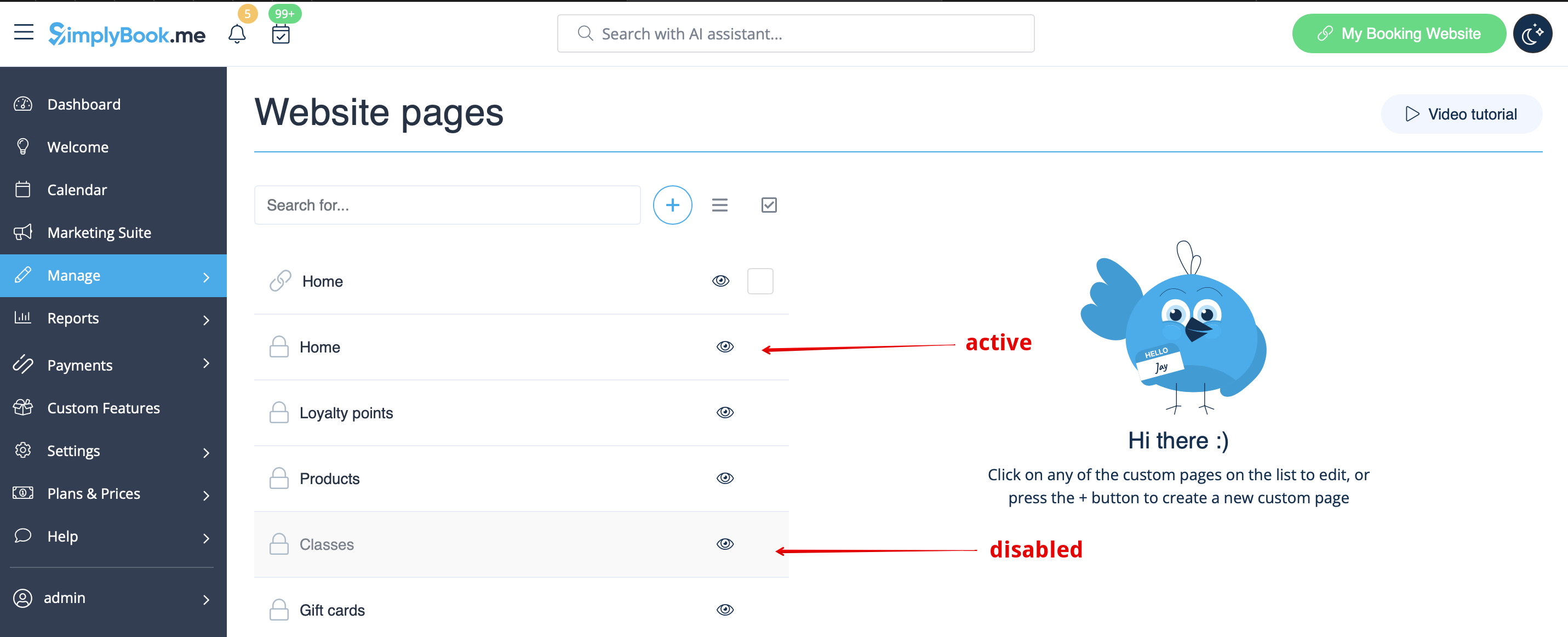
:3. On the next page you will be able to see system booking page tabs.
:(The ones that are disabled currently are grayed out.)
:System pages cannot be edited in this interface. You will need to navigate to the corresponding section using the links provided. 
[[File:Custom page active and disabled pages redesigned.png|1200px | center|link=https://help.simplybook.me/images/1/14/Custom_page_active_and_disabled_pages_redesigned.png]]
<br><br>
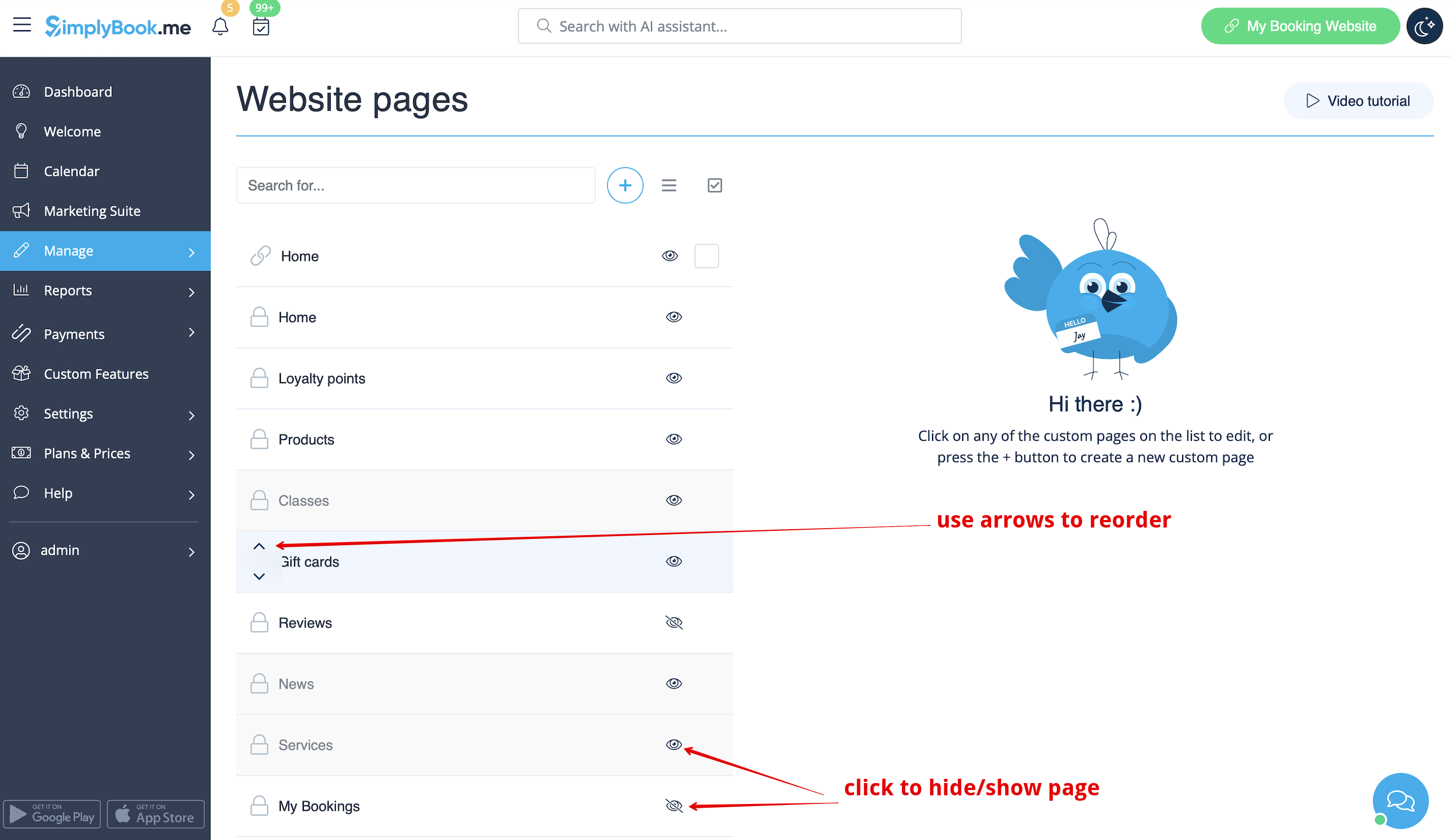
:4. You can use arrows to re-order the tabs and “Eye” icons to hide and show pages.
:'''Please note''', that if you hide the page it still will be possible to access it using direct link. 
[[File:Custom page hide show reorder redesigned.png|1200px | center|link=https://help.simplybook.me/images/8/87/Custom_page_hide_show_reorder_redesigned.png]]
<br><br>
:5. If you wish to add new custom page, please click on “+” icon at the top and choose “Add custom page” option. 
[[File:Add custom page path redesigned.png|1200px | center|link=https://help.simplybook.me/images/d/d3/Add_custom_page_path_redesigned.png]]
<br><br>
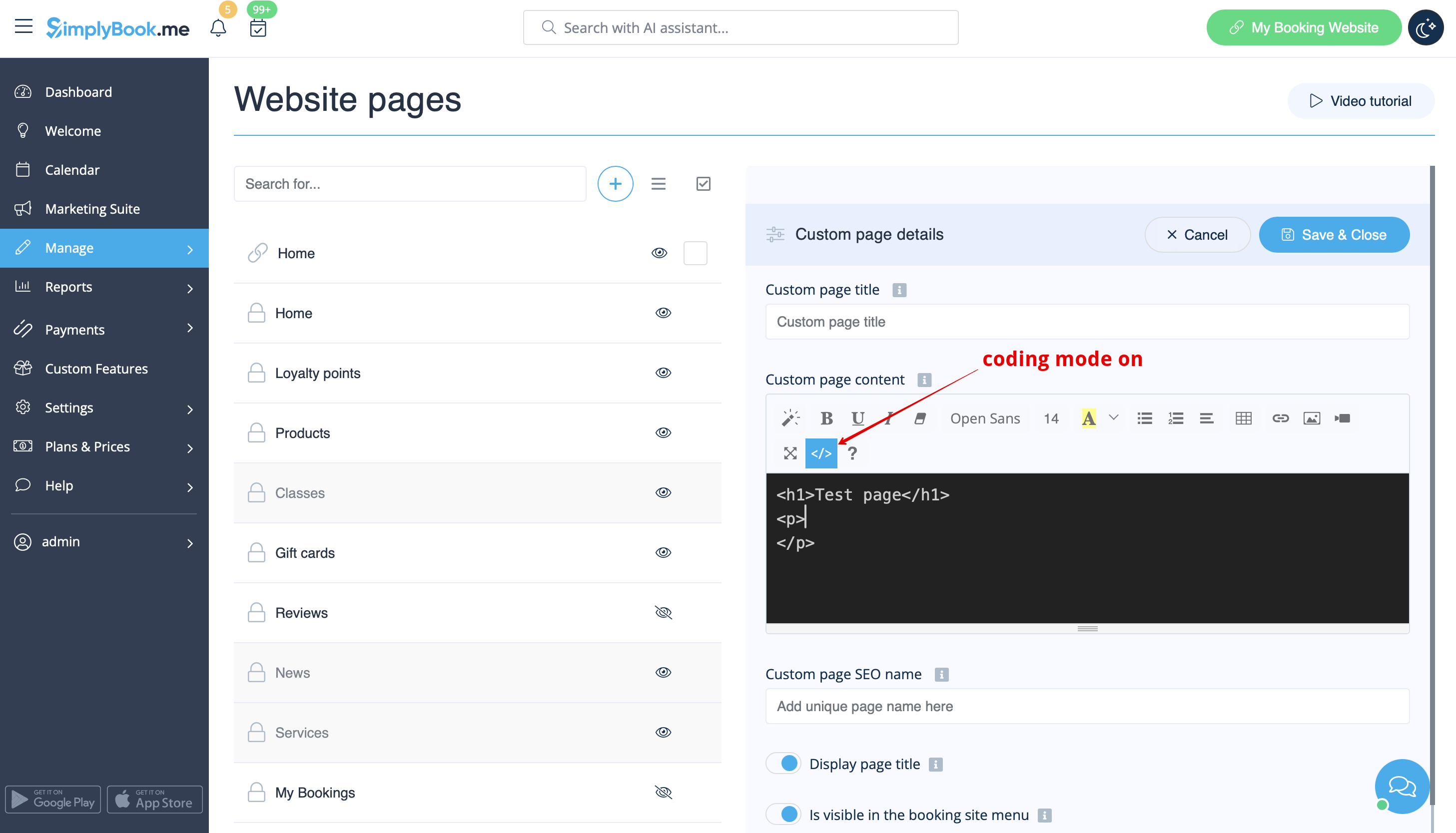
:6. On the right side the page-building menu will appear. Please add title and desired page content.
:You may use built-in HTML editor to add elements or if you have HTML coding knowledge you can switch to code mode using “</>” icon.
:'''Please note''', it is necessary to switch coding mode off before saving the page for the code to be saved correctly. 
[[File:Custom page coding mode on redesigned.png|1200px | center|link=https://help.simplybook.me/images/9/93/Custom_page_coding_mode_on_redesigned.png]]
<br><br>
1. Schakel de functie "Aangepaste pagina" in op uw pagina Aangepaste functies -> Meer toevoegen aan de sectie Boekingssite.


2. Ga naar "Beheren" om de gewenste pagina's in te stellen.


3. Op de volgende pagina ziet u de tabbladen voor de systeemboekingspagina's.
(De tabbladen die momenteel zijn uitgeschakeld, zijn grijs weergegeven.)
Systeempagina's kunnen niet worden bewerkt in deze interface. U moet naar het betreffende gedeelte navigeren via de betreffende links.


4. U kunt de tabbladen opnieuw ordenen met de pijltjes en pagina's verbergen en weergeven met de oogpictogrammen.
Let op: als u een pagina verbergt, blijft deze toegankelijk via een directe link.


5. Als u een nieuwe aangepaste pagina wilt toevoegen, klikt u op het pictogram '+' bovenaan en kiest u de optie 'Aangepaste pagina toevoegen'.
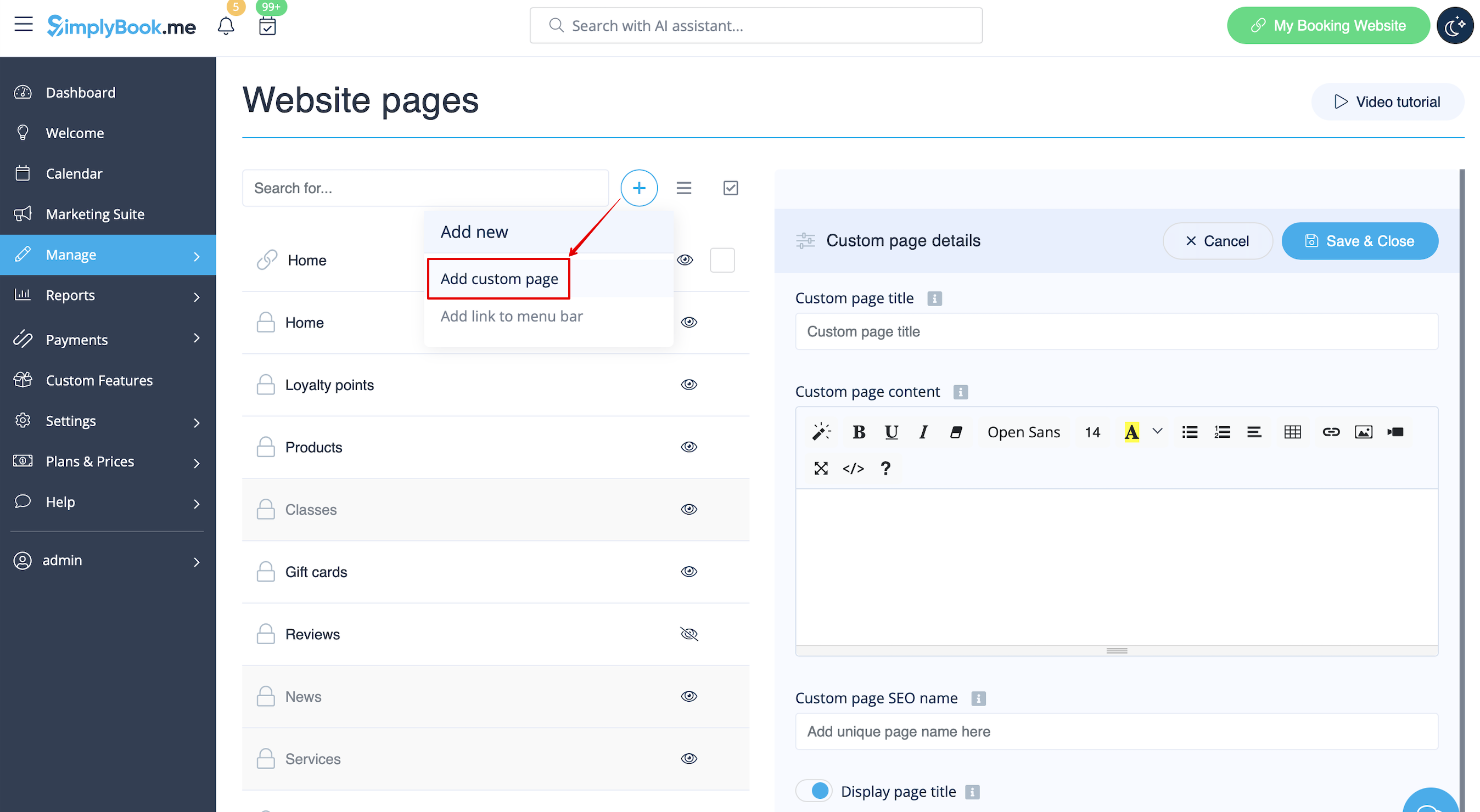


6. Aan de rechterkant verschijnt het menu voor het bouwen van pagina's. Voeg een titel en de gewenste pagina-inhoud toe.
U kunt de ingebouwde HTML-editor gebruiken om elementen toe te voegen of, als u kennis hebt van HTML-codering, overschakelen naar de codemodus met het pictogram "</>".
Let op: u moet de codemodus uitschakelen voordat u de pagina opslaat, zodat de code correct wordt opgeslagen.