Translations:Flexible Notifications custom feature/4/uk: Difference between revisions

From SimplyBook.me
Created page with ";Як використовувати гнучкі повідомлення :1. Перейдіть до розділу «Налаштування»//«Пов'язані з бронюванням», знайдіть «Гнучкі повідомлення» та натисніть «Увімкнути». 1200px | center|link=https://help.simplybook.me/images/6/63/Flexible_notofocations_enable_path.png <br><br> :2. Натис..."
 
(No difference)

Latest revision as of 14:58, 19 May 2025

Information about message (contribute)
This message has no documentation. If you know where or how this message is used, you can help other translators by adding documentation to this message.
Message definition (Flexible Notifications custom feature)
;How to use
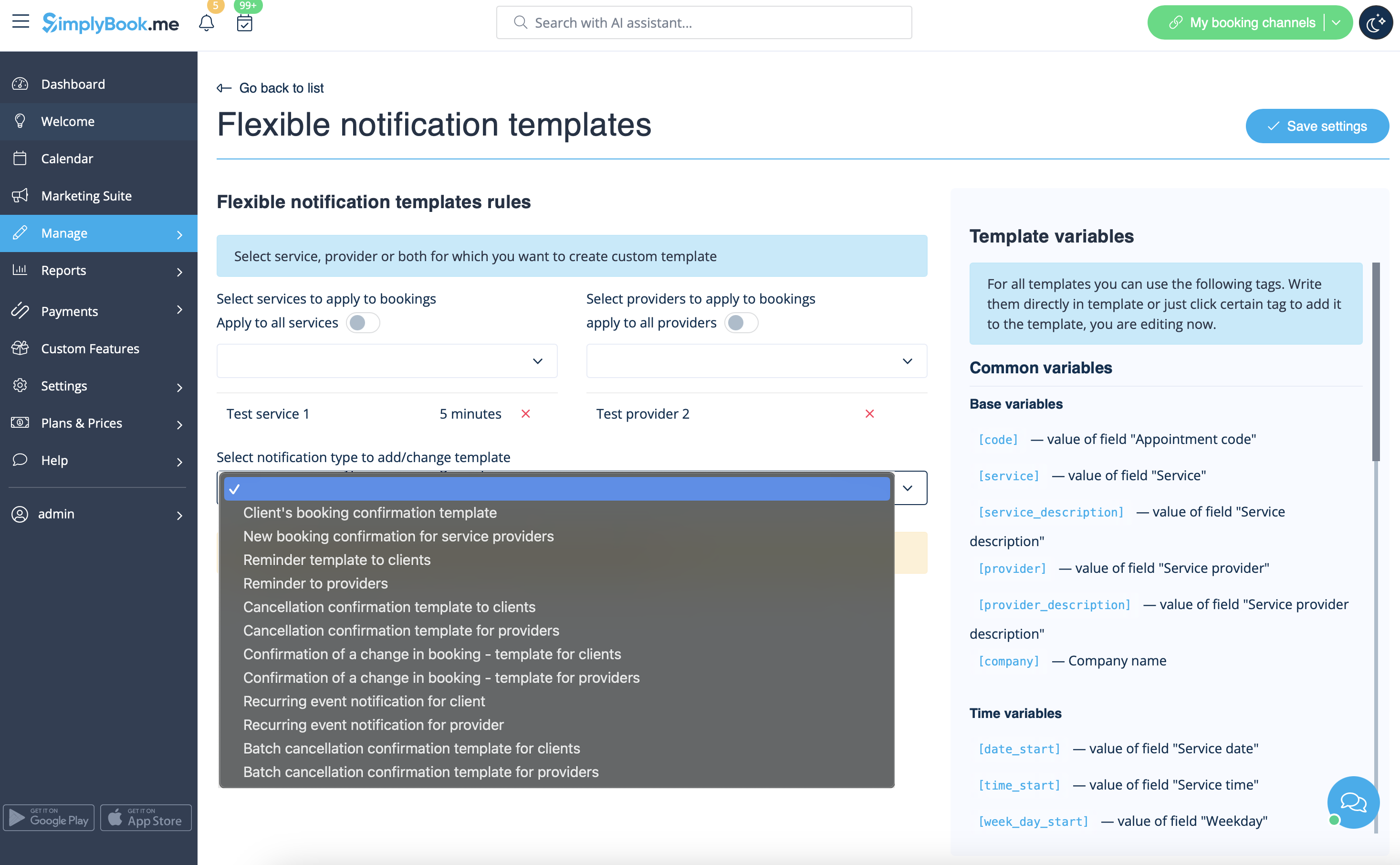
:1. Go to Custom Features//Booking related section, find Flexible Notifications Custom Feature and press "Enable".
[[File:Flexible notofocations enable path.png|1200px | center|link=https://help.simplybook.me/images/6/63/Flexible_notofocations_enable_path.png]]
<br><br>
:2. Click on "Manage" near this feature.
[[File:Flexible notifications settings path redesigned.png|1200px| center|link=https://help.simplybook.me/images/a/a8/Flexible_notifications_settings_path_redesigned.png]]
<br><br>
:3. On the page you see press "New flexible template settings".
[[File:New flexible template settings path redesigned.png|1200px| center|link=https://help.simplybook.me/images/8/87/New_flexible_template_settings_path_redesigned.png]]
<br><br>
:4. In the new template select services and/or select providers that the customized templates will be applied to. Then select the notification type to add/change template and edit the text. Please use variables on the right to include to your templates if necessary.
[[File:Flexible notifications templates list redesigned.png|1200px | center|link=https://help.simplybook.me/images/b/b2/Flexible_notifications_templates_list_redesigned.png]]
<br><br>
Як використовувати гнучкі повідомлення
1. Перейдіть до розділу «Налаштування»//«Пов'язані з бронюванням», знайдіть «Гнучкі повідомлення» та натисніть «Увімкнути».
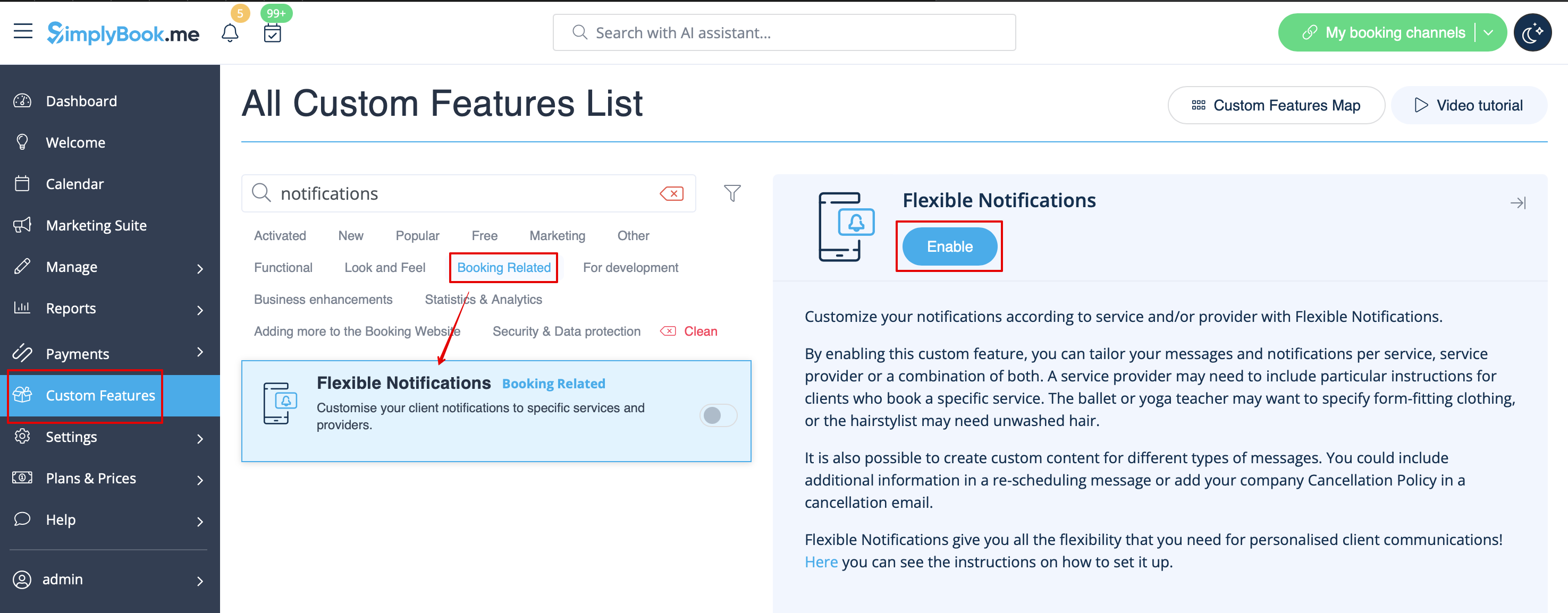


2. Натисніть «Керувати» біля цієї функції.
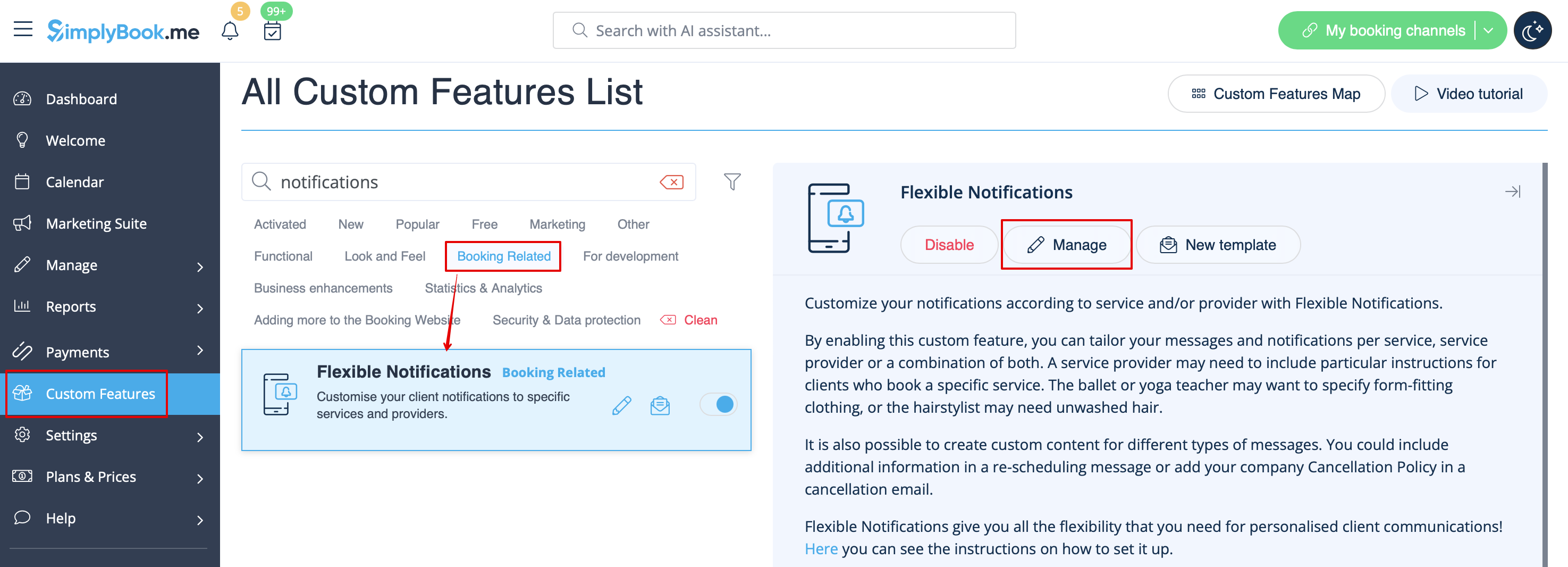


3. На сторінці, що з'явиться, натисніть «Нові налаштування гнучкого шаблону».
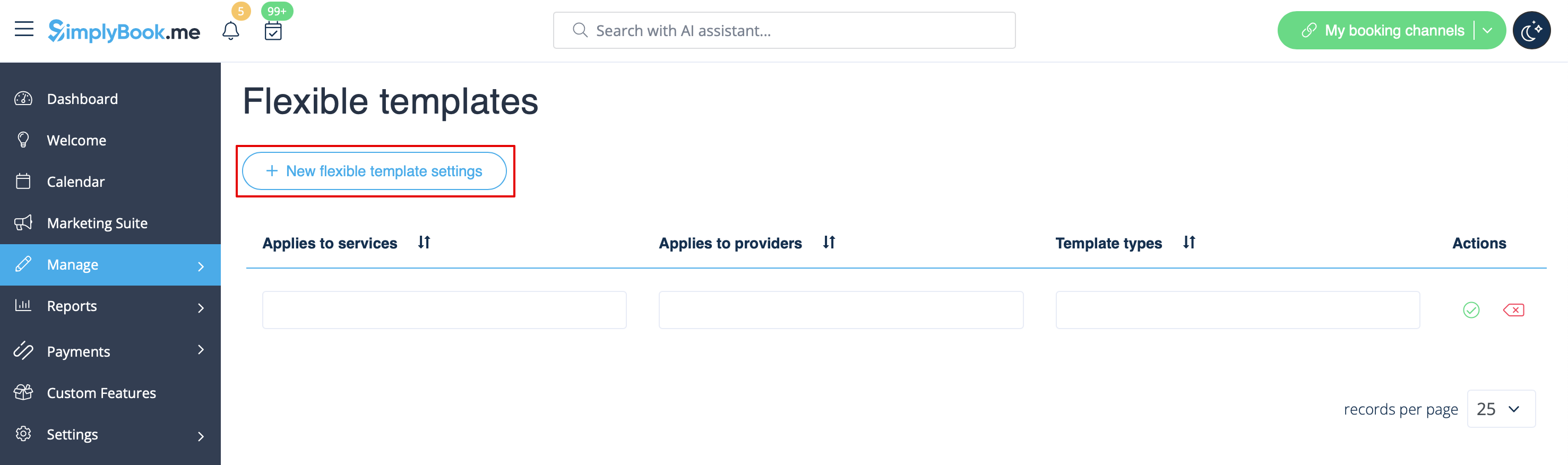


4. У новому шаблоні виберіть служби та/або постачальників, до яких будуть застосовуватися налаштовані шаблони. Потім виберіть тип повідомлення, щоб додати/змінити шаблон і відредагувати текст. За необхідності використовуйте змінні праворуч, щоб включити їх у свої шаблони.