From SimplyBook.me
Created page with "<span style="background-color: #26dd7d; padding:5px; border-radius:5px;">Безкоштовна спеціальна функція!</span> <br><br> Відеоінструкція link=https://youtu.be/ltT1F1jBfKk <br><br> = Google Business =" |
Created page with ";Як використовувати:" Tags: Mobile edit Mobile web edit |
||
| Line 23: | Line 23: | ||
;Як використовувати: | ;Як використовувати: | ||
:1. Увімкніть цю спеціальну функцію на сторінці <span style="background-color:#d4f8e5; padding:5px; border-radius:5px;">«Спеціальні функції</span> ». | |||
:1. | |||
[[File:Google business enable path redesigned.png|1200px | border| center|link=https://help.simplybook.me/images/6/66/Google_business_enable_path_redesigned.png]] | [[File:Google business enable path redesigned.png|1200px | border| center|link=https://help.simplybook.me/images/6/66/Google_business_enable_path_redesigned.png]] | ||
<br><br> | <br><br> | ||
:2. | :2. Перейдіть до <span style="background-color:#d4f8e5; padding:5px; border-radius:5px;">«Налаштування»</span>, щоб створити обліковий запис Google Business, якщо ви ще не маєте його, або підключіть вже існуючий обліковий запис Google Business. | ||
[[File:Google business settings path redesigned.png|1200px | border| center|link=https://help.simplybook.me/images/7/79/Google_business_settings_path_redesigned.png]] | [[File:Google business settings path redesigned.png|1200px | border| center|link=https://help.simplybook.me/images/7/79/Google_business_settings_path_redesigned.png]] | ||
<br><br> | <br><br> | ||
[[File:Google business account.png|border| center]] | [[File:Google business account.png|border| center]] | ||
<br><br> | <br><br> | ||
:3. | :3. Надайте необхідні дозволи, щоб можна було переглядати та редагувати ваші місця розташування в SimplyBook.me. | ||
<br><br> | <br><br> | ||
:4. | :4. Якщо ви вже маєте кілька місць у Google Business, ви зможете побачити їх у лівій частині сторінки. | ||
[[File:Google business existing locations redesigned.png|1200px | center|link=https://help.simplybook.me/images/7/71/Google_business_existing_locations_redesigned.png]] | [[File:Google business existing locations redesigned.png|1200px | center|link=https://help.simplybook.me/images/7/71/Google_business_existing_locations_redesigned.png]] | ||
<br><br> | <br><br> | ||
:5. | :5. Просто натисніть на одне з них, якщо потрібно внести зміни, і ввімкніть опцію <span style="background-color:#d4f8e5; padding:5px; border-radius:5px;">«Оновити адресу в профілі»</span>, внесіть необхідні зміни та збережіть місце розташування, щоб інформація була оновлена в Google[[File:Existing google business location info redesigned.png|1200px | center|link=https://help.simplybook.me/images/d/d7/Existing_google_business_location_info_redesigned.png]] | ||
[[File:Existing google business location info redesigned.png|1200px | center|link=https://help.simplybook.me/images/d/d7/Existing_google_business_location_info_redesigned.png]] | [[File:Existing google business location info redesigned.png|1200px | center|link=https://help.simplybook.me/images/d/d7/Existing_google_business_location_info_redesigned.png]] | ||
<br><br> | <br><br> | ||
: | :або виберіть опцію <span style="background-color:#d4f8e5; padding:5px; border-radius:5px;"> «+»</span>, щоб додати нову адресу бізнесу. | ||
[[File:Add new google business location redesigned.png|1200px | border| center|link=https://help.simplybook.me/images/0/0d/Add_new_google_business_location_redesigned.png]] | [[File:Add new google business location redesigned.png|1200px | border| center|link=https://help.simplybook.me/images/0/0d/Add_new_google_business_location_redesigned.png]] | ||
<br><br> | <br><br> | ||
:6. | :6. Після додавання адреси натисніть <span style="background-color:#d4f8e5; padding:5px; border-radius:5px;">«Зберегти та закрити»</span>, і ви зможете перейти до підтвердження місцезнаходження бізнесу в Google (це може зайняти деякий час). <br> | ||
: | :Ви також можете закрити спливаюче вікно і повернутися до кроку підтвердження пізніше (для кожної збереженої та синхронізованої адреси компанії буде кнопка <span style="background-color:#d4f8e5; padding:5px; border-radius:5px;">«Підтвердити зараз»</span> ). <br> | ||
: | :Як тільки ваша локація буде підтверджена Google (ви побачите кроки процесу підтвердження, слідуючи інструкціям Google), ваша компанія з'явиться в пошуку та на Google Maps. | ||
[[File:Verification link google business redesined.png|1200px| border| center|link=https://help.simplybook.me/images/4/44/Verification_link_google_business_redesined.png]] | [[File:Verification link google business redesined.png|1200px| border| center|link=https://help.simplybook.me/images/4/44/Verification_link_google_business_redesined.png]] | ||
<br><br> | <br><br> | ||
:7. | :7. Коли ви зберігаєте локацію, до Google передається така інформація про вашу компанію: | ||
:* | :*назва локації компанії; | ||
:* | :*робочі години компанії; | ||
:* | :*номер телефону компанії; | ||
:* | :*посилання на сайт для бронювання; | ||
:* | :*категорія бізнесу (оскільки категорії Google відрізняються, буде знайдено найбільш відповідну). | ||
[[File:Google business location info.png |border| center]] | [[File:Google business location info.png|border| center]] | ||
<br><br> | <br><br> | ||
:<span style="background-color:#ffe9e9; padding:5px; border-radius:5px;">''' | :<span style="background-color:#ffe9e9; padding:5px; border-radius:5px;">'''Зверніть увагу''','''що''' якщо ви змінили деякі з цих даних у своєму обліковому записі SimplyBook.me, вам потрібно буде повторно зберегти місцезнаходження компанії в налаштуваннях функції Google Business, щоб дані були оновлені в Google.</span> | ||
<br><br> | <br><br> | ||
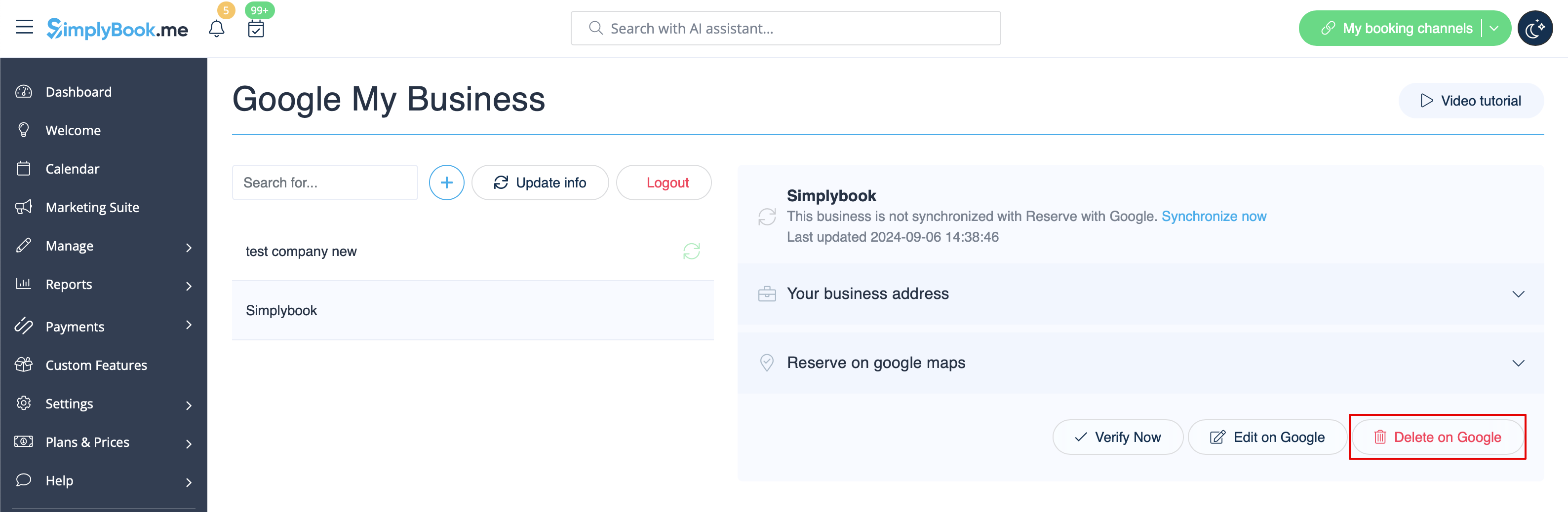
:8. | :8. Ви також можете редагувати дані про місцезнаходження компанії в Google, якщо це необхідно. Просто натисніть кнопку <span style="background-color:#d4f8e5; padding:5px; border-radius:5px;">«Редагувати в GMB»</span> у верхній частині (з'являється для збережених і синхронізованих місць). | ||
[[File:Google business edit on google path redesigned.png|1200px |border| center|link=https://help.simplybook.me/images/8/8a/Google_business_edit_on_google_path_redesigned.png]] | [[File:Google business edit on google path redesigned.png|1200px |border| center|link=https://help.simplybook.me/images/8/8a/Google_business_edit_on_google_path_redesigned.png]] | ||
<br><br> | <br><br> | ||
:9. | :9. Якщо деякі місця більше не відповідають вашому бізнесу, ви можете легко видалити їх у налаштуваннях цієї функції. Просто натисніть опцію <span style="background-color:#d4f8e5; padding:5px; border-radius:5px;">«Видалити в GMB</span> ». | ||
[[File:Google business delete on google redesigned.png|1200px |border|center|link=https://help.simplybook.me/images/5/55/Google_business_delete_on_google_redesigned.png]] | [[File:Google business delete on google redesigned.png|1200px |border|center|link=https://help.simplybook.me/images/5/55/Google_business_delete_on_google_redesigned.png]] | ||
<br><br> | <br><br> | ||
= | = Забронювати через Google = | ||
<br><br> | <br><br> | ||
Додайте кнопку <span style="background-color:#d4f8e5; padding:5px; border-radius:5px;">«Забронювати онлайн»</span> до вашого профілю в Google Business. Дозвольте клієнтам легко знайти вас у Google і забронювати ваші послуги прямо там через Google Search, Google Maps або Google Assistant за допомогою системи бронювання SimplyBook.me. | |||
Revision as of 15:04, 19 May 2025

png
Легко підвищіть видимість вашого бізнесу в Інтернеті за допомогою функції Google My Business. Це нічого не коштує, але підвищує видимість у пошуку, а також робить ваш бізнес видимим на картах Google.
Безкоштовна спеціальна функція!
Відеоінструкція 
Google Business
- Як використовувати
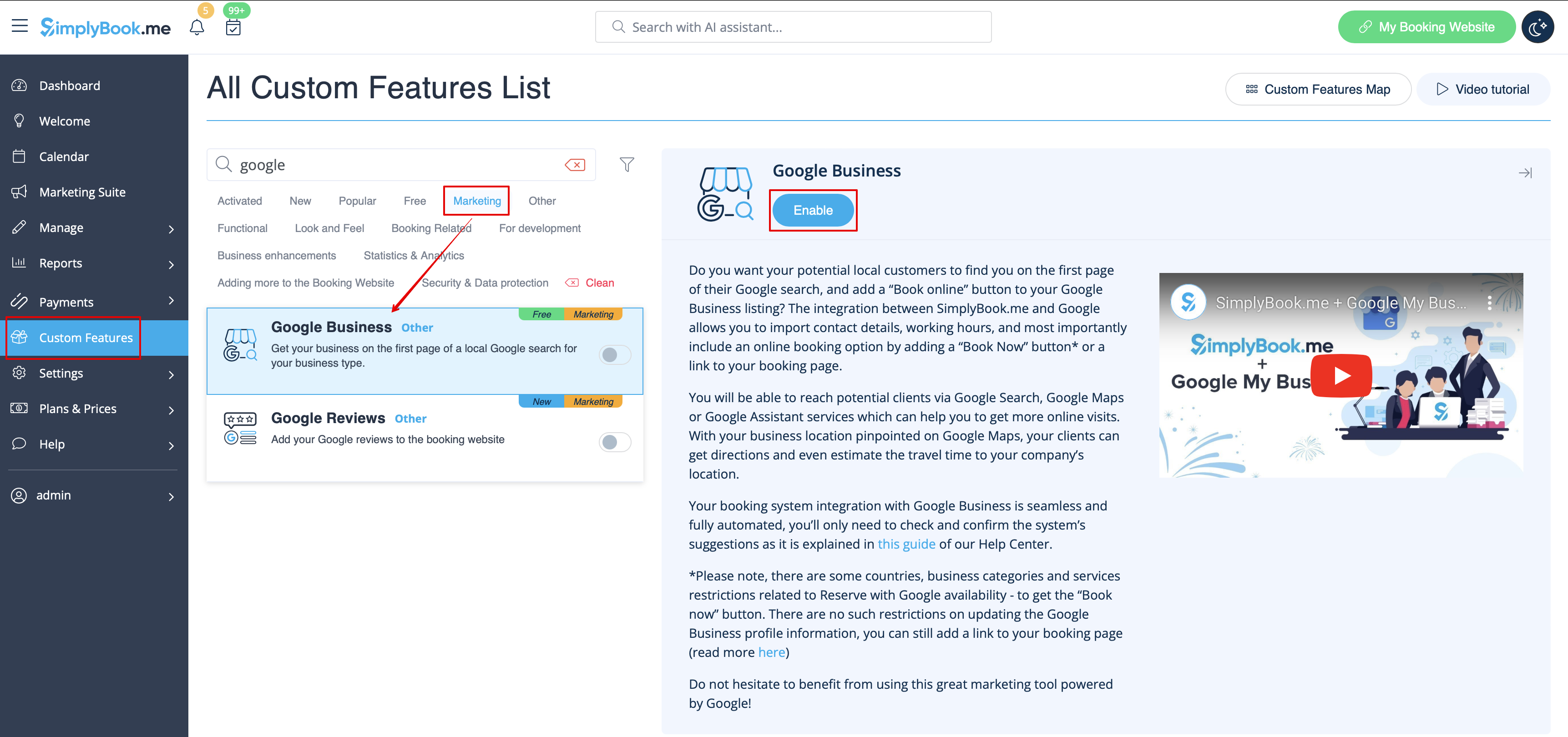
- 1. Увімкніть цю спеціальну функцію на сторінці «Спеціальні функції ».
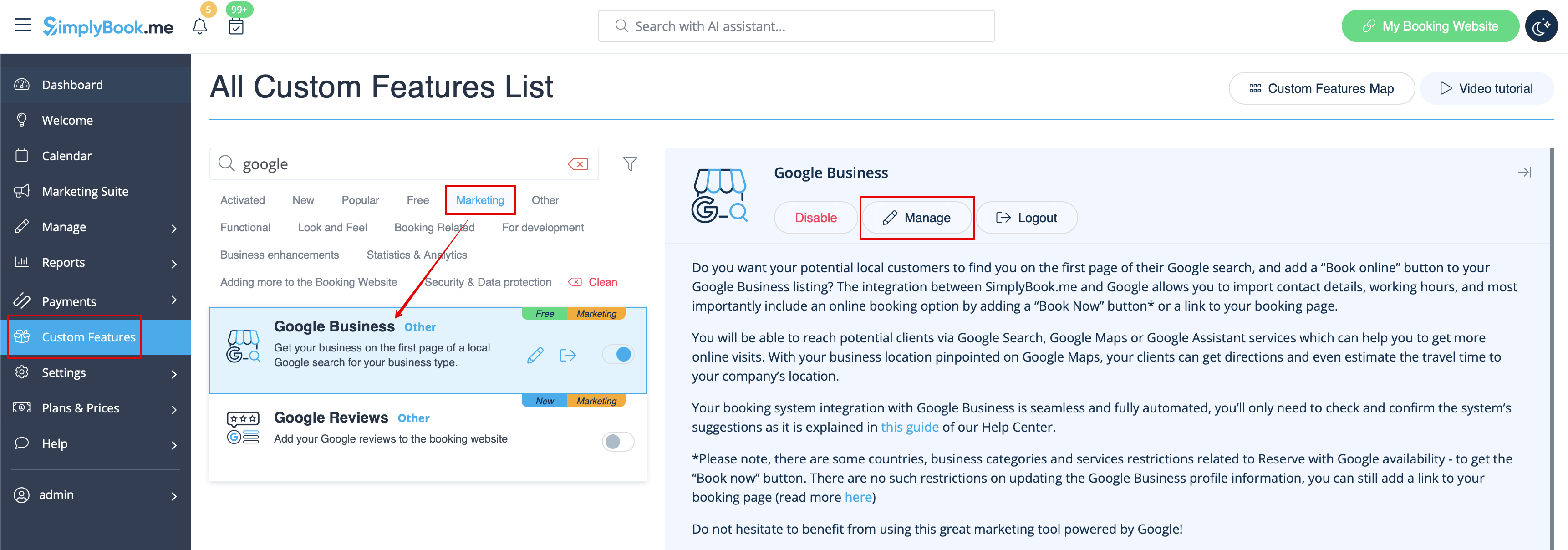
- 2. Перейдіть до «Налаштування», щоб створити обліковий запис Google Business, якщо ви ще не маєте його, або підключіть вже існуючий обліковий запис Google Business.

- 3. Надайте необхідні дозволи, щоб можна було переглядати та редагувати ваші місця розташування в SimplyBook.me.
- 4. Якщо ви вже маєте кілька місць у Google Business, ви зможете побачити їх у лівій частині сторінки.
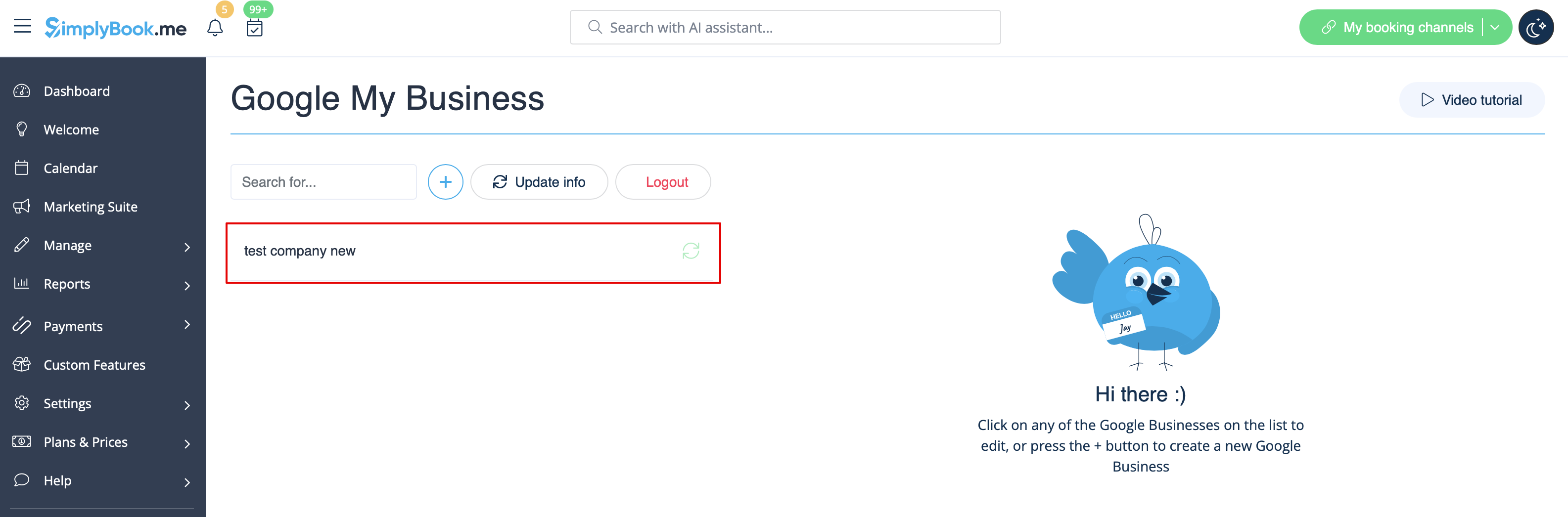
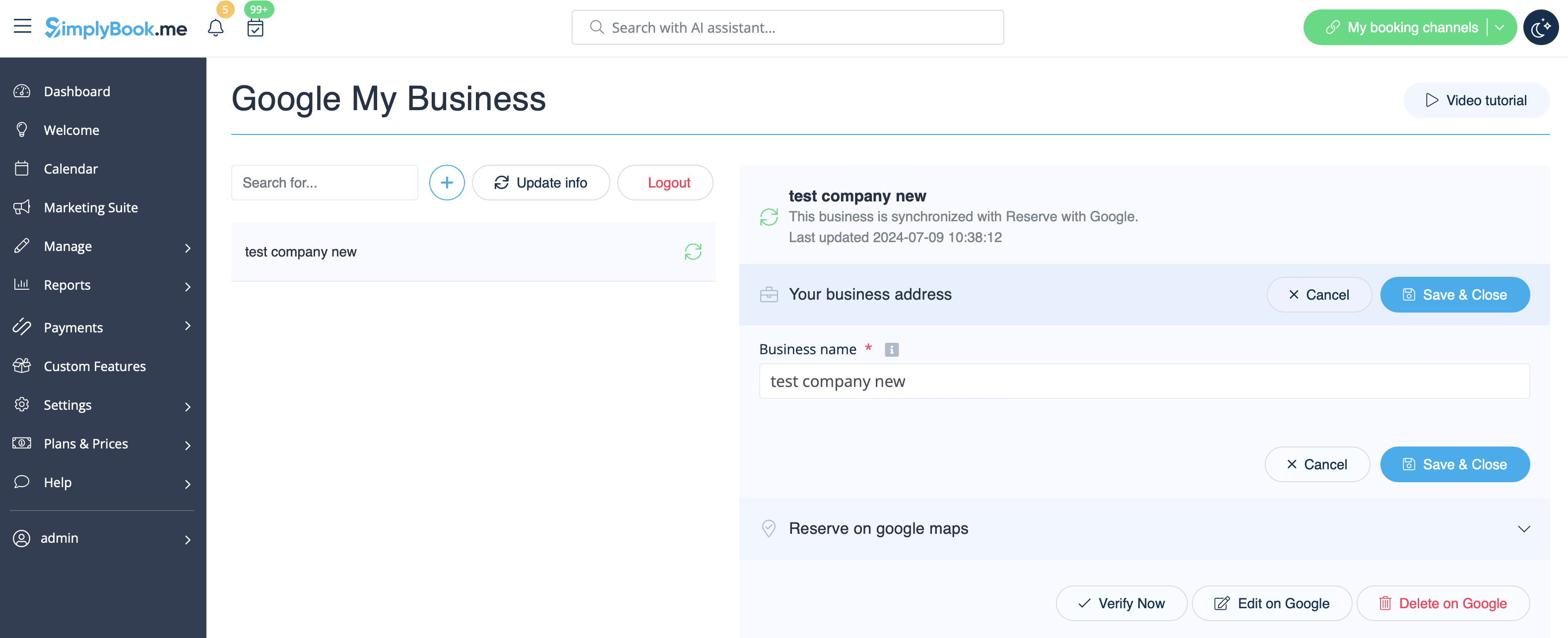
- 5. Просто натисніть на одне з них, якщо потрібно внести зміни, і ввімкніть опцію «Оновити адресу в профілі», внесіть необхідні зміни та збережіть місце розташування, щоб інформація була оновлена в Google

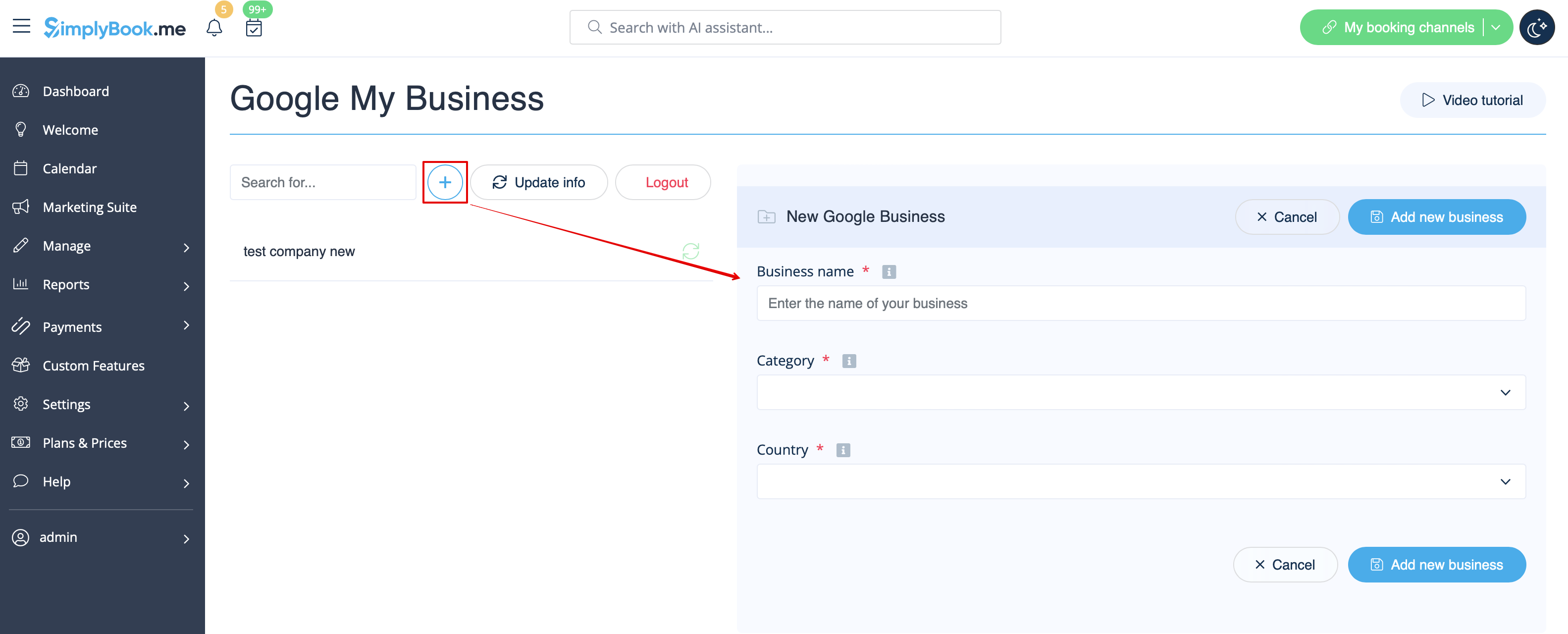
- або виберіть опцію «+», щоб додати нову адресу бізнесу.
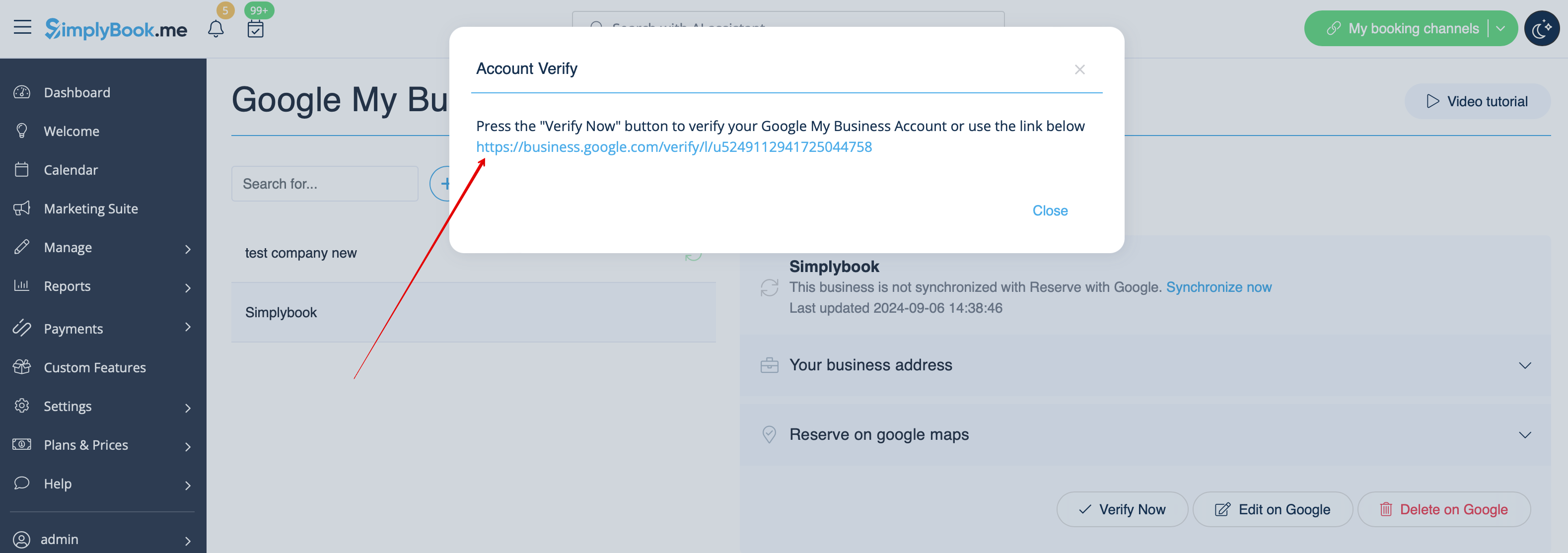
- 6. Після додавання адреси натисніть «Зберегти та закрити», і ви зможете перейти до підтвердження місцезнаходження бізнесу в Google (це може зайняти деякий час).
- Ви також можете закрити спливаюче вікно і повернутися до кроку підтвердження пізніше (для кожної збереженої та синхронізованої адреси компанії буде кнопка «Підтвердити зараз» ).
- Як тільки ваша локація буде підтверджена Google (ви побачите кроки процесу підтвердження, слідуючи інструкціям Google), ваша компанія з'явиться в пошуку та на Google Maps.
- 7. Коли ви зберігаєте локацію, до Google передається така інформація про вашу компанію:
- назва локації компанії;
- робочі години компанії;
- номер телефону компанії;
- посилання на сайт для бронювання;
- категорія бізнесу (оскільки категорії Google відрізняються, буде знайдено найбільш відповідну).

- Зверніть увагу,що якщо ви змінили деякі з цих даних у своєму обліковому записі SimplyBook.me, вам потрібно буде повторно зберегти місцезнаходження компанії в налаштуваннях функції Google Business, щоб дані були оновлені в Google.
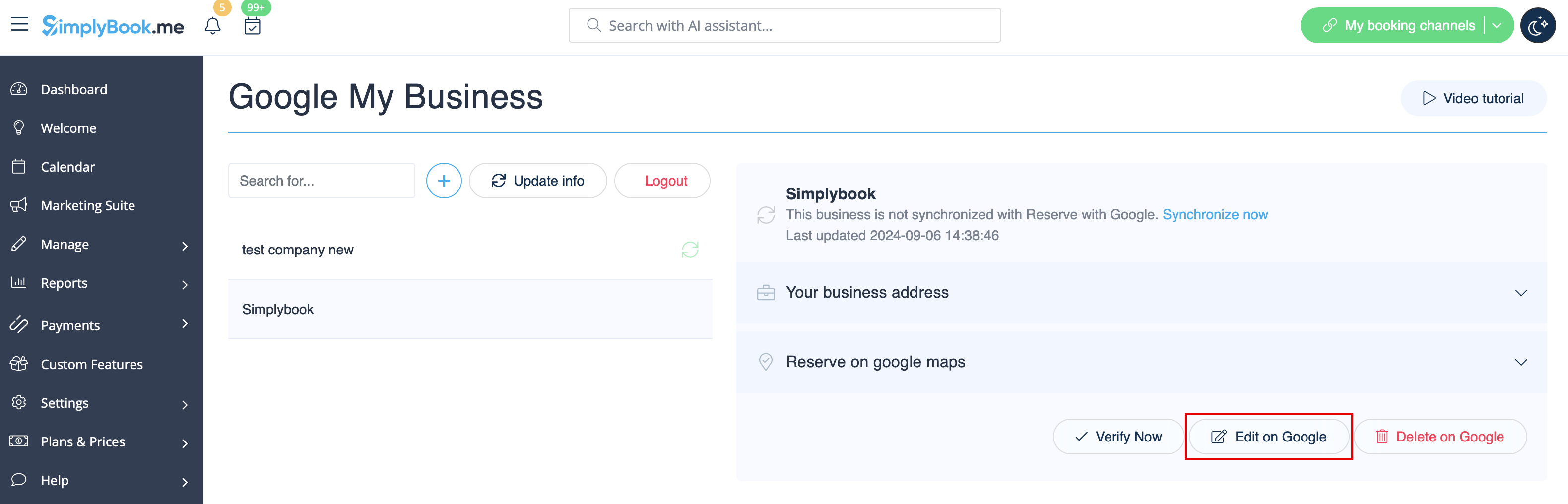
- 8. Ви також можете редагувати дані про місцезнаходження компанії в Google, якщо це необхідно. Просто натисніть кнопку «Редагувати в GMB» у верхній частині (з'являється для збережених і синхронізованих місць).
- 9. Якщо деякі місця більше не відповідають вашому бізнесу, ви можете легко видалити їх у налаштуваннях цієї функції. Просто натисніть опцію «Видалити в GMB ».
Забронювати через Google
Додайте кнопку «Забронювати онлайн» до вашого профілю в Google Business. Дозвольте клієнтам легко знайти вас у Google і забронювати ваші послуги прямо там через Google Search, Google Maps або Google Assistant за допомогою системи бронювання SimplyBook.me.
- Please note!:
- Reserve with Google is currently available only for supported countries listed here;
- Currently it is not possible to use this option for the following business categories: medical center, educational institution, government office, engineer, medical clinic, dentist, medical office, education center, event management company, city administration, embassy, general practice attorney, child care agency, university, college, school, library, financial institution.
- It is required to have Accept Payments custom feature enabled (Pay later (Allow delay payment) option should always be On) and prices should be added for all the services/classes you wish to be displayed and bookable through Google Maps;
- All the services/classes should have descriptions to be displayed on the Google side;
- If you are using Intake forms feature there should be no mandatory forms added to the services you wish to be available for booking;
- If a service is recurring or connected to Membership it will not be displayed in Reserve with Google;
- If you are using outdated Google Calendar Sync custom feature it will not be possible to use Reserve with Google.
- How to use
- 1. Add and verify your Google Business location(s) either via SimplyBook.me platform(previous part of this tutorial) or using your Google Business interface and re-save it(them) in Google Business custom feature settings.
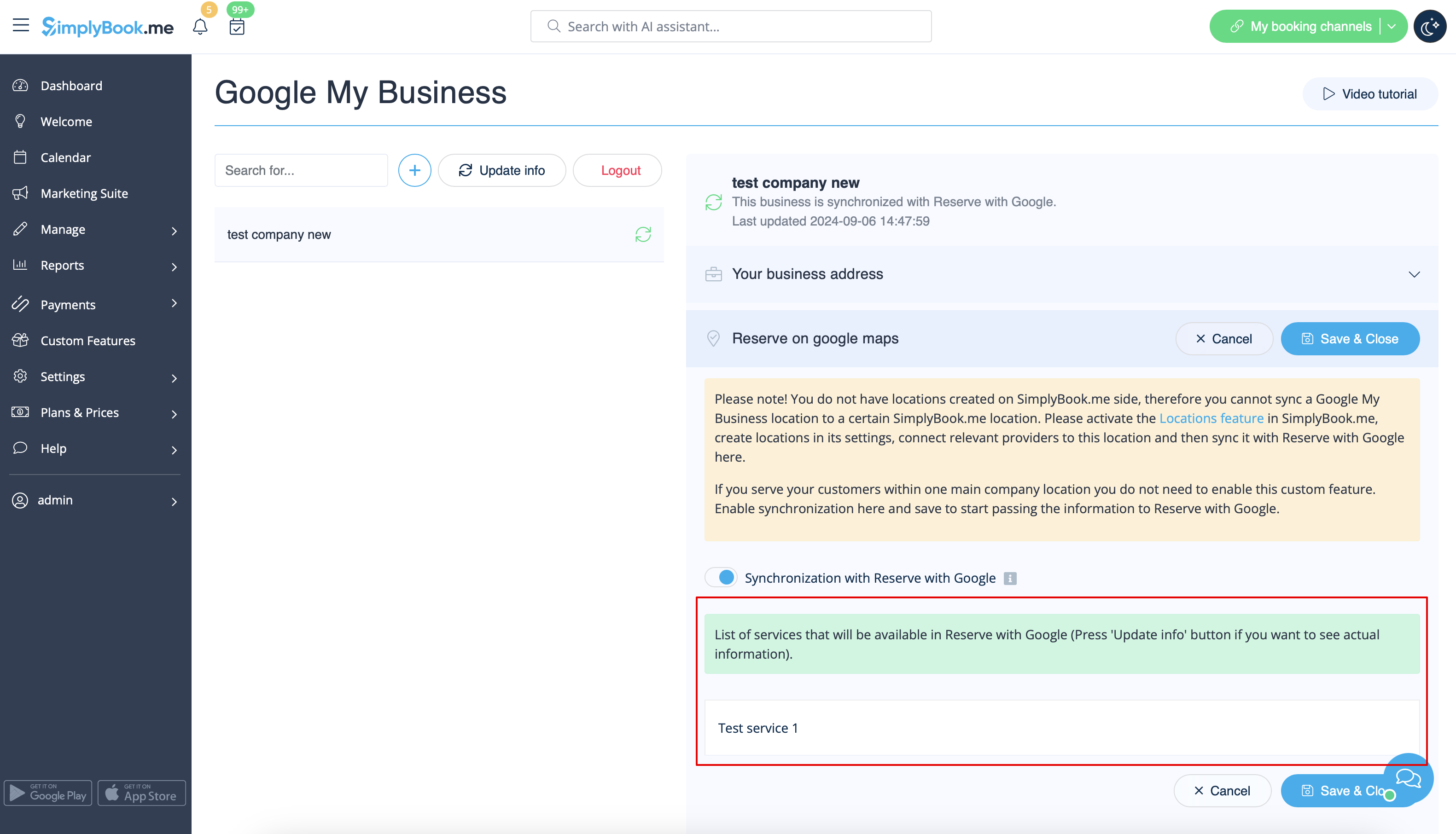
- 2. Navigate to Reserve on google maps tab and move the switcher Synchronization with Reserve with Google to an active position.
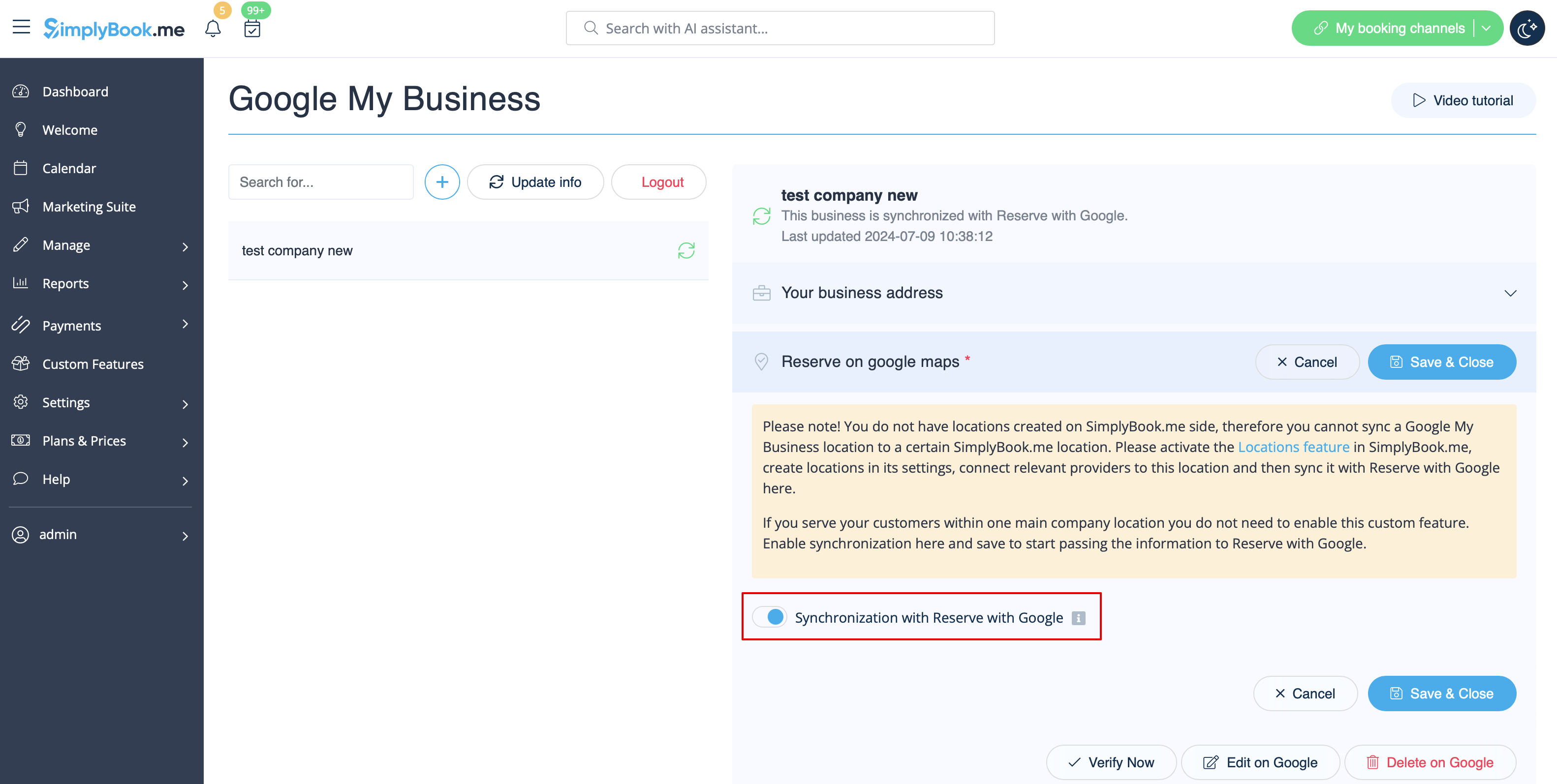
- 3. (optional) If you use Multiple Locations custom feature, connect your Google Businesses to desired SimplyBook.me locations.
- Please note! It is possible to connect one SimplyBook.me location to one Google Business.
- If you do not use Multiple Locations your main company location can be connected to one Google Business.
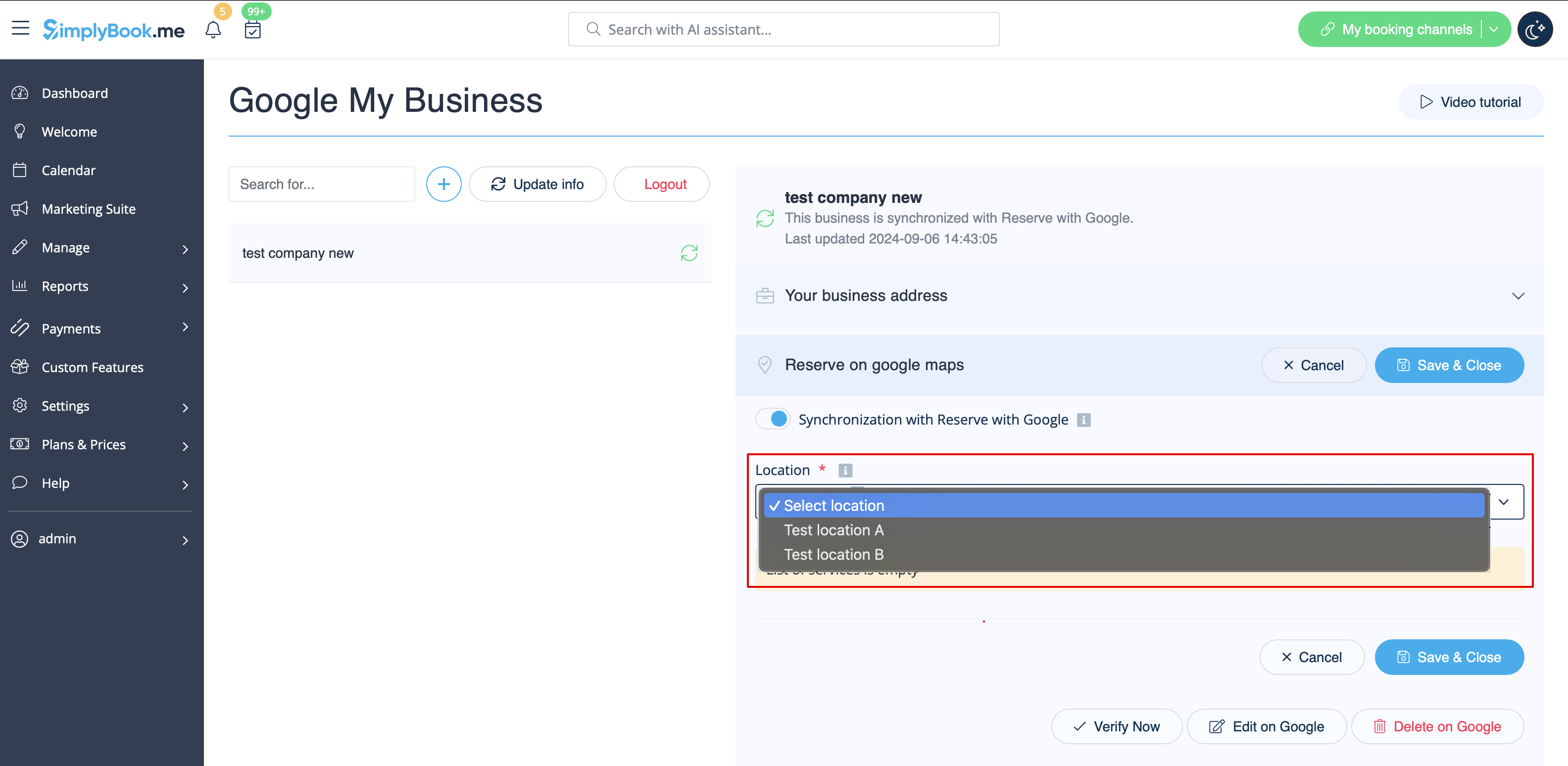
- 4. Save settings. Now the sync takes place and after you reload the page it will be possible to see the list of services that will be passed to Reserve with Google for booking.
- By default we gather all the information and pass the update to Google once a day, but you can use Update info button to prepare the information for transfer manually if any settings changes in your account(for example, if you have created new service) were made.