Translations:Google Business custom feature/5/da: Difference between revisions

From SimplyBook.me
Created page with ":1. Aktivér denne tilpassede funktion på din side <span style="background-color:#d4f8e5; padding:5px; border-radius:5px;">Tilpassede funktioner</span>. 1200px | border| center|link=https://help.simplybook.me/images/6/66/Google_business_enable_path_redesigned.png <br><br> :2. Gå til <span style="background-color:#d4f8e5; padding:5px; border-radius:5px;">Indstillinger</span> for at oprette en Google Business-konto, hvi..."
 
(No difference)

Latest revision as of 15:04, 19 May 2025

Information about message (contribute)
This message has no documentation. If you know where or how this message is used, you can help other translators by adding documentation to this message.
Message definition (Google Business custom feature)
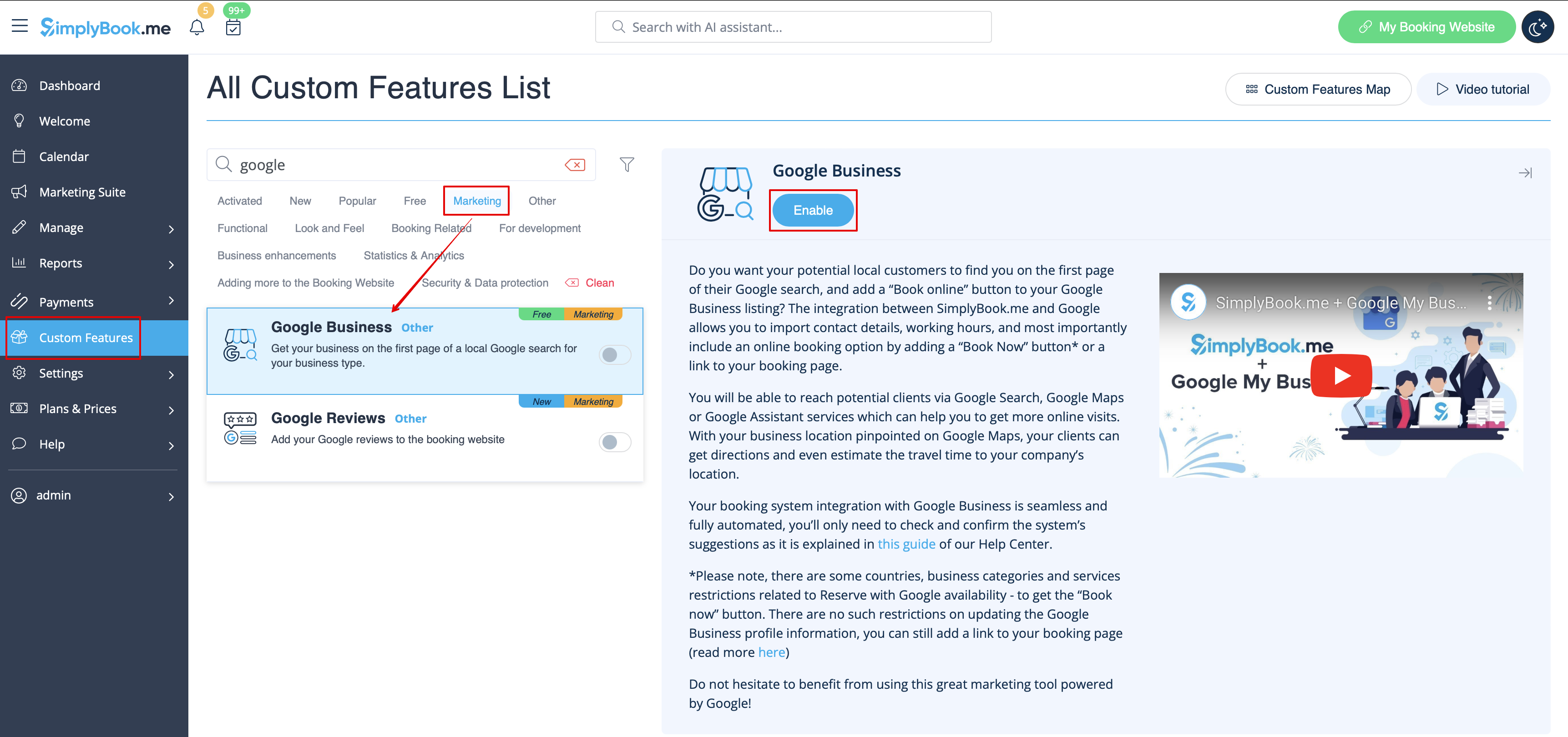
:1. Enable this custom feature on your <span style="background-color:#d4f8e5; padding:5px; border-radius:5px;">Custom Features</span> page.
[[File:Google business enable path redesigned.png|1200px | border| center|link=https://help.simplybook.me/images/6/66/Google_business_enable_path_redesigned.png]]
<br><br>
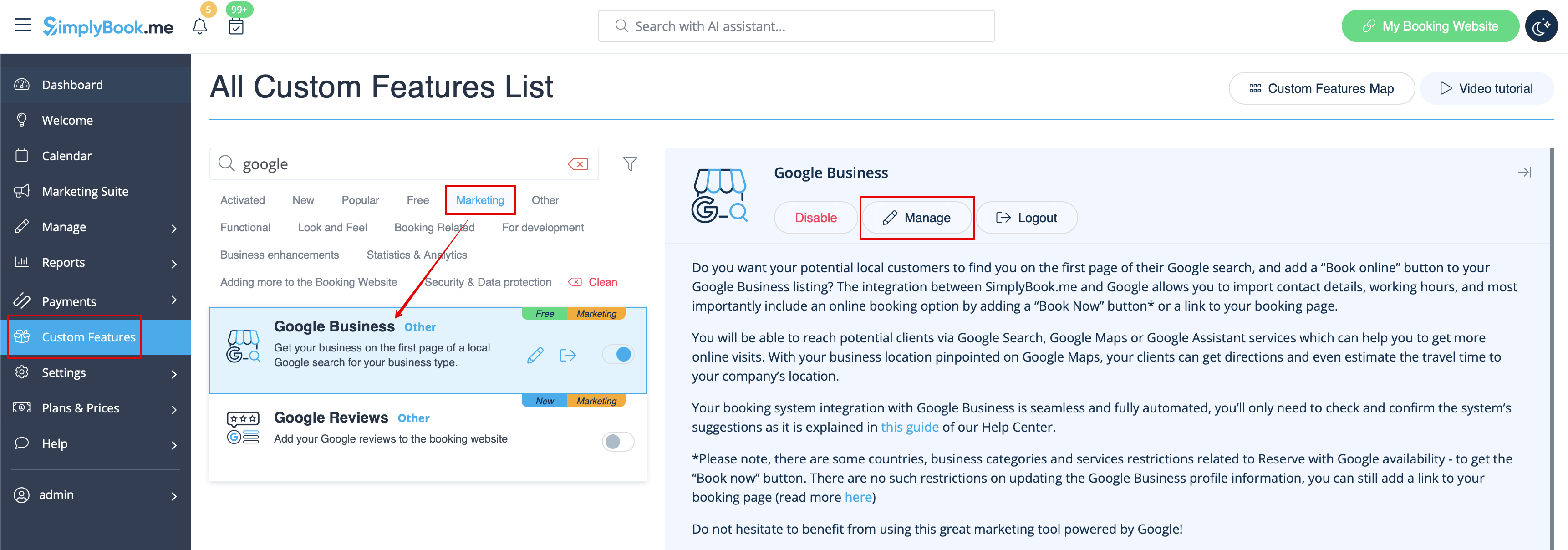
:2. Navigate to <span style="background-color:#d4f8e5; padding:5px; border-radius:5px;">Settings</span> to create Google Business account if you do not have one yet, or connect already existing Google Business account.
[[File:Google business settings path redesigned.png|1200px | border| center|link=https://help.simplybook.me/images/7/79/Google_business_settings_path_redesigned.png]]
<br><br>
[[File:Google business account.png|border| center]]
<br><br>
:3. Give the necessary permissions so that it will be possible to see and edit your location(s) in SimplyBook.me.
<br><br>
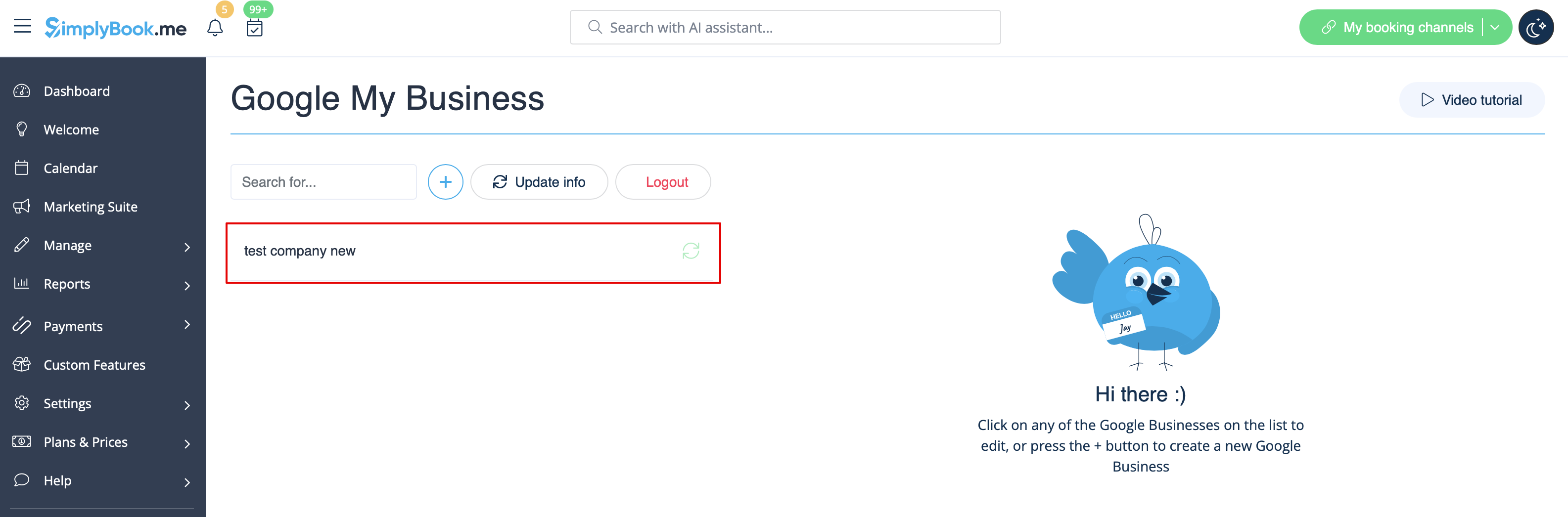
:4. If you already have some locations in Google Business you will be able to see them on the left side of the page.
[[File:Google business existing locations redesigned.png|1200px | center|link=https://help.simplybook.me/images/7/71/Google_business_existing_locations_redesigned.png]]
<br><br>
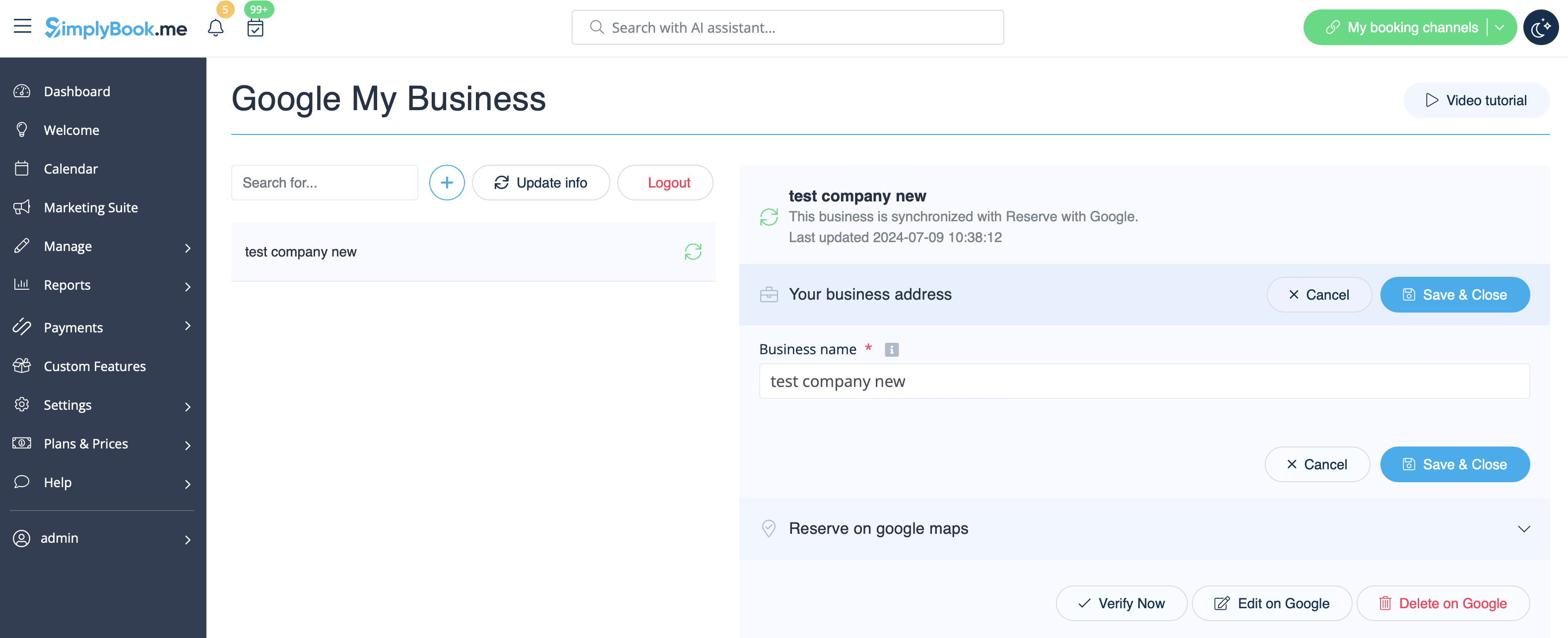
:5. Just click on one of them if you need to make some edits and enable the option <span style="background-color:#d4f8e5; padding:5px; border-radius:5px;">Update address in the profile</span>, make the necessary changes and re-save the location for the information to be updated on Google side
[[File:Existing google business location info redesigned.png|1200px | center|link=https://help.simplybook.me/images/d/d7/Existing_google_business_location_info_redesigned.png]]
<br><br>
:or choose <span style="background-color:#d4f8e5; padding:5px; border-radius:5px;">+</span> option to add a new business address.
[[File:Add new google business location redesigned.png|1200px | border| center|link=https://help.simplybook.me/images/0/0d/Add_new_google_business_location_redesigned.png]]
<br><br>
:6. After you have added the address, click on <span style="background-color:#d4f8e5; padding:5px; border-radius:5px;">Save and Close</span> and you will have the possibility to proceed to the business location verification on Google side(it may take some time). <br>
:You can also close the pop-up and get back to the verification step later(there will be <span style="background-color:#d4f8e5; padding:5px; border-radius:5px;">Verify now</span> button for each saved and synced business location). <br>
:As soon as your location is verified by Google(you will see the verification process steps while following Google instuctions) your business will appear in search and on Google Maps.
[[File:Verification link google business redesined.png|1200px| border| center|link=https://help.simplybook.me/images/4/44/Verification_link_google_business_redesined.png]]
<br><br>
:7. When you save the location the following information is passed to Google about your company:
:*business location title;
:*company working hours;
:*company phone number;
:*booking site link;
:*business category(as Google categories differ the best matching one will be found).
[[File:Google business location info.png |border| center]]
<br><br>
:<span style="background-color:#ffe9e9; padding:5px; border-radius:5px;">'''Please note''', if you have changed some of these details in your SimplyBook.me account you will need to re-save the business location in Google Business feature settings for the details to be updated on Google side.</span>
<br><br>
:8. You can also edit your business location details on Google side if necessary. Simply click on <span style="background-color:#d4f8e5; padding:5px; border-radius:5px;">Edit on GMB</span> button at the top(appears for saved and synced locations).
[[File:Google business edit on google path redesigned.png|1200px |border| center|link=https://help.simplybook.me/images/8/8a/Google_business_edit_on_google_path_redesigned.png]]
<br><br>
:9. If some location(s) become not relevant for your business anymore you can easily delete them in this feature settings. Just click on <span style="background-color:#d4f8e5; padding:5px; border-radius:5px;">Delete on GMB</span> option.
[[File:Google business delete on google redesigned.png|1200px |border|center|link=https://help.simplybook.me/images/5/55/Google_business_delete_on_google_redesigned.png]]
<br><br>
=Reserve with Google=
1. Aktivér denne tilpassede funktion på din side Tilpassede funktioner.


2. Gå til Indstillinger for at oprette en Google Business-konto, hvis du ikke allerede har en, eller tilslut en eksisterende Google Business-konto.


3. Giv de nødvendige tilladelser, så det bliver muligt at se og redigere din(e) placering(er) i SimplyBook.me.


4. Hvis du allerede har nogle placeringer i Google Business, kan du se dem i venstre side af siden.


5. Klik blot på en af dem, hvis du skal foretage nogle ændringer, og aktiver indstillingen Opdater adresse i profilen, foretag de nødvendige ændringer, og gem placeringen igen, så oplysningerne opdateres på Google


eller vælg + for at tilføje en ny virksomhedsadresse.
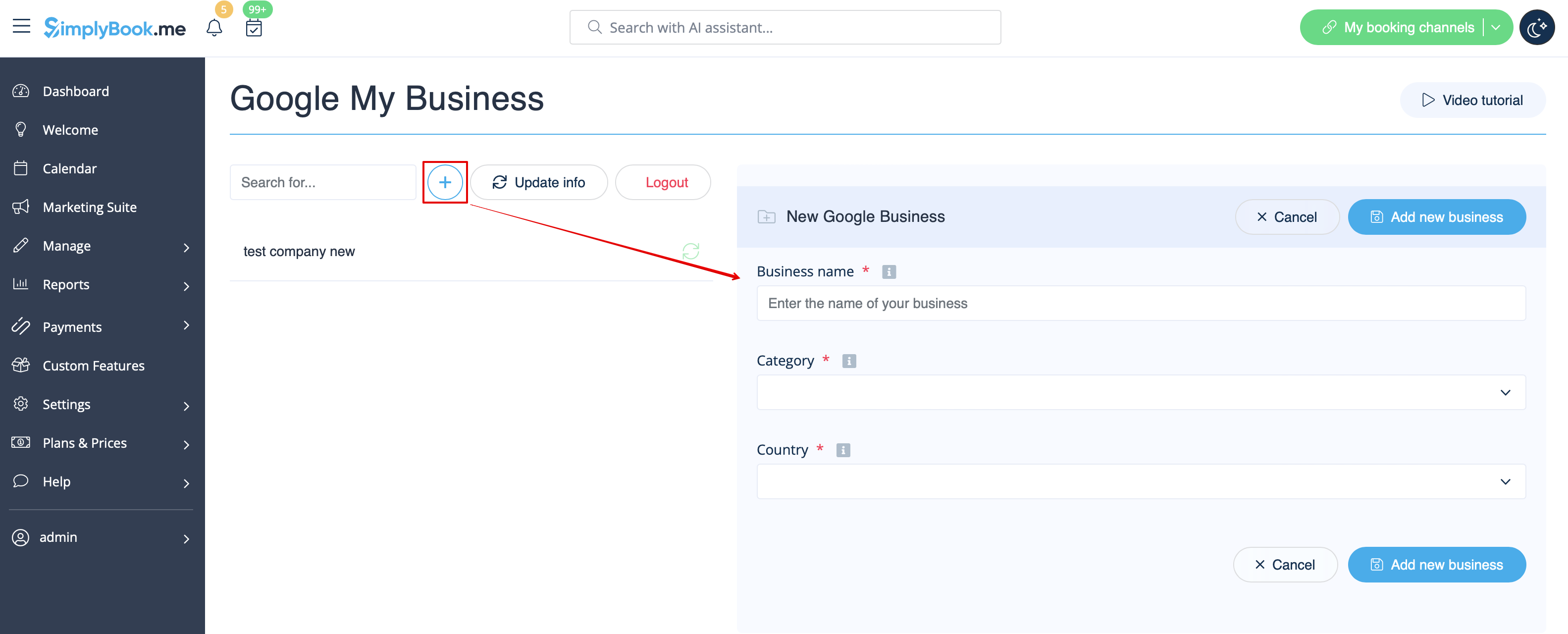


6. Når du har tilføjet adressen, skal du klikke på Gem og luk, hvorefter du kan fortsætte til verifikationen af virksomhedsplaceringen på Google (det kan tage lidt tid).
Du kan også lukke pop op-vinduet og vende tilbage til bekræftelsestrinnet senere (der vil være en knap Bekræft nu for hver gemt og synkroniseret virksomhedsadresse).
Så snart din placering er bekræftet af Google (du vil se trinene i bekræftelsesprocessen, mens du følger Googles instruktioner), vil din virksomhed blive vist i søgningen og på Google Maps.
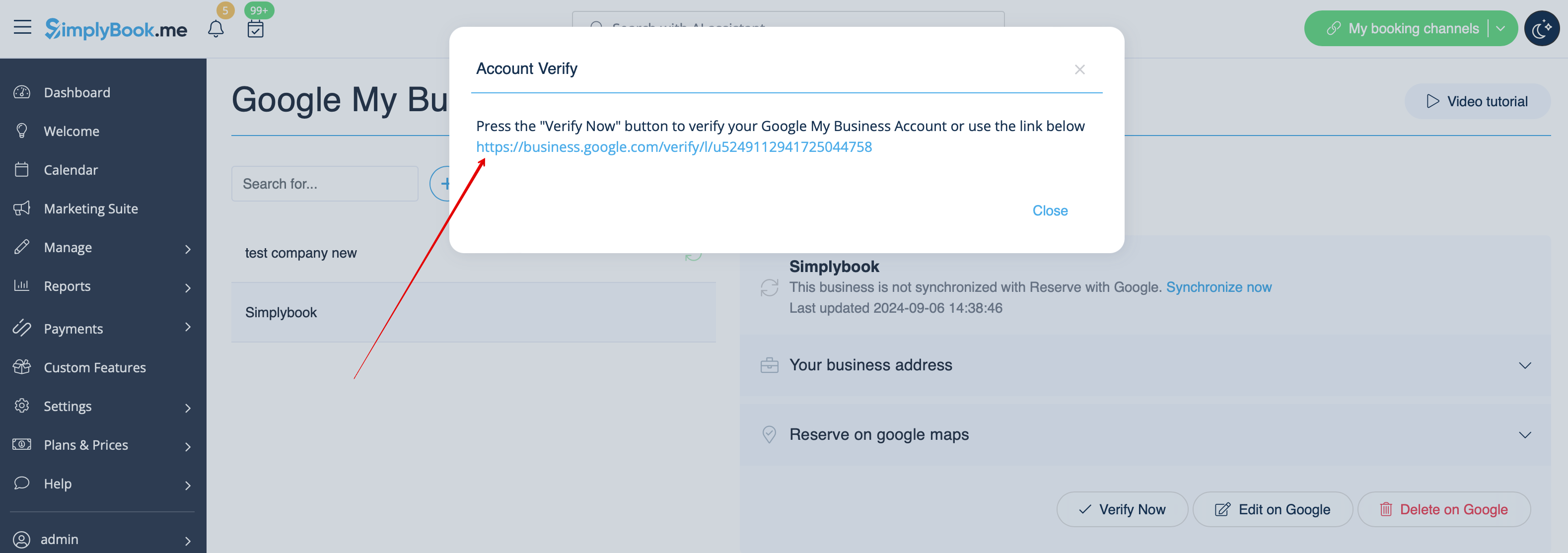


7. Når du gemmer placeringen, sendes følgende oplysninger om din virksomhed til Google:
  • virksomhedens placeringstitel;
  • virksomhedens åbningstider;
  • virksomhedens telefonnummer;
  • link til reservationsside;
  • virksomhedskategori (da Googles kategorier varierer, vil den bedst matchende blive fundet).


Bemærk,at hvis du har ændret nogle af disse oplysninger i din SimplyBook.me-konto, skal du gemme forretningsadressen igen i Google Business-indstillingerne, for at oplysningerne bliver opdateret på Google.


8. Du kan også redigere dine forretningsadresseoplysninger på Google, hvis det er nødvendigt. Klik blot på knappen Rediger på GMB øverst (vises for gemte og synkroniserede placeringer).
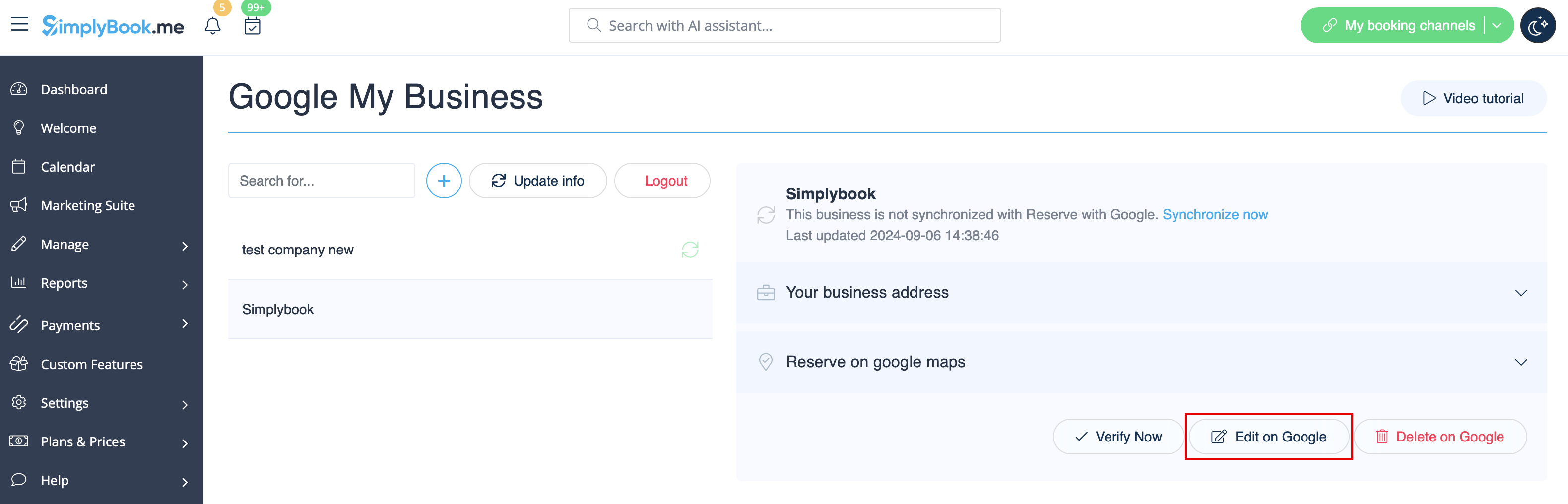


9. Hvis nogle placeringer ikke længere er relevante for din virksomhed, kan du nemt slette dem i denne funktionsindstilling. Klik blot på Slet på GMB-indstillingen.
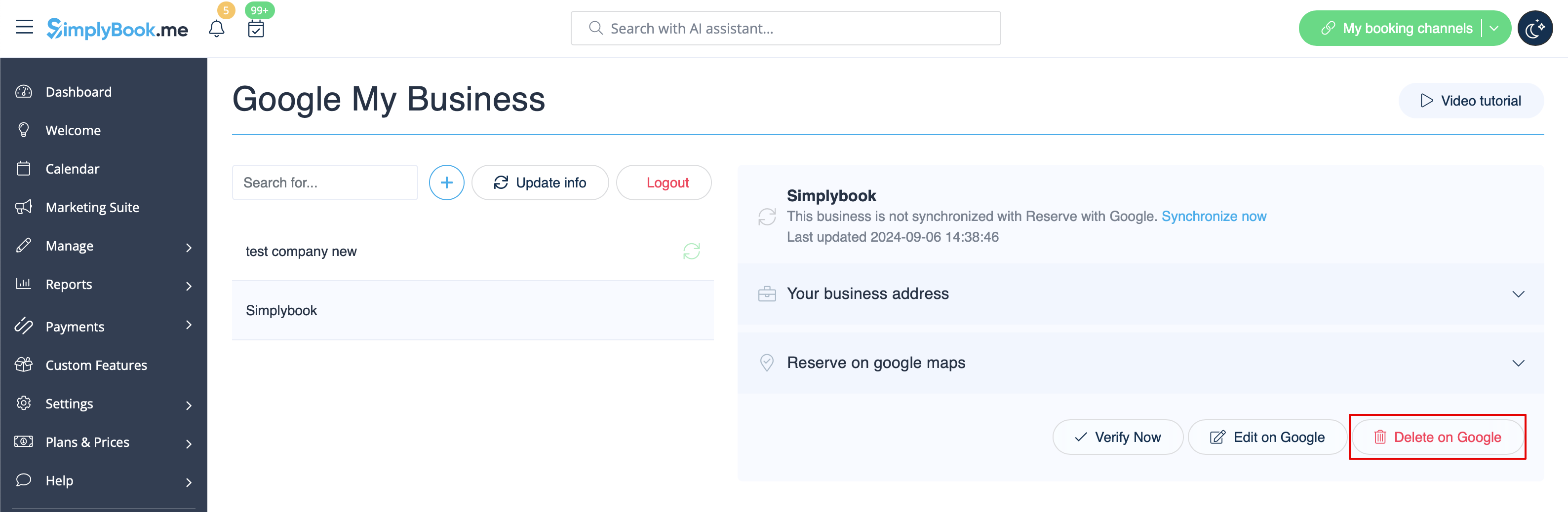


Reserver med Google