Translations:Google Business custom feature/9/sv: Difference between revisions

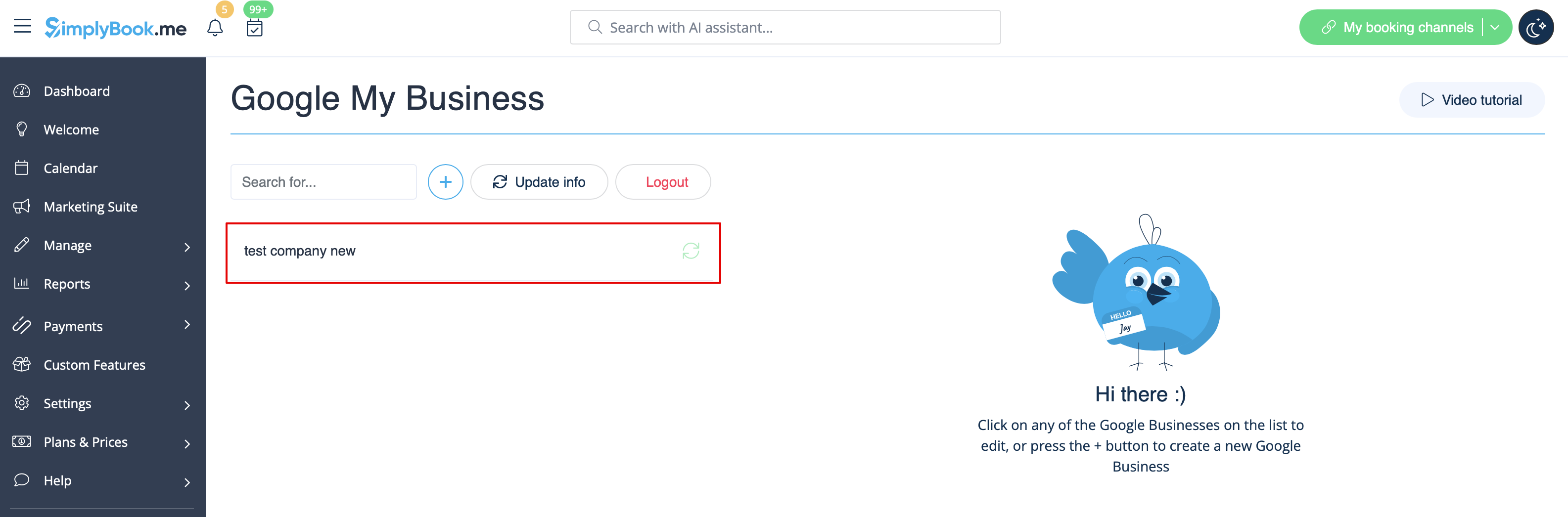
From SimplyBook.me
Created page with "<br><br> hur man använder: :1. Lägg till och verifiera dina Google Business-platser antingen via <span style="background-color:#d4f8e5; padding:5px; border-radius:5px;">SimplyBook.me-plattformen (föregående del av denna handledning)</span> eller via ditt <span style="background-color:#d4f8e5; padding:5px; border-radius:5px;">Google Business-gränssnitt</span> och spara dem igen i <span style="background-color:#d4f8e5; padding:5px; border-radius:5px;">inställningarna..."
(No difference)

Revision as of 15:04, 19 May 2025

Information about message (contribute)
This message has no documentation. If you know where or how this message is used, you can help other translators by adding documentation to this message.
Message definition (Google Business custom feature)
<br><br>
;How to use:
:1. Add and verify your Google Business location(s) either via <span style="background-color:#d4f8e5; padding:5px; border-radius:5px;">SimplyBook.me platform(previous part of this tutorial)</span> or using your <span style="background-color:#d4f8e5; padding:5px; border-radius:5px;">Google Business interface</span> and re-save it(them) in <span style="background-color:#d4f8e5; padding:5px; border-radius:5px;">Google Business custom feature settings.</span>
[[File:Google business existing locations redesigned.png|1200px|border|center|link=https://help.simplybook.me/images/7/71/Google_business_existing_locations_redesigned.png]]
<br><br>
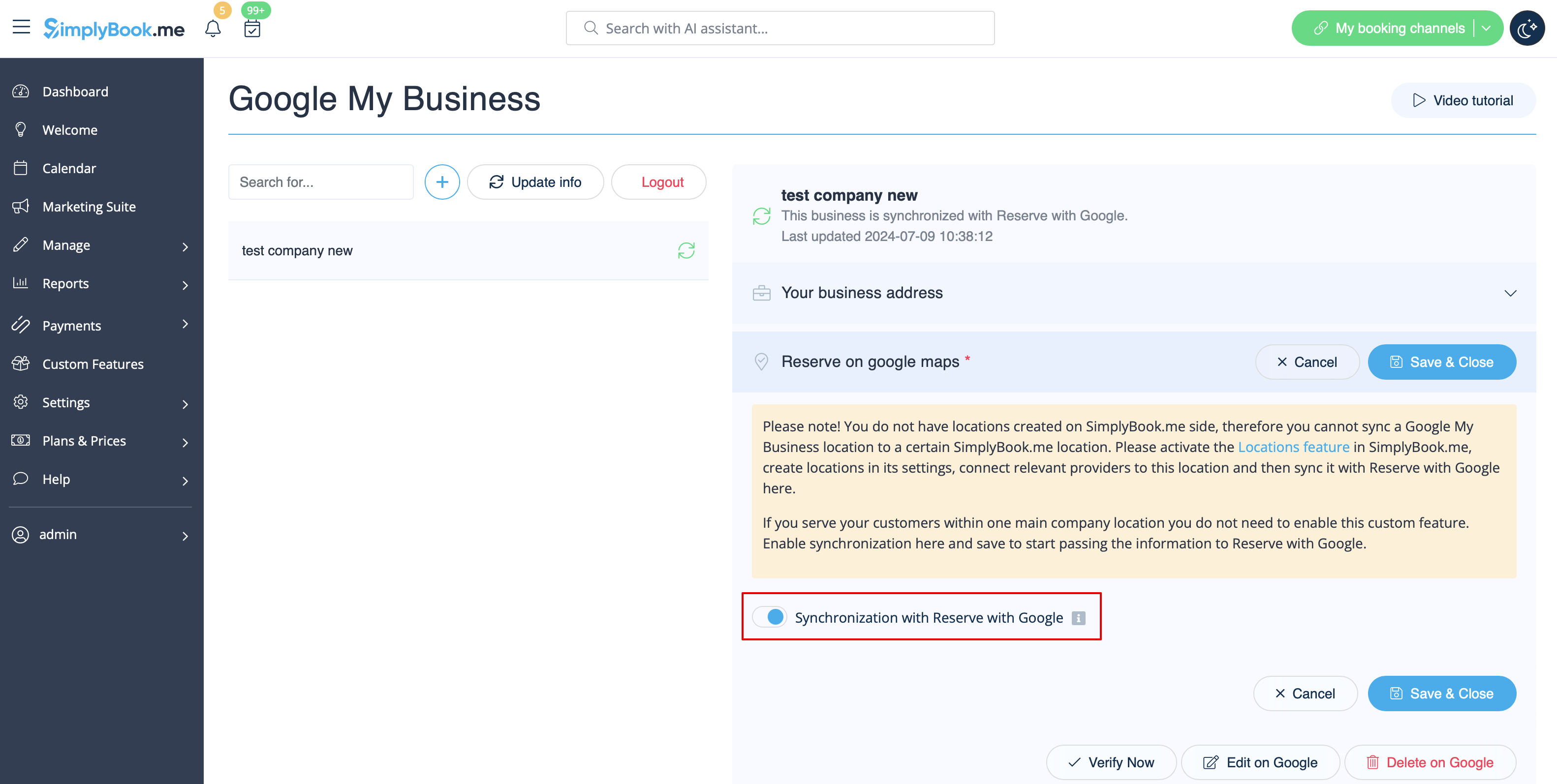
:2. Navigate to <span style="background-color:#d4f8e5; padding:5px; border-radius:5px;">Reserve on google maps</span> tab and move the switcher <span style="background-color:#d4f8e5; padding:5px; border-radius:5px;">Synchronization with Reserve with Google</span> to an active position.
[[File:Reserve with google enable path redesigned.png|1200px|border|center|link=https://help.simplybook.me/images/8/80/Reserve_with_google_enable_path_redesigned.png]]
<br><br>
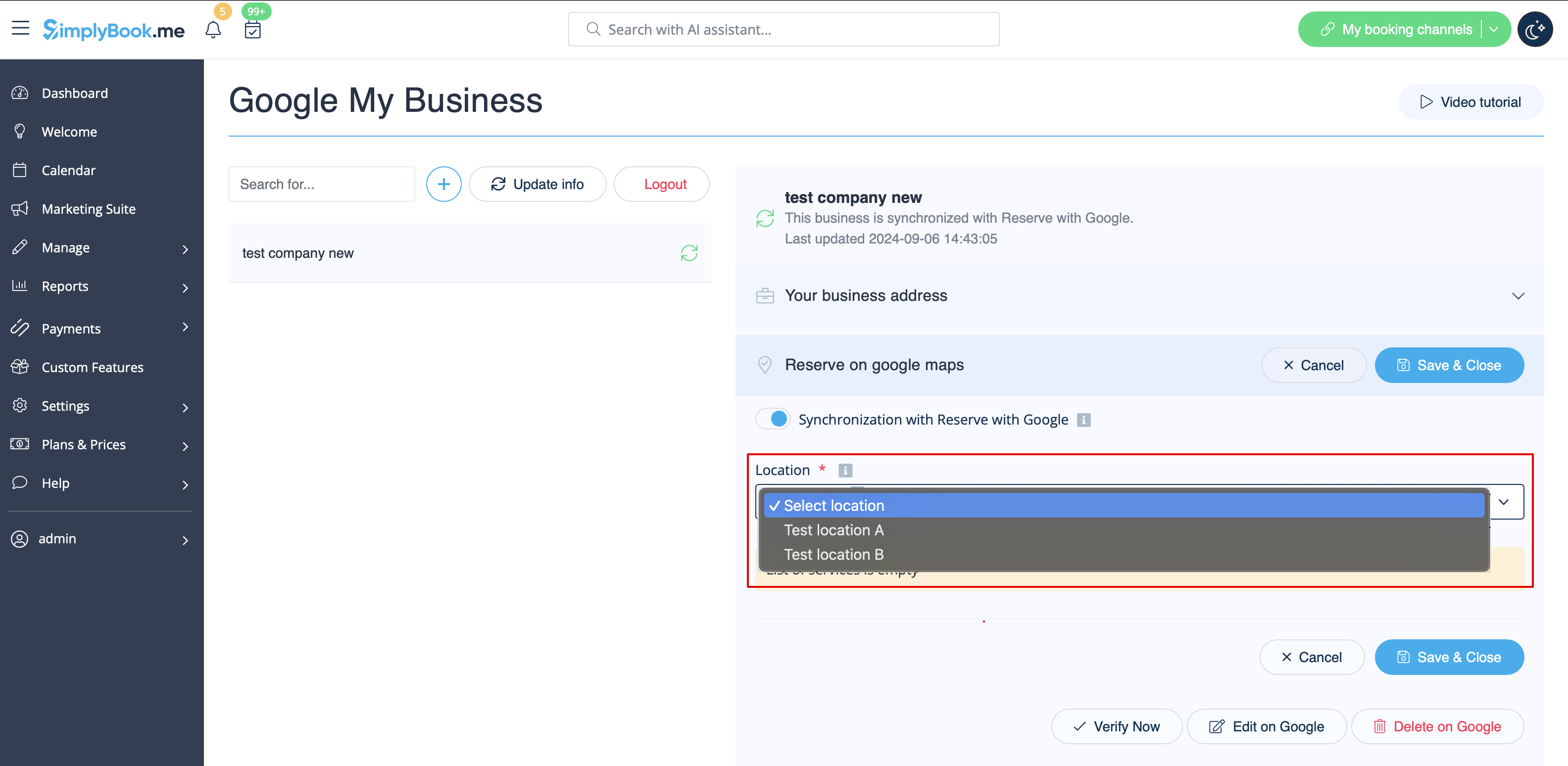
:3. (optional) If you use <span style="background-color:#cdeffc; padding:5px; border-radius:5px;">[[Special:MyLanguage/Multiple Locations custom feature|Multiple Locations]]</span> custom feature, connect your <span style="background-color:#d4f8e5; padding:5px; border-radius:5px;">Google Businesses</span> to desired <span style="background-color:#d4f8e5; padding:5px; border-radius:5px;">SimplyBook.me locations.</span>
:<span style="background-color:#ffe9e9; padding:5px; border-radius:5px;">'''Please note!''' It is possible to connect one SimplyBook.me location to one Google Business.</span>
:<span style="background-color:#ffe9e9; padding:5px; border-radius:5px;">If you do not use <span style="background-color:#cdeffc; padding:5px; border-radius:5px;">[[Special:MyLanguage/Multiple Locations custom feature|Multiple Locations]]</span> your main company location can be connected to one Google Business.</span>
[[File:Reserve with google select location redesigned.png|1200px|border|center|link=https://help.simplybook.me/images/1/14/Reserve_with_google_select_location_redesigned.png]]
<br><br>
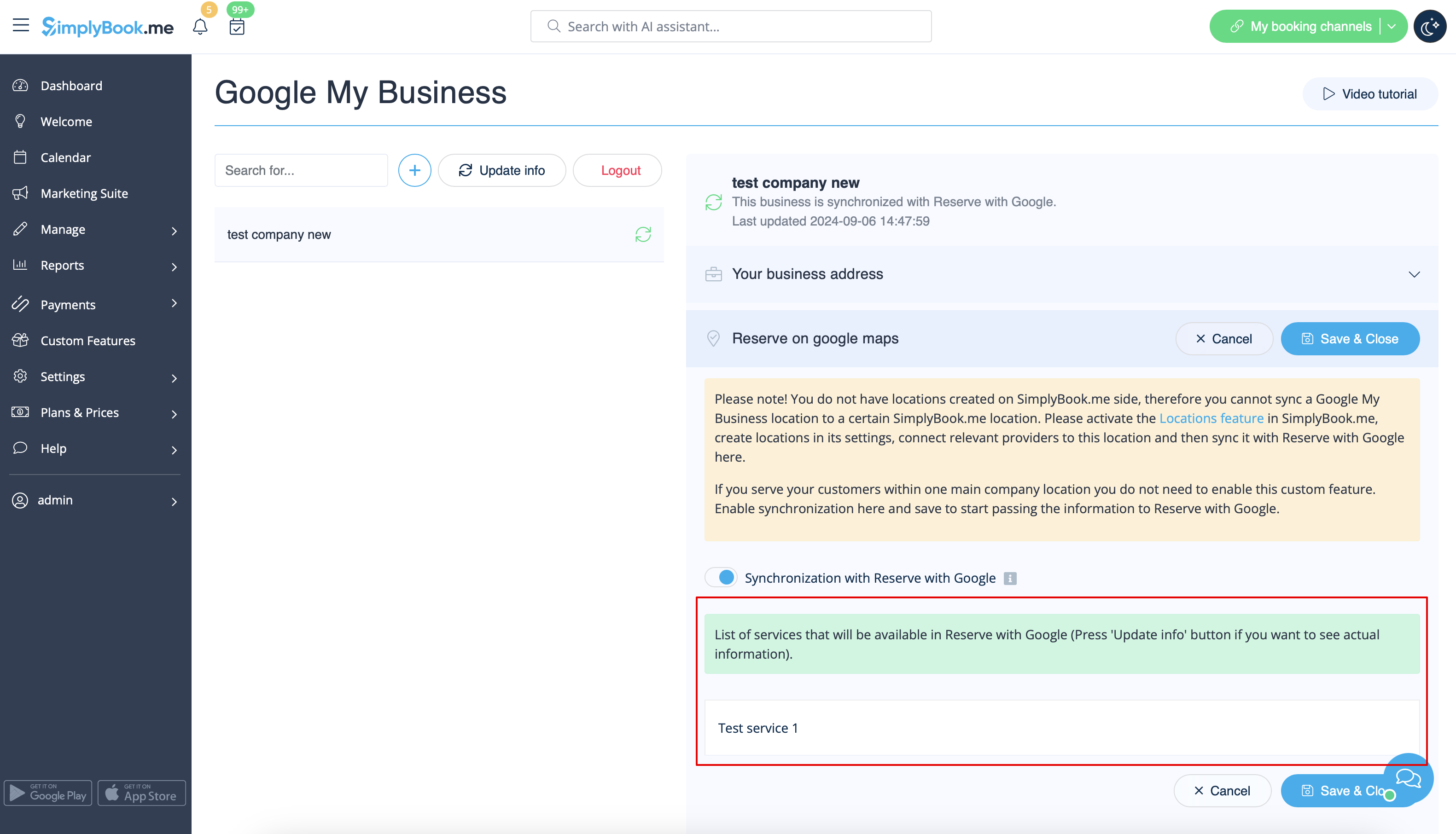
:4. <span style="background-color:#d4f8e5; padding:5px; border-radius:5px;">Save</span> settings. Now the sync takes place and after you <span style="background-color:#d4f8e5; padding:5px; border-radius:5px;">reload the page</span> it will be possible to see the list of services that will be passed to Reserve with Google for booking.
:By default we gather all the information and pass the update to Google once a day, but you can use <span style="background-color:#d4f8e5; padding:5px; border-radius:5px;">Update info</span> button to prepare the information for transfer manually if any settings changes in your account(for example, if you have created new service) were made.
[[File:Reserve with google list of services redesigned.png|1200px|border|center|link=https://help.simplybook.me/images/d/dd/Reserve_with_google_list_of_services_redesigned.png]]
<br><br>
<br><br>


hur man använder:

1. Lägg till och verifiera dina Google Business-platser antingen via SimplyBook.me-plattformen (föregående del av denna handledning) eller via ditt Google Business-gränssnitt och spara dem igen i inställningarna för anpassade funktioner i Google Business.


2. Gå till fliken Boka på Google Maps och flytta omkopplaren Synkronisering med Boka med Google till en aktiv position.


3. (valfritt) Om du använder den anpassade funktionen Flera platser, anslut dina Google-företag till önskade SimplyBook.me-platser.
Observera! Det är möjligt att koppla en SimplyBook.me-plats till ett Google Business-konto.
Om du inte använder funktionen Flera platser kan ditt huvudkontor kopplas till ett Google Business-konto.


4. Spara inställningarna. Nu sker synkroniseringen och när du laddar om sidan kommer du att kunna se listan över tjänster som kommer att skickas till Reserve with Google för bokning.
Som standard samlar vi all information och skickar uppdateringen till Google en gång om dagen, men du kan använda knappen Uppdatera info för att förbereda informationen för överföring manuellt om några inställningar i ditt konto har ändrats (till exempel om du har skapat en ny tjänst).