Translations:Group Bookings custom feature/5/uk: Difference between revisions

From SimplyBook.me
Created page with "__FORCETOC__ = Як = :1. Переконайтеся, що постачальник послуг може прийняти X клієнтів одночасно (або більше, залежно від ваших потреб). Для цього перейдіть в «Управління» // «Постачальники послуг» // виберіть необхідного постачальника // «Деталі постачальника послуг» //..."
 
(No difference)

Latest revision as of 15:19, 19 May 2025

Information about message (contribute)
This message has no documentation. If you know where or how this message is used, you can help other translators by adding documentation to this message.
Message definition (Group Bookings custom feature)
__FORCETOC__
=How to use=
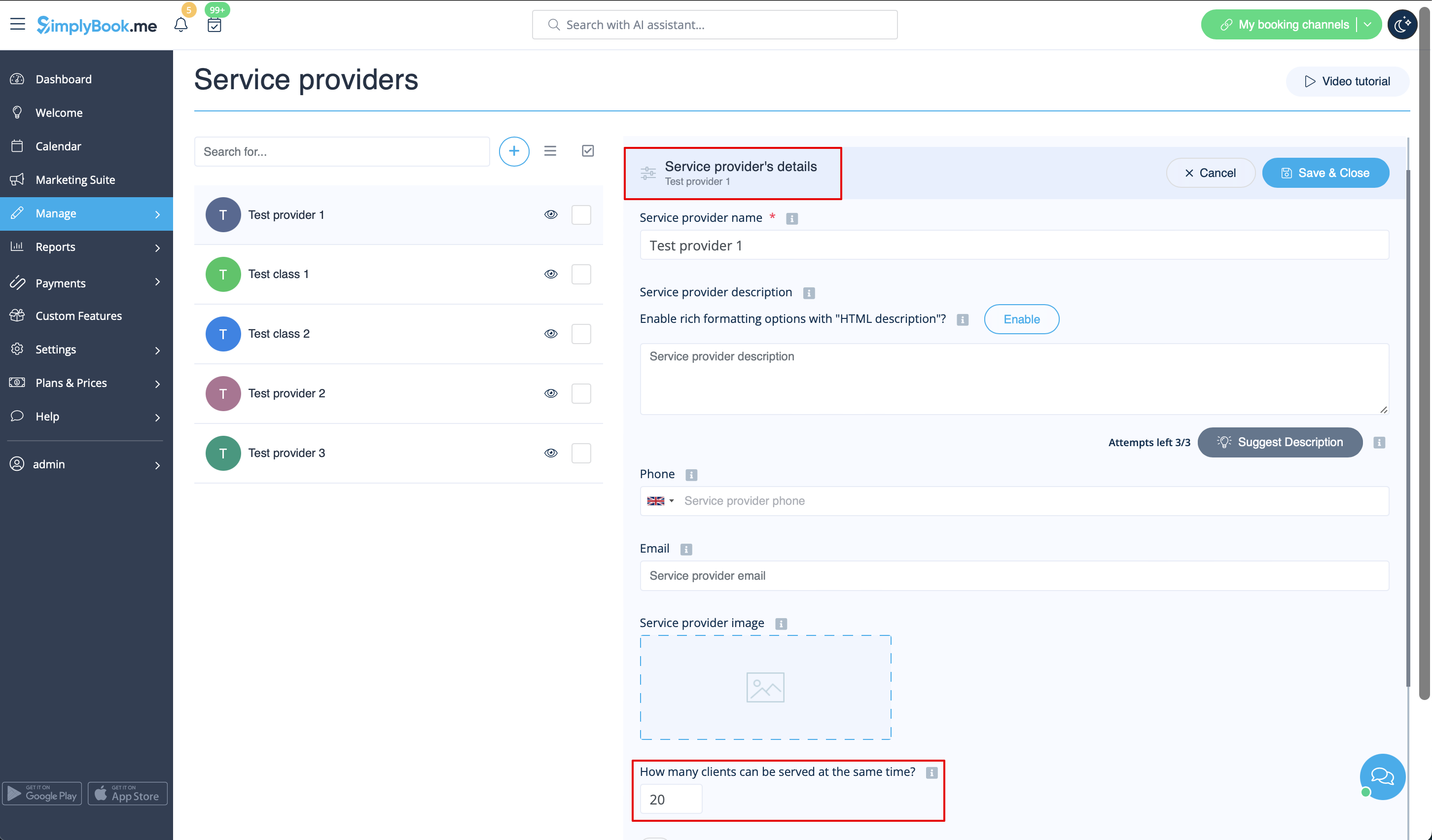
:1. Make sure that the Service provider is set able to accept X many clients at same time(or more depending on your needs). For this go Manage//Service Providers//select necessary provider//Service provider details//How many clients can this provider serve at same time? and set the X number of clients.
[[File:Number of clients per provider redesigned.png|1200px | center|link=https://help.simplybook.me/images/a/a6/Number_of_clients_per_provider_redesigned.png]]
<br><br>
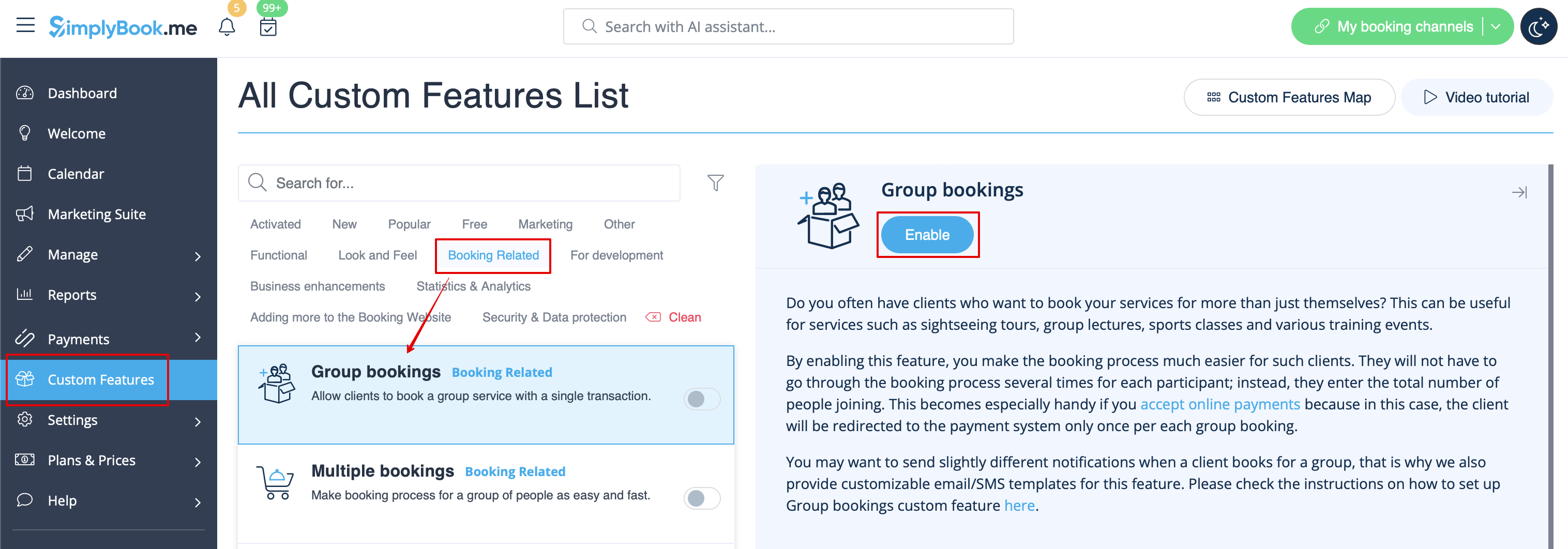
:2. Activate Group Bookings custom feature on your Custom features page
[[File:Group bookings enable path redesigned.png|1200px | center|link=https://help.simplybook.me/images/8/80/Group_bookings_enable_path_redesigned.png]]
<br><br>
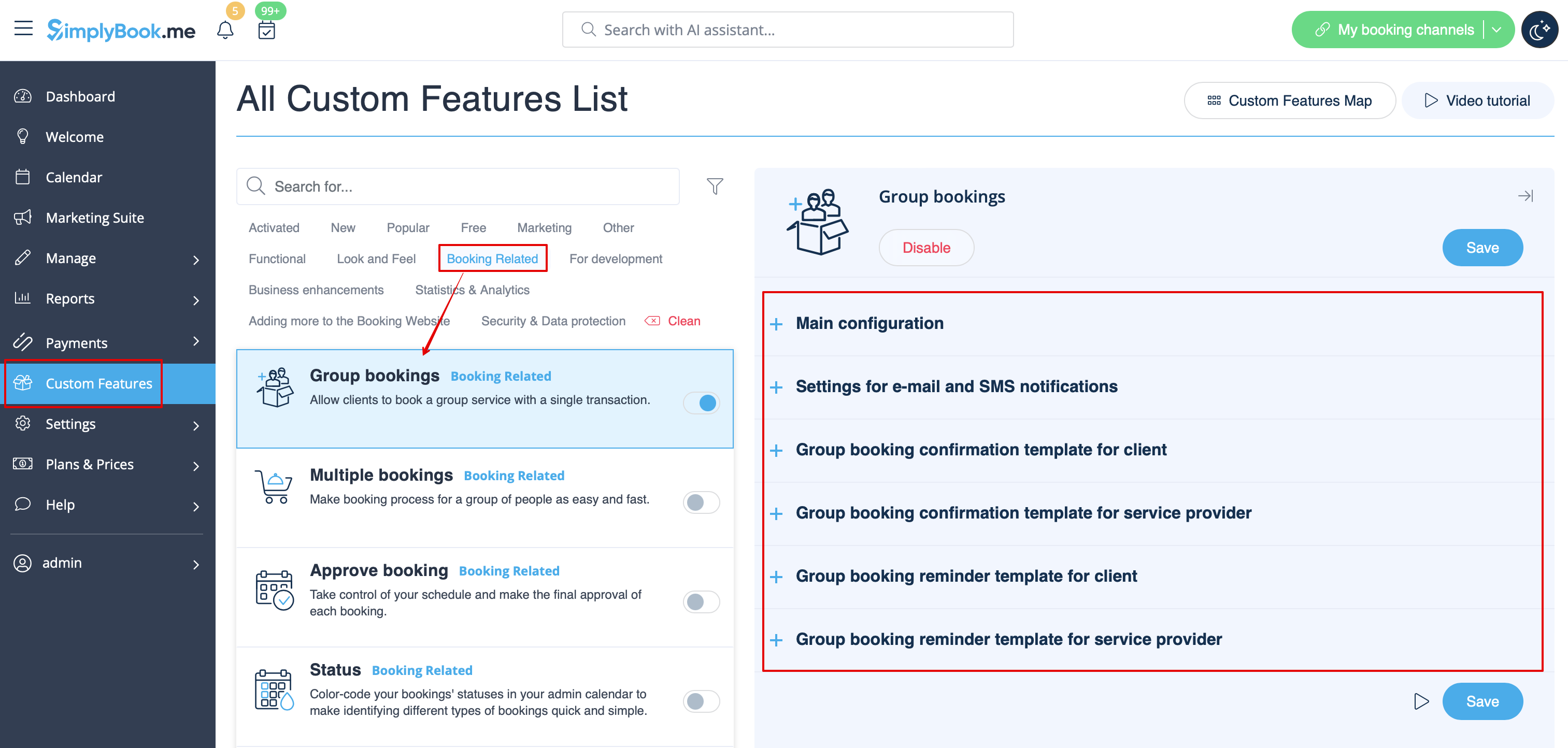
:3. Go to its settings on the right.
[[File:Group bookings setings block redesigned.png|1200px| center|link=https://help.simplybook.me/images/2/2c/Group_bookings_setings_block_redesigned.png]]
<br><br>
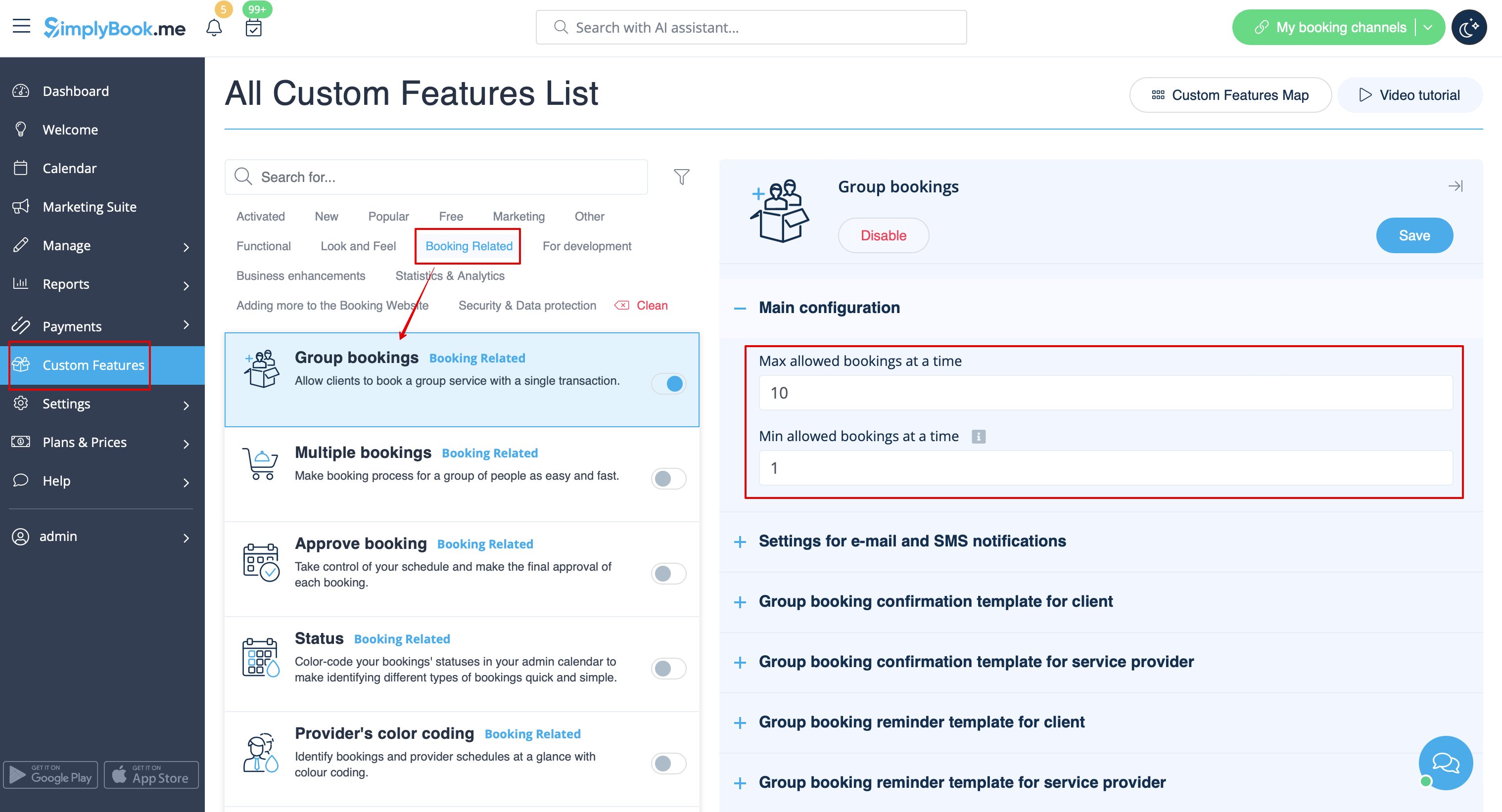
:4. Here you can specify how many people can be booked in same booking, by same client and edit notification templates related to this feature below.
[[File:Min max group bookings redesigned.png|1200px| center|link=https://help.simplybook.me/images/9/9d/Min_max_group_bookings_redesigned.png]]
<br><br>
:(optional) You can additionally indicate minimum number of allowed group bookings if it is required for your services and as the result the clients will not be able to select the lower number of sessions on the service step of the booking process.<br<
:It is possible to set this minimum number for all the services you have. Then please do that in Custom features -> Group bookings -> right side of the page -> Min allowed bookings at a time
<br><br>
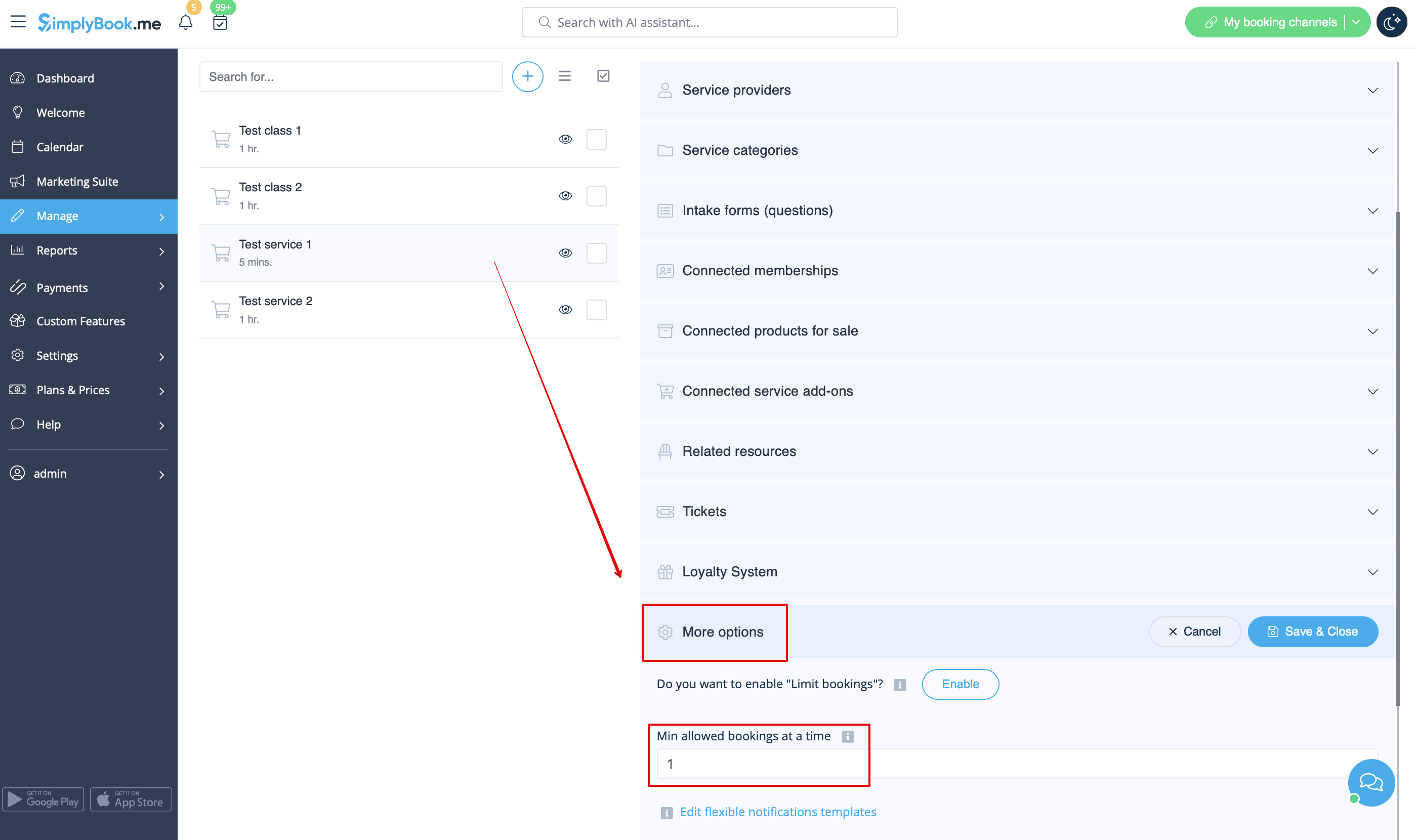
:Or you can define some number per service/class in Manage -> Services/Classes -> select the service/class -> More options ->  Min allowed bookings at a time
[[File:Group bookings per service minimum redesigned.png|1200px|border|center|link=https://help.simplybook.me/images/6/62/Group_bookings_per_service_minimum_redesigned.png]]
<br><br>
=How will it look like on the booking page:=
<br>
:The clients will be able to use the arrows to choose the number of participants(the look may differ depending on the theme you have).
[[File:Group bookings min max client side.png|1200px|border‎| center]]
<br><br>

Як

1. Переконайтеся, що постачальник послуг може прийняти X клієнтів одночасно (або більше, залежно від ваших потреб). Для цього перейдіть в «Управління» // «Постачальники послуг» // виберіть необхідного постачальника // «Деталі постачальника послуг» // «Скільки клієнтів може обслуговувати цей постачальник одночасно?», і встановіть кількість клієнтів X.


2. Активуйте спеціальну функцію «Групові бронювання» на сторінці «Спеціальні функції»


3. Перейдіть до налаштувань праворуч.


4. Тут ви можете вказати, скільки осіб може бути заброньовано в одному замовленні одним клієнтом, а також редагувати шаблони повідомлень, пов'язані з цією функцією, нижче.


(опціонально) Ви можете додатково вказати мінімальну кількість дозволених групових бронювань, якщо це необхідно для ваших послуг, і в результаті клієнти не зможуть вибрати меншу кількість сеансів на етапі бронювання послуги. <br<
Можна встановити цю мінімальну кількість для всіх послуг, які ви надаєте. Для цього перейдіть в розділ «Налаштування» -> «Групові бронювання» -> в правій частині сторінки -> «Мінімальна кількість бронювань одночасно»


. Або ви можете вказати певну кількість для кожної послуги/класу в розділі «Управління» -> «Послуги/Класи» -> виберіть послугу/клас -> «Додаткові параметри» -> «Мінімальна кількість бронювань одночасно»


Як це буде виглядати на сторінці бронювання:


Клієнти зможуть використовувати стрілки, щоб вибрати кількість учасників (вигляд може відрізнятися залежно від теми, яку ви використовуєте).
border‎
border‎