From SimplyBook.me
No edit summary |
No edit summary |
||
| Line 1: | Line 1: | ||
<languages/> | |||
<translate> | |||
{{#seo: | {{#seo: | ||
|title=News custom feature - SimplyBook.me | |title=News custom feature - SimplyBook.me | ||
| Line 5: | Line 7: | ||
|keywords=faq, frequently asked questions, booking software, appointment system questions, appointments online, calendar software, booking system, booking calendar, scheduling software, online appointment scheduling, online scheduling, plugins, custom features, additional functionality, news, blog, blog posts, news on the booking site, blog on the booking site | |keywords=faq, frequently asked questions, booking software, appointment system questions, appointments online, calendar software, booking system, booking calendar, scheduling software, online appointment scheduling, online scheduling, plugins, custom features, additional functionality, news, blog, blog posts, news on the booking site, blog on the booking site | ||
}} | }} | ||
</translate> | |||
<translate> | |||
| Line 16: | Line 20: | ||
:<span style="background-color:#ffe9e9; padding:5px; border-radius:5px;">'''Please note! ''' This functionality is currently not present in [[Client mobile app]]</span> | :<span style="background-color:#ffe9e9; padding:5px; border-radius:5px;">'''Please note! ''' This functionality is currently not present in [[Client mobile app]]</span> | ||
</translate> | |||
<translate> | |||
;How to use | ;How to use | ||
| Line 27: | Line 33: | ||
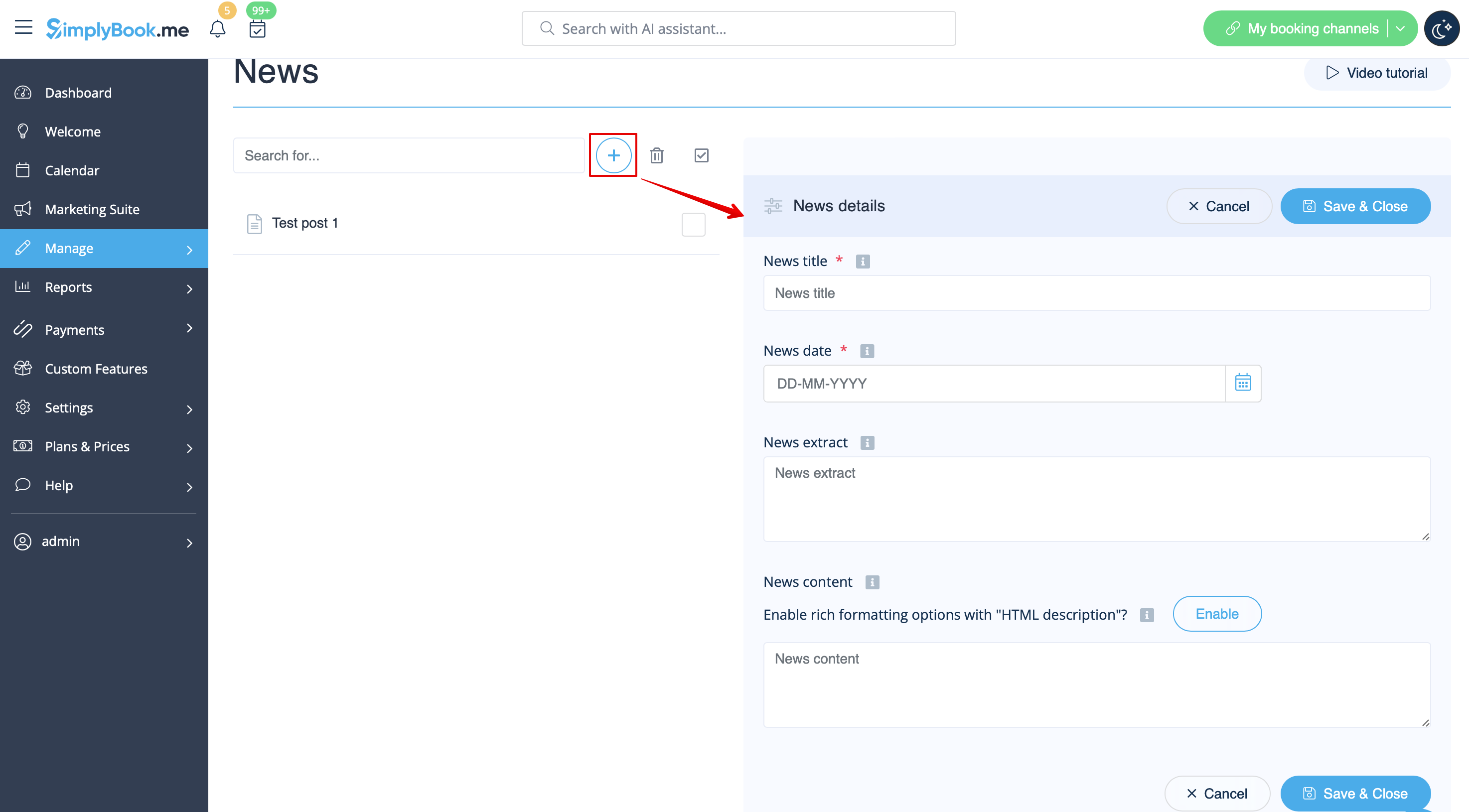
[[File:Create new news post redesigned.png|1200px | center|link=https://help.simplybook.me/images/2/2c/Create_new_news_post_redesigned.png]] | [[File:Create new news post redesigned.png|1200px | center|link=https://help.simplybook.me/images/2/2c/Create_new_news_post_redesigned.png]] | ||
<br><br> | <br><br> | ||
</translate> | |||
Revision as of 15:21, 19 May 2025

Give your website a fresh life by managing news on your main page in our booking system.
You can publish news or blog on your booking website to keep your customers up to date with what’s happening in the business.
- Please note! This functionality is currently not present in Client mobile app
- How to use
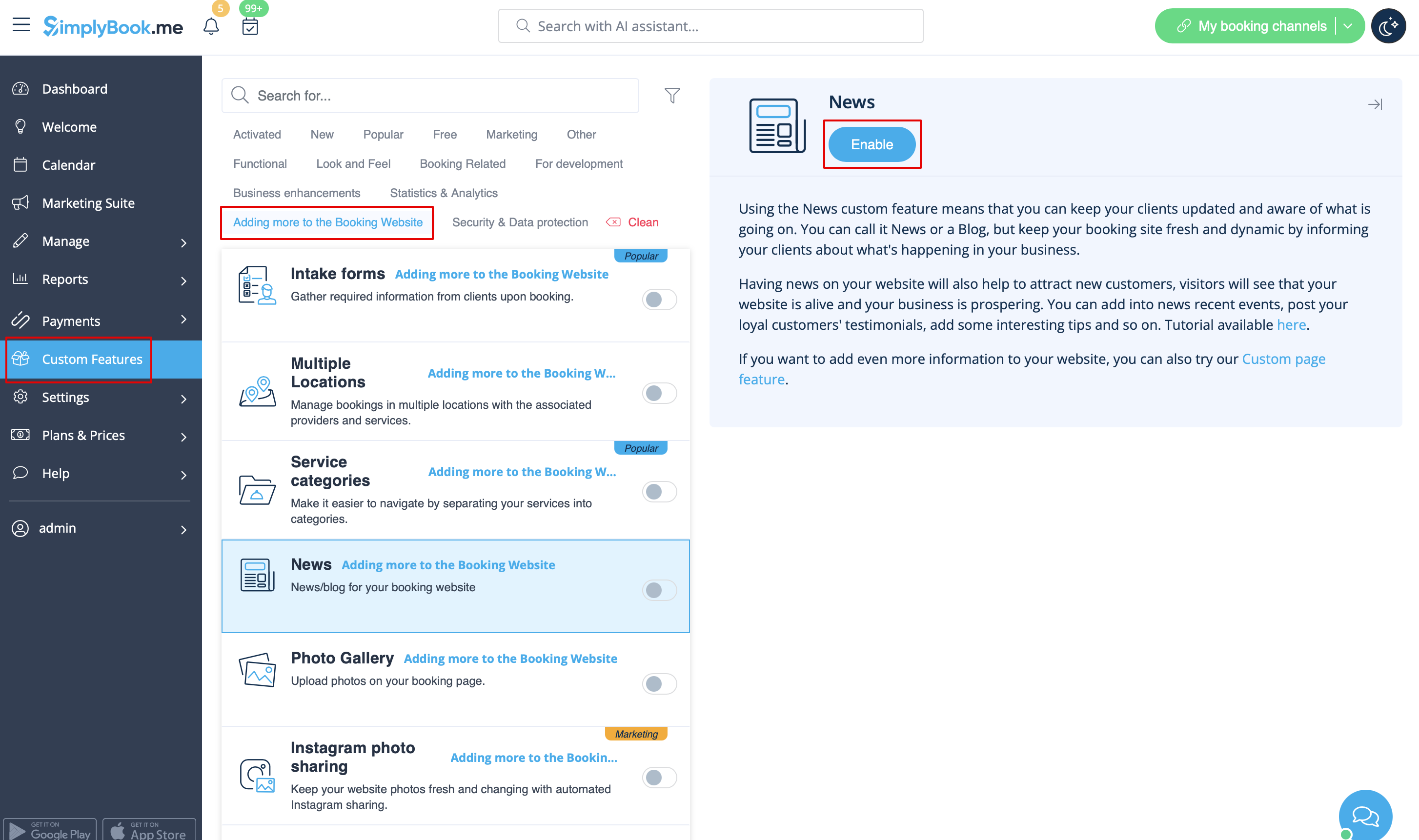
- 1. Enable this custom feature on your Custom Features page, Adding more to the Booking Website section.
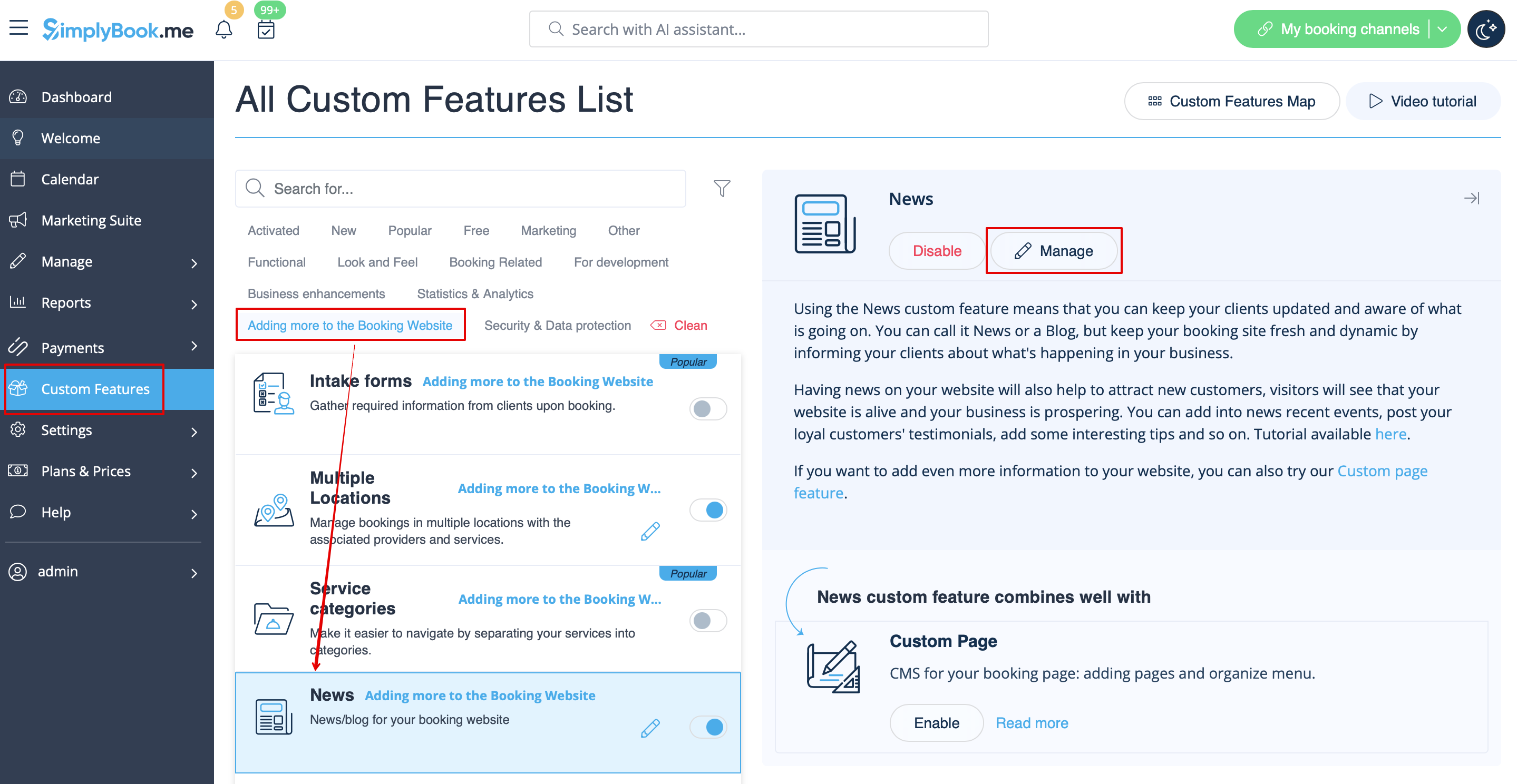
- 2. Click on "Manage" near this option.
- 3. Create the posts on the page you see by clicking on "+" button.