Translations:Intake Forms custom feature/2/uk: Difference between revisions

From SimplyBook.me
Created page with "як користуватися :1. Увімкніть спеціальну функцію «Форми прийому» в розділі «Спеціальні функції//Додавання додаткових елементів на сторінку бронювання». 1200px | center|link=https://help.simplybook.me/images/d/d7/Intake_forms_enable_path_redesigned.png <br><br> :2. Перейдіть до йог..."
 
(No difference)

Latest revision as of 15:27, 19 May 2025

Information about message (contribute)
This message has no documentation. If you know where or how this message is used, you can help other translators by adding documentation to this message.
Message definition (Intake Forms custom feature)
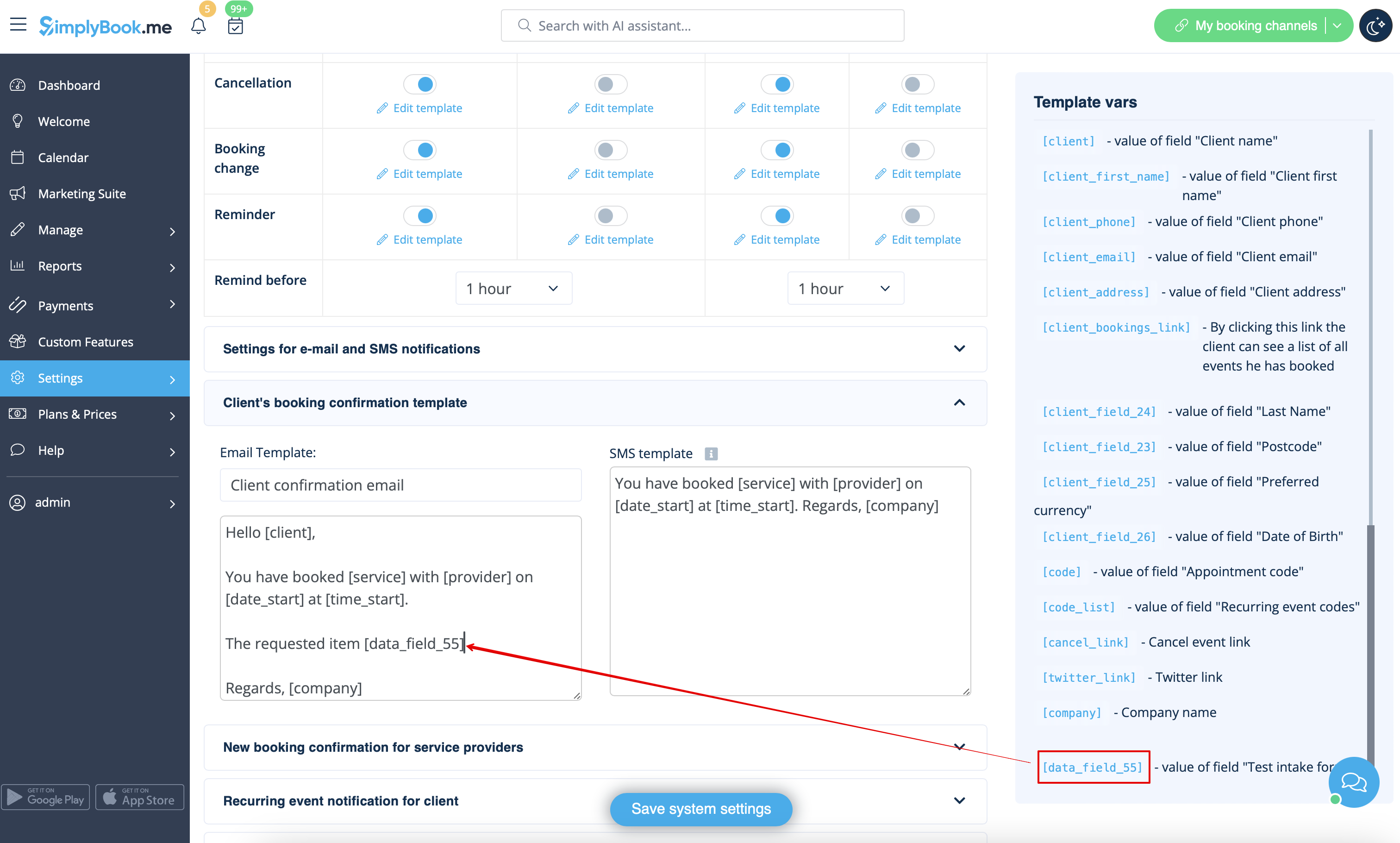
;How to use
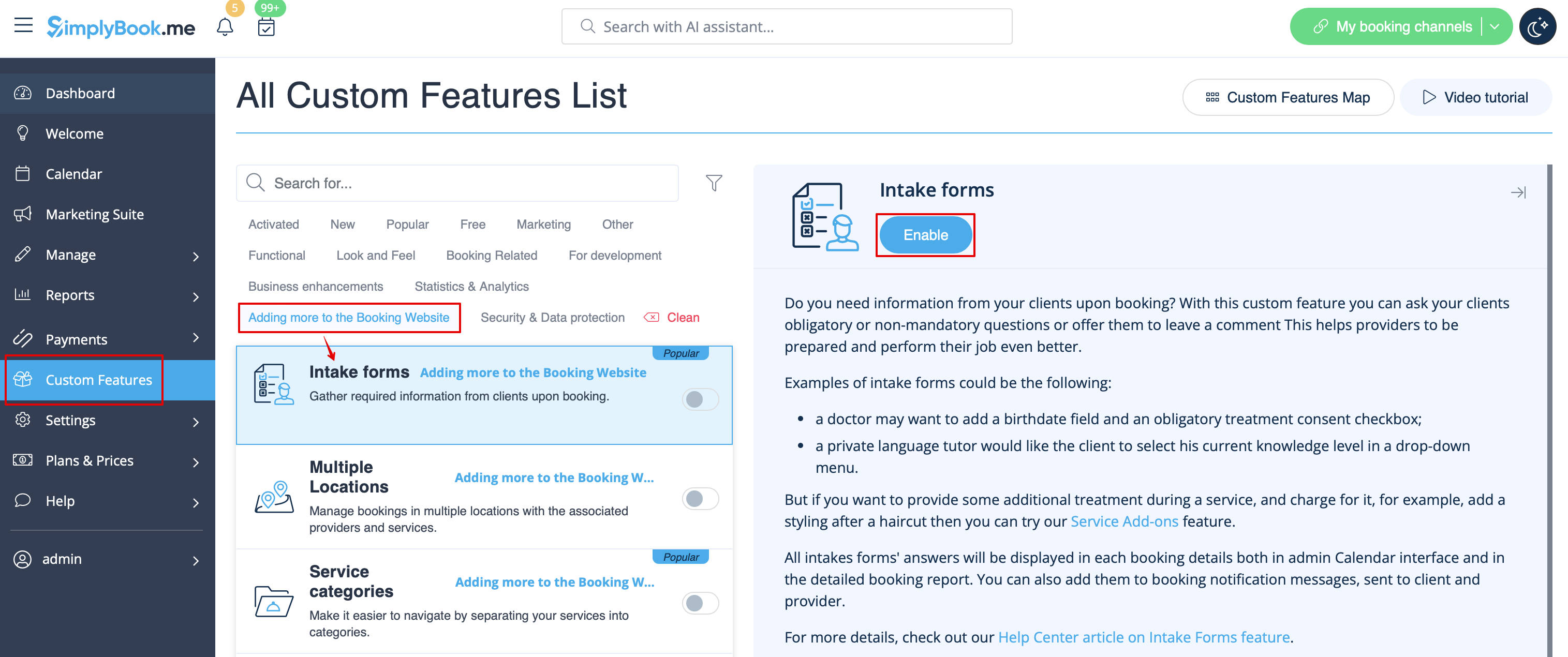
:1. Enable Intake Forms Custom Feature in the Custom Feature//Adding more to the booking page.
[[File:Intake forms enable path redesigned.png|1200px | center|link=https://help.simplybook.me/images/d/d7/Intake_forms_enable_path_redesigned.png]]
<br><br>
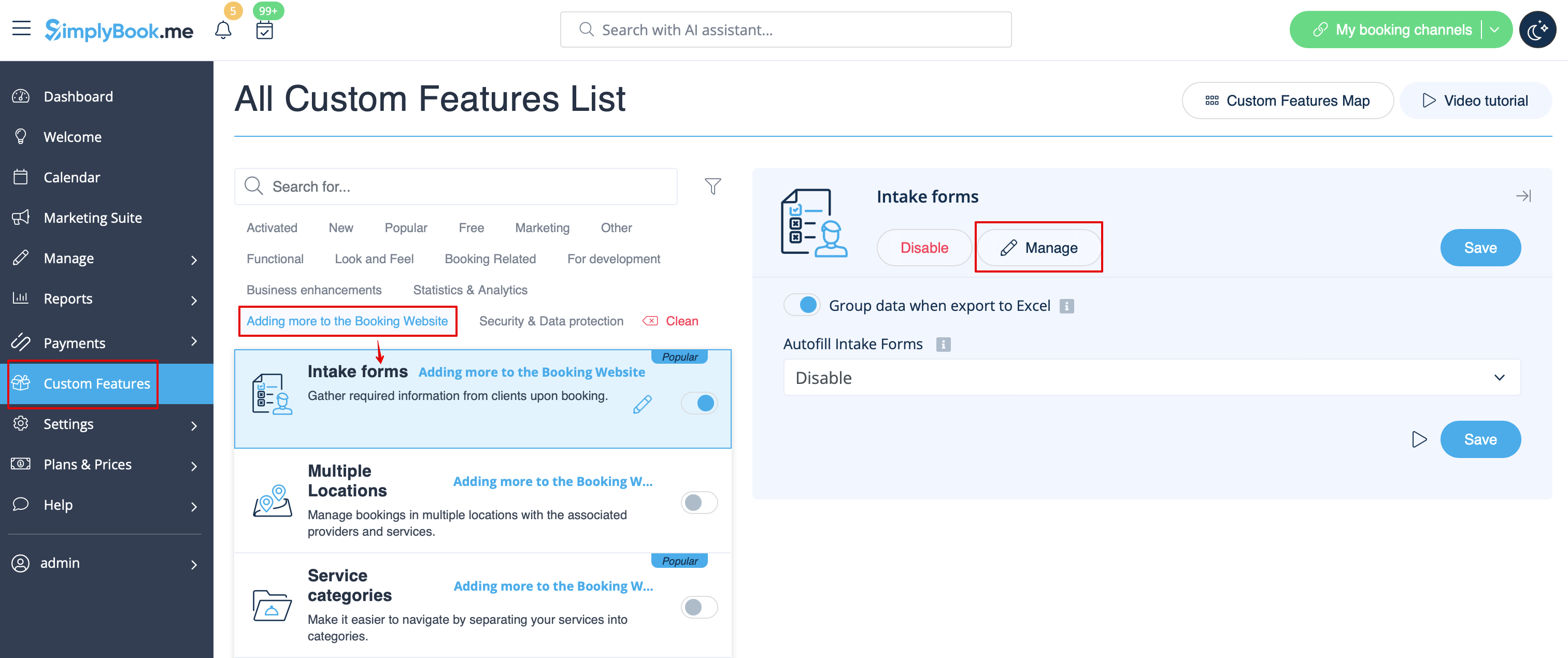
:2. Go to its management or to Manage//Intake forms page.
[[File:Intake forms settings path redesinged.png|1200px | center|link=https://help.simplybook.me/images/6/64/Intake_forms_settings_path_redesinged.png]]
<br><br>
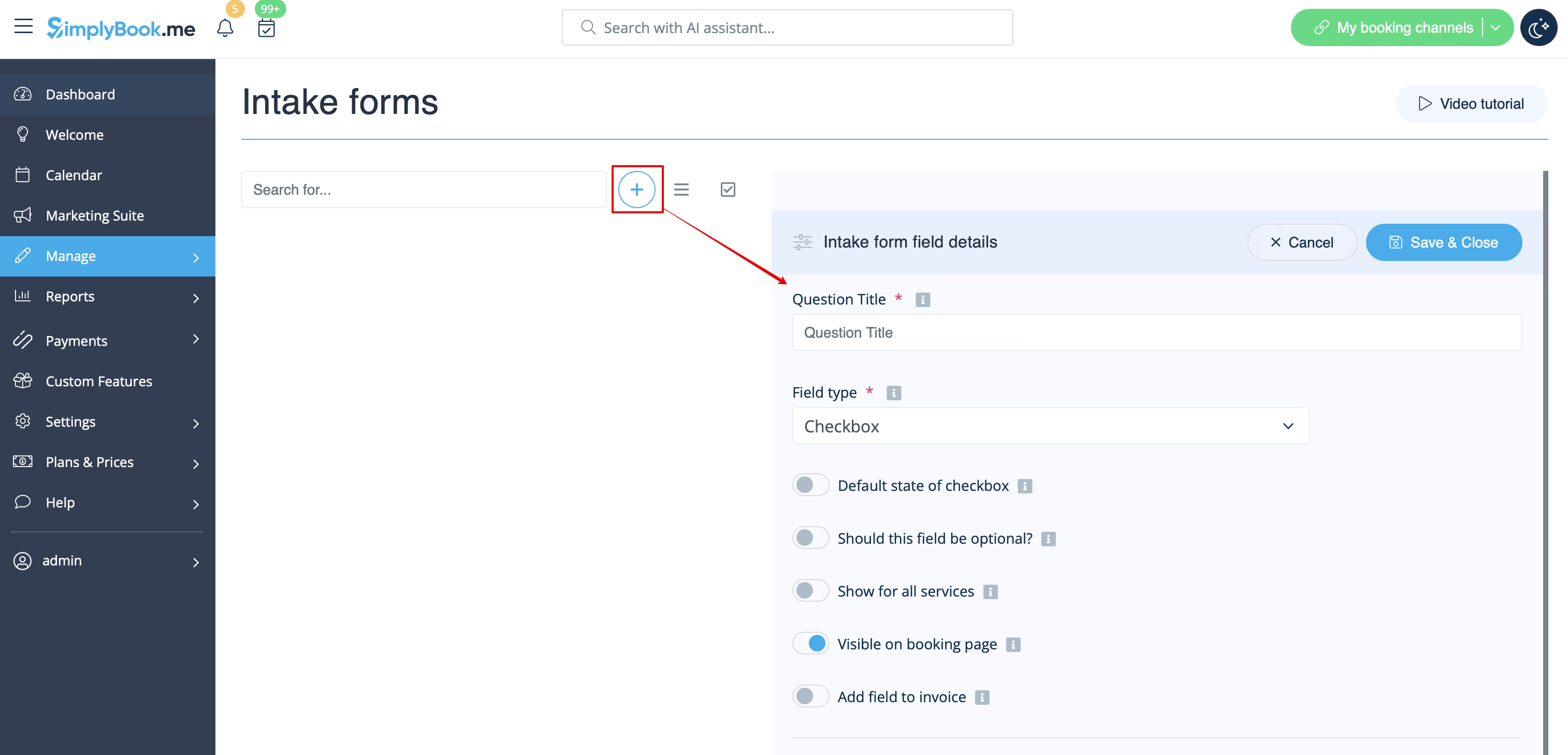
:3. Press "+" button in the settings of Custom Feature to create a new form.
[[File:New intake form form redesigned.png|1200px | center|link=https://help.simplybook.me/images/1/1c/New_intake_form_form_redesigned.png]]
<br><br>
:4. In the field "Question title" write the question you want your clients to answer. For example: Age, preferences, Do you have any health problems?, etc.
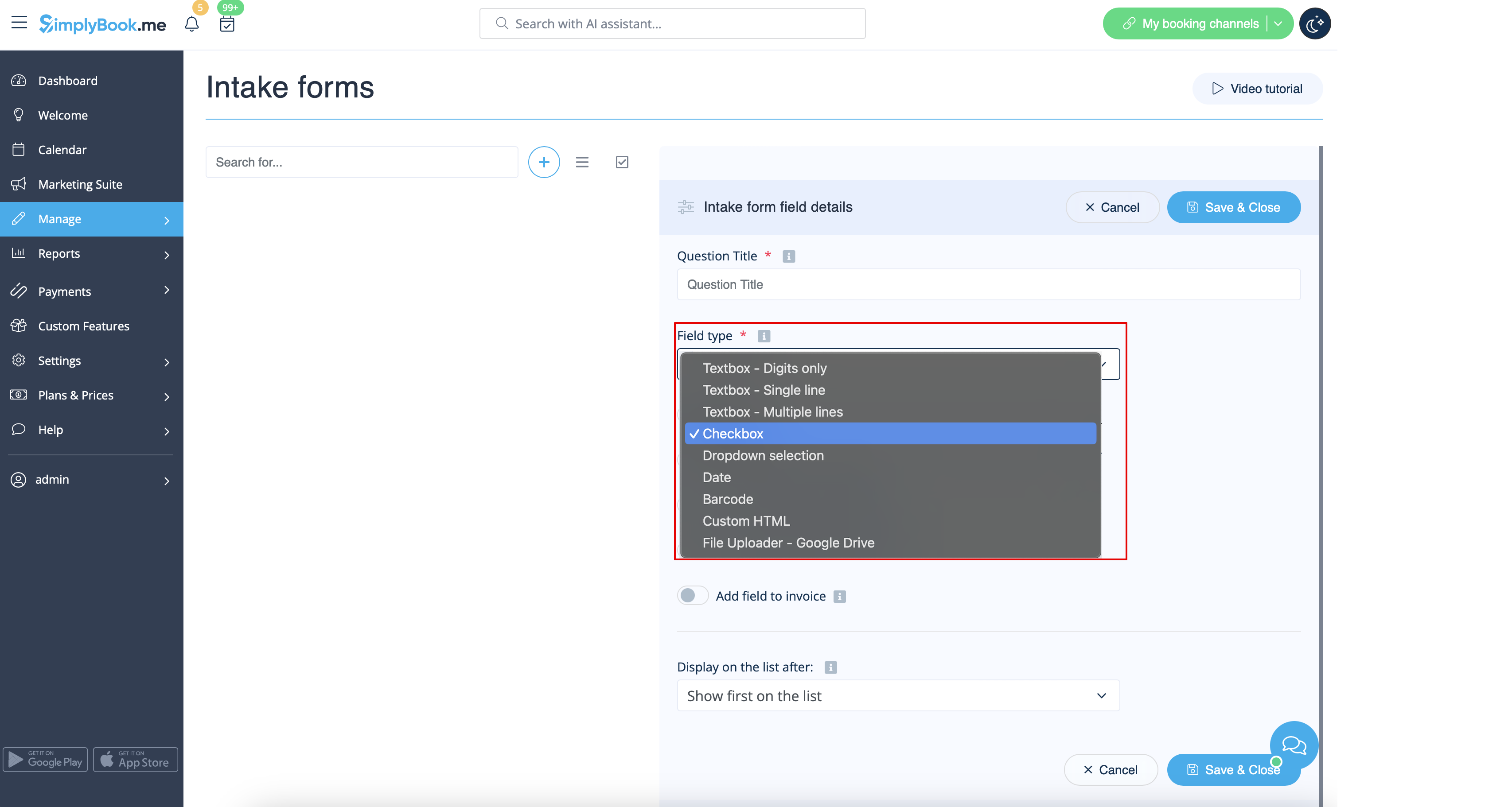
:5. Choose the field type:
:'''digits only''' - allows entering only numbers. Useful when you need to know the age, height or any other information that will require only digits.
:'''single line''' - usually used for short answers
:'''multiple lines''' - use this type of filed if you expect lengthy explanations from your clients
:'''checkbox''' - creates a checkbox that clients should either check or leave unchecked. Useful for questions that require binary answer, for example "I will need additional services".
:'''dropdown selection''' - creates a drop-down list with the ability to choose only 1 option. In order to create this field, you will need to create a list of values in the section "Dropdown options and default option". Also you can select the Default value that will be assigned if nothing is chosen from the list.
:'''date''' - creates date selection option with calendar.
:'''barcode''' - allows to scan barcodes via admin mobile application and get the values from scanning. Also allows simple text input like in single line intake forms.
:'''custom HTML''' - allows to add visual dividers or additional text near the intake form. Cannot be used for client input.
:'''file uploader - Google Drive''' - available if [[File Uploader - Google Drive custom feature]] is enabled. Allows file upload that you will be able to see in the dedicated folder on your Google Drive.
[[File:Intake forms types redesigned.png|1200px|border ‎|center|link=https://help.simplybook.me/images/1/1b/Intake_forms_types_redesigned.png]]
<br><br>
:6. Make it rather obligatory or not with the help of "optional" switcher.
:Include the field (both title and response will be included) to client invoices if you need and if you use [[Special:MyLanguage/Accept_payments_custom_feature|Accept payments]] custom feature.
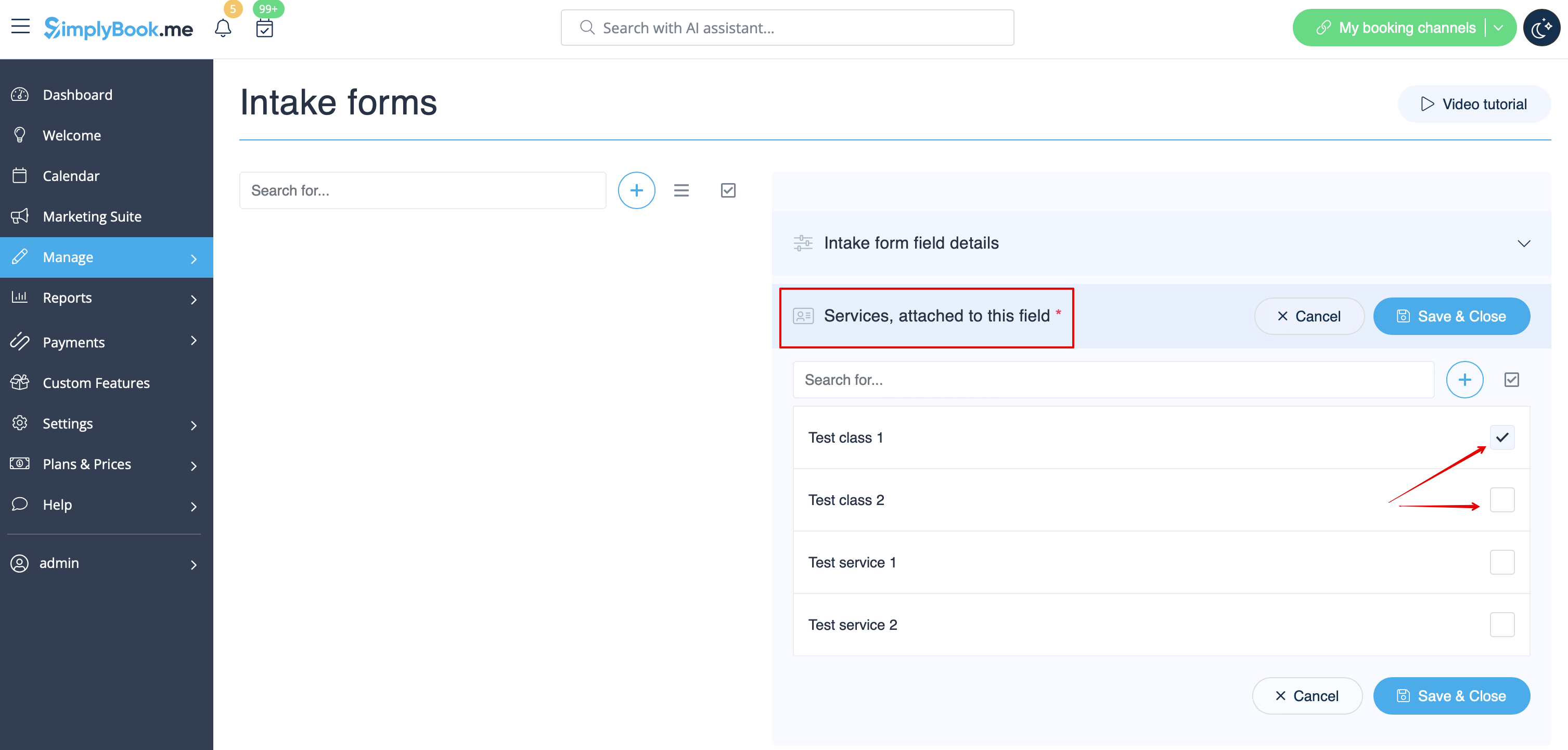
:7. If you wish to relate form with certain services, choose "Services, attached to this field" tab and check the boxes near corresponding services.
[[File:Connect intake form to services redesigned.png|1200px| center|link=https://help.simplybook.me/images/6/66/Connect_intake_form_to_services_redesigned.png]]
<br><br>
:8. If you want to include intake form information to email templates, find the intake forms variables and add them to templates in Settings//Email and SMS settings.
[[File:Add notification variable to template intake form redesigned.png|1200px | center|link=https://help.simplybook.me/images/5/59/Add_notification_variable_to_template_intake_form_redesigned.png]]
<br><br>

як користуватися

1. Увімкніть спеціальну функцію «Форми прийому» в розділі «Спеціальні функції//Додавання додаткових елементів на сторінку бронювання».


2. Перейдіть до його управління або на сторінку «Управління//Форми для прийому».


3. Натисніть кнопку «+» в налаштуваннях «Налаштовані функції», щоб створити нову форму.


4. У полі «Заголовок питання» введіть питання, на яке ви хочете отримати відповідь від клієнтів. Наприклад: Вік, уподобання, Чи є у вас проблеми зі здоров'ям? тощо.
5. Виберіть тип поля:
digits only - дозволяє вводити тільки цифри. Корисно, коли вам потрібно знати вік, зріст або будь-яку іншу інформацію, яка вимагає тільки цифр.
single line - зазвичай використовується для коротких відповідей
multiple lines - використовуйте цей тип поля, якщо ви очікуєте від своїх клієнтів довгих пояснень
checkbox - створює поле, яке клієнти повинні або позначити, або залишити непозначеним. Корисно для питань, що вимагають бінарної відповіді, наприклад «Мені потрібні додаткові послуги».
dropdown selection - створює список, що розкривається, з можливістю вибрати тільки 1 варіант. Щоб створити це поле, вам потрібно створити список значень у розділі «Параметри списку, що розкривається, і варіант за замовчуванням». Також ви можете вибрати значення за замовчуванням, яке буде присвоєно, якщо нічого не буде вибрано зі списку.
date - створює опцію вибору дати з календарем.
barcode - дозволяє сканувати штрих-коди за допомогою мобільного додатку адміністратора та отримувати значення зі сканування. Також дозволяє вводити простий текст, як у однорядкових формах для прийому.
custom HTML - дозволяє додавати візуальні роздільники або додатковий текст біля форми для прийому. Не можна використовувати для введення даних клієнтом.
file uploader - Google Drive - доступно, якщо увімкнено спеціальну функцію File Uploader - Google Drive. Дозволяє завантажувати файли, які ви зможете побачити в спеціальній папці на вашому Google Drive.
border ‎
border ‎


6. Зробіть це обов'язковим або необов'язковим за допомогою перемикача «опціонально».
Додайте поле (будуть включені як заголовок, так і відповідь) до рахунків-фактур клієнтів, якщо це необхідно і якщо ви використовуєте спеціальну функцію «Приймати платежі ».
7. Якщо ви хочете пов'язати форму з певними послугами, виберіть вкладку «Послуги, пов'язані з цим полем» і встановіть прапорці біля відповідних послуг.


8. Якщо ви хочете включити інформацію з форми прийому в шаблони електронних листів, знайдіть змінні форми прийому та додайте їх до шаблонів у налаштуваннях «Налаштування електронної пошти та SMS».