Translations:Medical test custom feature/6/uk: Difference between revisions

From SimplyBook.me
Created page with ":3. Виберіть, чи хочете ви, щоб ваші клієнти отримували повідомлення про певні <span style="background-color:#d4f8e5; padding:5px; border-radius:5px;">результати тестування</span>, і <span style="background-color:#d4f8e5; padding:5px; border-radius:5px;">налаштуйте шаблони</span> нижче. File:Medical test notifications settings redesigned.png|border|center|1200px|lin..."
 
(No difference)

Latest revision as of 15:28, 19 May 2025

Information about message (contribute)
This message has no documentation. If you know where or how this message is used, you can help other translators by adding documentation to this message.
Message definition (Medical test custom feature)
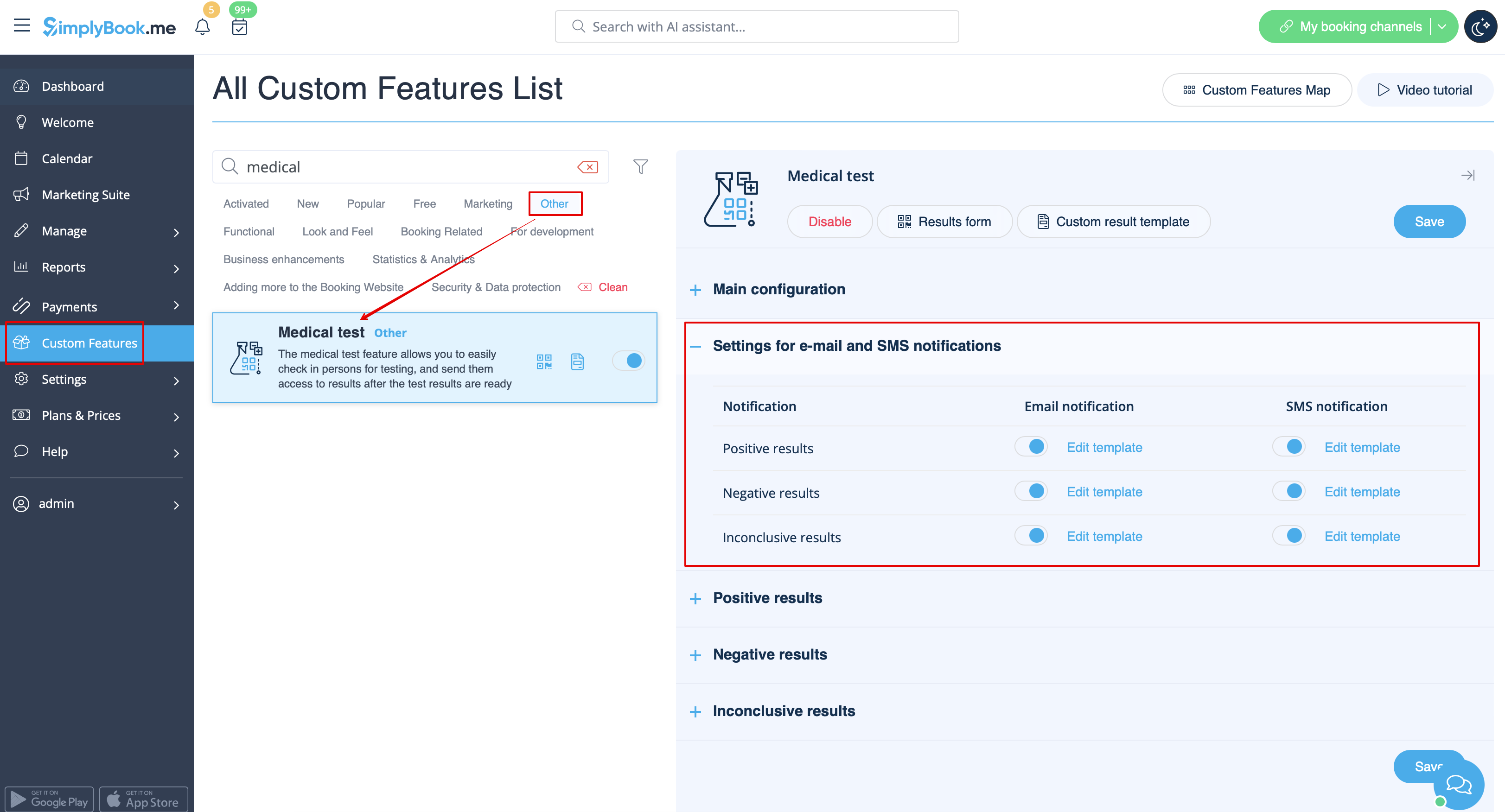
:3. Select whether you would like your clients to be informed about certain <span style="background-color:#d4f8e5; padding:5px; border-radius:5px;">test result</span> and <span style="background-color:#d4f8e5; padding:5px; border-radius:5px;">adjust the templates</span> below.
[[File:Medical test notifications settings redesigned.png|border|center|1200px|link=https://help.simplybook.me/images/3/34/Medical_test_notifications_settings_redesigned.png]]
<br><br>
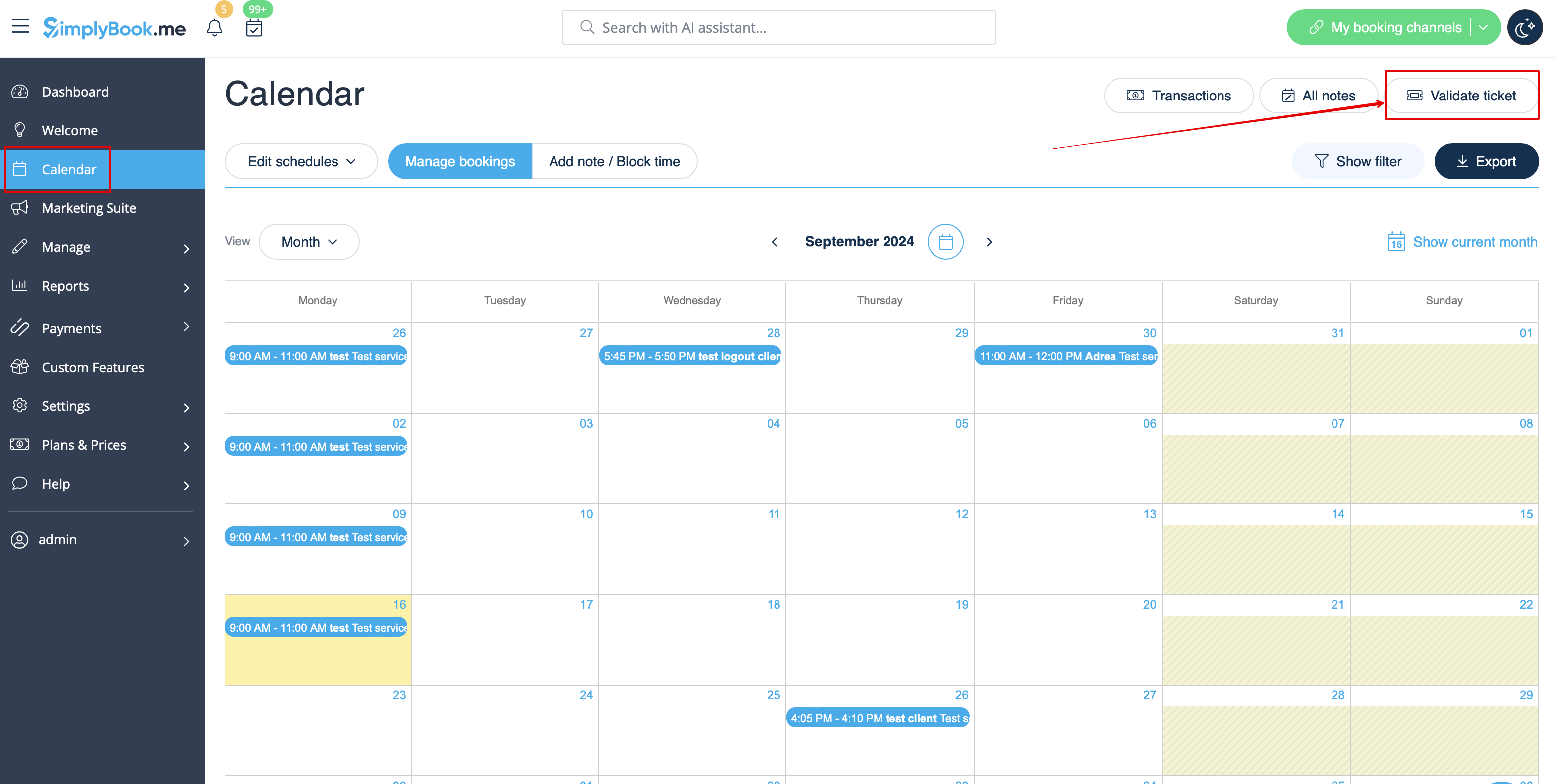
:4. Navigate to <span style="background-color:#d4f8e5; padding:5px; border-radius:5px;">Results form</span> to start working with the testing process by clicking on <span style="background-color:#cdeffc; padding:5px; border-radius:5px;">Validate ticket</span> button on the <span style="background-color:#cdeffc; padding:5px; border-radius:5px;">Calendar</span> page or by selecting <span style="background-color:#cdeffc; padding:5px; border-radius:5px;">Results form</span> near this feature in the <span style="background-color:#cdeffc; padding:5px; border-radius:5px;">Custom features</span> interface.<br>
[[File:Validate ticket path from calendar redesigned.png|1200px|border|center|link=https://help.simplybook.me/images/2/21/Validate_ticket_path_from_calendar_redesigned.png]]
<br><br>
3. Виберіть, чи хочете ви, щоб ваші клієнти отримували повідомлення про певні результати тестування, і налаштуйте шаблони нижче.


4. Перейдіть до форми «Результати», щоб розпочати роботу з процесом тестування, натиснувши кнопку «Перевірити квиток» на сторінці «Календар» або вибравши форму «Результати» поруч із цією функцією в інтерфейсі «Налаштування ».