Translations:Intake Forms custom feature/2/da: Difference between revisions

From SimplyBook.me
Created page with "sådan bruges :1. Aktivér den tilpassede funktion Intake Forms i Custom Feature//Adding more to the booking page. 1200px | center|link=https://help.simplybook.me/images/d/d7/Intake_forms_enable_path_redesigned.png <br><br> :2. Gå til administrationen eller til siden Administrer//Intake-formularer. File:Intake forms settings path redesinged.png|1200px | center|link=https://help.simplybook.me/images/6/64/Intake_forms_set..."
 
(No difference)

Latest revision as of 15:29, 19 May 2025

Information about message (contribute)
This message has no documentation. If you know where or how this message is used, you can help other translators by adding documentation to this message.
Message definition (Intake Forms custom feature)
;How to use
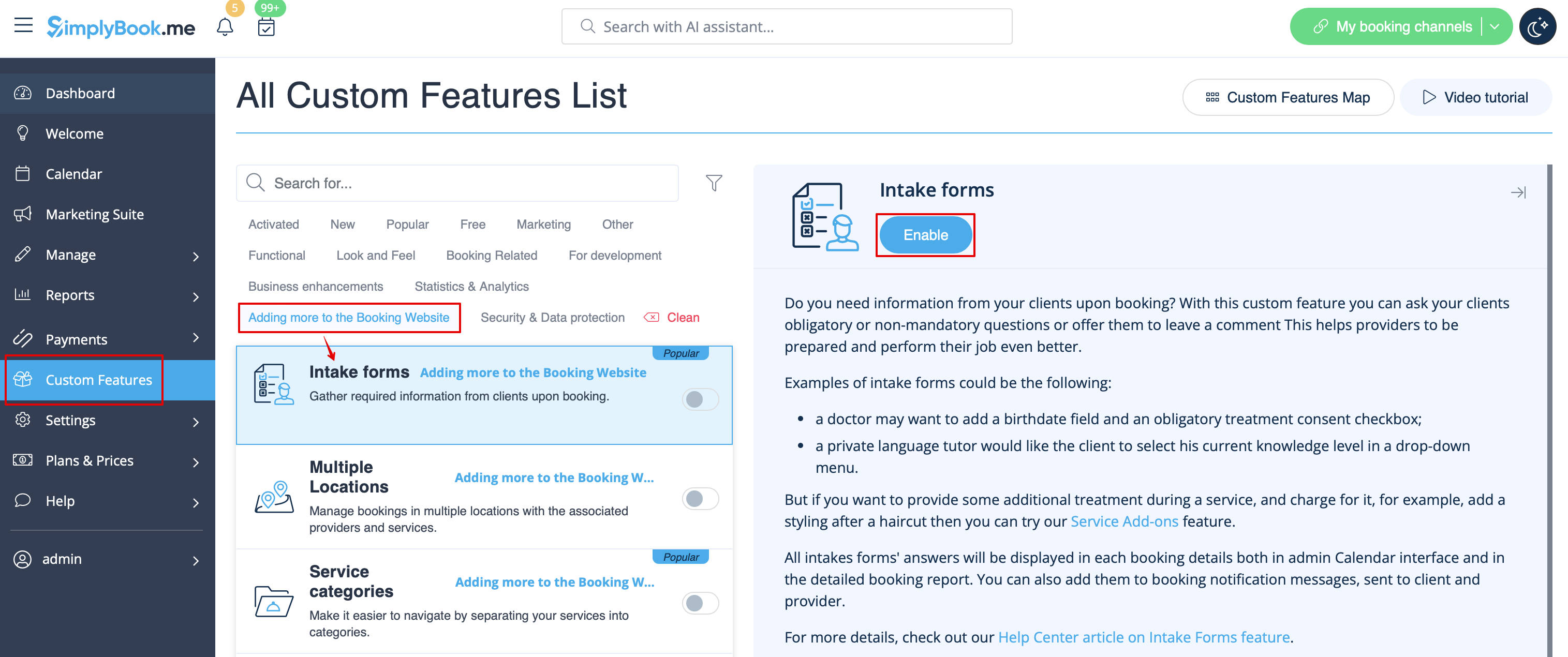
:1. Enable Intake Forms Custom Feature in the Custom Feature//Adding more to the booking page.
[[File:Intake forms enable path redesigned.png|1200px | center|link=https://help.simplybook.me/images/d/d7/Intake_forms_enable_path_redesigned.png]]
<br><br>
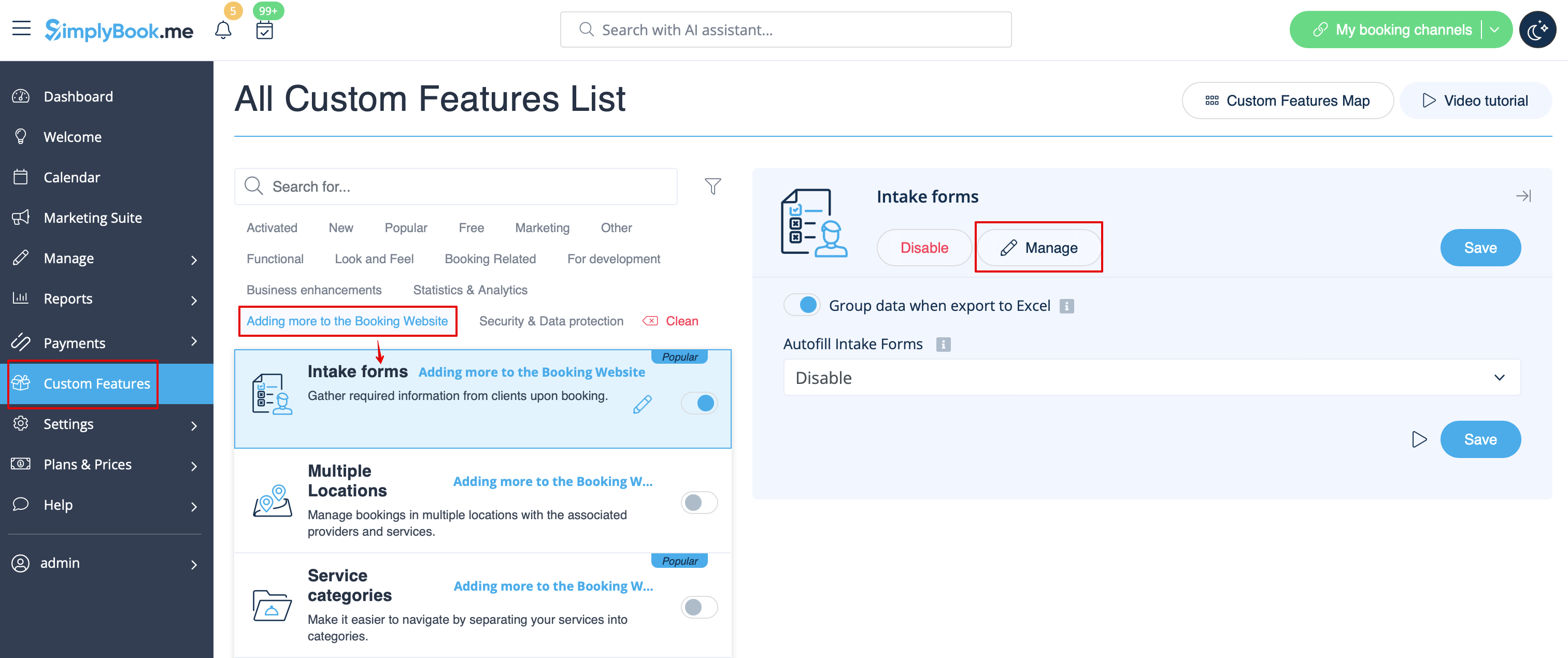
:2. Go to its management or to Manage//Intake forms page.
[[File:Intake forms settings path redesinged.png|1200px | center|link=https://help.simplybook.me/images/6/64/Intake_forms_settings_path_redesinged.png]]
<br><br>
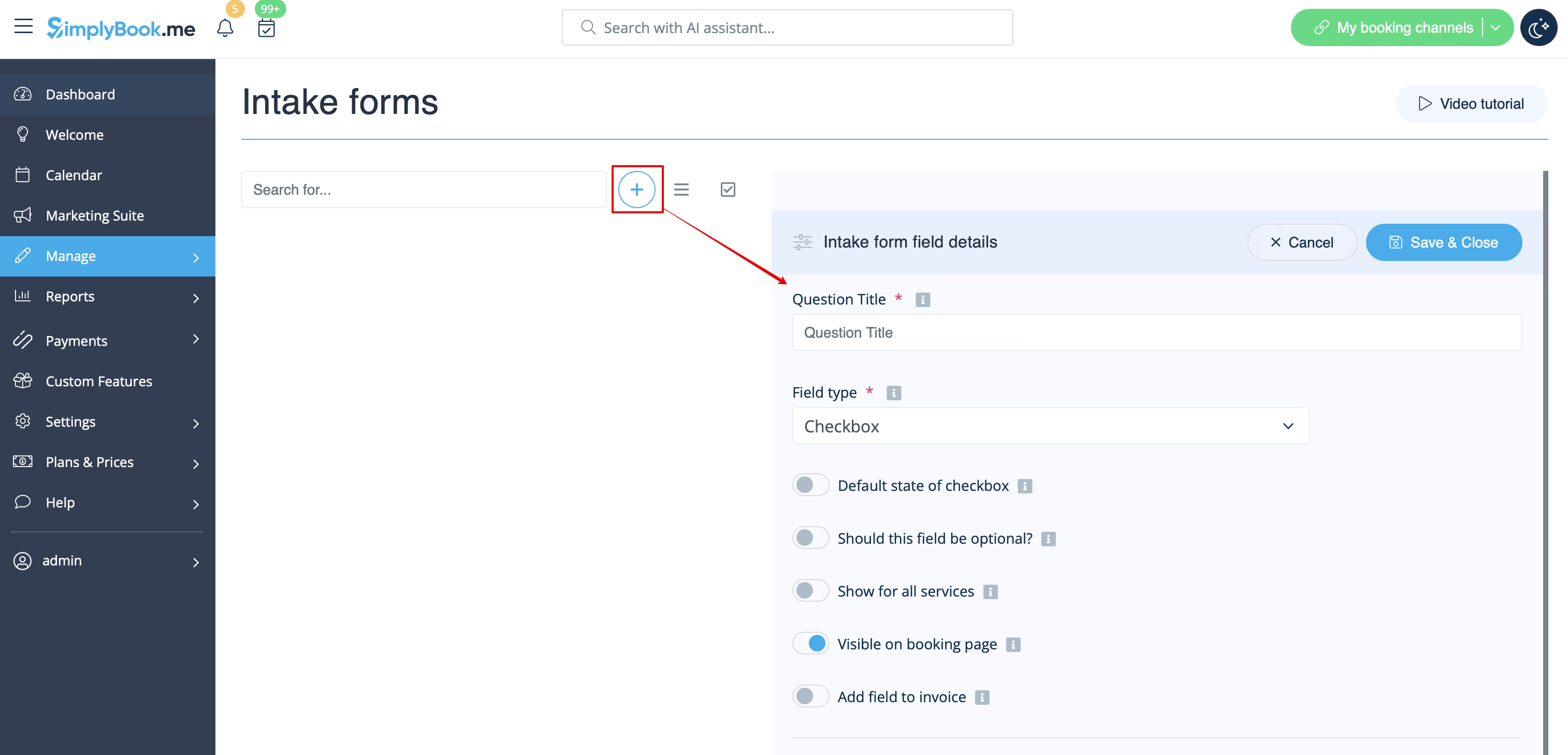
:3. Press "+" button in the settings of Custom Feature to create a new form.
[[File:New intake form form redesigned.png|1200px | center|link=https://help.simplybook.me/images/1/1c/New_intake_form_form_redesigned.png]]
<br><br>
:4. In the field "Question title" write the question you want your clients to answer. For example: Age, preferences, Do you have any health problems?, etc.
:5. Choose the field type:
:'''digits only''' - allows entering only numbers. Useful when you need to know the age, height or any other information that will require only digits.
:'''single line''' - usually used for short answers
:'''multiple lines''' - use this type of filed if you expect lengthy explanations from your clients
:'''checkbox''' - creates a checkbox that clients should either check or leave unchecked. Useful for questions that require binary answer, for example "I will need additional services".
:'''dropdown selection''' - creates a drop-down list with the ability to choose only 1 option. In order to create this field, you will need to create a list of values in the section "Dropdown options and default option". Also you can select the Default value that will be assigned if nothing is chosen from the list.
:'''date''' - creates date selection option with calendar.
:'''barcode''' - allows to scan barcodes via admin mobile application and get the values from scanning. Also allows simple text input like in single line intake forms.
:'''custom HTML''' - allows to add visual dividers or additional text near the intake form. Cannot be used for client input.
:'''file uploader - Google Drive''' - available if [[File Uploader - Google Drive custom feature]] is enabled. Allows file upload that you will be able to see in the dedicated folder on your Google Drive.
[[File:Intake forms types redesigned.png|1200px|border ‎|center|link=https://help.simplybook.me/images/1/1b/Intake_forms_types_redesigned.png]]
<br><br>
:6. Make it rather obligatory or not with the help of "optional" switcher.
:Include the field (both title and response will be included) to client invoices if you need and if you use [[Special:MyLanguage/Accept_payments_custom_feature|Accept payments]] custom feature.
:7. If you wish to relate form with certain services, choose "Services, attached to this field" tab and check the boxes near corresponding services.
[[File:Connect intake form to services redesigned.png|1200px| center|link=https://help.simplybook.me/images/6/66/Connect_intake_form_to_services_redesigned.png]]
<br><br>
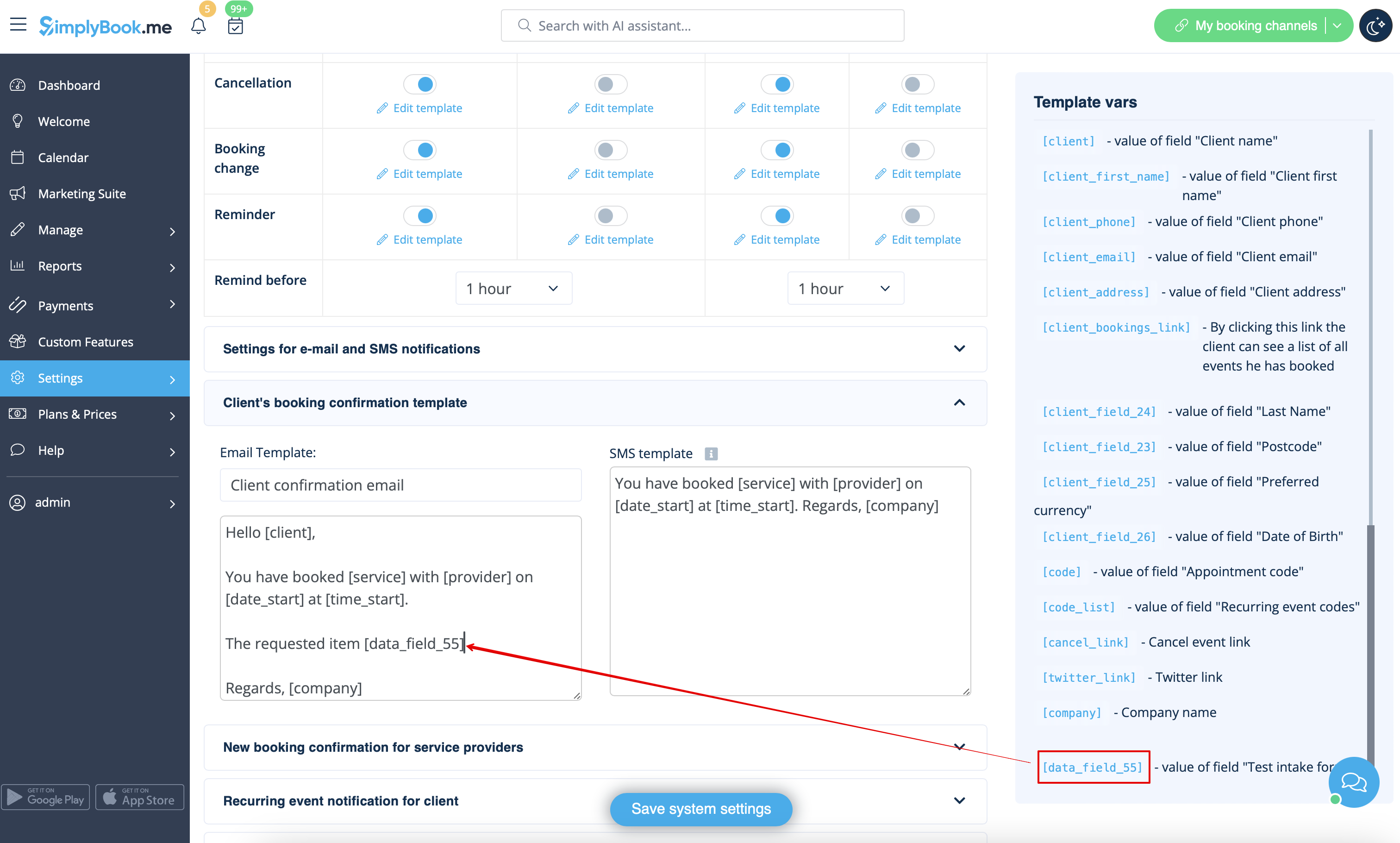
:8. If you want to include intake form information to email templates, find the intake forms variables and add them to templates in Settings//Email and SMS settings.
[[File:Add notification variable to template intake form redesigned.png|1200px | center|link=https://help.simplybook.me/images/5/59/Add_notification_variable_to_template_intake_form_redesigned.png]]
<br><br>

sådan bruges

1. Aktivér den tilpassede funktion Intake Forms i Custom Feature//Adding more to the booking page.


2. Gå til administrationen eller til siden Administrer//Intake-formularer.


3. Tryk på knappen "+" i indstillingerne for Tilpasset funktion for at oprette en ny formular.


4. I feltet "Spørgsmålstitel" skriver du det spørgsmål, du ønsker, at dine kunder skal besvare. For eksempel: Alder, præferencer, Har du helbredsproblemer? osv.
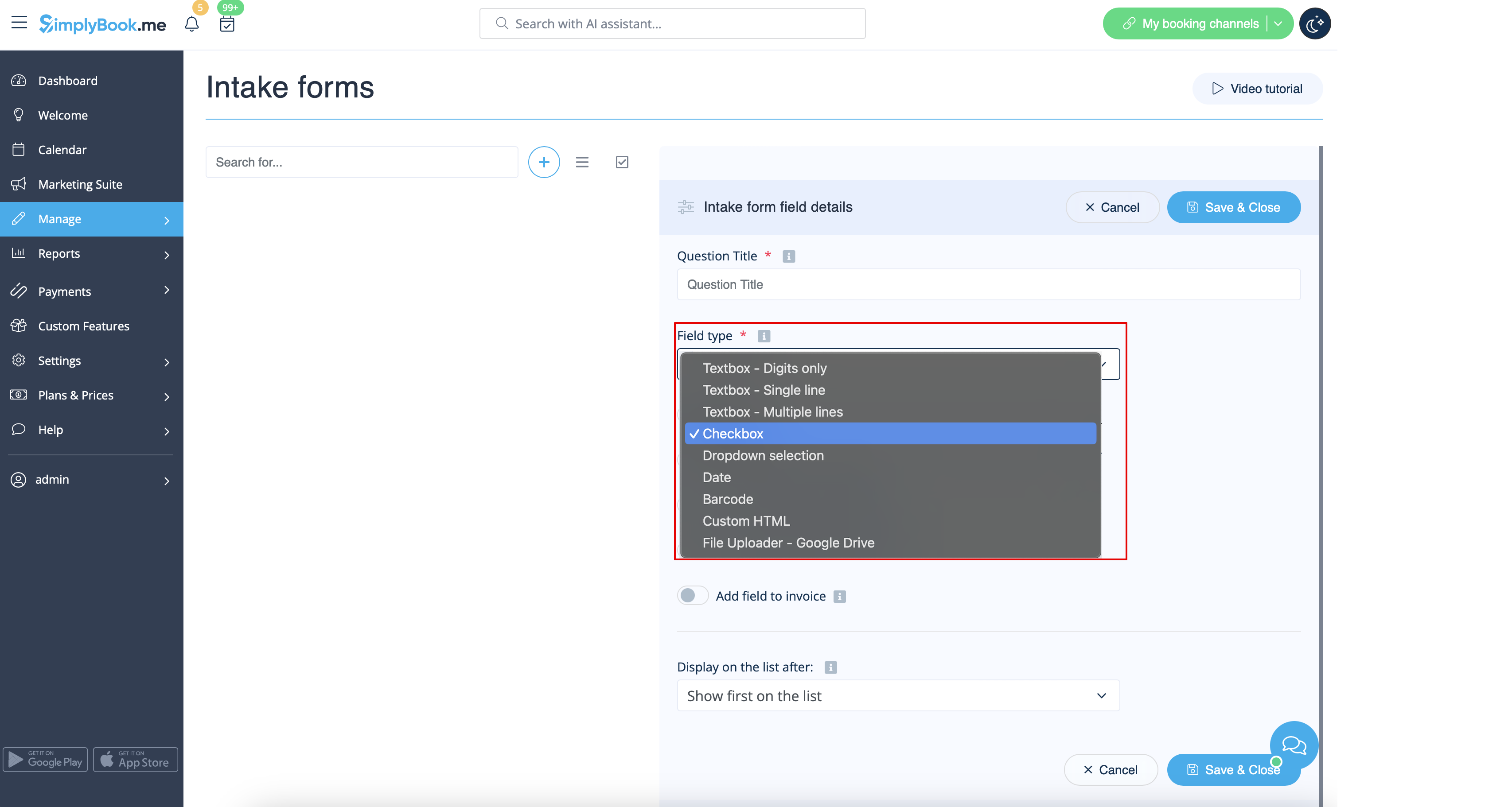
5. Vælg felttype:
digits only - tillader kun indtastning af tal. Nyttigt, når du har brug for at kende alder, højde eller andre oplysninger, der kun kræver tal.
single line - bruges normalt til korte svar
multiple lines - brug denne felttype, hvis du forventer lange forklaringer fra dine kunder
checkbox - opretter et afkrydsningsfelt, som kunderne skal markere eller lade være umarkeret. Nyttigt til spørgsmål, der kræver et binært svar, for eksempel "Jeg har brug for yderligere tjenester".
dropdown selection - opretter en rulleliste, hvor der kun kan vælges 1 mulighed. For at oprette dette felt skal du oprette en liste med værdier i afsnittet "Dropdown-muligheder og standardmulighed". Du kan også vælge den standardværdi, der tildeles, hvis der ikke vælges noget fra listen.
date - opretter en dato-valgmulighed med kalender.
barcode - gør det muligt at scanne stregkoder via admin-mobilapplikationen og hente værdierne fra scanningen. Muliggør også enkel tekstindtastning som i enkeltlinjede indtastningsformularer.
custom HTML - gør det muligt at tilføje visuelle skillelinjer eller yderligere tekst i nærheden af indtastningsformularen. Kan ikke bruges til klientindgang.
file uploader - Google Drive - tilgængelig, hvis File Uploader - Google Drive-tilføjelsesfunktion er aktiveret. Giver mulighed for filoverførsel, som du kan se i den dedikerede mappe på din Google Drive.
border ‎
border ‎


6. Gør det obligatorisk eller valgfrit ved hjælp af "valgfri" knappen.
Inkluder feltet (både titel og svar vil blive inkluderet) på kundefakturaer, hvis du har brug for det, og hvis du bruger den tilpassede funktion Accept betalinger.
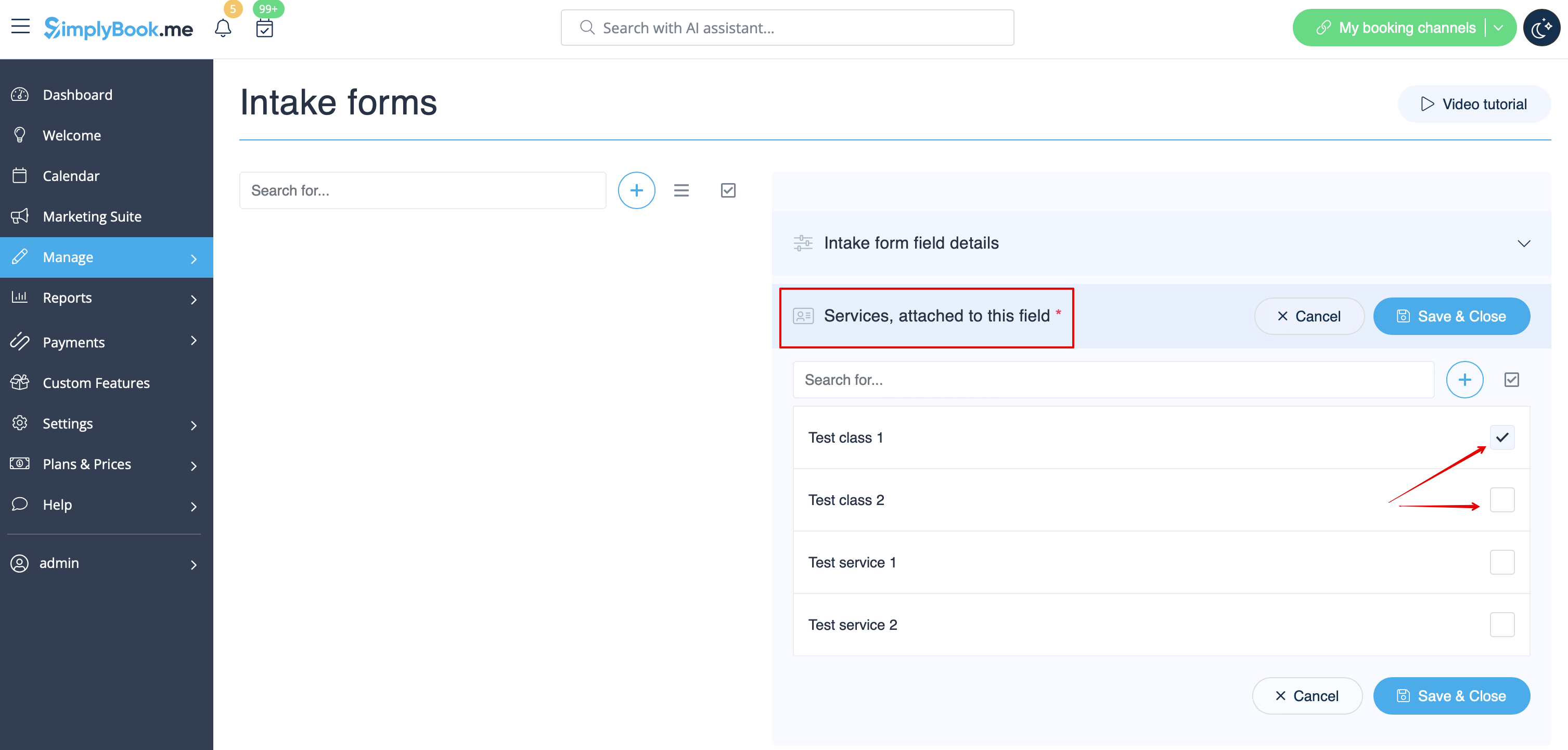
7. Hvis du ønsker at knytte formularen til bestemte tjenester, skal du vælge fanen "Tjenester, knyttet til dette felt" og markere afkrydsningsfelterne ud for de relevante tjenester.


8. Hvis du vil inkludere oplysninger fra indtastningsformularen i e-mailskabeloner, skal du finde variablerne for indtastningsformularer og tilføje dem til skabeloner i Indstillinger//E-mail- og SMS-indstillinger.